

सिस्टम की ओर से तय किए गए नेटिव फ़ॉर्मैट के अलावा, Ad Manager के पब्लिशर के पास यह विकल्प होता है कि वे ऐसेट की कस्टम सूचियां तय करके, अपने नेटिव विज्ञापन फ़ॉर्मैट बना सकें. इन्हें कस्टम नेटिव विज्ञापन
फ़ॉर्मैट कहा जाता है. इनका इस्तेमाल
रिज़र्व किए गए विज्ञापनों के साथ किया जा सकता है. इससे पब्लिशर, अपने ऐप्लिकेशन को स्ट्रक्चर्ड डेटा भेज पाते हैं. इन विज्ञापनों को
NativeCustomFormatAd
ऑब्जेक्ट से दिखाया जाता है.
कस्टम नेटिव विज्ञापन फ़ॉर्मैट लोड करना
इस गाइड में, कस्टम नेटिव विज्ञापन फ़ॉर्मैट लोड करने और दिखाने का तरीका बताया गया है.
कस्टम नेटिव विज्ञापन लोड करना
कस्टम नेटिव विज्ञापन लोड करने के लिए, यह तरीका अपनाएं:
NativeAdRequestमें,NativeAdType.CUSTOM_NATIVEटाइप को विज्ञापन के टाइप के तौर पर शामिल करें.कस्टम नेटिव विज्ञापन का फ़ॉर्मैट आईडी सेट करें.
Kotlin
Java
कस्टम नेटिव विज्ञापन फ़ॉर्मैट आईडी
कस्टम नेटिव विज्ञापन फ़ॉर्मैट की पहचान करने के लिए इस्तेमाल किया जाने वाला फ़ॉर्मैट आईडी, Ad Manager के यूज़र इंटरफ़ेस (यूआई) में डिलीवरी ड्रॉप-डाउन में मौजूद नेटिव सेक्शन में देखा जा सकता है:
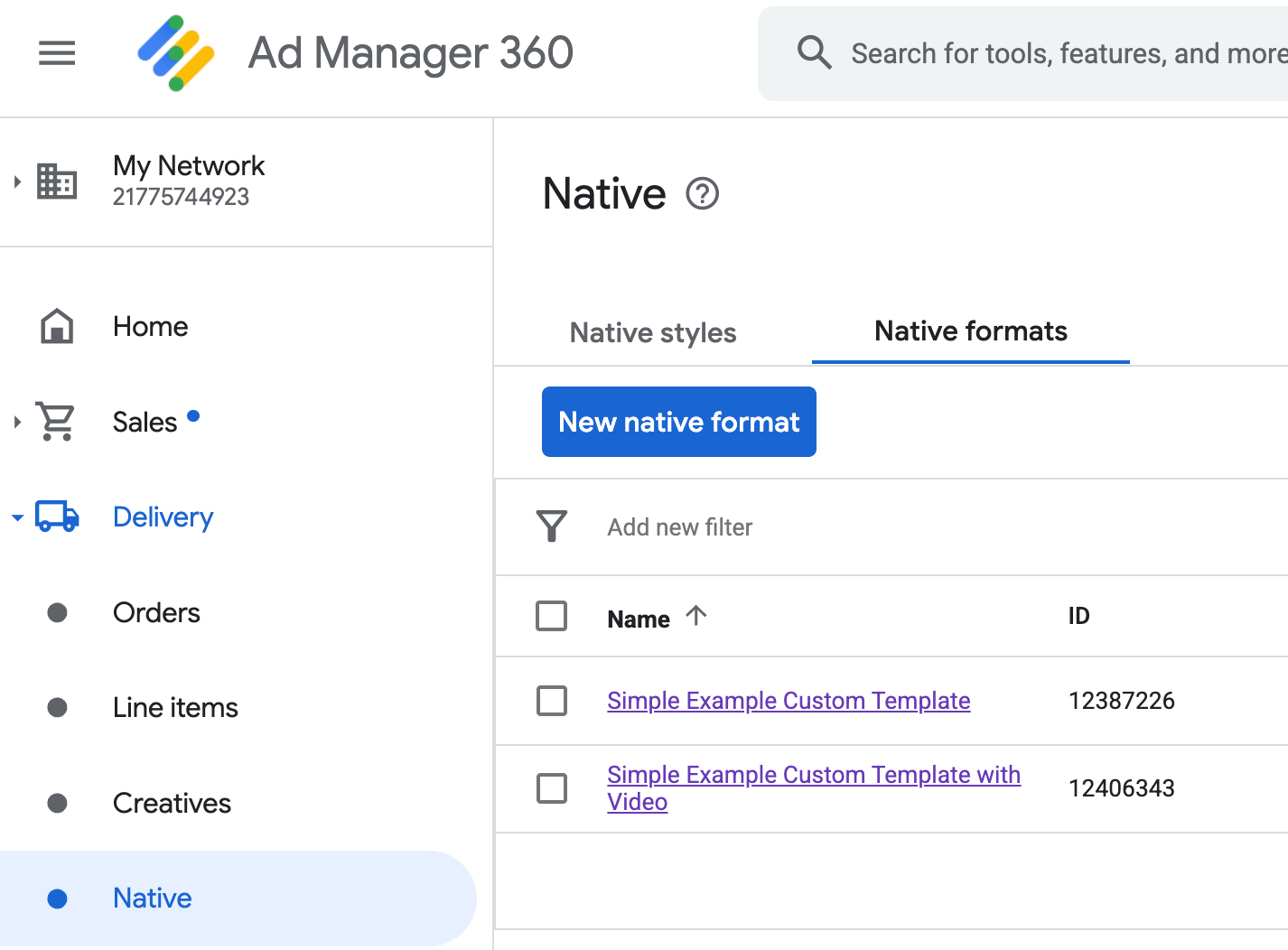
हर कस्टम नेटिव विज्ञापन फ़ॉर्मैट आईडी, उसके नाम के बगल में दिखता है. किसी नाम पर क्लिक करने से, आपको ज़्यादा जानकारी वाली स्क्रीन पर ले जाया जाता है. इसमें फ़ॉर्मैट के फ़ील्ड के बारे में जानकारी दिखती है:
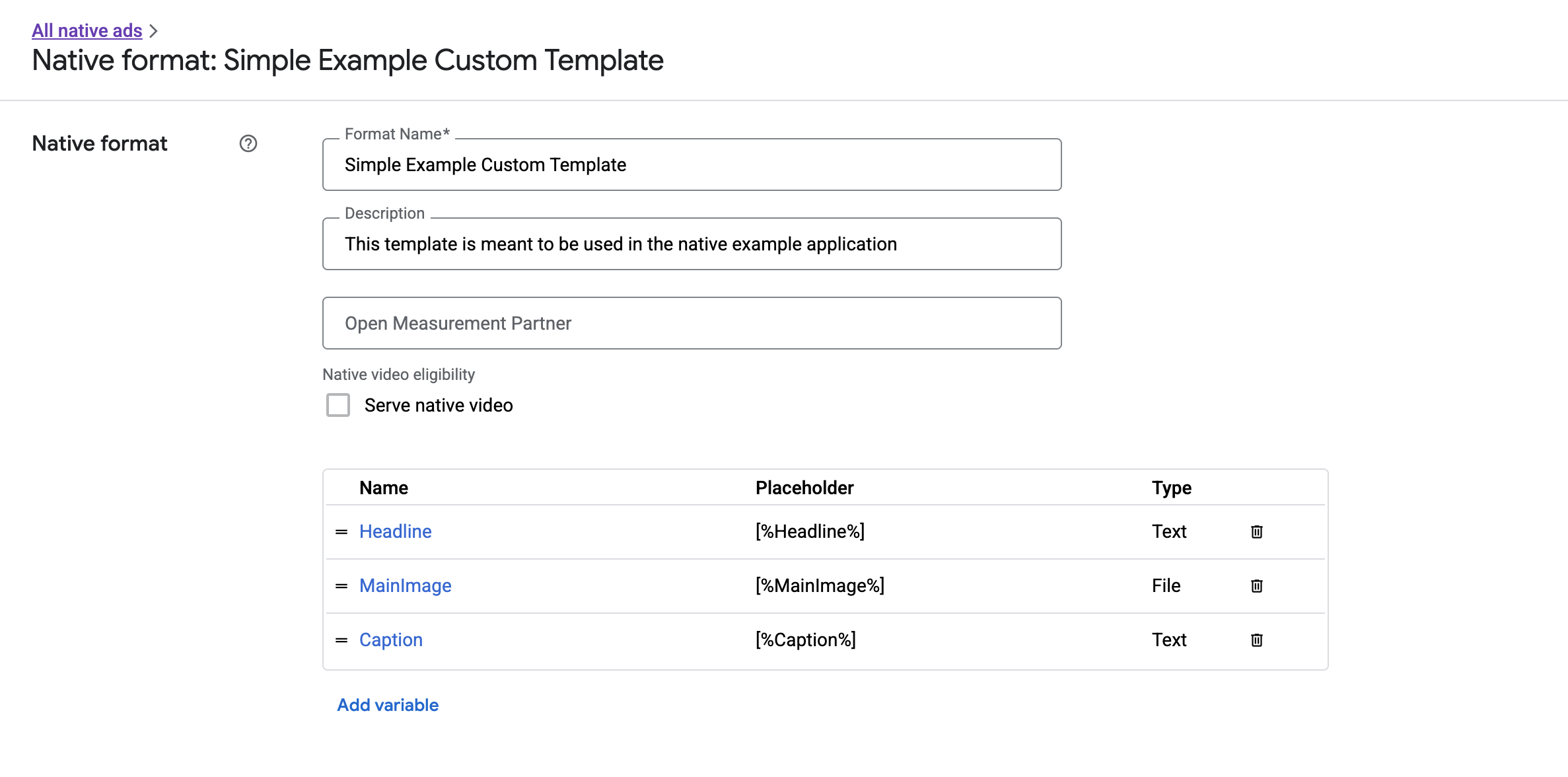
यहां से, अलग-अलग फ़ील्ड जोड़े, एडिट किए, और हटाए जा सकते हैं. हर ऐसेट का नाम नोट करें. नाम, वह कुंजी होती है जिसका इस्तेमाल, कस्टम नेटिव विज्ञापन फ़ॉर्मैट दिखाते समय हर ऐसेट का डेटा पाने के लिए किया जाता है.
कस्टम नेटिव विज्ञापन फ़ॉर्मैट दिखाना
कस्टम नेटिव विज्ञापन फ़ॉर्मैट, सिस्टम की ओर से तय किए गए फ़ॉर्मैट से इस मामले में अलग होते हैं कि पब्लिशर के पास ऐसेट की अपनी सूची तय करने का विकल्प होता है. इन ऐसेट से मिलकर कोई विज्ञापन बनता है. इसलिए, इन्हें दिखाने की प्रोसेस, सिस्टम की ओर से तय किए गए फ़ॉर्मैट से कुछ मामलों में अलग होती है:
- टेक्स्ट और इमेज ऐसेट,
getText()औरgetImage()गेटर के ज़रिए उपलब्ध होती हैं. ये गेटर, फ़ील्ड के नाम को पैरामीटर के तौर पर लेते हैं. - Google के साथ रजिस्टर करने के लिए, कोई खास
ViewGroupक्लास नहीं होती. इसलिए, आपको इंप्रेशन और क्लिक मैन्युअल तरीके से रिकॉर्ड करने होंगे. - अगर कस्टम नेटिव विज्ञापन में वीडियो ऐसेट शामिल नहीं है, तो उसमें मीडिया कॉन्टेंट
nullहोता है.
इस उदाहरण में, CustomNativeAd दिखाने का तरीका बताया गया है:
Kotlin
private fun displayCustomNativeAd(customNativeAd: CustomNativeAd, context: Context) {
// Render the text elements.
// The `customNativeAdBinding` is the layout binding for the ad container that
// contains all `CustomNativeAd` assets.
customNativeAdBinding.headline.text = customNativeAd.getText("Headline")
customNativeAdBinding.caption.text = customNativeAd.getText("Caption")
// If the main asset is an image, render it with an ImageView.
val imageView = ImageView(context)
imageView.adjustViewBounds = true
imageView.setImageDrawable(customNativeAd.getImage("MainImage")?.drawable)
imageView.setOnClickListener { customNativeAd.performClick("MainImage") }
customNativeAdBinding.mediaPlaceholder.addView(imageView)
// Render the ad choices icon.
renderAdChoices(customNativeAd)
// Record an impression.
customNativeAd.recordImpression()
}
Java
private void displayCustomNativeAd(CustomNativeAd customNativeAd, Context context) {
// Render the text elements.
// The `customNativeAdBinding` is the layout binding for the ad container that
// contains all `CustomNativeAd` assets.
if (customNativeAdBinding != null) {
customNativeAdBinding.headline.setText(customNativeAd.getText("Headline"));
customNativeAdBinding.caption.setText(customNativeAd.getText("Caption"));
ImageView imageView = new ImageView(context);
imageView.setAdjustViewBounds(true);
imageView.setImageDrawable(customNativeAd.getImage("MainImage").getDrawable());
imageView.setOnClickListener(
new View.OnClickListener() {
@Override
public void onClick(View v) {
customNativeAd.performClick("MainImage");
}
});
customNativeAdBinding.mediaPlaceholder.addView(imageView);
// Render the ad choices icon.
renderAdChoices(customNativeAd);
// Record an impression.
customNativeAd.recordImpression();
}
}
कस्टम नेटिव विज्ञापन फ़ॉर्मैट के लिए नेटिव वीडियो
कस्टम फ़ॉर्मैट बनाते समय, आपके पास फ़ॉर्मैट को वीडियो के लिए ज़रूरी शर्तें पूरी करने वाला बनाने का विकल्प होता है.
अपने ऐप्लिकेशन के लागू करने के तरीके में, CustomNativeAd.getMediaContent()
मीडिया कॉन्टेंट पाने के लिए इस्तेमाल किया जा सकता है. इसके बाद, अपने मीडिया व्यू पर मीडिया कॉन्टेंट सेट करने के लिए, setMediaContent()
को कॉल करें.
अगर विज्ञापन में मीडिया कॉन्टेंट null है, तो वीडियो के बिना विज्ञापन दिखाने के लिए कोई दूसरा तरीका अपनाएं.
यहां दिए गए उदाहरण में, यह देखा जाता है कि विज्ञापन में वीडियो वाला कॉन्टेंट है या नहीं. अगर वीडियो उपलब्ध नहीं है, तो उसकी जगह कोई इमेज दिखाई जाती है:
Kotlin
private fun displayVideoCustomNativeAd(customNativeAd: CustomNativeAd, context: Context) {
// Check whether the custom native ad has video content.
val mediaContent = customNativeAd.mediaContent
if (mediaContent != null && mediaContent.hasVideoContent) {
// Render the media content in a MediaView.
val mediaView = MediaView(context)
mediaView.mediaContent = mediaContent
customNativeAdBinding.mediaPlaceholder.addView(mediaView)
} else {
// Fall back to other assets defined on your custom native ad.
val imageView = ImageView(context)
imageView.adjustViewBounds = true
imageView.setImageDrawable(customNativeAd.getImage("MainImage")?.drawable)
customNativeAdBinding.mediaPlaceholder.addView(imageView)
}
// Record an impression.
customNativeAd.recordImpression()
}
Java
private void displayVideoCustomNativeAd(CustomNativeAd customNativeAd, Context context) {
// Check whether the custom native ad has video content.
MediaContent mediaContent = customNativeAd.getMediaContent();
if (mediaContent != null && mediaContent.getHasVideoContent()) {
// Render the media content in a MediaView.
MediaView mediaView = new MediaView(context);
mediaView.setMediaContent(mediaContent);
customNativeAdBinding.mediaPlaceholder.addView(mediaView);
} else {
// Fall back to other assets defined on your custom native ad.
ImageView imageView = new ImageView(context);
imageView.setAdjustViewBounds(true);
imageView.setImageDrawable(customNativeAd.getImage("MainImage").getDrawable());
customNativeAdBinding.mediaPlaceholder.addView(imageView);
}
// Record an impression.
customNativeAd.recordImpression();
}
कस्टम नेटिव विज्ञापन के वीडियो अनुभव को मनमुताबिक बनाने के तरीके के बारे में ज़्यादा जानने के लिए, वीडियो विज्ञापन देखें.
AdChoices आइकॉन रेंडर करना
डिजिटल सर्विसेज़ ऐक्ट (डीएसए) के तहत, यूरोपियन इकनॉमिक एरिया (ईईए) में रिज़र्वेशन करके दिखाए जाने वाले विज्ञापनों के लिए AdChoices आइकॉन और Google के 'विज्ञापन के बारे में जानकारी' पेज का लिंक ज़रूरी है. कस्टम नेटिव विज्ञापन लागू करते समय, AdChoices आइकॉन रेंडर करने की ज़िम्मेदारी आपकी होती है. हमारा सुझाव है कि मुख्य विज्ञापन की ऐसेट रेंडर करते समय, AdChoices आइकॉन को रेंडर करने और उसके लिए क्लिक लिसनर सेट करने के लिए ज़रूरी कदम उठाएं.
यहां दिए गए उदाहरण में, यह माना गया है कि आपने AdChoices लोगो को रखने के लिए, अपने व्यू हैरारकी (व्यू और व्यू ग्रुप के लेआउट का क्रम) में <ImageView /> एलिमेंट तय किया है.
<LinearLayout xmlns:android="http://schemas.android.com/apk/res/android">
    <ImageView
        android:id="@+id/adChoices"
        android:layout_width="15dp"
        android:layout_height="15dp"
        android:adjustViewBounds="true"
        android:contentDescription="AdChoices icon." />
</LinearLayout>
यहां दिए गए उदाहरण में, AdChoices आइकॉन रेंडर किया गया है और क्लिक करने पर होने वाले सही व्यवहार को कॉन्फ़िगर किया गया है.
Kotlin
private fun renderAdChoices(customNativeAd: CustomNativeAd) {
// Render the AdChoices image.
val adChoiceAsset = customNativeAd.getImage(NativeAdAssetNames.ASSET_ADCHOICES_CONTAINER_VIEW)
if (adChoiceAsset != null) {
customNativeAdBinding.adchoices.setImageDrawable(adChoiceAsset.drawable)
customNativeAdBinding.adchoices.visibility = View.VISIBLE
customNativeAdBinding.adchoices.setOnClickListener {
// Handle click. See the next section for more details.
customNativeAd.performClick(NativeAdAssetNames.ASSET_ADCHOICES_CONTAINER_VIEW)
}
} else {
customNativeAdBinding.adchoices.visibility = View.GONE
}
}
Java
private void renderAdChoices(CustomNativeAd customNativeAd) {
// Render the AdChoices image.
Image adChoiceAsset =
customNativeAd.getImage(NativeAdAssetNames.ASSET_ADCHOICES_CONTAINER_VIEW);
if (adChoiceAsset != null) {
if (customNativeAdBinding != null) {
customNativeAdBinding.adchoices.setImageDrawable(adChoiceAsset.getDrawable());
customNativeAdBinding.adchoices.setVisibility(View.VISIBLE);
customNativeAdBinding.adchoices.setOnClickListener(
new View.OnClickListener() {
@Override
public void onClick(View v) {
// Handle click.
customNativeAd.performClick(NativeAdAssetNames.ASSET_ADCHOICES_CONTAINER_VIEW);
}
});
}
} else {
if (customNativeAdBinding != null) {
customNativeAdBinding.adchoices.setVisibility(View.GONE);
}
}
}
इंप्रेशन रिकॉर्ड करना और क्लिक की रिपोर्ट करना
आपके ऐप्लिकेशन की ज़िम्मेदारी है कि वह इंप्रेशन रिकॉर्ड करे और क्लिक इवेंट की रिपोर्ट करे GMA Next-Gen SDK.
इंप्रेशन रिकॉर्ड करना
कस्टम नेटिव विज्ञापन के लिए इंप्रेशन रिकॉर्ड करने के लिए, विज्ञापन के recordImpression() तरीके को कॉल करें:
Kotlin
// Record an impression.
customNativeAd.recordImpression()
Java
// Record an impression.
customNativeAd.recordImpression();
अगर आपका ऐप्लिकेशन, एक ही विज्ञापन के लिए गलती से इस तरीके को दो बार कॉल करता है, तो SDK एक ही अनुरोध के लिए डुप्लीकेट इंप्रेशन रिकॉर्ड होने से अपने-आप रोक देता है.
क्लिक की रिपोर्ट करना
SDK को यह बताने के लिए कि किसी ऐसेट व्यू पर क्लिक हुआ है, विज्ञापन के performClick() तरीके को कॉल करें. उस ऐसेट का नाम दें जिस पर क्लिक किया गया है. इसके लिए, Ad Manager के यूज़र इंटरफ़ेस (यूआई) में तय की गई स्ट्रिंग का इस्तेमाल करें.
Kotlin
imageView.setOnClickListener { customNativeAd.performClick("MainImage") }
Java
imageView.setOnClickListener(
new View.OnClickListener() {
@Override
public void onClick(View v) {
customNativeAd.performClick("MainImage");
}
});
ध्यान दें कि आपको अपने विज्ञापन से जुड़े हर व्यू के लिए, इस तरीके को कॉल करने की ज़रूरत नहीं है. अगर आपके पास "कैप्शन" नाम का कोई दूसरा फ़ील्ड है, जिसे दिखाया जाना है, लेकिन उपयोगकर्ता ने उस पर क्लिक या टैप नहीं किया है, तो आपके ऐप्लिकेशन को उस ऐसेट के व्यू के लिए performClick को कॉल करने की ज़रूरत नहीं होगी.
कस्टम क्लिक ऐक्शन का जवाब देना
कस्टम फ़ॉर्मैट वाले विज्ञापन पर क्लिक करने पर, SDK से तीन तरह के जवाब मिल सकते हैं. ये जवाब इस क्रम में दिए जाते हैं:
- अगर
OnCustomClickListenerदिया गया है, तो उसे लागू करें. - विज्ञापन के हर डीप लिंक यूआरएल के लिए, कॉन्टेंट रिज़ॉल्वर ढूंढने की कोशिश करें और रिज़ॉल्व होने वाले पहले यूआरएल को शुरू करें.
- कोई ब्राउज़र खोलें और विज्ञापन के डेस्टिनेशन यूआरएल पर जाएं.
कस्टम क्लिक ऐक्शन लागू करने के लिए, OnCustomClickListener दें:
Kotlin
customNativeAd.onCustomClickListener =
object : OnCustomClickListener {
override fun onCustomClick(assetName: String) {
// Perform your custom action.
}
}
Java
customNativeAd.setOnCustomClickListener(
new OnCustomClickListener() {
@Override
public void onCustomClick(@NonNull String assetName) {
// Perform your custom action.
}
});
शुरुआत में, ऐसा लग सकता है कि कस्टम क्लिक लिसनर का होना अजीब है. आखिरकार, आपके ऐप्लिकेशन ने SDK को बताया है कि कोई क्लिक हुआ है. ऐसे में, SDK को उस क्लिक की रिपोर्ट आपके ऐप्लिकेशन को क्यों करनी चाहिए?
जानकारी का यह फ़्लो कई वजहों से काम का है. हालांकि, सबसे अहम बात यह है कि इससे SDK को क्लिक के जवाब पर कंट्रोल बनाए रखने में मदद मिलती है. उदाहरण के लिए, यह क्रिएटिव के लिए सेट किए गए तीसरे पक्ष से ट्रैकिंग यूआरएल को अपने-आप पिंग कर सकता है. साथ ही, पर्दे के पीछे अन्य टास्क को बिना किसी अतिरिक्त कोड के मैनेज कर सकता है.