

นอกเหนือจากรูปแบบโฆษณาเนทีฟที่ระบบกำหนดไว้ ผู้เผยแพร่โฆษณา Ad Manager ยังมีตัวเลือกในการสร้างรูปแบบโฆษณาเนทีฟของตนเองโดยการกำหนดรายการชิ้นงานที่กำหนดเอง ซึ่งเรียกว่ารูปแบบโฆษณาเนทีฟที่กำหนดเอง และสามารถใช้กับโฆษณาที่สงวนไว้ได้ ซึ่งช่วยให้ผู้เผยแพร่โฆษณาส่งข้อมูลที่มีโครงสร้างที่กำหนดเองไปยังแอปได้ โฆษณาเหล่านี้แสดงด้วย
NativeCustomFormatAd
ออบเจ็กต์
โหลดรูปแบบโฆษณาเนทีฟที่กำหนดเอง
คู่มือนี้อธิบายวิธีโหลดและแสดงรูปแบบโฆษณาเนทีฟที่กำหนดเอง
โหลดโฆษณาเนทีฟที่กำหนดเอง
หากต้องการโหลดโฆษณาเนทีฟที่กำหนดเอง ให้ทำดังนี้
รวมประเภท
NativeAdType.CUSTOM_NATIVEเป็นประเภทโฆษณาในNativeAdRequestตั้งค่ารหัสรูปแบบของโฆษณาเนทีฟที่กำหนดเอง
Kotlin
Java
รหัสรูปแบบโฆษณาเนทีฟที่กำหนดเอง
คุณดูรหัสรูปแบบที่ใช้ระบุรูปแบบโฆษณาเนทีฟที่กำหนดเองได้ใน UI ของ Ad Manager ในส่วนเนทีฟ ภายในเมนูแบบเลื่อนลงการแสดงโฆษณา ดังนี้
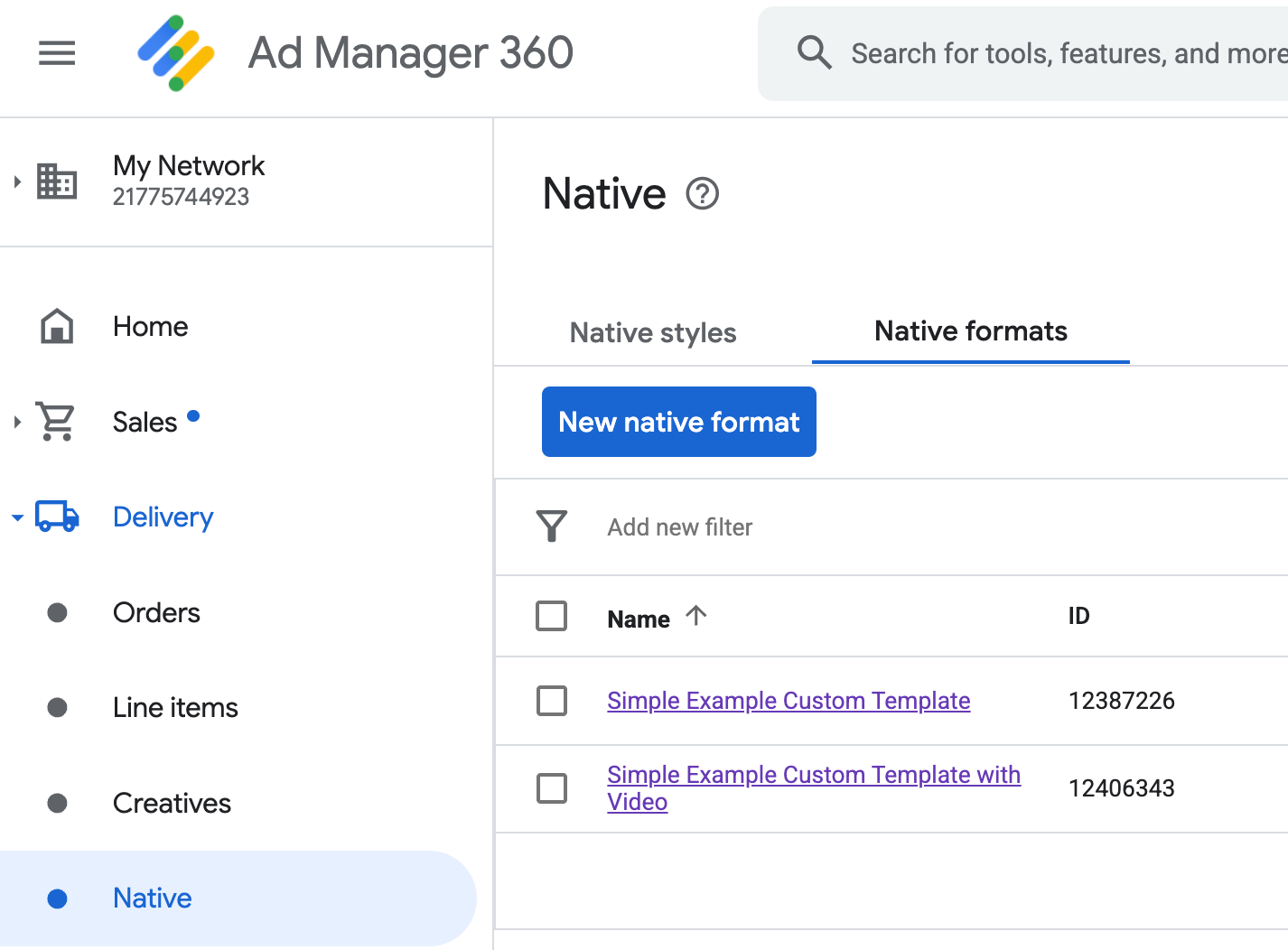
รหัสรูปแบบโฆษณาเนทีฟที่กำหนดเองแต่ละรายการจะปรากฏข้างชื่อ การคลิกชื่อใดชื่อหนึ่งจะนำคุณไปยังหน้าจอรายละเอียดที่แสดงข้อมูลเกี่ยวกับช่องของรูปแบบ
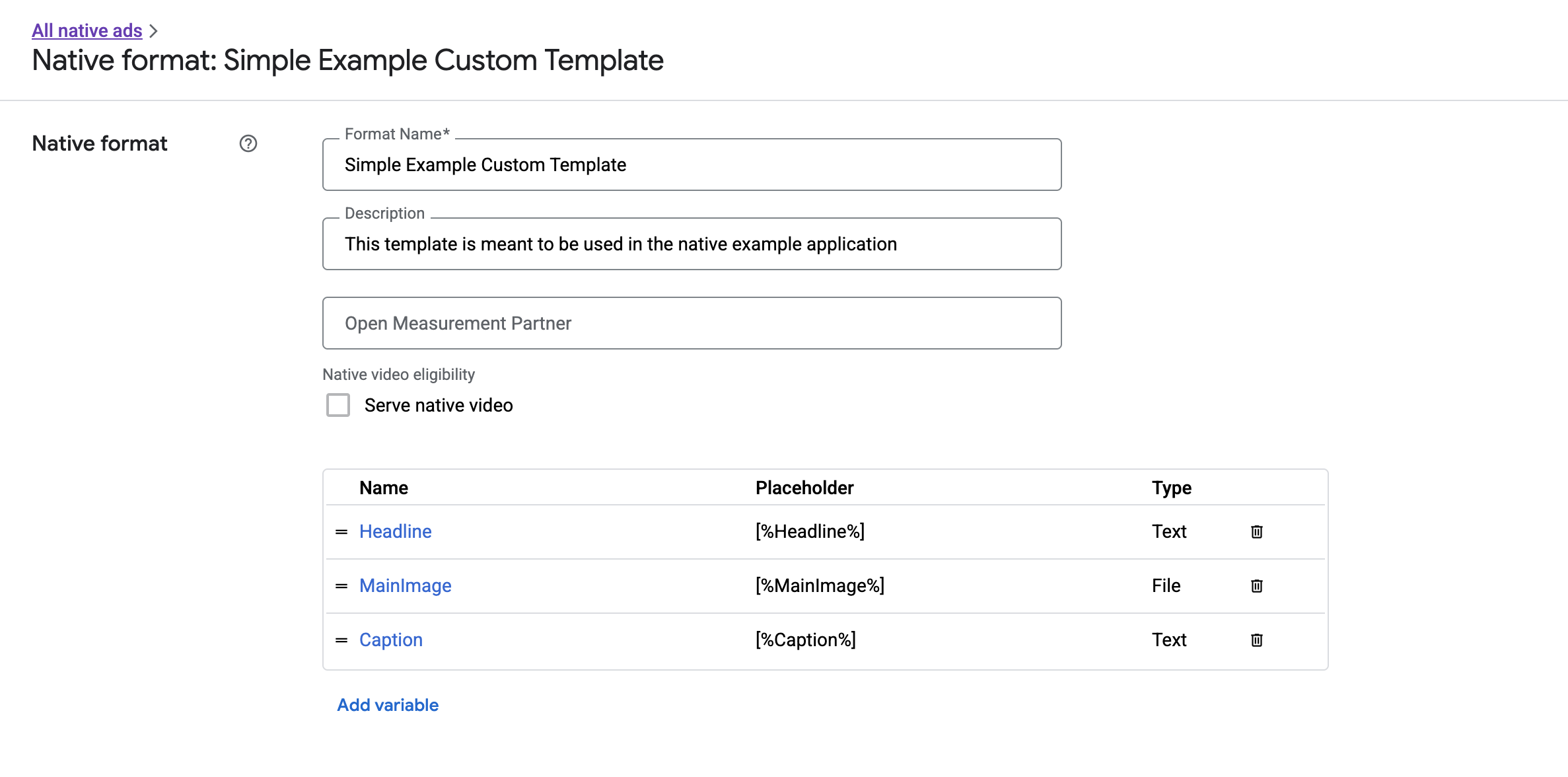
จากตรงนี้ คุณจะเพิ่ม แก้ไข และนำช่องแต่ละช่องออกได้ โปรดทราบชื่อ ของชิ้นงานแต่ละรายการ ชื่อนี้เป็นคีย์ที่ใช้รับข้อมูลสำหรับชิ้นงานแต่ละรายการเมื่อแสดงรูปแบบโฆษณาเนทีฟที่กำหนดเอง
แสดงรูปแบบโฆษณาเนทีฟที่กำหนดเอง
รูปแบบโฆษณาเนทีฟที่กำหนดเองแตกต่างจากรูปแบบที่ระบบกำหนดไว้ตรงที่ผู้เผยแพร่โฆษณามีสิทธิ์กำหนดรายการชิ้นงานของตนเองที่ประกอบกันเป็นโฆษณา ดังนั้น กระบวนการแสดงโฆษณาจึงแตกต่างจากรูปแบบที่ระบบกำหนดไว้ในบางประการ ดังนี้
- ชิ้นงานข้อความและชิ้นงานรูปภาพจะใช้ได้ผ่าน Getter
getText()และgetImage()ที่ใช้ชื่อช่องเป็นพารามิเตอร์ - เนื่องจากไม่มีคลาส
ViewGroupที่เฉพาะเจาะจงเพื่อลงทะเบียนกับ Google คุณจึงต้องบันทึกการแสดงผลและการคลิกด้วยตนเอง - โฆษณาเนทีฟที่กำหนดเองจะมีเนื้อหาสื่อเป็น
nullหากโฆษณาไม่มีชิ้นงานวิดีโอ
ตัวอย่างนี้แสดงวิธีแสดง CustomNativeAd
Kotlin
private fun displayCustomNativeAd(customNativeAd: CustomNativeAd, context: Context) {
// Render the text elements.
// The `customNativeAdBinding` is the layout binding for the ad container that
// contains all `CustomNativeAd` assets.
customNativeAdBinding.headline.text = customNativeAd.getText("Headline")
customNativeAdBinding.caption.text = customNativeAd.getText("Caption")
// If the main asset is an image, render it with an ImageView.
val imageView = ImageView(context)
imageView.adjustViewBounds = true
imageView.setImageDrawable(customNativeAd.getImage("MainImage")?.drawable)
imageView.setOnClickListener { customNativeAd.performClick("MainImage") }
customNativeAdBinding.mediaPlaceholder.addView(imageView)
// Render the ad choices icon.
renderAdChoices(customNativeAd)
// Record an impression.
customNativeAd.recordImpression()
}
Java
private void displayCustomNativeAd(CustomNativeAd customNativeAd, Context context) {
// Render the text elements.
// The `customNativeAdBinding` is the layout binding for the ad container that
// contains all `CustomNativeAd` assets.
if (customNativeAdBinding != null) {
customNativeAdBinding.headline.setText(customNativeAd.getText("Headline"));
customNativeAdBinding.caption.setText(customNativeAd.getText("Caption"));
ImageView imageView = new ImageView(context);
imageView.setAdjustViewBounds(true);
imageView.setImageDrawable(customNativeAd.getImage("MainImage").getDrawable());
imageView.setOnClickListener(
new View.OnClickListener() {
@Override
public void onClick(View v) {
customNativeAd.performClick("MainImage");
}
});
customNativeAdBinding.mediaPlaceholder.addView(imageView);
// Render the ad choices icon.
renderAdChoices(customNativeAd);
// Record an impression.
customNativeAd.recordImpression();
}
}
วิดีโอเนทีฟสำหรับรูปแบบโฆษณาเนทีฟที่กำหนดเอง
เมื่อสร้างรูปแบบที่กำหนดเอง, คุณจะมีตัวเลือกในการทำให้รูปแบบมีสิทธิ์แสดงวิดีโอ
ในการติดตั้งใช้งานแอป คุณสามารถใช้ CustomNativeAd.getMediaContent()
เพื่อรับเนื้อหาสื่อ จากนั้นเรียก setMediaContent()
เพื่อตั้งค่าเนื้อหาสื่อในมุมมองสื่อ
หากโฆษณามีเนื้อหาสื่อเป็น null ให้วางแผนสำรองเพื่อแสดงโฆษณาโดยไม่มีวิดีโอ
ตัวอย่างต่อไปนี้จะตรวจสอบว่าโฆษณามีเนื้อหาวิดีโอหรือไม่ และแสดงรูปภาพแทนหากไม่มีวิดีโอ
Kotlin
private fun displayVideoCustomNativeAd(customNativeAd: CustomNativeAd, context: Context) {
// Check whether the custom native ad has video content.
val mediaContent = customNativeAd.mediaContent
if (mediaContent != null && mediaContent.hasVideoContent) {
// Render the media content in a MediaView.
val mediaView = MediaView(context)
mediaView.mediaContent = mediaContent
customNativeAdBinding.mediaPlaceholder.addView(mediaView)
} else {
// Fall back to other assets defined on your custom native ad.
val imageView = ImageView(context)
imageView.adjustViewBounds = true
imageView.setImageDrawable(customNativeAd.getImage("MainImage")?.drawable)
customNativeAdBinding.mediaPlaceholder.addView(imageView)
}
// Record an impression.
customNativeAd.recordImpression()
}
Java
private void displayVideoCustomNativeAd(CustomNativeAd customNativeAd, Context context) {
// Check whether the custom native ad has video content.
MediaContent mediaContent = customNativeAd.getMediaContent();
if (mediaContent != null && mediaContent.getHasVideoContent()) {
// Render the media content in a MediaView.
MediaView mediaView = new MediaView(context);
mediaView.setMediaContent(mediaContent);
customNativeAdBinding.mediaPlaceholder.addView(mediaView);
} else {
// Fall back to other assets defined on your custom native ad.
ImageView imageView = new ImageView(context);
imageView.setAdjustViewBounds(true);
imageView.setImageDrawable(customNativeAd.getImage("MainImage").getDrawable());
customNativeAdBinding.mediaPlaceholder.addView(imageView);
}
// Record an impression.
customNativeAd.recordImpression();
}
ดูข้อมูลเพิ่มเติมเกี่ยวกับวิธีปรับแต่งประสบการณ์การใช้งานวิดีโอของโฆษณาเนทีฟที่กำหนดเองได้ที่โฆษณาวิดีโอ
แสดงผลไอคอนตัวเลือกโฆษณาอื่นๆ
โฆษณาแบบจองล่วงหน้าที่แสดงในเขตเศรษฐกิจยุโรป (EEA) ต้องมีไอคอนตัวเลือกโฆษณาอื่นๆ และลิงก์ไปยังหน้า เกี่ยวกับโฆษณานี้ของ Google ซึ่งเป็นส่วนหนึ่งของการสนับสนุนกฎหมายบริการดิจิทัล (DSA) เมื่อติดตั้งใช้งานโฆษณาเนทีฟที่กำหนดเอง คุณจะเป็นผู้รับผิดชอบในการแสดงผลไอคอนตัวเลือกโฆษณาอื่นๆ เราขอแนะนำให้คุณทำตามขั้นตอนเพื่อแสดงผลและตั้งค่า Listener การคลิกสำหรับไอคอนตัวเลือกโฆษณาอื่นๆ เมื่อแสดงผลชิ้นงานโฆษณาหลัก
ตัวอย่างต่อไปนี้จะถือว่าคุณได้กำหนดองค์ประกอบ <ImageView /> ใน ลำดับชั้นการแสดงผล เพื่อเก็บโลโก้ตัวเลือกโฆษณาอื่นๆ
<LinearLayout xmlns:android="http://schemas.android.com/apk/res/android">
    <ImageView
        android:id="@+id/adChoices"
        android:layout_width="15dp"
        android:layout_height="15dp"
        android:adjustViewBounds="true"
        android:contentDescription="AdChoices icon." />
</LinearLayout>
ตัวอย่างต่อไปนี้จะแสดงผลไอคอนตัวเลือกโฆษณาอื่นๆ และกำหนดค่าลักษณะการทำงานเมื่อคลิกที่เหมาะสม
Kotlin
private fun renderAdChoices(customNativeAd: CustomNativeAd) {
// Render the AdChoices image.
val adChoiceAsset = customNativeAd.getImage(NativeAdAssetNames.ASSET_ADCHOICES_CONTAINER_VIEW)
if (adChoiceAsset != null) {
customNativeAdBinding.adchoices.setImageDrawable(adChoiceAsset.drawable)
customNativeAdBinding.adchoices.visibility = View.VISIBLE
customNativeAdBinding.adchoices.setOnClickListener {
// Handle click. See the next section for more details.
customNativeAd.performClick(NativeAdAssetNames.ASSET_ADCHOICES_CONTAINER_VIEW)
}
} else {
customNativeAdBinding.adchoices.visibility = View.GONE
}
}
Java
private void renderAdChoices(CustomNativeAd customNativeAd) {
// Render the AdChoices image.
Image adChoiceAsset =
customNativeAd.getImage(NativeAdAssetNames.ASSET_ADCHOICES_CONTAINER_VIEW);
if (adChoiceAsset != null) {
if (customNativeAdBinding != null) {
customNativeAdBinding.adchoices.setImageDrawable(adChoiceAsset.getDrawable());
customNativeAdBinding.adchoices.setVisibility(View.VISIBLE);
customNativeAdBinding.adchoices.setOnClickListener(
new View.OnClickListener() {
@Override
public void onClick(View v) {
// Handle click.
customNativeAd.performClick(NativeAdAssetNames.ASSET_ADCHOICES_CONTAINER_VIEW);
}
});
}
} else {
if (customNativeAdBinding != null) {
customNativeAdBinding.adchoices.setVisibility(View.GONE);
}
}
}
บันทึกการแสดงผลและรายงานการคลิก
แอปของคุณมีหน้าที่รับผิดชอบในการบันทึกการแสดงผลและรายงานกิจกรรมการคลิกไปยัง GMA Next-Gen SDK
บันทึกการแสดงผล
หากต้องการบันทึกการแสดงผลสำหรับโฆษณาเนทีฟที่กำหนดเอง ให้เรียกใช้เมธอด recordImpression() ของโฆษณา
Kotlin
// Record an impression.
customNativeAd.recordImpression()
Java
// Record an impression.
customNativeAd.recordImpression();
หากแอปเรียกใช้เมธอด 2 ครั้งสำหรับโฆษณาเดียวกันโดยไม่ได้ตั้งใจ SDK จะป้องกันไม่ให้บันทึกการแสดงผลที่ซ้ำกันสำหรับคำขอเดียวโดยอัตโนมัติ
รายงานการคลิก
หากต้องการรายงานไปยัง SDK ว่ามีการคลิกในมุมมองชิ้นงาน ให้เรียกใช้เมธอด performClick() ของโฆษณา ระบุชื่อชิ้นงานที่คลิกโดยใช้สตริงเดียวกับที่คุณกำหนดไว้ใน UI ของ Ad Manager
Kotlin
imageView.setOnClickListener { customNativeAd.performClick("MainImage") }
Java
imageView.setOnClickListener(
new View.OnClickListener() {
@Override
public void onClick(View v) {
customNativeAd.performClick("MainImage");
}
});
โปรดทราบว่าคุณไม่จำเป็นต้องเรียกใช้เมธอดนี้สำหรับทุกมุมมองที่เชื่อมโยงกับโฆษณา หากคุณมีช่องอื่นชื่อ "คำบรรยาย" ที่ตั้งใจจะแสดงแต่ผู้ใช้ไม่ได้คลิกหรือแตะ แอปของคุณก็ไม่จำเป็นต้องเรียกใช้ performClick สำหรับมุมมองของชิ้นงานนั้น
ตอบสนองต่อการทำงานเมื่อคลิกที่กำหนดเอง
เมื่อมีการคลิกโฆษณารูปแบบที่กำหนดเอง SDK จะตอบสนองได้ 3 แบบตามลำดับต่อไปนี้
- เรียกใช้
OnCustomClickListenerหากมีการระบุไว้ - สำหรับ URL Deep Link แต่ละรายการของโฆษณา ให้พยายามค้นหา Content Resolver และเริ่มรายการแรกที่แก้ไขได้
- เปิดเบราว์เซอร์และไปที่ URL ปลายทางของโฆษณา
หากต้องการติดตั้งใช้งานการทำงานเมื่อคลิกที่กำหนดเอง ให้ระบุ OnCustomClickListener ดังนี้
Kotlin
customNativeAd.onCustomClickListener =
object : OnCustomClickListener {
override fun onCustomClick(assetName: String) {
// Perform your custom action.
}
}
Java
customNativeAd.setOnCustomClickListener(
new OnCustomClickListener() {
@Override
public void onCustomClick(@NonNull String assetName) {
// Perform your custom action.
}
});
ในตอนแรก คุณอาจสงสัยว่าทำไมจึงต้องมีฟังก์ชันรอคลิกที่กำหนดเอง เนื่องจากแอปของคุณเพิ่งบอก SDK ว่ามีการคลิกเกิดขึ้น แล้วทำไม SDK ต้องรายงานการคลิกนั้นกลับไปยังแอป
การไหลเวียนของข้อมูลนี้มีประโยชน์ด้วยเหตุผลหลายประการ แต่ที่สำคัญที่สุดคือช่วยให้ SDK ควบคุมการตอบสนองต่อการคลิกได้ ตัวอย่างเช่น SDK สามารถ Ping URL การติดตามของบุคคลที่สามที่ตั้งค่าไว้สำหรับครีเอทีฟโฆษณาโดยอัตโนมัติ และจัดการงานอื่นๆ เบื้องหลังโดยไม่ต้องเขียนโค้ดเพิ่มเติม