Panoramica
Il collegamento semplificato di Accedi con Google basato su OAuth aggiunge Accedi con Google a l collegamento OAuth. In questo modo, gli utenti Google possono collegare i propri account in modo semplice e creare un nuovo account sul tuo servizio utilizzando il proprio Account Google.
Per eseguire il collegamento dell'account con OAuth e Accedi con Google, segui questi passaggi generali:
- Innanzitutto, chiedi all'utente di dare il consenso per accedere al suo profilo Google.
- Utilizza le informazioni del profilo per verificare se l'account utente esiste.
- Per gli utenti esistenti, collega gli account.
- Se non riesci a trovare una corrispondenza per l'utente Google nel tuo sistema di autenticazione, convalida il token ID ricevuto da Google. Poi, puoi creare un utente in base alle informazioni del profilo contenute nel token ID.
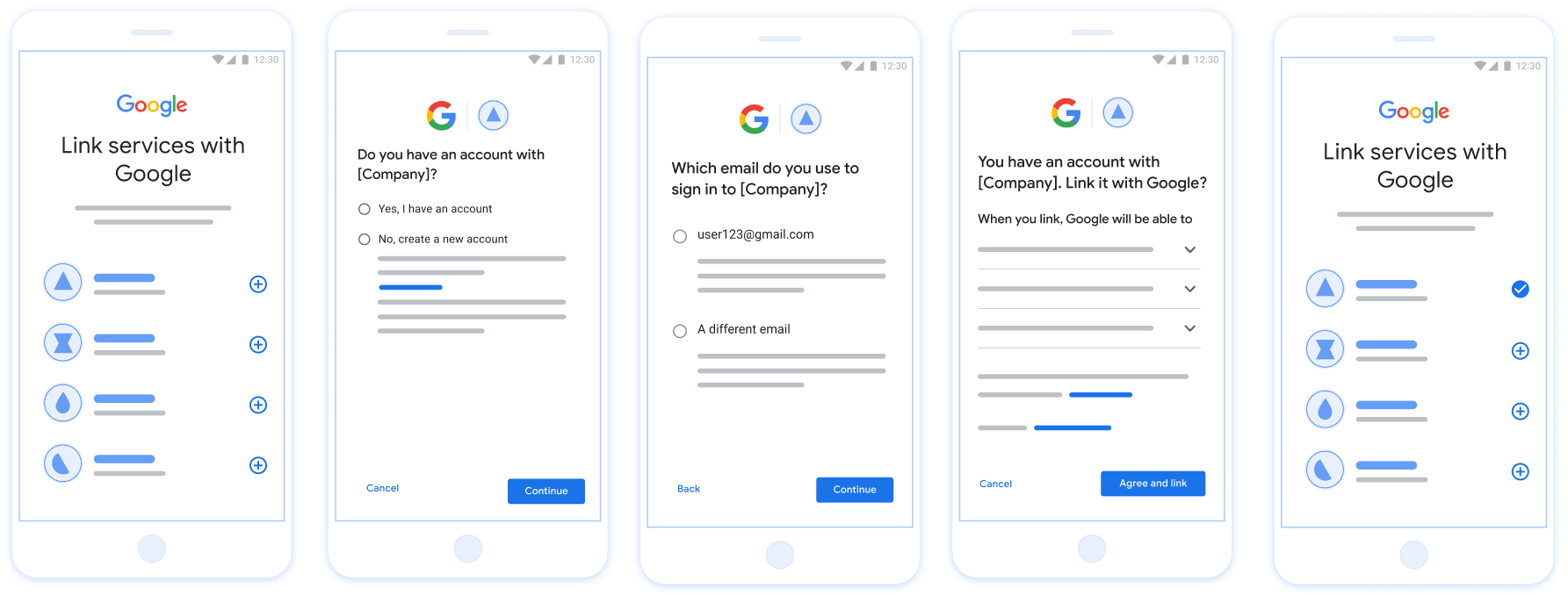
Figura 1. Collegamento dell'account sullo smartphone di un utente con il collegamento semplificato
Requisiti per il collegamento semplificato
- Implementa il flusso di collegamento OAuth web di base. Il tuo servizio deve supportare gli endpoint di autorizzazione e scambio di token conformi a OAuth 2.0.
- L'endpoint di scambio di token deve supportare le asserzioni JWT (JSON Web Token) e implementare gli intent
check,createeget.
Implementare il server OAuth
L'endpoint di scambio di token deve supportare gli intent check, create e get.
Segui questi passaggi per completare il flusso di collegamento dell'account e scoprire quando vengono utilizzati i diversi intent:
- L'utente ha un account nel tuo sistema di autenticazione? (L'utente decide selezionando SÌ o NO)
- SÌ : l'utente utilizza l'indirizzo email associato al suo Account Google per accedere alla tua piattaforma? (L'utente decide selezionando SÌ o NO)
- SÌ : l'utente ha un account corrispondente nel tuo sistema di autenticazione? (
check intentviene chiamato per confermare)- SÌ :
get intentviene chiamato e l'account viene collegato se l'intent get viene restituito correttamente. - NO : creare un nuovo account? (L'utente decide selezionando SÌ o NO)
- SÌ : viene chiamato
create intente l'account viene collegato se l'intent create viene restituito correttamente. - NO : viene attivato il flusso OAuth web, l'utente viene indirizzato al browser e gli viene data la possibilità di collegare un altro indirizzo email.
- SÌ : viene chiamato
- SÌ :
- NO : viene attivato il flusso OAuth web, l'utente viene indirizzato al browser e gli viene data la possibilità di collegare un altro indirizzo email.
- SÌ : l'utente ha un account corrispondente nel tuo sistema di autenticazione? (
- NO : l'utente ha un account corrispondente nel tuo sistema di autenticazione? (
check intentviene chiamato per confermare)- SÌ :
get intentviene chiamato e l'account viene collegato se l'intent get viene restituito correttamente. - NO :
create intentviene chiamato e l'account viene collegato se l'intent create viene restituito correttamente.
- SÌ :
- SÌ : l'utente utilizza l'indirizzo email associato al suo Account Google per accedere alla tua piattaforma? (L'utente decide selezionando SÌ o NO)
Check for an existing user account (check intent)
After the user gives consent to access their Google profile, Google sends a request that contains a signed assertion of the Google user's identity. The assertion contains information that includes the user's Google Account ID, name, and email address. The token exchange endpoint configured for your project handles that request.
If the corresponding Google account is already present in your authentication
system, your token exchange endpoint responds with account_found=true. If the
Google account doesn't match an existing user, your token exchange endpoint
returns an HTTP 404 Not Found error with account_found=false.
The request has the following form:
POST /token HTTP/1.1 Host: oauth2.example.com Content-Type: application/x-www-form-urlencoded grant_type=urn:ietf:params:oauth:grant-type:jwt-bearer&intent=check&assertion=JWT&scope=SCOPES&client_id=GOOGLE_CLIENT_ID&client_secret=GOOGLE_CLIENT_SECRET
Your token exchange endpoint must be able to handle the following parameters:
| Token endpoint parameters | |
|---|---|
intent |
For these requests, the value of this parameter is
check. |
grant_type |
The type of token being exchanged. For these requests, this
parameter has the value urn:ietf:params:oauth:grant-type:jwt-bearer. |
assertion |
A JSON Web Token (JWT) that provides a signed assertion of the Google user's identity. The JWT contains information that includes the user's Google Account ID, name, and email address. |
client_id |
The client ID you assigned to Google. |
client_secret |
The client secret you assigned to Google. |
To respond to the check intent requests, your token exchange endpoint must perform the following steps:
- Validate and decode the JWT assertion.
- Check if the Google account is already present in your authentication system.
Validate and decode the JWT assertion
You can validate and decode the JWT assertion by using a JWT-decoding library for your language. Use Google's public keys, available in JWK or PEM formats, to verify the token's signature.
When decoded, the JWT assertion looks like the following example:
{ "sub": "1234567890", // The unique ID of the user's Google Account "iss": "https://accounts.google.com", // The assertion's issuer "aud": "123-abc.apps.googleusercontent.com", // Your server's client ID "iat": 233366400, // Unix timestamp of the assertion's creation time "exp": 233370000, // Unix timestamp of the assertion's expiration time "name": "Jan Jansen", "given_name": "Jan", "family_name": "Jansen", "email": "jan@gmail.com", // If present, the user's email address "email_verified": true, // true, if Google has verified the email address "hd": "example.com", // If present, the host domain of the user's GSuite email address // If present, a URL to user's profile picture "picture": "https://lh3.googleusercontent.com/a-/AOh14GjlTnZKHAeb94A-FmEbwZv7uJD986VOF1mJGb2YYQ", "locale": "en_US" // User's locale, from browser or phone settings }
In addition to verifying the token's signature, verify that the assertion's
issuer (iss field) is https://accounts.google.com, that the audience
(aud field) is your assigned client ID, and that the token has not expired
(exp field).
Using the email, email_verified and hd fields you can determine if
Google hosts and is authoritative for an email address. In cases where Google is
authoritative the user is currently known to be the legitimate account owner
and you may skip password or other challenges methods. Otherwise, these methods
can be used to verify the account prior to linking.
Cases where Google is authoritative:
emailhas a@gmail.comsuffix, this is a Gmail account.email_verifiedis true andhdis set, this is a G Suite account.
Users may register for Google Accounts without using Gmail or G Suite. When
email does not contain a @gmail.com suffix and hd is absent Google is not
authoritative and password or other challenge methods are recommended to verify
the user. email_verified can also be true as Google initially verified the
user when the Google account was created, however ownership of the third party
email account may have since changed.
Check if the Google account is already present in your authentication system
Check whether either of the following conditions are true:
- The Google Account ID, found in the assertion's
subfield, is in your user database. - The email address in the assertion matches a user in your user database.
If either condition is true, the user has already signed up. In that case, return a response like the following:
HTTP/1.1 200 Success
Content-Type: application/json;charset=UTF-8
{
"account_found":"true",
}
If neither the Google Account ID nor the email address specified in the
assertion matches a user in your database, the user hasn't signed up yet. In
this case, your token exchange endpoint needs to reply with a HTTP 404 error
that specifies "account_found": "false", as in the following example:
HTTP/1.1 404 Not found
Content-Type: application/json;charset=UTF-8
{
"account_found":"false",
}
Handle automatic linking (get intent)
After the user gives consent to access their Google profile, Google sends a request that contains a signed assertion of the Google user's identity. The assertion contains information that includes the user's Google Account ID, name, and email address. The token exchange endpoint configured for your project handles that request.
If the corresponding Google Account is already present in your authentication
system, your token exchange endpoint returns a token for the user. If the
Google Account doesn't match an existing user, your token exchange endpoint
returns a linking_error error and optional login_hint.
The request has the following form:
POST /token HTTP/1.1 Host: oauth2.example.com Content-Type: application/x-www-form-urlencoded grant_type=urn:ietf:params:oauth:grant-type:jwt-bearer&intent=get&assertion=JWT&scope=SCOPES&client_id=GOOGLE_CLIENT_ID&client_secret=GOOGLE_CLIENT_SECRET
Your token exchange endpoint must be able to handle the following parameters:
| Token endpoint parameters | |
|---|---|
intent |
For these requests, the value of this parameter is get. |
grant_type |
The type of token being exchanged. For these requests, this
parameter has the value urn:ietf:params:oauth:grant-type:jwt-bearer. |
assertion |
A JSON Web Token (JWT) that provides a signed assertion of the Google user's identity. The JWT contains information that includes the user's Google Account ID, name, and email address. |
scope |
Optional: Any scopes that you've configured Google to request from users. |
client_id |
The client ID you assigned to Google. |
client_secret |
The client secret you assigned to Google. |
To respond to the get intent requests, your token exchange endpoint must perform the following steps:
- Validate and decode the JWT assertion.
- Check if the Google account is already present in your authentication system.
Validate and decode the JWT assertion
You can validate and decode the JWT assertion by using a JWT-decoding library for your language. Use Google's public keys, available in JWK or PEM formats, to verify the token's signature.
When decoded, the JWT assertion looks like the following example:
{ "sub": "1234567890", // The unique ID of the user's Google Account "iss": "https://accounts.google.com", // The assertion's issuer "aud": "123-abc.apps.googleusercontent.com", // Your server's client ID "iat": 233366400, // Unix timestamp of the assertion's creation time "exp": 233370000, // Unix timestamp of the assertion's expiration time "name": "Jan Jansen", "given_name": "Jan", "family_name": "Jansen", "email": "jan@gmail.com", // If present, the user's email address "email_verified": true, // true, if Google has verified the email address "hd": "example.com", // If present, the host domain of the user's GSuite email address // If present, a URL to user's profile picture "picture": "https://lh3.googleusercontent.com/a-/AOh14GjlTnZKHAeb94A-FmEbwZv7uJD986VOF1mJGb2YYQ", "locale": "en_US" // User's locale, from browser or phone settings }
In addition to verifying the token's signature, verify that the assertion's
issuer (iss field) is https://accounts.google.com, that the audience
(aud field) is your assigned client ID, and that the token has not expired
(exp field).
Using the email, email_verified and hd fields you can determine if
Google hosts and is authoritative for an email address. In cases where Google is
authoritative the user is currently known to be the legitimate account owner
and you may skip password or other challenges methods. Otherwise, these methods
can be used to verify the account prior to linking.
Cases where Google is authoritative:
emailhas a@gmail.comsuffix, this is a Gmail account.email_verifiedis true andhdis set, this is a G Suite account.
Users may register for Google Accounts without using Gmail or G Suite. When
email does not contain a @gmail.com suffix and hd is absent Google is not
authoritative and password or other challenge methods are recommended to verify
the user. email_verified can also be true as Google initially verified the
user when the Google account was created, however ownership of the third party
email account may have since changed.
Check if the Google account is already present in your authentication system
Check whether either of the following conditions are true:
- The Google Account ID, found in the assertion's
subfield, is in your user database. - The email address in the assertion matches a user in your user database.
If an account is found for the user, issue an access token and return the values in a JSON object in the body of your HTTPS response, like in the following example:
{ "token_type": "Bearer", "access_token": "ACCESS_TOKEN", "refresh_token": "REFRESH_TOKEN", "expires_in": SECONDS_TO_EXPIRATION }
In some cases, account linking based on ID token might fail for the user. If it
does so for any reason, your token exchange endpoint needs to reply with a HTTP
401 error that specifies error=linking_error, as the following example shows:
HTTP/1.1 401 Unauthorized
Content-Type: application/json;charset=UTF-8
{
"error":"linking_error",
"login_hint":"foo@bar.com"
}
When Google receives a 401 error response with linking_error, Google sends
the user to your authorization endpoint with login_hint as a parameter. The
user completes account linking using the OAuth linking flow in their browser.
Gestire la creazione dell'account utilizzando Accedi con Google (intent=create)
Quando un utente deve creare un account sul tuo servizio, Google invia una richiesta al tuo endpoint di scambio di token che specifica intent=create.
La richiesta ha il seguente formato:
POST /token HTTP/1.1 Host: oauth2.example.com Content-Type: application/x-www-form-urlencoded response_type=token&grant_type=urn:ietf:params:oauth:grant-type:jwt-bearer&scope=SCOPES&intent=create&assertion=JWT&client_id=GOOGLE_CLIENT_ID&client_secret=GOOGLE_CLIENT_SECRET
L'endpoint di scambio di token deve essere in grado di gestire i seguenti parametri:
| Parametri dell'endpoint token | |
|---|---|
intent |
Per queste richieste, il valore di questo parametro è create. |
grant_type |
Il tipo di token scambiato. Per queste richieste, questo
parametro ha il valore urn:ietf:params:oauth:grant-type:jwt-bearer. |
assertion |
Un token JWT (JSON Web Token) che fornisce un'asserzione firmata dell'identità dell'utente Google Il JWT contiene informazioni che includono l'ID Account Google, il nome e l'indirizzo email dell'utente. |
client_id |
L'ID client che hai assegnato a Google. |
client_secret |
Il client secret che hai assegnato a Google. |
Il JWT all'interno del parametro assertion contiene l'ID Account Google, il nome e l'indirizzo email dell'utente, che puoi utilizzare per creare un nuovo account sul tuo servizio.
Per rispondere alle richieste di intent create, l'endpoint di scambio di token deve eseguire i seguenti passaggi:
- Convalidare e decodificare l'asserzione JWT.
- Convalidare i dati dell'utente e creare un nuovo account.
Validate and decode the JWT assertion
You can validate and decode the JWT assertion by using a JWT-decoding library for your language. Use Google's public keys, available in JWK or PEM formats, to verify the token's signature.
When decoded, the JWT assertion looks like the following example:
{ "sub": "1234567890", // The unique ID of the user's Google Account "iss": "https://accounts.google.com", // The assertion's issuer "aud": "123-abc.apps.googleusercontent.com", // Your server's client ID "iat": 233366400, // Unix timestamp of the assertion's creation time "exp": 233370000, // Unix timestamp of the assertion's expiration time "name": "Jan Jansen", "given_name": "Jan", "family_name": "Jansen", "email": "jan@gmail.com", // If present, the user's email address "email_verified": true, // true, if Google has verified the email address "hd": "example.com", // If present, the host domain of the user's GSuite email address // If present, a URL to user's profile picture "picture": "https://lh3.googleusercontent.com/a-/AOh14GjlTnZKHAeb94A-FmEbwZv7uJD986VOF1mJGb2YYQ", "locale": "en_US" // User's locale, from browser or phone settings }
In addition to verifying the token's signature, verify that the assertion's
issuer (iss field) is https://accounts.google.com, that the audience
(aud field) is your assigned client ID, and that the token has not expired
(exp field).
Using the email, email_verified and hd fields you can determine if
Google hosts and is authoritative for an email address. In cases where Google is
authoritative the user is currently known to be the legitimate account owner
and you may skip password or other challenges methods. Otherwise, these methods
can be used to verify the account prior to linking.
Cases where Google is authoritative:
emailhas a@gmail.comsuffix, this is a Gmail account.email_verifiedis true andhdis set, this is a G Suite account.
Users may register for Google Accounts without using Gmail or G Suite. When
email does not contain a @gmail.com suffix and hd is absent Google is not
authoritative and password or other challenge methods are recommended to verify
the user. email_verified can also be true as Google initially verified the
user when the Google account was created, however ownership of the third party
email account may have since changed.
Convalidare i dati dell'utente e creare un nuovo account
Verifica se è vera una delle due seguenti condizioni:
- L'ID Account Google, che si trova nel campo
subdell'asserzione, è presente nel tuo database utenti. - L'indirizzo email nell'asserzione corrisponde a un utente nel tuo database utenti.
Se una delle due condizioni è vera, chiedi all'utente di collegare il suo account esistente al suo Account Google. Per farlo, rispondi alla richiesta con un errore HTTP 401 che specifica error=linking_error e indica l'indirizzo email dell'utente come login_hint. Di seguito è riportato un esempio di risposta:
HTTP/1.1 401 Unauthorized
Content-Type: application/json;charset=UTF-8
{
"error":"linking_error",
"login_hint":"foo@bar.com"
}
Quando Google riceve una risposta di errore 401 con linking_error, invia l'utente al tuo endpoint di autorizzazione con login_hint come parametro. L'utente completa il collegamento dell'account utilizzando il flusso di collegamento OAuth nel browser.
Se nessuna delle due condizioni è vera, crea un nuovo account utente con i dati forniti nel JWT. In genere, i nuovi account non hanno una password impostata. Ti consigliamo di aggiungere Accedi con Google ad altre piattaforme per consentire agli utenti di accedere con Google su tutte le piattaforme della tua applicazione. In alternativa, puoi inviare all'utente un'email con un link che avvia il flusso di recupero della password per consentirgli di impostare una password per accedere su altre piattaforme.
Al termine della creazione, emetti un token di accesso e restituisci i valori in un oggetto JSON nel corpo della risposta HTTPS, come nell'esempio seguente:
{ "token_type": "Bearer", "access_token": "ACCESS_TOKEN", "refresh_token": "REFRESH_TOKEN", "expires_in": SECONDS_TO_EXPIRATION }
Recuperare l'ID client API di Google
Durante la procedura di registrazione del collegamento dell'account, ti verrà chiesto di fornire l'ID client API di Google.
Per recuperare l'ID client API utilizzando il progetto creato durante il completamento dei passaggi di collegamento OAuth: Per farlo, segui questa procedura.
- Vai alla pagina Client.
Crea o seleziona un progetto API di Google.
Se il progetto non ha un ID client per il tipo di applicazione web, fai clic su Crea client per crearne uno. Assicurati di includere il dominio del tuo sito nella casella Origini JavaScript autorizzate. Quando esegui test o sviluppo locali, devi aggiungere sia
http://localhostsiahttp://localhost:<port_number>al campo Origini JavaScript autorizzate.
Convalidare l'implementazione
您可以使用 OAuth 2.0 Playground 工具验证您的实现。
在该工具中,执行以下步骤:
- 点击配置 以打开“OAuth 2.0 配置”窗口。
- 在 OAuth flow(OAuth 流程)字段中,选择 Client-side(客户端)。
- 在 OAuth Endpoints 字段中,选择 Custom。
- 在相应字段中指定您的 OAuth 2.0 端点以及您分配给 Google 的客户端 ID。
- 在第 1 步部分中,请勿选择任何 Google 范围。请将此字段留空,或输入适用于您服务器的范围(如果您不使用 OAuth 范围,则输入任意字符串)。完成后,点击 Authorize APIs。
- 在第 2 步和第 3 步部分中,完成 OAuth 2.0 流程,并验证每个步骤是否按预期运行。
您可以使用 Google 账号关联演示工具验证您的实现。
在该工具中,执行以下步骤:
- 点击使用 Google 账号登录按钮。
- 选择您要关联的账号。
- 输入服务 ID。
- (可选)输入您将请求访问的一个或多个范围。
- 点击开始演示。
- 当系统提示时,请确认您可以同意或拒绝关联请求。
- 确认您已重定向到相应平台。