

تعرَّف على كيفية العثور على الموقع الجغرافي الحالي لجهاز Android وعرض تفاصيل المكان (نشاط تجاري أو نقطة اهتمام أخرى) في ذلك الموقع الجغرافي. اتّبِع هذا البرنامج التعليمي لإنشاء تطبيق Android باستخدام حزمة تطوير البرامج بالاستناد إلى بيانات خرائط Google للتطبيقات المتوافقة مع Android وحزمة تطوير البرامج بالاستناد إلى بيانات "الأماكن" للتطبيقات المتوافقة مع Android وموفِّر الموقع المدمج في واجهات برمجة التطبيقات للموقع الجغرافي في "خدمات Google Play".
الحصول على الشفرة
عرض إصدار Java من النشاط:
// Copyright 2020 Google LLC // // Licensed under the Apache License, Version 2.0 (the "License"); // you may not use this file except in compliance with the License. // You may obtain a copy of the License at // // http://www.apache.org/licenses/LICENSE-2.0 // // Unless required by applicable law or agreed to in writing, software // distributed under the License is distributed on an "AS IS" BASIS, // WITHOUT WARRANTIES OR CONDITIONS OF ANY KIND, either express or implied. // See the License for the specific language governing permissions and // limitations under the License. package com.example.currentplacedetailsonmap; import android.content.DialogInterface; import android.content.pm.PackageManager; import android.location.Location; import android.os.Bundle; import android.util.Log; import android.view.Menu; import android.view.MenuItem; import android.view.View; import android.widget.FrameLayout; import android.widget.TextView; import androidx.annotation.NonNull; import androidx.appcompat.app.AlertDialog; import androidx.appcompat.app.AppCompatActivity; import androidx.core.app.ActivityCompat; import androidx.core.content.ContextCompat; import com.google.android.gms.location.FusedLocationProviderClient; import com.google.android.gms.location.LocationServices; import com.google.android.gms.maps.CameraUpdateFactory; import com.google.android.gms.maps.GoogleMap; import com.google.android.gms.maps.OnMapReadyCallback; import com.google.android.gms.maps.SupportMapFragment; import com.google.android.gms.maps.model.CameraPosition; import com.google.android.gms.maps.model.LatLng; import com.google.android.gms.maps.model.Marker; import com.google.android.gms.maps.model.MarkerOptions; import com.google.android.gms.tasks.OnCompleteListener; import com.google.android.gms.tasks.Task; import com.google.android.libraries.places.api.Places; import com.google.android.libraries.places.api.model.CircularBounds; import com.google.android.libraries.places.api.model.Place; import com.google.android.libraries.places.api.net.PlacesClient; import com.google.android.libraries.places.api.net.SearchNearbyRequest; import com.google.android.libraries.places.api.net.SearchNearbyResponse; import java.util.Arrays; import java.util.List; /** An activity that displays a map showing the place at the device's current location. */ public class MapsActivityCurrentPlace extends AppCompatActivity implements OnMapReadyCallback { private static final String TAG = MapsActivityCurrentPlace.class.getSimpleName(); private GoogleMap map; private CameraPosition cameraPosition; // The entry point to the Places API. private PlacesClient placesClient; // The entry point to the Fused Location Provider. private FusedLocationProviderClient fusedLocationProviderClient; // A default location (Sydney, Australia) and default zoom to use when location permission is // not granted. private final LatLng defaultLocation = new LatLng(-33.8523341, 151.2106085); private static final int DEFAULT_ZOOM = 15; private static final int PERMISSIONS_REQUEST_ACCESS_FINE_LOCATION = 1; private boolean locationPermissionGranted; // The geographical location where the device is currently located. That is, the last-known // location retrieved by the Fused Location Provider. private Location lastKnownLocation; // Keys for storing activity state. private static final String KEY_CAMERA_POSITION = "camera_position"; private static final String KEY_LOCATION = "location"; // Used for selecting the current place. private static final int M_MAX_ENTRIES = 5; private static final double SEARCH_RADIUS_METERS = 100.0; private String[] likelyPlaceNames; private String[] likelyPlaceAddresses; private List[] likelyPlaceAttributions; private LatLng[] likelyPlaceLatLngs; @Override protected void onCreate(Bundle savedInstanceState) { super.onCreate(savedInstanceState); // Retrieve location and camera position from saved instance state. if (savedInstanceState != null) { lastKnownLocation = savedInstanceState.getParcelable(KEY_LOCATION); cameraPosition = savedInstanceState.getParcelable(KEY_CAMERA_POSITION); } // Retrieve the content view that renders the map. setContentView(R.layout.activity_maps); // Construct a PlacesClient Places.initializeWithNewPlacesApiEnabled(getApplicationContext(), BuildConfig.MAPS_API_KEY); placesClient = Places.createClient(this); // Construct a FusedLocationProviderClient. fusedLocationProviderClient = LocationServices.getFusedLocationProviderClient(this); // Build the map. SupportMapFragment mapFragment = (SupportMapFragment) getSupportFragmentManager().findFragmentById(R.id.map); mapFragment.getMapAsync(this); } /** Saves the state of the map when the activity is paused. */ @Override protected void onSaveInstanceState(Bundle outState) { if (map != null) { outState.putParcelable(KEY_CAMERA_POSITION, map.getCameraPosition()); outState.putParcelable(KEY_LOCATION, lastKnownLocation); } super.onSaveInstanceState(outState); } /** * Sets up the options menu. * * @param menu The options menu. * @return Boolean. */ @Override public boolean onCreateOptionsMenu(Menu menu) { getMenuInflater().inflate(R.menu.current_place_menu, menu); return true; } /** * Handles a click on the menu option to get a place. * * @param item The menu item to handle. * @return Boolean. */ @Override public boolean onOptionsItemSelected(MenuItem item) { if (item.getItemId() == R.id.option_get_place) { showCurrentPlace(); } return true; } /** * Manipulates the map when it's available. This callback is triggered when the map is ready to * be used. */ @Override public void onMapReady(GoogleMap map) { this.map = map; // Use a custom info window adapter to handle multiple lines of text in the // info window contents. this.map.setInfoWindowAdapter( new GoogleMap.InfoWindowAdapter() { @Override // Return null here, so that getInfoContents() is called next. public View getInfoWindow(Marker arg0) { return null; } @Override public View getInfoContents(Marker marker) { // Inflate the layouts for the info window, title and snippet. View infoWindow = getLayoutInflater() .inflate( R.layout.custom_info_contents, (FrameLayout) findViewById(R.id.map), false); TextView title = infoWindow.findViewById(R.id.title); title.setText(marker.getTitle()); TextView snippet = infoWindow.findViewById(R.id.snippet); snippet.setText(marker.getSnippet()); return infoWindow; } }); // Prompt the user for permission. getLocationPermission(); // Turn on the My Location layer and the related control on the map. updateLocationUI(); // Get the current location of the device and set the position of the map. getDeviceLocation(); } /** Gets the current location of the device, and positions the map's camera. */ private void getDeviceLocation() { /* * Get the best and most recent location of the device, which may be null in rare * cases when a location is not available. */ try { if (locationPermissionGranted) { Task<Location> locationResult = fusedLocationProviderClient.getLastLocation(); locationResult.addOnCompleteListener( this, new OnCompleteListener<Location>() { @Override public void onComplete(@NonNull Task<Location> task) { if (task.isSuccessful()) { // Set the map's camera position to the current location of the // device. lastKnownLocation = task.getResult(); if (lastKnownLocation != null) { map.moveCamera( CameraUpdateFactory.newLatLngZoom( new LatLng( lastKnownLocation.getLatitude(), lastKnownLocation.getLongitude()), DEFAULT_ZOOM)); } } else { Log.d(TAG, "Current location is null. Using defaults."); Log.e(TAG, "Exception: %s", task.getException()); map.moveCamera( CameraUpdateFactory.newLatLngZoom( defaultLocation, DEFAULT_ZOOM)); map.getUiSettings().setMyLocationButtonEnabled(false); } } }); } } catch (SecurityException e) { Log.e("Exception: %s", e.getMessage(), e); } } /** Prompts the user for permission to use the device location. */ private void getLocationPermission() { /* * Request location permission, so that we can get the location of the * device. The result of the permission request is handled by a callback, * onRequestPermissionsResult. */ if (ContextCompat.checkSelfPermission( this.getApplicationContext(), android.Manifest.permission.ACCESS_FINE_LOCATION) == PackageManager.PERMISSION_GRANTED) { locationPermissionGranted = true; } else { ActivityCompat.requestPermissions( this, new String[] {android.Manifest.permission.ACCESS_FINE_LOCATION}, PERMISSIONS_REQUEST_ACCESS_FINE_LOCATION); } } /** Handles the result of the request for location permissions. */ @Override public void onRequestPermissionsResult( int requestCode, @NonNull String[] permissions, @NonNull int[] grantResults) { locationPermissionGranted = false; if (requestCode == PERMISSIONS_REQUEST_ACCESS_FINE_LOCATION) { // If request is cancelled, the // result arrays are empty. if (grantResults.length > 0 && grantResults[0] == PackageManager.PERMISSION_GRANTED) { locationPermissionGranted = true; } } else { super.onRequestPermissionsResult(requestCode, permissions, grantResults); } updateLocationUI(); } /** * Prompts the user to select the current place from a list of likely places, and shows the * current place on the map - provided the user has granted location permission. */ private void showCurrentPlace() { if (map == null) { return; } if (locationPermissionGranted) { // Use fields to define the data types to return. List<Place.Field> placeFields = Arrays.asList( Place.Field.DISPLAY_NAME, Place.Field.FORMATTED_ADDRESS, Place.Field.LOCATION); // Search around the device's last-known location, falling back to the center of the // map if the location is not available yet. LatLng center = lastKnownLocation != null ? new LatLng( lastKnownLocation.getLatitude(), lastKnownLocation.getLongitude()) : map.getCameraPosition().target; CircularBounds searchArea = CircularBounds.newInstance(center, SEARCH_RADIUS_METERS); // Use the builder to create a SearchNearbyRequest that returns the closest places // first. SearchNearbyRequest request = SearchNearbyRequest.builder(searchArea, placeFields) .setMaxResultCount(M_MAX_ENTRIES) .setRankPreference(SearchNearbyRequest.RankPreference.DISTANCE) .build(); // Get the likely places - that is, the businesses and other points of interest that // are closest to the device's current location. final Task<SearchNearbyResponse> placeResult = placesClient.searchNearby(request); placeResult.addOnCompleteListener( new OnCompleteListener<SearchNearbyResponse>() { @Override public void onComplete(@NonNull Task<SearchNearbyResponse> task) { if (task.isSuccessful() && task.getResult() != null) { List<Place> likelyPlaces = task.getResult().getPlaces(); // Set the count, handling cases where less than 5 entries are // returned. int count = Math.min(likelyPlaces.size(), M_MAX_ENTRIES); likelyPlaceNames = new String[count]; likelyPlaceAddresses = new String[count]; likelyPlaceAttributions = new List[count]; likelyPlaceLatLngs = new LatLng[count]; for (int i = 0; i < count; i++) { // Build a list of likely places to show the user. Place place = likelyPlaces.get(i); likelyPlaceNames[i] = place.getDisplayName(); likelyPlaceAddresses[i] = place.getFormattedAddress(); likelyPlaceAttributions[i] = place.getAttributions(); likelyPlaceLatLngs[i] = place.getLocation(); } // Show a dialog offering the user the list of likely places, and // add a // marker at the selected place. MapsActivityCurrentPlace.this.openPlacesDialog(); } else { Log.e(TAG, "Exception: %s", task.getException()); } } }); } else { // The user has not granted permission. Log.i(TAG, "The user did not grant location permission."); // Add a default marker, because the user hasn't selected a place. map.addMarker( new MarkerOptions() .title(getString(R.string.default_info_title)) .position(defaultLocation) .snippet(getString(R.string.default_info_snippet))); // Prompt the user for permission. getLocationPermission(); } } /** Displays a form allowing the user to select a place from a list of likely places. */ private void openPlacesDialog() { // Ask the user to choose the place where they are now. DialogInterface.OnClickListener listener = new DialogInterface.OnClickListener() { @Override public void onClick(DialogInterface dialog, int which) { // The "which" argument contains the position of the selected item. LatLng markerLatLng = likelyPlaceLatLngs[which]; String markerSnippet = likelyPlaceAddresses[which]; if (likelyPlaceAttributions[which] != null) { markerSnippet = markerSnippet + "\n" + likelyPlaceAttributions[which]; } // Add a marker for the selected place, with an info window // showing information about that place. map.addMarker( new MarkerOptions() .title(likelyPlaceNames[which]) .position(markerLatLng) .snippet(markerSnippet)); // Position the map's camera at the location of the marker. map.moveCamera( CameraUpdateFactory.newLatLngZoom(markerLatLng, DEFAULT_ZOOM)); } }; // Display the dialog. AlertDialog dialog = new AlertDialog.Builder(this) .setTitle(R.string.pick_place) .setItems(likelyPlaceNames, listener) .show(); } /** Updates the map's UI settings based on whether the user has granted location permission. */ private void updateLocationUI() { if (map == null) { return; } try { if (locationPermissionGranted) { map.setMyLocationEnabled(true); map.getUiSettings().setMyLocationButtonEnabled(true); } else { map.setMyLocationEnabled(false); map.getUiSettings().setMyLocationButtonEnabled(false); lastKnownLocation = null; } } catch (SecurityException e) { Log.e("Exception: %s", e.getMessage()); } } }
عرض نسخة Kotlin من النشاط:
    // Copyright 2020 Google LLC
//
// Licensed under the Apache License, Version 2.0 (the "License");
// you may not use this file except in compliance with the License.
// You may obtain a copy of the License at
//
//      http://www.apache.org/licenses/LICENSE-2.0
//
// Unless required by applicable law or agreed to in writing, software
// distributed under the License is distributed on an "AS IS" BASIS,
// WITHOUT WARRANTIES OR CONDITIONS OF ANY KIND, either express or implied.
// See the License for the specific language governing permissions and
// limitations under the License.
package com.example.currentplacedetailsonmap

import android.Manifest
import android.annotation.SuppressLint
import android.content.DialogInterface
import android.content.pm.PackageManager
import android.location.Location
import android.os.Bundle
import android.util.Log
import android.view.Menu
import android.view.MenuItem
import android.view.View
import android.widget.FrameLayout
import android.widget.TextView
import androidx.appcompat.app.AlertDialog
import androidx.appcompat.app.AppCompatActivity
import androidx.core.app.ActivityCompat
import androidx.core.content.ContextCompat
import com.google.android.gms.location.FusedLocationProviderClient
import com.google.android.gms.location.LocationServices
import com.google.android.gms.maps.CameraUpdateFactory
import com.google.android.gms.maps.GoogleMap
import com.google.android.gms.maps.GoogleMap.InfoWindowAdapter
import com.google.android.gms.maps.OnMapReadyCallback
import com.google.android.gms.maps.SupportMapFragment
import com.google.android.gms.maps.model.CameraPosition
import com.google.android.gms.maps.model.LatLng
import com.google.android.gms.maps.model.Marker
import com.google.android.gms.maps.model.MarkerOptions
import com.google.android.libraries.places.api.Places
import com.google.android.libraries.places.api.model.CircularBounds
import com.google.android.libraries.places.api.model.Place
import com.google.android.libraries.places.api.net.PlacesClient
import com.google.android.libraries.places.api.net.SearchNearbyRequest

/**
 * An activity that displays a map showing the place at the device's current location.
 */
class MapsActivityCurrentPlace :
    AppCompatActivity(),
    OnMapReadyCallback {
    private var map: GoogleMap? = null
    private var cameraPosition: CameraPosition? = null

    // The entry point to the Places API.
    private lateinit var placesClient: PlacesClient

    // The entry point to the Fused Location Provider.
    private lateinit var fusedLocationProviderClient: FusedLocationProviderClient

    // A default location (Sydney, Australia) and default zoom to use when location permission is
    // not granted.
    private val defaultLocation = LatLng(-33.8523341, 151.2106085)
    private var locationPermissionGranted = false

    // The geographical location where the device is currently located. That is, the last-known
    // location retrieved by the Fused Location Provider.
    private var lastKnownLocation: Location? = null
    private var likelyPlaceNames: Array<String?> = arrayOfNulls(0)
    private var likelyPlaceAddresses: Array<String?> = arrayOfNulls(0)
    private var likelyPlaceAttributions: Array<List<*>?> = arrayOfNulls(0)
    private var likelyPlaceLatLngs: Array<LatLng?> = arrayOfNulls(0)

    override fun onCreate(savedInstanceState: Bundle?) {
        super.onCreate(savedInstanceState)

        // Retrieve location and camera position from saved instance state.
        if (savedInstanceState != null) {
            lastKnownLocation = savedInstanceState.getParcelable(KEY_LOCATION)
            cameraPosition = savedInstanceState.getParcelable(KEY_CAMERA_POSITION)
        }

        // Retrieve the content view that renders the map.
        setContentView(R.layout.activity_maps)

        // Construct a PlacesClient
        Places.initializeWithNewPlacesApiEnabled(applicationContext, BuildConfig.MAPS_API_KEY)
        placesClient = Places.createClient(this)

        // Construct a FusedLocationProviderClient.
        fusedLocationProviderClient = LocationServices.getFusedLocationProviderClient(this)

        // Build the map.
        val mapFragment = supportFragmentManager
            .findFragmentById(R.id.map) as SupportMapFragment?
        mapFragment?.getMapAsync(this)
    }

    /**
     * Saves the state of the map when the activity is paused.
     */
    override fun onSaveInstanceState(outState: Bundle) {
        map?.let { map ->
            outState.putParcelable(KEY_CAMERA_POSITION, map.cameraPosition)
            outState.putParcelable(KEY_LOCATION, lastKnownLocation)
        }
        super.onSaveInstanceState(outState)
    }

    /**
     * Sets up the options menu.
     * @param menu The options menu.
     * @return Boolean.
     */
    override fun onCreateOptionsMenu(menu: Menu): Boolean {
        menuInflater.inflate(R.menu.current_place_menu, menu)
        return true
    }

    /**
     * Handles a click on the menu option to get a place.
     * @param item The menu item to handle.
     * @return Boolean.
     */
    override fun onOptionsItemSelected(item: MenuItem): Boolean {
        if (item.itemId == R.id.option_get_place) {
            showCurrentPlace()
        }
        return true
    }

    /**
     * Manipulates the map when it's available.
     * This callback is triggered when the map is ready to be used.
     */
    override fun onMapReady(map: GoogleMap) {
        this.map = map

        // Use a custom info window adapter to handle multiple lines of text in the
        // info window contents.
        this.map?.setInfoWindowAdapter(object : InfoWindowAdapter {
            // Return null here, so that getInfoContents() is called next.
            override fun getInfoWindow(arg0: Marker): View? = null

            override fun getInfoContents(marker: Marker): View {
                // Inflate the layouts for the info window, title and snippet.
                val infoWindow = layoutInflater.inflate(
                    R.layout.custom_info_contents,
                    findViewById<FrameLayout>(R.id.map),
                    false,
                )
                val title = infoWindow.findViewById<TextView>(R.id.title)
                title.text = marker.title
                val snippet = infoWindow.findViewById<TextView>(R.id.snippet)
                snippet.text = marker.snippet
                return infoWindow
            }
        })

        // Prompt the user for permission.
        getLocationPermission()

        // Turn on the My Location layer and the related control on the map.
        updateLocationUI()

        // Get the current location of the device and set the position of the map.
        getDeviceLocation()
    }

    /**
     * Gets the current location of the device, and positions the map's camera.
     */
    @SuppressLint("MissingPermission")
    private fun getDeviceLocation() {
        /*
         * Get the best and most recent location of the device, which may be null in rare
         * cases when a location is not available.
         */
        try {
            if (locationPermissionGranted) {
                val locationResult = fusedLocationProviderClient.lastLocation
                locationResult.addOnCompleteListener(this) { task ->
                    if (task.isSuccessful) {
                        // Set the map's camera position to the current location of the device.
                        lastKnownLocation = task.result
                        if (lastKnownLocation != null) {
                            map?.moveCamera(
                                CameraUpdateFactory.newLatLngZoom(
                                    LatLng(
                                        lastKnownLocation!!.latitude,
                                        lastKnownLocation!!.longitude,
                                    ),
                                    DEFAULT_ZOOM.toFloat(),
                                ),
                            )
                        }
                    } else {
                        Log.d(TAG, "Current location is null. Using defaults.")
                        Log.e(TAG, "Exception: %s", task.exception)
                        map?.moveCamera(
                            CameraUpdateFactory
                                .newLatLngZoom(defaultLocation, DEFAULT_ZOOM.toFloat()),
                        )
                        map?.uiSettings?.isMyLocationButtonEnabled = false
                    }
                }
            }
        } catch (e: SecurityException) {
            Log.e("Exception: %s", e.message, e)
        }
    }

    /**
     * Prompts the user for permission to use the device location.
     */
    private fun getLocationPermission() {
        /*
         * Request location permission, so that we can get the location of the
         * device. The result of the permission request is handled by a callback,
         * onRequestPermissionsResult.
         */
        if (ContextCompat.checkSelfPermission(
                this.applicationContext,
                Manifest.permission.ACCESS_FINE_LOCATION,
            )
            == PackageManager.PERMISSION_GRANTED
        ) {
            locationPermissionGranted = true
        } else {
            ActivityCompat.requestPermissions(
                this,
                arrayOf(Manifest.permission.ACCESS_FINE_LOCATION),
                PERMISSIONS_REQUEST_ACCESS_FINE_LOCATION,
            )
        }
    }

    /**
     * Handles the result of the request for location permissions.
     */
    override fun onRequestPermissionsResult(requestCode: Int, permissions: Array<String>, grantResults: IntArray) {
        locationPermissionGranted = false
        when (requestCode) {
            PERMISSIONS_REQUEST_ACCESS_FINE_LOCATION -> {
                // If request is cancelled, the result arrays are empty.
                if (grantResults.isNotEmpty() &&
                    grantResults[0] == PackageManager.PERMISSION_GRANTED
                ) {
                    locationPermissionGranted = true
                }
            }

            else -> super.onRequestPermissionsResult(requestCode, permissions, grantResults)
        }
        updateLocationUI()
    }

    /**
     * Prompts the user to select the current place from a list of likely places, and shows the
     * current place on the map - provided the user has granted location permission.
     */
    private fun showCurrentPlace() {
        val map = map ?: return
        if (locationPermissionGranted) {
            // Use fields to define the data types to return.
            val placeFields = listOf(
                Place.Field.DISPLAY_NAME,
                Place.Field.FORMATTED_ADDRESS,
                Place.Field.LOCATION,
            )

            // Search around the device's last-known location, falling back to the center of
            // the map if the location is not available yet.
            val center = lastKnownLocation?.let { LatLng(it.latitude, it.longitude) }
                ?: map.cameraPosition.target
            val searchArea = CircularBounds.newInstance(center, SEARCH_RADIUS_METERS)

            // Use the builder to create a SearchNearbyRequest that returns the closest places
            // first.
            val request = SearchNearbyRequest.builder(searchArea, placeFields)
                .setMaxResultCount(M_MAX_ENTRIES)
                .setRankPreference(SearchNearbyRequest.RankPreference.DISTANCE)
                .build()

            // Get the likely places - that is, the businesses and other points of interest that
            // are closest to the device's current location.
            val placeResult = placesClient.searchNearby(request)
            placeResult.addOnCompleteListener { task ->
                if (task.isSuccessful && task.result != null) {
                    val likelyPlaces = task.result.places.take(M_MAX_ENTRIES)

                    // Build a list of likely places to show the user.
                    likelyPlaceNames = likelyPlaces.map { it.displayName }.toTypedArray()
                    likelyPlaceAddresses = likelyPlaces.map { it.formattedAddress }.toTypedArray()
                    likelyPlaceAttributions = likelyPlaces.map { it.attributions }.toTypedArray()
                    likelyPlaceLatLngs = likelyPlaces.map { it.location }.toTypedArray()

                    // Show a dialog offering the user the list of likely places, and add a
                    // marker at the selected place.
                    openPlacesDialog()
                } else {
                    Log.e(TAG, "Exception: %s", task.exception)
                }
            }
        } else {
            // The user has not granted permission.
            Log.i(TAG, "The user did not grant location permission.")

            // Add a default marker, because the user hasn't selected a place.
            map.addMarker(
                MarkerOptions()
                    .title(getString(R.string.default_info_title))
                    .position(defaultLocation)
                    .snippet(getString(R.string.default_info_snippet)),
            )

            // Prompt the user for permission.
            getLocationPermission()
        }
    }

    /**
     * Displays a form allowing the user to select a place from a list of likely places.
     */
    private fun openPlacesDialog() {
        // Ask the user to choose the place where they are now.
        val listener = DialogInterface.OnClickListener { dialog, which ->
            // The "which" argument contains the position of the selected item.
            val markerLatLng = likelyPlaceLatLngs[which]
            var markerSnippet = likelyPlaceAddresses[which]
            if (likelyPlaceAttributions[which] != null) {
                markerSnippet = """
                    $markerSnippet
                    ${likelyPlaceAttributions[which]}
                """.trimIndent()
            }

            if (markerLatLng == null) {
                return@OnClickListener
            }

            // Add a marker for the selected place, with an info window
            // showing information about that place.
            map?.addMarker(
                MarkerOptions()
                    .title(likelyPlaceNames[which])
                    .position(markerLatLng)
                    .snippet(markerSnippet),
            )

            // Position the map's camera at the location of the marker.
            map?.moveCamera(
                CameraUpdateFactory.newLatLngZoom(
                    markerLatLng,
                    DEFAULT_ZOOM.toFloat(),
                ),
            )
        }

        // Display the dialog.
        AlertDialog.Builder(this)
            .setTitle(R.string.pick_place)
            .setItems(likelyPlaceNames, listener)
            .show()
    }

    /**
     * Updates the map's UI settings based on whether the user has granted location permission.
     */
    @SuppressLint("MissingPermission")
    private fun updateLocationUI() {
        if (map == null) {
            return
        }
        try {
            if (locationPermissionGranted) {
                map?.isMyLocationEnabled = true
                map?.uiSettings?.isMyLocationButtonEnabled = true
            } else {
                map?.isMyLocationEnabled = false
                map?.uiSettings?.isMyLocationButtonEnabled = false
                lastKnownLocation = null
                getLocationPermission()
            }
        } catch (e: SecurityException) {
            Log.e("Exception: %s", e.message, e)
        }
    }

    companion object {
        private val TAG = MapsActivityCurrentPlace::class.java.simpleName
        private const val DEFAULT_ZOOM = 15
        private const val PERMISSIONS_REQUEST_ACCESS_FINE_LOCATION = 1

        // Keys for storing activity state.
        private const val KEY_CAMERA_POSITION = "camera_position"
        private const val KEY_LOCATION = "location"

        // Used for selecting the current place.
        private const val M_MAX_ENTRIES = 5
        private const val SEARCH_RADIUS_METERS = 100.0
    }
}
إعداد مشروع التطوير
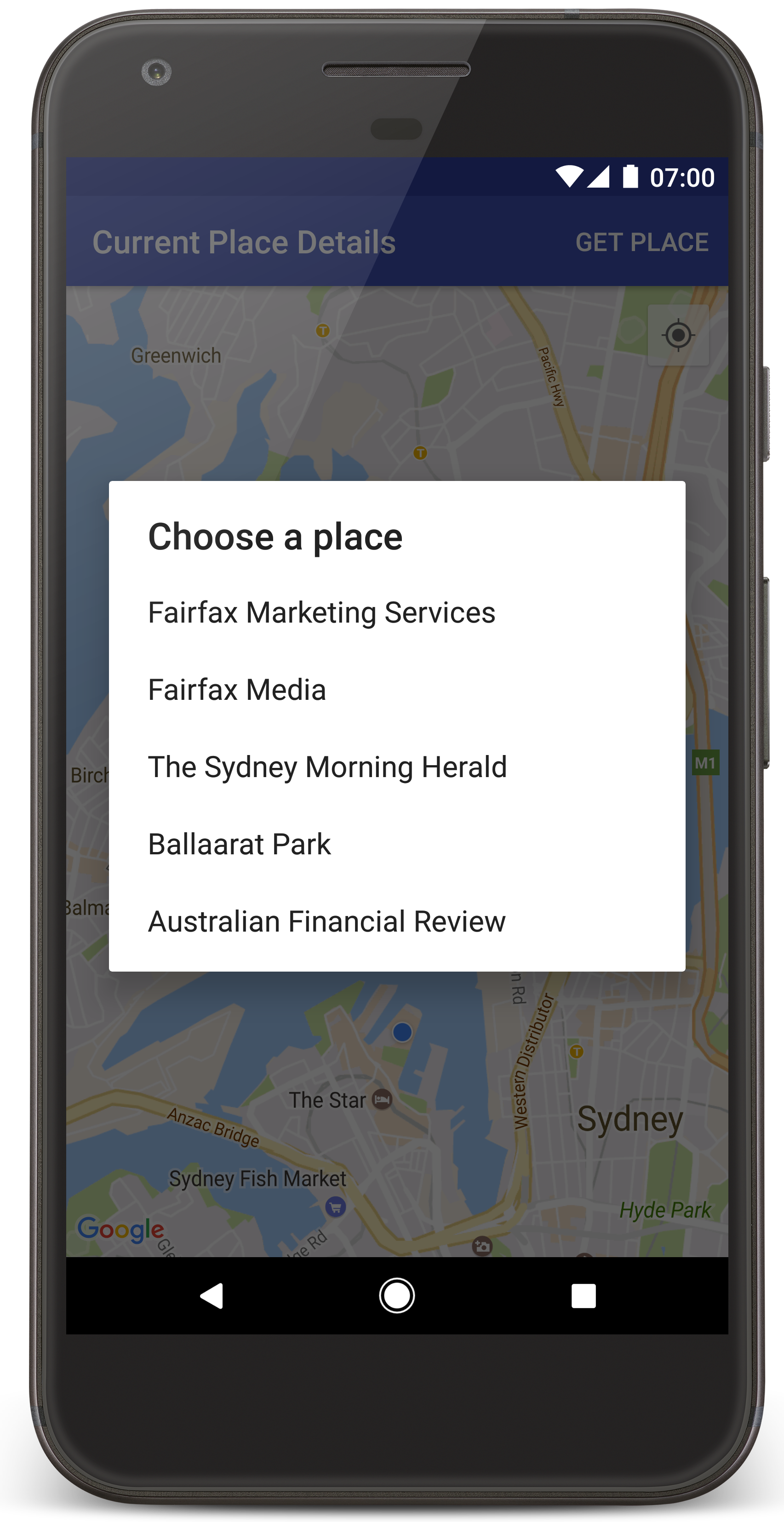
اتّبِع الخطوات التالية لإنشاء مشروع البرنامج التعليمي في "استوديو Android".
- نزِّل وثبِّت "استوديو Android".
- أضِف حزمة خدمات Google Play إلى Android Studio.
- استنسِخ مستودع نماذج الإصدار 2 من Google Maps Android API أو نزِّله إذا لم تكن قد فعلت ذلك عند بدء قراءة هذا الدليل التعليمي.
استيراد مشروع الدليل التوجيهي:
- في "استوديو Android"، انقر على ملف (File) > جديد (New) > استيراد مشروع (Import Project).
- انتقِل إلى الموقع الجغرافي الذي حفظت فيه مستودع نماذج الإصدار 2 من Google Maps Android API بعد تنزيله.
- ابحث عن مشروع CurrentPlaceDetailsOnMap في هذا
الموقع الجغرافي:
PATH-TO-SAVED-REPO/android-samples/tutorials/java/CurrentPlaceDetailsOnMap(Java) أو
PATH-TO-SAVED-REPO/android-samples/tutorials/kotlin/CurrentPlaceDetailsOnMap(Kotlin) - اختَر دليل المشروع، ثم انقر على فتح. ينشئ "استوديو Android" الآن مشروعك باستخدام أداة الإصدار Gradle.
تفعيل واجهات برمجة التطبيقات اللازمة والحصول على مفتاح واجهة برمجة التطبيقات
لإكمال هذا الدليل التعليمي، تحتاج إلى مشروع على Google Cloud مع تفعيل واجهات برمجة التطبيقات اللازمة ومفتاح واجهة برمجة تطبيقات مصرَّح له باستخدام حزمة تطوير البرامج بالاستناد إلى بيانات خرائط Google للتطبيقات المتوافقة مع Android. لمزيد من التفاصيل، يُرجى الاطّلاع على:
للاطّلاع على واجهات برمجة التطبيقات المفعَّلة، انتقِل إلى صفحة "منصة خرائط Google" في Cloud Console واختَر مشروعك:
الانتقال إلى صفحة "منصة خرائط Google"إذا لم تظهر لك واجهة برمجة التطبيقات Places API مفعَّلة في مشروعك، عليك تفعيلها:
تفعيل Places APIإذا أضفت أي قيود إلى مفتاح واجهة برمجة التطبيقات، تأكَّد من إضافة Places API إلى المفتاح. يمكنك الاطّلاع على استخدام مفاتيح واجهة برمجة التطبيقات لمزيد من المعلومات.
إضافة مفتاح واجهة برمجة التطبيقات إلى تطبيقك
- افتح ملف
local.propertiesالخاص بمشروعك. أضِف السلسلة التالية ثم استبدِل
YOUR_API_KEYبقيمة مفتاح واجهة برمجة التطبيقات:MAPS_API_KEY=YOUR_API_KEY
عند إنشاء تطبيقك، سينسخ المكوّن الإضافي Secrets Gradle لأجهزة Android مفتاح واجهة برمجة التطبيقات ويجعله متاحًا كمتغيّر إصدار في ملف بيان Android.
إنشاء تطبيقك وتشغيله
وصِّل جهاز Android بالكمبيوتر. اتّبِع التعليمات لتفعيل خيارات المطوّرين على جهاز Android وضبط النظام لرصد الجهاز.
بدلاً من ذلك، يمكنك استخدام أداة إدارة أجهزة Android الافتراضية (AVD) لضبط جهاز افتراضي. عند اختيار محاكي، تأكَّد من اختيار صورة تتضمّن Google APIs. لمزيد من التفاصيل، يُرجى الاطّلاع على مقالة إعداد مشروع في "استوديو Android".
- في استوديو Android، انقر على خيار القائمة تشغيل (أو رمز زر التشغيل). اختَر جهازًا كما هو مطلوب.
يستدعي "استوديو Android" أداة Gradle لإنشاء التطبيق، ثم يشغّل التطبيق على الجهاز أو على المحاكي. من المفترض أن تظهر لك خريطة تتضمّن عددًا من العلامات المتمركزة حول موقعك الجغرافي الحالي، على غرار الصورة في هذه الصفحة.
- انقر على الحصول على مكان لفتح قائمة بالأماكن (نشاط تجاري أو أي نقطة اهتمام أخرى) بالقرب من موقعك الجغرافي الحالي. للاطّلاع على قائمة الأماكن، يجب منح إذن تحديد الموقع الجغرافي عندما يُطلب منك ذلك.
- اختَر مكانًا معينًا من القائمة. تتم إضافة علامة إلى الخريطة للمكان المحدّد.
تحرّي الخلل وإصلاحه:
- إذا لم تظهر لك خريطة، تأكَّد من حصولك على مفتاح واجهة برمجة التطبيقات وإضافته إلى التطبيق، كما هو موضّح أعلاه. تحقَّق من السجلّ في مراقبة Android في "استوديو Android" بحثًا عن رسائل خطأ حول مفتاح واجهة برمجة التطبيقات.
- إذا كانت الخريطة تعرض علامة واحدة فقط تقع على جسر ميناء سيدني (الموقع الجغرافي التلقائي المحدّد في التطبيق)، تأكَّد من منح إذن تحديد الموقع الجغرافي للتطبيق. يطلب التطبيق إذن تحديد الموقع الجغرافي في وقت التشغيل، باتّباع النمط الموضّح في دليل أذونات Android. يُرجى العِلم أنّه يمكنك أيضًا ضبط الأذونات مباشرةً على الجهاز من خلال اختيار الإعدادات > التطبيقات > اسم التطبيق > الأذونات > الموقع الجغرافي. للاطّلاع على تفاصيل حول كيفية التعامل مع الأذونات في الرمز البرمجي، يُرجى مراجعة الدليل أدناه حول طلب إذن تحديد الموقع الجغرافي في تطبيقك.
- استخدِم أدوات تصحيح الأخطاء في "استوديو Android" لعرض السجلّات وتصحيح أخطاء التطبيق.
فهم الرمز البرمجي
يشرح هذا الجزء من البرنامج التعليمي أهم أجزاء تطبيق CurrentPlaceDetailsOnMap لمساعدتك في فهم كيفية إنشاء تطبيق مشابه.
إنشاء مثيل لعميل Places API
هذه العناصر هي نقاط الدخول الأساسية إلى حزمة Places SDK for Android:
- تنشئ فئة
Placesالعملاء وتديرهم في "حزمة تطوير البرامج (SDK) للأماكن" في Android. - تسترد واجهة
PlacesClientالموقع الجغرافي الحالي للجهاز والأماكن القريبة منه.
تُعدّ واجهة LocationServices نقطة الدخول الرئيسية للخدمات المستندة إلى الموقع الجغرافي في Android.
لاستخدام واجهات برمجة التطبيقات، اتّبِع الخطوات التالية في طريقة
onCreate()
للمقتطف أو النشاط:
- بدء عنصر
Places - أنشِئ عنصر
PlacesClient. - أنشِئ عنصر
FusedLocationProviderClient.
على سبيل المثال:
جافا
@Override
protected void onCreate(Bundle savedInstanceState) {
    super.onCreate(savedInstanceState);

    // ...

    // Retrieve the content view that renders the map.
    setContentView(R.layout.activity_maps);

    // Construct a PlacesClient
    Places.initialize(getApplicationContext(), getString(R.string.maps_api_key));
    placesClient = Places.createClient(this);

    // Construct a FusedLocationProviderClient.
    fusedLocationProviderClient = LocationServices.getFusedLocationProviderClient(this);
}
Kotlin
override fun onCreate(savedInstanceState: Bundle?) {
    super.onCreate(savedInstanceState)

    // ...

    // Retrieve the content view that renders the map.
    setContentView(R.layout.activity_maps)

    // Construct a PlacesClient
    Places.initialize(applicationContext, getString(R.string.maps_api_key))
    placesClient = Places.createClient(this)

    // Construct a FusedLocationProviderClient.
    fusedLocationProviderClient = LocationServices.getFusedLocationProviderClient(this)

}
طلب إذن تحديد الموقع الجغرافي
يجب أن يطلب تطبيقك إذن تحديد الموقع الجغرافي لتحديد الموقع الجغرافي للجهاز والسماح للمستخدم بالنقر على زر موقعي الجغرافي على الخريطة.
يوفّر هذا البرنامج التعليمي الرمز الذي تحتاجه لطلب إذن تحديد الموقع الجغرافي الدقيق. لمزيد من التفاصيل، يُرجى الاطّلاع على دليل أذونات Android.
أضِف الإذن كعنصر فرعي للعنصر
<manifest>في ملف بيان Android:<manifest xmlns:android="http://schemas.android.com/apk/res/android" package="com.example.currentplacedetailsonmap"> <uses-permission android:name="android.permission.ACCESS_FINE_LOCATION" /> </manifest>
اطلب أذونات التشغيل في تطبيقك، ما يمنح المستخدم الفرصة للسماح بإذن تحديد الموقع الجغرافي أو رفضه. يتحقّق الرمز التالي مما إذا كان المستخدم قد منح إذن تحديد الموقع الجغرافي الدقيق. وإذا لم يكن لديه الإذن، يطلب الحصول عليه:
جافا
private void getLocationPermission() { /* * Request location permission, so that we can get the location of the * device. The result of the permission request is handled by a callback, * onRequestPermissionsResult. */ if (ContextCompat.checkSelfPermission( this.getApplicationContext(), android.Manifest.permission.ACCESS_FINE_LOCATION) == PackageManager.PERMISSION_GRANTED) { locationPermissionGranted = true; } else { ActivityCompat.requestPermissions( this, new String[] {android.Manifest.permission.ACCESS_FINE_LOCATION}, PERMISSIONS_REQUEST_ACCESS_FINE_LOCATION); } }
Kotlin
private fun getLocationPermission() { /* * Request location permission, so that we can get the location of the * device. The result of the permission request is handled by a callback, * onRequestPermissionsResult. */ if (ContextCompat.checkSelfPermission( this.applicationContext, Manifest.permission.ACCESS_FINE_LOCATION, ) == PackageManager.PERMISSION_GRANTED ) { locationPermissionGranted = true } else { ActivityCompat.requestPermissions( this, arrayOf(Manifest.permission.ACCESS_FINE_LOCATION), PERMISSIONS_REQUEST_ACCESS_FINE_LOCATION, ) } }
يمكنك إلغاء دالة الاستدعاء
onRequestPermissionsResult()للتعامل مع نتيجة طلب الحصول على الإذن:جافا
@Override public void onRequestPermissionsResult( int requestCode, @NonNull String[] permissions, @NonNull int[] grantResults) { locationPermissionGranted = false; if (requestCode == PERMISSIONS_REQUEST_ACCESS_FINE_LOCATION) { // If request is cancelled, the // result arrays are empty. if (grantResults.length > 0 && grantResults[0] == PackageManager.PERMISSION_GRANTED) { locationPermissionGranted = true; } } else { super.onRequestPermissionsResult(requestCode, permissions, grantResults); } updateLocationUI(); }
Kotlin
override fun onRequestPermissionsResult(requestCode: Int, permissions: Array<String>, grantResults: IntArray) { locationPermissionGranted = false when (requestCode) { PERMISSIONS_REQUEST_ACCESS_FINE_LOCATION -> { // If request is cancelled, the result arrays are empty. if (grantResults.isNotEmpty() && grantResults[0] == PackageManager.PERMISSION_GRANTED ) { locationPermissionGranted = true } } else -> super.onRequestPermissionsResult(requestCode, permissions, grantResults) } updateLocationUI() }
يصف قسم لاحق من هذا الدليل التوجيهي طريقة
updateLocationUI().
إضافة خريطة
عرض خريطة باستخدام حزمة تطوير البرامج بالاستناد إلى بيانات "خرائط Google" للتطبيقات المتوافقة مع Android
أضِف عنصر
<fragment>إلى ملف تنسيق نشاطك،activity_maps.xml. يحدّد هذا العنصرSupportMapFragmentليعمل كحاوية للخريطة ويتيح الوصول إلى عنصرGoogleMap. يستخدم البرنامج التعليمي إصدار مكتبة دعم Android من جزء الخريطة لضمان التوافق مع الأنظمة القديمة لإصدارات إطار عمل Android السابقة.<!-- Copyright 2020 Google LLC Licensed under the Apache License, Version 2.0 (the "License"); you may not use this file except in compliance with the License. You may obtain a copy of the License at http://www.apache.org/licenses/LICENSE-2.0 Unless required by applicable law or agreed to in writing, software distributed under the License is distributed on an "AS IS" BASIS, WITHOUT WARRANTIES OR CONDITIONS OF ANY KIND, either express or implied. See the License for the specific language governing permissions and limitations under the License. --> <fragment xmlns:android="http://schemas.android.com/apk/res/android" xmlns:tools="http://schemas.android.com/tools" android:id="@+id/map" android:name="com.google.android.gms.maps.SupportMapFragment" android:layout_width="match_parent" android:layout_height="match_parent" tools:context="com.example.currentplacedetailsonmap.MapsActivityCurrentPlace" />
في إجراء
onCreate()الخاص بالنشاط، اضبط ملف التنسيق كعرض المحتوى:جافا
@Override protected void onCreate(Bundle savedInstanceState) { super.onCreate(savedInstanceState); // Retrieve the content view that renders the map. setContentView(R.layout.activity_maps); }
Kotlin
override fun onCreate(savedInstanceState: Bundle?) { super.onCreate(savedInstanceState) // Retrieve the content view that renders the map. setContentView(R.layout.activity_maps) }
نفِّذ واجهة
OnMapReadyCallbackوتجاوز طريقةonMapReady()لإعداد الخريطة عندما يكون عنصرGoogleMapمتاحًا:جافا
@Override public void onMapReady(GoogleMap map) { this.map = map; // ... // Turn on the My Location layer and the related control on the map. updateLocationUI(); // Get the current location of the device and set the position of the map. getDeviceLocation(); }
Kotlin
override fun onMapReady(map: GoogleMap) { this.map = map // ... // Turn on the My Location layer and the related control on the map. updateLocationUI() // Get the current location of the device and set the position of the map. getDeviceLocation() }
في طريقة
onCreate()الخاصة بنشاطك، يمكنك الحصول على مؤشر إلى جزء الخريطة من خلال استدعاءFragmentManager.findFragmentById(). بعد ذلك، استخدِمgetMapAsync()للتسجيل في دالة ردّ الاتصال الخاصة بالخريطة:جافا
SupportMapFragment mapFragment = (SupportMapFragment) getSupportFragmentManager().findFragmentById(R.id.map); mapFragment.getMapAsync(this);
Kotlin
val mapFragment = supportFragmentManager .findFragmentById(R.id.map) as SupportMapFragment? mapFragment?.getMapAsync(this)
اكتب طريقة
updateLocationUI()لضبط عناصر التحكّم في الموقع الجغرافي على الخريطة. إذا منح المستخدم إذن تحديد الموقع الجغرافي، فعِّل طبقة "موقعي الجغرافي" وعنصر التحكّم ذي الصلة على الخريطة، وإلا أوقِف الطبقة وعنصر التحكّم، واضبط الموقع الجغرافي الحالي على "فارغ":جافا
private void updateLocationUI() { if (map == null) { return; } try { if (locationPermissionGranted) { map.setMyLocationEnabled(true); map.getUiSettings().setMyLocationButtonEnabled(true); } else { map.setMyLocationEnabled(false); map.getUiSettings().setMyLocationButtonEnabled(false); lastKnownLocation = null; } } catch (SecurityException e) { Log.e("Exception: %s", e.getMessage()); } }
Kotlin
@SuppressLint("MissingPermission") private fun updateLocationUI() { if (map == null) { return } try { if (locationPermissionGranted) { map?.isMyLocationEnabled = true map?.uiSettings?.isMyLocationButtonEnabled = true } else { map?.isMyLocationEnabled = false map?.uiSettings?.isMyLocationButtonEnabled = false lastKnownLocation = null getLocationPermission() } } catch (e: SecurityException) { Log.e("Exception: %s", e.message, e) } }
الحصول على الموقع الجغرافي لجهاز Android وتحديد موضع الخريطة
استخدِم موفِّر الموقع المدمج للعثور على آخر موقع جغرافي معروف للجهاز، ثم استخدِم هذا الموقع الجغرافي لتحديد موضع الخريطة. يوفّر الدليل التوجيهي الرمز البرمجي الذي تحتاجه. لمزيد من التفاصيل حول الحصول على الموقع الجغرافي للجهاز، يُرجى الاطّلاع على دليل موفِّر الموقع المدمج في واجهات برمجة التطبيقات للموقع الجغرافي في "خدمات Google Play".
جافا
private void getDeviceLocation() { /* * Get the best and most recent location of the device, which may be null in rare * cases when a location is not available. */ try { if (locationPermissionGranted) { Task<Location> locationResult = fusedLocationProviderClient.getLastLocation(); locationResult.addOnCompleteListener( this, new OnCompleteListener<Location>() { @Override public void onComplete(@NonNull Task<Location> task) { if (task.isSuccessful()) { // Set the map's camera position to the current location of the // device. lastKnownLocation = task.getResult(); if (lastKnownLocation != null) { map.moveCamera( CameraUpdateFactory.newLatLngZoom( new LatLng( lastKnownLocation.getLatitude(), lastKnownLocation.getLongitude()), DEFAULT_ZOOM)); } } else { Log.d(TAG, "Current location is null. Using defaults."); Log.e(TAG, "Exception: %s", task.getException()); map.moveCamera( CameraUpdateFactory.newLatLngZoom( defaultLocation, DEFAULT_ZOOM)); map.getUiSettings().setMyLocationButtonEnabled(false); } } }); } } catch (SecurityException e) { Log.e("Exception: %s", e.getMessage(), e); } }
Kotlin
@SuppressLint("MissingPermission") private fun getDeviceLocation() { /* * Get the best and most recent location of the device, which may be null in rare * cases when a location is not available. */ try { if (locationPermissionGranted) { val locationResult = fusedLocationProviderClient.lastLocation locationResult.addOnCompleteListener(this) { task -> if (task.isSuccessful) { // Set the map's camera position to the current location of the device. lastKnownLocation = task.result if (lastKnownLocation != null) { map?.moveCamera( CameraUpdateFactory.newLatLngZoom( LatLng( lastKnownLocation!!.latitude, lastKnownLocation!!.longitude, ), DEFAULT_ZOOM.toFloat(), ), ) } } else { Log.d(TAG, "Current location is null. Using defaults.") Log.e(TAG, "Exception: %s", task.exception) map?.moveCamera( CameraUpdateFactory .newLatLngZoom(defaultLocation, DEFAULT_ZOOM.toFloat()), ) map?.uiSettings?.isMyLocationButtonEnabled = false } } } } catch (e: SecurityException) { Log.e("Exception: %s", e.message, e) } }
الحصول على المكان الحالي
استخدِم حزمة تطوير البرامج (SDK) للأماكن على Android للحصول على قائمة بالأماكن المحتملة في الموقع الجغرافي الحالي للجهاز. في هذا السياق، المكان هو نشاط تجاري أو نقطة اهتمام أخرى.
يحصل هذا البرنامج التعليمي على المكان الحالي عندما ينقر المستخدم على زر الحصول على المكان. وتقدّم للمستخدم قائمة بالأماكن المحتملة للاختيار من بينها، ثم تضيف علامة على الخريطة في الموقع الجغرافي للمكان الذي تم اختياره. يوفّر البرنامج التعليمي الرمز الذي تحتاجه للتفاعل مع حزمة تطوير البرامج بالاستناد إلى بيانات الأماكن لأجهزة Android. لمزيد من التفاصيل، يُرجى الاطّلاع على دليل الحصول على المكان الحالي.
- أنشئ ملف تنسيق (
current_place_menu.xml) لقائمة الخيارات، وتجاوز طريقةonCreateOptionsMenu()لإعداد قائمة الخيارات. يمكنك الاطّلاع على نموذج التطبيق المرفق للحصول على الرمز. - يمكنك إلغاء طريقة
onOptionsItemSelected()للحصول على المكان الحالي عندما ينقر المستخدم على خيار الحصول على المكان:جافا
@Override public boolean onOptionsItemSelected(MenuItem item) { if (item.getItemId() == R.id.option_get_place) { showCurrentPlace(); } return true; }
Kotlin
override fun onOptionsItemSelected(item: MenuItem): Boolean { if (item.itemId == R.id.option_get_place) { showCurrentPlace() } return true }
أنشِئ طريقة
showCurrentPlace()للحصول على قائمة بالأماكن المحتملة في الموقع الجغرافي الحالي للجهاز:جافا
private void showCurrentPlace() { if (map == null) { return; } if (locationPermissionGranted) { // Use fields to define the data types to return. List<Place.Field> placeFields = Arrays.asList( Place.Field.DISPLAY_NAME, Place.Field.FORMATTED_ADDRESS, Place.Field.LOCATION); // Search around the device's last-known location, falling back to the center of the // map if the location is not available yet. LatLng center = lastKnownLocation != null ? new LatLng( lastKnownLocation.getLatitude(), lastKnownLocation.getLongitude()) : map.getCameraPosition().target; CircularBounds searchArea = CircularBounds.newInstance(center, SEARCH_RADIUS_METERS); // Use the builder to create a SearchNearbyRequest that returns the closest places // first. SearchNearbyRequest request = SearchNearbyRequest.builder(searchArea, placeFields) .setMaxResultCount(M_MAX_ENTRIES) .setRankPreference(SearchNearbyRequest.RankPreference.DISTANCE) .build(); // Get the likely places - that is, the businesses and other points of interest that // are closest to the device's current location. final Task<SearchNearbyResponse> placeResult = placesClient.searchNearby(request); placeResult.addOnCompleteListener( new OnCompleteListener<SearchNearbyResponse>() { @Override public void onComplete(@NonNull Task<SearchNearbyResponse> task) { if (task.isSuccessful() && task.getResult() != null) { List<Place> likelyPlaces = task.getResult().getPlaces(); // Set the count, handling cases where less than 5 entries are // returned. int count = Math.min(likelyPlaces.size(), M_MAX_ENTRIES); likelyPlaceNames = new String[count]; likelyPlaceAddresses = new String[count]; likelyPlaceAttributions = new List[count]; likelyPlaceLatLngs = new LatLng[count]; for (int i = 0; i < count; i++) { // Build a list of likely places to show the user. Place place = likelyPlaces.get(i); likelyPlaceNames[i] = place.getDisplayName(); likelyPlaceAddresses[i] = place.getFormattedAddress(); likelyPlaceAttributions[i] = place.getAttributions(); likelyPlaceLatLngs[i] = place.getLocation(); } // Show a dialog offering the user the list of likely places, and // add a // marker at the selected place. MapsActivityCurrentPlace.this.openPlacesDialog(); } else { Log.e(TAG, "Exception: %s", task.getException()); } } }); } else { // The user has not granted permission. Log.i(TAG, "The user did not grant location permission."); // Add a default marker, because the user hasn't selected a place. map.addMarker( new MarkerOptions() .title(getString(R.string.default_info_title)) .position(defaultLocation) .snippet(getString(R.string.default_info_snippet))); // Prompt the user for permission. getLocationPermission(); } }
Kotlin
private fun showCurrentPlace() { val map = map ?: return if (locationPermissionGranted) { // Use fields to define the data types to return. val placeFields = listOf( Place.Field.DISPLAY_NAME, Place.Field.FORMATTED_ADDRESS, Place.Field.LOCATION, ) // Search around the device's last-known location, falling back to the center of // the map if the location is not available yet. val center = lastKnownLocation?.let { LatLng(it.latitude, it.longitude) } ?: map.cameraPosition.target val searchArea = CircularBounds.newInstance(center, SEARCH_RADIUS_METERS) // Use the builder to create a SearchNearbyRequest that returns the closest places // first. val request = SearchNearbyRequest.builder(searchArea, placeFields) .setMaxResultCount(M_MAX_ENTRIES) .setRankPreference(SearchNearbyRequest.RankPreference.DISTANCE) .build() // Get the likely places - that is, the businesses and other points of interest that // are closest to the device's current location. val placeResult = placesClient.searchNearby(request) placeResult.addOnCompleteListener { task -> if (task.isSuccessful && task.result != null) { val likelyPlaces = task.result.places.take(M_MAX_ENTRIES) // Build a list of likely places to show the user. likelyPlaceNames = likelyPlaces.map { it.displayName }.toTypedArray() likelyPlaceAddresses = likelyPlaces.map { it.formattedAddress }.toTypedArray() likelyPlaceAttributions = likelyPlaces.map { it.attributions }.toTypedArray() likelyPlaceLatLngs = likelyPlaces.map { it.location }.toTypedArray() // Show a dialog offering the user the list of likely places, and add a // marker at the selected place. openPlacesDialog() } else { Log.e(TAG, "Exception: %s", task.exception) } } } else { // The user has not granted permission. Log.i(TAG, "The user did not grant location permission.") // Add a default marker, because the user hasn't selected a place. map.addMarker( MarkerOptions() .title(getString(R.string.default_info_title)) .position(defaultLocation) .snippet(getString(R.string.default_info_snippet)), ) // Prompt the user for permission. getLocationPermission() } }
أنشِئ طريقة
openPlacesDialog()لعرض نموذج يسمح للمستخدم باختيار مكان من قائمة الأماكن المحتملة. أضِف علامة على الخريطة للمكان المحدّد. يتضمّن محتوى العلامة اسم المكان وعنوانه وأي معلومات مصدر توفّرها واجهة برمجة التطبيقات:جافا
private void openPlacesDialog() { // Ask the user to choose the place where they are now. DialogInterface.OnClickListener listener = new DialogInterface.OnClickListener() { @Override public void onClick(DialogInterface dialog, int which) { // The "which" argument contains the position of the selected item. LatLng markerLatLng = likelyPlaceLatLngs[which]; String markerSnippet = likelyPlaceAddresses[which]; if (likelyPlaceAttributions[which] != null) { markerSnippet = markerSnippet + "\n" + likelyPlaceAttributions[which]; } // Add a marker for the selected place, with an info window // showing information about that place. map.addMarker( new MarkerOptions() .title(likelyPlaceNames[which]) .position(markerLatLng) .snippet(markerSnippet)); // Position the map's camera at the location of the marker. map.moveCamera( CameraUpdateFactory.newLatLngZoom(markerLatLng, DEFAULT_ZOOM)); } }; // Display the dialog. AlertDialog dialog = new AlertDialog.Builder(this) .setTitle(R.string.pick_place) .setItems(likelyPlaceNames, listener) .show(); }
Kotlin
private fun openPlacesDialog() { // Ask the user to choose the place where they are now. val listener = DialogInterface.OnClickListener { dialog, which -> // The "which" argument contains the position of the selected item. val markerLatLng = likelyPlaceLatLngs[which] var markerSnippet = likelyPlaceAddresses[which] if (likelyPlaceAttributions[which] != null) { markerSnippet = """ $markerSnippet ${likelyPlaceAttributions[which]} """.trimIndent() } if (markerLatLng == null) { return@OnClickListener } // Add a marker for the selected place, with an info window // showing information about that place. map?.addMarker( MarkerOptions() .title(likelyPlaceNames[which]) .position(markerLatLng) .snippet(markerSnippet), ) // Position the map's camera at the location of the marker. map?.moveCamera( CameraUpdateFactory.newLatLngZoom( markerLatLng, DEFAULT_ZOOM.toFloat(), ), ) } // Display the dialog. AlertDialog.Builder(this) .setTitle(R.string.pick_place) .setItems(likelyPlaceNames, listener) .show() }
أنشئ تنسيقًا مخصّصًا لمحتوى نافذة المعلومات. يتيح ذلك عرض أسطر متعددة من المحتوى في نافذة المعلومات. أولاً، أضِف ملف تنسيق XML،
custom_info_contents.xml، يحتوي على عرض نصي لعنوان نافذة المعلومات، وعرض نصي آخر للمقتطف (أي المحتوى النصي لنافذة المعلومات):<?xml version="1.0" encoding="utf-8"?> <!-- Copyright 2020 Google LLC Licensed under the Apache License, Version 2.0 (the "License"); you may not use this file except in compliance with the License. You may obtain a copy of the License at http://www.apache.org/licenses/LICENSE-2.0 Unless required by applicable law or agreed to in writing, software distributed under the License is distributed on an "AS IS" BASIS, WITHOUT WARRANTIES OR CONDITIONS OF ANY KIND, either express or implied. See the License for the specific language governing permissions and limitations under the License. --> <LinearLayout xmlns:android="http://schemas.android.com/apk/res/android" android:layout_width="wrap_content" android:layout_height="wrap_content" android:layoutDirection="locale" android:orientation="vertical"> <TextView android:id="@+id/title" android:layout_width="wrap_content" android:layout_height="wrap_content" android:layout_gravity="center_horizontal" android:textColor="#ff000000" android:textStyle="bold" /> <TextView android:id="@+id/snippet" android:layout_width="wrap_content" android:layout_height="wrap_content" android:textColor="#ff7f7f7f" /> </LinearLayout>
نفِّذ واجهة
InfoWindowAdapterلتوسيع التنسيق وتحميل محتوى نافذة المعلومات:جافا
// Use a custom info window adapter to handle multiple lines of text in the // info window contents. this.map.setInfoWindowAdapter( new GoogleMap.InfoWindowAdapter() { @Override // Return null here, so that getInfoContents() is called next. public View getInfoWindow(Marker arg0) { return null; } @Override public View getInfoContents(Marker marker) { // Inflate the layouts for the info window, title and snippet. View infoWindow = getLayoutInflater() .inflate( R.layout.custom_info_contents, (FrameLayout) findViewById(R.id.map), false); TextView title = infoWindow.findViewById(R.id.title); title.setText(marker.getTitle()); TextView snippet = infoWindow.findViewById(R.id.snippet); snippet.setText(marker.getSnippet()); return infoWindow; } });
Kotlin
// Use a custom info window adapter to handle multiple lines of text in the // info window contents. this.map?.setInfoWindowAdapter(object : InfoWindowAdapter { // Return null here, so that getInfoContents() is called next. override fun getInfoWindow(arg0: Marker): View? = null override fun getInfoContents(marker: Marker): View { // Inflate the layouts for the info window, title and snippet. val infoWindow = layoutInflater.inflate( R.layout.custom_info_contents, findViewById<FrameLayout>(R.id.map), false, ) val title = infoWindow.findViewById<TextView>(R.id.title) title.text = marker.title val snippet = infoWindow.findViewById<TextView>(R.id.snippet) snippet.text = marker.snippet return infoWindow } })
حفظ حالة الخريطة
احفظ موضع كاميرا الخريطة والموقع الجغرافي للجهاز. عندما يغيّر المستخدم اتجاه جهاز Android أو يُجري تغييرات على الإعدادات، يدمّر إطار عمل Android النشاط على "خرائط Google" ويعيد إنشاءه. لضمان تقديم تجربة سلسة للمستخدم، من الأفضل تخزين حالة التطبيق ذات الصلة واستعادتها عند الحاجة.
يوفّر هذا البرنامج التعليمي كل الرموز البرمجية التي تحتاج إليها لحفظ حالة الخريطة. لمزيد من التفاصيل، يُرجى الاطّلاع على دليل حزمة savedInstanceState.
في النشاط على "خرائط Google"، يمكنك إعداد قيم المفاتيح لتخزين حالة النشاط:
جافا
private static final String KEY_CAMERA_POSITION = "camera_position"; private static final String KEY_LOCATION = "location";
Kotlin
private const val KEY_CAMERA_POSITION = "camera_position" private const val KEY_LOCATION = "location"
نفِّذ دالة الاستدعاء
onSaveInstanceState()لحفظ الحالة عند إيقاف النشاط مؤقتًا:جافا
@Override protected void onSaveInstanceState(Bundle outState) { if (map != null) { outState.putParcelable(KEY_CAMERA_POSITION, map.getCameraPosition()); outState.putParcelable(KEY_LOCATION, lastKnownLocation); } super.onSaveInstanceState(outState); }
Kotlin
override fun onSaveInstanceState(outState: Bundle) { map?.let { map -> outState.putParcelable(KEY_CAMERA_POSITION, map.cameraPosition) outState.putParcelable(KEY_LOCATION, lastKnownLocation) } super.onSaveInstanceState(outState) }
في طريقة
onCreate()لنشاطك، يمكنك استرداد الموقع الجغرافي للجهاز وموضع الكاميرا على الخريطة إذا تم حفظهما سابقًا:جافا
// Retrieve location and camera position from saved instance state. if (savedInstanceState != null) { lastKnownLocation = savedInstanceState.getParcelable(KEY_LOCATION); cameraPosition = savedInstanceState.getParcelable(KEY_CAMERA_POSITION); }
Kotlin
if (savedInstanceState != null) { lastKnownLocation = savedInstanceState.getParcelable(KEY_LOCATION) cameraPosition = savedInstanceState.getParcelable(KEY_CAMERA_POSITION) }