

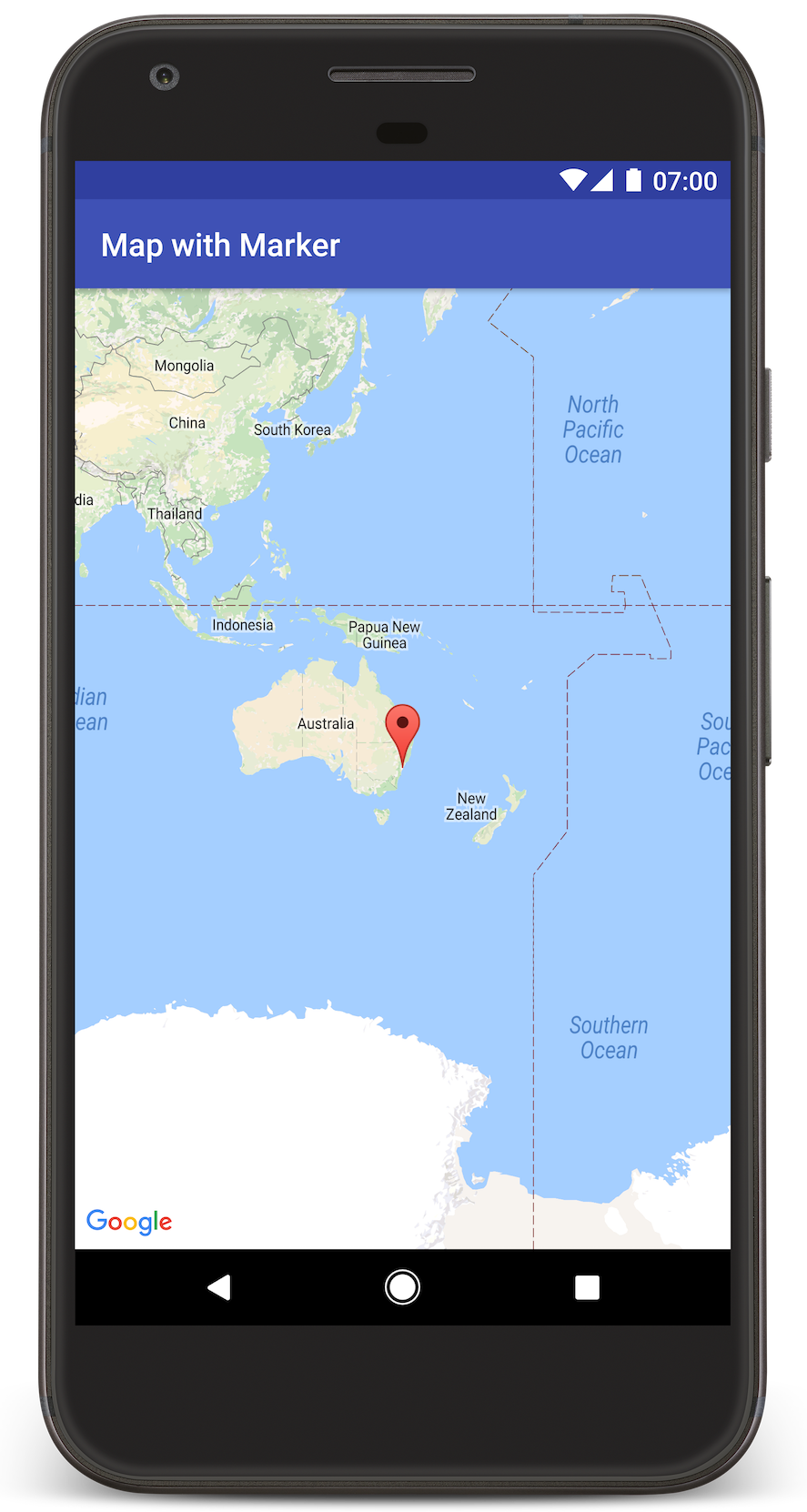
इस ट्यूटोरियल में, Android ऐप्लिकेशन में Google मैप जोड़ने का तरीका बताया गया है. मैप में किसी खास जगह को दिखाने के लिए, मार्कर शामिल होता है. इसे पिन भी कहा जाता है.
Android के लिए Maps SDK का इस्तेमाल करके, Android ऐप्लिकेशन बनाने के लिए ट्यूटोरियल देखें. हमारा सुझाव है कि आप डेवलपमेंट एनवायरमेंट के तौर पर Android Studio का इस्तेमाल करें.
कोड प्राप्त करें
GitHub से Google Maps Android API v2 के सैंपल की रिपॉज़िटरी को क्लोन या डाउनलोड करें.
गतिविधि का Java वर्शन देखें:
// Copyright 2020 Google LLC // // Licensed under the Apache License, Version 2.0 (the "License"); // you may not use this file except in compliance with the License. // You may obtain a copy of the License at // // http://www.apache.org/licenses/LICENSE-2.0 // // Unless required by applicable law or agreed to in writing, software // distributed under the License is distributed on an "AS IS" BASIS, // WITHOUT WARRANTIES OR CONDITIONS OF ANY KIND, either express or implied. // See the License for the specific language governing permissions and // limitations under the License. package com.example.mapwithmarker; import android.os.Bundle; import androidx.appcompat.app.AppCompatActivity; import com.google.android.gms.maps.CameraUpdateFactory; import com.google.android.gms.maps.GoogleMap; import com.google.android.gms.maps.OnMapReadyCallback; import com.google.android.gms.maps.SupportMapFragment; import com.google.android.gms.maps.model.LatLng; import com.google.android.gms.maps.model.MarkerOptions; /** An activity that displays a Google map with a marker (pin) to indicate a particular location. */ public class MapsMarkerActivity extends AppCompatActivity implements OnMapReadyCallback { @Override protected void onCreate(Bundle savedInstanceState) { super.onCreate(savedInstanceState); // Retrieve the content view that renders the map. setContentView(R.layout.activity_maps); // Get the SupportMapFragment and request notification when the map is ready to be used. SupportMapFragment mapFragment = (SupportMapFragment) getSupportFragmentManager().findFragmentById(R.id.map); mapFragment.getMapAsync(this); } /** * Manipulates the map when it's available. The API invokes this callback when the map is ready * to be used. This is where we can add markers or lines, add listeners or move the camera. In * this case, we just add a marker near Sydney, Australia. If Google Play services is not * installed on the device, the user receives a prompt to install Play services inside the * SupportMapFragment. The API invokes this method after the user has installed Google Play * services and returned to the app. */ @Override public void onMapReady(GoogleMap googleMap) { // Add a marker in Sydney, Australia, // and move the map's camera to the same location. LatLng sydney = new LatLng(-33.852, 151.211); googleMap.addMarker(new MarkerOptions().position(sydney).title("Marker in Sydney")); googleMap.moveCamera(CameraUpdateFactory.newLatLng(sydney)); } }
गतिविधि का Kotlin वर्शन देखें:
// Copyright 2020 Google LLC // // Licensed under the Apache License, Version 2.0 (the "License"); // you may not use this file except in compliance with the License. // You may obtain a copy of the License at // // http://www.apache.org/licenses/LICENSE-2.0 // // Unless required by applicable law or agreed to in writing, software // distributed under the License is distributed on an "AS IS" BASIS, // WITHOUT WARRANTIES OR CONDITIONS OF ANY KIND, either express or implied. // See the License for the specific language governing permissions and // limitations under the License. package com.example.mapwithmarker import android.os.Bundle import android.widget.Toast import androidx.appcompat.app.AppCompatActivity import com.google.android.gms.maps.CameraUpdateFactory import com.google.android.gms.maps.GoogleMap import com.google.android.gms.maps.OnMapReadyCallback import com.google.android.gms.maps.SupportMapFragment import com.google.android.gms.maps.model.LatLng import com.google.android.gms.maps.model.MarkerOptions /** * An activity that displays a Google map with a marker (pin) to indicate a particular location. */ class MapsMarkerActivity : AppCompatActivity(), OnMapReadyCallback { override fun onCreate(savedInstanceState: Bundle?) { super.onCreate(savedInstanceState) // Retrieve the content view that renders the map. setContentView(R.layout.activity_maps) // Get the SupportMapFragment and request notification when the map is ready to be used. val mapFragment = supportFragmentManager.findFragmentById(R.id.map) as? SupportMapFragment mapFragment?.getMapAsync(this) } override fun onMapReady(googleMap: GoogleMap) { val sydney = LatLng(-33.852, 151.211) googleMap.addMarker( MarkerOptions() .position(sydney) .title("Marker in Sydney"), ) googleMap.moveCamera(CameraUpdateFactory.newLatLng(sydney)) } }
अपना डेवलपमेंट प्रोजेक्ट सेट अप करना
Android Studio में ट्यूटोरियल प्रोजेक्ट बनाने के लिए, यह तरीका अपनाएं.
- Android Studio को डाउनलोड और इंस्टॉल करें.
- Android Studio में Google Play services पैकेज जोड़ें.
- अगर आपने इस ट्यूटोरियल को पढ़ना शुरू करते समय ऐसा नहीं किया है, तो Google Maps Android API v2 सैंपल रिपॉज़िटरी को क्लोन या डाउनलोड करें.
Android Studio में प्रोजेक्ट खोलें:
- Android Studio में, File > Open को चुनें.
- उस जगह पर जाएं जहां आपने Google Maps Android API v2 के सैंपल की रिपॉज़िटरी को डाउनलोड करने के बाद सेव किया है. इसके बाद, रूट डायरेक्ट्री
android-samplesको चुनें और खोलें पर क्लिक करें. Android Studio, Gradle का इस्तेमाल करके मल्टी-मॉड्यूल प्रोजेक्ट को सिंक करता है. - टूलबार में मौजूद Android Studio के रन कॉन्फ़िगरेशन मेन्यू में, tutorials.java.MapWithMarker (
tutorials/java/MapWithMarkerमें सोर्स) या tutorials.kotlin.MapWithMarker (tutorials/kotlin/MapWithMarkerमें सोर्स) को चुनें.
ज़रूरी एपीआई चालू करना और एपीआई पासकोड पाना
इस ट्यूटोरियल को पूरा करने के लिए, आपको एक Google Cloud प्रोजेक्ट की ज़रूरत होगी. इसमें ज़रूरी एपीआई चालू होने चाहिए. साथ ही, आपके पास एक ऐसा एपीआई पासकोड होना चाहिए जिसे Maps SDK for Android का इस्तेमाल करने की अनुमति मिली हो. ज़्यादा जानकारी के लिए, ये देखें:
अपने ऐप्लिकेशन में एपीआई पासकोड जोड़ना
- रूट
android-samplesडायरेक्ट्री (local.defaults.propertiesवाला फ़ोल्डर) में,secrets.propertiesफ़ाइल खोलें या बनाएं. इस फ़ाइल को वर्शन कंट्रोल में न जोड़ें. secrets.propertiesमें यह स्ट्रिंग जोड़ें औरYOUR_API_KEYको अपने एपीआई पासकोड की वैल्यू से बदलें:MAPS_API_KEY=YOUR_API_KEYऐप्लिकेशन बनाते समय, Android के लिए सीक्रेट ग्रेडल प्लग इन, एपीआई पासकोड को कॉपी करता है. साथ ही, इसे Android मेनिफ़ेस्ट में बिल्ड वैरिएबल के तौर पर उपलब्ध कराता है. इसके बारे में अपना Android मेनिफ़ेस्ट देखें में बताया गया है.
अपना ऐप्लिकेशन बनाना और उसे चलाना
ऐप्लिकेशन को बनाने और चलाने के लिए:
अपने कंप्यूटर से कोई Android डिवाइस कनेक्ट करें. अपने Android डिवाइस पर डेवलपर के लिए सेटिंग और टूल चालू करने के लिए, निर्देशों का पालन करें. साथ ही, डिवाइस का पता लगाने के लिए अपने सिस्टम को कॉन्फ़िगर करें.
इसके अलावा, वर्चुअल डिवाइस को कॉन्फ़िगर करने के लिए, Android Studio में डिवाइस मैनेजर का इस्तेमाल किया जा सकता है. एम्युलेटर चुनते समय, Play कॉलम में Google Play आइकॉन वाली डिवाइस प्रोफ़ाइल चुनें, ताकि सिस्टम इमेज में Google API शामिल हों. ज़्यादा जानकारी के लिए, Android Studio प्रोजेक्ट सेट अप करना लेख पढ़ें.
Android Studio में, पुष्टि करें कि रन कॉन्फ़िगरेशन मेन्यू में tutorials.java.MapWithMarker या tutorials.kotlin.MapWithMarker चुना गया हो. इसके बाद, Run पर क्लिक करें और प्रॉम्प्ट के मुताबिक कोई डिवाइस चुनें.
कमांड लाइन पर रूट
android-samplesडायरेक्ट्री से भी ट्यूटोरियल बनाया जा सकता है:./gradlew :tutorials:java:MapWithMarker:assembleDebug ./gradlew :tutorials:kotlin:MapWithMarker:assembleDebug
Android Studio, ऐप्लिकेशन बनाने के लिए Gradle को शुरू करता है. इसके बाद, ऐप्लिकेशन को डिवाइस या एम्युलेटर पर चलाता है. आपको एक मैप दिखेगा, जिसमें ऑस्ट्रेलिया के पूर्वी तट पर मौजूद सिडनी को दिखाने वाला मार्कर होगा. यह इस पेज पर मौजूद इमेज जैसा होगा.
समस्या का हल:
- अगर आपको मैप नहीं दिखता है, तो देखें कि आपने एपीआई पासकोड हासिल किया है और उसे
secrets.propertiesमें जोड़ा है. इसके बारे में ज़रूरी एपीआई चालू करें और एपीआई पासकोड पाएं में बताया गया है. एपीआई पासकोड से जुड़ी गड़बड़ी के मैसेज के लिए, Android Studio में Logcat देखें. - लॉग देखने और ऐप्लिकेशन को डीबग करने के लिए, Android Studio के डीबग करने वाले टूल इस्तेमाल करें.
कोड को समझना
ट्यूटोरियल के इस हिस्से में, MapWithMarker ऐप्लिकेशन के सबसे अहम हिस्सों के बारे में बताया गया है. इससे आपको इसी तरह का ऐप्लिकेशन बनाने का तरीका समझने में मदद मिलेगी.
अपने Android मेनिफ़ेस्ट की जांच करना
अपने ऐप्लिकेशन की AndroidManifest.xml फ़ाइल में, इन एलिमेंट पर ध्यान दें:
Google Play services के उस वर्शन को एम्बेड करने के लिए
meta-dataएलिमेंट जोड़ें जिसके साथ ऐप्लिकेशन को कंपाइल किया गया था.<meta-data android:name="com.google.android.gms.version" android:value="@integer/google_play_services_version" />अपना एपीआई पासकोड बताने वाला
meta-dataएलिमेंट जोड़ें. इस ट्यूटोरियल के साथ दिया गया सैंपल, एपीआई पासकोड की वैल्यू को बिल्ड वैरिएबल से मैप करता है. यह वैरिएबल, पहले तय किए गए पासकोड के नामMAPS_API_KEYसे मैच करता है. ऐप्लिकेशन बनाते समय, Android के लिए सीक्रेट ग्रेडल प्लग इन, आपकीsecrets.propertiesफ़ाइल में मौजूद कुंजियों को मेनिफ़ेस्ट बिल्ड वैरिएबल के तौर पर उपलब्ध कराता है.<meta-data android:name="com.google.android.geo.API_KEY" android:value="${MAPS_API_KEY}" />मॉड्यूल-लेवल की
build.gradle.ktsफ़ाइल में,com.google.android.libraries.mapsplatform.secrets-gradle-pluginप्लग इन औरsecretsब्लॉक, Secrets Gradle प्लग इन को कॉन्फ़िगर करते हैं. इससेsecrets.propertiesसे एपीआई पासकोड को पढ़ा जा सकता है. साथ ही,local.defaults.propertiesको फ़ॉलबैक के तौर पर इस्तेमाल किया जा सकता है और उसे Android मेनिफ़ेस्ट में पास किया जा सकता है:secrets { // To add your Maps API key to this project: // 1. If the secrets.properties file does not exist, create it in the root directory (the same folder as the root local.properties file). // 2. Add this line, where YOUR_API_KEY is your API key: // MAPS_API_KEY=YOUR_API_KEY propertiesFileName = "secrets.properties" // A properties file containing default secret values. This file can be // checked in version control. defaultPropertiesFileName = "local.defaults.properties" }
यहां दिए गए उदाहरण में, पूरी जानकारी वाला मेनिफ़ेस्ट दिखाया गया है:
<?xml version="1.0" encoding="utf-8"?>
<!--
 Copyright 2020 Google LLC

 Licensed under the Apache License, Version 2.0 (the "License");
 you may not use this file except in compliance with the License.
 You may obtain a copy of the License at

      http://www.apache.org/licenses/LICENSE-2.0

 Unless required by applicable law or agreed to in writing, software
 distributed under the License is distributed on an "AS IS" BASIS,
 WITHOUT WARRANTIES OR CONDITIONS OF ANY KIND, either express or implied.
 See the License for the specific language governing permissions and
 limitations under the License.
-->

<manifest xmlns:android="http://schemas.android.com/apk/res/android">

    <application
        android:allowBackup="true"
        android:icon="@mipmap/ic_launcher"
        android:label="@string/app_name"
        android:supportsRtl="true"
        android:theme="@style/AppTheme">

        <meta-data
            android:name="com.google.android.gms.version"
            android:value="@integer/google_play_services_version" />

        <!--
             The API key for Google Maps-based APIs.
        -->
        <meta-data
            android:name="com.google.android.geo.API_KEY"
            android:value="${MAPS_API_KEY}" />

        <activity
            android:name=".MapsMarkerActivity"
            android:label="@string/title_activity_maps"
            android:exported="true">
            <intent-filter>
                <action android:name="android.intent.action.MAIN" />

                <category android:name="android.intent.category.LAUNCHER" />
            </intent-filter>
        </activity>
    </application>

</manifest>
मैप जोड़ना
Android के लिए Maps SDK का इस्तेमाल करके, मैप दिखाएं.
अपनी गतिविधि की लेआउट फ़ाइल
activity_maps.xmlमें,<fragment>एलिमेंट जोड़ें. यह एलिमेंट, मैप के लिए कंटेनर के तौर पर काम करने औरGoogleMapऑब्जेक्ट का ऐक्सेस देने के लिए,SupportMapFragmentको तय करता है. ट्यूटोरियल में, मैप फ़्रैगमेंट के AndroidX वर्शन का इस्तेमाल किया गया है. इससे यह पक्का किया जाता है कि यह Android फ़्रेमवर्क के पुराने वर्शन के साथ काम करे.<!-- Copyright 2020 Google LLC Licensed under the Apache License, Version 2.0 (the "License"); you may not use this file except in compliance with the License. You may obtain a copy of the License at http://www.apache.org/licenses/LICENSE-2.0 Unless required by applicable law or agreed to in writing, software distributed under the License is distributed on an "AS IS" BASIS, WITHOUT WARRANTIES OR CONDITIONS OF ANY KIND, either express or implied. See the License for the specific language governing permissions and limitations under the License. --> <fragment xmlns:android="http://schemas.android.com/apk/res/android" xmlns:tools="http://schemas.android.com/tools" android:id="@+id/map" android:name="com.google.android.gms.maps.SupportMapFragment" android:layout_width="match_parent" android:layout_height="match_parent" tools:context="com.example.mapwithmarker.MapsMarkerActivity" />
अपनी गतिविधि के
onCreateतरीके में, लेआउट फ़ाइल को कॉन्टेंट व्यू के तौर पर सेट करें.FragmentManager.findFragmentByIdको कॉल करके, मैप फ़्रैगमेंट का हैंडल पाएं. इसके बाद, मैप कॉलबैक के लिए रजिस्टर करने के लिए,getMapAsyncका इस्तेमाल करें:Java
@Override protected void onCreate(Bundle savedInstanceState) { super.onCreate(savedInstanceState); // Retrieve the content view that renders the map. setContentView(R.layout.activity_maps); // Get the SupportMapFragment and request notification when the map is ready to be used. SupportMapFragment mapFragment = (SupportMapFragment) getSupportFragmentManager().findFragmentById(R.id.map); mapFragment.getMapAsync(this); }
Kotlin
override fun onCreate(savedInstanceState: Bundle?) { super.onCreate(savedInstanceState) // Retrieve the content view that renders the map. setContentView(R.layout.activity_maps) // Get the SupportMapFragment and request notification when the map is ready to be used. val mapFragment = supportFragmentManager.findFragmentById(R.id.map) as? SupportMapFragment mapFragment?.getMapAsync(this) }
GoogleMapऑब्जेक्ट उपलब्ध होने पर मैप सेट अप करने के लिए,OnMapReadyCallbackइंटरफ़ेस लागू करें औरonMapReadyतरीके को बदलें:Java
public class MapsMarkerActivity extends AppCompatActivity implements OnMapReadyCallback { // ... @Override public void onMapReady(GoogleMap googleMap) { LatLng sydney = new LatLng(-33.852, 151.211); googleMap.addMarker(new MarkerOptions().position(sydney).title("Marker in Sydney")); } }
Kotlin
class MapsMarkerActivity : AppCompatActivity(), OnMapReadyCallback { // ... override fun onMapReady(googleMap: GoogleMap) { val sydney = LatLng(-33.852, 151.211) googleMap.addMarker( MarkerOptions() .position(sydney) .title("Marker in Sydney"), ) } }
डिफ़ॉल्ट रूप से, Android के लिए Maps SDK, जानकारी विंडो का कॉन्टेंट तब दिखाता है, जब उपयोगकर्ता किसी मार्कर पर टैप करता है. अगर आपको डिफ़ॉल्ट ऐक्शन और सेटिंग का इस्तेमाल करना है, तो मार्कर के लिए क्लिक लिसनर जोड़ने की ज़रूरत नहीं है.
अगले चरण
मैप ऑब्जेक्ट के बारे में ज़्यादा जानें. साथ ही, यह भी जानें कि मार्कर की मदद से क्या-क्या किया जा सकता है.