

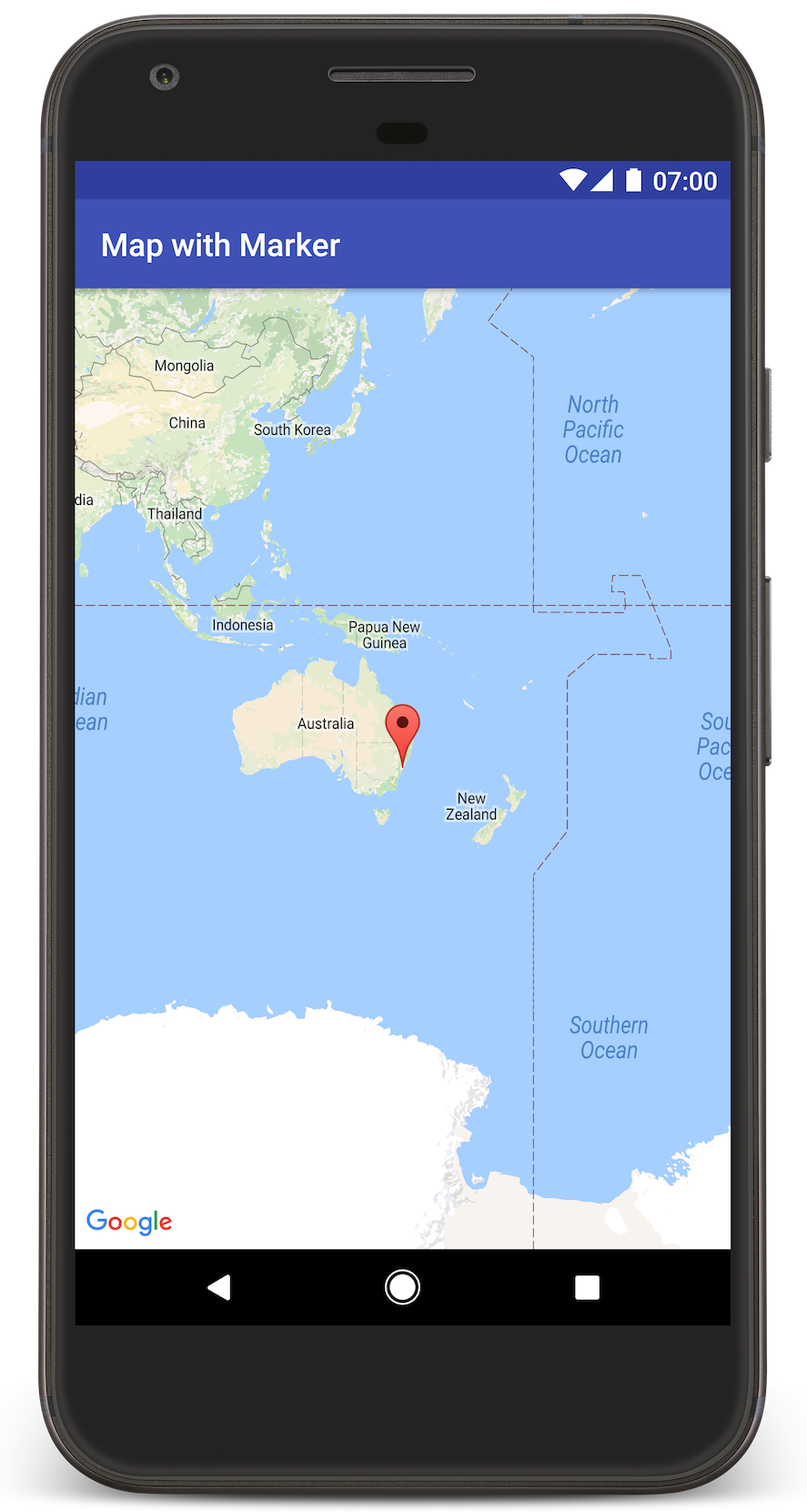
Z tego samouczka dowiesz się, jak dodać mapę Google do aplikacji na Androida. Mapa zawiera znacznik, nazywany też pinezką, który wskazuje konkretną lokalizację.
Postępuj zgodnie z samouczkiem, aby utworzyć aplikację na Androida za pomocą pakietu Maps SDK na Androida. Zalecanym środowiskiem programistycznym jest Android Studio.
Pobierz kod
Sklonuj lub pobierz repozytorium przykładów Google Maps Android API v2 z GitHuba.
Wyświetl wersję aktywności w języku Java:
// Copyright 2020 Google LLC // // Licensed under the Apache License, Version 2.0 (the "License"); // you may not use this file except in compliance with the License. // You may obtain a copy of the License at // // http://www.apache.org/licenses/LICENSE-2.0 // // Unless required by applicable law or agreed to in writing, software // distributed under the License is distributed on an "AS IS" BASIS, // WITHOUT WARRANTIES OR CONDITIONS OF ANY KIND, either express or implied. // See the License for the specific language governing permissions and // limitations under the License. package com.example.mapwithmarker; import android.os.Bundle; import androidx.appcompat.app.AppCompatActivity; import com.google.android.gms.maps.CameraUpdateFactory; import com.google.android.gms.maps.GoogleMap; import com.google.android.gms.maps.OnMapReadyCallback; import com.google.android.gms.maps.SupportMapFragment; import com.google.android.gms.maps.model.LatLng; import com.google.android.gms.maps.model.MarkerOptions; /** An activity that displays a Google map with a marker (pin) to indicate a particular location. */ public class MapsMarkerActivity extends AppCompatActivity implements OnMapReadyCallback { @Override protected void onCreate(Bundle savedInstanceState) { super.onCreate(savedInstanceState); // Retrieve the content view that renders the map. setContentView(R.layout.activity_maps); // Get the SupportMapFragment and request notification when the map is ready to be used. SupportMapFragment mapFragment = (SupportMapFragment) getSupportFragmentManager().findFragmentById(R.id.map); mapFragment.getMapAsync(this); } /** * Manipulates the map when it's available. The API invokes this callback when the map is ready * to be used. This is where we can add markers or lines, add listeners or move the camera. In * this case, we just add a marker near Sydney, Australia. If Google Play services is not * installed on the device, the user receives a prompt to install Play services inside the * SupportMapFragment. The API invokes this method after the user has installed Google Play * services and returned to the app. */ @Override public void onMapReady(GoogleMap googleMap) { // Add a marker in Sydney, Australia, // and move the map's camera to the same location. LatLng sydney = new LatLng(-33.852, 151.211); googleMap.addMarker(new MarkerOptions().position(sydney).title("Marker in Sydney")); googleMap.moveCamera(CameraUpdateFactory.newLatLng(sydney)); } }
Wyświetl wersję aktywności w języku Kotlin:
// Copyright 2020 Google LLC // // Licensed under the Apache License, Version 2.0 (the "License"); // you may not use this file except in compliance with the License. // You may obtain a copy of the License at // // http://www.apache.org/licenses/LICENSE-2.0 // // Unless required by applicable law or agreed to in writing, software // distributed under the License is distributed on an "AS IS" BASIS, // WITHOUT WARRANTIES OR CONDITIONS OF ANY KIND, either express or implied. // See the License for the specific language governing permissions and // limitations under the License. package com.example.mapwithmarker import android.os.Bundle import android.widget.Toast import androidx.appcompat.app.AppCompatActivity import com.google.android.gms.maps.CameraUpdateFactory import com.google.android.gms.maps.GoogleMap import com.google.android.gms.maps.OnMapReadyCallback import com.google.android.gms.maps.SupportMapFragment import com.google.android.gms.maps.model.LatLng import com.google.android.gms.maps.model.MarkerOptions /** * An activity that displays a Google map with a marker (pin) to indicate a particular location. */ class MapsMarkerActivity : AppCompatActivity(), OnMapReadyCallback { override fun onCreate(savedInstanceState: Bundle?) { super.onCreate(savedInstanceState) // Retrieve the content view that renders the map. setContentView(R.layout.activity_maps) // Get the SupportMapFragment and request notification when the map is ready to be used. val mapFragment = supportFragmentManager.findFragmentById(R.id.map) as? SupportMapFragment mapFragment?.getMapAsync(this) } override fun onMapReady(googleMap: GoogleMap) { val sydney = LatLng(-33.852, 151.211) googleMap.addMarker( MarkerOptions() .position(sydney) .title("Marker in Sydney"), ) googleMap.moveCamera(CameraUpdateFactory.newLatLng(sydney)) } }
Konfigurowanie projektu programistycznego
Aby utworzyć projekt samouczka w Android Studio, wykonaj te czynności.
- Pobierz i zainstaluj Android Studio.
- Dodaj pakiet usług Google Play do Android Studio.
- Sklonuj lub pobierz repozytorium przykładów Google Maps Android API v2, jeśli nie zostało to zrobione przed rozpoczęciem czytania tego samouczka.
Zaimportuj projekt samouczka:
- W Android Studio wybierz File > New > Import Project (Plik > Nowy > Importuj projekt).
- Otwórz lokalizację, w której zostało zapisane pobrane repozytorium przykładów Google Maps Android API v2.
- Znajdź projekt MapWithMarker w tej lokalizacji:
PATH-TO-SAVED-REPO/android-samples/tutorials/java/MapWithMarker(Java) lub
PATH-TO-SAVED-REPO/android-samples/tutorials/kotlin/MapWithMarker(Kotlin) - Wybierz katalog projektu, a następnie kliknij Otwórz. Android Studio skompiluje teraz projekt za pomocą narzędzia Gradle.
Włączanie niezbędnych interfejsów API i uzyskiwanie klucza interfejsu API
Aby móc wykonać zadania z tego samouczka, musisz mieć projekt Google Cloud z włączonymi niezbędnymi interfejsami API oraz klucz interfejsu API, który jest autoryzowany do korzystania z pakietu Maps SDK for Android. Więcej informacji:
Dodawanie klucza interfejsu API do aplikacji
- Otwórz plik
local.propertiesprojektu. Dodaj ten ciąg znaków, a następnie zastąp
YOUR_API_KEYwartością klucza interfejsu API:MAPS_API_KEY=YOUR_API_KEYGdy utworzysz aplikację, wtyczka Gradle obiektów tajnych dla Androida skopiuje klucz interfejsu API i udostępni go jako zmienną kompilacji w pliku manifestu Androida, jak wyjaśniono poniżej.
Tworzenie i uruchamianie aplikacji
Aby skompilować i uruchomić aplikację:
Podłącz urządzenie z Androidem do komputera. Postępuj zgodnie z instrukcjami, aby włączyć opcje programisty na urządzeniu z Androidem i skonfigurować system tak, aby wykrywał urządzenie.
Możesz też skonfigurować urządzenie wirtualne za pomocą menedżera urządzenia wirtualnego z Androidem (AVD). Wybierając emulator, upewnij się, że wybierasz obraz, który zawiera interfejsy API Google. Więcej informacji znajdziesz w artykule Konfigurowanie projektu w Android Studio .
W Android Studio kliknij opcję menu Uruchom (lub ikonę przycisku odtwarzania). Wybierz urządzenie zgodnie z instrukcjami.
Android Studio wywołuje Gradle, aby skompilować aplikację, a następnie uruchamia ją na urządzeniu lub w emulatorze. Powinna wyświetlić się mapa ze znacznikiem wskazującym Sydney na wschodnim wybrzeżu Australii, podobna do obrazu na tej stronie.
Rozwiązywanie problemów:
- Jeśli nie widzisz mapy, sprawdź, czy masz klucz interfejsu API i czy został on dodany do aplikacji w sposób opisany powyżej. Sprawdź, czy w dzienniku w Android Monitor w Android Studio nie ma komunikatów o błędach dotyczących klucza interfejsu API.
- Użyj narzędzi do debugowania w Android Studio, aby wyświetlić logi i debugować aplikację.
Zrozumienie kodu
W tej części samouczka wyjaśniamy najważniejsze elementy aplikacji MapWithMarker, aby ułatwić Ci utworzenie podobnej aplikacji.
Sprawdzanie pliku manifestu Androida
Zwróć uwagę na te elementy w pliku AndroidManifest.xml aplikacji:
Dodaj element
meta-data, aby umieścić wersję usług Google Play, z którą została skompilowana aplikacja.<meta-data android:name="com.google.android.gms.version" android:value="@integer/google_play_services_version" />Dodaj element
meta-data, który określa klucz interfejsu API. Przykładowy kod dołączony do tego samouczka mapuje wartość klucza interfejsu API na zmienną kompilacji pasującą do nazwy klucza zdefiniowanego wcześniej (MAPS_API_KEY). Gdy utworzysz aplikację, wtyczka Gradle obiektów tajnych dla Androida udostępni klucze z plikulocal.propertiesjako zmienne wariantu kompilacji manifestu.<meta-data android:name="com.google.android.geo.API_KEY" android:value="${MAPS_API_KEY}" />W pliku
build.gradleten wiersz przekazuje klucz interfejsu API do pliku manifestu Androida.id 'com.google.android.libraries.mapsplatform.secrets-gradle-plugin'
Poniżej znajdziesz przykład pełnego pliku manifestu:
<?xml version="1.0" encoding="utf-8"?>
<!--
 Copyright 2020 Google LLC

 Licensed under the Apache License, Version 2.0 (the "License");
 you may not use this file except in compliance with the License.
 You may obtain a copy of the License at

      http://www.apache.org/licenses/LICENSE-2.0

 Unless required by applicable law or agreed to in writing, software
 distributed under the License is distributed on an "AS IS" BASIS,
 WITHOUT WARRANTIES OR CONDITIONS OF ANY KIND, either express or implied.
 See the License for the specific language governing permissions and
 limitations under the License.
-->

<manifest xmlns:android="http://schemas.android.com/apk/res/android">

    <application
        android:allowBackup="true"
        android:icon="@mipmap/ic_launcher"
        android:label="@string/app_name"
        android:supportsRtl="true"
        android:theme="@style/AppTheme">

        <meta-data
            android:name="com.google.android.gms.version"
            android:value="@integer/google_play_services_version" />

        <!--
             The API key for Google Maps-based APIs.
        -->
        <meta-data
            android:name="com.google.android.geo.API_KEY"
            android:value="${MAPS_API_KEY}" />

        <activity
            android:name=".MapsMarkerActivity"
            android:label="@string/title_activity_maps"
            android:exported="true">
            <intent-filter>
                <action android:name="android.intent.action.MAIN" />

                <category android:name="android.intent.category.LAUNCHER" />
            </intent-filter>
        </activity>
    </application>

</manifest>
Dodawanie mapy
wyświetlać mapę za pomocą pakietu Maps SDK na Androida;
Dodaj element
<fragment>do pliku układu aktywności,activity_maps.xml. Ten element definiuje elementSupportMapFragment, który działa jako kontener mapy i zapewnia dostęp do obiektuGoogleMap. W samouczku użyto fragmentu mapy z biblioteki pomocy Androida, aby zapewnić zgodność wsteczną z wcześniejszymi wersjami platformy Androida.<!-- Copyright 2020 Google LLC Licensed under the Apache License, Version 2.0 (the "License"); you may not use this file except in compliance with the License. You may obtain a copy of the License at http://www.apache.org/licenses/LICENSE-2.0 Unless required by applicable law or agreed to in writing, software distributed under the License is distributed on an "AS IS" BASIS, WITHOUT WARRANTIES OR CONDITIONS OF ANY KIND, either express or implied. See the License for the specific language governing permissions and limitations under the License. --> <fragment xmlns:android="http://schemas.android.com/apk/res/android" xmlns:tools="http://schemas.android.com/tools" android:id="@+id/map" android:name="com.google.android.gms.maps.SupportMapFragment" android:layout_width="match_parent" android:layout_height="match_parent" tools:context="com.example.mapwithmarker.MapsMarkerActivity" />
W metodzie
onCreate()aktywności ustaw plik układu jako widok zawartości. Uzyskaj uchwyt do fragmentu mapy, wywołując metodęFragmentManager.findFragmentById(). Następnie użyjgetMapAsync(), aby zarejestrować wywołanie zwrotne mapy:Java
@Override protected void onCreate(Bundle savedInstanceState) { super.onCreate(savedInstanceState); // Retrieve the content view that renders the map. setContentView(R.layout.activity_maps); // Get the SupportMapFragment and request notification when the map is ready to be used. SupportMapFragment mapFragment = (SupportMapFragment) getSupportFragmentManager().findFragmentById(R.id.map); mapFragment.getMapAsync(this); }
Kotlin
override fun onCreate(savedInstanceState: Bundle?) { super.onCreate(savedInstanceState) // Retrieve the content view that renders the map. setContentView(R.layout.activity_maps) // Get the SupportMapFragment and request notification when the map is ready to be used. val mapFragment = supportFragmentManager.findFragmentById(R.id.map) as? SupportMapFragment mapFragment?.getMapAsync(this) }
Zaimplementuj interfejs
OnMapReadyCallbacki zastąp metodęonMapReady(), aby skonfigurować mapę, gdy obiektGoogleMapjest dostępny:Java
public class MapsMarkerActivity extends AppCompatActivity implements OnMapReadyCallback { // ... @Override public void onMapReady(GoogleMap googleMap) { LatLng sydney = new LatLng(-33.852, 151.211); googleMap.addMarker(new MarkerOptions().position(sydney).title("Marker in Sydney")); } }
Kotlin
class MapsMarkerActivity : AppCompatActivity(), OnMapReadyCallback { // ... override fun onMapReady(googleMap: GoogleMap) { val sydney = LatLng(-33.852, 151.211) googleMap.addMarker( MarkerOptions() .position(sydney) .title("Marker in Sydney"), ) } }
Domyślnie pakiet Maps SDK na Androida wyświetla zawartość okna informacyjnego, gdy użytkownik kliknie znacznik. Jeśli chcesz korzystać z działania domyślnego, nie musisz dodawać detektora kliknięć do znacznika.
Dalsze kroki
Dowiedz się więcej o obiekcie mapy i o tym, co możesz zrobić ze znacznikami.