

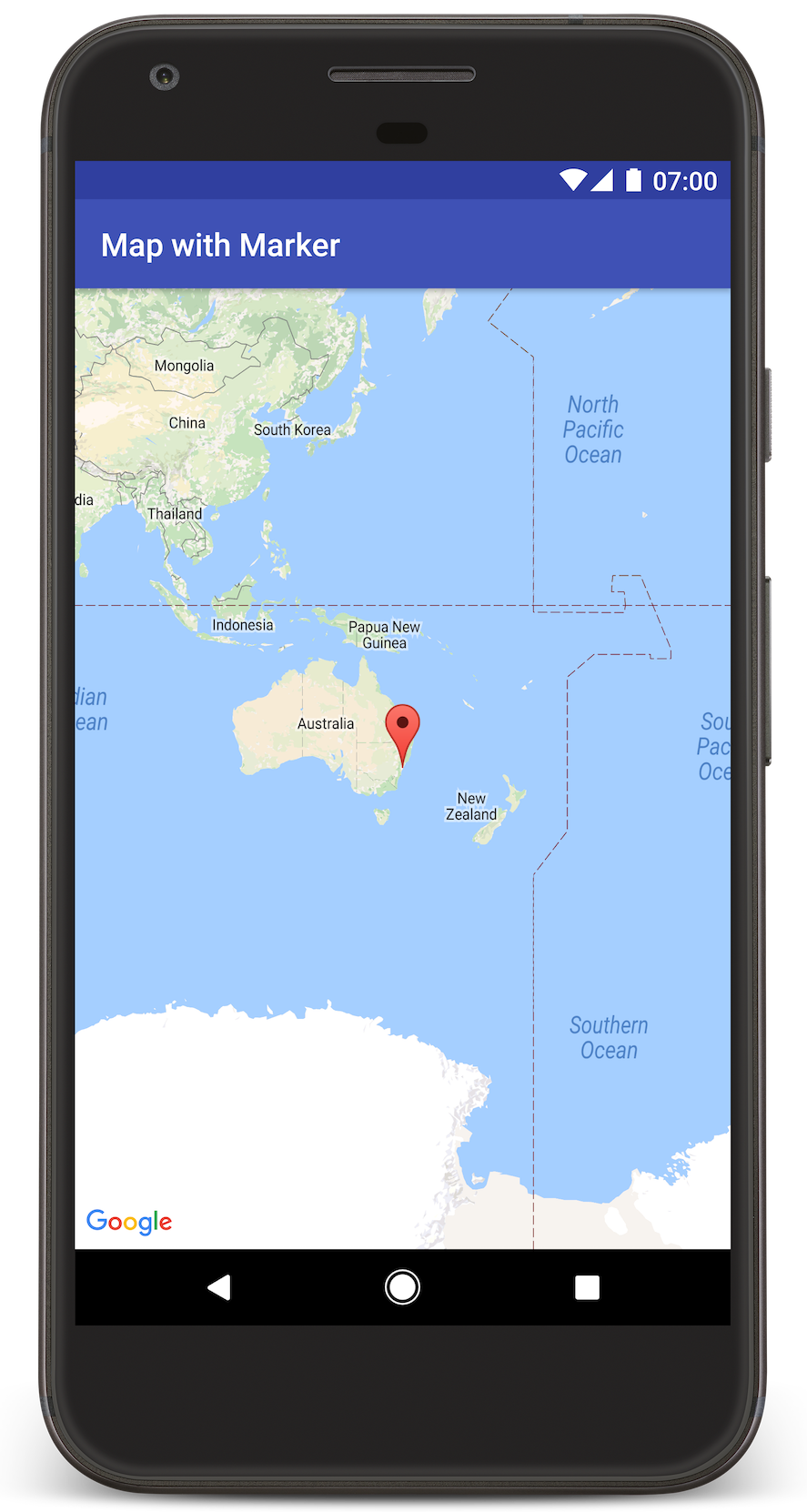
В этом руководстве рассказывается, как добавить карту Google в приложение для Android. Карта содержит маркер, которым обозначается определенное место.
Следуйте руководству по созданию приложения для Android с помощью Maps SDK для Android. Рекомендуемая среда разработки – Android Studio.
Как получить код
Клонируйте или скачайте репозиторий с примерами Google Maps Android API версии 2 с сайта GitHub.
Версия на языке Java:
// Copyright 2020 Google LLC // // Licensed under the Apache License, Version 2.0 (the "License"); // you may not use this file except in compliance with the License. // You may obtain a copy of the License at // // http://www.apache.org/licenses/LICENSE-2.0 // // Unless required by applicable law or agreed to in writing, software // distributed under the License is distributed on an "AS IS" BASIS, // WITHOUT WARRANTIES OR CONDITIONS OF ANY KIND, either express or implied. // See the License for the specific language governing permissions and // limitations under the License. package com.example.mapwithmarker; import android.os.Bundle; import androidx.appcompat.app.AppCompatActivity; import com.google.android.gms.maps.CameraUpdateFactory; import com.google.android.gms.maps.GoogleMap; import com.google.android.gms.maps.OnMapReadyCallback; import com.google.android.gms.maps.SupportMapFragment; import com.google.android.gms.maps.model.LatLng; import com.google.android.gms.maps.model.MarkerOptions; /** An activity that displays a Google map with a marker (pin) to indicate a particular location. */ public class MapsMarkerActivity extends AppCompatActivity implements OnMapReadyCallback { @Override protected void onCreate(Bundle savedInstanceState) { super.onCreate(savedInstanceState); // Retrieve the content view that renders the map. setContentView(R.layout.activity_maps); // Get the SupportMapFragment and request notification when the map is ready to be used. SupportMapFragment mapFragment = (SupportMapFragment) getSupportFragmentManager().findFragmentById(R.id.map); mapFragment.getMapAsync(this); } /** * Manipulates the map when it's available. The API invokes this callback when the map is ready * to be used. This is where we can add markers or lines, add listeners or move the camera. In * this case, we just add a marker near Sydney, Australia. If Google Play services is not * installed on the device, the user receives a prompt to install Play services inside the * SupportMapFragment. The API invokes this method after the user has installed Google Play * services and returned to the app. */ @Override public void onMapReady(GoogleMap googleMap) { // Add a marker in Sydney, Australia, // and move the map's camera to the same location. LatLng sydney = new LatLng(-33.852, 151.211); googleMap.addMarker(new MarkerOptions().position(sydney).title("Marker in Sydney")); googleMap.moveCamera(CameraUpdateFactory.newLatLng(sydney)); } }
Версия на языке Kotlin:
// Copyright 2020 Google LLC // // Licensed under the Apache License, Version 2.0 (the "License"); // you may not use this file except in compliance with the License. // You may obtain a copy of the License at // // http://www.apache.org/licenses/LICENSE-2.0 // // Unless required by applicable law or agreed to in writing, software // distributed under the License is distributed on an "AS IS" BASIS, // WITHOUT WARRANTIES OR CONDITIONS OF ANY KIND, either express or implied. // See the License for the specific language governing permissions and // limitations under the License. package com.example.mapwithmarker import android.os.Bundle import android.widget.Toast import androidx.appcompat.app.AppCompatActivity import com.google.android.gms.maps.CameraUpdateFactory import com.google.android.gms.maps.GoogleMap import com.google.android.gms.maps.OnMapReadyCallback import com.google.android.gms.maps.SupportMapFragment import com.google.android.gms.maps.model.LatLng import com.google.android.gms.maps.model.MarkerOptions /** * An activity that displays a Google map with a marker (pin) to indicate a particular location. */ class MapsMarkerActivity : AppCompatActivity(), OnMapReadyCallback { override fun onCreate(savedInstanceState: Bundle?) { super.onCreate(savedInstanceState) // Retrieve the content view that renders the map. setContentView(R.layout.activity_maps) // Get the SupportMapFragment and request notification when the map is ready to be used. val mapFragment = supportFragmentManager.findFragmentById(R.id.map) as? SupportMapFragment mapFragment?.getMapAsync(this) } override fun onMapReady(googleMap: GoogleMap) { val sydney = LatLng(-33.852, 151.211) googleMap.addMarker( MarkerOptions() .position(sydney) .title("Marker in Sydney"), ) googleMap.moveCamera(CameraUpdateFactory.newLatLng(sydney)) } }
Как настроить проект
Чтобы создать проект в Android Studio, выполните следующие действия:
- Скачайте и установите Android Studio.
- Добавьте пакет сервисов Google Play в Android Studio.
- Клонируйте или скачайте репозиторий с примерами Google Maps Android API версии 2 с сайта GitHub, если вы ещё не сделали этого.
Откройте проект в Android Studio:
- В Android Studio выберите File > Open (Файл > Открыть).
- Перейдите в каталог, где вы сохранили репозиторий с примерами Google Maps Android API версии 2 после его скачивания, выберите корневой каталог
android-samplesи нажмите Open (Открыть). Android Studio синхронизирует многомодульный проект с помощью Gradle. - В меню конфигурации запуска Android Studio на панели инструментов выберите tutorials.java.MapWithMarker (исходный код в
tutorials/java/MapWithMarker) или tutorials.kotlin.MapWithMarker (исходный код вtutorials/kotlin/MapWithMarker).
Как включить нужные API и получить ключ API
Для этого учебного проекта вам понадобится проект Google Cloud, в котором включены все необходимые API, и ключ API, авторизованный для работы с Maps SDK для Android. Подробная информация приведена в следующих статьях:
Как добавить в приложение ключ API
- В корневом каталоге
android-samples(в той же папке, где находитсяlocal.defaults.properties) откройте или создайте файлsecrets.properties. Не добавляйте этот файл в систему управления версиями. Добавьте в
secrets.propertiesследующую строку и укажите вместоYOUR_API_KEYсвой ключ API.MAPS_API_KEY=YOUR_API_KEYПлагин Secrets Gradle для Android копирует ключ API во время сборки приложения и делает его доступным в виде переменной сборки в манифесте Android, как объясняется в разделе Проверьте манифест Android.
Как создать сборку и запустить приложение
Чтобы собрать и запустить приложение, выполните следующие действия:
Подключите устройство Android к компьютеру. Выполните инструкции по активации параметров для разработчиков на устройстве Android и настройте систему для обнаружения этого устройства.
Если вам нужно настроить виртуальное устройство, воспользуйтесь Диспетчером устройств в Android Studio. Выбирая эмулятор, используйте профиль устройства со значком Google Play в столбце Play, чтобы образ системы содержал API Google. Подробнее о том, как настроить проект Android Studio…
В Android Studio убедитесь, что в меню конфигурации запуска выбрано tutorials.java.MapWithMarker или tutorials.kotlin.MapWithMarker, нажмите Run (Запустить) и выберите устройство.
Вы также можете создать руководство из корневого каталога
android-samplesв командной строке:./gradlew :tutorials:java:MapWithMarker:assembleDebug ./gradlew :tutorials:kotlin:MapWithMarker:assembleDebug
Android Studio вызовет Gradle для сборки приложения, а затем запустит его на устройстве или в эмуляторе. Вы должны увидеть карту с маркером, указывающим на город Сидней на восточном берегу Австралии, как показано на этой странице.
Устранение неполадок
- Если карта не показывается, проверьте, получен ли ключ API и добавлен ли он в
secrets.properties, как описано в разделе Как активировать нужные API и получить ключ API. Проверьте журнал Logcat в Android Studio на наличие сообщений об ошибках, касающихся ключа API. - Для просмотра журналов и отладки приложения используйте средства отладки Android Studio.
Как работает код
В этой части руководства описаны наиболее важные компоненты приложения MapWithMarker, чтобы вам было проще понять принципы создания таких приложений.
Проверка манифеста Android
Обратите внимание на перечисленные ниже элементы в файле AndroidManifest.xml своего приложения.
Добавьте элемент
meta-data, чтобы указать версию сервисов Google Play, с которой было скомпилировано приложение.<meta-data android:name="com.google.android.gms.version" android:value="@integer/google_play_services_version" />Добавьте элемент
meta-dataс указанием своего ключа API. В примере, приведенном в этом руководстве, значение ключа API сопоставляется с определенной ранее переменной сборки (MAPS_API_KEY). Во время сборки приложения плагин Secrets Gradle для Android делает ключи в вашем файлеsecrets.propertiesдоступными, используя переменные манифеста.<meta-data android:name="com.google.android.geo.API_KEY" android:value="${MAPS_API_KEY}" />В файле
build.gradle.ktsна уровне модуля плагинcom.google.android.libraries.mapsplatform.secrets-gradle-pluginи блокsecretsнастраивают плагин Secrets Gradle так, чтобы он считывал ключ API из файлаsecrets.properties(с резервным файломlocal.defaults.properties) и передавал его в манифест Android:secrets { // To add your Maps API key to this project: // 1. If the secrets.properties file does not exist, create it in the root directory (the same folder as the root local.properties file). // 2. Add this line, where YOUR_API_KEY is your API key: // MAPS_API_KEY=YOUR_API_KEY propertiesFileName = "secrets.properties" // A properties file containing default secret values. This file can be // checked in version control. defaultPropertiesFileName = "local.defaults.properties" }
Ниже приведен пример полного манифеста.
<?xml version="1.0" encoding="utf-8"?>
<!--
 Copyright 2020 Google LLC

 Licensed under the Apache License, Version 2.0 (the "License");
 you may not use this file except in compliance with the License.
 You may obtain a copy of the License at

      http://www.apache.org/licenses/LICENSE-2.0

 Unless required by applicable law or agreed to in writing, software
 distributed under the License is distributed on an "AS IS" BASIS,
 WITHOUT WARRANTIES OR CONDITIONS OF ANY KIND, either express or implied.
 See the License for the specific language governing permissions and
 limitations under the License.
-->

<manifest xmlns:android="http://schemas.android.com/apk/res/android">

    <application
        android:allowBackup="true"
        android:icon="@mipmap/ic_launcher"
        android:label="@string/app_name"
        android:supportsRtl="true"
        android:theme="@style/AppTheme">

        <meta-data
            android:name="com.google.android.gms.version"
            android:value="@integer/google_play_services_version" />

        <!--
             The API key for Google Maps-based APIs.
        -->
        <meta-data
            android:name="com.google.android.geo.API_KEY"
            android:value="${MAPS_API_KEY}" />

        <activity
            android:name=".MapsMarkerActivity"
            android:label="@string/title_activity_maps"
            android:exported="true">
            <intent-filter>
                <action android:name="android.intent.action.MAIN" />

                <category android:name="android.intent.category.LAUNCHER" />
            </intent-filter>
        </activity>
    </application>

</manifest>
Добавление карты
Отобразите карту, используя Maps SDK для Android.
Добавьте элемент
<fragment>в файл макета для объекта activity (activity_maps.xml). Этот элемент указывает, что фрагментSupportMapFragmentдолжен выступать в роли контейнера для карты и предоставить доступ к объектуGoogleMap. В учебном проекте используется версия AndroidX для фрагмента карты. Это обеспечивает обратную совместимость с более ранними версиями фреймворка Android.<!-- Copyright 2020 Google LLC Licensed under the Apache License, Version 2.0 (the "License"); you may not use this file except in compliance with the License. You may obtain a copy of the License at http://www.apache.org/licenses/LICENSE-2.0 Unless required by applicable law or agreed to in writing, software distributed under the License is distributed on an "AS IS" BASIS, WITHOUT WARRANTIES OR CONDITIONS OF ANY KIND, either express or implied. See the License for the specific language governing permissions and limitations under the License. --> <fragment xmlns:android="http://schemas.android.com/apk/res/android" xmlns:tools="http://schemas.android.com/tools" android:id="@+id/map" android:name="com.google.android.gms.maps.SupportMapFragment" android:layout_width="match_parent" android:layout_height="match_parent" tools:context="com.example.mapwithmarker.MapsMarkerActivity" />
В методе
onCreateсвоего объекта activity установите файл макета как представление контента. Получите дескриптор для фрагмента карты путем вызова методаFragmentManager.findFragmentById. Затем используйте методgetMapAsync, чтобы зарегистрировать обратный вызов карты.Java
@Override protected void onCreate(Bundle savedInstanceState) { super.onCreate(savedInstanceState); // Retrieve the content view that renders the map. setContentView(R.layout.activity_maps); // Get the SupportMapFragment and request notification when the map is ready to be used. SupportMapFragment mapFragment = (SupportMapFragment) getSupportFragmentManager().findFragmentById(R.id.map); mapFragment.getMapAsync(this); }
Kotlin
override fun onCreate(savedInstanceState: Bundle?) { super.onCreate(savedInstanceState) // Retrieve the content view that renders the map. setContentView(R.layout.activity_maps) // Get the SupportMapFragment and request notification when the map is ready to be used. val mapFragment = supportFragmentManager.findFragmentById(R.id.map) as? SupportMapFragment mapFragment?.getMapAsync(this) }
Реализуйте интерфейс
OnMapReadyCallbackи переопределите методonMapReady, чтобы настроить карту, когда объектGoogleMapбудет доступен.Java
public class MapsMarkerActivity extends AppCompatActivity implements OnMapReadyCallback { // ... @Override public void onMapReady(GoogleMap googleMap) { LatLng sydney = new LatLng(-33.852, 151.211); googleMap.addMarker(new MarkerOptions().position(sydney).title("Marker in Sydney")); } }
Kotlin
class MapsMarkerActivity : AppCompatActivity(), OnMapReadyCallback { // ... override fun onMapReady(googleMap: GoogleMap) { val sydney = LatLng(-33.852, 151.211) googleMap.addMarker( MarkerOptions() .position(sydney) .title("Marker in Sydney"), ) } }
По умолчанию Maps SDK для Android отображает содержимое информационного окна, когда пользователь касается маркера. Если вас устраивает режим работы по умолчанию, прослушиватель кликов для маркера можно не добавлять.
Дальнейшие действия
Прочитайте статьи об объекте карты и о том, что можно делать с маркерами.