

บทแนะนำนี้แสดงวิธีเพิ่มแผนที่ Google ลงในแอป Android และใช้เส้นประกอบและรูปหลายเหลี่ยมเพื่อแสดงเส้นทางและพื้นที่บนแผนที่
ทำตามบทแนะนำเพื่อสร้างแอป Android โดยใช้ Maps SDK สำหรับ Android สภาพแวดล้อมในการพัฒนาซอฟต์แวร์ที่แนะนำคือ Android Studio
รับโค้ด
โคลนหรือดาวน์โหลดที่เก็บตัวอย่าง Google Maps Android API v2 จาก GitHub
ดูกิจกรรมเวอร์ชัน Java
    // Copyright 2020 Google LLC
//
// Licensed under the Apache License, Version 2.0 (the "License");
// you may not use this file except in compliance with the License.
// You may obtain a copy of the License at
//
//      http://www.apache.org/licenses/LICENSE-2.0
//
// Unless required by applicable law or agreed to in writing, software
// distributed under the License is distributed on an "AS IS" BASIS,
// WITHOUT WARRANTIES OR CONDITIONS OF ANY KIND, either express or implied.
// See the License for the specific language governing permissions and
// limitations under the License.

package com.example.polygons;

import android.os.Bundle;
import android.widget.Toast;
import androidx.appcompat.app.AppCompatActivity;
import com.google.android.gms.maps.CameraUpdateFactory;
import com.google.android.gms.maps.GoogleMap;
import com.google.android.gms.maps.OnMapReadyCallback;
import com.google.android.gms.maps.SupportMapFragment;
import com.google.android.gms.maps.model.BitmapDescriptorFactory;
import com.google.android.gms.maps.model.CustomCap;
import com.google.android.gms.maps.model.Dash;
import com.google.android.gms.maps.model.Dot;
import com.google.android.gms.maps.model.Gap;
import com.google.android.gms.maps.model.JointType;
import com.google.android.gms.maps.model.LatLng;
import com.google.android.gms.maps.model.PatternItem;
import com.google.android.gms.maps.model.Polygon;
import com.google.android.gms.maps.model.PolygonOptions;
import com.google.android.gms.maps.model.Polyline;
import com.google.android.gms.maps.model.PolylineOptions;
import com.google.android.gms.maps.model.RoundCap;
import java.util.Arrays;
import java.util.List;

/**
 * An activity that displays a Google map with polylines to represent paths or routes, and polygons
 * to represent areas.
 */
public class PolyActivity extends AppCompatActivity
        implements OnMapReadyCallback,
                GoogleMap.OnPolylineClickListener,
                GoogleMap.OnPolygonClickListener {

    @Override
    protected void onCreate(Bundle savedInstanceState) {
        super.onCreate(savedInstanceState);

        // Retrieve the content view that renders the map.
        setContentView(R.layout.activity_maps);

        // Get the SupportMapFragment and request notification when the map is ready to be used.
        SupportMapFragment mapFragment =
                (SupportMapFragment) getSupportFragmentManager().findFragmentById(R.id.map);
        mapFragment.getMapAsync(this);
    }


    /**
     * Manipulates the map when it's available. The API invokes this callback when the map is ready
     * to be used. This is where we can add markers or lines, add listeners or move the camera. In
     * this tutorial, we add polylines and polygons to represent routes and areas on the map.
     */
    @Override
    public void onMapReady(GoogleMap googleMap) {

        // Add polylines to the map.
        // Polylines are useful to show a route or some other connection between points.
        Polyline polyline1 =
                googleMap.addPolyline(
                        new PolylineOptions()
                                .clickable(true)
                                .add(
                                        new LatLng(-35.016, 143.321),
                                        new LatLng(-34.747, 145.592),
                                        new LatLng(-34.364, 147.891),
                                        new LatLng(-33.501, 150.217),
                                        new LatLng(-32.306, 149.248),
                                        new LatLng(-32.491, 147.309)));
        // Store a data object with the polyline, used here to indicate an arbitrary type.
        polyline1.setTag("A");
        // Style the polyline.
        stylePolyline(polyline1);

        Polyline polyline2 =
                googleMap.addPolyline(
                        new PolylineOptions()
                                .clickable(true)
                                .add(
                                        new LatLng(-29.501, 119.700),
                                        new LatLng(-27.456, 119.672),
                                        new LatLng(-25.971, 124.187),
                                        new LatLng(-28.081, 126.555),
                                        new LatLng(-28.848, 124.229),
                                        new LatLng(-28.215, 123.938)));
        polyline2.setTag("B");
        stylePolyline(polyline2);

        // Add polygons to indicate areas on the map.
        Polygon polygon1 =
                googleMap.addPolygon(
                        new PolygonOptions()
                                .clickable(true)
                                .add(
                                        new LatLng(-27.457, 153.040),
                                        new LatLng(-33.852, 151.211),
                                        new LatLng(-37.813, 144.962),
                                        new LatLng(-34.928, 138.599)));
        // Store a data object with the polygon, used here to indicate an arbitrary type.
        polygon1.setTag("alpha");
        // Style the polygon.
        stylePolygon(polygon1);

        Polygon polygon2 =
                googleMap.addPolygon(
                        new PolygonOptions()
                                .clickable(true)
                                .add(
                                        new LatLng(-31.673, 128.892),
                                        new LatLng(-31.952, 115.857),
                                        new LatLng(-17.785, 122.258),
                                        new LatLng(-12.4258, 130.7932)));
        polygon2.setTag("beta");
        stylePolygon(polygon2);

        // Position the map's camera near Alice Springs in the center of Australia,
        // and set the zoom factor so most of Australia shows on the screen.
        googleMap.moveCamera(CameraUpdateFactory.newLatLngZoom(new LatLng(-23.684, 133.903), 4));

        // Set listeners for click events.
        googleMap.setOnPolylineClickListener(this);
        googleMap.setOnPolygonClickListener(this);
    }


    private static final int COLOR_BLACK_ARGB = 0xff000000;
    private static final int POLYLINE_STROKE_WIDTH_PX = 12;

    /**
     * Styles the polyline, based on type.
     *
     * @param polyline The polyline object that needs styling.
     */
    private void stylePolyline(Polyline polyline) {
        String type = "";
        // Get the data object stored with the polyline.
        if (polyline.getTag() != null) {
            type = polyline.getTag().toString();
        }

        switch (type) {
            // If no type is given, allow the API to use the default.
            case "A":
                // Use a custom bitmap as the cap at the start of the line.
                polyline.setStartCap(
                        new CustomCap(
                                BitmapDescriptorFactory.fromResource(R.drawable.ic_arrow), 10));
                break;
            case "B":
                // Use a round cap at the start of the line.
                polyline.setStartCap(new RoundCap());
                break;
        }

        polyline.setEndCap(new RoundCap());
        polyline.setWidth(POLYLINE_STROKE_WIDTH_PX);
        polyline.setColor(COLOR_BLACK_ARGB);
        polyline.setJointType(JointType.ROUND);
    }


    private static final int PATTERN_GAP_LENGTH_PX = 20;
    private static final PatternItem DOT = new Dot();
    private static final PatternItem GAP = new Gap(PATTERN_GAP_LENGTH_PX);

    // Create a stroke pattern of a gap followed by a dot.
    private static final List<PatternItem> PATTERN_POLYLINE_DOTTED = Arrays.asList(GAP, DOT);

    /**
     * Listens for clicks on a polyline.
     *
     * @param polyline The polyline object that the user has clicked.
     */
    @Override
    public void onPolylineClick(Polyline polyline) {
        // Flip from solid stroke to dotted stroke pattern.
        if ((polyline.getPattern() == null) || (!polyline.getPattern().contains(DOT))) {
            polyline.setPattern(PATTERN_POLYLINE_DOTTED);
        } else {
            // The default pattern is a solid stroke.
            polyline.setPattern(null);
        }

        Toast.makeText(this, "Route type " + polyline.getTag().toString(), Toast.LENGTH_SHORT)
                .show();
    }


    /**
     * Listens for clicks on a polygon.
     *
     * @param polygon The polygon object that the user has clicked.
     */
    @Override
    public void onPolygonClick(Polygon polygon) {
        // Flip the values of the red, green, and blue components of the polygon's color.
        int color = polygon.getStrokeColor() ^ 0x00ffffff;
        polygon.setStrokeColor(color);
        color = polygon.getFillColor() ^ 0x00ffffff;
        polygon.setFillColor(color);

        Toast.makeText(this, "Area type " + polygon.getTag().toString(), Toast.LENGTH_SHORT).show();
    }

    private static final int COLOR_WHITE_ARGB = 0xffffffff;
    private static final int COLOR_DARK_GREEN_ARGB = 0xff388E3C;
    private static final int COLOR_LIGHT_GREEN_ARGB = 0xff81C784;
    private static final int COLOR_DARK_ORANGE_ARGB = 0xffF57F17;
    private static final int COLOR_LIGHT_ORANGE_ARGB = 0xffF9A825;

    private static final int POLYGON_STROKE_WIDTH_PX = 8;
    private static final int PATTERN_DASH_LENGTH_PX = 20;
    private static final PatternItem DASH = new Dash(PATTERN_DASH_LENGTH_PX);

    // Create a stroke pattern of a gap followed by a dash.
    private static final List<PatternItem> PATTERN_POLYGON_ALPHA = Arrays.asList(GAP, DASH);

    // Create a stroke pattern of a dot followed by a gap, a dash, and another gap.
    private static final List<PatternItem> PATTERN_POLYGON_BETA =
            Arrays.asList(DOT, GAP, DASH, GAP);

    /**
     * Styles the polygon, based on type.
     *
     * @param polygon The polygon object that needs styling.
     */
    private void stylePolygon(Polygon polygon) {
        String type = "";
        // Get the data object stored with the polygon.
        if (polygon.getTag() != null) {
            type = polygon.getTag().toString();
        }

        List<PatternItem> pattern = null;
        int strokeColor = COLOR_BLACK_ARGB;
        int fillColor = COLOR_WHITE_ARGB;

        switch (type) {
            // If no type is given, allow the API to use the default.
            case "alpha":
                // Apply a stroke pattern to render a dashed line, and define colors.
                pattern = PATTERN_POLYGON_ALPHA;
                strokeColor = COLOR_DARK_GREEN_ARGB;
                fillColor = COLOR_LIGHT_GREEN_ARGB;
                break;
            case "beta":
                // Apply a stroke pattern to render a line of dots and dashes, and define colors.
                pattern = PATTERN_POLYGON_BETA;
                strokeColor = COLOR_DARK_ORANGE_ARGB;
                fillColor = COLOR_LIGHT_ORANGE_ARGB;
                break;
        }

        polygon.setStrokePattern(pattern);
        polygon.setStrokeWidth(POLYGON_STROKE_WIDTH_PX);
        polygon.setStrokeColor(strokeColor);
        polygon.setFillColor(fillColor);
    }
}
ดูกิจกรรมเวอร์ชัน Kotlin
    // Copyright 2026 Google LLC
//
// Licensed under the Apache License, Version 2.0 (the "License");
// you may not use this file except in compliance with the License.
// You may obtain a copy of the License at
//
//      http://www.apache.org/licenses/LICENSE-2.0
//
// Unless required by applicable law or agreed to in writing, software
// distributed under the License is distributed on an "AS IS" BASIS,
// WITHOUT WARRANTIES OR CONDITIONS OF ANY KIND, either express or implied.
// See the License for the specific language governing permissions and
// limitations under the License.
package com.example.polygons

import android.os.Bundle
import android.widget.Toast
import androidx.appcompat.app.AppCompatActivity
import com.google.android.gms.maps.CameraUpdateFactory
import com.google.android.gms.maps.GoogleMap
import com.google.android.gms.maps.GoogleMap.OnPolygonClickListener
import com.google.android.gms.maps.GoogleMap.OnPolylineClickListener
import com.google.android.gms.maps.OnMapReadyCallback
import com.google.android.gms.maps.SupportMapFragment
import com.google.android.gms.maps.model.BitmapDescriptorFactory
import com.google.android.gms.maps.model.CustomCap
import com.google.android.gms.maps.model.Dash
import com.google.android.gms.maps.model.Dot
import com.google.android.gms.maps.model.Gap
import com.google.android.gms.maps.model.JointType
import com.google.android.gms.maps.model.LatLng
import com.google.android.gms.maps.model.PatternItem
import com.google.android.gms.maps.model.Polygon
import com.google.android.gms.maps.model.PolygonOptions
import com.google.android.gms.maps.model.Polyline
import com.google.android.gms.maps.model.PolylineOptions
import com.google.android.gms.maps.model.RoundCap

/**
 * An activity that displays a Google map with polylines to represent paths or routes,
 * and polygons to represent areas.
 */
class PolyActivity :
    AppCompatActivity(),
    OnMapReadyCallback,
    OnPolylineClickListener,
    OnPolygonClickListener {

    override fun onCreate(savedInstanceState: Bundle?) {
        super.onCreate(savedInstanceState)

        // Retrieve the content view that renders the map.
        setContentView(R.layout.activity_maps)

        // Get the SupportMapFragment and request notification when the map is ready to be used.
        val mapFragment = supportFragmentManager
            .findFragmentById(R.id.map) as SupportMapFragment?
        mapFragment?.getMapAsync(this)
    }

    /**
     * Manipulates the map when it's available.
     * The API invokes this callback when the map is ready to be used.
     * This is where we can add markers or lines, add listeners or move the camera.
     * In this tutorial, we add polylines and polygons to represent routes and areas on the map.
     */
    override fun onMapReady(googleMap: GoogleMap) {
        // Add polylines to the map.
        // Polylines are useful to show a route or some other connection between points.
        val polyline1 = googleMap.addPolyline(
            PolylineOptions()
                .clickable(true)
                .add(
                    LatLng(-35.016, 143.321),
                    LatLng(-34.747, 145.592),
                    LatLng(-34.364, 147.891),
                    LatLng(-33.501, 150.217),
                    LatLng(-32.306, 149.248),
                    LatLng(-32.491, 147.309),
                ),
        )
        // Store a data object with the polyline, used here to indicate an arbitrary type.
        polyline1.tag = "A"
        // Style the polyline.
        stylePolyline(polyline1)

        val polyline2 = googleMap.addPolyline(
            PolylineOptions()
                .clickable(true)
                .add(
                    LatLng(-29.501, 119.700),
                    LatLng(-27.456, 119.672),
                    LatLng(-25.971, 124.187),
                    LatLng(-28.081, 126.555),
                    LatLng(-28.848, 124.229),
                    LatLng(-28.215, 123.938),
                ),
        )
        polyline2.tag = "B"
        stylePolyline(polyline2)

        // Add polygons to indicate areas on the map.
        val polygon1 = googleMap.addPolygon(
            PolygonOptions()
                .clickable(true)
                .add(
                    LatLng(-27.457, 153.040),
                    LatLng(-33.852, 151.211),
                    LatLng(-37.813, 144.962),
                    LatLng(-34.928, 138.599),
                ),
        )
        // Store a data object with the polygon, used here to indicate an arbitrary type.
        polygon1.tag = "alpha"
        // Style the polygon.
        stylePolygon(polygon1)

        val polygon2 = googleMap.addPolygon(
            PolygonOptions()
                .clickable(true)
                .add(
                    LatLng(-31.673, 128.892),
                    LatLng(-31.952, 115.857),
                    LatLng(-17.785, 122.258),
                    LatLng(-12.4258, 130.7932),
                ),
        )
        polygon2.tag = "beta"
        stylePolygon(polygon2)

        // Position the map's camera near Alice Springs in the center of Australia,
        // and set the zoom factor so most of Australia shows on the screen.
        googleMap.moveCamera(CameraUpdateFactory.newLatLngZoom(LatLng(-23.684, 133.903), 4f))

        // Set listeners for click events.
        googleMap.setOnPolylineClickListener(this)
        googleMap.setOnPolygonClickListener(this)
    }

    private val COLOR_BLACK_ARGB = -0x1000000
    private val POLYLINE_STROKE_WIDTH_PX = 12

    /**
     * Styles the polyline, based on type.
     * @param polyline The polyline object that needs styling.
     */
    private fun stylePolyline(polyline: Polyline) {
        // Get the data object stored with the polyline.
        val type = polyline.tag?.toString() ?: ""
        when (type) {
            "A" -> {
                // Use a custom bitmap as the cap at the start of the line.
                polyline.startCap = CustomCap(BitmapDescriptorFactory.fromResource(R.drawable.ic_arrow), 10f)
            }

            "B" -> {
                // Use a round cap at the start of the line.
                polyline.startCap = RoundCap()
            }
        }
        polyline.endCap = RoundCap()
        polyline.width = POLYLINE_STROKE_WIDTH_PX.toFloat()
        polyline.color = COLOR_BLACK_ARGB
        polyline.jointType = JointType.ROUND
    }

    private val PATTERN_GAP_LENGTH_PX = 20
    private val DOT: PatternItem = Dot()
    private val GAP: PatternItem = Gap(PATTERN_GAP_LENGTH_PX.toFloat())

    // Create a stroke pattern of a gap followed by a dot.
    private val PATTERN_POLYLINE_DOTTED = listOf(GAP, DOT)

    /**
     * Listens for clicks on a polyline.
     * @param polyline The polyline object that the user has clicked.
     */
    override fun onPolylineClick(polyline: Polyline) {
        // Flip from solid stroke to dotted stroke pattern.
        if (polyline.pattern == null || !polyline.pattern!!.contains(DOT)) {
            polyline.pattern = PATTERN_POLYLINE_DOTTED
        } else {
            // The default pattern is a solid stroke.
            polyline.pattern = null
        }
        Toast.makeText(
            this,
            "Route type ${polyline.tag}",
            Toast.LENGTH_SHORT,
        ).show()
    }

    /**
     * Listens for clicks on a polygon.
     * @param polygon The polygon object that the user has clicked.
     */
    override fun onPolygonClick(polygon: Polygon) {
        // Flip the values of the red, green, and blue components of the polygon's color.
        var color = polygon.strokeColor xor 0x00ffffff
        polygon.strokeColor = color
        color = polygon.fillColor xor 0x00ffffff
        polygon.fillColor = color
        Toast.makeText(this, "Area type ${polygon.tag?.toString()}", Toast.LENGTH_SHORT).show()
    }

    private val COLOR_WHITE_ARGB = -0x1
    private val COLOR_DARK_GREEN_ARGB = -0xc771c4
    private val COLOR_LIGHT_GREEN_ARGB = -0x7e387c
    private val COLOR_DARK_ORANGE_ARGB = -0xa80e9
    private val COLOR_LIGHT_ORANGE_ARGB = -0x657db
    private val POLYGON_STROKE_WIDTH_PX = 8
    private val PATTERN_DASH_LENGTH_PX = 20

    private val DASH: PatternItem = Dash(PATTERN_DASH_LENGTH_PX.toFloat())

    // Create a stroke pattern of a gap followed by a dash.
    private val PATTERN_POLYGON_ALPHA = listOf(GAP, DASH)

    // Create a stroke pattern of a dot followed by a gap, a dash, and another gap.
    private val PATTERN_POLYGON_BETA = listOf(DOT, GAP, DASH, GAP)

    /**
     * Styles the polygon, based on type.
     * @param polygon The polygon object that needs styling.
     */
    private fun stylePolygon(polygon: Polygon) {
        // Get the data object stored with the polygon.
        val type = polygon.tag?.toString() ?: ""
        var pattern: List<PatternItem>? = null
        var strokeColor = COLOR_BLACK_ARGB
        var fillColor = COLOR_WHITE_ARGB
        when (type) {
            "alpha" -> {
                // Apply a stroke pattern to render a dashed line, and define colors.
                pattern = PATTERN_POLYGON_ALPHA
                strokeColor = COLOR_DARK_GREEN_ARGB
                fillColor = COLOR_LIGHT_GREEN_ARGB
            }

            "beta" -> {
                // Apply a stroke pattern to render a line of dots and dashes, and define colors.
                pattern = PATTERN_POLYGON_BETA
                strokeColor = COLOR_DARK_ORANGE_ARGB
                fillColor = COLOR_LIGHT_ORANGE_ARGB
            }
        }
        polygon.strokePattern = pattern
        polygon.strokeWidth = POLYGON_STROKE_WIDTH_PX.toFloat()
        polygon.strokeColor = strokeColor
        polygon.fillColor = fillColor
    }
}
ตั้งค่าโปรเจ็กต์การพัฒนา
ทำตามขั้นตอนต่อไปนี้เพื่อสร้างโปรเจ็กต์บทแนะนำใน Android Studio
- ดาวน์โหลดและติดตั้ง Android Studio
- เพิ่มแพ็กเกจบริการ Google Play ลงใน Android Studio
- โคลนหรือดาวน์โหลดที่เก็บตัวอย่าง Google Maps Android API v2 หากคุณไม่ได้ทำเมื่อเริ่มอ่านบทแนะนำนี้
นำเข้าโปรเจ็กต์บทแนะนำโดยทำดังนี้
- ใน Android Studio ให้เลือกไฟล์ > ใหม่ > นำเข้าโปรเจ็กต์
- ไปที่ตำแหน่งที่คุณบันทึกที่เก็บตัวอย่าง Google Maps Android API v2 ไว้หลังจากดาวน์โหลด
- ค้นหาโปรเจ็กต์ Polygons ได้ที่ตำแหน่งต่อไปนี้
PATH-TO-SAVED-REPO/android-samples/tutorials/java/Polygons(Java) หรือ
PATH-TO-SAVED-REPO/android-samples/tutorials/kotlin/Polygons(Kotlin) - เลือกไดเรกทอรีโปรเจ็กต์ แล้วคลิกเปิด ตอนนี้ Android Studio จะสร้างโปรเจ็กต์ของคุณโดยใช้เครื่องมือสร้าง Gradle
เปิดใช้ API ที่จำเป็นและรับคีย์ API
หากต้องการทำตามบทแนะนำนี้ให้เสร็จสมบูรณ์ คุณต้องมีโปรเจ็กต์ที่อยู่ในระบบคลาวด์ของ Google Cloud ที่เปิดใช้ API ที่จำเป็นและคีย์ API ที่ได้รับอนุญาตให้ใช้ Maps SDK สำหรับ Android ดูรายละเอียดเพิ่มเติมได้ที่หัวข้อต่อไปนี้
เพิ่มคีย์ API ลงในแอป
- เปิดไฟล์
local.propertiesของโปรเจ็กต์ เพิ่มสตริงต่อไปนี้ แล้วแทนที่
YOUR_API_KEYด้วยค่าของคีย์ APIMAPS_API_KEY=YOUR_API_KEYเมื่อคุณสร้างแอป ปลั๊กอินข้อมูลลับ Gradle สำหรับ Android จะคัดลอกคีย์ API และทำให้พร้อมใช้งานเป็นตัวแปรบิลด์ในไฟล์ Manifest ของ Android ตามที่อธิบายไว้ด้านล่าง
สร้างและเรียกใช้แอป
วิธีสร้างและเรียกใช้แอป
เชื่อมต่ออุปกรณ์ Android กับคอมพิวเตอร์ ทำตามวิธีการเพื่อเปิดใช้ตัวเลือกสำหรับนักพัฒนาแอปในอุปกรณ์ Android และกำหนดค่าระบบให้ตรวจหาอุปกรณ์
หรือจะใช้ Android Virtual Device (AVD) Manager เพื่อกำหนดค่าอุปกรณ์เสมือนจริงก็ได้ เมื่อเลือกโปรแกรมจำลอง ให้ตรวจสอบว่าคุณเลือกอิมเมจที่มี Google APIs ดูรายละเอียดเพิ่มเติมได้ที่ตั้งค่าโปรเจ็กต์ Android Studio
ใน Android Studio ให้คลิกตัวเลือกเมนูเรียกใช้ (หรือไอคอนปุ่มเล่น) เลือกอุปกรณ์ตามข้อความแจ้ง
Android Studio จะเรียกใช้ Gradle เพื่อสร้างแอป แล้วเรียกใช้แอปในอุปกรณ์หรือในโปรแกรมจำลอง
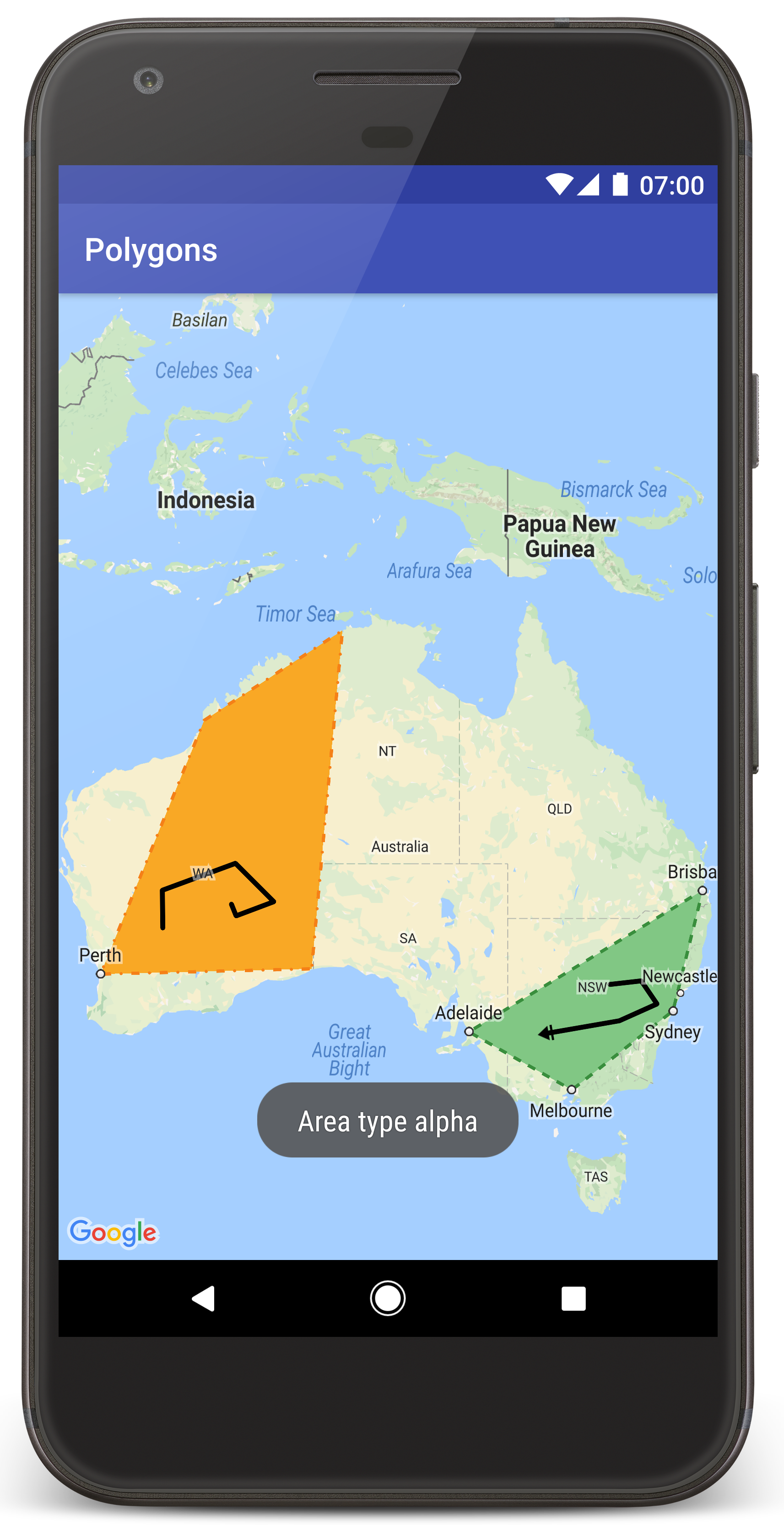
คุณควรเห็นแผนที่ที่มีรูปหลายเหลี่ยม 2 รูปซ้อนทับอยู่ด้านบนของออสเตรเลีย คล้ายกับรูปภาพในหน้านี้
การแก้ปัญหา:
- หากไม่เห็นแผนที่ ให้ตรวจสอบว่าคุณได้รับคีย์ API และเพิ่มลงในแอปแล้วตามที่อธิบายไว้ข้างต้น ตรวจสอบบันทึกใน Android Monitor ของ Android Studio เพื่อดูข้อความแสดงข้อผิดพลาดเกี่ยวกับคีย์ API
- ใช้เครื่องมือแก้ไขข้อบกพร่องของ Android Studio เพื่อดูบันทึกและแก้ไขข้อบกพร่องของแอป
ทำความเข้าใจโค้ด
บทแนะนำส่วนนี้จะอธิบายส่วนที่สำคัญที่สุดของแอป Polygons เพื่อช่วยให้คุณเข้าใจวิธีสร้างแอปที่คล้ายกัน
ตรวจสอบไฟล์ Manifest ของ Android
โปรดสังเกตองค์ประกอบต่อไปนี้ในไฟล์ AndroidManifest.xml ของแอป
เพิ่มองค์ประกอบ
meta-dataเพื่อฝังเวอร์ชันของบริการ Google Play ที่ใช้คอมไพล์แอป<meta-data android:name="com.google.android.gms.version" android:value="@integer/google_play_services_version" />เพิ่มองค์ประกอบ
meta-dataที่ระบุคีย์ API ตัวอย่างที่มาพร้อมกับบทแนะนำนี้จะแมปค่าของคีย์ API กับตัวแปรบิลด์ที่ตรงกับชื่อคีย์ที่คุณกำหนดไว้ก่อนหน้านี้ ซึ่งก็คือMAPS_API_KEYเมื่อคุณสร้างแอป ปลั๊กอินข้อมูลลับ Gradle สำหรับ Android จะทำให้คีย์ในไฟล์local.propertiesพร้อมใช้งานเป็นตัวแปรบิลด์ไฟล์ Manifest<meta-data android:name="com.google.android.geo.API_KEY" android:value="${MAPS_API_KEY}" />ในไฟล์
build.gradleบรรทัดต่อไปนี้จะส่งคีย์ API ไปยังไฟล์ Manifest ของ Androidid 'com.google.android.libraries.mapsplatform.secrets-gradle-plugin'
ด้านล่างนี้คือตัวอย่างไฟล์ Manifest ที่สมบูรณ์
  <?xml version="1.0" encoding="utf-8"?>
<!--
 Copyright 2020 Google LLC

 Licensed under the Apache License, Version 2.0 (the "License");
 you may not use this file except in compliance with the License.
 You may obtain a copy of the License at

      http://www.apache.org/licenses/LICENSE-2.0

 Unless required by applicable law or agreed to in writing, software
 distributed under the License is distributed on an "AS IS" BASIS,
 WITHOUT WARRANTIES OR CONDITIONS OF ANY KIND, either express or implied.
 See the License for the specific language governing permissions and
 limitations under the License.
-->

<manifest xmlns:android="http://schemas.android.com/apk/res/android">

    <application
        android:allowBackup="true"
        android:icon="@mipmap/ic_launcher"
        android:label="@string/app_name"
        android:supportsRtl="true"
        android:theme="@style/AppTheme">

        <meta-data
            android:name="com.google.android.gms.version"
            android:value="@integer/google_play_services_version" />

        <!--
             The API key for Google Maps-based APIs.
        -->
        <meta-data
            android:name="com.google.android.geo.API_KEY"
            android:value="${MAPS_API_KEY}" />

        <activity
            android:name="com.example.polygons.PolyActivity"
            android:exported="true"
            android:label="@string/title_activity_maps">
            <intent-filter>
                <action android:name="android.intent.action.MAIN" />
                <category android:name="android.intent.category.LAUNCHER" />
            </intent-filter>
        </activity>
    </application>
</manifest>
เพิ่มแผนที่
แสดงแผนที่โดยใช้ Maps SDK สำหรับ Android
เพิ่มองค์ประกอบ
<fragment>ลงในไฟล์เลย์เอาต์ของกิจกรรมactivity_maps.xmlองค์ประกอบนี้จะกำหนดSupportMapFragmentเพื่อทำหน้าที่เป็นคอนเทนเนอร์สำหรับแผนที่และให้สิทธิ์เข้าถึงออบเจ็กต์GoogleMapบทแนะนำนี้ใช้ Fragment ของแผนที่ในเวอร์ชันไลบรารีการสนับสนุนของ Android เพื่อให้มั่นใจว่าเข้ากันได้แบบย้อนหลังกับเฟรมเวิร์ก Android เวอร์ชันก่อนหน้า<!-- Copyright 2020 Google LLC Licensed under the Apache License, Version 2.0 (the "License"); you may not use this file except in compliance with the License. You may obtain a copy of the License at http://www.apache.org/licenses/LICENSE-2.0 Unless required by applicable law or agreed to in writing, software distributed under the License is distributed on an "AS IS" BASIS, WITHOUT WARRANTIES OR CONDITIONS OF ANY KIND, either express or implied. See the License for the specific language governing permissions and limitations under the License. --> <fragment xmlns:android="http://schemas.android.com/apk/res/android" xmlns:tools="http://schemas.android.com/tools" android:id="@+id/map" android:name="com.google.android.gms.maps.SupportMapFragment" android:layout_width="match_parent" android:layout_height="match_parent" tools:context="com.example.polygons.PolyActivity" />
ในเมธอด
onCreate()ของกิจกรรม ให้ตั้งค่าไฟล์เลย์เอาต์เป็นมุมมองเนื้อหา รับแฮนเดิลไปยังส่วนย่อยของแผนที่โดยเรียกใช้FragmentManager.findFragmentById()จากนั้นใช้getMapAsync()เพื่อลงทะเบียน Callback ของแผนที่Java
@Override protected void onCreate(Bundle savedInstanceState) { super.onCreate(savedInstanceState); // Retrieve the content view that renders the map. setContentView(R.layout.activity_maps); // Get the SupportMapFragment and request notification when the map is ready to be used. SupportMapFragment mapFragment = (SupportMapFragment) getSupportFragmentManager().findFragmentById(R.id.map); mapFragment.getMapAsync(this); }
Kotlin
override fun onCreate(savedInstanceState: Bundle?) { super.onCreate(savedInstanceState) // Retrieve the content view that renders the map. setContentView(R.layout.activity_maps) // Get the SupportMapFragment and request notification when the map is ready to be used. val mapFragment = supportFragmentManager .findFragmentById(R.id.map) as SupportMapFragment? mapFragment?.getMapAsync(this) }
ใช้อินเทอร์เฟซ
OnMapReadyCallbackและลบล้างเมธอดonMapReady()API จะเรียกใช้ Callback นี้เมื่อออบเจ็กต์GoogleMapพร้อมใช้งาน คุณจึงเพิ่มออบเจ็กต์ลงในแผนที่และปรับแต่งเพิ่มเติมสำหรับแอปได้ ดังนี้Java
public class PolyActivity extends AppCompatActivity implements OnMapReadyCallback, GoogleMap.OnPolylineClickListener, GoogleMap.OnPolygonClickListener { @Override protected void onCreate(Bundle savedInstanceState) { super.onCreate(savedInstanceState); // Retrieve the content view that renders the map. setContentView(R.layout.activity_maps); // Get the SupportMapFragment and request notification when the map is ready to be used. SupportMapFragment mapFragment = (SupportMapFragment) getSupportFragmentManager().findFragmentById(R.id.map); mapFragment.getMapAsync(this); } /** * Manipulates the map when it's available. The API invokes this callback when the map is ready * to be used. This is where we can add markers or lines, add listeners or move the camera. In * this tutorial, we add polylines and polygons to represent routes and areas on the map. */ @Override public void onMapReady(GoogleMap googleMap) { // Add polylines to the map. // Polylines are useful to show a route or some other connection between points. Polyline polyline1 = googleMap.addPolyline( new PolylineOptions() .clickable(true) .add( new LatLng(-35.016, 143.321), new LatLng(-34.747, 145.592), new LatLng(-34.364, 147.891), new LatLng(-33.501, 150.217), new LatLng(-32.306, 149.248), new LatLng(-32.491, 147.309))); // Position the map's camera near Alice Springs in the center of Australia, // and set the zoom factor so most of Australia shows on the screen. googleMap.moveCamera(CameraUpdateFactory.newLatLngZoom(new LatLng(-23.684, 133.903), 4)); // Set listeners for click events. googleMap.setOnPolylineClickListener(this); googleMap.setOnPolygonClickListener(this); }
Kotlin
class PolyActivity : AppCompatActivity(), OnMapReadyCallback, OnPolylineClickListener, OnPolygonClickListener { override fun onCreate(savedInstanceState: Bundle?) { super.onCreate(savedInstanceState) // Retrieve the content view that renders the map. setContentView(R.layout.activity_maps) // Get the SupportMapFragment and request notification when the map is ready to be used. val mapFragment = supportFragmentManager .findFragmentById(R.id.map) as SupportMapFragment? mapFragment?.getMapAsync(this) } /** * Manipulates the map when it's available. * The API invokes this callback when the map is ready to be used. * This is where we can add markers or lines, add listeners or move the camera. * In this tutorial, we add polylines and polygons to represent routes and areas on the map. */ override fun onMapReady(googleMap: GoogleMap) { // Add polylines to the map. // Polylines are useful to show a route or some other connection between points. val polyline1 = googleMap.addPolyline( PolylineOptions() .clickable(true) .add( LatLng(-35.016, 143.321), LatLng(-34.747, 145.592), LatLng(-34.364, 147.891), LatLng(-33.501, 150.217), LatLng(-32.306, 149.248), LatLng(-32.491, 147.309), ), ) // Position the map's camera near Alice Springs in the center of Australia, // and set the zoom factor so most of Australia shows on the screen. googleMap.moveCamera(CameraUpdateFactory.newLatLngZoom(LatLng(-23.684, 133.903), 4f)) // Set listeners for click events. googleMap.setOnPolylineClickListener(this) googleMap.setOnPolygonClickListener(this) }
เพิ่มเส้นประกอบเพื่อวาดเส้นบนแผนที่
Polyline คือชุดของส่วนของเส้นตรงที่เชื่อมต่อกัน เส้นประกอบมีประโยชน์ในการแสดงเส้นทาง เส้นทางเดิน หรือการเชื่อมต่ออื่นๆ ระหว่างสถานที่บนแผนที่
สร้างออบเจ็กต์
PolylineOptionsและเพิ่มจุดลงในออบเจ็กต์ แต่ละจุดแสดงตำแหน่งบนแผนที่ ซึ่งคุณกำหนดด้วยออบเจ็กต์LatLngที่มีค่าละติจูดและลองจิจูด ตัวอย่างโค้ดด้านล่างจะสร้างเส้นประกอบที่มี 6 จุดเรียกใช้
GoogleMap.addPolyline()เพื่อเพิ่มเส้นประกอบลงในแผนที่Java
Polyline polyline1 = googleMap.addPolyline( new PolylineOptions() .clickable(true) .add( new LatLng(-35.016, 143.321), new LatLng(-34.747, 145.592), new LatLng(-34.364, 147.891), new LatLng(-33.501, 150.217), new LatLng(-32.306, 149.248), new LatLng(-32.491, 147.309)));
Kotlin
val polyline1 = googleMap.addPolyline( PolylineOptions() .clickable(true) .add( LatLng(-35.016, 143.321), LatLng(-34.747, 145.592), LatLng(-34.364, 147.891), LatLng(-33.501, 150.217), LatLng(-32.306, 149.248), LatLng(-32.491, 147.309), ), )
ตั้งค่าตัวเลือก clickable ของเส้นประกอบเป็น true หากต้องการจัดการกิจกรรมการคลิกในเส้นประกอบ เราจะพูดถึงการจัดการเหตุการณ์เพิ่มเติมในบทแนะนำนี้
จัดเก็บข้อมูลที่กำหนดเองด้วยเส้นประกอบ
คุณสามารถจัดเก็บออบเจ็กต์ข้อมูลที่กำหนดเองด้วยเส้นประกอบและออบเจ็กต์เรขาคณิตอื่นๆ
เรียกใช้
Polyline.setTag()เพื่อจัดเก็บออบเจ็กต์ข้อมูลที่มีเส้นประกอบ โค้ดด้านล่างกำหนดแท็กแบบอิสระ (A) ที่ระบุประเภทของเส้นประกอบJava
Polyline polyline1 = googleMap.addPolyline(new PolylineOptions()
    .clickable(true)
    .add(
            new LatLng(-35.016, 143.321),
            new LatLng(-34.747, 145.592),
            new LatLng(-34.364, 147.891),
            new LatLng(-33.501, 150.217),
            new LatLng(-32.306, 149.248),
            new LatLng(-32.491, 147.309)));
// Store a data object with the polyline, used here to indicate an arbitrary type.
polyline1.setTag("A");
Kotlin
val polyline1 = googleMap.addPolyline(PolylineOptions()
.clickable(true)
.add(
    LatLng(-35.016, 143.321),
    LatLng(-34.747, 145.592),
    LatLng(-34.364, 147.891),
    LatLng(-33.501, 150.217),
    LatLng(-32.306, 149.248),
    LatLng(-32.491, 147.309)))
// Store a data object with the polyline, used here to indicate an arbitrary type.
polyline1.tag = "A
ดึงข้อมูลโดยใช้
Polyline.getTag()ตามที่แสดงในส่วนถัดไป
เพิ่มการจัดรูปแบบที่กำหนดเองลงในเส้นประกอบ
คุณระบุพร็อพเพอร์ตี้การจัดรูปแบบต่างๆ ได้ในออบเจ็กต์ PolylineOptions ตัวเลือกการจัดรูปแบบ ได้แก่ สีเส้นขอบ ความกว้างของเส้นขอบ รูปแบบเส้นขอบ ประเภทข้อต่อ และส่วนปลายของเส้นขอบ หากคุณไม่ได้ระบุพร็อพเพอร์ตี้ที่เฉพาะเจาะจง API จะใช้ค่าเริ่มต้นสำหรับพร็อพเพอร์ตี้นั้น
โค้ดต่อไปนี้ใช้เส้นปิดปลายมนที่ส่วนท้ายของเส้น และใช้เส้นปิดต้นทางที่แตกต่างกันโดยขึ้นอยู่กับประเภทของเส้นประกอบ โดยประเภทคือพร็อพเพอร์ตี้ที่กำหนดเองซึ่งจัดเก็บไว้ในออบเจ็กต์ข้อมูลสำหรับเส้นประกอบ ตัวอย่างยังระบุความกว้างของเส้น สีของเส้น และประเภทข้อต่อด้วย ดังนี้
Java
private static final int COLOR_BLACK_ARGB = 0xff000000; private static final int POLYLINE_STROKE_WIDTH_PX = 12; /** * Styles the polyline, based on type. * * @param polyline The polyline object that needs styling. */ private void stylePolyline(Polyline polyline) { String type = ""; // Get the data object stored with the polyline. if (polyline.getTag() != null) { type = polyline.getTag().toString(); } switch (type) { // If no type is given, allow the API to use the default. case "A": // Use a custom bitmap as the cap at the start of the line. polyline.setStartCap( new CustomCap( BitmapDescriptorFactory.fromResource(R.drawable.ic_arrow), 10)); break; case "B": // Use a round cap at the start of the line. polyline.setStartCap(new RoundCap()); break; } polyline.setEndCap(new RoundCap()); polyline.setWidth(POLYLINE_STROKE_WIDTH_PX); polyline.setColor(COLOR_BLACK_ARGB); polyline.setJointType(JointType.ROUND); }
Kotlin
private val COLOR_BLACK_ARGB = -0x1000000 private val POLYLINE_STROKE_WIDTH_PX = 12 /** * Styles the polyline, based on type. * @param polyline The polyline object that needs styling. */ private fun stylePolyline(polyline: Polyline) { // Get the data object stored with the polyline. val type = polyline.tag?.toString() ?: "" when (type) { "A" -> { // Use a custom bitmap as the cap at the start of the line. polyline.startCap = CustomCap(BitmapDescriptorFactory.fromResource(R.drawable.ic_arrow), 10f) } "B" -> { // Use a round cap at the start of the line. polyline.startCap = RoundCap() } } polyline.endCap = RoundCap() polyline.width = POLYLINE_STROKE_WIDTH_PX.toFloat() polyline.color = COLOR_BLACK_ARGB polyline.jointType = JointType.ROUND }
โค้ดด้านบนระบุบิตแมปที่กำหนดเองสำหรับเส้นปิดต้นทางของเส้นประกอบประเภท A และระบุความกว้างของเส้นอ้างอิงเป็น 10 พิกเซล API จะปรับขนาดบิตแมปตามความกว้างของเส้นอ้างอิง เมื่อระบุความกว้างของเส้นอ้างอิง ให้ระบุความกว้างที่คุณใช้เมื่อออกแบบรูปภาพบิตแมปที่ขนาดดั้งเดิมของรูปภาพ คำแนะนำ: เปิดรูปภาพบิตแมปที่ซูม 100% ในเครื่องมือแก้ไขรูปภาพ แล้ววาดความกว้างที่ต้องการของเส้นขีดที่สัมพันธ์กับรูปภาพ
อ่านข้อมูลเพิ่มเติมเกี่ยวกับเส้นปิดและตัวเลือกอื่นๆ สำหรับการปรับแต่งรูปร่าง
จัดการกิจกรรมการคลิกบนเส้นประกอบ
ทำให้เส้นประกอบคลิกได้โดยเรียกใช้
Polyline.setClickable()(โดยค่าเริ่มต้น เส้นประกอบจะคลิกไม่ได้และแอปจะไม่ได้รับการแจ้งเตือนเมื่อผู้ใช้แตะเส้นประกอบ)ใช้อินเทอร์เฟซ
OnPolylineClickListenerและเรียกใช้GoogleMap.setOnPolylineClickListener()เพื่อตั้งค่า Listener ในแผนที่Java
public class PolyActivity extends AppCompatActivity implements OnMapReadyCallback, GoogleMap.OnPolylineClickListener, GoogleMap.OnPolygonClickListener { @Override protected void onCreate(Bundle savedInstanceState) { super.onCreate(savedInstanceState); // Retrieve the content view that renders the map. setContentView(R.layout.activity_maps); // Get the SupportMapFragment and request notification when the map is ready to be used. SupportMapFragment mapFragment = (SupportMapFragment) getSupportFragmentManager().findFragmentById(R.id.map); mapFragment.getMapAsync(this); } /** * Manipulates the map when it's available. The API invokes this callback when the map is ready * to be used. This is where we can add markers or lines, add listeners or move the camera. In * this tutorial, we add polylines and polygons to represent routes and areas on the map. */ @Override public void onMapReady(GoogleMap googleMap) { // Add polylines to the map. // Polylines are useful to show a route or some other connection between points. Polyline polyline1 = googleMap.addPolyline( new PolylineOptions() .clickable(true) .add( new LatLng(-35.016, 143.321), new LatLng(-34.747, 145.592), new LatLng(-34.364, 147.891), new LatLng(-33.501, 150.217), new LatLng(-32.306, 149.248), new LatLng(-32.491, 147.309))); // Position the map's camera near Alice Springs in the center of Australia, // and set the zoom factor so most of Australia shows on the screen. googleMap.moveCamera(CameraUpdateFactory.newLatLngZoom(new LatLng(-23.684, 133.903), 4)); // Set listeners for click events. googleMap.setOnPolylineClickListener(this); googleMap.setOnPolygonClickListener(this); }
Kotlin
class PolyActivity : AppCompatActivity(), OnMapReadyCallback, OnPolylineClickListener, OnPolygonClickListener { override fun onCreate(savedInstanceState: Bundle?) { super.onCreate(savedInstanceState) // Retrieve the content view that renders the map. setContentView(R.layout.activity_maps) // Get the SupportMapFragment and request notification when the map is ready to be used. val mapFragment = supportFragmentManager .findFragmentById(R.id.map) as SupportMapFragment? mapFragment?.getMapAsync(this) } /** * Manipulates the map when it's available. * The API invokes this callback when the map is ready to be used. * This is where we can add markers or lines, add listeners or move the camera. * In this tutorial, we add polylines and polygons to represent routes and areas on the map. */ override fun onMapReady(googleMap: GoogleMap) { // Add polylines to the map. // Polylines are useful to show a route or some other connection between points. val polyline1 = googleMap.addPolyline( PolylineOptions() .clickable(true) .add( LatLng(-35.016, 143.321), LatLng(-34.747, 145.592), LatLng(-34.364, 147.891), LatLng(-33.501, 150.217), LatLng(-32.306, 149.248), LatLng(-32.491, 147.309), ), ) // Position the map's camera near Alice Springs in the center of Australia, // and set the zoom factor so most of Australia shows on the screen. googleMap.moveCamera(CameraUpdateFactory.newLatLngZoom(LatLng(-23.684, 133.903), 4f)) // Set listeners for click events. googleMap.setOnPolylineClickListener(this) googleMap.setOnPolygonClickListener(this) }
ลบล้างเมธอด Callback
onPolylineClick()ตัวอย่างต่อไปนี้จะสลับรูปแบบเส้นของเส้นระหว่างเส้นทึบและเส้นประทุกครั้งที่ผู้ใช้คลิกเส้นประกอบJava
private static final int PATTERN_GAP_LENGTH_PX = 20; private static final PatternItem DOT = new Dot(); private static final PatternItem GAP = new Gap(PATTERN_GAP_LENGTH_PX); // Create a stroke pattern of a gap followed by a dot. private static final List<PatternItem> PATTERN_POLYLINE_DOTTED = Arrays.asList(GAP, DOT); /** * Listens for clicks on a polyline. * * @param polyline The polyline object that the user has clicked. */ @Override public void onPolylineClick(Polyline polyline) { // Flip from solid stroke to dotted stroke pattern. if ((polyline.getPattern() == null) || (!polyline.getPattern().contains(DOT))) { polyline.setPattern(PATTERN_POLYLINE_DOTTED); } else { // The default pattern is a solid stroke. polyline.setPattern(null); } Toast.makeText(this, "Route type " + polyline.getTag().toString(), Toast.LENGTH_SHORT) .show(); }
Kotlin
private val PATTERN_GAP_LENGTH_PX = 20 private val DOT: PatternItem = Dot() private val GAP: PatternItem = Gap(PATTERN_GAP_LENGTH_PX.toFloat()) // Create a stroke pattern of a gap followed by a dot. private val PATTERN_POLYLINE_DOTTED = listOf(GAP, DOT) /** * Listens for clicks on a polyline. * @param polyline The polyline object that the user has clicked. */ override fun onPolylineClick(polyline: Polyline) { // Flip from solid stroke to dotted stroke pattern. if (polyline.pattern == null || !polyline.pattern!!.contains(DOT)) { polyline.pattern = PATTERN_POLYLINE_DOTTED } else { // The default pattern is a solid stroke. polyline.pattern = null } Toast.makeText( this, "Route type ${polyline.tag}", Toast.LENGTH_SHORT, ).show() }
เพิ่มรูปหลายเหลี่ยมเพื่อแสดงพื้นที่บนแผนที่
Polygon คือรูปร่างที่ประกอบด้วยชุดพิกัดตามลำดับ คล้ายกับ Polyline ความแตกต่างคือรูปหลายเหลี่ยมจะกำหนดพื้นที่ปิดที่มีพื้นที่ภายในที่เติมได้ ส่วนเส้นประกอบจะเป็นแบบปลายเปิด
สร้างออบเจ็กต์
PolygonOptionsและเพิ่มจุดลงในออบเจ็กต์ แต่ละจุดแสดงตำแหน่งบนแผนที่ ซึ่งคุณกำหนดด้วยออบเจ็กต์LatLngที่มีค่าละติจูดและลองจิจูด ตัวอย่างโค้ดด้านล่างจะสร้างรูปหลายเหลี่ยมที่มี 4 จุดทำให้รูปหลายเหลี่ยมคลิกได้โดยเรียกใช้
Polygon.setClickable()(โดยค่าเริ่มต้น รูปหลายเหลี่ยมจะคลิกไม่ได้และแอปของคุณจะไม่ได้รับการแจ้งเตือนเมื่อผู้ใช้แตะรูปหลายเหลี่ยม) การจัดการกิจกรรมการคลิกรูปหลายเหลี่ยมจะคล้ายกับการจัดการกิจกรรมในเส้นประกอบที่อธิบายไว้ก่อนหน้านี้ในบทแนะนำนี้เรียกใช้
GoogleMap.addPolygon()เพื่อเพิ่มรูปหลายเหลี่ยมลงในแผนที่เรียกใช้
Polygon.setTag()เพื่อจัดเก็บออบเจ็กต์ข้อมูลที่มีรูปหลายเหลี่ยม โค้ดด้านล่างกำหนดประเภทที่กำหนดเอง (alpha) สำหรับรูปหลายเหลี่ยมJava
// Add polygons to indicate areas on the map. Polygon polygon1 = googleMap.addPolygon( new PolygonOptions() .clickable(true) .add( new LatLng(-27.457, 153.040), new LatLng(-33.852, 151.211), new LatLng(-37.813, 144.962), new LatLng(-34.928, 138.599))); // Store a data object with the polygon, used here to indicate an arbitrary type. polygon1.setTag("alpha");
Kotlin
// Add polygons to indicate areas on the map. val polygon1 = googleMap.addPolygon( PolygonOptions() .clickable(true) .add( LatLng(-27.457, 153.040), LatLng(-33.852, 151.211), LatLng(-37.813, 144.962), LatLng(-34.928, 138.599), ), ) // Store a data object with the polygon, used here to indicate an arbitrary type. polygon1.tag = "alpha" // Style the polygon.
เพิ่มการจัดรูปแบบที่กำหนดเองลงในรูปหลายเหลี่ยม
คุณระบุพร็อพเพอร์ตี้การจัดรูปแบบได้หลายรายการในออบเจ็กต์ PolygonOptions ตัวเลือกการจัดรูปแบบ ได้แก่ สีเส้นขอบ ความกว้างของเส้นขอบ รูปแบบเส้นขอบ ประเภทข้อต่อเส้นขอบ และสีเติม หากคุณไม่ได้ระบุพร็อพเพอร์ตี้ที่เฉพาะเจาะจง API จะใช้ค่าเริ่มต้นสำหรับพร็อพเพอร์ตี้นั้น
โค้ดต่อไปนี้จะใช้สีและรูปแบบเส้นที่เฉพาะเจาะจงโดยขึ้นอยู่กับ type ของรูปหลายเหลี่ยม โดยที่ประเภทคือพร็อพเพอร์ตี้ที่กำหนดเองซึ่งจัดเก็บไว้ในออบเจ็กต์ข้อมูลสำหรับรูปหลายเหลี่ยม
Java
private static final int COLOR_WHITE_ARGB = 0xffffffff; private static final int COLOR_DARK_GREEN_ARGB = 0xff388E3C; private static final int COLOR_LIGHT_GREEN_ARGB = 0xff81C784; private static final int COLOR_DARK_ORANGE_ARGB = 0xffF57F17; private static final int COLOR_LIGHT_ORANGE_ARGB = 0xffF9A825; private static final int POLYGON_STROKE_WIDTH_PX = 8; private static final int PATTERN_DASH_LENGTH_PX = 20; private static final PatternItem DASH = new Dash(PATTERN_DASH_LENGTH_PX); // Create a stroke pattern of a gap followed by a dash. private static final List<PatternItem> PATTERN_POLYGON_ALPHA = Arrays.asList(GAP, DASH); // Create a stroke pattern of a dot followed by a gap, a dash, and another gap. private static final List<PatternItem> PATTERN_POLYGON_BETA = Arrays.asList(DOT, GAP, DASH, GAP); /** * Styles the polygon, based on type. * * @param polygon The polygon object that needs styling. */ private void stylePolygon(Polygon polygon) { String type = ""; // Get the data object stored with the polygon. if (polygon.getTag() != null) { type = polygon.getTag().toString(); } List<PatternItem> pattern = null; int strokeColor = COLOR_BLACK_ARGB; int fillColor = COLOR_WHITE_ARGB; switch (type) { // If no type is given, allow the API to use the default. case "alpha": // Apply a stroke pattern to render a dashed line, and define colors. pattern = PATTERN_POLYGON_ALPHA; strokeColor = COLOR_DARK_GREEN_ARGB; fillColor = COLOR_LIGHT_GREEN_ARGB; break; case "beta": // Apply a stroke pattern to render a line of dots and dashes, and define colors. pattern = PATTERN_POLYGON_BETA; strokeColor = COLOR_DARK_ORANGE_ARGB; fillColor = COLOR_LIGHT_ORANGE_ARGB; break; } polygon.setStrokePattern(pattern); polygon.setStrokeWidth(POLYGON_STROKE_WIDTH_PX); polygon.setStrokeColor(strokeColor); polygon.setFillColor(fillColor); }
Kotlin
private val COLOR_WHITE_ARGB = -0x1 private val COLOR_DARK_GREEN_ARGB = -0xc771c4 private val COLOR_LIGHT_GREEN_ARGB = -0x7e387c private val COLOR_DARK_ORANGE_ARGB = -0xa80e9 private val COLOR_LIGHT_ORANGE_ARGB = -0x657db private val POLYGON_STROKE_WIDTH_PX = 8 private val PATTERN_DASH_LENGTH_PX = 20 private val DASH: PatternItem = Dash(PATTERN_DASH_LENGTH_PX.toFloat()) // Create a stroke pattern of a gap followed by a dash. private val PATTERN_POLYGON_ALPHA = listOf(GAP, DASH) // Create a stroke pattern of a dot followed by a gap, a dash, and another gap. private val PATTERN_POLYGON_BETA = listOf(DOT, GAP, DASH, GAP) /** * Styles the polygon, based on type. * @param polygon The polygon object that needs styling. */ private fun stylePolygon(polygon: Polygon) { // Get the data object stored with the polygon. val type = polygon.tag?.toString() ?: "" var pattern: List<PatternItem>? = null var strokeColor = COLOR_BLACK_ARGB var fillColor = COLOR_WHITE_ARGB when (type) { "alpha" -> { // Apply a stroke pattern to render a dashed line, and define colors. pattern = PATTERN_POLYGON_ALPHA strokeColor = COLOR_DARK_GREEN_ARGB fillColor = COLOR_LIGHT_GREEN_ARGB } "beta" -> { // Apply a stroke pattern to render a line of dots and dashes, and define colors. pattern = PATTERN_POLYGON_BETA strokeColor = COLOR_DARK_ORANGE_ARGB fillColor = COLOR_LIGHT_ORANGE_ARGB } } polygon.strokePattern = pattern polygon.strokeWidth = POLYGON_STROKE_WIDTH_PX.toFloat() polygon.strokeColor = strokeColor polygon.fillColor = fillColor }
อ่านข้อมูลเพิ่มเติมเกี่ยวกับรูปแบบเส้นและตัวเลือกอื่นๆ สำหรับการปรับแต่งรูปร่าง
ขั้นตอนถัดไป
ดูข้อมูลเกี่ยวกับออบเจ็กต์ Circle วงกลมคล้ายกับรูปหลายเหลี่ยม แต่มีคุณสมบัติที่แสดงถึงรูปร่างของวงกลม