

W tej sekcji opisujemy, jak używać pakietu Navigation SDK z biblioteką aplikacji Android do samochodu, aby wyświetlać nawigację w aplikacji na jednostkach głównych na desce rozdzielczej. Jeśli system multimedialny w samochodzie obsługuje Androida Auto, użytkownicy mogą korzystać z aplikacji bezpośrednio na wyświetlaczu w samochodzie po połączeniu telefonu z systemem. Wskazówki głosowe są również odtwarzane przez głośniki samochodu.
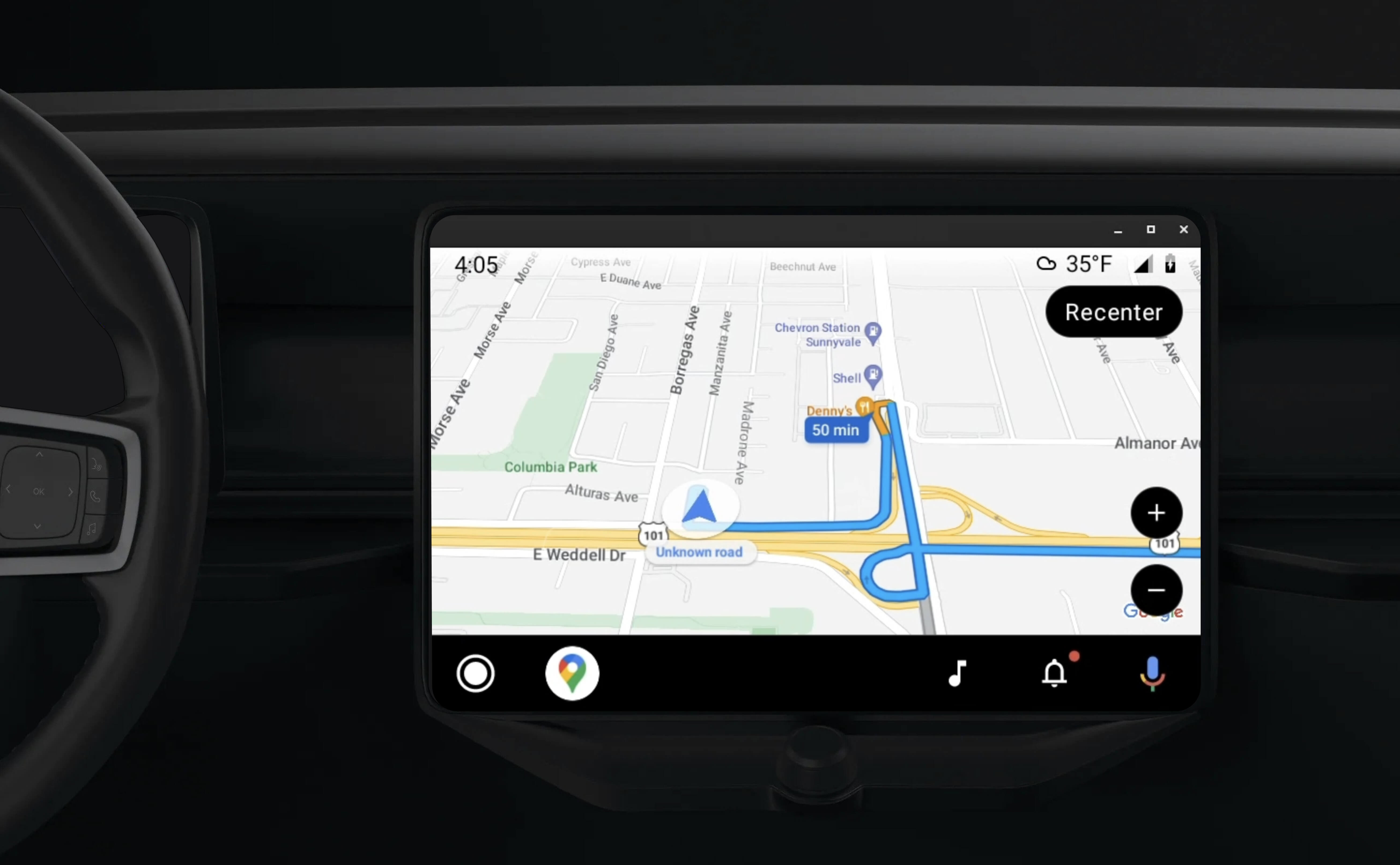
Biblioteka aplikacji Android do samochodu umożliwia uruchamianie aplikacji na Androida w Androidzie Auto, udostępniając zestaw szablonów wizualnych zatwierdzonych pod kątem bezpieczeństwa kierowcy. Te szablony celowo ograniczają elementy sterujące interfejsu na desce rozdzielczej w porównaniu z telefonem, aby zmniejszyć rozpraszanie uwagi kierowcy.
Gdy włączysz działanie aplikacji korzystającej z pakietu Navigation SDK na Androidzie Auto, zapewnisz dodatkowy widok nawigacji.
Umożliwia to wyświetlanie 2 widoków mapy – jednego na telefonie i jednego na jednostce głównej. Oba wyświetlacze otrzymują wskazówki od Navigator.java, który jest singletonem.
System na desce rozdzielczej wyświetla zatwierdzone pod kątem bezpieczeństwa elementy interaktywne, dzięki czemu użytkownik może bezpiecznie dotrzeć do celu bez niepotrzebnego rozpraszania uwagi. Użytkownik może też korzystać z funkcji aplikacji, takich jak akceptowanie lub odrzucanie zamówień albo wyświetlanie lokalizacji klienta na mapie. Aktualizacje stanu zamówienia mogą też pojawiać się na ekranie wbudowanym w desce rozdzielczej.
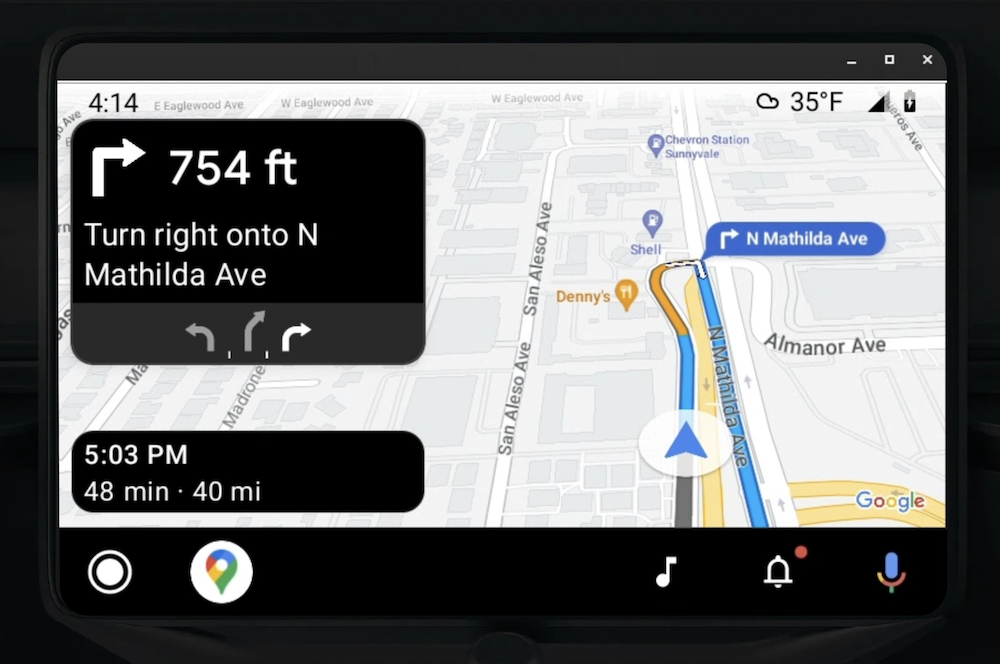
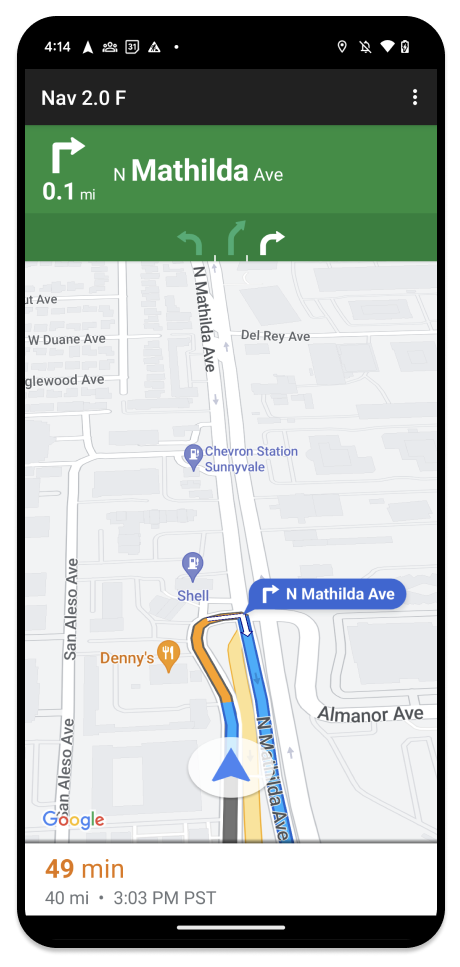
Podłączony telefon może nadal wyświetlać standardowy widok pakietu Navigation SDK lub dowolny inny widok albo przepływ pracy w aplikacji. Ta funkcja pozwala nadal udostępniać niestandardowe funkcje, które mogą nie działać dobrze na ekranie samochodu.
Skonfiguruj
Pierwszym krokiem do uruchomienia aplikacji w Androidzie Auto jest skonfigurowanie usługi samochodowej w Androidzie Auto, a następnie włączenie biblioteki TurnByTurn w aplikacji Navigation SDK.
Zacznij od Androida Auto
Zanim zaczniesz korzystać z funkcji pakietu Navigation SDK zaprojektowanych do działania z Androidem Auto, musisz skonfigurować usługę samochodową dla aplikacji, aby Android Auto mógł ją wykryć.
Wykonaj te czynności, które znajdziesz w dokumentacji dla deweloperów Androida do samochodu:
- Zapoznaj się z podstawowymi funkcjami Androida Auto.
- Zainstaluj bibliotekę aplikacji Android do samochodu.
- Skonfiguruj plik manifestu aplikacji, aby uwzględnić Androida Auto.
- Zadeklaruj w pliku manifestu minimalny poziom aplikacji na samochody 1.
- Utwórz
CarAppServicei sesję.
Konfigurowanie pakietu Navigation SDK
Po skonfigurowaniu usługi aplikacji samochodowej możesz zacząć korzystać z pakietu Navigation SDK.
- Skonfiguruj projekt, jeśli pakiet Navigation SDK nie został jeszcze zintegrowany z aplikacją.
- Włącz w aplikacji plik danych ze wskazówkami nawigacji krok po kroku.
- Opcjonalnie: Używanie wygenerowanych ikon z pakietu Navigation SDK.
- Narysuj mapę, używając klasy
NavigationViewForAutona powierzchni Androida Auto udostępnionej w klasieScreen. - Wypełnij szablon nawigacji Androida Auto danymi z biblioteki TurnbyTurn.
Teraz, gdy masz już zarejestrowaną usługę dostarczania informacji nawigacyjnych do aplikacji i aplikacja może połączyć się z Androidem Auto, możesz utworzyć pozostałe elementy nawigacyjne niezbędne do prawidłowego działania aplikacji w Androidzie Auto:
- Rysowanie mapy i interfejsu nawigacji
- Włącz interakcję z mapą
- Wyświetlanie wskazówek nawigacyjnych
- Sprawdzanie, czy typy manewrów są prawidłowe
Rysowanie interfejsu mapy i nawigacji
Klasa NavigationViewForAuto renderuje interfejs mapy i nawigacji na ekranach Androida Auto. Zapewnia wiele takich samych funkcji jak NavigationView na telefonach, ale z ograniczoną interaktywnością. Użyj NavigationViewForAuto, aby rysować na powierzchni udostępnianej przez Androida Auto:
private boolean isSurfaceReady(SurfaceContainer surfaceContainer) {
  return surfaceContainer.getSurface() != null
        && surfaceContainer.getDpi() != 0
        && surfaceContainer.getHeight() != 0
        && surfaceContainer.getWidth() != 0;
}

@Override
public void onSurfaceAvailable(@NonNull SurfaceContainer surfaceContainer) {
  if (!isSurfaceReady(surfaceContainer)) {
    return;
   }
  virtualDisplay =
      getCarContext()
          .getSystemService(DisplayManager.class)
          .createVirtualDisplay(
            VIRTUAL_DISPLAY_NAME,
            surfaceContainer.getWidth(),
            surfaceContainer.getHeight(),
            surfaceContainer.getDpi(),
            surfaceContainer.getSurface(),
            DisplayManager.VIRTUAL_DISPLAY_FLAG_OWN_CONTENT_ONLY);
    presentation = new Presentation(getCarContext(), virtualDisplay.getDisplay());

    navigationView = new NavigationViewForAuto(getCarContext());
    navigationView.onCreate(null);
    navigationView.onStart();
    navigationView.onResume();

    presentation.setContentView(navigationView);
    presentation.show();

    navigationView.getMapAsync(googleMap -> this.googleMap = googleMap);
  }

@Override
public void onSurfaceDestroyed(@NonNull SurfaceContainer surfaceContainer) {
  navigationView.onPause();
  navigationView.onStop();
  navigationView.onDestroy();

  presentation.dismiss();
  virtualDisplay.release();
}
Włącz interakcję z mapą
Ze względu na bezpieczeństwo kierowcy Android Auto ogranicza interakcje z powierzchnią ekranu do serii metod SurfaceCallback. Użyj tych wywołań zwrotnych, aby umożliwić kierowcy ograniczoną interakcję z mapą na ekranie na desce rozdzielczej. Na przykład onClick i onScale odpowiadają gestom kliknięcia i ściągnięcia wykonanym przez użytkownika. Wywołania zwrotne interaktywności muszą używać paska działań mapy w ten sposób:
Aby otrzymywać wywołania zwrotne interaktywności mapy, aplikacja musi używać przycisku Action.PAN.
Aby umożliwić użytkownikom wykonywanie dodatkowych działań, dodaj przyciski do paska działań na mapie.
Włącz wywołania zwrotne platformy
@NonNull
@Override
public Template onGetTemplate() {
  return new NavigationTemplate.Builder()
    .setActionStrip(new ActionStrip.Builder().build())
    .setMapActionStrip(new ActionStrip.Builder().addAction(Action.PAN).build())
    .build();
}
Powiększanie przez ściągnięcie palców
@Override
public void onScale(float focusX, float focusY, float scaleFactor) {
  CameraUpdate update =
      CameraUpdateFactory.zoomBy((scaleFactor - 1),
                                  new Point((int) focusX, (int) focusY));
  googleMap.animateCamera(update); // map is set in onSurfaceAvailable.
}
Przesunięcie
@Override
public void onScroll(float distanceX, float distanceY) {
  googleMap.moveCamera(CameraUpdateFactory.scrollBy(distanceX, distanceY));
}
wyświetlanie wskazówek dojazdu,
Z tej sekcji dowiesz się, jak skonfigurować obserwatora postów nawigacyjnych i wypełnić wskazówki nawigacyjne w szablonie karty skrętu.
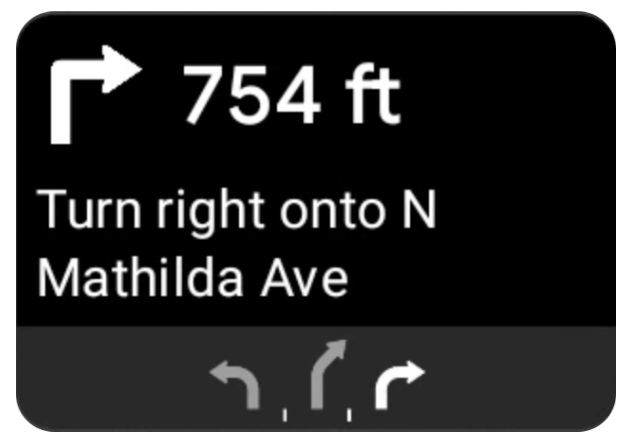
Szablon nawigacji Androida Auto zawiera kartę skrętu, która wyświetla informacje nawigacyjne związane z bieżącą podróżą. Biblioteka TurnByTurn w pakiecie Navigation SDK udostępnia te informacje nawigacyjne, których kod używa do wypełnienia szablonu nawigacji Android Auto.
Konfigurowanie obserwatora
W poniższym przykładzie SampleApplication to niestandardowa klasa aplikacji, która utrzymuje obiekt MutableLiveData<NavInfo>. Gdy obserwator otrzyma aktualizację z obiektu nawigatora, opublikuje ten obiekt NavInfo w NavInfoMutableLiveData obsługiwanym przez klasę SampleApplication.
Ten przykładowy kod rejestruje obserwatora tego obiektu w implementacji ekranu Androida Auto.
public SampleAndroidAutoNavigationScreen(@NonNull CarContext carContext,
                                     SampleApplication application) {
  super(carContext);
  getCarContext().getCarService(AppManager.class).setSurfaceCallback(this);
  application.getNavInfoMutableLiveData().observe(this, this::processNextStep);
}
Wypełnianie informacji o nawigacji
Poniższy fragment kodu pokazuje, jak wypełnić szablon Android Auto aktualnymi informacjami o trasie, w tym krokami, odległościami i ikonami. Więcej informacji o tych elementach wyświetlania znajdziesz w artykule Wypełnianie wyświetlania pliku danych.
Rozwiń, aby zobaczyć przykładowy kod.
private RoutingInfo currentRoutingInfo;

@NonNull
@Override
public Template onGetTemplate() {
NavigationTemplate.Builder navigationTemplateBuilder =
  new NavigationTemplate.Builder()
    .setActionStrip(...)
    .setMapActionStrip(...)
  if (currentRoutingInfo != null) {
    navigationTemplateBuilder.setNavigationInfo(currentRoutingInfo);
  }
  return navigationTemplateBuilder.build();
}

private void processNextStep(NavInfo navInfo) {
  if (navInfo == null || navinfo.getCurrentStep() == null) {
    return;
  }

/**
*   Converts data received from the Navigation data feed
*   into Android-Auto compatible data structures. For more information
*   see the "Ensure correct maneuver types" below.
*/
  Step currentStep = buildStepFromStepInfo(navInfo.getCurrentStep());
  Distance distanceToStep =
              buildDistanceFromMeters(navInfo.getDistanceToCurrentStepMeters());

  currentRoutingInfo =
     new RoutingInfo.Builder().setCurrentStep(currentStep, distanceToStep).build();

  // Invalidate the current template which leads to another onGetTemplate call.
  invalidate();
}

private Step buildStepFromStepInfo(StepInfo stepInfo) {
  IconCompat maneuverIcon =
               IconCompat.createWithBitmap(stepInfo.getManeuverBitmap());
  Maneuver.Builder
            maneuverBuilder = newManeuver.Builder(
                  ManeuverConverter
                          .getAndroidAutoManeuverType(stepInfo.getManeuver()));
  CarIcon maneuverCarIcon = new CarIcon.Builder(maneuverIcon).build();
  maneuverBuilder.setIcon(maneuverCarIcon);
  Step.Builder stepBuilder =
    new Step.Builder()
       .setRoad(stepInfo.getFullRoadName())
       .setCue(stepInfo.getFullInstructionText())
       .setManeuver(maneuverBuilder.build());

  if (stepInfo.getLanes() != null
           && stepInfo.getLanesBitmap() != null) {
    for (Lane lane : buildAndroidAutoLanesFromStep(stepInfo)) {
      stepBuilder.addLane(lane);
    }
    IconCompat lanesIcon =
               IconCompat.createWithBitmap(stepInfo.getLanesBitmap());
    CarIcon lanesImage = new CarIcon.Builder(lanesIcon).build();
    stepBuilder.setLanesImage(lanesImage);
  }
    return stepBuilder.build();
}

/*
*   Constructs a {@code Distance} object in imperial measurement units.
*   In a real world scenario, units would be based on locale.
*/
private Distance buildDistanceFromMeters(int distanceMeters) {

// Distance can be negative so set the min distance to 0.
  int remainingFeet = (int) max(0, distanceMeters * DistanceConstants.FEET_PER_METER);
  double remainingMiles = ((double) remainingFeet) / DistanceConstants.FEET_PER_MILE;

// Only use the tenths place digit if distance is less than 10 miles and show
// feet if distance is less than 0.25 miles.

  if (remainingMiles >= DistanceConstants.MIN_MILES_TO_SHOW_INTEGER) {
    return Distance.create((int) round(remainingMiles), Distance.UNIT_MILES);
  } else if (remainingMiles >= 0.25) {
    return Distance.create((int) remainingMiles, Distance.UNIT_MILES);
  } else {
    return Distance.create(remainingFeet, Distance.UNIT_FEET);
  }
}
Sprawdź, czy typy manewrów są prawidłowe.
Rodzaje manewrów używanych w bibliotece Android Auto Car odpowiadają jeden do jednego manewrom udostępnianym przez bibliotekę TurnByTurn. Musisz jednak przekonwertować manewry z pakietu SDK do nawigacji na prawidłową deklarację w bibliotece Android Auto Car. W tabeli poniżej znajdziesz odpowiedniki kilku pól, a pod nią – przykładowe narzędzie do konwersji.
| Manewr w bibliotece szczegółowej nawigacji | Manewr w Androidzie Auto |
|---|---|
DEPART |
TYPE_DEPART |
DESTINATION |
TYPE_DESTINATION |
DESTINATION_LEFT |
TYPE_DESTINATION_LEFT |
DESTINATION_RIGHT |
TYPE_DESTINATION_RIGHT |
TURN_U_TURN_CLOCKWISE |
TYPE_U_TURN_RIGHT |
ON_RAMP_LEFT |
TYPE_ON_RAMP_NORMAL_LEFT |
ON_RAMP_RIGHT |
TYPE_ON_RAMP_NORMAL_RIGHT |
ON_RAMP_SLIGHT_LEFT |
TYPE_ON_RAMP_SLIGHT_LEFT |
FORK_RIGHT |
TYPE_FORK_RIGHT |
Rozwiń, aby zobaczyć przykładowy kod.
import com.google.android.libraries.mapsplatform.turnbyturn.model.Maneuver;
import com.google.common.collect.ImmutableMap;
import javax.annotation.Nullable;

/** Converter that converts between turn-by-turn and Android Auto Maneuvers. */
public final class ManeuverConverter {
  private ManeuverConverter() {}

  // Map from turn-by-turn Maneuver to Android Auto Maneuver.Type.
  private static final ImmutableMap<Integer, Integer> MANEUVER_TO_ANDROID_AUTO_MANEUVER_TYPE =
      ImmutableMap.<Integer, Integer>builder()
          .put(Maneuver.DEPART, androidx.car.app.navigation.model.Maneuver.TYPE_DEPART)
          .put(Maneuver.DESTINATION, androidx.car.app.navigation.model.Maneuver.TYPE_DESTINATION)
          .put(
              Maneuver.DESTINATION_LEFT,
              androidx.car.app.navigation.model.Maneuver.TYPE_DESTINATION_LEFT)
          .put(
              Maneuver.DESTINATION_RIGHT,
              androidx.car.app.navigation.model.Maneuver.TYPE_DESTINATION_RIGHT)
          .put(Maneuver.STRAIGHT, androidx.car.app.navigation.model.Maneuver.TYPE_STRAIGHT)
          .put(Maneuver.TURN_LEFT, androidx.car.app.navigation.model.Maneuver.TYPE_TURN_NORMAL_LEFT)
          .put(
              Maneuver.TURN_RIGHT,
              androidx.car.app.navigation.model.Maneuver.TYPE_TURN_NORMAL_RIGHT)
          .put(Maneuver.TURN_KEEP_LEFT, androidx.car.app.navigation.model.Maneuver.TYPE_KEEP_LEFT)
          .put(Maneuver.TURN_KEEP_RIGHT, androidx.car.app.navigation.model.Maneuver.TYPE_KEEP_RIGHT)
          .put(
              Maneuver.TURN_SLIGHT_LEFT,
              androidx.car.app.navigation.model.Maneuver.TYPE_TURN_SLIGHT_LEFT)
          .put(
              Maneuver.TURN_SLIGHT_RIGHT,
              androidx.car.app.navigation.model.Maneuver.TYPE_TURN_SLIGHT_RIGHT)
          .put(
              Maneuver.TURN_SHARP_LEFT,
              androidx.car.app.navigation.model.Maneuver.TYPE_TURN_SHARP_LEFT)
          .put(
              Maneuver.TURN_SHARP_RIGHT,
              androidx.car.app.navigation.model.Maneuver.TYPE_ON_RAMP_SHARP_RIGHT)
          .put(
              Maneuver.TURN_U_TURN_CLOCKWISE,
              androidx.car.app.navigation.model.Maneuver.TYPE_U_TURN_RIGHT)
          .put(
              Maneuver.TURN_U_TURN_COUNTERCLOCKWISE,
              androidx.car.app.navigation.model.Maneuver.TYPE_U_TURN_LEFT)
          .put(
              Maneuver.MERGE_UNSPECIFIED,
              androidx.car.app.navigation.model.Maneuver.TYPE_MERGE_SIDE_UNSPECIFIED)
          .put(Maneuver.MERGE_LEFT, androidx.car.app.navigation.model.Maneuver.TYPE_MERGE_LEFT)
          .put(Maneuver.MERGE_RIGHT, androidx.car.app.navigation.model.Maneuver.TYPE_MERGE_RIGHT)
          .put(Maneuver.FORK_LEFT, androidx.car.app.navigation.model.Maneuver.TYPE_FORK_LEFT)
          .put(Maneuver.FORK_RIGHT, androidx.car.app.navigation.model.Maneuver.TYPE_FORK_RIGHT)
          .put(
              Maneuver.ON_RAMP_UNSPECIFIED,
              androidx.car.app.navigation.model.Maneuver.TYPE_ON_RAMP_NORMAL_RIGHT)
          .put(
              Maneuver.ON_RAMP_LEFT,
              androidx.car.app.navigation.model.Maneuver.TYPE_ON_RAMP_NORMAL_LEFT)
          .put(
              Maneuver.ON_RAMP_RIGHT,
              androidx.car.app.navigation.model.Maneuver.TYPE_ON_RAMP_NORMAL_RIGHT)
          .put(
              Maneuver.ON_RAMP_KEEP_LEFT,
              androidx.car.app.navigation.model.Maneuver.TYPE_ON_RAMP_NORMAL_LEFT)
          .put(
              Maneuver.ON_RAMP_KEEP_RIGHT,
              androidx.car.app.navigation.model.Maneuver.TYPE_ON_RAMP_NORMAL_RIGHT)
          .put(
              Maneuver.ON_RAMP_SLIGHT_LEFT,
              androidx.car.app.navigation.model.Maneuver.TYPE_ON_RAMP_SLIGHT_LEFT)
          .put(
              Maneuver.ON_RAMP_SLIGHT_RIGHT,
              androidx.car.app.navigation.model.Maneuver.TYPE_ON_RAMP_SLIGHT_RIGHT)
          .put(
              Maneuver.ON_RAMP_SHARP_LEFT,
              androidx.car.app.navigation.model.Maneuver.TYPE_ON_RAMP_SHARP_LEFT)
          .put(
              Maneuver.ON_RAMP_SHARP_RIGHT,
              androidx.car.app.navigation.model.Maneuver.TYPE_ON_RAMP_SHARP_RIGHT)
          .put(
              Maneuver.ON_RAMP_U_TURN_CLOCKWISE,
              androidx.car.app.navigation.model.Maneuver.TYPE_ON_RAMP_U_TURN_RIGHT)
          .put(
              Maneuver.ON_RAMP_U_TURN_COUNTERCLOCKWISE,
              androidx.car.app.navigation.model.Maneuver.TYPE_ON_RAMP_U_TURN_LEFT)
          .put(
              Maneuver.OFF_RAMP_LEFT,
              androidx.car.app.navigation.model.Maneuver.TYPE_OFF_RAMP_NORMAL_LEFT)
          .put(
              Maneuver.OFF_RAMP_RIGHT,
              androidx.car.app.navigation.model.Maneuver.TYPE_OFF_RAMP_NORMAL_RIGHT)
          .put(
              Maneuver.OFF_RAMP_KEEP_LEFT,
              androidx.car.app.navigation.model.Maneuver.TYPE_OFF_RAMP_SLIGHT_LEFT)
          .put(
              Maneuver.OFF_RAMP_KEEP_RIGHT,
              androidx.car.app.navigation.model.Maneuver.TYPE_OFF_RAMP_SLIGHT_RIGHT)
          .put(
              Maneuver.OFF_RAMP_SLIGHT_LEFT,
              androidx.car.app.navigation.model.Maneuver.TYPE_OFF_RAMP_SLIGHT_LEFT)
          .put(
              Maneuver.OFF_RAMP_SLIGHT_RIGHT,
              androidx.car.app.navigation.model.Maneuver.TYPE_OFF_RAMP_SLIGHT_RIGHT)
          .put(
              Maneuver.OFF_RAMP_SHARP_LEFT,
              androidx.car.app.navigation.model.Maneuver.TYPE_OFF_RAMP_NORMAL_LEFT)
          .put(
              Maneuver.OFF_RAMP_SHARP_RIGHT,
              androidx.car.app.navigation.model.Maneuver.TYPE_OFF_RAMP_NORMAL_RIGHT)
          .put(
              Maneuver.ROUNDABOUT_CLOCKWISE,
              androidx.car.app.navigation.model.Maneuver.TYPE_ROUNDABOUT_ENTER_AND_EXIT_CW)
          .put(
              Maneuver.ROUNDABOUT_COUNTERCLOCKWISE,
              androidx.car.app.navigation.model.Maneuver.TYPE_ROUNDABOUT_ENTER_AND_EXIT_CCW)
          .put(
              Maneuver.ROUNDABOUT_STRAIGHT_CLOCKWISE,
              androidx.car.app.navigation.model.Maneuver.TYPE_ROUNDABOUT_ENTER_CW)
          .put(
              Maneuver.ROUNDABOUT_STRAIGHT_COUNTERCLOCKWISE,
              androidx.car.app.navigation.model.Maneuver.TYPE_ROUNDABOUT_ENTER_CCW)
          .put(
              Maneuver.ROUNDABOUT_LEFT_CLOCKWISE,
              androidx.car.app.navigation.model.Maneuver
                  .TYPE_ROUNDABOUT_ENTER_AND_EXIT_CW_WITH_ANGLE)
          .put(
              Maneuver.ROUNDABOUT_LEFT_COUNTERCLOCKWISE,
              androidx.car.app.navigation.model.Maneuver
                  .TYPE_ROUNDABOUT_ENTER_AND_EXIT_CCW_WITH_ANGLE)
          .put(
              Maneuver.ROUNDABOUT_RIGHT_CLOCKWISE,
              androidx.car.app.navigation.model.Maneuver
                  .TYPE_ROUNDABOUT_ENTER_AND_EXIT_CW_WITH_ANGLE)
          .put(
              Maneuver.ROUNDABOUT_RIGHT_COUNTERCLOCKWISE,
              androidx.car.app.navigation.model.Maneuver
                  .TYPE_ROUNDABOUT_ENTER_AND_EXIT_CCW_WITH_ANGLE)
          .put(
              Maneuver.ROUNDABOUT_SLIGHT_LEFT_CLOCKWISE,
              androidx.car.app.navigation.model.Maneuver
                  .TYPE_ROUNDABOUT_ENTER_AND_EXIT_CW_WITH_ANGLE)
          .put(
              Maneuver.ROUNDABOUT_SLIGHT_LEFT_COUNTERCLOCKWISE,
              androidx.car.app.navigation.model.Maneuver
                  .TYPE_ROUNDABOUT_ENTER_AND_EXIT_CCW_WITH_ANGLE)
          .put(
              Maneuver.ROUNDABOUT_SLIGHT_RIGHT_CLOCKWISE,
              androidx.car.app.navigation.model.Maneuver
                  .TYPE_ROUNDABOUT_ENTER_AND_EXIT_CW_WITH_ANGLE)
          .put(
              Maneuver.ROUNDABOUT_SLIGHT_RIGHT_COUNTERCLOCKWISE,
              androidx.car.app.navigation.model.Maneuver
                  .TYPE_ROUNDABOUT_ENTER_AND_EXIT_CCW_WITH_ANGLE)
          .put(
              Maneuver.ROUNDABOUT_SHARP_LEFT_CLOCKWISE,
              androidx.car.app.navigation.model.Maneuver
                  .TYPE_ROUNDABOUT_ENTER_AND_EXIT_CW_WITH_ANGLE)
          .put(
              Maneuver.ROUNDABOUT_SHARP_LEFT_COUNTERCLOCKWISE,
              androidx.car.app.navigation.model.Maneuver
                  .TYPE_ROUNDABOUT_ENTER_AND_EXIT_CCW_WITH_ANGLE)
          .put(
              Maneuver.ROUNDABOUT_SHARP_RIGHT_CLOCKWISE,
              androidx.car.app.navigation.model.Maneuver
                  .TYPE_ROUNDABOUT_ENTER_AND_EXIT_CW_WITH_ANGLE)
          .put(
              Maneuver.ROUNDABOUT_SHARP_RIGHT_COUNTERCLOCKWISE,
              androidx.car.app.navigation.model.Maneuver
                  .TYPE_ROUNDABOUT_ENTER_AND_EXIT_CCW_WITH_ANGLE)
          .put(
              Maneuver.ROUNDABOUT_U_TURN_CLOCKWISE,
              androidx.car.app.navigation.model.Maneuver
                  .TYPE_ROUNDABOUT_ENTER_AND_EXIT_CW_WITH_ANGLE)
          .put(
              Maneuver.ROUNDABOUT_U_TURN_COUNTERCLOCKWISE,
              androidx.car.app.navigation.model.Maneuver
                  .TYPE_ROUNDABOUT_ENTER_AND_EXIT_CCW_WITH_ANGLE)
          .put(
              Maneuver.ROUNDABOUT_EXIT_CLOCKWISE,
              androidx.car.app.navigation.model.Maneuver.TYPE_ROUNDABOUT_EXIT_CW)
          .put(
              Maneuver.ROUNDABOUT_EXIT_COUNTERCLOCKWISE,
              androidx.car.app.navigation.model.Maneuver.TYPE_ROUNDABOUT_EXIT_CCW)
          .put(Maneuver.FERRY_BOAT, androidx.car.app.navigation.model.Maneuver.TYPE_FERRY_BOAT)
          .put(Maneuver.FERRY_TRAIN, androidx.car.app.navigation.model.Maneuver.TYPE_FERRY_TRAIN)
          .put(Maneuver.NAME_CHANGE, androidx.car.app.navigation.model.Maneuver.TYPE_NAME_CHANGE)
          .buildOrThrow();

  /** Represents the roundabout turn angle for a slight turn in either right or left directions. */
  private static final int ROUNDABOUT_ANGLE_SLIGHT = 10;

  /** Represents the roundabout turn angle for a normal turn in either right or left directions. */
  private static final int ROUNDABOUT_ANGLE_NORMAL = 45;

  /** Represents the roundabout turn angle for a sharp turn in either right or left directions. */
  private static final int ROUNDABOUT_ANGLE_SHARP = 135;

  /** Represents the roundabout turn angle for a u-turn in either right or left directions. */
  private static final int ROUNDABOUT_ANGLE_U_TURN = 180;

  /**
   * Returns the corresponding {@link androidx.car.app.navigation.model.Maneuver.Type} for the given
   * direction {@link Maneuver}
   *
   * @throws {@link IllegalArgumentException} if the given maneuver does not have a corresponding
   *     Android Auto Maneuver type.
   */
  public static int getAndroidAutoManeuverType(@Maneuver int maneuver) {
    if (MANEUVER_TO_ANDROID_AUTO_MANEUVER_TYPE.containsKey(maneuver)) {
      return MANEUVER_TO_ANDROID_AUTO_MANEUVER_TYPE.get(maneuver);
    }
    throw new IllegalArgumentException(
        String.format(
            "Given turn-by-turn Maneuver %d cannot be converted to an Android Auto equivalent.",
            maneuver));
  }

  /**
   * Returns the corresponding Android Auto roundabout angle for the given turn {@link Maneuver}.
   * Returns {@code null} if given maneuver does not involve a roundabout with a turn.
   */
  @Nullable
  public static Integer getAndroidAutoRoundaboutAngle(@Maneuver int maneuver) {
    if (maneuver == Maneuver.ROUNDABOUT_LEFT_CLOCKWISE
        || maneuver == Maneuver.ROUNDABOUT_RIGHT_CLOCKWISE
        || maneuver == Maneuver.ROUNDABOUT_LEFT_COUNTERCLOCKWISE
        || maneuver == Maneuver.ROUNDABOUT_RIGHT_COUNTERCLOCKWISE) {
      return ROUNDABOUT_ANGLE_NORMAL;
    }
    if (maneuver == Maneuver.ROUNDABOUT_SHARP_LEFT_CLOCKWISE
        || maneuver == Maneuver.ROUNDABOUT_SHARP_RIGHT_CLOCKWISE
        || maneuver == Maneuver.ROUNDABOUT_SHARP_LEFT_COUNTERCLOCKWISE
        || maneuver == Maneuver.ROUNDABOUT_SHARP_RIGHT_COUNTERCLOCKWISE) {
      return ROUNDABOUT_ANGLE_SHARP;
    }
    if (maneuver == Maneuver.ROUNDABOUT_SLIGHT_LEFT_CLOCKWISE
        || maneuver == Maneuver.ROUNDABOUT_SLIGHT_RIGHT_CLOCKWISE
        || maneuver == Maneuver.ROUNDABOUT_SLIGHT_LEFT_COUNTERCLOCKWISE
        || maneuver == Maneuver.ROUNDABOUT_SLIGHT_RIGHT_COUNTERCLOCKWISE) {
      return ROUNDABOUT_ANGLE_SLIGHT;
    }
    if (maneuver == Maneuver.ROUNDABOUT_U_TURN_CLOCKWISE
        || maneuver == Maneuver.ROUNDABOUT_U_TURN_COUNTERCLOCKWISE) {
      return ROUNDABOUT_ANGLE_U_TURN;
    }
    return null;
  }
}
Powiązana dokumentacja
- Włączanie szczegółowych wskazówek dojazdu: najpierw zintegruj funkcję szczegółowych wskazówek dojazdu, aby aplikacja mogła działać z Androidem Auto.
- Wypełnianie wyświetlacza informacjami z kanału: uzyskaj dostęp do pól danych, aby wyświetlać wskazówki i używać ikon.