Анализируйте и маркируйте сообщения Gmail с помощью Gemini и Vertex AI

Это решение использует Vertex AI и Gemini для анализа сообщений Gmail и присвоения им меток на основе эмоциональной окраски.

Уровень владения программированием : Средний
Продолжительность : 30 минут
Тип проекта : Дополнение для Google Workspace
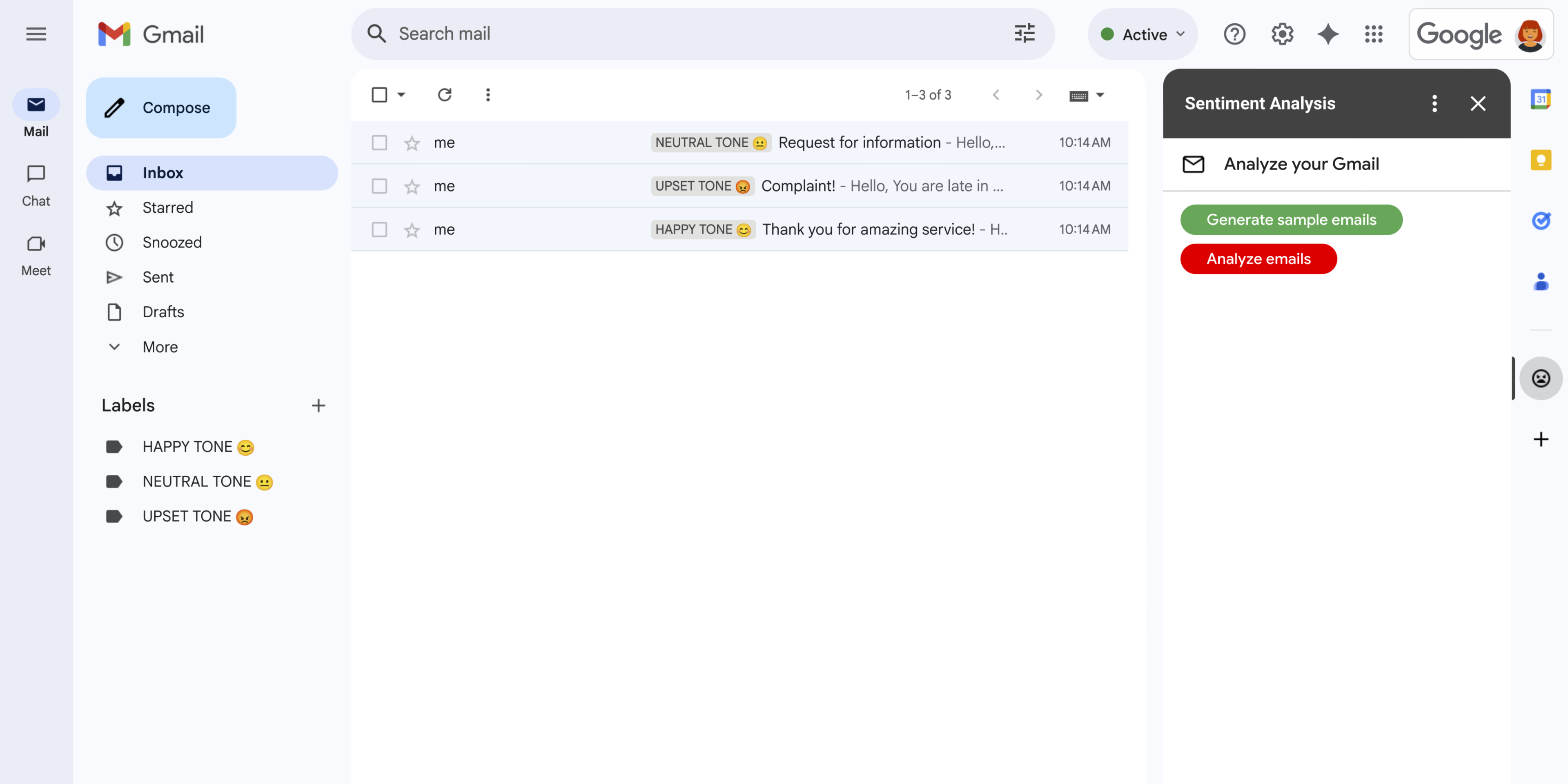
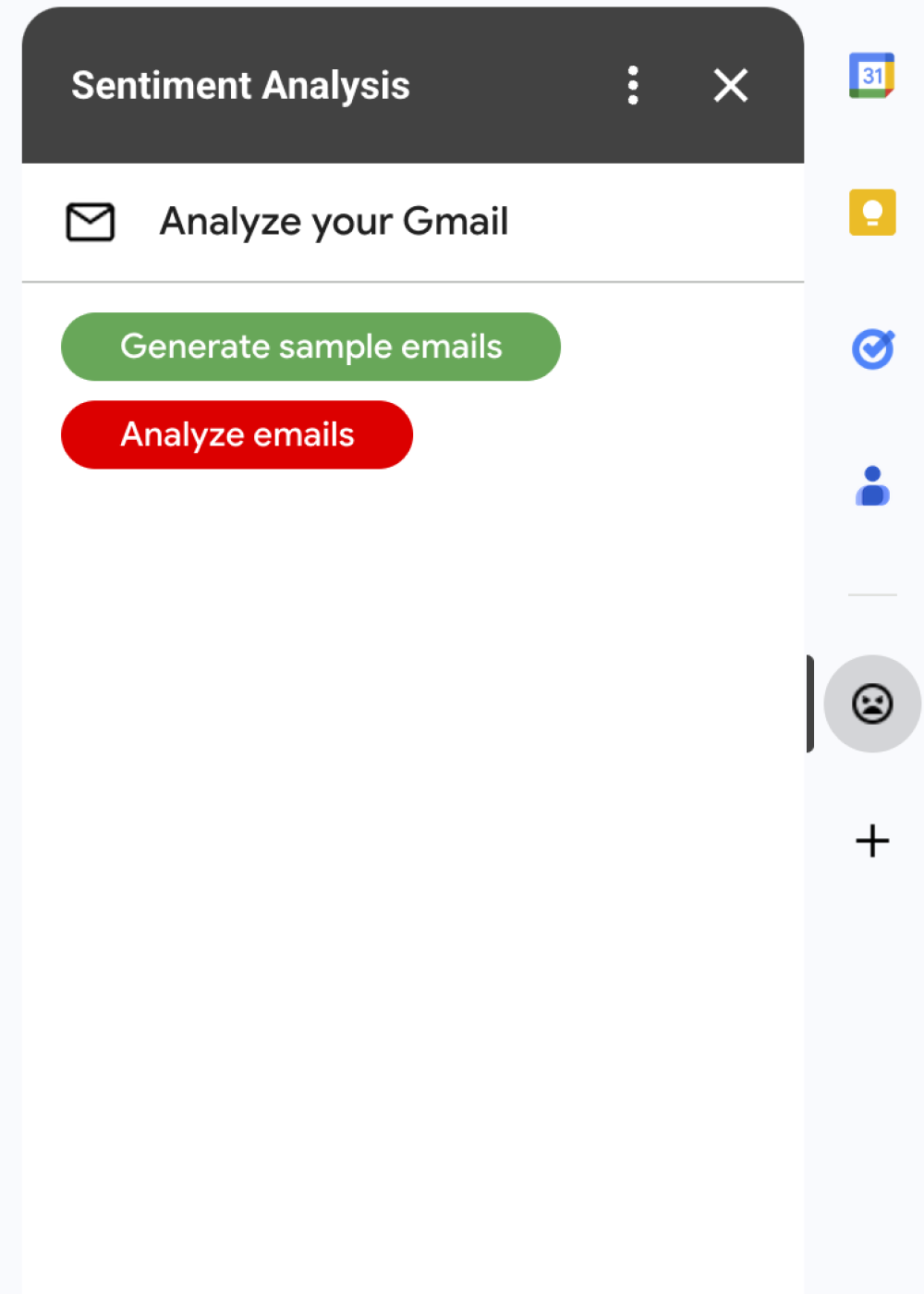
  • Дополнение для Google Workspace, расширяющее функциональность Gmail за счет добавления интерфейса в боковую панель.
    Рисунок 1: Надстройка «Анализ настроения» отображает в Gmail боковую панель, где пользователи могут настроить Gemini на анализ сообщений и присвоение им меток на основе их настроения.
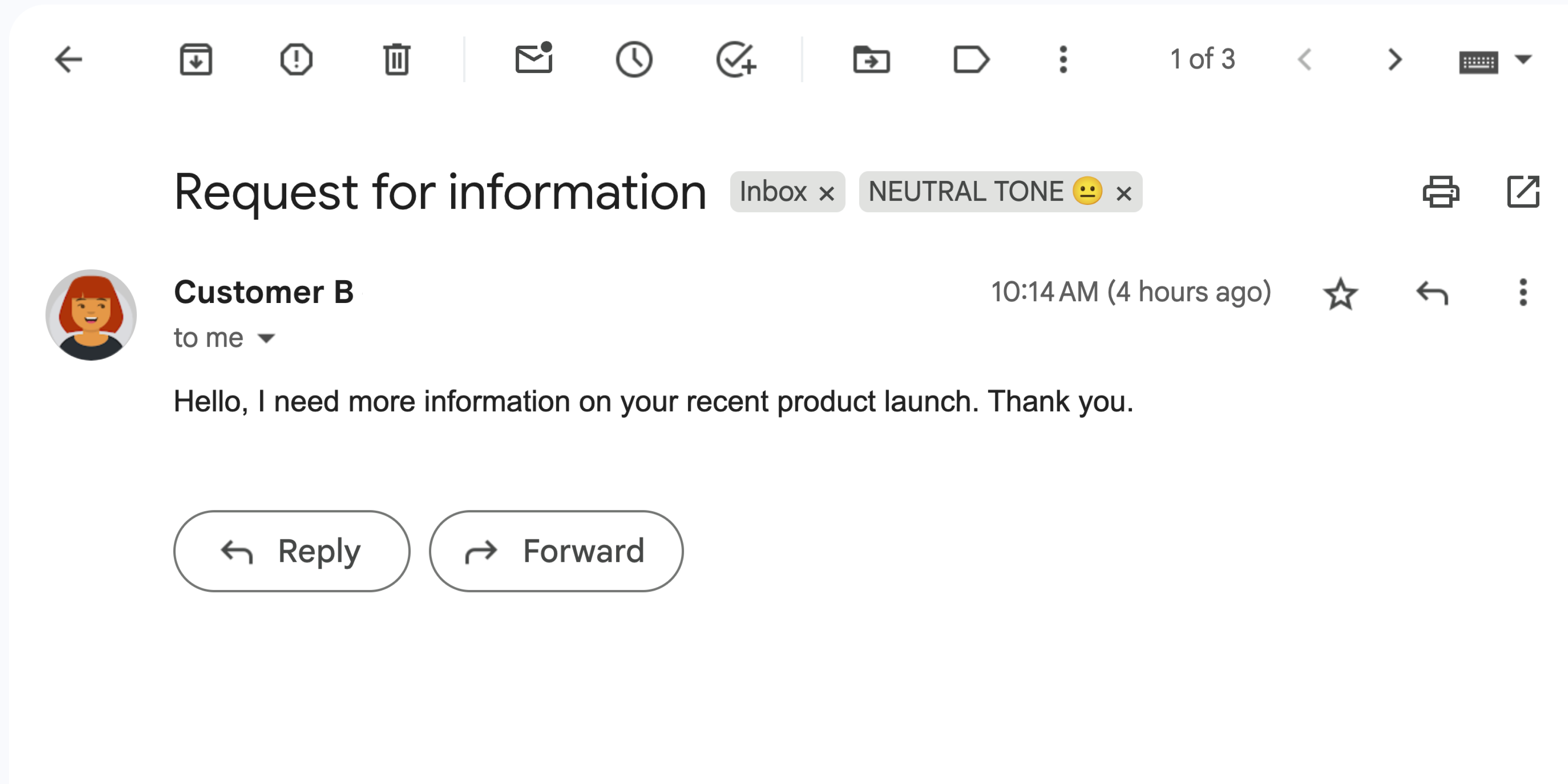
  • Сообщение в Gmail с нейтральным тоном.
    Рисунок 2: Дополнение помечает сообщение Gmail меткой «НЕЙТРАЛЬНЫЙ ТОН 😐» .
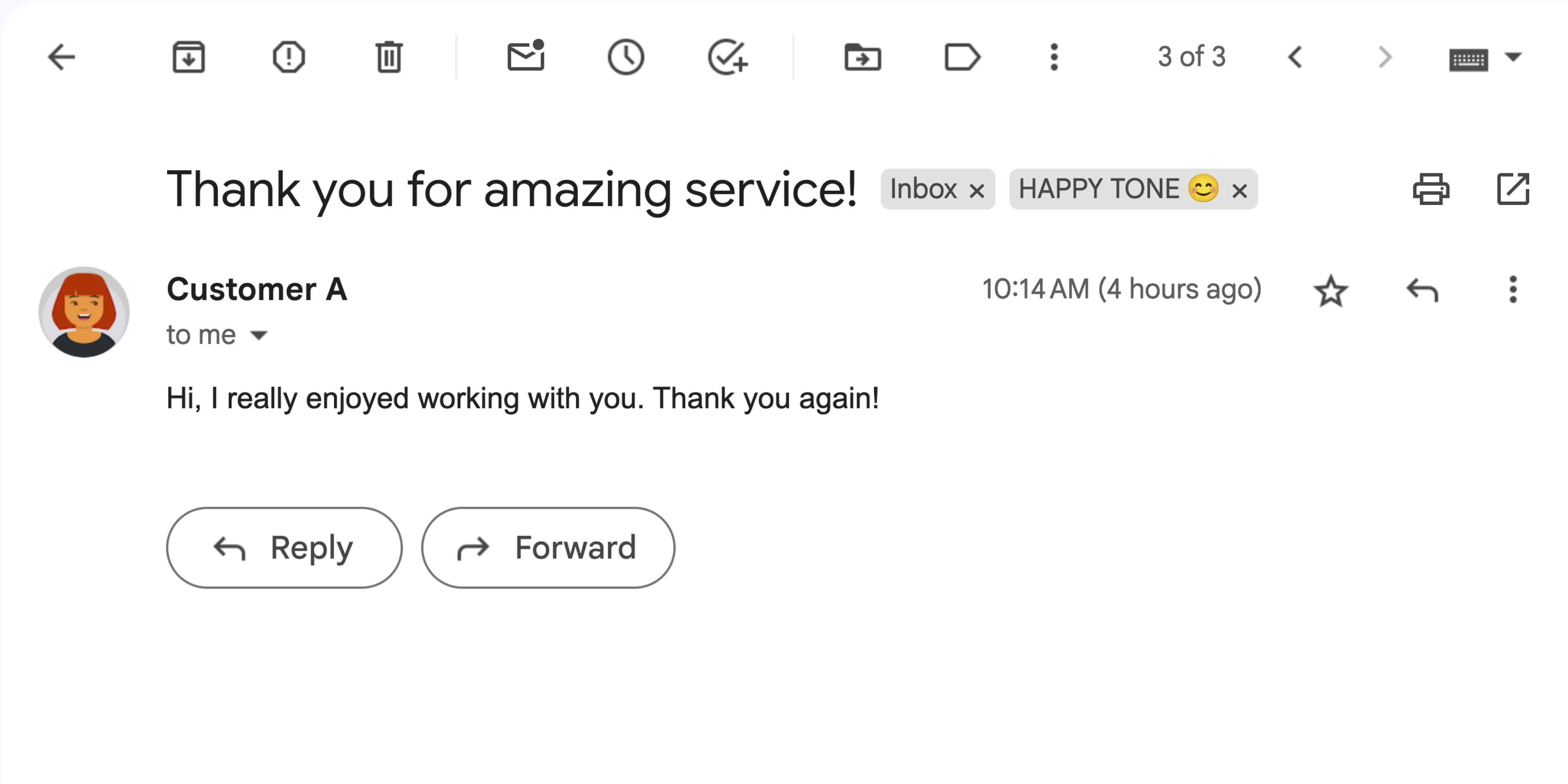
  • Сообщение в Gmail, наполненное позитивными эмоциями.
    Рисунок 3: Дополнение помечает сообщение Gmail надписью HAPPY TONE 😊 .
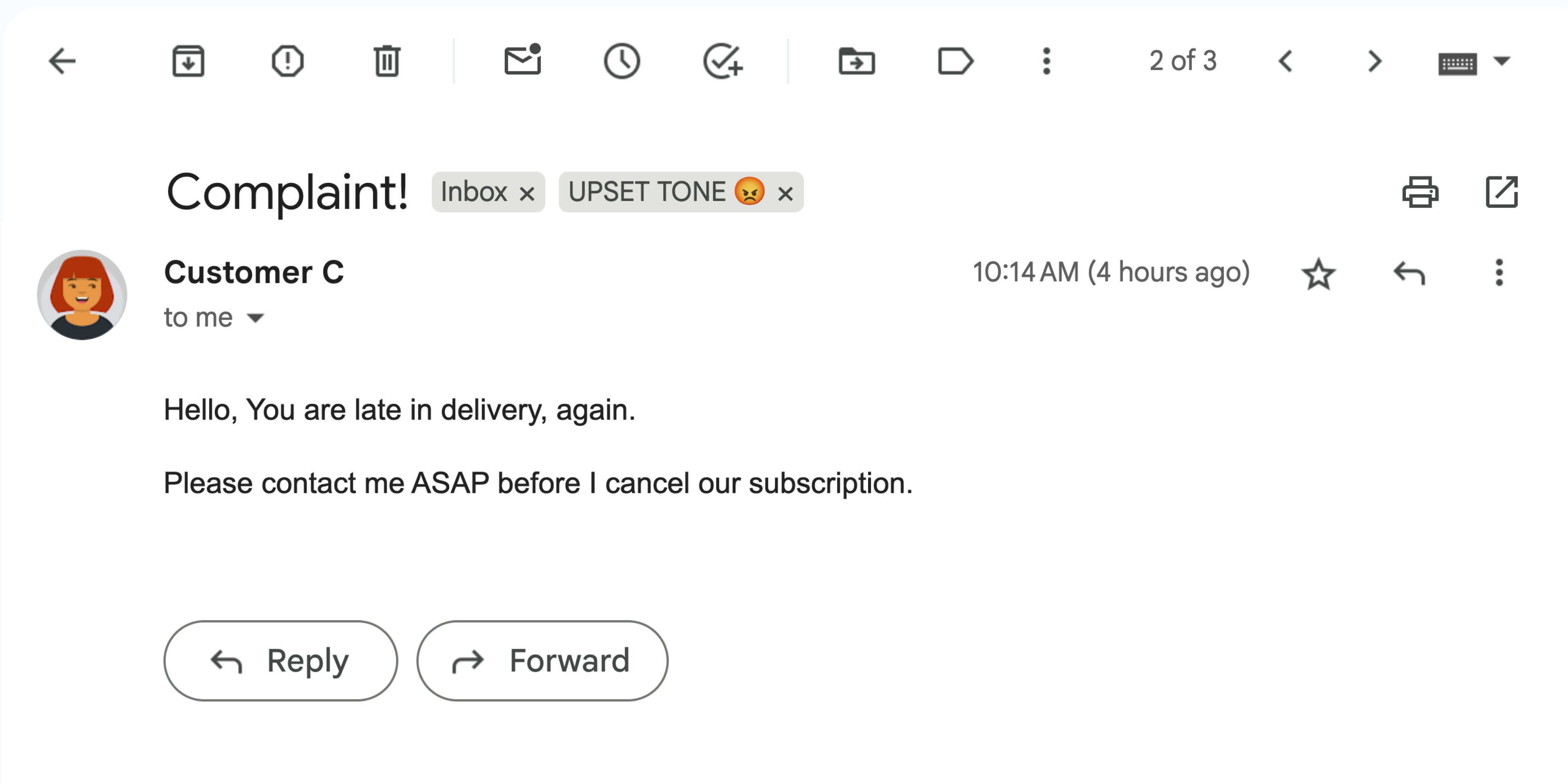
  • Сообщение в Gmail, выражающее недовольство.
    Рисунок 4: Дополнение помечает сообщение Gmail меткой «РАССТРОЕННЫЙ ТОН 😡» .

Цели

  • Поймите, для чего предназначено это решение.
  • Разберитесь, что делают сервисы Google в рамках данного решения.
  • Настройте среду.
  • Настройте проект Google Apps Script.
  • Запустите скрипт.

Об этом решении

Скриншот дополнения Google Workspace «Анализ настроений».

Это решение представляет собой надстройку для Google Workspace, которая присваивает метки на основе эмоциональной окраски сообщений Gmail. Для анализа содержимого сообщений надстройка использует Vertex AI, которая запрашивает данные у модели Gemini 2.5 Flash и возвращает одну из следующих оценок эмоциональной окраски:

  • Положительный
  • Отрицательный
  • Нейтральный

Получив ответ от Gemini, дополнение добавляет к сообщению соответствующую метку Gmail.

Чтобы ограничить запросы к API Vertex AI, это дополнение анализирует и присваивает метки только 10 последним сообщениям в папке «Входящие» пользователя Gmail. Для получения дополнительной информации о квотах и ​​ограничениях посетите документацию Vertex AI .

Как это работает

Данное решение разработано на основе Google Apps Script и использует следующие сервисы и продукты Google:

  • API Vertex AI — предоставляет модели Gemini 2.5 Flash возможность анализировать содержимое сообщений Gmail и определять эмоциональную окраску.
  • Сервисы Apps Script:

    • Сервис Gmail — получает и применяет метки к сообщениям Gmail. При желании создает тестовые сообщения для проверки дополнения.
    • Сервис карточек — создает пользовательский интерфейс дополнения, который отображается в виде боковой панели в Gmail.
    • Сервис URL Fetch — подключается к API Vertex AI для анализа настроений.
    • Сервис скриптов — для вызова API Vertex AI получает токен доступа OAuth 2.0 для дополнения с помощью метода getOAuthToken .

Предварительные требования

Настройте свою среду

В этом разделе объясняется, как настроить и подготовить среду в консоли Google Cloud и Apps Script.

Настройте свой облачный проект в консоли Google Cloud.

В этом разделе показано, как включить API Vertex AI и настроить экран согласия OAuth в вашем облачном проекте.

Включите API Vertex AI

  1. В консоли Google Cloud откройте свой проект Google Cloud и включите API Vertex AI:

    Включить API

  2. Убедитесь, что вы включаете API в правильном облачном проекте, затем нажмите «Далее» .

  3. Убедитесь, что вы включаете правильный API, затем нажмите «Включить» .

Настройте экран согласия OAuth.

Для работы дополнений Google Workspace требуется настройка экрана согласия. Настройка экрана согласия OAuth для вашего дополнения определяет, что Google отображает пользователям.

  1. В консоли Google Cloud перейдите в >Google Auth platform > Брендинг .

    Перейти к разделу «Брендинг»

  2. Если вы уже настроили Google Auth platformВы можете настроить следующие параметры экрана согласия OAuth в разделах «Брендинг» , «Аудитория» и «Доступ к данным» . Если вы видите сообщение, в котором говорится... Google Auth platform Если конфигурация еще не выполнена , нажмите «Начать» :
    1. В разделе «Информация о приложении» , в поле «Название приложения» , введите название для приложения.
    2. В разделе «Электронная почта службы поддержки пользователей» выберите адрес электронной почты, по которому пользователи смогут связаться с вами, если у них возникнут вопросы относительно их согласия.
    3. Нажмите «Далее» .
    4. В разделе «Аудитория» выберите «Внутренняя» .
    5. Нажмите «Далее» .
    6. В поле «Контактная информация» укажите адрес электронной почты , на который вы сможете получать уведомления об изменениях в вашем проекте.
    7. Нажмите «Далее» .
    8. В разделе «Завершить» ознакомьтесь с Политикой использования пользовательских данных сервисов Google API и, если вы согласны, выберите «Я согласен с Политикой использования пользовательских данных сервисов Google API» .
    9. Нажмите «Продолжить» .
    10. Нажмите «Создать» .
  3. На данный момент добавление областей действия можно пропустить. В будущем, при создании приложения для использования за пределами вашей организации Google Workspace, необходимо изменить тип пользователя на «Внешний» . Затем добавьте необходимые для вашего приложения области авторизации. Для получения дополнительной информации см. полное руководство по настройке согласия OAuth .

Создайте и настройте свой проект Apps Script.

Для создания и настройки проекта Apps Script для дополнения выполните следующие шаги:

  1. Нажмите на следующую кнопку, чтобы открыть проект « Анализ настроения в Gmail с помощью Gemini и скриптов приложений Vertex AI» .
    Откройте проект Apps Script.

  2. Нажмите «Обзор .

  3. На странице обзора нажмите «Создать копию». Значок для создания копии .

  4. Получите номер вашего облачного проекта:

    1. В консоли Google Cloud перейдите в > IAM и администрирование > Настройки .

      Перейдите в раздел «Настройки IAM и администрирования».

    2. В поле «Номер проекта» скопируйте значение.
  5. Подключите свой облачный проект к проекту Apps Script:

    1. В скопированном проекте Apps Script нажмите «Настройки проекта» . Значок для настроек проекта .
    2. В разделе «Проект Google Cloud Platform (GCP)» нажмите «Изменить проект» .
    3. В поле "Номер проекта GCP" вставьте номер облачного проекта.
    4. Нажмите «Установить проект» .

Протестируйте дополнение

Чтобы протестировать дополнение, установите тестовую версию, а затем откройте дополнение в Gmail:

  1. Создайте и установите тестовую среду Apps Script:
    1. В скопированном проекте Apps Script нажмите «Редактор .
    2. Откройте файл Code.gs и нажмите «Запустить» . При появлении запроса авторизуйте скрипт.
    3. Нажмите «Развернуть» > «Проверить развертывания» .
    4. Нажмите «Установить» > «Готово» .
  2. Откройте Gmail.

    Перейти в Gmail

  3. В правой боковой панели откройте дополнение Sentiment Analysis .

  4. При появлении запроса авторизуйте дополнение.

  5. Дополнительно: Чтобы создать тестовые сообщения для вашего дополнения, нажмите «Сгенерировать тестовые письма» . В вашем почтовом ящике появятся три сообщения. Если вы их не видите, обновите страницу.

  6. Чтобы добавить метки, нажмите «Анализировать электронные письма» .

Дополнение анализирует 10 последних сообщений в вашей папке «Входящие» и затем присваивает им одну из следующих меток в зависимости от содержимого сообщения:

  • Веселый тон 😊
  • НЕЙТРАЛЬНЫЙ ТОН 😐
  • РАЗДРАЖЕННЫЙ ТОН 😡

Просмотрите код

Просмотрите код Apps Script для этого решения:

Просмотреть исходный код

Код.gs

gmail-sentiment-analysis/Code.gs
/*
Copyright 2024 Google LLC

Licensed under the Apache License, Version 2.0 (the "License");
you may not use this file except in compliance with the License.
You may obtain a copy of the License at

    https://www.apache.org/licenses/LICENSE-2.0

Unless required by applicable law or agreed to in writing, software
distributed under the License is distributed on an "AS IS" BASIS,
WITHOUT WARRANTIES OR CONDITIONS OF ANY KIND, either express or implied.
See the License for the specific language governing permissions and
limitations under the License.
*/

/**
 * Triggered when the add-on is opened from the Gmail homepage.
 *
 * @param {Object} e - The event object.
 * @returns {Card} - The homepage card.
 */
function onHomepageTrigger(e) {
  return buildHomepageCard();
}

Cards.gs

gmail-sentiment-analysis/Cards.gs
/*
Copyright 2024-2025 Google LLC

Licensed under the Apache License, Version 2.0 (the "License");
you may not use this file except in compliance with the License.
You may obtain a copy of the License at

    https://www.apache.org/licenses/LICENSE-2.0

Unless required by applicable law or agreed to in writing, software
distributed under the License is distributed on an "AS IS" BASIS,
WITHOUT WARRANTIES OR CONDITIONS OF ANY KIND, either express or implied.
See the License for the specific language governing permissions and
limitations under the License.
*/

/**
 * Builds the main card displayed on the Gmail homepage.
 *
 * @returns {Card} - The homepage card.
 */
function buildHomepageCard() {
  // Create a new card builder
  const cardBuilder = CardService.newCardBuilder();

  // Create a card header
  const cardHeader = CardService.newCardHeader();
  cardHeader.setImageUrl(
    "https://fonts.gstatic.com/s/i/googlematerialicons/mail/v6/black-24dp/1x/gm_mail_black_24dp.png",
  );
  cardHeader.setImageStyle(CardService.ImageStyle.CIRCLE);
  cardHeader.setTitle("Analyze your Gmail");

  // Add the header to the card
  cardBuilder.setHeader(cardHeader);

  // Create a card section
  const cardSection = CardService.newCardSection();

  // Create buttons for generating sample emails and analyzing sentiment
  const buttonSet = CardService.newButtonSet();

  // Create "Generate sample emails" button
  const generateButton = createFilledButton(
    "Generate sample emails",
    "generateSampleEmails",
    "#34A853",
  );
  buttonSet.addButton(generateButton);

  // Create "Analyze emails" button
  const analyzeButton = createFilledButton(
    "Analyze emails",
    "analyzeSentiment",
    "#FF0000",
  );
  buttonSet.addButton(analyzeButton);

  // Add the button set to the section
  cardSection.addWidget(buttonSet);

  // Add the section to the card
  cardBuilder.addSection(cardSection);

  // Build and return the card
  return cardBuilder.build();
}

/**
 * Creates a filled text button with the specified text, function, and color.
 *
 * @param {string} text - The text to display on the button.
 * @param {string} functionName - The name of the function to call when the button is clicked.
 * @param {string} color - The background color of the button.
 * @returns {TextButton} - The created text button.
 */
function createFilledButton(text, functionName, color) {
  // Create a new text button
  const textButton = CardService.newTextButton();

  // Set the button text
  textButton.setText(text);

  // Set the action to perform when the button is clicked
  const action = CardService.newAction();
  action.setFunctionName(functionName);
  textButton.setOnClickAction(action);

  // Set the button style to filled
  textButton.setTextButtonStyle(CardService.TextButtonStyle.FILLED);

  // Set the background color
  textButton.setBackgroundColor(color);

  return textButton;
}

/**
 * Creates a notification response with the specified text.
 *
 * @param {string} notificationText - The text to display in the notification.
 * @returns {ActionResponse} - The created action response.
 */
function buildNotificationResponse(notificationText) {
  // Create a new notification
  const notification = CardService.newNotification();
  notification.setText(notificationText);

  // Create a new action response builder
  const actionResponseBuilder = CardService.newActionResponseBuilder();

  // Set the notification for the action response
  actionResponseBuilder.setNotification(notification);

  // Build and return the action response
  return actionResponseBuilder.build();
}

Gmail.gs

gmail-sentiment-analysis/Gmail.gs
/*
Copyright 2024-2025 Google LLC

Licensed under the Apache License, Version 2.0 (the "License");
you may not use this file except in compliance with the License.
You may obtain a copy of the License at

    https://www.apache.org/licenses/LICENSE-2.0

Unless required by applicable law or agreed to in writing, software
distributed under the License is distributed on an "AS IS" BASIS,
WITHOUT WARRANTIES OR CONDITIONS OF ANY KIND, either express or implied.
See the License for the specific language governing permissions and
limitations under the License.
*/

/**
 * Analyzes the sentiment of the first 10 threads in the inbox
 * and labels them accordingly.
 *
 * @returns {ActionResponse} - A notification confirming completion.
 */
function analyzeSentiment() {
  // Analyze and label emails
  analyzeAndLabelEmailSentiment();

  // Return a notification
  return buildNotificationResponse("Successfully completed sentiment analysis");
}

/**
 * Analyzes the sentiment of emails and applies appropriate labels.
 */
function analyzeAndLabelEmailSentiment() {
  // Define label names
  const labelNames = ["HAPPY TONE 😊", "NEUTRAL TONE 😐", "UPSET TONE 😡"];

  // Get or create labels for each sentiment
  const positiveLabel =
    GmailApp.getUserLabelByName(labelNames[0]) ||
    GmailApp.createLabel(labelNames[0]);
  const neutralLabel =
    GmailApp.getUserLabelByName(labelNames[1]) ||
    GmailApp.createLabel(labelNames[1]);
  const negativeLabel =
    GmailApp.getUserLabelByName(labelNames[2]) ||
    GmailApp.createLabel(labelNames[2]);

  // Get the first 10 threads in the inbox
  const threads = GmailApp.getInboxThreads(0, 10);

  // Iterate through each thread
  for (const thread of threads) {
    // Iterate through each message in the thread
    const messages = thread.getMessages();
    for (const message of messages) {
      // Get the plain text body of the message
      const emailBody = message.getPlainBody();

      // Analyze the sentiment of the email body
      const sentiment = processSentiment(emailBody);

      // Apply the appropriate label based on the sentiment
      if (sentiment === "positive") {
        thread.addLabel(positiveLabel);
      } else if (sentiment === "neutral") {
        thread.addLabel(neutralLabel);
      } else if (sentiment === "negative") {
        thread.addLabel(negativeLabel);
      }
    }
  }
}

/**
 * Generates sample emails for testing the sentiment analysis.
 *
 * @returns {ActionResponse} - A notification confirming email generation.
 */
function generateSampleEmails() {
  // Get the current user's email address
  const userEmail = Session.getActiveUser().getEmail();

  // Define sample emails
  const sampleEmails = [
    {
      subject: "Thank you for amazing service!",
      body: "Hi, I really enjoyed working with you. Thank you again!",
      name: "Customer A",
    },
    {
      subject: "Request for information",
      body: "Hello, I need more information on your recent product launch. Thank you.",
      name: "Customer B",
    },
    {
      subject: "Complaint!",
      body: "",
      htmlBody: `<p>Hello, You are late in delivery, again.</p>
<p>Please contact me ASAP before I cancel our subscription.</p>`,
      name: "Customer C",
    },
  ];

  // Send each sample email
  for (const email of sampleEmails) {
    GmailApp.sendEmail(userEmail, email.subject, email.body, {
      name: email.name,
      htmlBody: email.htmlBody,
    });
  }

  // Return a notification
  return buildNotificationResponse("Successfully generated sample emails");
}

Vertex.gs

gmail-sentiment-analysis/Vertex.gs
/*
Copyright 2024-2025 Google LLC

Licensed under the Apache License, Version 2.0 (the "License");
you may not use this file except in compliance with the License.
You may obtain a copy of the License at

    https://www.apache.org/licenses/LICENSE-2.0

Unless required by applicable law or agreed to in writing, software
distributed under the License is distributed on an "AS IS" BASIS,
WITHOUT WARRANTIES OR CONDITIONS OF ANY KIND, either express or implied.
See the License for the specific language governing permissions and
limitations under the License.
*/

// Replace with your project ID
const PROJECT_ID = "[ADD YOUR GCP PROJECT ID HERE]";

// Location for your Vertex AI model
const VERTEX_AI_LOCATION = "us-central1";

// Model ID to use for sentiment analysis
const MODEL_ID = "gemini-2.5-flash";

/**
 * Sends the email text to Vertex AI for sentiment analysis.
 *
 * @param {string} emailText - The text of the email to analyze.
 * @returns {string} - The sentiment of the email ('positive', 'negative', or 'neutral').
 */
function processSentiment(emailText) {
  // Construct the API endpoint URL
  const apiUrl = `https://${VERTEX_AI_LOCATION}-aiplatform.googleapis.com/v1/projects/${PROJECT_ID}/locations/${VERTEX_AI_LOCATION}/publishers/google/models/${MODEL_ID}:generateContent`;

  // Prepare the request payload
  const payload = {
    contents: [
      {
        role: "user",
        parts: [
          {
            text: `Analyze the sentiment of the following message: ${emailText}`,
          },
        ],
      },
    ],
    generationConfig: {
      temperature: 0.9,
      maxOutputTokens: 1024,
      responseMimeType: "application/json",
      // Expected response format for simpler parsing.
      responseSchema: {
        type: "object",
        properties: {
          response: {
            type: "string",
            enum: ["positive", "negative", "neutral"],
          },
        },
      },
    },
  };

  // Prepare the request options
  const options = {
    method: "POST",
    headers: {
      Authorization: `Bearer ${ScriptApp.getOAuthToken()}`,
    },
    contentType: "application/json",
    muteHttpExceptions: true, // Set to true to inspect the error response
    payload: JSON.stringify(payload),
  };

  // Make the API request
  const response = UrlFetchApp.fetch(apiUrl, options);

  // Parse the response. There are two levels of JSON responses to parse.
  const parsedResponse = JSON.parse(response.getContentText());
  const sentimentResponse = JSON.parse(
    parsedResponse.candidates[0].content.parts[0].text,
  ).response;

  // Return the sentiment
  return sentimentResponse;
}

appsscript.json

gmail-sentiment-analysis/appsscript.json
{
  "timeZone": "America/Toronto",
  "oauthScopes": [
    "https://www.googleapis.com/auth/cloud-platform",
    "https://www.googleapis.com/auth/gmail.addons.execute",
    "https://www.googleapis.com/auth/gmail.labels",
    "https://www.googleapis.com/auth/gmail.modify",
    "https://www.googleapis.com/auth/script.external_request",
    "https://www.googleapis.com/auth/userinfo.email"
  ],
  "addOns": {
    "common": {
      "name": "Sentiment Analysis",
      "logoUrl": "https://fonts.gstatic.com/s/i/googlematerialicons/sentiment_extremely_dissatisfied/v6/black-24dp/1x/gm_sentiment_extremely_dissatisfied_black_24dp.png"
    },
    "gmail": {
      "homepageTrigger": {
        "runFunction": "onHomepageTrigger",
        "enabled": true
      }
    }
  },
  "exceptionLogging": "STACKDRIVER",
  "runtimeVersion": "V8"
}

Уборка

Чтобы избежать списания средств с вашего аккаунта Google Cloud за ресурсы, используемые в этом руководстве, мы рекомендуем вам удалить проект Cloud.

  1. В консоли Google Cloud перейдите на страницу «Управление ресурсами» . Выберите « » > «IAM и администрирование» > «Управление ресурсами» .

    Перейти к диспетчеру ресурсов

  2. В списке проектов выберите проект, вы хотите удалить, а затем нажмите Удалить .
  3. В диалоговом окне введите идентификатор проекта, а затем нажмите кнопку «Завершить» , чтобы удалить проект.

Следующие шаги