ส่งข้อความโดยใช้ Google Chat API

คู่มือนี้อธิบายวิธีใช้เมธอด create() ในทรัพยากร Message ของ Google Chat API เพื่อทำสิ่งต่อไปนี้

  • ส่งข้อความที่มีข้อความ การ์ด และวิดเจ็ตแบบอินเทอร์แอกทีฟ
  • ส่งข้อความส่วนตัวถึงผู้ใช้ Chat ที่เฉพาะเจาะจง
  • เริ่มหรือตอบกลับชุดข้อความ
  • ตั้งชื่อข้อความเพื่อให้คุณระบุข้อความนั้นในคำขอ Chat API อื่นๆ ได้

ขนาดข้อความสูงสุด (รวมข้อความหรือการ์ด) คือ 32,000 ไบต์ หากต้องการส่งข้อความที่มีขนาดเกินขีดจำกัดนี้ แอปใน Chat ของคุณต้องส่งข้อความหลายข้อความแทน

นอกเหนือจากการเรียกใช้ Chat API เพื่อสร้างข้อความแล้ว แอปใน Chat ยังสร้างและส่งข้อความเพื่อตอบกลับการโต้ตอบของผู้ใช้ได้ด้วย เช่น การโพสต์ข้อความต้อนรับหลังจากที่ผู้ใช้เพิ่มแอปใน Chat ลงในพื้นที่ทำงาน เมื่อตอบสนองต่อการโต้ตอบ แอปใน Chat สามารถใช้ฟีเจอร์การรับส่งข้อความประเภทอื่นๆ ได้ ซึ่งรวมถึงกล่องโต้ตอบแบบอินเทอร์แอกทีฟและอินเทอร์เฟซการแสดงตัวอย่างลิงก์ หากต้องการตอบกลับผู้ใช้ แอป Chat จะแสดงข้อความพร้อมกันโดยไม่ต้องเรียกใช้ Chat API หากต้องการดูข้อมูลเกี่ยวกับการส่งข้อความเพื่อตอบกลับการโต้ตอบ โปรดดูหัวข้อรับและตอบกลับการโต้ตอบด้วยแอป Google Chat

วิธีที่ Chat แสดงและระบุแหล่งที่มาของข้อความที่สร้างด้วย Chat API

คุณสามารถเรียกใช้เมธอด create() โดยใช้การตรวจสอบสิทธิ์แอปและการตรวจสอบสิทธิ์ผู้ใช้ Chat จะระบุผู้ส่งข้อความแตกต่างกันไปตามประเภทการตรวจสอบสิทธิ์ที่คุณใช้

เมื่อคุณตรวจสอบสิทธิ์ในฐานะแอป Chat แอป Chat จะส่งข้อความ
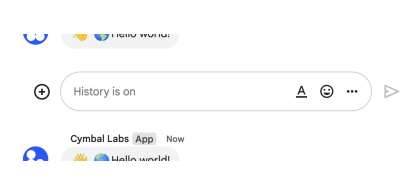
การเรียกใช้เมธอด create() ด้วยการตรวจสอบสิทธิ์ของแอป
รูปที่ 1: เมื่อใช้การตรวจสอบสิทธิ์แอป แอปใน Chat จะส่งข้อความ Chat จะแสดง App ข้างชื่อเพื่อระบุว่าผู้ส่งไม่ใช่บุคคล

เมื่อคุณตรวจสอบสิทธิ์ในฐานะผู้ใช้ แอปใน Chat จะส่งข้อความในนามของผู้ใช้ นอกจากนี้ Chat ยังระบุแหล่งที่มาของแอปใน Chat ไปยังข้อความโดยแสดงชื่อของแอปด้วย
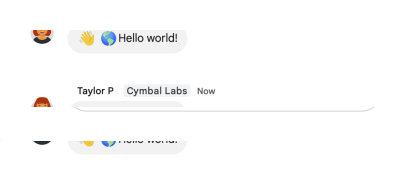
การเรียกใช้เมธอด create() ด้วยการตรวจสอบสิทธิ์ผู้ใช้
รูปที่ 2: เมื่อใช้การตรวจสอบสิทธิ์ของผู้ใช้ ผู้ใช้จะส่งข้อความ และ Chat จะแสดงชื่อแอป Chat ข้างชื่อผู้ใช้

ประเภทการตรวจสอบสิทธิ์ยังกำหนดฟีเจอร์และอินเทอร์เฟซการรับส่งข้อความที่คุณสามารถรวมไว้ในข้อความด้วย เมื่อใช้การตรวจสอบสิทธิ์แอป แอปใน Chat จะส่งข้อความที่มี Rich Text, อินเทอร์เฟซแบบการ์ด และวิดเจ็ตแบบอินเทอร์แอกทีฟได้ เมื่อใช้การตรวจสอบสิทธิ์ผู้ใช้ คุณจะส่งข้อความหรือสร้างข้อความที่มีการ์ดได้ตามที่ระบุไว้ในสร้างและอัปเดตการ์ดแบบอินเทอร์แอกทีฟ

ดูข้อมูลเพิ่มเติมเกี่ยวกับฟีเจอร์การรับส่งข้อความที่ใช้ได้กับ Chat API ได้ที่ภาพรวมข้อความ Google Chat

คู่มือนี้อธิบายวิธีใช้การตรวจสอบสิทธิ์ประเภทใดประเภทหนึ่งเพื่อส่งข้อความด้วย Chat API

ข้อกำหนดเบื้องต้น

Node.js

  • บัญชี Google Workspace แบบ Business หรือ Enterprise ที่มีสิทธิ์เข้าถึง Google Chat

Python

  • บัญชี Google Workspace แบบ Business หรือ Enterprise ที่มีสิทธิ์เข้าถึง Google Chat

Java

  • บัญชี Google Workspace แบบ Business หรือ Enterprise ที่มีสิทธิ์เข้าถึง Google Chat

Apps Script

  • บัญชี Google Workspace แบบ Business หรือ Enterprise ที่มีสิทธิ์เข้าถึง Google Chat

ส่งข้อความในฐานะแอปใน Chat

ส่วนนี้จะอธิบายวิธีส่งข้อความที่มีข้อความ การ์ด และวิดเจ็ตอุปกรณ์เสริมแบบอินเทอร์แอกทีฟโดยใช้การตรวจสอบสิทธิ์แอป
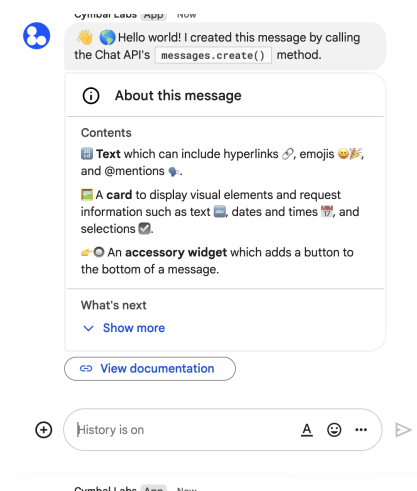
ข้อความที่ส่งพร้อมการตรวจสอบสิทธิ์แอป
รูปที่ 4 แอปใน Chat จะส่งข้อความที่มีข้อความ การ์ด และปุ่มเสริม

หากต้องการเรียกใช้เมธอด CreateMessage() โดยใช้การตรวจสอบสิทธิ์แอป คุณต้องระบุฟิลด์ต่อไปนี้ในคำขอ

  • ขอบเขตการให้สิทธิ์ chat.bot
  • ทรัพยากร Space ที่คุณต้องการโพสต์ข้อความ แอปใน Chat ต้องเป็นสมาชิกของพื้นที่ทำงาน
  • ทรัพยากร Message ที่จะสร้าง หากต้องการกำหนดเนื้อหาของข้อความ คุณสามารถใส่ Rich Text (text), อินเทอร์เฟซการ์ดอย่างน้อย 1 รายการ (cardsV2) หรือทั้ง 2 อย่าง

คุณเลือกที่จะใส่ข้อมูลต่อไปนี้หรือไม่ก็ได้

โค้ดต่อไปนี้แสดงตัวอย่างวิธีที่แอปใน Chat สามารถส่งข้อความที่โพสต์เป็นแอปใน Chat ซึ่งมีข้อความ การ์ด และปุ่มที่คลิกได้ที่ด้านล่างของข้อความ

Node.js

chat/client-libraries/cloud/create-message-app-cred.js
import {createClientWithAppCredentials} from './authentication-utils.js';

// This sample shows how to create message with app credential
async function main() {
  // Create a client
  const chatClient = createClientWithAppCredentials();

  // Initialize request argument(s)
  const request = {
    // Replace SPACE_NAME here.
    parent: 'spaces/SPACE_NAME',
    message: {
      text:
        '👋🌎 Hello world! I created this message by calling ' +
        "the Chat API's `messages.create()` method.",
      cardsV2: [
        {
          card: {
            header: {
              title: 'About this message',
              imageUrl:
                'https://fonts.gstatic.com/s/i/short-term/release/googlesymbols/info/default/24px.svg',
            },
            sections: [
              {
                header: 'Contents',
                widgets: [
                  {
                    textParagraph: {
                      text:
                        '🔡 <b>Text</b> which can include ' +
                        'hyperlinks 🔗, emojis 😄🎉, and @mentions 🗣️.',
                    },
                  },
                  {
                    textParagraph: {
                      text:
                        '🖼️ A <b>card</b> to display visual elements' +
                        'and request information such as text 🔤, ' +
                        'dates and times 📅, and selections ☑️.',
                    },
                  },
                  {
                    textParagraph: {
                      text:
                        '👉🔘 An <b>accessory widget</b> which adds ' +
                        'a button to the bottom of a message.',
                    },
                  },
                ],
              },
              {
                header: "What's next",
                collapsible: true,
                widgets: [
                  {
                    textParagraph: {
                      text: "❤️ <a href='https://developers.google.com/workspace/chat/api/reference/rest/v1/spaces.messages.reactions/create'>Add a reaction</a>.",
                    },
                  },
                  {
                    textParagraph: {
                      text:
                        "🔄 <a href='https://developers.google.com/workspace/chat/api/reference/rest/v1/spaces.messages/patch'>Update</a> " +
                        "or ❌ <a href='https://developers.google.com/workspace/chat/api/reference/rest/v1/spaces.messages/delete'>delete</a> " +
                        'the message.',
                    },
                  },
                ],
              },
            ],
          },
        },
      ],
      accessoryWidgets: [
        {
          buttonList: {
            buttons: [
              {
                text: 'View documentation',
                icon: {materialIcon: {name: 'link'}},
                onClick: {
                  openLink: {
                    url: 'https://developers.google.com/workspace/chat/create-messages',
                  },
                },
              },
            ],
          },
        },
      ],
    },
  };

  // Make the request
  const response = await chatClient.createMessage(request);

  // Handle the response
  console.log(response);
}

await main();

Python

chat/client-libraries/cloud/create_message_app_cred.py
from authentication_utils import create_client_with_app_credentials
from google.apps import chat_v1 as google_chat

# This sample shows how to create message with app credential
def create_message_with_app_cred():
    # Create a client
    client = create_client_with_app_credentials()

    # Initialize request argument(s)
    request = google_chat.CreateMessageRequest(
        # Replace SPACE_NAME here.
        parent = "spaces/SPACE_NAME",
        message = {
            "text": '👋🌎 Hello world! I created this message by calling ' +
                    'the Chat API\'s `messages.create()` method.',
            "cards_v2" : [{ "card": {
                "header": {
                    "title": 'About this message',
                    "image_url": 'https://fonts.gstatic.com/s/i/short-term/release/googlesymbols/info/default/24px.svg'
                },
                "sections": [{
                    "header": "Contents",
                    "widgets": [{ "text_paragraph": {
                            "text": '🔡 <b>Text</b> which can include ' +
                                    'hyperlinks 🔗, emojis 😄🎉, and @mentions 🗣️.'
                        }}, { "text_paragraph": {
                            "text": '🖼️ A <b>card</b> to display visual elements' +
                                    'and request information such as text 🔤, ' +
                                    'dates and times 📅, and selections ☑️.'
                        }}, { "text_paragraph": {
                            "text": '👉🔘 An <b>accessory widget</b> which adds ' +
                                    'a button to the bottom of a message.'
                        }}
                    ]}, {
                        "header": "What's next",
                        "collapsible": True,
                        "widgets": [{ "text_paragraph": {
                                "text": "❤️ <a href='https://developers.google.com/workspace/chat/api/reference/rest/v1/spaces.messages.reactions/create'>Add a reaction</a>."
                            }}, { "text_paragraph": {
                                "text": "🔄 <a href='https://developers.google.com/workspace/chat/api/reference/rest/v1/spaces.messages/patch'>Update</a> " +
                                        "or ❌ <a href='https://developers.google.com/workspace/chat/api/reference/rest/v1/spaces.messages/delete'>delete</a> " +
                                        "the message."
                            }
                        }]
                    }
                ]
            }}],
            "accessory_widgets": [{ "button_list": { "buttons": [{
                "text": 'View documentation',
                "icon": { "material_icon": { "name": 'link' }},
                "on_click": { "open_link": {
                    "url": 'https://developers.google.com/workspace/chat/create-messages'
                }}
            }]}}]
        }
    )

    # Make the request
    response = client.create_message(request)

    # Handle the response
    print(response)

create_message_with_app_cred()

Java

chat/client-libraries/cloud/src/main/java/com/google/workspace/api/chat/samples/CreateMessageAppCred.java
import com.google.apps.card.v1.Button;
import com.google.apps.card.v1.ButtonList;
import com.google.apps.card.v1.Card;
import com.google.apps.card.v1.Icon;
import com.google.apps.card.v1.MaterialIcon;
import com.google.apps.card.v1.OnClick;
import com.google.apps.card.v1.OpenLink;
import com.google.apps.card.v1.TextParagraph;
import com.google.apps.card.v1.Widget;
import com.google.apps.card.v1.Card.CardHeader;
import com.google.apps.card.v1.Card.Section;
import com.google.chat.v1.AccessoryWidget;
import com.google.chat.v1.CardWithId;
import com.google.chat.v1.ChatServiceClient;
import com.google.chat.v1.CreateMessageRequest;
import com.google.chat.v1.Message;

// This sample shows how to create message with app credential.
public class CreateMessageAppCred {

  public static void main(String[] args) throws Exception {
    try (ChatServiceClient chatServiceClient =
        AuthenticationUtils.createClientWithAppCredentials()) {
      CreateMessageRequest.Builder request = CreateMessageRequest.newBuilder()
        // Replace SPACE_NAME here.
        .setParent("spaces/SPACE_NAME")
        .setMessage(Message.newBuilder()
          .setText( "👋🌎 Hello world! I created this message by calling " +
                    "the Chat API\'s `messages.create()` method.")
          .addCardsV2(CardWithId.newBuilder().setCard(Card.newBuilder()
            .setHeader(CardHeader.newBuilder()
              .setTitle("About this message")
              .setImageUrl("https://fonts.gstatic.com/s/i/short-term/release/googlesymbols/info/default/24px.svg"))
            .addSections(Section.newBuilder()
              .setHeader("Contents")
              .addWidgets(Widget.newBuilder().setTextParagraph(TextParagraph.newBuilder().setText(
                "🔡 <b>Text</b> which can include " +
                "hyperlinks 🔗, emojis 😄🎉, and @mentions 🗣️.")))
              .addWidgets(Widget.newBuilder().setTextParagraph(TextParagraph.newBuilder().setText(
                "🖼️ A <b>card</b> to display visual elements " +
                "and request information such as text 🔤, " +
                "dates and times 📅, and selections ☑️.")))
              .addWidgets(Widget.newBuilder().setTextParagraph(TextParagraph.newBuilder().setText(
                "👉🔘 An <b>accessory widget</b> which adds " +
                "a button to the bottom of a message."))))
            .addSections(Section.newBuilder()
              .setHeader("What's next")
              .setCollapsible(true)
              .addWidgets(Widget.newBuilder().setTextParagraph(TextParagraph.newBuilder().setText(
                "❤️ <a href='https://developers.google.com/workspace/chat/api/reference/rest/v1/spaces.messages.reactions/create'>Add a reaction</a>.")))
              .addWidgets(Widget.newBuilder().setTextParagraph(TextParagraph.newBuilder().setText(
                "🔄 <a href='https://developers.google.com/workspace/chat/api/reference/rest/v1/spaces.messages/patch'>Update</a> " +
                "or ❌ <a href='https://developers.google.com/workspace/chat/api/reference/rest/v1/spaces.messages/delete'>delete</a> " +
                "the message."))))))
          .addAccessoryWidgets(AccessoryWidget.newBuilder()
            .setButtonList(ButtonList.newBuilder()
              .addButtons(Button.newBuilder()
                .setText("View documentation")
                .setIcon(Icon.newBuilder()
                  .setMaterialIcon(MaterialIcon.newBuilder().setName("link")))
                .setOnClick(OnClick.newBuilder()
                  .setOpenLink(OpenLink.newBuilder()
                    .setUrl("https://developers.google.com/workspace/chat/create-messages")))))));
      Message response = chatServiceClient.createMessage(request.build());

      System.out.println(JsonFormat.printer().print(response));
    }
  }
}

Apps Script

chat/advanced-service/Main.gs
/**
 * This sample shows how to create message with app credential
 *
 * It relies on the OAuth2 scope 'https://www.googleapis.com/auth/chat.bot'
 * used by service accounts.
 */
function createMessageAppCred() {
  // Initialize request argument(s)
  // TODO(developer): Replace SPACE_NAME here.
  const parent = "spaces/SPACE_NAME";
  const message = {
    text:
      "👋🌎 Hello world! I created this message by calling " +
      "the Chat API's `messages.create()` method.",
    cardsV2: [
      {
        card: {
          header: {
            title: "About this message",
            imageUrl:
              "https://fonts.gstatic.com/s/i/short-term/release/googlesymbols/info/default/24px.svg",
          },
          sections: [
            {
              header: "Contents",
              widgets: [
                {
                  textParagraph: {
                    text:
                      "🔡 <b>Text</b> which can include " +
                      "hyperlinks 🔗, emojis 😄🎉, and @mentions 🗣️.",
                  },
                },
                {
                  textParagraph: {
                    text:
                      "🖼️ A <b>card</b> to display visual elements" +
                      "and request information such as text 🔤, " +
                      "dates and times 📅, and selections ☑️.",
                  },
                },
                {
                  textParagraph: {
                    text:
                      "👉🔘 An <b>accessory widget</b> which adds " +
                      "a button to the bottom of a message.",
                  },
                },
              ],
            },
            {
              header: "What's next",
              collapsible: true,
              widgets: [
                {
                  textParagraph: {
                    text: "❤️ <a href='https://developers.google.com/workspace/chat/api/reference/rest/v1/spaces.messages.reactions/create'>Add a reaction</a>.",
                  },
                },
                {
                  textParagraph: {
                    text:
                      "🔄 <a href='https://developers.google.com/workspace/chat/api/reference/rest/v1/spaces.messages/patch'>Update</a> " +
                      "or ❌ <a href='https://developers.google.com/workspace/chat/api/reference/rest/v1/spaces.messages/delete'>delete</a> " +
                      "the message.",
                  },
                },
              ],
            },
          ],
        },
      },
    ],
    accessoryWidgets: [
      {
        buttonList: {
          buttons: [
            {
              text: "View documentation",
              icon: { materialIcon: { name: "link" } },
              onClick: {
                openLink: {
                  url: "https://developers.google.com/workspace/chat/create-messages",
                },
              },
            },
          ],
        },
      },
    ],
  };
  const parameters = {};

  // Make the request
  const response = Chat.Spaces.Messages.create(
    message,
    parent,
    parameters,
    getHeaderWithAppCredentials(),
  );

  // Handle the response
  console.log(response);
}

หากต้องการเรียกใช้ตัวอย่างนี้ ให้แทนที่ SPACE_NAME ด้วยรหัสจากช่อง name ของพื้นที่ทำงาน คุณสามารถดูรหัสได้โดยเรียกใช้เมธอด ListSpaces() หรือจาก URL ของพื้นที่ทำงาน

เพิ่มวิดเจ็ตแบบอินเทอร์แอกทีฟที่ด้านล่างของข้อความ

ในตัวอย่างโค้ดแรกของคู่มือนี้ ข้อความของแอปใน Chat จะแสดงปุ่มที่คลิกได้ที่ด้านล่างของข้อความ ซึ่งเรียกว่าวิดเจ็ตเสริม วิดเจ็ตเสริมจะปรากฏหลังข้อความหรือการ์ดในข้อความ คุณสามารถใช้วิดเจ็ตเหล่านี้เพื่อแจ้งให้ผู้ใช้โต้ตอบกับข้อความได้หลายวิธี ซึ่งรวมถึงวิธีต่อไปนี้

  • ให้คะแนนความถูกต้องหรือความพึงพอใจของข้อความ
  • รายงานปัญหาเกี่ยวกับข้อความหรือแอปใน Chat
  • เปิดลิงก์ไปยังเนื้อหาที่เกี่ยวข้อง เช่น เอกสารประกอบ
  • ปิดหรือเลื่อนการแจ้งเตือนข้อความที่คล้ายกันจากแอป Chat เป็นระยะเวลาหนึ่ง

หากต้องการเพิ่มวิดเจ็ตอุปกรณ์เสริม ให้ใส่ช่อง accessoryWidgets[] ในเนื้อหาของคำขอและระบุวิดเจ็ตอย่างน้อย 1 รายการที่ต้องการรวมไว้

รูปภาพต่อไปนี้แสดงแอปใน Chat ที่เพิ่มข้อความพร้อมวิดเจ็ตเสริมเพื่อให้ผู้ใช้ให้คะแนนประสบการณ์การใช้งานแอปใน Chat ได้
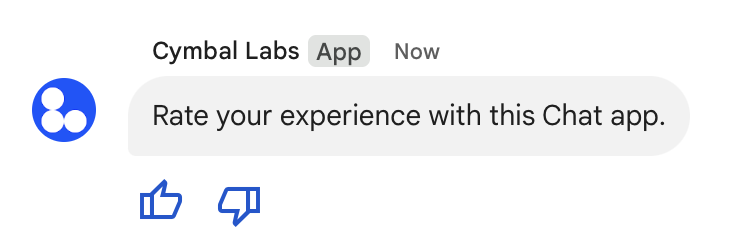
วิดเจ็ตอุปกรณ์เสริม
รูปที่ 5: ข้อความของแอปใน Chat ที่มีข้อความและวิดเจ็ตเสริม

ตัวอย่างต่อไปนี้แสดงเนื้อหาของคำขอที่สร้าง SMS ที่มีปุ่มเสริม 2 ปุ่ม เมื่อผู้ใช้คลิกปุ่ม ฟังก์ชันที่เกี่ยวข้อง (เช่น doUpvote) จะประมวลผลการโต้ตอบดังนี้

{
  text: "Rate your experience with this Chat app.",
  accessoryWidgets: [{ buttonList: { buttons: [{
    icon: { material_icon: {
      name: "thumb_up"
    }},
    color: { red: 0, blue: 255, green: 0 },
    onClick: { action: {
      function: "doUpvote"
    }}
  }, {
    icon: { material_icon: {
      name: "thumb_down"
    }},
    color: { red: 0, blue: 255, green: 0 },
    onClick: { action: {
      function: "doDownvote"
    }}
  }]}}]
}

ส่งข้อความแบบส่วนตัว

แอปใน Chat สามารถส่งข้อความแบบส่วนตัวเพื่อให้ข้อความปรากฏต่อผู้ใช้ที่เฉพาะเจาะจงในพื้นที่ทำงานเท่านั้น เมื่อแอปใน Chat ส่งข้อความส่วนตัว ข้อความจะแสดงป้ายกำกับที่แจ้งให้ผู้ใช้ทราบว่ามีเพียงผู้ใช้เท่านั้นที่เห็นข้อความดังกล่าว

หากต้องการส่งข้อความส่วนตัวโดยใช้ Chat API ให้ระบุช่อง privateMessageViewer ในเนื้อหาของคำขอ หากต้องการระบุผู้ใช้ ให้ตั้งค่าเป็นทรัพยากร User ที่แสดงถึงผู้ใช้ Chat นอกจากนี้ คุณยังใช้ช่อง name ของทรัพยากร User ได้ด้วย ดังที่แสดงในตัวอย่างต่อไปนี้

{
  text: "Hello private world!",
  privateMessageViewer: {
    name: "users/USER_ID"
  }
}

หากต้องการใช้ตัวอย่างนี้ ให้แทนที่ USER_ID ด้วยรหัสที่ไม่ซ้ำกันสำหรับผู้ใช้ เช่น 12345678987654321 หรือ hao@cymbalgroup.com ดูข้อมูลเพิ่มเติมเกี่ยวกับการระบุผู้ใช้ได้ที่หัวข้อระบุผู้ใช้ Google Chat

หากต้องการส่งข้อความแบบส่วนตัว คุณต้องไม่ระบุข้อมูลต่อไปนี้ในคำขอ

ส่งการแจ้งเตือนแบบบังคับหรือข้อความแบบไม่มีเสียง

เมื่อแอปใน Chat ส่งข้อความ แอปจะใช้ตัวเลือกใดตัวเลือกหนึ่งต่อไปนี้เพื่อแจ้งเตือนผู้ใช้ได้

  • บังคับให้ส่งการแจ้งเตือน: Chat จะส่งข้อความ Push ไปยังผู้รับเสมอ ไม่ว่าผู้รับจะตั้งค่าการแจ้งเตือนหรือสถานะห้ามรบกวน (DND) ไว้อย่างไรก็ตาม ใน Chat ข้อความจะทริกเกอร์ลักษณะการทำงานที่เป็นตัวหนาและเด้งขึ้นมาในบัญชีรายชื่อหรือรายการหน้าแรกของผู้รับ และแสดงป้าย
  • ส่งข้อความแบบไม่มีเสียง: Chat จะระงับข้อความ Push สำหรับผู้รับ ใน Chat ข้อความจะไม่ทริกเกอร์ลักษณะการทำงานที่ทำให้ตัวหนาหรือเด้งขึ้นมาในบัญชีรายชื่อหรือรายการในหน้าแรกของผู้รับ และจะไม่แสดงป้าย หากข้อความที่ไม่มีเสียงเป็นข้อความสุดท้ายในการสนทนา เนื้อหาของข้อความจะไม่แสดงในตัวอย่างหน้าแรก

ไม่ว่าจะเป็นการบังคับหรือแบบปิดเสียง ข้อความเหล่านี้จะมีสัญญาณบอกสถานะที่มองเห็นได้ซึ่งจะแจ้งให้ผู้รับทราบถึงลักษณะการทำงานของการแจ้งเตือนพิเศษ

การแจ้งเตือนแบบบังคับและข้อความแบบไม่มีเสียงจะใช้ได้กับแอปใน Chat ที่ใช้การตรวจสอบสิทธิ์ของแอปเท่านั้น

การแจ้งเตือนแบบบังคับและข้อความแบบเงียบมีข้อจำกัดดังนี้

  • ผู้ใช้ภายนอก: การแจ้งเตือนแบบบังคับและข้อความแบบไม่มีเสียงจะไม่มีผลกับผู้ใช้ภายนอก (ผู้เข้าร่วม) ในพื้นที่ทำงาน ผู้ใช้ภายนอกจะได้รับการแจ้งเตือนตามการตั้งค่าของตนเอง
  • การพูดถึง: ข้อความที่ไม่มีเสียงไม่รองรับการพูดถึงผู้ใช้ หากคุณใส่การพูดถึงในข้อความแบบไม่มีเสียง ระบบจะถือว่าการพูดถึงนั้นเป็นข้อความธรรมดา
  • ชุดข้อความ: คุณจะเริ่มหรือตอบกลับชุดข้อความด้วยข้อความแบบไม่มีเสียงไม่ได้
  • ประเภทพื้นที่ทำงาน: ระบบไม่รองรับการบังคับการแจ้งเตือนและข้อความแบบไม่มีเสียงในข้อความส่วนตัว (DM) หรือพื้นที่ทำงานที่บุคคลซึ่งไม่มีบัญชี Google Workspace เป็นเจ้าของ
  • การแจ้งเตือนทางอีเมล: ข้อความที่ไม่มีเสียงจะไม่ทริกเกอร์การแจ้งเตือนทางอีเมล ข้อความที่บังคับให้แจ้งเตือนจะทริกเกอร์การแจ้งเตือนทางอีเมลก็ต่อเมื่อมีการพูดถึงผู้ใช้ที่เฉพาะเจาะจงด้วย

หากต้องการบังคับให้แสดงการแจ้งเตือนหรือส่งข้อความแบบไม่มีเสียง ให้ใส่ช่อง createMessageNotificationOptions ในคำขอและตั้งค่า notificationType เป็นค่าใดค่าหนึ่งต่อไปนี้

ค่า พฤติกรรม
NOTIFICATION_TYPE_FORCE_NOTIFY บังคับให้แสดงการแจ้งเตือน
NOTIFICATION_TYPE_SILENT ส่งข้อความแบบไม่มีเสียง

ตัวอย่างต่อไปนี้แสดงเนื้อหา JSON ของคำขอส่งข้อความที่มีการแจ้งเตือนแบบบังคับ

{
  "text": "Critical update: the server is down!",
  "createMessageNotificationOptions": {
    "notificationType": "NOTIFICATION_TYPE_FORCE_NOTIFY"
  }
}

ส่ง SMS ในนามของผู้ใช้

ส่วนนี้จะอธิบายวิธีส่งข้อความในนามของผู้ใช้โดยใช้การตรวจสอบสิทธิ์ผู้ใช้ เมื่อใช้การตรวจสอบสิทธิ์ผู้ใช้ คุณจะส่งข้อความหรือสร้างข้อความที่มีการ์ดในนามของผู้ใช้ได้ ดูรายละเอียดเกี่ยวกับการส่งการ์ดในนามของผู้ใช้ได้ที่หัวข้อสร้างและอัปเดตการ์ดแบบอินเทอร์แอกทีฟ
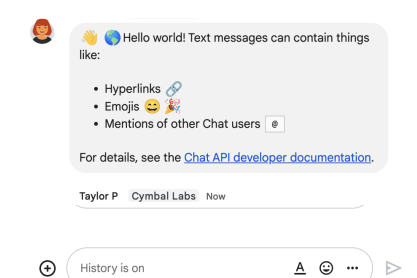
ข้อความที่ส่งพร้อมการตรวจสอบสิทธิ์ผู้ใช้
รูปที่ 3 แอปใน Chat จะส่งข้อความในนามของผู้ใช้

หากต้องการเรียกใช้เมธอด CreateMessage() โดยใช้การตรวจสอบสิทธิ์ผู้ใช้ คุณต้องระบุฟิลด์ต่อไปนี้ในคำขอ

  • ขอบเขตการให้สิทธิ์ที่รองรับการตรวจสอบสิทธิ์ผู้ใช้สำหรับเมธอดนี้ ตัวอย่างต่อไปนี้ใช้ขอบเขต chat.messages.create
  • ทรัพยากร Space ที่คุณต้องการโพสต์ข้อความ ผู้ใช้ที่ตรวจสอบสิทธิ์แล้วต้องเป็นสมาชิกของพื้นที่ทำงาน
  • ทรัพยากร Message ที่จะสร้าง หากต้องการกำหนดเนื้อหาของข้อความ คุณต้องใส่ช่อง text

คุณเลือกที่จะใส่ข้อมูลต่อไปนี้หรือไม่ก็ได้

โค้ดต่อไปนี้แสดงตัวอย่างวิธีที่แอปใน Chat สามารถส่งข้อความในพื้นที่ทำงานหนึ่งๆ ในนามของผู้ใช้ที่ตรวจสอบสิทธิ์แล้ว

Node.js

chat/client-libraries/cloud/create-message-user-cred.js
import {createClientWithUserCredentials} from './authentication-utils.js';

const USER_AUTH_OAUTH_SCOPES = [
  'https://www.googleapis.com/auth/chat.messages.create',
];

// This sample shows how to create message with user credential
async function main() {
  // Create a client
  const chatClient = await createClientWithUserCredentials(
    USER_AUTH_OAUTH_SCOPES,
  );

  // Initialize request argument(s)
  const request = {
    // Replace SPACE_NAME here.
    parent: 'spaces/SPACE_NAME',
    message: {
      text:
        '👋🌎 Hello world!' +
        'Text messages can contain things like:\n\n' +
        '* Hyperlinks 🔗\n' +
        '* Emojis 😄🎉\n' +
        '* Mentions of other Chat users `@` \n\n' +
        'For details, see the ' +
        '<https://developers.google.com/workspace/chat/format-messages' +
        '|Chat API developer documentation>.',
    },
  };

  // Make the request
  const response = await chatClient.createMessage(request);

  // Handle the response
  console.log(response);
}

await main();

Python

chat/client-libraries/cloud/create_message_user_cred.py
from authentication_utils import create_client_with_user_credentials
from google.apps import chat_v1 as google_chat

SCOPES = ["https://www.googleapis.com/auth/chat.messages.create"]

def create_message_with_user_cred():
    # Create a client
    client = create_client_with_user_credentials(SCOPES)

    # Initialize request argument(s)
    request = google_chat.CreateMessageRequest(
        # Replace SPACE_NAME here.
        parent = "spaces/SPACE_NAME",
        message = {
            "text": '👋🌎 Hello world!' +
                    'Text messages can contain things like:\n\n' +
                    '* Hyperlinks 🔗\n' +
                    '* Emojis 😄🎉\n' +
                    '* Mentions of other Chat users `@` \n\n' +
                    'For details, see the ' +
                    '<https://developers.google.com/workspace/chat/format-messages' +
                    '|Chat API developer documentation>.'
        }
    )

    # Make the request
    response = client.create_message(request)

    # Handle the response
    print(response)

create_message_with_user_cred()

Java

chat/client-libraries/cloud/src/main/java/com/google/workspace/api/chat/samples/CreateMessageUserCred.java
import com.google.chat.v1.ChatServiceClient;
import com.google.chat.v1.CreateMessageRequest;
import com.google.chat.v1.Message;

// This sample shows how to create message with user credential.
public class CreateMessageUserCred {

  private static final String SCOPE =
    "https://www.googleapis.com/auth/chat.messages.create";

  public static void main(String[] args) throws Exception {
    try (ChatServiceClient chatServiceClient =
        AuthenticationUtils.createClientWithUserCredentials(
          ImmutableList.of(SCOPE))) {
      CreateMessageRequest.Builder request = CreateMessageRequest.newBuilder()
        // Replace SPACE_NAME here.
        .setParent("spaces/SPACE_NAME")
        .setMessage(Message.newBuilder()
          .setText( "👋🌎 Hello world!" +
                    "Text messages can contain things like:\n\n" +
                    "* Hyperlinks 🔗\n" +
                    "* Emojis 😄🎉\n" +
                    "* Mentions of other Chat users `@` \n\n" +
                    "For details, see the " +
                    "<https://developers.google.com/workspace/chat/format-messages" +
                    "|Chat API developer documentation>."));
      Message response = chatServiceClient.createMessage(request.build());

      System.out.println(JsonFormat.printer().print(response));
    }
  }
}

Apps Script

chat/advanced-service/Main.gs
/**
 * This sample shows how to create message with user credential
 *
 * It relies on the OAuth2 scope 'https://www.googleapis.com/auth/chat.messages.create'
 * referenced in the manifest file (appsscript.json).
 */
function createMessageUserCred() {
  // Initialize request argument(s)
  // TODO(developer): Replace SPACE_NAME here.
  const parent = "spaces/SPACE_NAME";
  const message = {
    text:
      "👋🌎 Hello world!" +
      "Text messages can contain things like:\n\n" +
      "* Hyperlinks 🔗\n" +
      "* Emojis 😄🎉\n" +
      "* Mentions of other Chat users `@` \n\n" +
      "For details, see the " +
      "<https://developers.google.com/workspace/chat/format-messages" +
      "|Chat API developer documentation>.",
  };

  // Make the request
  const response = Chat.Spaces.Messages.create(message, parent);

  // Handle the response
  console.log(response);
}

หากต้องการเรียกใช้ตัวอย่างนี้ ให้แทนที่ SPACE_NAME ด้วยรหัสจากช่อง name ของพื้นที่ทำงาน คุณสามารถดูรหัสได้โดยเรียกใช้เมธอด ListSpaces() หรือจาก URL ของพื้นที่ทำงาน

เริ่มหรือตอบกลับในชุดข้อความ

สำหรับพื้นที่ทำงานที่ใช้ชุดข้อความ คุณสามารถระบุได้ว่าข้อความใหม่จะเริ่มชุดข้อความหรือตอบกลับชุดข้อความที่มีอยู่

โดยค่าเริ่มต้น ข้อความที่คุณสร้างโดยใช้ Chat API จะเริ่มชุดข้อความใหม่ คุณสามารถระบุคีย์ชุดข้อความในคำขอเพื่อช่วยระบุชุดข้อความและตอบกลับในภายหลังได้ ดังนี้

  • ในเนื้อหาของคำขอ ให้ระบุช่อง thread.threadKey
  • ระบุพารามิเตอร์การค้นหา messageReplyOption เพื่อกำหนดสิ่งที่จะเกิดขึ้นหากมีคีย์อยู่แล้ว

วิธีสร้างข้อความที่ตอบกลับชุดข้อความที่มีอยู่

  • ในเนื้อหาของคำขอ ให้ใส่ช่อง thread หากตั้งค่าไว้ คุณจะระบุ threadKey ที่สร้างไว้ได้ ไม่เช่นนั้น คุณต้องใช้ name ของชุดข้อความ
  • ระบุพารามิเตอร์การค้นหา messageReplyOption

โค้ดต่อไปนี้แสดงตัวอย่างวิธีที่แอปใน Chat สามารถส่ง SMS ที่เริ่มหรือตอบกลับชุดข้อความที่ระบุซึ่งระบุด้วยคีย์ของพื้นที่ทำงานที่ระบุในนามของผู้ใช้ที่ตรวจสอบสิทธิ์แล้ว

Node.js

chat/client-libraries/cloud/create-message-user-cred-thread-key.js
import {protos} from '@google-apps/chat';
import {createClientWithUserCredentials} from './authentication-utils.js';

const USER_AUTH_OAUTH_SCOPES = [
  'https://www.googleapis.com/auth/chat.messages.create',
];

// This sample shows how to create message with user credential with thread key
async function main() {
  // Create a client
  const chatClient = await createClientWithUserCredentials(
    USER_AUTH_OAUTH_SCOPES,
  );

  // Initialize request argument(s)
  const request = {
    // Replace SPACE_NAME here.
    parent: 'spaces/SPACE_NAME',
    // Creates the message as a reply to the thread specified by thread_key
    // If it fails, the message starts a new thread instead
    messageReplyOption:
      protos.google.chat.v1.CreateMessageRequest.MessageReplyOption
        .REPLY_MESSAGE_FALLBACK_TO_NEW_THREAD,
    message: {
      text: 'Hello with user credential!',
      thread: {
        // Thread key specifies a thread and is unique to the chat app
        // that sets it
        threadKey: 'THREAD_KEY',
      },
    },
  };

  // Make the request
  const response = await chatClient.createMessage(request);

  // Handle the response
  console.log(response);
}

await main();

Python

chat/client-libraries/cloud/create_message_user_cred_thread_key.py
from authentication_utils import create_client_with_user_credentials
from google.apps import chat_v1 as google_chat

import google.apps.chat_v1.CreateMessageRequest.MessageReplyOption

SCOPES = ["https://www.googleapis.com/auth/chat.messages.create"]

# This sample shows how to create message with user credential with thread key
def create_message_with_user_cred_thread_key():
    # Create a client
    client = create_client_with_user_credentials(SCOPES)

    # Initialize request argument(s)
    request = google_chat.CreateMessageRequest(
        # Replace SPACE_NAME here
        parent = "spaces/SPACE_NAME",
        # Creates the message as a reply to the thread specified by thread_key.
        # If it fails, the message starts a new thread instead.
        message_reply_option = MessageReplyOption.REPLY_MESSAGE_FALLBACK_TO_NEW_THREAD,
        message = {
            "text": "Hello with user credential!",
            "thread": {
                # Thread key specifies a thread and is unique to the chat app
                # that sets it.
                "thread_key": "THREAD_KEY"
            }
        }
    )

    # Make the request
    response = client.create_message(request)

    # Handle the response
    print(response)

create_message_with_user_cred_thread_key()

Java

chat/client-libraries/cloud/src/main/java/com/google/workspace/api/chat/samples/CreateMessageUserCredThreadKey.java
import com.google.chat.v1.ChatServiceClient;
import com.google.chat.v1.CreateMessageRequest;
import com.google.chat.v1.CreateMessageRequest.MessageReplyOption;
import com.google.chat.v1.Message;
import com.google.chat.v1.Thread;

// This sample shows how to create message with a thread key with user
// credential.
public class CreateMessageUserCredThreadKey {

  private static final String SCOPE =
    "https://www.googleapis.com/auth/chat.messages.create";

  public static void main(String[] args) throws Exception {
    try (ChatServiceClient chatServiceClient =
        AuthenticationUtils.createClientWithUserCredentials(
          ImmutableList.of(SCOPE))) {
      CreateMessageRequest.Builder request = CreateMessageRequest.newBuilder()
        // Replace SPACE_NAME here.
        .setParent("spaces/SPACE_NAME")
        // Creates the message as a reply to the thread specified by thread_key.
        // If it fails, the message starts a new thread instead.
        .setMessageReplyOption(
          MessageReplyOption.REPLY_MESSAGE_FALLBACK_TO_NEW_THREAD)
        .setMessage(Message.newBuilder()
          .setText("Hello with user credentials!")
          // Thread key specifies a thread and is unique to the chat app
          // that sets it.
          .setThread(Thread.newBuilder().setThreadKey("THREAD_KEY")));
      Message response = chatServiceClient.createMessage(request.build());

      System.out.println(JsonFormat.printer().print(response));
    }
  }
}

Apps Script

chat/advanced-service/Main.gs
/**
 * This sample shows how to create message with user credential with thread key
 *
 * It relies on the OAuth2 scope 'https://www.googleapis.com/auth/chat.messages.create'
 * referenced in the manifest file (appsscript.json).
 */
function createMessageUserCredThreadKey() {
  // Initialize request argument(s)
  // TODO(developer): Replace SPACE_NAME here.
  const parent = "spaces/SPACE_NAME";
  // Creates the message as a reply to the thread specified by thread_key
  // If it fails, the message starts a new thread instead
  const messageReplyOption = "REPLY_MESSAGE_FALLBACK_TO_NEW_THREAD";
  const message = {
    text: "Hello with user credential!",
    thread: {
      // Thread key specifies a thread and is unique to the chat app
      // that sets it
      threadKey: "THREAD_KEY",
    },
  };

  // Make the request
  const response = Chat.Spaces.Messages.create(message, parent, {
    messageReplyOption: messageReplyOption,
  });

  // Handle the response
  console.log(response);
}

หากต้องการเรียกใช้ตัวอย่างนี้ ให้แทนที่ค่าต่อไปนี้

  • THREAD_KEY: คีย์ชุดข้อความที่มีอยู่ในพื้นที่ทำงาน หรือชื่อที่ไม่ซ้ำกันสำหรับชุดข้อความเพื่อสร้างชุดข้อความใหม่
  • SPACE_NAME: รหัสจากช่อง name ของพื้นที่ทำงาน คุณสามารถดูรหัสได้โดยเรียกใช้เมธอด ListSpaces() หรือจาก URL ของพื้นที่ทำงาน

ตั้งชื่อข้อความ

หากต้องการเรียกข้อมูลหรือระบุข้อความในการเรียก API ในอนาคต คุณสามารถตั้งชื่อข้อความโดยตั้งค่าช่อง messageId ในคำขอ การตั้งชื่อข้อความช่วยให้คุณระบุข้อความได้โดยไม่ต้องจัดเก็บรหัสที่ระบบกำหนดจากชื่อทรัพยากรของข้อความ (แสดงในช่อง name)

ตัวอย่างเช่น หากต้องการเรียกข้อความโดยใช้เมธอด get() คุณต้องใช้ชื่อทรัพยากรเพื่อระบุข้อความที่จะเรียก ชื่อทรัพยากรจะอยู่ในรูปแบบ spaces/{space}/messages/{message} โดยที่ {message} แสดงถึงรหัสที่ระบบกำหนดหรือชื่อที่กำหนดเองซึ่งคุณตั้งไว้เมื่อสร้างข้อความ

หากต้องการตั้งชื่อข้อความ ให้ระบุรหัสที่กำหนดเองในช่อง messageId เมื่อสร้างข้อความ ช่อง messageId จะกำหนดค่าสำหรับช่อง clientAssignedMessageId ของทรัพยากร Message

คุณจะตั้งชื่อข้อความได้เมื่อสร้างข้อความเท่านั้น คุณไม่สามารถตั้งชื่อหรือแก้ไขรหัสที่กำหนดเองสำหรับข้อความที่มีอยู่ได้ รหัสที่กำหนดเองต้องเป็นไปตามข้อกำหนดต่อไปนี้

  • เริ่มต้นด้วย client- เช่น client-custom-name เป็นรหัสที่กำหนดเองที่ถูกต้อง แต่ custom-name ไม่ถูกต้อง
  • มีอักขระได้สูงสุด 63 ตัว และมีเฉพาะตัวอักษรพิมพ์เล็ก ตัวเลข และขีดกลางเท่านั้น
  • ไม่ซ้ำกันภายในพื้นที่ทำงาน แอปใน Chat ไม่สามารถใช้รหัสที่กำหนดเองเดียวกันสำหรับข้อความที่ต่างกันได้

โค้ดต่อไปนี้แสดงตัวอย่างวิธีที่แอปใน Chat สามารถส่ง SMS พร้อมรหัสไปยังพื้นที่ทำงานที่ระบุในนามของผู้ใช้ที่ตรวจสอบสิทธิ์แล้ว

Node.js

chat/client-libraries/cloud/create-message-user-cred-message-id.js
import {createClientWithUserCredentials} from './authentication-utils.js';

const USER_AUTH_OAUTH_SCOPES = [
  'https://www.googleapis.com/auth/chat.messages.create',
];

// This sample shows how to create a message with user credentials and a custom
// message id
async function main() {
  // Create a client
  const chatClient = await createClientWithUserCredentials(
    USER_AUTH_OAUTH_SCOPES,
  );

  // Initialize request argument(s)
  const request = {
    // Replace SPACE_NAME here.
    parent: 'spaces/SPACE_NAME',
    // Message id lets chat apps get, update or delete a message without needing
    // to store the system assigned ID in the message's resource name
    messageId: 'client-MESSAGE-ID',
    message: {text: 'Hello with user credential!'},
  };

  // Make the request
  const response = await chatClient.createMessage(request);

  // Handle the response
  console.log(response);
}

await main();

Python

chat/client-libraries/cloud/create_message_user_cred_message_id.py
from authentication_utils import create_client_with_user_credentials
from google.apps import chat_v1 as google_chat

SCOPES = ["https://www.googleapis.com/auth/chat.messages.create"]

# This sample shows how to create message with user credential with message id
def create_message_with_user_cred_message_id():
    # Create a client
    client = create_client_with_user_credentials(SCOPES)

    # Initialize request argument(s)
    request = google_chat.CreateMessageRequest(
        # Replace SPACE_NAME here
        parent = "spaces/SPACE_NAME",
        # Message id let chat apps get, update or delete a message without needing
        # to store the system assigned ID in the message's resource name.
        message_id = "client-MESSAGE-ID",
        message = {
            "text": "Hello with user credential!"
        }
    )

    # Make the request
    response = client.create_message(request)

    # Handle the response
    print(response)

create_message_with_user_cred_message_id()

Java

chat/client-libraries/cloud/src/main/java/com/google/workspace/api/chat/samples/CreateMessageUserCredMessageId.java
import com.google.chat.v1.ChatServiceClient;
import com.google.chat.v1.CreateMessageRequest;
import com.google.chat.v1.Message;

// This sample shows how to create message with message id specified with user
// credential.
public class CreateMessageUserCredMessageId {

  private static final String SCOPE =
    "https://www.googleapis.com/auth/chat.messages.create";

  public static void main(String[] args) throws Exception {
    try (ChatServiceClient chatServiceClient =
        AuthenticationUtils.createClientWithUserCredentials(
          ImmutableList.of(SCOPE))) {
      CreateMessageRequest.Builder request = CreateMessageRequest.newBuilder()
        // Replace SPACE_NAME here.
        .setParent("spaces/SPACE_NAME")
        .setMessage(Message.newBuilder()
          .setText("Hello with user credentials!"))
        // Message ID lets chat apps get, update or delete a message without
        // needing to store the system assigned ID in the message's resource
        // name.
        .setMessageId("client-MESSAGE-ID");
      Message response = chatServiceClient.createMessage(request.build());

      System.out.println(JsonFormat.printer().print(response));
    }
  }
}

Apps Script

chat/advanced-service/Main.gs
/**
 * This sample shows how to create message with user credential with message id
 *
 * It relies on the OAuth2 scope 'https://www.googleapis.com/auth/chat.messages.create'
 * referenced in the manifest file (appsscript.json).
 */
function createMessageUserCredMessageId() {
  // Initialize request argument(s)
  // TODO(developer): Replace SPACE_NAME here.
  const parent = "spaces/SPACE_NAME";
  // Message id lets chat apps get, update or delete a message without needing
  // to store the system assigned ID in the message's resource name
  const messageId = "client-MESSAGE-ID";
  const message = { text: "Hello with user credential!" };

  // Make the request
  const response = Chat.Spaces.Messages.create(message, parent, {
    messageId: messageId,
  });

  // Handle the response
  console.log(response);
}

หากต้องการเรียกใช้ตัวอย่างนี้ ให้แทนที่ค่าต่อไปนี้

  • SPACE_NAME: รหัสจากช่อง name ของพื้นที่ทำงาน คุณสามารถดูรหัสได้โดยเรียกใช้เมธอด ListSpaces() หรือจาก URL ของพื้นที่ทำงาน
  • MESSAGE-ID: ชื่อของข้อความที่ขึ้นต้นด้วย custom- ต้องไม่ซ้ำกับชื่อข้อความอื่นๆ ที่สร้างโดยแอปใน Chat ในพื้นที่ทำงานที่ระบุ

ยกข้อความมา

คุณสามารถอ้างอิงข้อความอื่นได้โดยเรียกใช้ CreateMessage() (rpc, rest) และตั้งค่า quotedMessageMetadata (rpc, rest) ในคำขอ

คุณสามารถยกข้อความภายในชุดข้อความหรือในแชทหลักได้ แต่จะยกข้อความจากชุดข้อความอื่นไม่ได้

โค้ดต่อไปนี้แสดงวิธีสร้างข้อความที่ยกคำพูดจากข้อความอื่น

Node.js

import {createClientWithUserCredentials} from './authentication-utils.js';

const USER_AUTH_OAUTH_SCOPES = ['https://www.googleapis.com/auth/chat.messages.create'];

// This sample shows how to create a message that quotes another message.
async function main() {

  // Create a client
  const chatClient = await createClientWithUserCredentials(USER_AUTH_OAUTH_SCOPES);

  // Initialize request argument(s)
  const request = {

    // TODO(developer): Replace SPACE_NAME .
    parent: 'spaces/SPACE_NAME',

    message: {
      text: 'I am responding to a quoted message!',

      // quotedMessageMetadata lets Chat apps respond to a message by quoting it.
      quotedMessageMetadata: {

        // TODO(developer): Replace QUOTED_MESSAGE_NAME
        // and QUOTED_MESSAGE_LAST_UPDATE_TIME.
        name: 'QUOTED_MESSAGE_NAME',
        lastUpdateTime: 'QUOTED_MESSAGE_LAST_UPDATE_TIME'
      }
    }
  };

  // Make the request
  const response = await chatClient.createMessage(request);

  // Handle the response
  console.log(response);
}

main().catch(console.error);

Python

from authentication_utils import create_client_with_user_credentials
from google.apps import chat_v1 as google_chat
from google.protobuf.timestamp_pb2 import Timestamp

SCOPES = ['https://www.googleapis.com/auth/chat.messages.create']

# This sample shows how to create a message that quotes another message.
def create_message_quote_message():
    '''Creates a message that quotes another message.'''

    # Create a client
    client = create_client_with_user_credentials(SCOPES)

    # Create a timestamp from the RFC-3339 string.
    # TODO(developer): Replace QUOTED_MESSAGE_LAST_UPDATE_TIME.
    last_update_time = Timestamp()
    last_update_time.FromJsonString('QUOTED_MESSAGE_LAST_UPDATE_TIME')

    # Initialize request argument(s)
    request = google_chat.CreateMessageRequest(

        # TODO(developer): Replace SPACE_NAME.
        parent='spaces/SPACE_NAME',

        # Create the message.
        message = google_chat.Message(
            text='I am responding to a quoted message!',

            # quotedMessageMetadata lets Chat apps respond to a message by quoting it.
            quoted_message_metadata=google_chat.QuotedMessageMetadata(

                name='QUOTED_MESSAGE_NAME',
                last_update_time=last_update_time
            )
        )
    )

    # Make the request
    response = client.create_message(request)

    # Handle the response
    print(response)

create_message_quote_message()

Java

import com.google.chat.v1.ChatServiceClient;
import com.google.chat.v1.CreateMessageRequest;
import com.google.chat.v1.Message;
import com.google.chat.v1.QuotedMessageMetadata;
import com.google.protobuf.util.Timestamps;
import com.google.workspace.api.chat.samples.utils.AuthenticationUtils;
import java.text.ParseException;

// This sample shows how to create a message that quotes another message.
public class CreateMessageQuoteMessage {
  public static void main(String[] args) throws Exception, ParseException {
    // Create a client.
    ChatServiceClient chatClient = AuthenticationUtils.createClientWithUserCredentials();

    // Initialize request argument(s).
    // TODO(developer): Replace SPACE_NAME, QUOTED_MESSAGE_NAME,
    // and QUOTED_MESSAGE_LAST_UPDATE_TIME here.
    String parent = "spaces/SPACE_NAME";
    String quotedMessageName = "QUOTED_MESSAGE_NAME";
    String lastUpdateTime = "QUOTED_MESSAGE_LAST_UPDATE_TIME";

    QuotedMessageMetadata quotedMessageMetadata =
        QuotedMessageMetadata.newBuilder()
            .setName(quotedMessageName)
            .setLastUpdateTime(Timestamps.parse(lastUpdateTime))
            .build();

    Message message = Message.newBuilder()
        .setText("I am responding to a quoted message!")
        .setQuotedMessageMetadata(quotedMessageMetadata)
        .build();

    CreateMessageRequest request =
        CreateMessageRequest.newBuilder()
            .setParent(parent)
            .setMessage(message)
            .build();

    // Make the request.
    Message response = chatClient.createMessage(request);

    // Handle the response.
    System.out.println(response);
  }
}

Apps Script

/**
 * Creates a message that quotes another message.
 *
 * Relies on the OAuth2 scope 'https://www.googleapis.com/auth/chat.messages.create'
 * referenced in the manifest file (appsscript.json).
 */
function createMessageQuoteMessage() {

  // Initialize request argument(s)
  // TODO(developer): Replace SPACE_NAME here.
  const parent = 'spaces/SPACE_NAME';

  const message = {

    // The text content of the message.
    text: 'I am responding to a quoted message!',

    // quotedMessageMetadata lets Chat apps respond to a message by quoting it.
    //
    // TODO(developer): Replace QUOTED_MESSAGE_NAME
    // and QUOTED_MESSAGE_LAST_UPDATE_TIME .
    quotedMessageMetadata: {
      name: 'QUOTED_MESSAGE_NAME',
      lastUpdateTime: 'QUOTED_MESSAGE_LAST_UPDATE_TIME',
    }
  };

  // Make the request
  const response = Chat.Spaces.Messages.create(message, parent);

  // Handle the response
  console.log(response);
}

หากต้องการเรียกใช้ตัวอย่างนี้ ให้แทนที่ค่าต่อไปนี้

  • SPACE_NAME: รหัสจากช่อง name ของพื้นที่ทำงาน คุณสามารถรับรหัสได้โดยเรียกใช้เมธอด ListSpaces() (rpc, rest) หรือจาก URL ของพื้นที่ทำงาน
  • QUOTED_MESSAGE_NAME: แหล่งข้อมูลข้อความ name (rpc, rest) ของข้อความที่จะยกมาในรูปแบบ spaces/{space}/messages/{message}
  • QUOTED_MESSAGE_LAST_UPDATE_TIME: เวลาอัปเดตล่าสุดของข้อความที่ต้องการอ้างอิง หากไม่เคยแก้ไขข้อความ จะสอดคล้องกับ createTime (rpc, rest) หากแก้ไขข้อความ จะสอดคล้องกับ lastUpdateTime (rpc, rest)

แก้ปัญหา

เมื่อแอป Google Chat หรือการ์ดแสดงข้อผิดพลาด อินเทอร์เฟซของ Chat จะแสดงข้อความว่า "เกิดข้อผิดพลาด" หรือ "ดำเนินการตามคำขอของคุณไม่ได้" บางครั้ง UI ของ Chat จะไม่แสดงข้อความแสดงข้อผิดพลาด แต่แอปใน Chat หรือการ์ดจะแสดงผลลัพธ์ที่ไม่คาดคิด เช่น ข้อความการ์ดอาจไม่ปรากฏขึ้น

แม้ว่าข้อความแสดงข้อผิดพลาดอาจไม่แสดงใน UI ของ Chat แต่ข้อความแสดงข้อผิดพลาดที่สื่อความหมายและข้อมูลบันทึกจะพร้อมใช้งานเพื่อช่วยคุณแก้ไขข้อผิดพลาดเมื่อเปิดการบันทึกข้อผิดพลาดสำหรับแอปใน Chat หากต้องการความช่วยเหลือในการดู แก้ไขข้อบกพร่อง และแก้ไขข้อผิดพลาด โปรดดูหัวข้อแก้ปัญหาและแก้ไขข้อผิดพลาดของ Google Chat