

Bu kılavuzda, Google Chat API'nin Message kaynağında create() yöntemini kullanarak aşağıdaki işlemlerden herhangi birini nasıl yapacağınız açıklanmaktadır:
- Metin, kart ve etkileşimli widget'lar içeren mesajlar gönderme
- Belirli bir Chat kullanıcısına özel mesaj gönderme
- Mesaj dizisi başlatma veya mesaj dizisini yanıtlama
- Diğer Chat API isteklerinde belirtebilmek için mesajlara ad verebilirsiniz.
Maksimum mesaj boyutu (metin veya kartlar dahil) 32.000 bayttır. Bu boyutu aşan bir mesaj göndermek için Chat uygulamanızın birden fazla mesaj göndermesi gerekir.
Chat uygulamaları, mesaj oluşturmak için Chat API'yi çağırmanın yanı sıra kullanıcı etkileşimlerini yanıtlamak için mesaj oluşturup gönderebilir. Örneğin, bir kullanıcı Chat uygulamasını bir alana ekledikten sonra karşılama mesajı yayınlayabilir. Etkileşimlere yanıt verirken Chat uygulamaları, etkileşimli iletişim kutuları ve bağlantı önizleme arayüzleri gibi diğer mesajlaşma özelliklerini kullanabilir. Chat uygulaması, kullanıcıya yanıt vermek için Chat API'yi çağırmadan mesajı eşzamanlı olarak döndürür. Etkileşimlere yanıt vermek için mesaj gönderme hakkında bilgi edinmek istiyorsanız Google Chat uygulamanızla etkileşimleri alma ve yanıtlama başlıklı makaleyi inceleyin.
Chat, Chat API ile oluşturulan mesajları nasıl gösterir ve ilişkilendirir?
Uygulama kimlik doğrulaması ve kullanıcı kimlik doğrulaması kullanarak create() yöntemini çağırabilirsiniz.
Chat, kullandığınız kimlik doğrulama türüne bağlı olarak mesaj göndereni farklı şekilde ilişkilendirir.
Chat uygulaması olarak kimlik doğrulaması yaptığınızda mesajı Chat uygulaması gönderir.
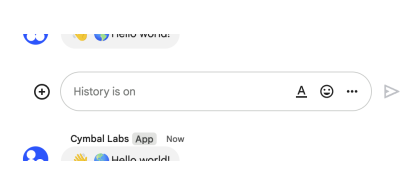
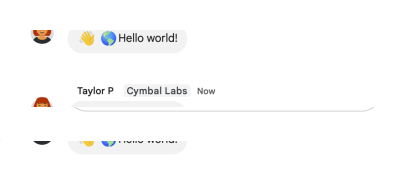
App simgesini gösterir.Kullanıcı olarak kimlik doğrulaması yaptığınızda Chat uygulaması, mesajı kullanıcı adına gönderir. Chat, adını göstererek Chat uygulamasını mesajla ilişkilendirir.
Kimlik doğrulama türü, mesaja ekleyebileceğiniz mesajlaşma özelliklerini ve arayüzlerini de belirler. Uygulama kimlik doğrulaması sayesinde Chat uygulamaları, zengin metin, kart tabanlı arayüzler ve etkileşimli widget'lar içeren mesajlar gönderebilir. Kullanıcı kimlik doğrulamasıyla, Etkileşimli kartlar oluşturma ve güncelleme bölümünde açıklandığı gibi kısa mesaj gönderebilir veya kart içeren mesajlar oluşturabilirsiniz.
Chat API'de kullanılabilen mesajlaşma özellikleri hakkında daha fazla bilgi edinmek için Google Chat mesajlarına genel bakış başlıklı makaleyi inceleyin.
Bu kılavuzda, Chat API ile mesaj göndermek için her iki kimlik doğrulama türünün nasıl kullanılacağı açıklanmaktadır.
Ön koşullar
Node.js
- Google Chat'e erişimi olan bir Business veya Enterprise Google Workspace hesabı.
- Ortamınızı ayarlama:
- Google Cloud projesi oluşturun.
- OAuth kullanıcı rızası ekranını yapılandırın.
- Chat uygulamanız için bir ad, simge ve açıklama belirleyerek Google Chat API'yi etkinleştirin ve yapılandırın.
- Node.js Cloud istemci kitaplığını yükleyin.
- Google Chat API isteğinizde kimlik doğrulamayı nasıl yapmak istediğinize bağlı olarak erişim kimlik bilgileri oluşturun:
- Chat kullanıcısı olarak kimlik doğrulaması yapmak için OAuth istemci kimliği kimlik bilgileri oluşturun ve kimlik bilgilerini yerel dizininize
credentials.jsonadlı bir JSON dosyası olarak kaydedin. - Chat uygulaması olarak kimlik doğrulaması yapmak için hizmet hesabı kimlik bilgileri oluşturun ve kimlik bilgilerini
credentials.jsonadlı bir JSON dosyası olarak kaydedin.
- Chat kullanıcısı olarak kimlik doğrulaması yapmak için OAuth istemci kimliği kimlik bilgileri oluşturun ve kimlik bilgilerini yerel dizininize
- Kullanıcı olarak mı yoksa Chat uygulaması olarak mı kimlik doğrulaması yapmak istediğinize bağlı olarak bir yetkilendirme kapsamı seçin.
- Kimliği doğrulanmış kullanıcının veya çağrıyı yapan Chat uygulamasının üye olduğu bir Google Chat alanı. Chat uygulaması olarak kimlik doğrulaması yapmak için Chat uygulamasını alana ekleyin.
Python
- Google Chat'e erişimi olan bir Business veya Enterprise Google Workspace hesabı.
- Ortamınızı ayarlama:
- Google Cloud projesi oluşturun.
- OAuth kullanıcı rızası ekranını yapılandırın.
- Chat uygulamanız için bir ad, simge ve açıklama belirleyerek Google Chat API'yi etkinleştirin ve yapılandırın.
- Python Cloud istemci kitaplığını yükleyin.
- Google Chat API isteğinizde kimlik doğrulamayı nasıl yapmak istediğinize bağlı olarak erişim kimlik bilgileri oluşturun:
- Chat kullanıcısı olarak kimlik doğrulaması yapmak için OAuth istemci kimliği kimlik bilgileri oluşturun ve kimlik bilgilerini yerel dizininize
credentials.jsonadlı bir JSON dosyası olarak kaydedin. - Chat uygulaması olarak kimlik doğrulaması yapmak için hizmet hesabı kimlik bilgileri oluşturun ve kimlik bilgilerini
credentials.jsonadlı bir JSON dosyası olarak kaydedin.
- Chat kullanıcısı olarak kimlik doğrulaması yapmak için OAuth istemci kimliği kimlik bilgileri oluşturun ve kimlik bilgilerini yerel dizininize
- Kullanıcı olarak mı yoksa Chat uygulaması olarak mı kimlik doğrulaması yapmak istediğinize bağlı olarak bir yetkilendirme kapsamı seçin.
- Kimliği doğrulanmış kullanıcının veya çağrıyı yapan Chat uygulamasının üye olduğu bir Google Chat alanı. Chat uygulaması olarak kimlik doğrulaması yapmak için Chat uygulamasını alana ekleyin.
Java
- Google Chat'e erişimi olan bir Business veya Enterprise Google Workspace hesabı.
- Ortamınızı ayarlama:
- Google Cloud projesi oluşturun.
- OAuth kullanıcı rızası ekranını yapılandırın.
- Chat uygulamanız için bir ad, simge ve açıklama belirleyerek Google Chat API'yi etkinleştirin ve yapılandırın.
- Java Cloud İstemci Kitaplığı'nı yükleyin.
- Google Chat API isteğinizde kimlik doğrulamayı nasıl yapmak istediğinize bağlı olarak erişim kimlik bilgileri oluşturun:
- Chat kullanıcısı olarak kimlik doğrulaması yapmak için OAuth istemci kimliği kimlik bilgileri oluşturun ve kimlik bilgilerini yerel dizininize
credentials.jsonadlı bir JSON dosyası olarak kaydedin. - Chat uygulaması olarak kimlik doğrulaması yapmak için hizmet hesabı kimlik bilgileri oluşturun ve kimlik bilgilerini
credentials.jsonadlı bir JSON dosyası olarak kaydedin.
- Chat kullanıcısı olarak kimlik doğrulaması yapmak için OAuth istemci kimliği kimlik bilgileri oluşturun ve kimlik bilgilerini yerel dizininize
- Kullanıcı olarak mı yoksa Chat uygulaması olarak mı kimlik doğrulaması yapmak istediğinize bağlı olarak bir yetkilendirme kapsamı seçin.
- Kimliği doğrulanmış kullanıcının veya çağrıyı yapan Chat uygulamasının üye olduğu bir Google Chat alanı. Chat uygulaması olarak kimlik doğrulaması yapmak için Chat uygulamasını alana ekleyin.
Apps Komut Dosyası
- Google Chat'e erişimi olan bir Business veya Enterprise Google Workspace hesabı.
- Ortamınızı ayarlama:
- Google Cloud projesi oluşturun.
- OAuth kullanıcı rızası ekranını yapılandırın.
- Chat uygulamanız için bir ad, simge ve açıklama belirleyerek Google Chat API'yi etkinleştirin ve yapılandırın.
- Bağımsız bir Apps Komut Dosyası projesi oluşturun ve Gelişmiş Chat Hizmeti'ni etkinleştirin.
- Bu kılavuzda, kullanıcı veya uygulama kimlik doğrulaması kullanmanız gerekir. Chat uygulaması olarak kimlik doğrulaması yapmak için hizmet hesabı kimlik bilgileri oluşturun. Adımlar için Google Chat uygulaması olarak kimlik doğrulama ve yetkilendirme başlıklı makaleyi inceleyin.
- Kullanıcı olarak mı yoksa Chat uygulaması olarak mı kimlik doğrulaması yapmak istediğinize bağlı olarak bir yetkilendirme kapsamı seçin.
- Kimliği doğrulanmış kullanıcının veya çağrıyı yapan Chat uygulamasının üye olduğu bir Google Chat alanı. Chat uygulaması olarak kimlik doğrulaması yapmak için Chat uygulamasını alana ekleyin.
Chat uygulaması olarak mesaj gönderme
Bu bölümde, uygulama kimlik doğrulamasını kullanarak metin, kart ve etkileşimli aksesuar widget'ları içeren mesajların nasıl gönderileceği açıklanmaktadır.
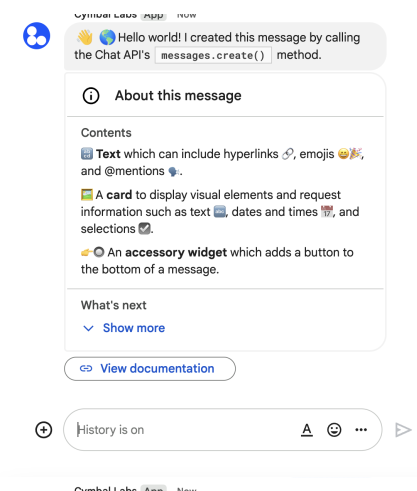
Uygulama kimlik doğrulamasını kullanarak CreateMessage() yöntemini çağırmak için istekte aşağıdaki alanları belirtmeniz gerekir:
chat.botYetkilendirme kapsamı.- Mesajı yayınlamak istediğiniz
Spacekaynağı. Chat uygulamasının alanın üyesi olması gerekir. - Oluşturulacak
Messagekaynağı. Mesajın içeriğini tanımlamak için zengin metin (text), bir veya daha fazla kart arayüzü (cardsV2) ya da her ikisini birden ekleyebilirsiniz.
İsteğe bağlı olarak aşağıdakileri ekleyebilirsiniz:
- Mesaja alıntı eklemek için
elementsalanı. - Mesajın alt kısmında etkileşimli düğmeler eklemek için
accessoryWidgetsalanı. - Mesajı belirtilen bir kullanıcıya gizli olarak göndermek için
privateMessageVieweralanı. - Diğer API isteklerinde kullanmak üzere mesajı adlandırmanıza olanak tanıyan
messageIdalanı. - İleti dizisi başlatmak veya ileti dizisini yanıtlamak için
thread.threadKeyvemessageReplyOptionalanları. Alan, mesaj dizisi kullanmıyorsa bu alan yoksayılır.
Aşağıdaki kodda, bir Chat uygulamasının metin, kart ve mesajın alt kısmında tıklanabilir bir düğme içeren bir mesajı nasıl gönderebileceği gösterilmektedir:
Node.js
Python
Java
Apps Komut Dosyası
Bu örneği çalıştırmak için SPACE_NAME değerini, alanın name alanındaki kimlikle değiştirin. Kimliği, ListSpaces() yöntemini çağırarak veya alanın URL'sinden alabilirsiniz.
Mesajın alt kısmına etkileşimli widget'lar ekleme
Bu kılavuzun ilk kod örneğinde, Chat uygulaması mesajının alt kısmında aksesuar widget'ı olarak bilinen tıklanabilir bir düğme gösterilir. Aksesuar widget'ları, mesajdaki metin veya kartlardan sonra görünür. Bu widget'ları kullanarak kullanıcıları mesajınızla etkileşime geçmeye teşvik edebilirsiniz. Örneğin:
- Bir mesajın doğruluğunu veya memnuniyet düzeyini değerlendirme
- Mesaj veya Chat uygulamasıyla ilgili sorun bildirme
- Dokümanlar gibi ilgili içeriklerin bağlantısını açma
- Chat uygulamasından gelen benzer mesajları belirli bir süre için kapatabilir veya erteleyebilirsiniz.
Tamamlayıcı widget'lar eklemek için isteğinizin gövdesine accessoryWidgets[] alanını ekleyin ve dahil etmek istediğiniz bir veya daha fazla widget'ı belirtin.
Aşağıdaki resimde, kullanıcıların Chat uygulamasıyla ilgili deneyimlerini değerlendirebilmesi için tamamlayıcı widget'lar içeren bir kısa mesaj ekleyen Chat uygulaması gösterilmektedir.
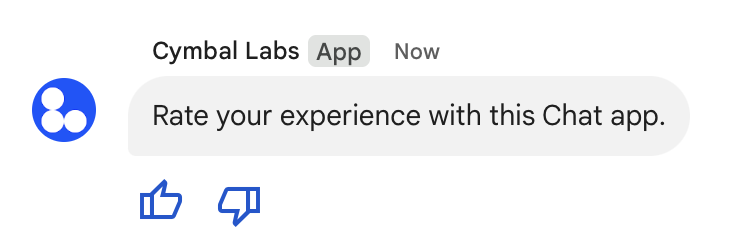
Aşağıda, iki aksesuar düğmesi içeren bir kısa mesaj oluşturan isteğin gövdesi gösterilmektedir. Kullanıcı bir düğmeyi tıkladığında ilgili işlev (ör. doUpvote) etkileşimi işler:
{
  text: "Rate your experience with this Chat app.",
  accessoryWidgets: [{ buttonList: { buttons: [{
    icon: { material_icon: {
      name: "thumb_up"
    }},
    color: { red: 0, blue: 255, green: 0 },
    onClick: { action: {
      function: "doUpvote"
    }}
  }, {
    icon: { material_icon: {
      name: "thumb_down"
    }},
    color: { red: 0, blue: 255, green: 0 },
    onClick: { action: {
      function: "doDownvote"
    }}
  }]}}]
}
Gizli mesaj gönderme
Chat uygulamaları, mesajları gizli olarak gönderebilir. Böylece mesaj, alandaki yalnızca belirli bir kullanıcı tarafından görülebilir. Bir Chat uygulaması özel mesaj gönderdiğinde, mesajda kullanıcıya mesajın yalnızca kendisi tarafından görülebileceğini bildiren bir etiket gösterilir.
Chat API'yi kullanarak gizli bir mesaj göndermek için isteğinizin gövdesinde privateMessageViewer alanını belirtin. Kullanıcıyı belirtmek için değeri, Chat kullanıcısını temsil eden User kaynağına ayarlarsınız. Aşağıdaki örnekte gösterildiği gibi, User kaynağının name alanını da kullanabilirsiniz:
{
  text: "Hello private world!",
  privateMessageViewer: {
    name: "users/USER_ID"
  }
}
Bu örneği kullanmak için USER_ID değerini, kullanıcıya ait benzersiz bir kimlikle (ör. 12345678987654321 veya hao@cymbalgroup.com) değiştirin. Kullanıcıları belirtme hakkında daha fazla bilgi için Google Chat kullanıcılarını tanımlama ve belirtme başlıklı makaleyi inceleyin.
Mesajı gizli olarak göndermek için isteğinizde aşağıdakileri atlamanız gerekir:
Zorunlu bildirimler veya sessiz mesajlar gönderme
Bir Chat uygulaması mesaj gönderdiğinde, kullanıcıları bilgilendirmek için aşağıdaki seçeneklerden birini kullanabilir:
- Bildirim göndermeye zorla: Chat, bildirim ayarlarından veya Rahatsız Etmeyin (DND) durumundan bağımsız olarak alıcılara her zaman push bildirimi gönderir. Chat'te mesaj, alıcıların listesinde veya Ana Sayfa listesinde kalın yazı ve üste taşıma davranışını tetikler ve bir rozet gösterir.
- Sessiz mesaj gönderme: Chat, alıcılar için push bildirimlerini devre dışı bırakır. Chat'te mesaj, alıcıların listesinde veya Ana Sayfa listesinde kalın yazı tipiyle gösterilmez ya da en üste taşınmaz ve rozet göstermez. Sessiz mesaj, görüşmedeki son mesajsa içeriği Ana Sayfa snippet'inde gösterilmez.
Zorunlu veya sessiz olsun, bu mesajlar alıcıları özel bildirim davranışı hakkında bilgilendiren görsel bir gösterge içerir.
Zorunlu bildirimler ve sessiz mesajlar yalnızca uygulama kimlik doğrulaması kullanan Chat uygulamalarında kullanılabilir.
Zorunlu bildirim ve sessiz mesajların şu sınırlamaları vardır:
- Kuruluş dışı kullanıcılar: Zorunlu bildirimler ve sessiz mesajlar, bir alandaki kuruluş dışı kullanıcılar (davetliler) için geçerli değildir. Kuruluş dışı kullanıcılar kendi ayarlarına göre bildirim alır.
- Bahsetmeler: Sessiz mesajlar, kullanıcılardan bahsetmeyi desteklemez. Sessiz bir mesaja bahsetme eklerseniz bu, düz metin olarak değerlendirilir.
- Mesaj dizileri: Sessiz mesajla mesaj dizisi başlatamaz veya mesaj dizilerini yanıtlayamazsınız.
- Alan türü: Zorunlu bildirimler ve sessiz mesajlar, doğrudan mesajlarda (DM) veya Google Workspace hesabı olmayan kişilere ait alanlarda desteklenmez.
- E-posta bildirimleri: Sessiz mesajlar e-posta bildirimlerini tetiklemez. Zorunlu bildirim mesajları, yalnızca belirli bir kullanıcıdan bahsedildiğinde e-posta bildirimlerini tetikler.
Bildirim göndermeyi zorunlu kılmak veya sessiz mesaj göndermek için isteğinize createMessageNotificationOptions alanını ekleyin ve notificationType değerini aşağıdakilerden birine ayarlayın:
| Değer | Davranış |
|---|---|
NOTIFICATION_TYPE_FORCE_NOTIFY |
Bildirimi zorunlu kılar. |
NOTIFICATION_TYPE_SILENT |
Mesajı sessizce gönderir. |
Aşağıdaki örnekte, zorunlu bildirim içeren bir mesaj gönderme isteğinin JSON gövdesi gösterilmektedir:
{
  "text": "Critical update: the server is down!",
  "createMessageNotificationOptions": {
    "notificationType": "NOTIFICATION_TYPE_FORCE_NOTIFY"
  }
}
Kullanıcı adına kısa mesaj gönderme
Bu bölümde, kullanıcı kimlik doğrulamasını kullanarak bir kullanıcı adına nasıl mesaj göndereceğiniz açıklanmaktadır. Kullanıcı kimlik doğrulaması sayesinde, bir kullanıcı adına kısa mesaj gönderebilir veya kart içeren mesajlar oluşturabilirsiniz. Kullanıcı adına kart gönderme hakkında ayrıntılı bilgi için Etkileşimli kartlar oluşturma ve güncelleme başlıklı makaleyi inceleyin.
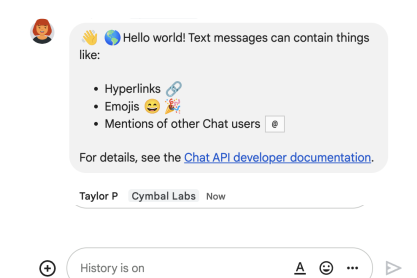
Kullanıcı kimlik doğrulamasını kullanarak CreateMessage() yöntemini çağırmak için istekte aşağıdaki alanları belirtmeniz gerekir:
- Bu yöntem için kullanıcı kimlik doğrulamasını destekleyen bir yetkilendirme kapsamı. Aşağıdaki örnekte
chat.messages.createkapsamı kullanılmaktadır. - Mesajı yayınlamak istediğiniz
Spacekaynağı. Kimliği doğrulanmış kullanıcı, alanın üyesi olmalıdır. - Oluşturulacak
Messagekaynağı. Mesajın içeriğini tanımlamak içintextalanını eklemeniz gerekir.
İsterseniz aşağıdakileri de ekleyebilirsiniz:
- Bildirimi zorunlu kılmak veya mesajı sessizce göndermek için
createMessageNotificationOptionsalanı. - Diğer API isteklerinde kullanmak üzere mesajı adlandırmanıza olanak tanıyan
messageIdalanı. - İleti dizisi başlatmak veya ileti dizisini yanıtlamak için
thread.threadKeyvemessageReplyOptionalanları. Alan, mesaj dizisi kullanmıyorsa bu alan yoksayılır.
Aşağıdaki kodda, bir Chat uygulamasının kimliği doğrulanmış bir kullanıcı adına belirli bir alanda nasıl kısa mesaj gönderebileceğine dair bir örnek gösterilmektedir:
Node.js
Python
Java
Apps Komut Dosyası
Bu örneği çalıştırmak için SPACE_NAME değerini, alanın name alanındaki kimlikle değiştirin. Kimliği, ListSpaces() yöntemini çağırarak veya alanın URL'sinden alabilirsiniz.
İleti dizisi başlatma veya ileti dizisinde yanıt verme
Mesaj dizilerinin kullanıldığı alanlarda, yeni bir mesajın mesaj dizisi başlatıp başlatmayacağını veya mevcut bir mesaj dizisini yanıtlayıp yanıtlamayacağını belirtebilirsiniz.
Varsayılan olarak, Chat API'yi kullanarak oluşturduğunuz mesajlar yeni bir mesaj dizisi başlatır. İleti dizisini tanımlamanıza ve daha sonra yanıtlamanıza yardımcı olması için isteğinizde bir ileti dizisi anahtarı belirtebilirsiniz:
- İsteğinizin gövde bölümünde
thread.threadKeyalanını belirtin. - Anahtar zaten mevcutsa ne olacağını belirlemek için sorgu parametresini
messageReplyOptionbelirtin.
Mevcut bir mesaj dizisini yanıtlayan bir mesaj oluşturmak için:
- İsteğinizin gövdesine
threadalanını ekleyin. Bu ayar etkinleştirilirse oluşturduğunuzthreadKeydeğerini belirtebilirsiniz. Aksi takdirde, ileti dizisininnamedeğerini kullanmanız gerekir. messageReplyOptionsorgu parametresini belirtin.
Aşağıdaki kodda, bir Chat uygulamasının, kimliği doğrulanmış bir kullanıcı adına belirli bir alanın anahtarıyla tanımlanan belirli bir mesaj dizisini başlatan veya bu mesaj dizisine yanıt veren bir kısa mesajı nasıl gönderebileceğine dair bir örnek gösterilmektedir:
Node.js
Python
Java
Apps Komut Dosyası
Bu örneği çalıştırmak için aşağıdakileri değiştirin:
THREAD_KEY: Alandaki mevcut bir mesaj dizisi anahtarı veya yeni bir mesaj dizisi oluşturmak için mesaj dizisinin benzersiz adı.SPACE_NAME: Alanınnamealanındaki kimlik. Kimliği,ListSpaces()yöntemini çağırarak veya alanın URL'sinden alabilirsiniz.
Mesajı adlandırma
Gelecekteki API çağrılarında bir mesajı almak veya belirtmek için isteğinizde messageId alanını ayarlayarak bir mesajı adlandırabilirsiniz.
Mesajınızı adlandırmak, mesajın kaynak adından (name alanında gösterilir) sistem tarafından atanan kimliği depolamanıza gerek kalmadan mesajı belirtmenize olanak tanır.
Örneğin, get() yöntemini kullanarak bir mesajı almak için kaynak adını kullanarak hangi mesajın alınacağını belirtirsiniz. Kaynak adı spaces/{space}/messages/{message} biçimindedir. Burada {message}, sistem tarafından atanan kimliği veya mesajı oluştururken belirlediğiniz özel adı temsil eder.
Bir mesajı adlandırmak için mesajı oluştururken messageId alanında özel bir kimlik belirtin. messageId alanı, Message kaynağının clientAssignedMessageId alanının değerini ayarlar.
Mesajı yalnızca oluştururken adlandırabilirsiniz. Mevcut mesajlar için özel kimlik adlandıramaz veya değiştiremezsiniz. Özel kimlik aşağıdaki koşulları karşılamalıdır:
client-ile başlar. Örneğin,client-custom-namegeçerli bir özel kimliktir ancakcustom-namegeçerli değildir.- En fazla 63 karakter içerebilir ve yalnızca küçük harf, rakam ve kısa çizgi içerebilir.
- Bir alanda benzersizdir. Chat uygulamaları, farklı mesajlar için aynı özel kimliği kullanamaz.
Aşağıdaki kodda, bir Chat uygulamasının kimliği doğrulanmış bir kullanıcı adına belirli bir alana kimlik içeren bir kısa mesajı nasıl gönderebileceğine dair bir örnek gösterilmektedir:
Node.js
Python
Java
Apps Komut Dosyası
Bu örneği çalıştırmak için aşağıdakileri değiştirin:
SPACE_NAME: Alanınnamealanındaki kimlik. Kimliği,ListSpaces()yöntemini çağırarak veya alanın URL'sinden alabilirsiniz.MESSAGE-ID:custom-ile başlayan mesajın adı. Belirtilen alanda Chat uygulaması tarafından oluşturulan diğer mesaj adlarından farklı olmalıdır.
Mesaj alıntılama
İstekte CreateMessage() (rpc, rest) yöntemini çağırıp quotedMessageMetadata (rpc, rest) parametresini ayarlayarak başka bir mesajdan alıntı yapabilirsiniz.
Bir mesaj dizisindeki veya ana sohbetteki mesajları alıntılayabilirsiniz ancak farklı bir mesaj dizisindeki mesajları alıntılayamazsınız.
Aşağıdaki kodda, başka bir mesajdan alıntı yapan bir mesajın nasıl oluşturulacağı gösterilmektedir:
Node.js
import {createClientWithUserCredentials} from './authentication-utils.js';

const USER_AUTH_OAUTH_SCOPES = ['https://www.googleapis.com/auth/chat.messages.create'];

// This sample shows how to create a message that quotes another message.
async function main() {

  // Create a client
  const chatClient = await createClientWithUserCredentials(USER_AUTH_OAUTH_SCOPES);

  // Initialize request argument(s)
  const request = {

    // TODO(developer): Replace SPACE_NAME .
    parent: 'spaces/SPACE_NAME',

    message: {
      text: 'I am responding to a quoted message!',

      // quotedMessageMetadata lets Chat apps respond to a message by quoting it.
      quotedMessageMetadata: {

        // TODO(developer): Replace QUOTED_MESSAGE_NAME
        // and QUOTED_MESSAGE_LAST_UPDATE_TIME.
        name: 'QUOTED_MESSAGE_NAME',
        lastUpdateTime: 'QUOTED_MESSAGE_LAST_UPDATE_TIME'
      }
    }
  };

  // Make the request
  const response = await chatClient.createMessage(request);

  // Handle the response
  console.log(response);
}

main().catch(console.error);
Python
from authentication_utils import create_client_with_user_credentials
from google.apps import chat_v1 as google_chat
from google.protobuf.timestamp_pb2 import Timestamp

SCOPES = ['https://www.googleapis.com/auth/chat.messages.create']

# This sample shows how to create a message that quotes another message.
def create_message_quote_message():
    '''Creates a message that quotes another message.'''

    # Create a client
    client = create_client_with_user_credentials(SCOPES)

    # Create a timestamp from the RFC-3339 string.
    # TODO(developer): Replace QUOTED_MESSAGE_LAST_UPDATE_TIME.
    last_update_time = Timestamp()
    last_update_time.FromJsonString('QUOTED_MESSAGE_LAST_UPDATE_TIME')

    # Initialize request argument(s)
    request = google_chat.CreateMessageRequest(

        # TODO(developer): Replace SPACE_NAME.
        parent='spaces/SPACE_NAME',

        # Create the message.
        message = google_chat.Message(
            text='I am responding to a quoted message!',

            # quotedMessageMetadata lets Chat apps respond to a message by quoting it.
            quoted_message_metadata=google_chat.QuotedMessageMetadata(

                name='QUOTED_MESSAGE_NAME',
                last_update_time=last_update_time
            )
        )
    )

    # Make the request
    response = client.create_message(request)

    # Handle the response
    print(response)

create_message_quote_message()
Java
import com.google.chat.v1.ChatServiceClient;
import com.google.chat.v1.CreateMessageRequest;
import com.google.chat.v1.Message;
import com.google.chat.v1.QuotedMessageMetadata;
import com.google.protobuf.util.Timestamps;
import com.google.workspace.api.chat.samples.utils.AuthenticationUtils;
import java.text.ParseException;

// This sample shows how to create a message that quotes another message.
public class CreateMessageQuoteMessage {
  public static void main(String[] args) throws Exception, ParseException {
    // Create a client.
    ChatServiceClient chatClient = AuthenticationUtils.createClientWithUserCredentials();

    // Initialize request argument(s).
    // TODO(developer): Replace SPACE_NAME, QUOTED_MESSAGE_NAME,
    // and QUOTED_MESSAGE_LAST_UPDATE_TIME here.
    String parent = "spaces/SPACE_NAME";
    String quotedMessageName = "QUOTED_MESSAGE_NAME";
    String lastUpdateTime = "QUOTED_MESSAGE_LAST_UPDATE_TIME";

    QuotedMessageMetadata quotedMessageMetadata =
        QuotedMessageMetadata.newBuilder()
            .setName(quotedMessageName)
            .setLastUpdateTime(Timestamps.parse(lastUpdateTime))
            .build();

    Message message = Message.newBuilder()
        .setText("I am responding to a quoted message!")
        .setQuotedMessageMetadata(quotedMessageMetadata)
        .build();

    CreateMessageRequest request =
        CreateMessageRequest.newBuilder()
            .setParent(parent)
            .setMessage(message)
            .build();

    // Make the request.
    Message response = chatClient.createMessage(request);

    // Handle the response.
    System.out.println(response);
  }
}
Apps Komut Dosyası
/**
 * Creates a message that quotes another message.
 *
 * Relies on the OAuth2 scope 'https://www.googleapis.com/auth/chat.messages.create'
 * referenced in the manifest file (appsscript.json).
 */
function createMessageQuoteMessage() {

  // Initialize request argument(s)
  // TODO(developer): Replace SPACE_NAME here.
  const parent = 'spaces/SPACE_NAME';

  const message = {

    // The text content of the message.
    text: 'I am responding to a quoted message!',

    // quotedMessageMetadata lets Chat apps respond to a message by quoting it.
    //
    // TODO(developer): Replace QUOTED_MESSAGE_NAME
    // and QUOTED_MESSAGE_LAST_UPDATE_TIME .
    quotedMessageMetadata: {
      name: 'QUOTED_MESSAGE_NAME',
      lastUpdateTime: 'QUOTED_MESSAGE_LAST_UPDATE_TIME',
    }
  };

  // Make the request
  const response = Chat.Spaces.Messages.create(message, parent);

  // Handle the response
  console.log(response);
}
Bu örneği çalıştırmak için aşağıdakileri değiştirin:
SPACE_NAME: Alanınnamealanındaki kimlik. Kimliği,ListSpaces()(rpc,rest) yöntemini çağırarak veya alanın URL'sinden alabilirsiniz.QUOTED_MESSAGE_NAME: Alıntılanacak mesajın mesaj kaynağıname(rpc,rest)spaces/{space}/messages/{message}biçiminde.QUOTED_MESSAGE_LAST_UPDATE_TIME: Alıntı yapmak istediğiniz mesajın son güncelleme zamanı. Mesaj hiç düzenlenmediysecreateTime(rpc,rest) ile eşleşir. Mesaj düzenlendiyselastUpdateTime(rpc,rest) ile eşleşir.
Sorun giderme
Bir Google Chat uygulaması veya kartı hata döndürdüğünde Chat arayüzünde "Bir hata oluştu" veya "İsteğiniz işlenemiyor" mesajı gösterilir. Bazen Chat kullanıcı arayüzünde hata mesajı gösterilmez ancak Chat uygulaması veya kartı beklenmedik bir sonuç üretir. Örneğin, kart mesajı görünmeyebilir.
Chat kullanıcı arayüzünde hata mesajı gösterilmeyebilir ancak Chat uygulamaları için hata günlüğü etkinleştirildiğinde hataları düzeltmenize yardımcı olacak açıklayıcı hata mesajları ve günlük verileri kullanılabilir. Hataları görüntüleme, hata ayıklama ve düzeltme konusunda yardım için Google Chat hatalarını giderme ve düzeltme başlıklı makaleyi inceleyin.
İlgili konular
- Chat uygulamaları için JSON kart mesajları tasarlamak ve önizlemek üzere Kart Tasarım Aracı'nı kullanın.
- Mesajları biçimlendirme
- Bir mesajla ilgili ayrıntıları öğrenme
- Alandaki mesajları listeleme
- Mesaj güncelleme.
- Mesaj silme
- Google Chat sohbet mesajlarında kullanıcıları tanımlama
- Gelen webhook'larla Google Chat'e mesaj gönderme