收集和处理 Google Chat 用户的信息

本指南介绍了 Google Chat 应用如何通过在基于卡片的界面中构建表单输入来收集和处理用户的信息。
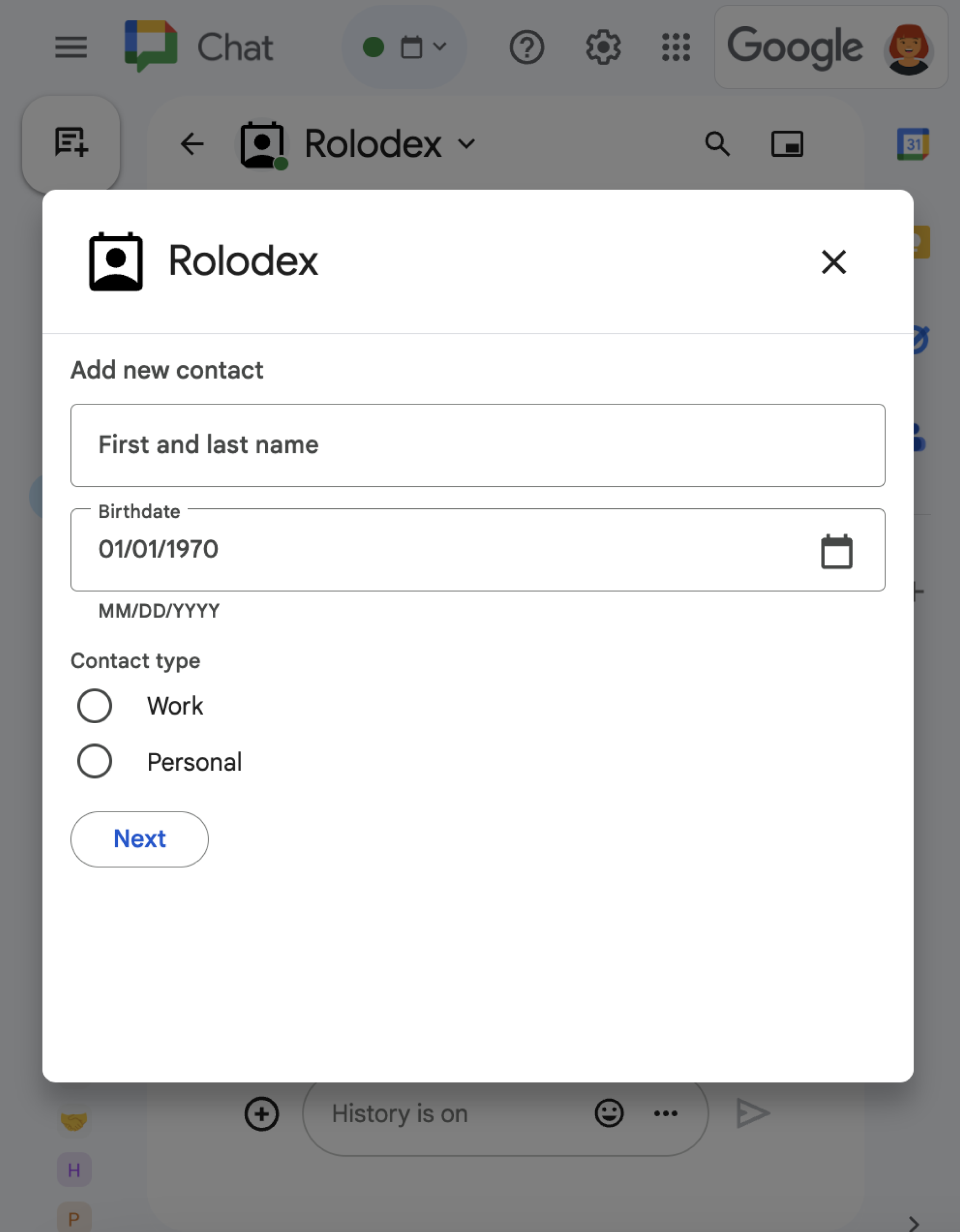
一个包含各种不同 widget 的对话框。
图 1:一个 示例 Chat 应用,该应用 会打开一个对话框来收集联系信息。

Chat 应用会以多种方式向用户请求信息,以便在 Chat 内或 Chat 外执行操作,包括:

  • 配置设置。例如,让用户自定义通知设置,或将 Chat 应用配置并添加到一个或多个空间。
  • 在其他 Google Workspace 应用中创建或更新信息。例如,让用户创建 Google 日历活动。
  • 让用户访问和更新其他应用或 Web 服务中的资源。例如,Chat 应用可以帮助用户直接从 Chat 聊天室更新支持工单的状态。

前提条件

Node.js

一个接收并响应互动事件的 Google Chat 应用。如需使用 互动式 Chat 应用,请完成此快速入门

Python

一个接收并响应互动事件的 Google Chat 应用。如需使用 互动式 Chat 应用,请完成此快速入门

Java

一个接收并响应互动事件的 Google Chat 应用。如需使用 互动式 Chat 应用,请完成此快速入门

Apps 脚本

一个接收并响应互动事件的 Google Chat 应用。如需在 Apps 脚本中创建互动式 Chat 应用,请完成此 快速入门

使用卡片构建表单

为了收集信息,Chat 应用会设计表单及其输入,并将其构建到卡片中。如需向用户显示卡片,Chat 应用可以使用以下 Chat 界面:

Chat 应用可以使用以下小部件构建卡片:

  • 用于向用户请求信息的表单输入小部件。您可以选择向表单输入微件添加 验证 ,以确保用户正确输入信息并设置信息格式 。Chat 应用可以使用以下表单输入小部件:

    • 文本输入 (textInput),用于自由格式或建议文本。
    • 选择输入 (selectionInput) 是可选择的界面元素,例如复选框、 单选按钮和下拉菜单。选择输入小部件还可以从静态或动态数据源填充项。例如,用户可以从他们所属的 Chat 空间列表中进行选择。
    • 用于输入日期和时间的日期时间选择器 (dateTimePicker)。
  • 一个 按钮 小部件 以便用户提交他们在卡片中输入的值。 用户点击该按钮后,Chat 应用便可以 处理收到的信息

在以下示例中,卡片使用文本输入、日期时间选择器和选择输入来收集联系信息:

如需查看使用此联系表单的 Chat 应用示例,请参阅以下代码:

Node.js

node/contact-form-app/index.js
/**
 * The section of the contact card that contains the form input widgets. Used in a dialog and card message.
 * To add and preview widgets, use the Card Builder: https://addons.gsuite.google.com/uikit/builder
 */
const CONTACT_FORM_WIDGETS = [
  {
    "textInput": {
      "name": "contactName",
      "label": "First and last name",
      "type": "SINGLE_LINE"
    }
  },
  {
    "dateTimePicker": {
      "name": "contactBirthdate",
      "label": "Birthdate",
      "type": "DATE_ONLY"
    }
  },
  {
    "selectionInput": {
      "name": "contactType",
      "label": "Contact type",
      "type": "RADIO_BUTTON",
      "items": [
        {
          "text": "Work",
          "value": "Work",
          "selected": false
        },
        {
          "text": "Personal",
          "value": "Personal",
          "selected": false
        }
      ]
    }
  }
];

Python

python/contact-form-app/main.py
# The section of the contact card that contains the form input widgets. Used in a dialog and card message.
# To add and preview widgets, use the Card Builder: https://addons.gsuite.google.com/uikit/builder
CONTACT_FORM_WIDGETS = [
  {
    "textInput": {
      "name": "contactName",
      "label": "First and last name",
      "type": "SINGLE_LINE"
    }
  },
  {
    "dateTimePicker": {
      "name": "contactBirthdate",
      "label": "Birthdate",
      "type": "DATE_ONLY"
    }
  },
  {
    "selectionInput": {
      "name": "contactType",
      "label": "Contact type",
      "type": "RADIO_BUTTON",
      "items": [
        {
          "text": "Work",
          "value": "Work",
          "selected": False
        },
        {
          "text": "Personal",
          "value": "Personal",
          "selected": False
        }
      ]
    }
  }
]

Java

java/contact-form-app/src/main/java/com/google/chat/contact/App.java
// The section of the contact card that contains the form input widgets. Used in a dialog and card message.
// To add and preview widgets, use the Card Builder: https://addons.gsuite.google.com/uikit/builder
final static private List<GoogleAppsCardV1Widget> CONTACT_FORM_WIDGETS = List.of(
  new GoogleAppsCardV1Widget().setTextInput(new GoogleAppsCardV1TextInput()
    .setName("contactName")
    .setLabel("First and last name")
    .setType("SINGLE_LINE")),
  new GoogleAppsCardV1Widget().setDateTimePicker(new GoogleAppsCardV1DateTimePicker()
    .setName("contactBirthdate")
    .setLabel("Birthdate")
    .setType("DATE_ONLY")),
  new GoogleAppsCardV1Widget().setSelectionInput(new GoogleAppsCardV1SelectionInput()
    .setName("contactType")
    .setLabel("Contact type")
    .setType("RADIO_BUTTON")
    .setItems(List.of(
      new GoogleAppsCardV1SelectionItem()
        .setText("Work")
        .setValue("Work")
        .setSelected(false),
      new GoogleAppsCardV1SelectionItem()
        .setText("Personal")
        .setValue("Personal")
        .setSelected(false)))));

Apps 脚本

apps-script/contact-form-app/contactForm.gs
/**
 * The section of the contact card that contains the form input widgets. Used in a dialog and card message.
 * To add and preview widgets, use the Card Builder: https://addons.gsuite.google.com/uikit/builder
 */
const CONTACT_FORM_WIDGETS = [
  {
    "textInput": {
      "name": "contactName",
      "label": "First and last name",
      "type": "SINGLE_LINE"
    }
  },
  {
    "dateTimePicker": {
      "name": "contactBirthdate",
      "label": "Birthdate",
      "type": "DATE_ONLY"
    }
  },
  {
    "selectionInput": {
      "name": "contactType",
      "label": "Contact type",
      "type": "RADIO_BUTTON",
      "items": [
        {
          "text": "Work",
          "value": "Work",
          "selected": false
        },
        {
          "text": "Personal",
          "value": "Personal",
          "selected": false
        }
      ]
    }
  }
];

如需查看可用于收集 信息的互动式小部件的更多示例,请参阅 设计互动式卡片或对话框

接收来自互动式小部件的数据

每当用户点击按钮时,Chat 应用都会收到一个互动事件,具体取决于按钮的位置:

  • 如果按钮位于消息或对话框中,Chat 应用会收到 一个 CARD_CLICKED互动事件 ,其中包含有关该互动的信息。互动事件的载荷包含一个 common.formInputs 对象,其中包含用户输入的任何值。CARD_CLICKED

    您可以从对象 common.formInputs.WIDGET_NAME中检索值,其中 WIDGET_NAME是您为小部件指定的name字段。 这些值会以小部件的特定数据类型(表示为 一个 Inputs 对象)返回。

    以下显示了 CARD_CLICKED 互动事件的一部分,其中用户为每个小部件输入了值:

    HTTP

    {
      "type": "CARD_CLICKED",
      "common": { "formInputs": {
        "contactName": { "stringInputs": {
          "value": ["Kai 0"]
        }},
        "contactBirthdate": { "dateInput": {
          "msSinceEpoch": 1000425600000
        }},
        "contactType": { "stringInputs": {
          "value": ["Personal"]
        }}
      }}
    }
    

    Apps 脚本

    {
      "type": "CARD_CLICKED",
      "common": { "formInputs": {
        "contactName": { "": { "stringInputs": {
          "value": ["Kai 0"]
        }}},
        "contactBirthdate": { "": { "dateInput": {
          "msSinceEpoch": 1000425600000
        }}},
          "contactType": { "": { "stringInputs": {
          "value": ["Personal"]
        }}}
      }}
    }
    
  • 如果按钮位于首页上, Chat 应用会收到一个 SUBMIT_FORM互动事件。 该互动事件的载荷包含一个 commonEventObject.formInputs 对象,其中包含用户输入的任何值。

    您可以从对象 commonEventObject.formInputs.WIDGET_NAME中检索值,其中 WIDGET_NAME是您为小部件指定的name字段。 这些值会以小部件的特定数据类型(表示为 一个 Inputs 对象)返回。

    以下显示了 SUBMIT_FORM 互动事件的一部分,其中用户为每个小部件输入了值:

    HTTP

    {
      "type": "SUBMIT_FORM",
      "commonEventObject": { "formInputs": {
        "contactName": { "stringInputs": {
          "value": ["Kai 0"]
        }},
        "contactBirthdate": { "dateInput": {
          "msSinceEpoch": 1000425600000
        }},
        "contactType": { "stringInputs": {
          "value": ["Personal"]
        }}
      }}
    }
    

    Apps 脚本

    {
      "type": "SUBMIT_FORM",
      "commonEventObject": { "formInputs": {
        "contactName": { "": { "stringInputs": {
          "value": ["Kai 0"]
        }}},
        "contactBirthdate": { "": { "dateInput": {
          "msSinceEpoch": 1000425600000
        }}},
          "contactType": { "": { "stringInputs": {
          "value": ["Personal"]
        }}}
      }}
    }
    

如需接收数据,Chat 应用会处理互动事件,以获取用户在小部件中输入的值。下表显示了如何获取给定表单输入小部件的值。对于每个小部件,该表显示了小部件接受的数据类型、值在互动事件中的存储位置以及示例值。

表单输入小部件 输入数据类型 互动事件中的输入值 示例值
textInput stringInputs event.common.formInputs.contactName.stringInputs.value[0] Kai O
selectionInput stringInputs 如需获取第一个或唯一的值,请使用 event.common.formInputs.contactType.stringInputs.value[0] Personal
仅接受日期的 dateTimePicker dateInput event.common.formInputs.contactBirthdate.dateInput.msSinceEpoch 1000425600000

将数据传输到另一张卡片

用户从卡片提交信息后,您可能需要返回其他卡片来执行以下任一操作:

  • 通过创建不同的部分,帮助用户填写较长的表单。
  • 让用户预览并确认初始卡片中的信息,以便他们可以在提交之前查看自己的答案。
  • 动态填充表单的其余部分。例如,为了提示用户创建预约,Chat 应用可以显示一张初始卡片,要求用户提供预约原因,然后填充另一张卡片,根据预约类型提供可用时间。

如需传输从初始卡片输入的数据,您可以使用包含小部件的 actionParameters 和用户输入的值的 button 构建 name 小部件,如以下示例所示:

Node.js

node/contact-form-app/index.js
buttonList: { buttons: [{
  text: "Submit",
  onClick: { action: {
    function: "submitForm",
    parameters: [{
      key: "contactName", value: name }, {
      key: "contactBirthdate", value: birthdate }, {
      key: "contactType", value: type
    }]
  }}
}]}

Python

python/contact-form-app/main.py
'buttonList': { 'buttons': [{
  'text': "Submit",
  'onClick': { 'action': {
    'function': "submitForm",
    'parameters': [{
      'key': "contactName", 'value': name }, {
      'key': "contactBirthdate", 'value': birthdate }, {
      'key': "contactType", 'value': type
    }]
  }}
}]}

Java

java/contact-form-app/src/main/java/com/google/chat/contact/App.java
new GoogleAppsCardV1Widget().setButtonList(new GoogleAppsCardV1ButtonList().setButtons(List.of(new GoogleAppsCardV1Button()
  .setText("Submit")
  .setOnClick(new GoogleAppsCardV1OnClick().setAction(new GoogleAppsCardV1Action()
    .setFunction("submitForm")
    .setParameters(List.of(
      new GoogleAppsCardV1ActionParameter().setKey("contactName").setValue(name),
      new GoogleAppsCardV1ActionParameter().setKey("contactBirthdate").setValue(birthdate),
      new GoogleAppsCardV1ActionParameter().setKey("contactType").setValue(type))))))))));

Apps 脚本

apps-script/contact-form-app/main.gs
buttonList: { buttons: [{
  text: "Submit",
  onClick: { action: {
    function: "submitForm",
    parameters: [{
      key: "contactName", value: name }, {
      key: "contactBirthdate", value: birthdate }, {
      key: "contactType", value: type
    }]
  }}
}]}

当用户点击该按钮时,Chat 应用会收到一个 CARD_CLICKED互动事件,您可以从中 接收数据

响应表单提交

收到来自卡片消息或对话框的数据后,Chat 应用会通过确认收到或返回错误来做出响应。

在以下示例中,Chat 应用会发送一条文本消息,以确认已成功收到从对话框或卡片消息提交的表单。

Node.js

node/contact-form-app/index.js
const contactName = event.common.parameters["contactName"];
// Checks to make sure the user entered a contact name.
// If no name value detected, returns an error message.
const errorMessage = "Don't forget to name your new contact!";
if (!contactName && event.dialogEventType === "SUBMIT_DIALOG") {
  return { actionResponse: {
    type: "DIALOG",
    dialogAction: { actionStatus: {
      statusCode: "INVALID_ARGUMENT",
      userFacingMessage: errorMessage
    }}
  }};
}

Python

python/contact-form-app/main.py
contact_name = event.get('common').get('parameters')["contactName"]
# Checks to make sure the user entered a contact name.
# If no name value detected, returns an error message.
error_message = "Don't forget to name your new contact!"
if contact_name == "" and "SUBMIT_DIALOG" == event.get('dialogEventType'):
  return { 'actionResponse': {
    'type': "DIALOG",
    'dialogAction': { 'actionStatus': {
      'statusCode': "INVALID_ARGUMENT",
      'userFacingMessage': error_message
    }}
  }}

Java

java/contact-form-app/src/main/java/com/google/chat/contact/App.java
String contactName = event.at("/common/parameters/contactName").asText();
// Checks to make sure the user entered a contact name.
// If no name value detected, returns an error message.
String errorMessage = "Don't forget to name your new contact!";
if (contactName.isEmpty() && event.at("/dialogEventType") != null && "SUBMIT_DIALOG".equals(event.at("/dialogEventType").asText())) {
  return new Message().setActionResponse(new ActionResponse()
    .setType("DIALOG")
    .setDialogAction(new DialogAction().setActionStatus(new ActionStatus()
      .setStatusCode("INVALID_ARGUMENT")
      .setUserFacingMessage(errorMessage))));
}

Apps 脚本

apps-script/contact-form-app/main.gs
const contactName = event.common.parameters["contactName"];
// Checks to make sure the user entered a contact name.
// If no name value detected, returns an error message.
const errorMessage = "Don't forget to name your new contact!";
if (!contactName && event.dialogEventType === "SUBMIT_DIALOG") {
  return { actionResponse: {
    type: "DIALOG",
    dialogAction: { actionStatus: {
      statusCode: "INVALID_ARGUMENT",
      userFacingMessage: errorMessage
    }}
  }};
}

如需处理并关闭对话框,您可以返回一个 ActionResponse 对象,该对象用于指定您是想发送确认消息、更新 原始消息或卡片,还是仅关闭对话框。如需了解相关步骤,请参阅 关闭对话框

问题排查

当 Google Chat 应用或 卡片返回错误时, Chat 界面会显示一条消息,指出“出了点问题。” 或“无法处理您的请求。”有时,Chat 界面 不会显示任何错误消息,但 Chat 应用或 卡片会产生意外结果;例如,卡片消息可能不会 显示。

虽然错误消息可能不会显示在 Chat 界面中, 但当 Chat 应用的错误日志记录功能开启后,系统会提供描述性错误消息和日志数据,帮助您修复错误。如需获得有关查看、 调试和修复错误的帮助,请参阅 排查和修复 Google Chat 错误