

במדריך הזה מוסבר איך ליצור אפליקציית Google Chat שתעזור למשתמשי Google Chat לנהל את אנשי הקשר האישיים והעסקיים שלהם. כדי לאסוף מידע, אפליקציית Chat מבקשת מהמשתמשים למלא טופס ליצירת קשר בהודעות כרטיס ובתיבות דו-שיח.
כך נראית אפליקציית Chat בפעולה:
-
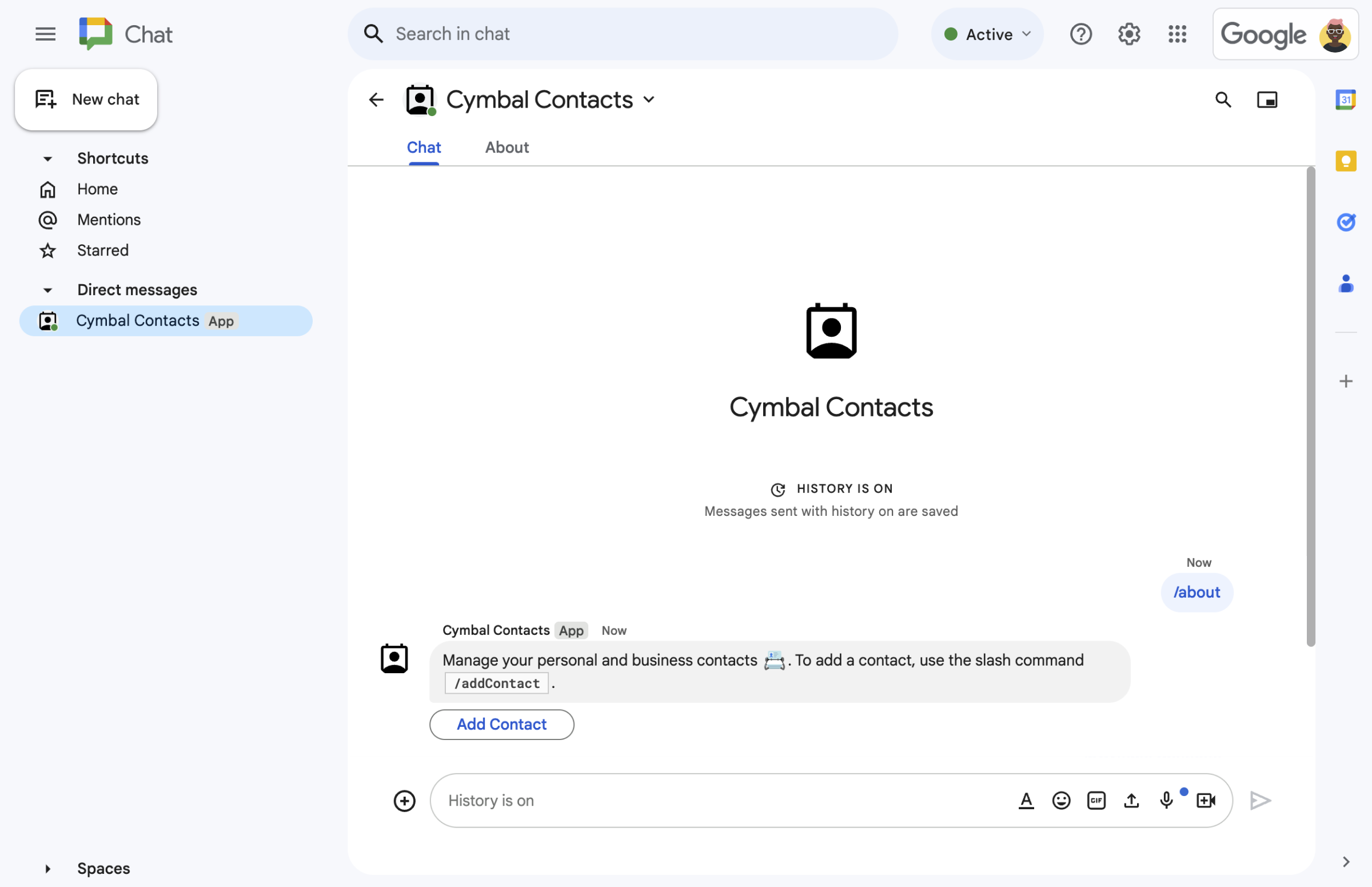
איור 1. אפליקציית הצ'אט משיבה לפקודה דרך שורת הפקודות /aboutבהודעת טקסט ובלחצן שפותח טופס ליצירת קשר. -
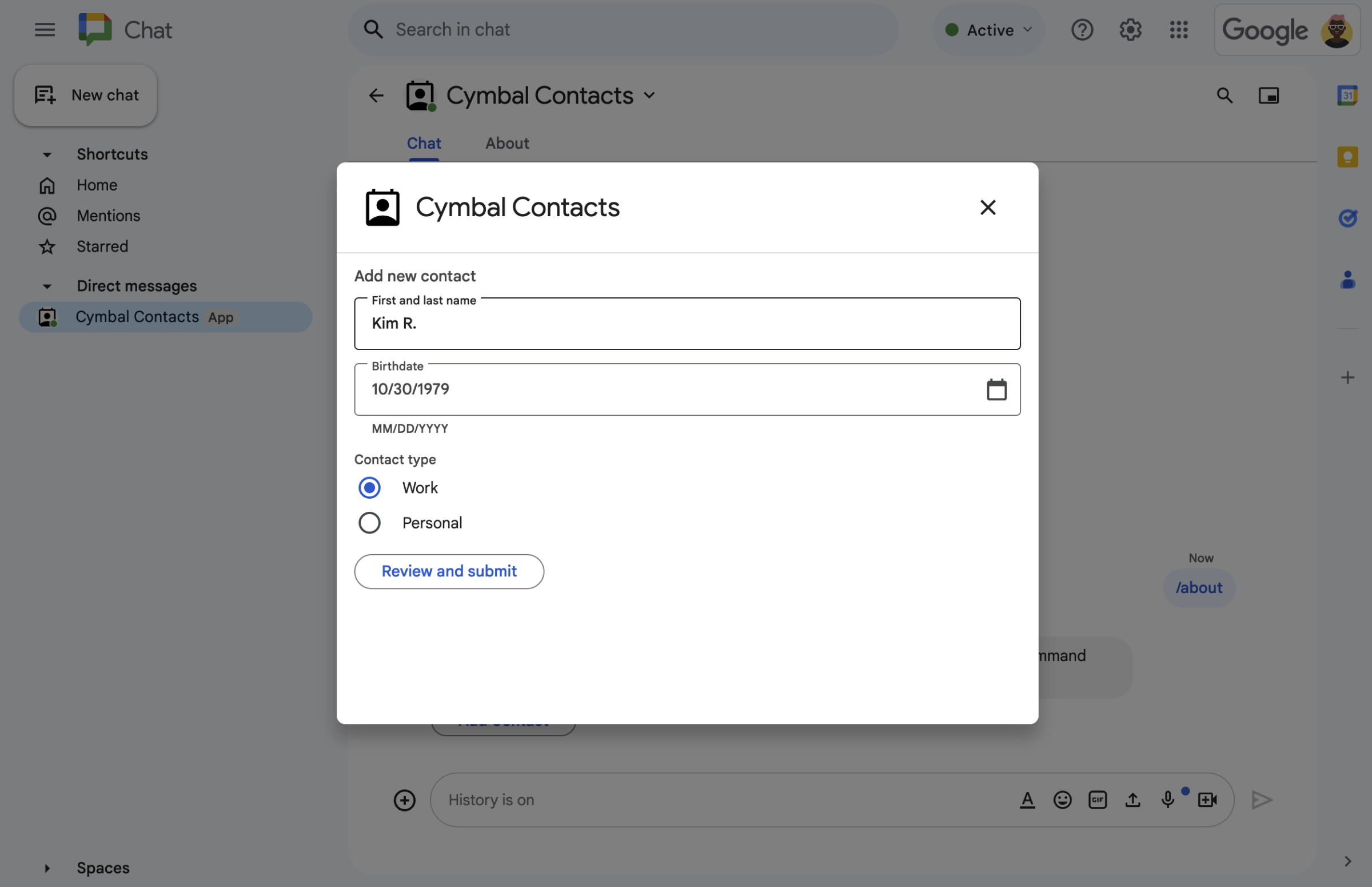
איור 2. אפליקציית הצ'אט פותחת תיבת דו-שיח שבה המשתמשים יכולים להזין מידע על איש קשר. -

איור 3. אפליקציית Chat מחזירה תיבת דו-שיח לאישור, כדי שהמשתמשים יוכלו לבדוק את המידע ולאשר אותו לפני השליחה. -
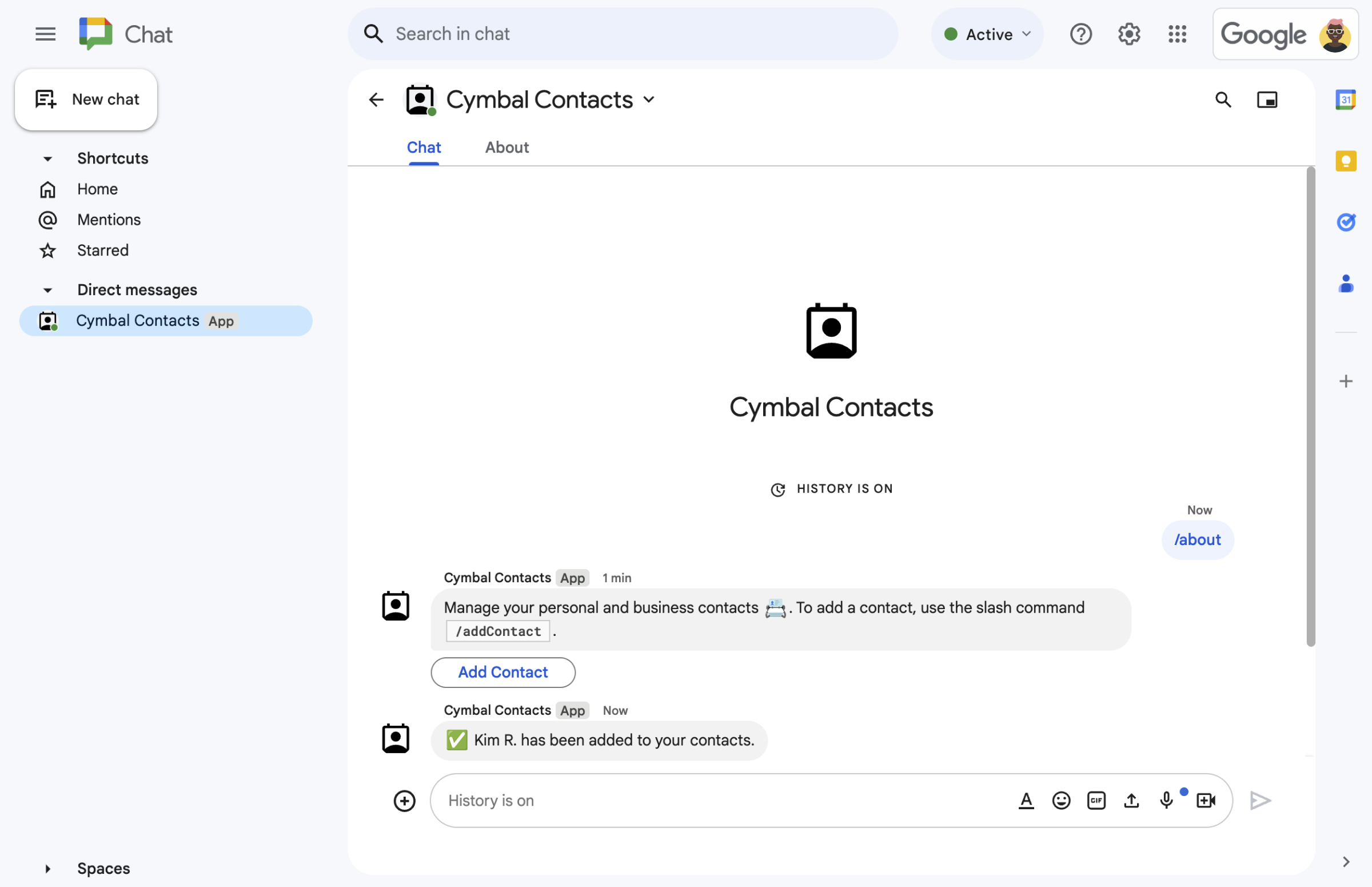
איור 4. אחרי שהמשתמש שולח את הטופס, אפליקציית Chat שולחת הודעת טקסט פרטית כדי לאשר את השליחה. -
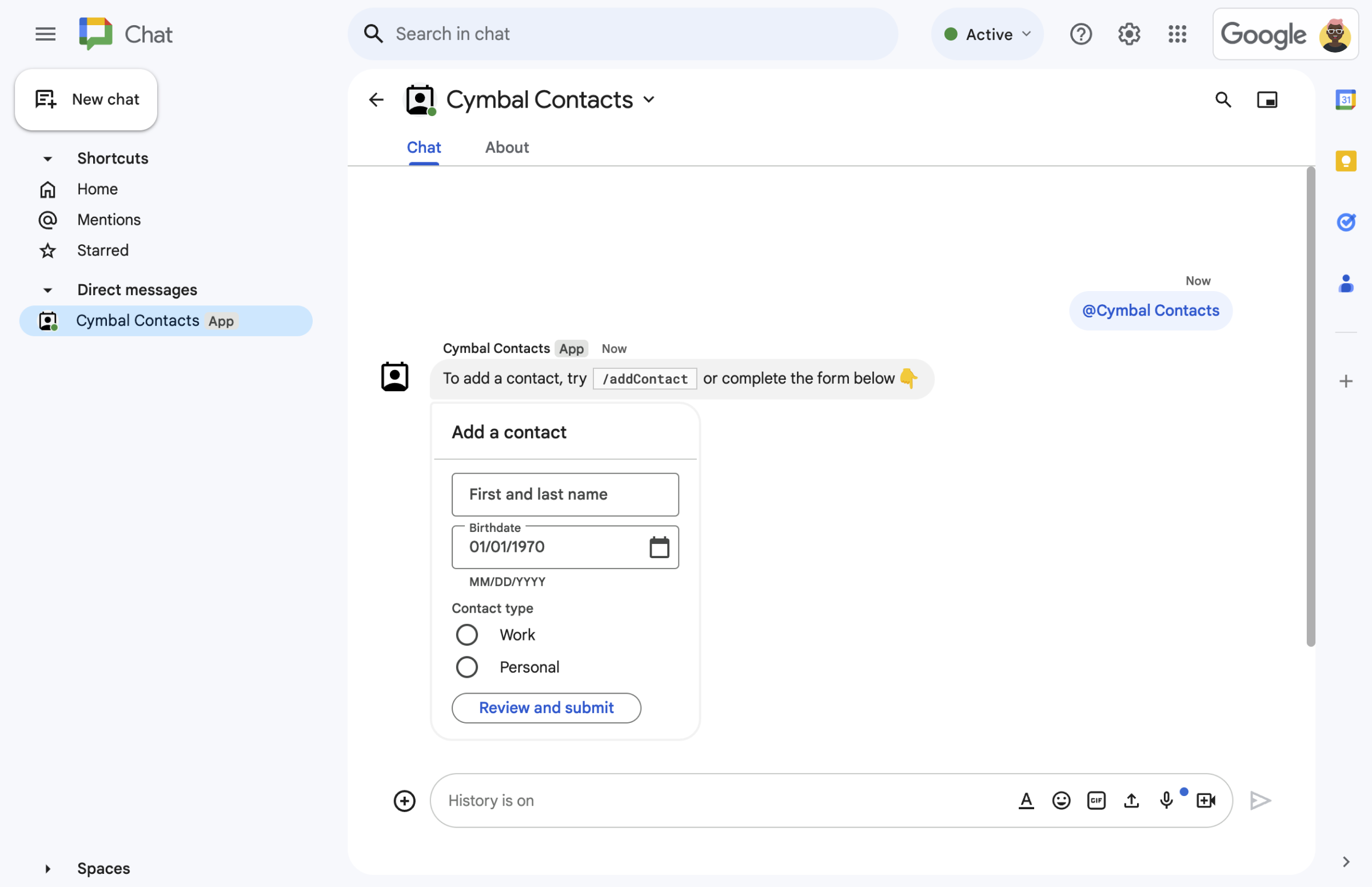
איור 5. אפליקציית Chat גם מציעה למשתמשים להוסיף איש קשר מכרטיס בהודעה.
דרישות מוקדמות
- חשבון Google Workspace במהדורת Business או Enterprise עם גישה ל-Google Chat.
- יוצרים פרויקט ב-Google Cloud.
מטרות
- עיצוב ובנייה של ממשקי משתמש (UI)
כאובייקטים של
card, והצגת ממשקי המשתמש בהודעות ובתיבות דו-שיח. - לקבל ולעבד מידע שמשתמשים שולחים באמצעות ווידג'טים של קלט טופס.
- להגיב לפקודות באמצעות הודעות שמכילות טקסט, כרטיסים ווידג'טים של אביזרים.
ארכיטקטורה
אפליקציית Chat מבוססת על Google Apps Script ומשתמשת באירועי אינטראקציה כדי לעבד את הפעולות של משתמשי Chat ולהגיב להן.
הדוגמה הבאה מראה איך משתמש יכול בדרך כלל לקיים אינטראקציה עם אפליקציית הצ'אט:
משתמש פותח צ'אט ישיר עם אפליקציית Chat, או מוסיף את אפליקציית Chat למרחב קיים.
אפליקציית Chat מציגה למשתמש טופס ליצירת קשר כדי להוסיף איש קשר, על ידי יצירה והצגה של טופס ליצירת קשר כאובייקט
card. כדי להציג את הטופס ליצירת קשר, אפליקציית Chat מגיבה למשתמשים בדרכים הבאות:- עונה לאזכורי @ולהודעות בצ'אטים ישירים עם הודעה שמכילה את טופס יצירת הקשר.
- מגיב לפקודה דרך שורת הפקודות
/addContactעל ידי פתיחת תיבת דו-שיח עם טופס ליצירת קשר. - מגיב לפקודה דרך שורת הפקודות
/aboutבהודעת טקסט עם כפתור הוספת איש קשר, שהמשתמשים יכולים ללחוץ עליו כדי לפתוח תיבת דו-שיח עם טופס ליצירת קשר.
כשמוצג למשתמש טופס ליצירת קשר, הוא מזין את הפרטים ליצירת קשר בשדות ובווידג'טים הבאים:
- שם פרטי ושם משפחה: ווידג'ט
textInputשמקבל מחרוזות. - תאריך לידה: ווידג'ט
dateTimePickerשמקבל רק תאריכים. - סוג איש הקשר: ווידג'ט של לחצני בחירה שמאפשר למשתמשים לבחור ולהגיש ערך מחרוזת יחיד (
PersonalאוWork).selectionInput - הלחצן בדיקה ושליחה: מערך
buttonListעם ווידג'טbuttonשהמשתמש לוחץ עליו כדי לשלוח את הערכים שהוא מזין.
- שם פרטי ושם משפחה: ווידג'ט
אפליקציית Google Chat מטפלת ב
CARD_CLICKEDאירוע אינטראקציה כדי לעבד את הערכים שהמשתמש מזין, ומציגה את הערכים בכרטיס אישור.המשתמש בודק את כרטיס האישור ולוחץ על הלחצן שליחה כדי לסיים את הזנת פרטי הקשר.
אפליקציית Google Chat שולחת הודעת טקסט פרטית שמאשרת את השליחה.
הכנת הסביבה
בקטע הזה מוסבר איך להגדיר פרויקט בענן של Google לאפליקציית Chat.
פותחים את פרויקט בענן ב-Google API Console
אם הוא לא פתוח, פותחים את פרויקט בענן שבו רוצים להשתמש בדוגמה הזו:
- ב-Google API Console, עוברים לדף Select a project.
- בוחרים את הפרויקט בענן של Google שבו רוצים להשתמש. לחלופין, לוחצים על Create project ופועלים לפי ההוראות במסך. אם יוצרים פרויקט ב-Google Cloud, יכול להיות שיהיה צורך להפעיל את החיוב בפרויקט.
הגדרת אימות והרשאה
כדי שאנשים יוכלו לתת הרשאה לאפליקציה שלכם באפליקציות של Google Workspace, כולל Google Chat, צריך להגדיר מסך הסכמה ל-OAuth לאפליקציות של Google Chat.
במדריך הזה, אתם פורסים אפליקציית Chat שנועדה רק לבדיקה ולשימוש פנימי, ולכן אפשר להשתמש במידע של placeholder במסך בקשת ההסכמה. לפני שמפרסמים את האפליקציה ל-Chat, צריך להחליף את כל נתוני ה-placeholder בנתונים אמיתיים.
ב-Google API Console, לוחצים על סמל התפריט > פלטפורמת אימות של Google > מיתוג.
אם כבר הגדרתם את פלטפורמת האימות של Google, אתם יכולים לקבוע את ההגדרות הבאות של מסך ההסכמה ל-OAuth בקטעים Branding, Audience וData Access. אם מופיעה ההודעה Google Auth platform not configured yet, לוחצים על Get Started:
- בקטע App Information בשדה App name, מקלידים
Contact Manager. - בקטע User support email, בוחרים את כתובת האימייל שלכם או קבוצת Google מתאימה.
- לוחצים על הבא.
- בקטע Audience, לוחצים על Internal. אם אי אפשר לבחור באפשרות פנימי, בוחרים באפשרות חיצוני.
- לוחצים על הבא.
- בקטע Contact Information, מזינים כתובת אימייל שאליה אפשר לשלוח התראות על שינויים בפרויקט.
- לוחצים על הבא.
- בקטע Finish, קוראים את המדיניות של Google בנושא נתוני משתמשים בשירותי API. אם אתם מסכימים, מסמנים את התיבה I agree to the Google API Services: User Data Policy.
- לוחצים על המשך.
- לוחצים על יצירה.
- אם בחרתם באפשרות חיצוני לסוג המשתמש, מוסיפים משתמשי בדיקה:
- לוחצים על קהל.
- בקטע משתמשי בדיקה, לוחצים על הוספת משתמשים.
- מזינים את כתובת האימייל שלכם ושל משתמשים מורשים אחרים לבדיקה, ואז לוחצים על שמירה.
- בקטע App Information בשדה App name, מקלידים
יצירה ופריסה של אפליקציה ל-Chat
בקטע הבא, מעתיקים ומעדכנים פרויקט שלם ב-Apps Script שמכיל את כל קוד האפליקציה הנדרש לאפליקציית Chat, כך שאין צורך להעתיק ולהדביק כל קובץ בנפרד.
אם רוצים, אפשר לראות את הפרויקט כולו ב-GitHub.
סקירה כללית של כל קובץ:
main.gsמטפל בכל הלוגיקה של האפליקציה, כולל אירועי אינטראקציה שקשורים למקרים שבהם משתמשים שולחים הודעות לאפליקציית Chat, לוחצים על לחצנים מהודעה באפליקציית Chat או פותחים וסוגרים תיבות דו-שיח.
הצגת קוד
main.gscontactForm.gsמכיל את הווידג'טים שמקבלים נתוני טופס מהמשתמשים. ווידג'טים של קלט טופס מוצגים בכרטיסים שמופיעים בהודעות ובתיבות דו-שיח.
הצגת קוד
contactForm.gsappsscript.jsonמניפסט Apps Script שמגדיר ומגדיר את פרויקט Apps Script עבור אפליקציית Chat.
הצגת קוד
appsscript.json
יצירת פרויקט Apps Script
כדי ליצור פרויקט Apps Script:
- לוחצים על הלחצן הבא כדי לפתוח את פרויקט Apps Script Manage contacts in Google Chat (ניהול אנשי קשר ב-Google Chat).
פתיחת הפרויקט - לוחצים על סקירה כללית.
- בדף הסקירה הכללית, לוחצים על
 יצירת עותק.
 נותנים שם להעתק של פרויקט Apps Script:
לוחצים על עותק של ניהול אנשי קשר ב-Google Chat.
בשדה שם הפרויקט, כותבים
Contact Manager - Google Chat app.לוחצים על Rename.
בעתיד, אם תרצו להשתמש בממשקי Google API מסוימים או לפרסם את האפליקציה, תצטרכו לשייך את פרויקט בענן לפרויקט Apps Script. במדריך הזה לא צריך לעשות את זה. מידע נוסף זמין במדריך לפרויקטים ב-Google Cloud.
יצירת פריסה של Apps Script
אחרי שכל הקוד במקום, פורסים את פרויקט Apps Script. משתמשים במזהה הפריסה כשמגדירים את אפליקציית Chat ב-Google Cloud.
ב-Apps Script, פותחים את הפרויקט של אפליקציית Chat.
לוחצים על פריסה > פריסה חדשה.
אם האפשרות תוסף לא נבחרה כבר, לצד בחירת סוג, לוחצים על סוגי הפריסה
 ובוחרים באפשרות תוסף.
בשדה תיאור, מזינים תיאור לגרסה הזו, כמו
Test of Contact Manager.לוחצים על פריסה. Apps Script מדווח על פריסה מוצלחת ומספק מזהה פריסה.
לוחצים על העתקה כדי להעתיק את מזהה הפריסה ואז לוחצים על סיום.
הגדרת אפליקציית Chat ב-Google API Console
בקטע הזה מוסבר איך להגדיר את Google Chat API ב-Google API Console עם מידע על אפליקציית Chat, כולל מזהה הפריסה שיצרתם זה עתה מפרויקט Apps Script.
ב-Google API Console, לוחצים על תפריט > APIs & Services > Enabled APIs & Services > Google Chat API > Configuration.
מבטלים את הסימון של Build this Chat app as a Google Workspace add-on (פיתוח אפליקציית Chat כתוסף ל-Google Workspace). תיפתח תיבת דו-שיח שבה תתבקשו לאשר את הפעולה. בתיבת הדו-שיח, לוחצים על השבתה.
בשדה App name, כותבים
Contact Manager.בקטע כתובת ה-URL של הדמות, מקלידים
https://developers.google.com/chat/images/contact-icon.png.בשדה תיאור, מקלידים
Manage your personal and business contacts.לוחצים על המתג הפעלת תכונות אינטראקטיביות כדי להפעיל אותו.
בקטע פונקציונליות, בוחרים באפשרות הצטרפות למרחבים ולשיחות קבוצתיות.
בקטע הגדרות חיבור, בוחרים באפשרות Apps Script.
בשדה Deployment ID (מזהה פריסה), מדביקים את מזהה הפריסה של Apps Script שהועתק בקטע הקודם כשיוצרים את פריסת Apps Script.
בקטע Commands (פקודות), מגדירים את הפקודות דרך שורת הפקודות
/aboutו-/addContact:- לוחצים על הוספת פקודה דרך שורת הפקודות כדי להגדיר את הפקודה הראשונה דרך שורת הפקודות.
- בשדה Name, כותבים
About. - בשדה Command ID (מזהה הפקודה), מקלידים
1. - בקטע תיאור, מקלידים
Learn how to use this Chat app to manage your contacts. - בקטע סוג הפקודה, בוחרים באפשרות
Slash command. - בשדה Slash command name, כותבים
/about. - בוחרים באפשרות הקישור פותח תיבת דו-שיח.
- לוחצים על סיום.
- כדי להגדיר עוד פקודה דרך שורת הפקודות, לוחצים על הוספת פקודה.
- בשדה Name, כותבים
Add a contact. - בשדה Command ID (מזהה הפקודה), מקלידים
2. - בקטע תיאור, מקלידים
Submit information about a contact. - בקטע סוג הפקודה, בוחרים באפשרות
Slash command. - בשדה Slash command name, כותבים
/addContact. - בוחרים באפשרות הקישור פותח תיבת דו-שיח.
- לוחצים על סיום.
בקטע חשיפה, מסמנים את התיבה האפליקציה הזו של Chat תהיה זמינה לאנשים ולקבוצות ספציפיים ב-YOUR DOMAIN ומזינים את כתובת האימייל.
בקטע יומנים, בוחרים באפשרות רישום שגיאות ביומן.
לוחצים על שמירה. תוצג הודעה שההגדרה נשמרה.
אפליקציית Chat מוכנה להתקנה ולבדיקה ב-Chat.
בדיקת אפליקציית Chat
כדי לבדוק את אפליקציית Chat, פותחים מרחב לצ'אט ישיר עם אפליקציית Chat ושולחים הודעה:
פותחים את Google Chat באמצעות חשבון Google Workspace שציינתם כשנוספתם כבודקים מהימנים.
- לוחצים על צ'אט חדש.
- בשדה הוספת אדם אחד או יותר, מקלידים את השם של אפליקציית Chat.
בוחרים את אפליקציית Chat מתוך התוצאות. ייפתח צ'אט ישיר.
בצ'אט ישיר חדש עם אפליקציית Chat, כותבים
/addContactומקישים על Enter.בתיבת הדו-שיח שנפתחת, מזינים את הפרטים ליצירת קשר:
- בתיבת הטקסט First and last name (שם פרטי ושם משפחה), מזינים שם.
- בחלונית הבחירה של תאריך הלידה, בוחרים תאריך.
- בקטע סוג הקשר, בוחרים בלחצן האפשרויות עבודה או אישי.
לוחצים על בדיקה ושליחה.
בתיבת הדו-שיח לאישור, בודקים את המידע ששלחתם ולוחצים על שליחה. אפליקציית Chat עונה בהודעת טקסט עם הכיתוב
✅ CONTACT NAME has been added to your contacts..אפשר גם לבדוק ולשלוח את טופס יצירת הקשר בדרכים הבאות:
- משתמשים בפקודה דרך שורת הפקודות
/about. אפליקציית הצ'אט עונה בהודעת טקסט ובווידג'ט של אביזר עם הכיתובAdd a contact. אפשר ללחוץ על הלחצן כדי לפתוח תיבת דו-שיח עם טופס יצירת הקשר. - שולחים לאפליקציית Chat הודעה בצ'אט ישיר בלי להשתמש בפקודה דרך שורת הפקודות, כמו
Hello. אפליקציית Chat תשיב עם טקסט וכרטיס שמכילים את טופס יצירת הקשר.
- משתמשים בפקודה דרך שורת הפקודות
הסרת המשאבים
כדי להימנע מחיובים בחשבון Google Cloud בגלל השימוש במשאבים שנעשה במסגרת המדריך הזה, מומלץ למחוק את פרויקט בענן.
- במסוף Google API, עוברים לדף Manage resources. לוחצים על תפריט > IAM & Admin > Manage Resources.
- ברשימת הפרויקטים, בוחרים את הפרויקט שרוצים למחוק ולוחצים על Delete .
- כדי למחוק את הפרויקט, כותבים את מזהה הפרויקט בתיבת הדו-שיח ולוחצים על Shut down.
נושאים קשורים
- תגובה לפקודות
- איסוף ועיבוד מידע ממשתמשי Google Chat
- פתיחת תיבות דו-שיח אינטראקטיביות
- דוגמאות נוספות לאפליקציות ל-Google Chat