รวบรวมและจัดการรายชื่อติดต่อใน Google Chat

บทแนะนำนี้แสดงวิธีสร้างแอป Google Chat ที่ช่วยให้ผู้ใช้ Google Chat จัดการรายชื่อติดต่อส่วนตัวและรายชื่อติดต่อทางธุรกิจได้ แอป Chat จะแจ้งให้ผู้ใช้กรอกแบบฟอร์มรายชื่อติดต่อในข้อความการ์ดและกล่องโต้ตอบเพื่อรวบรวมข้อมูล

ดูการทำงานของแอป Chat ได้ดังนี้

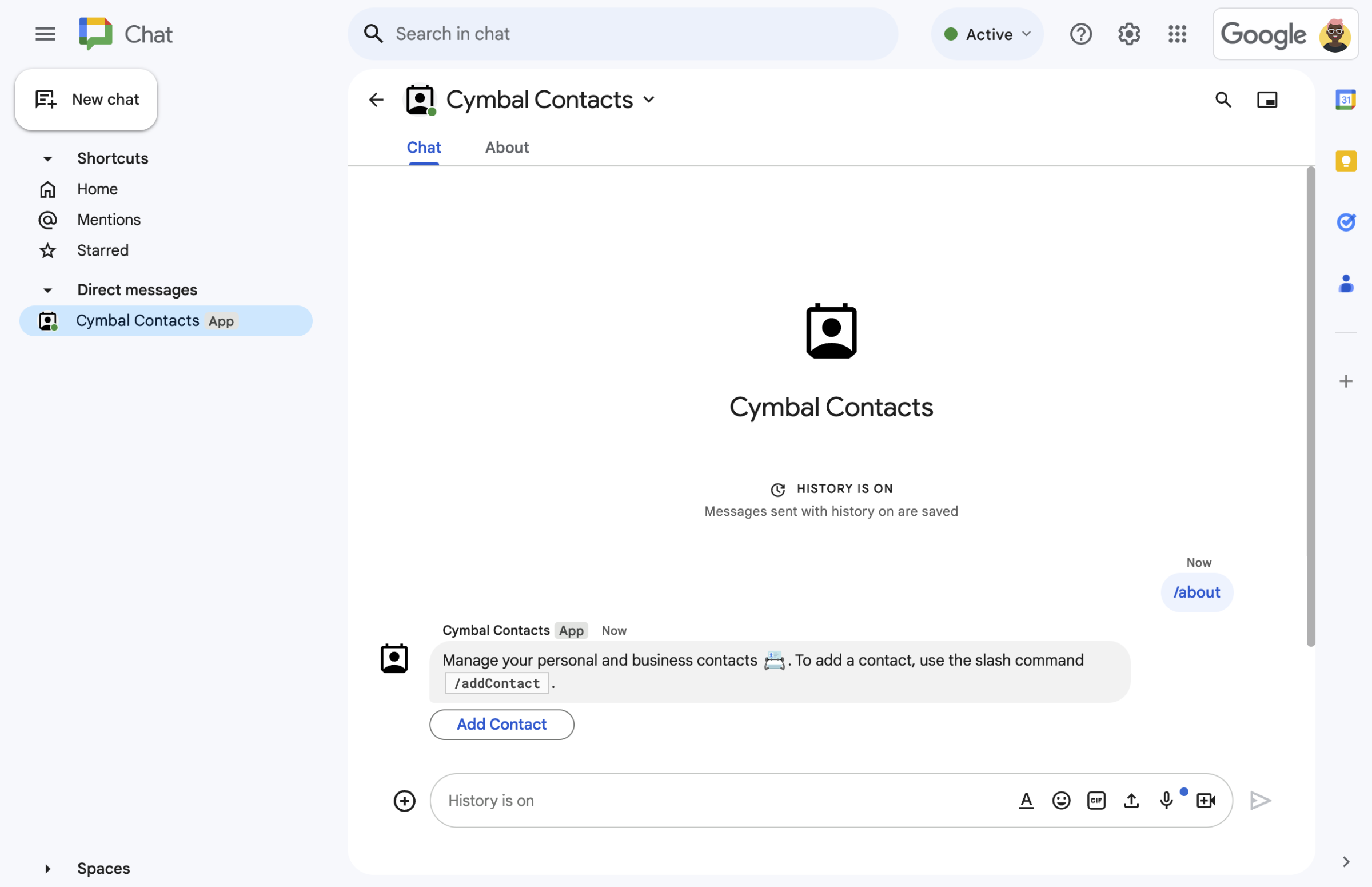
  • แบบฟอร์มติดต่อจากคำสั่งเครื่องหมายทับ
    รูปที่ 1 แอป Chat ตอบกลับคำสั่งเครื่องหมายทับ /about ด้วยข้อความและปุ่มที่เปิดแบบฟอร์มรายชื่อติดต่อ
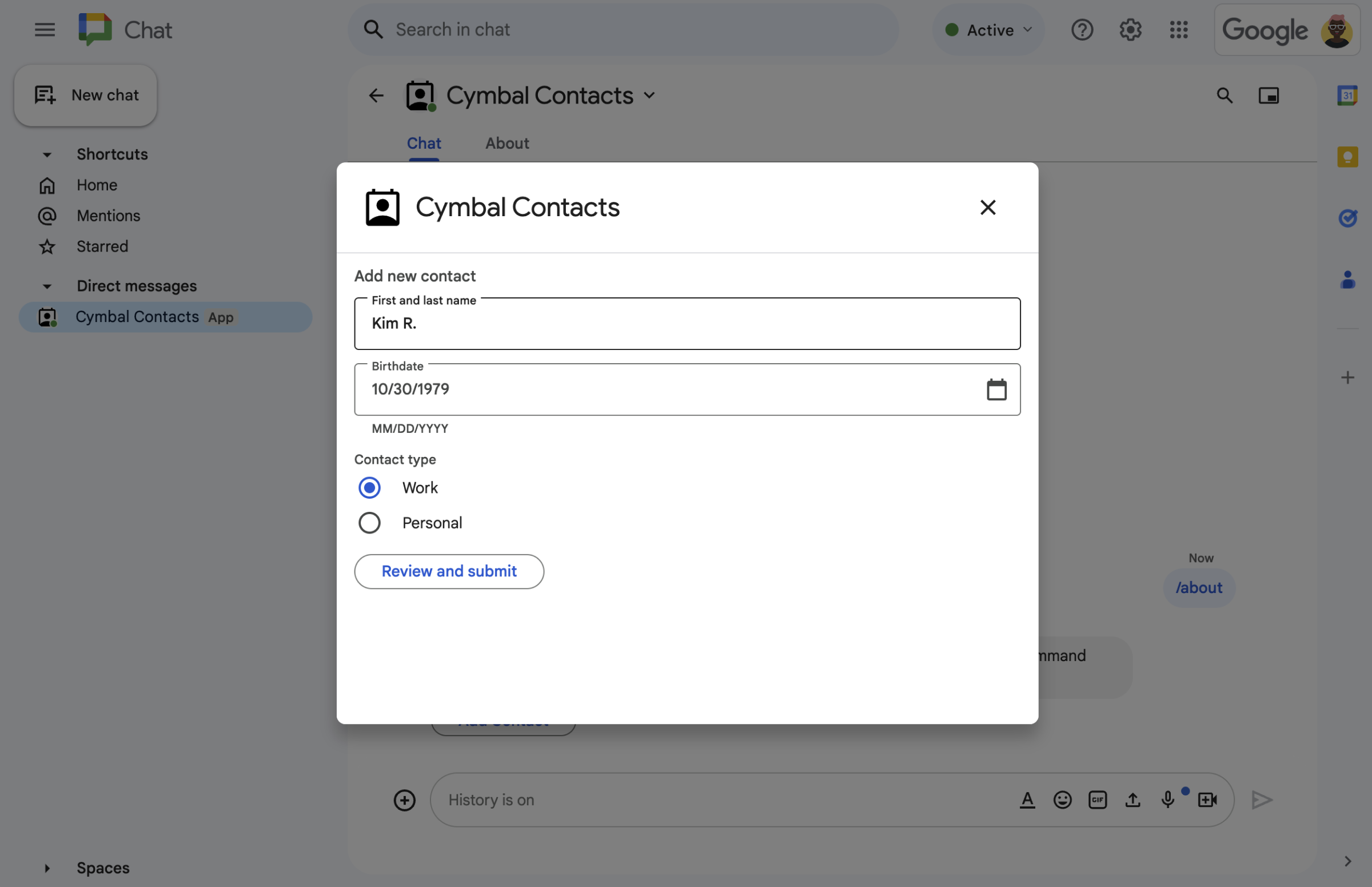
  • แบบฟอร์มติดต่อในกล่องโต้ตอบ
    รูปที่ 2 แอป Chat จะเปิดกล่องโต้ตอบที่ผู้ใช้ป้อนข้อมูลเกี่ยวกับรายชื่อติดต่อได้
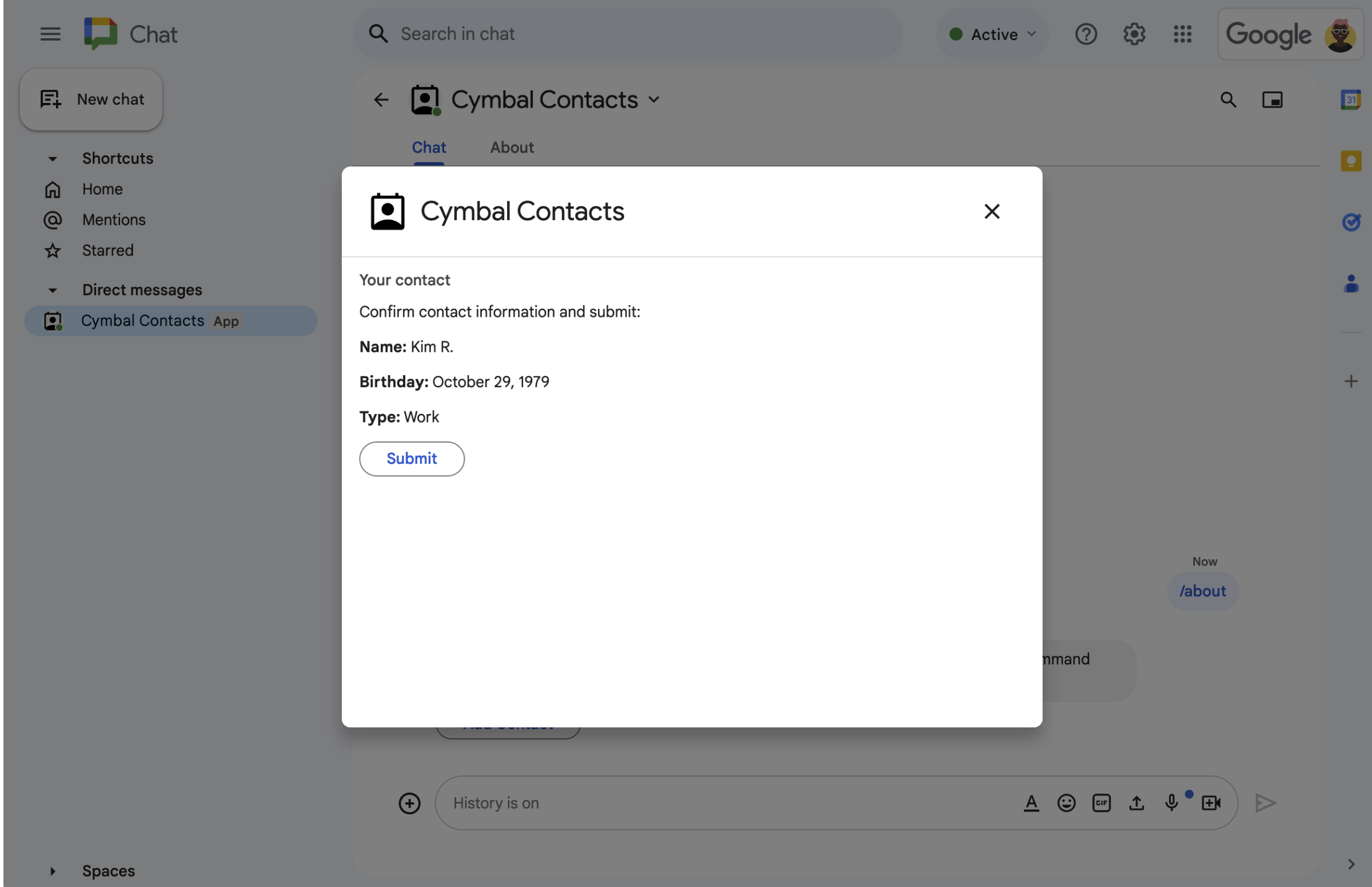
  • กล่องโต้ตอบยืนยันและตรวจสอบ
    รูปที่ 3 แอป Chat จะแสดงกล่องโต้ตอบการยืนยันเพื่อให้ผู้ใช้ตรวจสอบและยืนยันข้อมูลก่อนส่ง
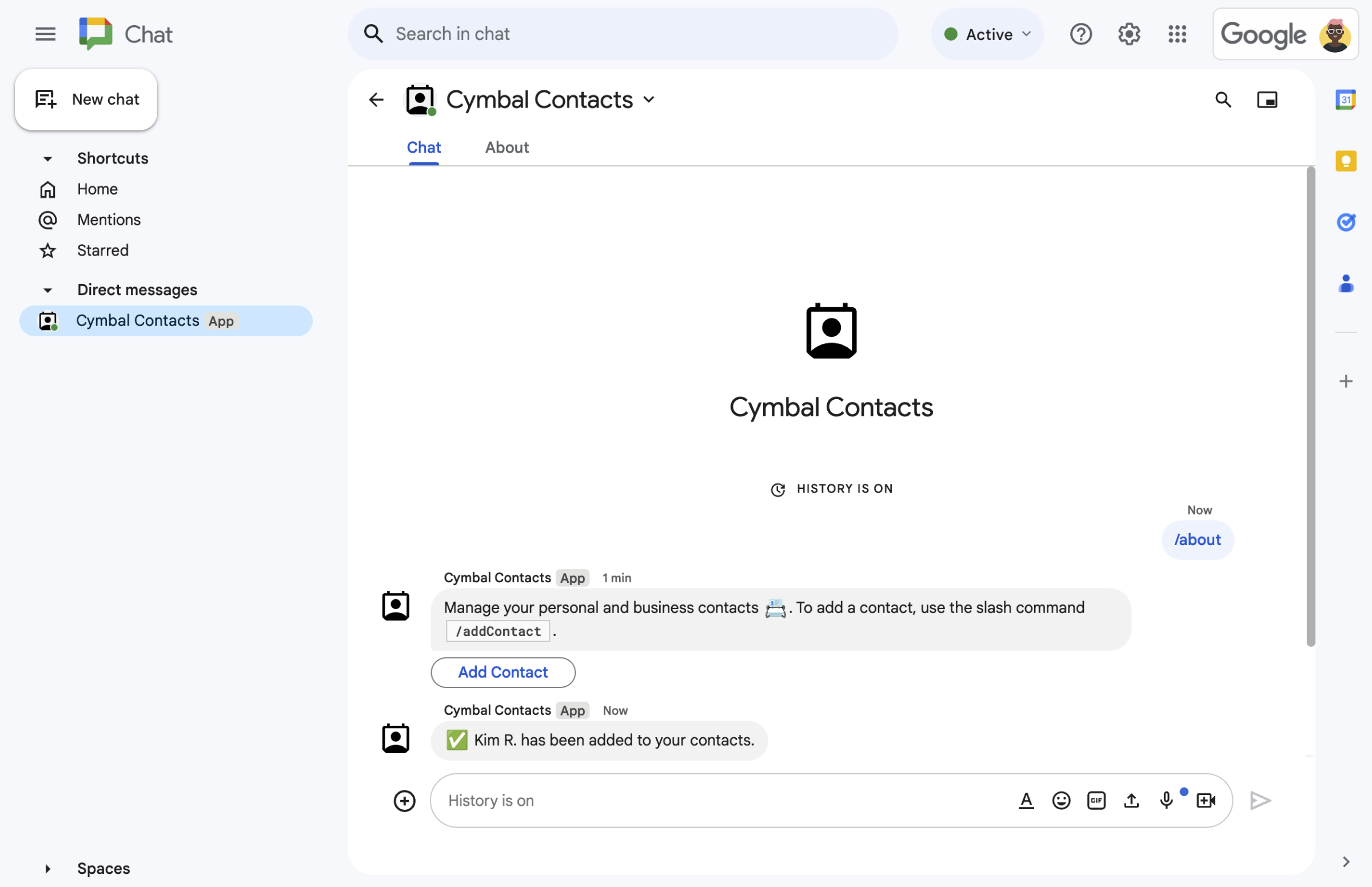
  • ข้อความที่ยืนยันรายชื่อติดต่อใหม่
    รูปที่ 4 หลังจากที่ผู้ใช้ส่ง แบบฟอร์มแล้ว แอป Chat จะส่งข้อความส่วนตัว เพื่อยืนยันการส่ง
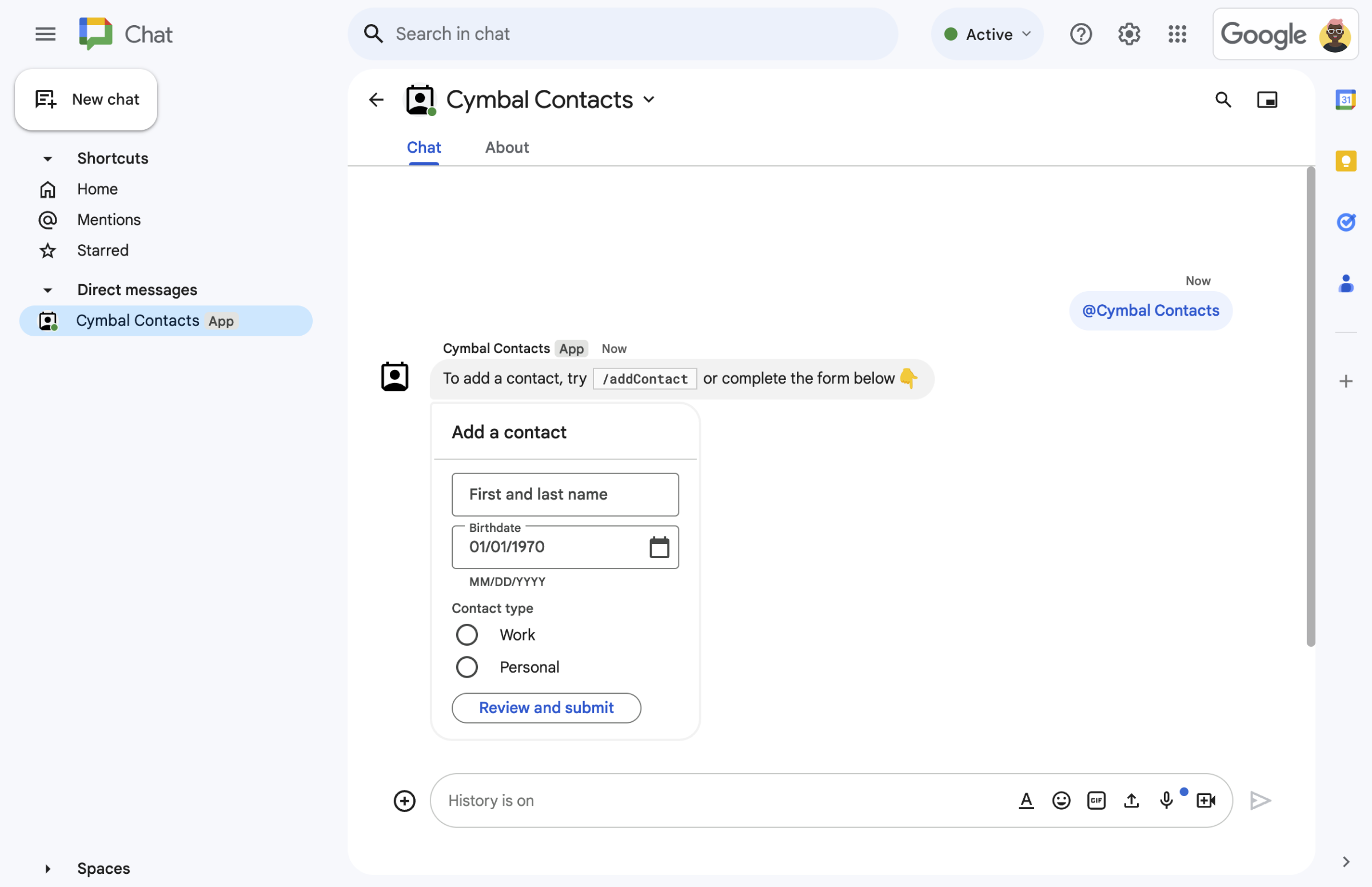
  • แบบฟอร์มติดต่อจากข้อความในการ์ด
    รูปที่ 5 นอกจากนี้ แอป Chat ยังแจ้งให้ผู้ใช้เพิ่มรายชื่อติดต่อจากการ์ดในข้อความด้วย

ข้อกำหนดเบื้องต้น

วัตถุประสงค์

สถาปัตยกรรม

แอป Chat สร้างขึ้นใน Google Apps Script และใช้ เหตุการณ์การโต้ตอบ เพื่อประมวลผล และตอบกลับผู้ใช้ Chat

ต่อไปนี้แสดงวิธีที่ผู้ใช้โต้ตอบกับแอป Chat โดยทั่วไป

  1. ผู้ใช้เปิดข้อความส่วนตัวกับแอป Chat หรือเพิ่มแอป Chat ลงในพื้นที่ทำงานที่มีอยู่

  2. แอป Chat จะแจ้งให้ผู้ใช้เพิ่มรายชื่อติดต่อโดย สร้างและแสดงแบบฟอร์มรายชื่อติดต่อเป็น card ออบเจ็กต์ แอป Chat จะตอบกลับผู้ใช้ด้วยวิธีต่อไปนี้เพื่อแสดงแบบฟอร์มรายชื่อติดต่อ

    • ตอบกลับการกล่าวถึงด้วย @และข้อความส่วนตัวด้วยข้อความการ์ดที่มีแบบฟอร์มรายชื่อติดต่อ
    • ตอบกลับคำสั่งเครื่องหมายทับ /addContact โดยเปิดกล่องโต้ตอบที่มีแบบฟอร์มรายชื่อติดต่อ
    • ตอบกลับคำสั่งเครื่องหมายทับ /about ด้วยข้อความที่มีปุ่มเพิ่มรายชื่อติดต่อ ซึ่งผู้ใช้คลิกเพื่อเปิดกล่องโต้ตอบที่มีแบบฟอร์มรายชื่อติดต่อได้
  3. เมื่อเห็นแบบฟอร์มรายชื่อติดต่อ ผู้ใช้จะป้อนข้อมูลติดต่อลงในช่องและวิดเจ็ตต่อไปนี้

    • ชื่อและนามสกุล: วิดเจ็ตที่ยอมรับสตริงtextInput
    • วันเกิด: วิดเจ็ต dateTimePicker ที่ยอมรับเฉพาะวันที่
    • ประเภทรายชื่อติดต่อ: วิดเจ็ต selectionInput ของปุ่มตัวเลือกที่ช่วยให้ผู้ใช้เลือกและส่งค่าสตริง เดียว (ทั้ง Personal หรือ Work)
    • ปุ่มตรวจสอบและส่ง: อาร์เรย์ buttonList ที่มีวิดเจ็ต button ซึ่งผู้ใช้คลิกเพื่อส่งค่าที่ ป้อน
  4. แอป Google Chat จะจัดการเหตุการณ์การโต้ตอบ CARD_CLICKED เพื่อประมวลผลค่าที่ผู้ใช้ป้อน และแสดงค่าในการ์ดยืนยัน

  5. ผู้ใช้ตรวจสอบการ์ดยืนยันแล้วคลิกปุ่มส่ง เพื่อสรุปข้อมูลติดต่อ

  6. แอป Google Chat จะส่งข้อความส่วนตัวเพื่อยืนยันการส่ง

เตรียมสภาพแวดล้อม

ส่วนนี้แสดงวิธีกำหนดค่าโปรเจ็กต์ Google Cloud สำหรับแอป Chat

เปิดโปรเจ็กต์ที่อยู่ในระบบคลาวด์ในคอนโซล Google API

เปิดโปรเจ็กต์ที่อยู่ในระบบคลาวด์ที่ต้องการใช้สำหรับตัวอย่างนี้ หากยังไม่ได้เปิด

  1. ในคอนโซล Google API ให้ไปที่หน้าเลือกโปรเจ็กต์

    เลือกโปรเจ็กต์ที่อยู่ในระบบคลาวด์

  2. เลือกโปรเจ็กต์ Google Cloud ที่ต้องการใช้ หรือคลิกสร้างโปรเจ็กต์ แล้วทำตามวิธีการบนหน้าจอ หากสร้างโปรเจ็กต์ Google Cloud คุณอาจต้อง เปิดการเรียกเก็บเงินสำหรับโปรเจ็กต์

ตั้งค่าการตรวจสอบสิทธิ์และการให้สิทธิ์

แอป Google Chat กำหนดให้คุณกำหนดค่า หน้าจอขอความยินยอม OAuth เพื่อให้ ผู้ใช้ให้สิทธิ์แอปของคุณในแอปพลิเคชัน Google Workspace ซึ่งรวมถึง Google Chat ได้

ในบทแนะนำนี้ คุณจะทำให้แอป Chat ใช้งานได้เพื่อการทดสอบและการใช้งานภายในเท่านั้น ดังนั้นจึงใช้ข้อมูลตัวยึดตำแหน่งสำหรับหน้าจอขอความยินยอมได้ โปรดแทนที่ข้อมูลตัวยึดตำแหน่งด้วยข้อมูลจริงก่อนเผยแพร่แอป Chat

  1. ในคอนโซล Google API ให้ไปที่เมนู > แพลตฟอร์มการตรวจสอบสิทธิ์ของ Google > การสร้างแบรนด์

    ไปที่การสร้างแบรนด์

  2. หากกำหนดค่าแพลตฟอร์มการตรวจสอบสิทธิ์ของ Google ไว้แล้ว คุณสามารถกำหนดค่าการตั้งค่าหน้าจอขอความยินยอม OAuth ต่อไปนี้ในการสร้างแบรนด์ กลุ่มเป้าหมาย และการเข้าถึงข้อมูล หากเห็นข้อความที่ระบุว่า Google Auth platform not configured yet (ยังไม่ได้กำหนดค่าแพลตฟอร์มการตรวจสอบสิทธิ์ของ Google) ให้คลิกเริ่มต้นใช้งาน

    1. ในส่วนข้อมูลแอป ให้พิมพ์ Contact Manager ในชื่อแอป
    2. ในอีเมลสนับสนุนผู้ใช้ ให้เลือกอีเมลหรือ Google Group ที่เหมาะสม
    3. คลิกถัดไป
    4. ในส่วนกลุ่มเป้าหมาย ให้เลือกภายใน หากเลือก ภายใน ไม่ได้ ให้เลือก ภายนอก
    5. คลิกถัดไป
    6. ในส่วนข้อมูลติดต่อ ให้ป้อนอีเมล ที่คุณจะได้รับการแจ้งเตือนเกี่ยวกับการเปลี่ยนแปลงในโปรเจ็กต์
    7. คลิกถัดไป
    8. ในส่วนเสร็จสิ้น ให้ตรวจสอบ นโยบายข้อมูลผู้ใช้สำหรับบริการ Google API และหากยอมรับ ให้เลือก ฉันยอมรับบริการ Google API: นโยบายข้อมูลผู้ใช้
    9. คลิกต่อไป
    10. คลิกสร้าง
    11. หากเลือกภายนอก สำหรับประเภทผู้ใช้ ให้เพิ่มผู้ใช้ทดสอบโดยทำดังนี้
      1. คลิกกลุ่มเป้าหมาย
      2. ในส่วนผู้ใช้ทดสอบ ให้คลิกเพิ่มผู้ใช้
      3. ป้อนอีเมลของคุณและผู้ใช้ทดสอบที่ได้รับอนุญาตรายอื่นๆ แล้วคลิกบันทึก

สร้างและทำให้แอป Chat ใช้งานได้

ในส่วนต่อไปนี้ คุณจะคัดลอกและอัปเดตโปรเจ็กต์ Apps Script ทั้งหมดที่มีโค้ดแอปพลิเคชันที่จำเป็นทั้งหมดสำหรับแอป Chat จึงไม่จำเป็นต้องคัดลอกและวางแต่ละไฟล์

คุณสามารถดูโปรเจ็กต์ทั้งหมดใน GitHub ได้ (ไม่บังคับ)

ดูใน GitHub

ภาพรวมของแต่ละไฟล์มีดังนี้

main.gs

จัดการตรรกะของแอปทั้งหมด ซึ่งรวมถึงเหตุการณ์การโต้ตอบเกี่ยวกับเวลาที่ผู้ใช้ส่งข้อความไปยังแอป Chat, คลิกปุ่มจากข้อความแอป Chat หรือเปิดและปิดกล่องโต้ตอบ

ดูโค้ด main.gs

apps-script/contact-form-app/main.gs
/**
 * Copyright 2024 Google Inc.
 *
 * Licensed under the Apache License, Version 2.0 (the "License");
 * you may not use this file except in compliance with the License.
 * You may obtain a copy of the License at
 *
 * http://www.apache.org/licenses/LICENSE-2.0
 *
 * Unless required by applicable law or agreed to in writing, software
 * distributed under the License is distributed on an "AS IS" BASIS,
 * WITHOUT WARRANTIES OR CONDITIONS OF ANY KIND, either express or implied.
 * See the License for the specific language governing permissions and
 * limitations under the License.
 */

/**
 * Responds to a MESSAGE interaction event in Google Chat.
 *
 * @param {Object} event the MESSAGE interaction event from Chat API.
 * @return {Object} message response that opens a dialog or sends private
 *                          message with text and card.
 */
function onMessage(event) {
  if (event.message.slashCommand) {
    switch (event.message.slashCommand.commandId) {
      case 1:
        // If the slash command is "/about", responds with a text message and button
        // that opens a dialog.
        return {
          text: "Manage your personal and business contacts 📇. To add a " +
                  "contact, use the slash command `/addContact`.",
          accessoryWidgets: [{
            buttonList: { buttons: [{
              text: "Add Contact",
              onClick: { action: {
                function: "openInitialDialog",
                interaction: "OPEN_DIALOG"
              }}
            }]}
          }]
        }
      case 2:
        // If the slash command is "/addContact", opens a dialog.
        return openInitialDialog();
    }
  }

  // If user sends the Chat app a message without a slash command, the app responds
  // privately with a text and card to add a contact.
  return {
    privateMessageViewer: event.user,
    text: "To add a contact, try `/addContact` or complete the form below:",
    cardsV2: [{
      cardId: "addContactForm",
      card: {
        header: { title: "Add a contact" },
        sections:[{ widgets: CONTACT_FORM_WIDGETS.concat([{
          buttonList: { buttons: [{
            text: "Review and submit",
            onClick: { action: { function : "openConfirmation" }}
          }]}
        }])}]
      }
    }]
  };
}

/**
 * Responds to CARD_CLICKED interaction events in Google Chat.
 *
 * @param {Object} event the CARD_CLICKED interaction event from Google Chat.
 * @return {Object} message responses specific to the dialog handling.
 */
function onCardClick(event) {
  // Initial dialog form page
  if (event.common.invokedFunction === "openInitialDialog") {
    return openInitialDialog();
  // Confirmation dialog form page
  } else if (event.common.invokedFunction === "openConfirmation") {
    return openConfirmation(event);
  // Submission dialog form page
  } else if (event.common.invokedFunction === "submitForm") {
    return submitForm(event);
  }
}

/**
 * Opens the initial step of the dialog that lets users add contact details.
 *
 * @return {Object} a message with an action response to open a dialog.
 */
function openInitialDialog() {
  return { actionResponse: {
    type: "DIALOG",
    dialogAction: { dialog: { body: { sections: [{
      header: "Add new contact",
      widgets: CONTACT_FORM_WIDGETS.concat([{
        buttonList: { buttons: [{
          text: "Review and submit",
          onClick: { action: { function: "openConfirmation" }}
        }]}
      }])
    }]}}}
  }};
}

/**
 * Returns the second step as a dialog or card message that lets users confirm details.
 *
 * @param {Object} event the interactive event with form inputs.
 * @return {Object} returns a dialog or private card message.
 */
function openConfirmation(event) {
  const name = fetchFormValue(event, "contactName") ?? "";
  const birthdate = fetchFormValue(event, "contactBirthdate") ?? "";
  const type = fetchFormValue(event, "contactType") ?? "";
  const cardConfirmation = {
    header: "Your contact",
    widgets: [{
      textParagraph: { text: "Confirm contact information and submit:" }}, {
      textParagraph: { text: "<b>Name:</b> " + name }}, {
      textParagraph: {
        text: "<b>Birthday:</b> " + convertMillisToDateString(birthdate)
      }}, {
      textParagraph: { text: "<b>Type:</b> " + type }}, {
      buttonList: { buttons: [{
        text: "Submit",
        onClick: { action: {
          function: "submitForm",
          parameters: [{
            key: "contactName", value: name }, {
            key: "contactBirthdate", value: birthdate }, {
            key: "contactType", value: type
          }]
        }}
      }]}
    }]
  };

  // Returns a dialog with contact information that the user input.
  if (event.isDialogEvent) {
    return { action_response: {
      type: "DIALOG",
      dialogAction: { dialog: { body: { sections: [ cardConfirmation ]}}}
    }};
  }

  // Updates existing card message with contact information that the user input.
  return {
    actionResponse: { type: "UPDATE_MESSAGE" },
    privateMessageViewer: event.user,
    cardsV2: [{
      card: { sections: [cardConfirmation]}
    }]
  }
}

/**
  * Validates and submits information from a dialog or card message
  * and notifies status.
  *
  * @param {Object} event the interactive event with parameters.
  * @return {Object} a message response that opens a dialog or posts a private
  *                  message.
  */
function submitForm(event) {
  const contactName = event.common.parameters["contactName"];
  // Checks to make sure the user entered a contact name.
  // If no name value detected, returns an error message.
  const errorMessage = "Don't forget to name your new contact!";
  if (!contactName && event.dialogEventType === "SUBMIT_DIALOG") {
    return { actionResponse: {
      type: "DIALOG",
      dialogAction: { actionStatus: {
        statusCode: "INVALID_ARGUMENT",
        userFacingMessage: errorMessage
      }}
    }};
  }
  if (!contactName) {
    return {
      privateMessageViewer: event.user,
      text: errorMessage
    };
  }

  // The Chat app indicates that it received form data from the dialog or card.
  // Sends private text message that confirms submission.
  const confirmationMessage = "✅ " + contactName + " has been added to your contacts.";
  if (event.dialogEventType === "SUBMIT_DIALOG") {
    return {
      actionResponse: {
        type: "DIALOG",
        dialogAction: { actionStatus: {
          statusCode: "OK",
          userFacingMessage: "Success " + contactName
        }}
      }
    };
  }
  return {
    actionResponse: { type: "NEW_MESSAGE" },
    privateMessageViewer: event.user,
    text: confirmationMessage
  };
}

/**
 * Extracts form input value for a given widget.
 *
 * @param {Object} event the CARD_CLICKED interaction event from Google Chat.
 * @param {String} widgetName a unique ID for the widget, specified in the widget's name field.
 * @returns the value inputted by the user, null if no value can be found.
 */
function fetchFormValue(event, widgetName) {
  const formItem = event.common.formInputs[widgetName][""];
  // For widgets that receive StringInputs data, the value input by the user.
  if (formItem.hasOwnProperty("stringInputs")) {
    const stringInput = event.common.formInputs[widgetName][""].stringInputs.value[0];
    if (stringInput != null) {
      return stringInput;
    }
  // For widgets that receive dateInput data, the value input by the user.
  } else if (formItem.hasOwnProperty("dateInput")) {
    const dateInput = event.common.formInputs[widgetName][""].dateInput.msSinceEpoch;
     if (dateInput != null) {
       return dateInput;
     }
  }

  return null;
}

/**
 * Converts date in milliseconds since epoch to user-friendly string.
 *
 * @param {Object} millis the milliseconds since epoch time.
 * @return {string} Display-friend date (English US).
 */
function convertMillisToDateString(millis) {
  const date = new Date(millis);
  const options = { year: 'numeric', month: 'long', day: 'numeric' };
  return date.toLocaleDateString('en-US', options);
}
contactForm.gs

มีวิดเจ็ตที่รับข้อมูลแบบฟอร์มจากผู้ใช้ วิดเจ็ตอินพุตแบบฟอร์มเหล่านี้จะแสดงในการ์ดที่ปรากฏในข้อความและกล่องโต้ตอบ

ดูโค้ด contactForm.gs

apps-script/contact-form-app/contactForm.gs
/**
 * Copyright 2024 Google Inc.
 *
 * Licensed under the Apache License, Version 2.0 (the "License");
 * you may not use this file except in compliance with the License.
 * You may obtain a copy of the License at
 *
 * http://www.apache.org/licenses/LICENSE-2.0
 *
 * Unless required by applicable law or agreed to in writing, software
 * distributed under the License is distributed on an "AS IS" BASIS,
 * WITHOUT WARRANTIES OR CONDITIONS OF ANY KIND, either express or implied.
 * See the License for the specific language governing permissions and
 * limitations under the License.
 */

/**
 * The section of the contact card that contains the form input widgets. Used in a dialog and card message.
 * To add and preview widgets, use the Card Builder: https://addons.gsuite.google.com/uikit/builder
 */
const CONTACT_FORM_WIDGETS = [
  {
    "textInput": {
      "name": "contactName",
      "label": "First and last name",
      "type": "SINGLE_LINE"
    }
  },
  {
    "dateTimePicker": {
      "name": "contactBirthdate",
      "label": "Birthdate",
      "type": "DATE_ONLY"
    }
  },
  {
    "selectionInput": {
      "name": "contactType",
      "label": "Contact type",
      "type": "RADIO_BUTTON",
      "items": [
        {
          "text": "Work",
          "value": "Work",
          "selected": false
        },
        {
          "text": "Personal",
          "value": "Personal",
          "selected": false
        }
      ]
    }
  }
];
appsscript.json

ไฟล์ Manifest ของ Apps Script ที่กำหนดและกำหนดค่าโปรเจ็กต์ Apps Script สำหรับแอป Chat

ดูโค้ด appsscript.json

apps-script/contact-form-app/appsscript.json
{
  "timeZone": "America/Los_Angeles",
  "dependencies": {},
  "exceptionLogging": "STACKDRIVER",
  "runtimeVersion": "V8",
  "chat": {}
}

สร้างโปรเจ็กต์ Apps Script

วิธีสร้างโปรเจ็กต์ Apps Script

  1. คลิกปุ่มต่อไปนี้เพื่อเปิดโปรเจ็กต์ Apps Script จัดการรายชื่อติดต่อใน Google Chat
    เปิดโปรเจ็กต์
  2. คลิก ภาพรวม
  3. ในหน้าภาพรวม ให้คลิก ไอคอนสำหรับการทำสำเนา ทำสำเนา
  4. ตั้งชื่อสำเนาโปรเจ็กต์ Apps Script โดยทำดังนี้

    1. คลิกสำเนาของจัดการรายชื่อติดต่อใน Google Chat

    2. พิมพ์ Contact Manager - Google Chat app ในชื่อโปรเจ็กต์

    3. คลิกเปลี่ยนชื่อ

ในอนาคต หากต้องการใช้ Google API บางรายการหรือเผยแพร่แอป คุณต้องเชื่อมโยงโปรเจ็กต์ที่อยู่ในระบบคลาวด์กับโปรเจ็กต์ Apps Script แต่ไม่จำเป็นต้องดำเนินการดังกล่าวสำหรับคู่มือนี้ ดูข้อมูลเพิ่มเติมได้ที่คู่มือโปรเจ็กต์ Google Cloud

สร้างการทำให้ Apps Script ใช้งานได้

เมื่อโค้ดทั้งหมดพร้อมแล้ว ให้ทำให้โปรเจ็กต์ Apps Script ใช้งานได้ คุณจะใช้รหัสการทำให้ใช้งานได้เมื่อกำหนดค่าแอป Chat ใน Google Cloud

  1. เปิดโปรเจ็กต์ของแอป Chat ใน Apps Script

    ไปที่ Apps Script

  2. คลิกทำให้ใช้งานได้ > การทำให้ใช้งานได้ใหม่

  3. หากยังไม่ได้เลือกส่วนเสริม ให้คลิกประเภทการทำให้ใช้งานได้ ไอคอนสำหรับการตั้งค่าโปรเจ็กต์ ข้าง เลือกประเภท แล้วเลือกส่วนเสริม

  4. ในคำอธิบาย ให้ป้อนคำอธิบายสำหรับเวอร์ชันนี้ เช่น Test of Contact Manager

  5. คลิกทำให้ใช้งานได้ Apps Script จะรายงานการทำให้ใช้งานได้สำเร็จและแสดงรหัสการทำให้ใช้งานได้

  6. คลิก คัดลอก เพื่อคัดลอก รหัสการทำให้ใช้งานได้ แล้วคลิกเสร็จสิ้น

กำหนดค่าแอป Chat ในคอนโซล Google API

ส่วนนี้แสดงวิธีกำหนดค่า Google Chat API ในคอนโซล Google API ด้วยข้อมูลเกี่ยวกับแอป Chat ซึ่งรวมถึงรหัสการทำให้ใช้งานได้ที่คุณเพิ่งสร้างจากโปรเจ็กต์ Apps Script

  1. ในคอนโซล Google API ให้คลิก เมนู > API และบริการ > API และบริการที่เปิดใช้ > Google Chat API > การกำหนดค่า

    ไปที่การกำหนดค่า Chat API

  2. ยกเลิกการเลือกสร้างแอป Chat นี้เป็นส่วนเสริมของ Google Workspace กล่องโต้ตอบจะเปิดขึ้นเพื่อขอให้คุณยืนยัน คลิกปิดใช้ ในกล่องโต้ตอบ

  3. พิมพ์ Contact Manager ในชื่อแอป

  4. พิมพ์ https://developers.google.com/chat/images/contact-icon.png ใน URL รูปโปรไฟล์

  5. พิมพ์ Manage your personal and business contacts ใน คำอธิบาย

  6. คลิกปุ่มเปิด/ปิดเปิดใช้ฟีเจอร์แบบอินเทอร์แอกทีฟ เพื่อเปิด

  7. ในส่วนฟังก์ชันการทำงาน ให้เลือกเข้าร่วมพื้นที่ทำงานและการสนทนากลุ่ม

  8. ในส่วนการตั้งค่าการเชื่อมต่อ ให้เลือกApps Script

  9. ในรหัสการทำให้ใช้งานได้ ให้วางรหัสการทำให้ใช้งานได้ของ Apps Script ที่คุณคัดลอกไว้ในส่วนก่อนหน้าเมื่อสร้าง การทำให้ Apps Script ใช้งานได้

  10. ในส่วนคำสั่ง ให้ตั้งค่าคำสั่งเครื่องหมายทับ /about และ /addContact โดยทำดังนี้

    1. คลิกเพิ่มคำสั่งเครื่องหมายทับ เพื่อตั้งค่าคำสั่งเครื่องหมายทับแรก
    2. พิมพ์ About ในชื่อ
    3. พิมพ์ 1 ในรหัสคำสั่ง
    4. พิมพ์ Learn how to use this Chat app to manage your contacts ในคำอธิบาย
    5. เลือก Slash command ในส่วนประเภทคำสั่ง
    6. พิมพ์ /about ใน ชื่อคำสั่งเครื่องหมายทับ
    7. เลือกเปิดกล่องโต้ตอบ
    8. คลิกเสร็จสิ้น
    9. คลิกเพิ่มคำสั่ง เพื่อตั้งค่าคำสั่งเครื่องหมายทับอีกรายการ
    10. พิมพ์ Add a contact ในชื่อ
    11. พิมพ์ 2 ในรหัสคำสั่ง
    12. พิมพ์ Submit information about a contact ในคำอธิบาย
    13. เลือก Slash command ในส่วนประเภทคำสั่ง
    14. พิมพ์ /addContact ใน ชื่อคำสั่งเครื่องหมายทับ
    15. เลือกเปิดกล่องโต้ตอบ
    16. คลิกเสร็จสิ้น
  11. ในส่วนการมองเห็น ให้เลือกช่องทำเครื่องหมายทำให้แอป Chat นี้พร้อมใช้งานสำหรับบุคคลและกลุ่มที่เฉพาะเจาะจงในYOUR DOMAIN แล้วป้อนอีเมล

  12. ในส่วนบันทึก ให้เลือกบันทึกข้อผิดพลาดลงใน Logging

  13. คลิกบันทึก ข้อความ "บันทึกการกำหนดค่าแล้ว" จะปรากฏขึ้น

แอป Chat พร้อมให้ติดตั้งและทดสอบใน Chat แล้ว

ทดสอบแอป Chat

หากต้องการทดสอบแอป Chat ให้เปิดพื้นที่ข้อความส่วนตัวกับแอป Chat แล้วส่งข้อความโดยทำดังนี้

  1. เปิด Google Chat โดยใช้บัญชี Google Workspace ที่คุณ ระบุไว้เมื่อเพิ่มตัวเองเป็นผู้ทดสอบที่เชื่อถือได้

    ไปที่ Google Chat

  2. คลิก แชทใหม่.
  3. พิมพ์ชื่อแอป Chat ในช่องเพิ่มบุคคลอย่างน้อย 1 คน
  4. เลือกแอป Chat จากผลการค้นหา ข้อความส่วนตัว จะเปิดขึ้น

  1. ในข้อความส่วนตัวใหม่กับแอป Chat ให้พิมพ์ /addContactแล้วกด enter

  2. ป้อนข้อมูลติดต่อในกล่องโต้ตอบที่เปิดขึ้นโดยทำดังนี้

    1. ป้อนชื่อในช่องข้อความชื่อและนามสกุล
    2. เลือกวันที่ในเครื่องมือเลือกวันที่วันเกิด
    3. เลือกปุ่มตัวเลือกที่ทำงาน หรือส่วนตัว ในส่วนประเภทรายชื่อติดต่อ
  3. คลิกตรวจสอบและส่ง

  4. ตรวจสอบข้อมูลที่ส่งในกล่องโต้ตอบการยืนยัน แล้วคลิกส่ง แอป Chat จะตอบกลับด้วยข้อความว่า CONTACT NAME has been added to your contacts.

  5. นอกจากนี้ คุณยังทดสอบและส่งแบบฟอร์มรายชื่อติดต่อได้ด้วยวิธีต่อไปนี้ (ไม่บังคับ)

    • ใช้คำสั่งเครื่องหมายทับ /about แอป Chat จะตอบกลับด้วยข้อความและปุ่มวิดเจ็ตเสริมที่ระบุว่า Add a contact คุณสามารถคลิกปุ่มเพื่อเปิดกล่องโต้ตอบที่มีแบบฟอร์มรายชื่อติดต่อ
    • ส่งข้อความส่วนตัวถึงแอป Chat โดยไม่มีคำสั่งเครื่องหมายทับ เช่น Hello แอป Chat จะตอบกลับด้วยข้อความและการ์ดที่มีแบบฟอร์มรายชื่อติดต่อ

ล้างข้อมูล

เราขอแนะนำให้คุณลบโปรเจ็กต์ที่อยู่ในระบบคลาวด์เพื่อหลีกเลี่ยงการเรียกเก็บเงินกับบัญชี Google Cloud สำหรับ ทรัพยากรที่ใช้ในบทแนะนำนี้

  1. ในคอนโซล Google API ให้ไปที่หน้าจัดการทรัพยากร คลิก เมนู > IAM และผู้ดูแลระบบ > จัดการทรัพยากร.

    ไปที่ Resource Manager

  2. ในรายการโปรเจ็กต์ ให้เลือกโปรเจ็กต์ที่ต้องการลบ แล้วคลิก ลบ .
  3. ในกล่องโต้ตอบ ให้พิมพ์รหัสโปรเจ็กต์ แล้วคลิกปิด เพื่อลบ โปรเจ็กต์