 借助原生广告,您可以对广告进行自定义,从而打造更出色的用户体验,而更优质的用户体验可增强用户互动,提升您的整体收益。
为了充分发挥原生广告的优势,务必要设计好广告版式,使其与应用融为一体。为了帮助您快速上手,我们创建了原生广告模板。
原生广告模板是原生广告的完整代码视图,旨在加快广告植入速度并简化修改过程。借助原生广告模板,您只需几分钟时间即可植入首个原生广告,并可快速自定义广告的外观和风格,而无需编写大量代码。您可以将这些模板灵活地放置在应用中的任何位置,例如新闻信息流的 RecyclerView 中、对话框里,或应用内的其他任何地方。
我们的原生广告模板以 Android Studio 模块形式提供,因此您可以轻松将其集成到自己的项目中,并根据自己的喜好灵活使用。
模板尺寸
模板尺寸分为两种:小型和中型。两者均使用 TemplateView 类,都有固定的宽高比,而且会进行缩放以填满其父级视图的宽度。
小模板
@layout/gnt_small_template_view
小型模板是 RecyclerView 的理想之选,也非常适合任何需要细长矩形广告视图的场景。例如,您可以将其用于信息流广告。

中等模板
@layout/gnt_medium_template_view
中型模板占页面视图的二分之一到四分之三,但也可以在信息流中使用。这种模板很适合用于着陆页或启动页。
欢迎大胆尝试不同的展示位置。当然,您也可以根据自己的需求更改源代码和 XML 文件。

安装原生广告模板
如要安装原生广告模板,只需下载 ZIP 文件(使用 GitHub 上的“克隆”或“下载”选项)并将相应模块导入到现有的 Android Studio 项目中即可。
选择 File(文件)> New(新建)> Import Module(导入模块)。
选择
nativetemplates文件夹。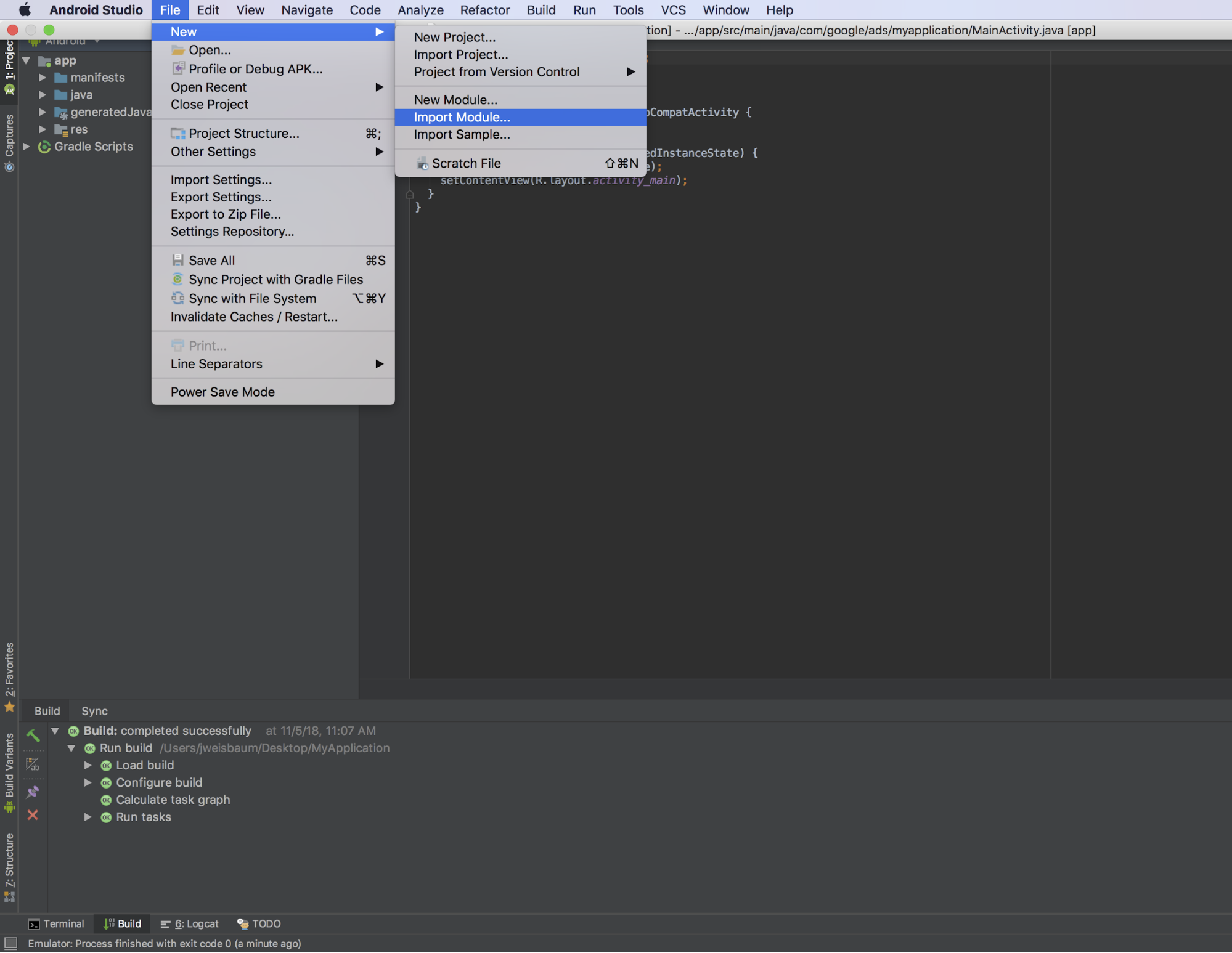
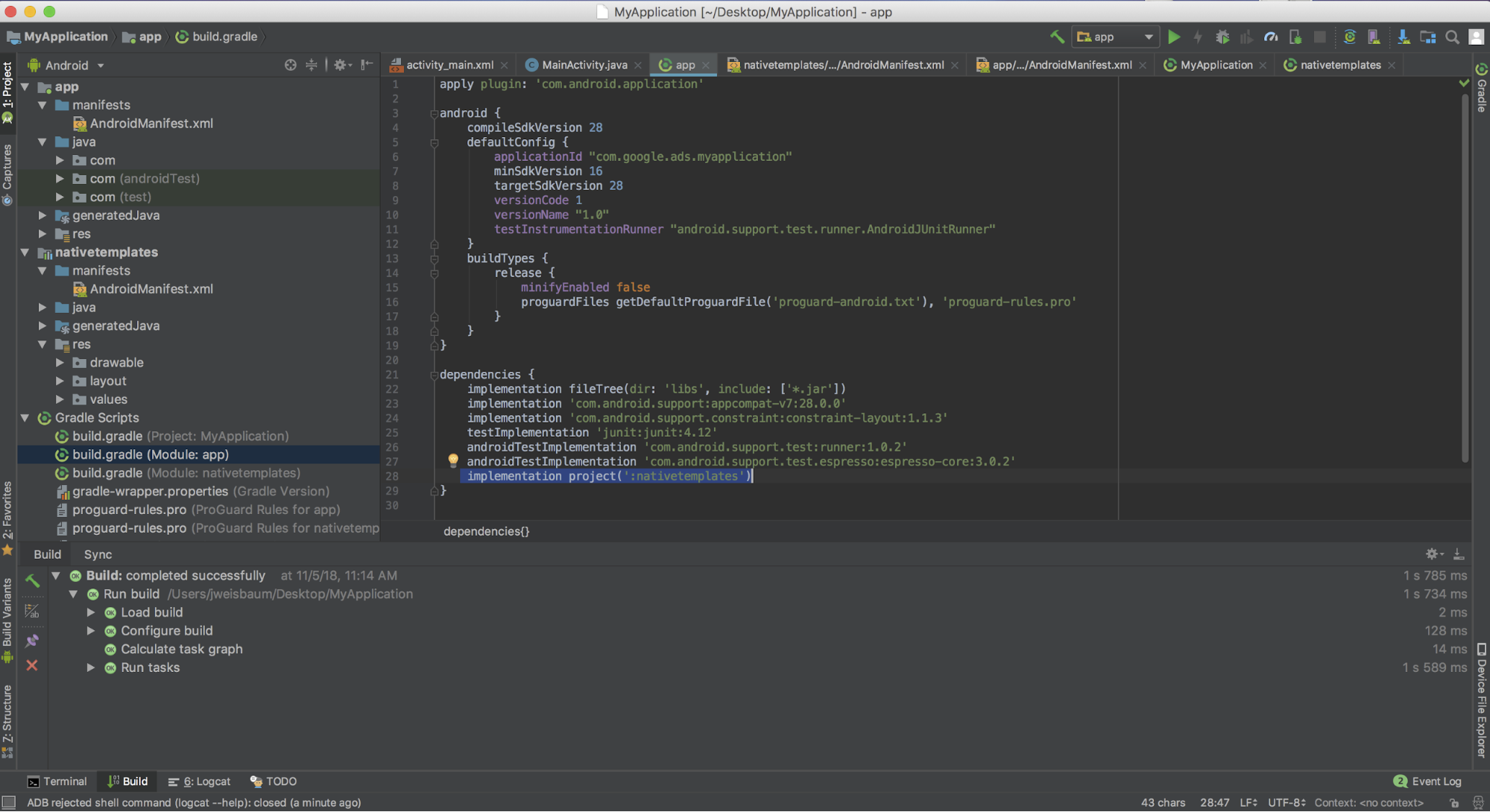
向您的应用级
build.gradle文件中添加下面这行代码:dependencies { ... implementation project(':nativetemplates') ... }
使用原生广告模板
与任何其他视图组一样,您可以在任何 XML 布局文件中使用该模板。
只需两步即可使用模板:
首先,您需要在布局中引入该模板。
<LinearLayout
   xmlns:android="http://schemas.android.com/apk/res/android"
   xmlns:app="http://schemas.android.com/apk/res-auto"
   xmlns:tools="http://schemas.android.com/tools"
   android:layout_width="match_parent"
   android:layout_height="match_parent"
   tools:context=".MainActivity"
   tools:showIn="@layout/activity_main" >

<!--  This is your template view -->
<com.google.android.ads.nativetemplates.TemplateView
   android:id="@+id/my_template"
   <!-- this attribute determines which template is used. The other option is
    @layout/gnt_medium_template_view -->
   app:gnt_template_type="@layout/gnt_small_template_view"
   android:layout_width="match_parent"
   android:layout_height="match_parent" />

...
</LinearLayout>
接着,您需要在原生广告加载完毕时,将其传递给模板:
MobileAds.initialize(this);
AdLoader adLoader = new AdLoader.Builder(this, "ca-app-pub-3940256099942544/2247696110")
    .forNativeAd(new NativeAd.OnNativeAdLoadedListener() {
        @Override
        public void onNativeAdLoaded(NativeAd nativeAd) {
            NativeTemplateStyle styles = new
              NativeTemplateStyle.Builder().withMainBackgroundColor(background).build();
            TemplateView template = findViewById(R.id.my_template);
            template.setStyles(styles);
            template.setNativeAd(nativeAd);
        }
     })
     .build();

adLoader.loadAd(new AdRequest.Builder().build());
样式字典键
您可以采用两种方式为模板设置样式:一是使用传统的 XML 布局文件,二是使用我们的 NativeTemplateStyle.Builder 对象。以上代码示例演示了如何使用 NativeTemplateStyle.Builder 对象设置主背景颜色;不过,我们也为您提供了多种其他选项。以下是所有可用的 Builder 方法。Builder 会返回一个 NativeTemplateStyle 对象,该对象将覆盖任何 XML 布局样式。XML 布局文件 gnt_small_template.xml 和 gnt_medium_template.xml 沿用了您所熟悉的 Android 样式参数,方便您快速上手。
| 用于设置原生广告模板样式的 Builder 方法 | |
|---|---|
withCallToActionTextTypeface
|
Typeface callToActionTextTypeface
号召性用语的字体。 |
withCallToActionTextSize
|
float callToActionTextSize
号召性用语文字的大小。 |
withCallToActionTypefaceColor
|
int callToActionTypefaceColor
号召性用语文字的颜色。 |
withCallToActionBackgroundColor
|
ColorDrawable callToActionBackgroundColor
号召性用语的背景颜色。 |
withPrimaryTextTypeface
|
Typeface primaryTextTypeface
第一行文字的字体。 |
withPrimaryTextSize
|
float primaryTextSize
第一行文字的大小。 |
withPrimaryTextTypefaceColor
|
int primaryTextTypefaceColor
第一行文字的颜色。 |
withPrimaryTextBackgroundColor
|
ColorDrawable primaryTextBackgroundColor
第一行文字的背景颜色。 |
withSecondaryTextTypeface
|
Typeface secondaryTextTypeface
第二行文字的字体。 |
withSecondaryTextSize
|
float secondaryTextSize
第二行文字的大小。 |
withSecondaryTextTypefaceColor
|
int secondaryTextTypefaceColor
第二行文字的颜色。 |
withSecondaryTextBackgroundColor
|
ColorDrawable secondaryTextBackgroundColor
第二行文字的背景颜色。 |
withTertiaryTextTypeface
|
Typeface tertiaryTextTypeface
第三行文字的字体。 |
withTertiaryTextSize
|
float tertiaryTextSize
第三行文字的大小。 |
withTertiaryTextTypefaceColor
|
int tertiaryTextTypefaceColor
第三行文字的颜色。 |
withTertiaryTextBackgroundColor
|
ColorDrawable tertiaryTextBackgroundColor
第三行文字的背景颜色。 |
withMainBackgroundColor
|
ColorDrawable mainBackgroundColor
主背景颜色。 |
参与
我们制作了原生广告模板来帮助您快速开发原生广告。期待您为我们的 GitHub 代码库做出贡献,助力我们增添新的模板或功能。欢迎提交拉取请求,我们会及时查看。