
แบนเนอร์แบบปรับขนาดได้ช่วยให้คุณระบุความกว้างของโฆษณาเพื่อกำหนดขนาดโฆษณาที่เหมาะสมได้ นอกจากนี้ แบนเนอร์แบบปรับขนาดได้ยังช่วยเพิ่มประสิทธิภาพให้สูงสุดด้วยการปรับขนาดโฆษณาให้เหมาะสมกับอุปกรณ์แต่ละประเภท แนวทางนี้จะช่วยให้คุณมีโอกาสปรับปรุงประสิทธิภาพ
แบนเนอร์แบบปรับขนาดได้ที่แทรกในบรรทัดมีขนาดใหญ่และสูงกว่าแบนเนอร์แบบปรับขนาดได้ที่ยึดตำแหน่งไว้ และใช้ความสูงที่ไม่ตายตัวแทนความสูงคงที่ แบนเนอร์แบบปรับขนาดได้ที่แทรกในบรรทัดมีความสูงที่ไม่ตายตัว และอาจครอบคลุมทั้งหน้าจอหรือมีความสูงสูงสุดที่คุณระบุ
คุณสามารถวางแบนเนอร์แบบปรับขนาดได้ที่แทรกในบรรทัดในเนื้อหาที่เลื่อนได้ เช่น
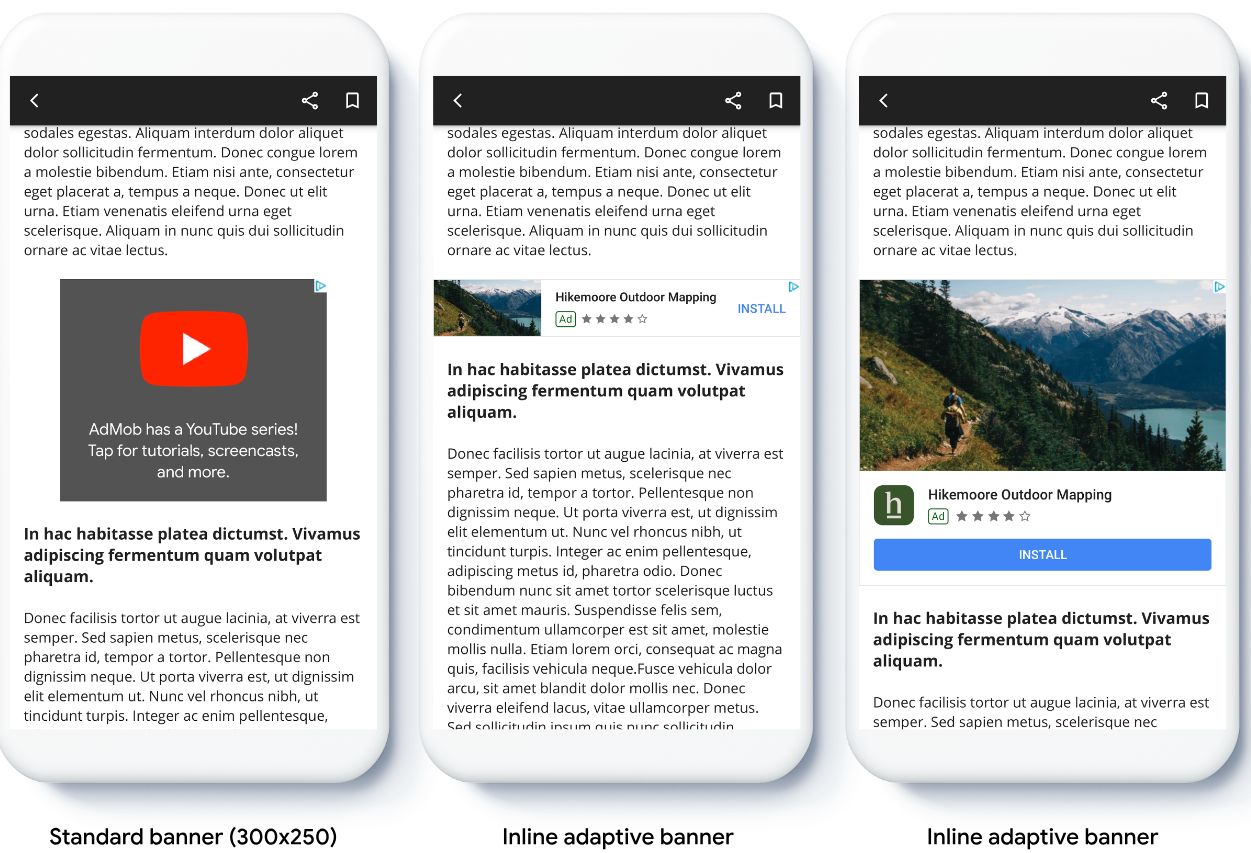
ก่อนเริ่มต้น
โปรดตรวจสอบว่าคุณได้ทำตามคู่มือเริ่มต้นใช้งาน โฆษณาแบนเนอร์แล้วก่อนดำเนินการต่อ
ติดตั้งใช้งานแบนเนอร์แบบปรับขนาดได้ที่แทรกในบรรทัด
ตัวอย่างต่อไปนี้แสดงขั้นตอนเหล่านี้
Kotlin
private fun loadAd() {
  // Create an inline adaptive ad size. 320 is a placeholder value.
  // Replace 320 with your banner container width.
  val adSize = AdSize.getCurrentOrientationInlineAdaptiveBannerAdSize(this, 320)

  // Step 1 - Create a BannerAdRequest object with ad unit ID and size.
  val adRequest = BannerAdRequest.Builder("AD_UNIT_ID", adSize).build()

  // Step 2 - Load the ad.
  BannerAd.load(
    adRequest,
    object : AdLoadCallback<BannerAd> {
      override fun onAdLoaded(ad: BannerAd) {
        // Assign the loaded ad to the BannerAd object.
        bannerAd = ad
        // Step 3 - Call BannerAd.getView() to get the View and add it
        // to view hierarchy on the UI thread.
        activity?.runOnUiThread {
          binding.bannerViewContainer.addView(ad.getView(requireActivity()))
        }
      }

      override fun onAdFailedToLoad(loadAdError: LoadAdError) {
        bannerAd = null
      }
    }
  )
}
Java
private void loadAd() {
  // Create an inline adaptive ad size. 320 is a placeholder value.
  // Replace 320 with your banner container width.
  AdSize adSize = AdSize.getCurrentOrientationInlineAdaptiveBannerAdSize(this, 320);

  // Step 1 - Create a BannerAdRequest object with ad unit ID and size.
  BannerAdRequest adRequest = new BannerAdRequest.Builder("AD_UNIT_ID",
      adSize).build();

  // Step 2 - Load the ad.
  BannerAd.load(
      adRequest,
      new AdLoadCallback<BannerAd>() {
        @Override
        public void onAdLoaded(@NonNull BannerAd ad) {
          // Assign the loaded ad to the BannerAd object.
          bannerAd = ad;
          // Step 3 - Call BannerAd.getView() to get the View and add it
          // to view hierarchy on the UI thread.
          if (getActivity() != null) {
            getActivity()
                .runOnUiThread(() ->
                    binding.bannerViewContainer.addView(ad.getView(getActivity())));
          }
        }

        @Override
        public void onAdFailedToLoad(@NonNull LoadAdError adError) {
          bannerAd = null;
        }
      });
}
เมื่อติดตั้งใช้งานแบนเนอร์แบบปรับขนาดได้ในแอป โปรดทราบประเด็นต่อไปนี้
- แบนเนอร์แบบปรับขนาดได้ที่แทรกในบรรทัดจะทำงานได้ดีที่สุดเมื่อใช้เต็มความกว้างที่มี โดยในกรณีส่วนใหญ่จะเป็นความกว้างแบบเต็มหน้าจอของอุปกรณ์ที่ใช้ หรือความกว้างแบบเต็มสำหรับเนื้อหาหลักของแบนเนอร์ คุณต้องทราบความกว้างของมุมมองที่จะวางโฆษณา ความกว้างของอุปกรณ์ ความกว้างของเนื้อหาหลัก และพื้นที่ปลอดภัยที่เกี่ยวข้อง
กำหนดขนาดแบนเนอร์แบบปรับขนาดได้ที่แทรกในบรรทัดตามแนว
หากต้องการโหลดโฆษณาแบนเนอร์แบบปรับขนาดได้ที่แทรกในบรรทัดล่วงหน้าสำหรับแนวที่เฉพาะเจาะจง ให้ใช้วิธีการต่อไปนี้
AdSize.getPortraitInlineAdaptiveBannerAdSize(Context context, int width)AdSize.getLandscapeInlineAdaptiveBannerAdSize(Context context, int width)
หากแอปของคุณรองรับทั้งมุมมองแนวตั้งและแนวนอน และคุณต้องการโหลด
โฆษณาแบนเนอร์แบบปรับขนาดได้ล่วงหน้าในแนวปัจจุบัน ให้ใช้
AdSize.getCurrentOrientationInlineAdaptiveBannerAdSize(Context context, int width)
วิธีนี้จะโหลดโฆษณาในแนวปัจจุบัน
จำกัดความสูงของแบนเนอร์แบบปรับขนาดได้ที่แทรกในบรรทัด
โดยค่าเริ่มต้น แบนเนอร์แบบปรับขนาดได้ที่แทรกในบรรทัดซึ่งสร้างขึ้นโดยไม่มีค่า maxHeight จะมี maxHeight เท่ากับความสูงของอุปกรณ์ หากต้องการจำกัดความสูงของแบนเนอร์แบบปรับขนาดได้ที่แทรกในบรรทัด ให้ใช้วิธี
AdSize.getInlineAdaptiveBannerAdSize(int width, int maxHeight)