
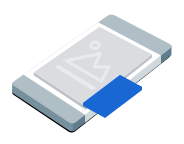
يتم عرض "إعلانات نافذة ضمن النافذة" في نافذة عائمة تظهر فوق المحتوى على الشاشة، مثل المقالات أو الخلاصات أو أسلوب اللعب. يتيح هذا الشكل للمستخدمين التفاعل مع تطبيقك بينما يظل الإعلان مرئيًا. اختَر هذا الشكل لعرض إعلانات صورية لا تظهر على الشاشة بأكملها. مزيد من المعلومات عن "الإعلانات ضمن النافذة"
يتناول هذا الدليل كيفية طلب "إعلانات ضمن النافذة" وعرضها في تطبيقك باستخدام GMA Next-Gen SDK.
قبل البدء
قبل المتابعة، عليك تنفيذ ما يلي:
ثبِّت الإصدار
1.4.0من GMA Next-Gen SDK أو إصدارًا أحدث.
فعِّل الإعلانات الاختبارية واستخدِم رقم تعريف الوحدة الإعلانية الاختبارية التالي:
ca-app-pub-3940256099942544/9657123429
تحميل إعلان
لتحميل عنصر
PictureInPictureAd،
أنشئ طلب إعلان واستدعِ طريقة التحميل:
Kotlin
جافا
استبدِل AD_UNIT_ID بمعرّف وحدتك الإعلانية.
عرض الإعلان
لعرض "الإعلان ضمن النافذة" على الشاشة، استخدِم طريقة العرض. يعرض المثال التالي الإعلان في الموضع التلقائي ويضبط نطاق العرض على الشاشة:
Kotlin
private fun showPictureInPictureAd(activity: Activity) {
  // Capture the ad reference saved from the onAdLoaded callback.
  val ad = pipAd
  if (ad != null) {
    val options =
      PictureInPictureAdOptions.Builder()
        // Uses the Google Mobile Ads SDK's default screen position.
        .setPosition(PictureInPictureAdPosition.DEFAULT)
        // Binds the ad lifecycle to the host screen.
        .setPresentationScope(PictureInPictureAdPresentationScope.SCREEN)
        .build()
    ad.show(activity, options)
  } else {
    Log.d(TAG, "No ad to show.")
  }
}
جافا
private void showPictureInPictureAd(@NonNull Activity activity) {
  // Use the ad reference saved from the onAdLoaded callback.
  if (pipAd != null) {
    PictureInPictureAdOptions options =
        new PictureInPictureAdOptions.Builder()
            // Uses the Google Mobile Ads SDK's default screen position.
            .setPosition(PictureInPictureAdPosition.DEFAULT)
            // Binds the ad lifecycle to the host screen.
            .setPresentationScope(PictureInPictureAdPresentationScope.SCREEN)
            .build();
    pipAd.show(activity, options);
  } else {
    Log.d(TAG, "No ad to show.");
  }
}
ضبط الموضع
يعرض GMA Next-Gen SDK تلقائيًا إعلانًا في "نافذة ضمن النافذة" في أسفل يسار الشاشة عند عرضه لأول مرة، أو في آخر موضع معروف إذا سبق عرضه. لتخصيص مكان ظهور الإعلان، حدِّد موضعًا عند عرض الإعلان. يضبط المثال التالي الموضع في أعلى المحتوى في أعلى يمين الشاشة:
Kotlin
private fun createTopLeftPositionOptions(): PictureInPictureAdOptions {
  return PictureInPictureAdOptions.Builder()
    // Sets the ad position to the top-left corner of the screen.
    .setPosition(PictureInPictureAdPosition.TOP_LEFT)
    .build()
}
جافا
private PictureInPictureAdOptions createTopLeftPositionOptions() {
  return new PictureInPictureAdOptions.Builder()
      // Sets the ad position to the top-left corner of the screen.
      .setPosition(PictureInPictureAdPosition.TOP_LEFT)
      .build();
}
للاطّلاع على جميع الوظائف المتاحة، يُرجى الانتقال إلى
PictureInPictureAdPosition.
ضبط نطاق العرض التقديمي
بشكل تلقائي، يربط GMA Next-Gen SDK إعلان "نافذة ضمن النافذة" بشاشة المضيف الحالية. يتم إغلاق الإعلان من خلال GMA Next-Gen SDK عندما لا تكون هيكلية طرق العرض في شاشة المضيف موجودة في الذاكرة. لإبقاء الإعلان مرئيًا بعد إزالة شاشة الاستضافة من الذاكرة، اضبط نطاق العرض على التطبيق:
Kotlin
private fun createApplicationScopedOptions(): PictureInPictureAdOptions {
  return PictureInPictureAdOptions.Builder()
    // Keeps the ad visible beyond the host screen's lifecycle.
    .setPresentationScope(PictureInPictureAdPresentationScope.APPLICATION)
    .build()
}
جافا
private PictureInPictureAdOptions createApplicationScopedOptions() {
  return new PictureInPictureAdOptions.Builder()
      // Keeps the ad visible beyond the host screen's lifecycle.
      .setPresentationScope(PictureInPictureAdPresentationScope.APPLICATION)
      .build();
}
لمزيد من المعلومات، يُرجى الاطّلاع على مقالة إبقاء الإعلان مرئيًا على جميع الشاشات.
الاستماع إلى أحداث الإعلانات
للتعامل مع أحداث يتم في مراحل نشاط الإعلان في ميزة "نافذة ضمن النافذة"، عليك التسجيل في أحداث الإعلانات قبل عرض إعلانك. تُبلغ هذه الأحداث عن التفاعلات مع الإعلانات، مثل النقرات ومرّات الظهور. تُبلغ هذه الأحداث أيضًا عن أحداث خاصة بميزة "نافذة ضمن النافذة"، مثل وقت عرض الإعلان أو إخفائه:
Kotlin
private fun setAdEventCallback(pipAd: PictureInPictureAd) {
  pipAd.adEventCallback =
    object : PictureInPictureAdEventCallback {
      override fun onAdShown() {
        Log.d(TAG, "Picture-in-Picture ad shown.")
      }

      override fun onAdHidden() {
        Log.d(TAG, "Picture-in-Picture ad hidden.")
      }

      override fun onAdImpression() {
        Log.d(TAG, "Picture-in-Picture ad recorded an impression.")
      }

      override fun onAdClicked() {
        Log.d(TAG, "Picture-in-Picture ad recorded a click.")
      }

      override fun onAdShowedFullScreenContent() {
        Log.d(TAG, "Picture-in-Picture ad showed full screen content.")
      }

      override fun onAdDismissedFullScreenContent() {
        Log.d(TAG, "Picture-in-Picture ad dismissed full screen content.")
      }

      override fun onAdFailedToShowFullScreenContent(
        fullScreenContentError: FullScreenContentError
      ) {
        Log.w(
          TAG,
          "Picture-in-Picture ad failed to show full screen content: $fullScreenContentError",
        )
      }

      override fun onAdPaid(value: AdValue) {
        Log.d(TAG, "Picture-in-Picture ad paid: ${value.valueMicros} ${value.currencyCode}")
      }
    }
}
جافا
private void setAdEventCallback(@NonNull PictureInPictureAd pipAd) {
  pipAd.setAdEventCallback(
      new PictureInPictureAdEventCallback() {
        @Override
        public void onAdShown() {
          Log.d(TAG, "Picture-in-Picture ad shown.");
        }

        @Override
        public void onAdHidden() {
          Log.d(TAG, "Picture-in-Picture ad hidden.");
        }

        @Override
        public void onAdImpression() {
          Log.d(TAG, "Picture-in-Picture ad recorded an impression.");
        }

        @Override
        public void onAdClicked() {
          Log.d(TAG, "Picture-in-Picture ad recorded a click.");
        }

        @Override
        public void onAdShowedFullScreenContent() {
          Log.d(TAG, "Picture-in-Picture ad showed full screen content.");
        }

        @Override
        public void onAdDismissedFullScreenContent() {
          Log.d(TAG, "Picture-in-Picture ad dismissed full screen content.");
        }

        @Override
        public void onAdFailedToShowFullScreenContent(
            @NonNull FullScreenContentError fullScreenContentError) {
          Log.w(
              TAG,
              "Picture-in-Picture ad failed to show full screen content: "
                  + fullScreenContentError);
        }

        @Override
        public void onAdPaid(@NonNull AdValue value) {
          Log.d(
              TAG,
              "Picture-in-Picture ad paid: "
                  + value.getValueMicros()
                  + " "
                  + value.getCurrencyCode());
        }
      });
}
إخفاء الإعلان
لإزالة الإعلان العائم من الشاشة، يمكنك استدعاء طريقة الإخفاء. تستدعي هذه الطريقة حدث إخفاء الإعلان:
Kotlin
private fun hidePictureInPictureAd() {
  // Capture the ad reference saved from the onAdLoaded callback.
  val ad = pipAd
  if (ad != null) {
    ad.hide()
  } else {
    Log.d(TAG, "No ad to hide.")
  }
}
جافا
private void hidePictureInPictureAd() {
  // Use the ad reference saved from the onAdLoaded callback.
  if (pipAd != null) {
    pipAd.hide();
  } else {
    Log.d(TAG, "No ad to hide.");
  }
}
حذف موارد الإعلانات
لتجنُّب تسرُّب الذاكرة، تخلَّص من مرجعك إلى عنصر الإعلان عندما ينتهي تطبيقك من استخدام الإعلان. على سبيل المثال، عندما يتوقف تطبيقك عن عرض الإعلان أو التفاعل معه مرة أخرى. بالنسبة إلى الإعلانات على مستوى الشاشة، يمكنك تجاهل المرجع عندما يزيل تطبيقك الشاشة المضيفة من الذاكرة. بالنسبة إلى الإعلانات على مستوى التطبيق، احتفِظ بمرجع الإعلان أثناء تنقّل المستخدم بين الشاشات، وأسقِط المرجع عندما يغلق المستخدم الإعلان:
Kotlin
private fun cleanUpPictureInPictureAd() {
  pipAd?.destroy()
  pipAd = null
}
جافا
private void cleanUpPictureInPictureAd() {
  // Use the ad reference saved from the onAdLoaded callback.
  if (pipAd != null) {
    pipAd.destroy();
    pipAd = null;
  }
}
إبقاء الإعلان مرئيًا على جميع الشاشات
عند ضبط نطاق العرض التقديمي على التطبيق، يظل الإعلان في "نافذة ضمن النافذة" مرئيًا حتى عندما يزيل تطبيقك شاشة الاستضافة من الذاكرة. للتفاعل مع الإعلان أو إغلاقه عندما ينتقل المستخدم بعيدًا عن الشاشة المضيفة، يجب أن يحتفظ تطبيقك بإمكانية الوصول إلى الإعلان في "نافذة ضمن النافذة". ننصحك بالاحتفاظ بالإعلان في فئة أحادية على مستوى التطبيق أو في مدير حالة مشترَك بدلاً من متغيّر مثيل لشاشة واحدة.
للاطّلاع على أمثلة حول كيفية إبقاء الإعلان مرئيًا على جميع الشاشات، يمكنك مراجعة نماذج التطبيقات التالية: