
IMA SDK を使用すると、ウェブサイトやアプリにマルチメディア広告を簡単に統合できます。IMA SDK は、 VAST 準拠のあらゆる広告サーバーから広告をリクエストし、アプリでの広告再生を管理できます。IMA クライアントサイド SDK を使用すると、コンテンツ動画の再生を制御しながら、SDK で広告の再生を処理できます。広告は、アプリのコンテンツ動画プレーヤーの上に配置された別の動画プレーヤーで再生されます。
このガイドでは、IMA SDK を動画プレーヤー アプリに統合する方法について説明します。完成した統合のサンプルを表示または実行する場合は、GitHub から BasicExample をダウンロードしてください。
IMA クライアントサイドの概要
IMA クライアントサイドの実装には、このガイドで説明する 4 つの主要な SDK コンポーネントが含まれます。
IMAAdDisplayContainer: IMA が広告の UI 要素をレンダリングし、アクティブ ビューやオープン測定などの視認性を測定する場所を指定するコンテナ オブジェクト。IMAAdsLoader: 広告をリクエストし、広告リクエスト レスポンスからイベントを処理するオブジェクト。広告ローダは 1 つだけインスタンス化し、アプリのライフサイクル全体で再利用する必要があります。IMAAdsRequest: 広告リクエストを定義するオブジェクト。広告リクエストでは、VAST 広告タグの URL と、広告のサイズなどの追加パラメータを指定します。IMAAdsManager: 広告リクエストに対するレスポンスを含み、広告の再生を制御し、SDK によって発生した広告イベントをリッスンするオブジェクト。
前提条件
始める前に、次のものが必要になります。
- Xcode 13 以降
- Swift パッケージ マネージャー、CocoaPods、または tvOS 用 IMA SDK のダウンロード コピー
1. 新しい Xcode プロジェクトを作成する
Xcode で、Objective-C または Swift を使用して新しい tvOS プロジェクトを作成します。プロジェクト名として BasicExample を使用します。
2. Xcode プロジェクトに IMA SDK を追加する
Swift Package Manager を使用して IMA SDK をインストールする
Interactive Media Ads SDK はバージョン 4.8.2 から Swift Package Manager に対応しています。Swift パッケージをインポートする手順は次のとおりです。
Xcode で File > Add Packages... を開き、IMA SDK の Swift パッケージをインストールします。
表示されたプロンプトで、IMA SDK Swift パッケージの GitHub リポジトリ(下記)を検索します。
https://github.com/googleads/swift-package-manager-google-interactive-media-ads-tvos使用する IMA SDK Swift パッケージのバージョンを選択します。新しいプロジェクトの場合は [Up to Next Major Version] を選択することをおすすめします。
完了すると、Xcode はパッケージの依存関係を解決し、バックグラウンドでダウンロードします。パッケージの依存関係の追加について詳しくは、Apple の記事を参照してください。
CocoaPods を使用して IMA SDK をインストールする
IMA SDK をインストールするには、CocoaPods を使用します。CocoaPods のインストールと使用の詳細については、CocoaPods のドキュメントをご覧ください。CocoaPods をインストールしたら、次の操作を行います。
BasicExample.xcodeproj ファイルと同じディレクトリに、Podfile という名前のテキスト ファイルを作成し、次の構成を追加します。
source 'https://github.com/CocoaPods/Specs.git' platform :tvos, '15' target "BasicExample" do pod 'GoogleAds-IMA-tvOS-SDK', '~> 4.16.0' endPodfile が含まれているディレクトリから、
pod install --repo-updateを実行します。BasicExample.xcworkspace ファイルを開き、BasicExample と Pods(CocoaPods によってインストールされた依存関係)の 2 つのプロジェクトが含まれていることを確認して、インストールが正常に完了したことを確認します。
IMA SDK を手動でダウンロードしてインストールする
CocoaPods を使用しない場合は、IMA SDK をダウンロードして、プロジェクトに手動で追加できます。
手順の表示と非表示を切り替える
- tvOS IMA ダウンロード ページから、tvOS IMA SDK の最新バージョンをダウンロードして解凍します。
- BasicExample.xcodeproj を開きます。
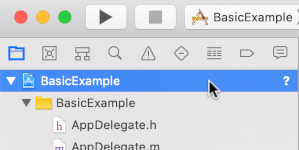
- 左側のペインで、プロジェクト名をクリックします。
- 中央のペインで [Build Phases] をクリックします。
![Xcode で [Build Phases] タブを選択する](https://google-developers.gonglchuangl.net/static/interactive-media-ads/images/tvos-2-4-build-phases.png?authuser=4&hl=ja)
- [Link Binary With Libraries] セクションを開きます。
- ライブラリ リストの下部にあるプラス アイコン [+] をクリックします。
- [その他を追加] をクリックします。
- ダウンロードした SDK を解凍したディレクトリで、GoogleInteractiveMediaAds.framework を選択し、[開く] をクリックします。
- ライブラリ リストの下部にあるプラスアイコン [+] をもう一度クリックします。
- [ステータス] 列で、
GoogleInteractiveMediaAds.frameworkがRequiredに設定されていることを確認します。 - ビルド設定に
-ObjCリンカーフラグを含めます。詳しくは、 Apple QA1490 をご覧ください。
3. IMA SDK をインポートする
import ステートメントを使用して IMA フレームワークを追加します。
Objective-C
#import "ViewController.h"
#import <AVKit/AVKit.h>
@import GoogleInteractiveMediaAds;
Swift
import AVFoundation
import GoogleInteractiveMediaAds
import UIKit
4. 動画プレーヤーを作成して IMA SDK を統合する
次の例では、IMA SDK を初期化しています。
Objective-C
NSString *const kContentURLString =
@"https://storage.googleapis.com/interactive-media-ads/media/stock.mp4";
NSString *const kAdTagURLString =
@"https://pubads.g.doubleclick.net/gampad/ads?"
@"iu=/21775744923/external/vmap_ad_samples&sz=640x480&"
@"cust_params=sample_ar%3Dpremidpostlongpod&ciu_szs=300x250&gdfp_req=1&ad_rule=1&"
@"output=vmap&unviewed_position_start=1&env=vp&cmsid=496&vid=short_onecue&correlator=";
@interface ViewController () <IMAAdsLoaderDelegate, IMAAdsManagerDelegate>
@property(nonatomic) IMAAdsLoader *adsLoader;
@property(nonatomic) IMAAdDisplayContainer *adDisplayContainer;
@property(nonatomic) IMAAdsManager *adsManager;
@property(nonatomic) IMAAVPlayerContentPlayhead *contentPlayhead;
@property(nonatomic) AVPlayerViewController *contentPlayerViewController;
@property(nonatomic, getter=isAdBreakActive) BOOL adBreakActive;
@end
@implementation ViewController
- (void)viewDidLoad {
[super viewDidLoad];
self.view.backgroundColor = [UIColor blackColor];
[self setupAdsLoader];
[self setupContentPlayer];
}
- (void)viewDidAppear:(BOOL)animated {
[super viewDidAppear:animated];
[self requestAds];
}
// Add the content video player as a child view controller.
- (void)showContentPlayer {
[self addChildViewController:self.contentPlayerViewController];
self.contentPlayerViewController.view.frame = self.view.bounds;
[self.view insertSubview:self.contentPlayerViewController.view atIndex:0];
[self.contentPlayerViewController didMoveToParentViewController:self];
}
// Remove and detach the content video player.
- (void)hideContentPlayer {
// The whole controller needs to be detached so that it doesn't capture resume events from the
// remote and play content underneath the ad.
[self.contentPlayerViewController willMoveToParentViewController:nil];
[self.contentPlayerViewController.view removeFromSuperview];
[self.contentPlayerViewController removeFromParentViewController];
}
Swift
class ViewController: UIViewController, IMAAdsLoaderDelegate, IMAAdsManagerDelegate {
static let contentURLString =
"https://devstreaming-cdn.apple.com/videos/streaming/examples/"
+ "img_bipbop_adv_example_fmp4/master.m3u8"
static let adTagURLString =
"https://pubads.g.doubleclick.net/gampad/ads?iu=/21775744923/external/single_ad_samples&"
+ "sz=640x480&cust_params=sample_ct%3Dlinear&ciu_szs=300x250%2C728x90&gdfp_req=1&output=vast&"
+ "unviewed_position_start=1&env=vp&correlator="
var adsLoader: IMAAdsLoader!
var adDisplayContainer: IMAAdDisplayContainer!
var adsManager: IMAAdsManager!
var contentPlayhead: IMAAVPlayerContentPlayhead?
var playerViewController: AVPlayerViewController!
var adBreakActive = false
deinit {
NotificationCenter.default.removeObserver(self)
}
override func viewDidLoad() {
super.viewDidLoad()
self.view.backgroundColor = UIColor.black
setUpContentPlayer()
setUpAdsLoader()
}
override func viewDidAppear(_ animated: Bool) {
super.viewDidAppear(animated)
requestAds()
}
この例では、viewDidLoad() は IMAAdsLoader を初期化し、viewDidAppear() はビューが表示されたら広告をリクエストします。ヘルパー メソッド showContentPlayer() と hideContentPlayer() は、広告再生中にコンテンツの表示 / 非表示を切り替えます。
この例では、adTagURLString 定数変数を使用して広告リクエストの VAST 広告タグを定義し、次のコンポーネントを使用して IMA SDK を管理します。
adsLoader: 広告リクエストとレスポンスを処理します。アプリのライフサイクル全体で単一のインスタンスを使用することをおすすめします。adDisplayContainer: 広告をレンダリングするビューを指定します。adsManager: 広告の再生を管理し、広告イベントをリッスンします。contentPlayhead: コンテンツの進行状況を追跡して、ミッドロール広告ブレークをトリガーします。adBreakActive: 広告をスキップできないように、広告ブレークが再生中かどうかを示します。
5. コンテンツの再生ヘッド トラッカーとストリーム終了オブザーバーを実装する
ミッドロール広告を再生するには、IMA SDK で動画コンテンツの現在の位置をトラッキングする必要があります。そのためには、IMAContentPlayhead を実装するクラスを作成します。この例に示すように AVPlayer を使用している場合、SDK はこの処理を行う IMAAVPlayerContentPlayhead クラスを提供します。AVPlayer を使用していない場合は、独自のクラスに IMAContentPlayhead を実装する必要があります。
Objective-C
- (void)setupContentPlayer {
// Create a content video player. Create a playhead to track content progress so the SDK knows
// when to play ads in a VMAP playlist.
NSURL *contentURL = [NSURL URLWithString:kContentURLString];
AVPlayer *player = [AVPlayer playerWithURL:contentURL];
self.contentPlayerViewController = [[AVPlayerViewController alloc] init];
self.contentPlayerViewController.player = player;
self.contentPlayerViewController.view.frame = self.view.bounds;
self.contentPlayhead =
[[IMAAVPlayerContentPlayhead alloc] initWithAVPlayer:self.contentPlayerViewController.player];
// Track end of content.
AVPlayerItem *contentPlayerItem = self.contentPlayerViewController.player.currentItem;
[[NSNotificationCenter defaultCenter] addObserver:self
selector:@selector(contentDidFinishPlaying:)
name:AVPlayerItemDidPlayToEndTimeNotification
object:contentPlayerItem];
// Attach content video player to view hierarchy.
[self showContentPlayer];
}
Swift
func setUpContentPlayer() {
// Load AVPlayer with path to our content.
let contentURL = URL(string: ViewController.contentURLString)!
let player = AVPlayer(url: contentURL)
playerViewController = AVPlayerViewController()
playerViewController.player = player
// Set up our content playhead and contentComplete callback.
contentPlayhead = IMAAVPlayerContentPlayhead(avPlayer: player)
NotificationCenter.default.addObserver(
self,
selector: #selector(ViewController.contentDidFinishPlaying(_:)),
name: NSNotification.Name.AVPlayerItemDidPlayToEndTime,
object: player.currentItem)
showContentPlayer()
}
また、コンテンツの再生が終了したときに SDK に通知して、ポストロール広告を表示できるようにする必要があります。これを行うには、AVPlayerItemDidPlayToEndTimeNotification を使用して IMAAdsLoader で contentComplete を呼び出します。
Objective-C
- (void)contentDidFinishPlaying:(NSNotification *)notification {
// Notify the SDK that the postrolls should be played.
[self.adsLoader contentComplete];
}
- (void)dealloc {
[[NSNotificationCenter defaultCenter] removeObserver:self];
}
Swift
@objc func contentDidFinishPlaying(_ notification: Notification) {
adsLoader.contentComplete()
}
6. 広告ローダを初期化して広告リクエストを行う
広告セットをリクエストするには、IMAAdsLoader インスタンスを作成する必要があります。このローダーは、指定された広告タグ URL に関連付けられた IMAAdsRequest オブジェクトを処理するために使用できます。
ベスト プラクティスとして、アプリのライフサイクル全体で IMAAdsLoader のインスタンスを 1 つだけ維持します。追加の広告リクエストを行うには、新しい IMAAdsRequest オブジェクトを作成しますが、同じ IMAAdsLoader を再利用します。詳しくは、IMA SDK のよくある質問をご覧ください。
Objective-C
- (void)setupAdsLoader {
self.adsLoader = [[IMAAdsLoader alloc] init];
self.adsLoader.delegate = self;
}
- (void)requestAds {
// Pass the main view as the container for ad display.
self.adDisplayContainer = [[IMAAdDisplayContainer alloc] initWithAdContainer:self.view
viewController:self];
IMAAdsRequest *request = [[IMAAdsRequest alloc] initWithAdTagUrl:kAdTagURLString
adDisplayContainer:self.adDisplayContainer
contentPlayhead:self.contentPlayhead
userContext:nil];
[self.adsLoader requestAdsWithRequest:request];
}
Swift
func setUpAdsLoader() {
adsLoader = IMAAdsLoader(settings: nil)
adsLoader.delegate = self
}
func requestAds() {
// Create ad display container for ad rendering.
adDisplayContainer = IMAAdDisplayContainer(adContainer: self.view, viewController: self)
// Create an ad request with our ad tag, display container, and optional user context.
let request = IMAAdsRequest(
adTagUrl: ViewController.adTagURLString,
adDisplayContainer: adDisplayContainer,
contentPlayhead: contentPlayhead,
userContext: nil)
adsLoader.requestAds(with: request)
}
7. 広告ローダのデリゲートを設定する
読み込みイベントが成功すると、IMAAdsLoader は割り当てられたデリゲートの adsLoadedWithData メソッドを呼び出し、IMAAdsManager のインスタンスを渡します。その後、広告タグ URL のレスポンスで定義された個々の広告を読み込む広告マネージャーを初期化できます。
また、読み込みプロセス中に発生する可能性のあるエラーを処理してください。広告が読み込まれない場合は、ユーザー エクスペリエンスを妨げないように、広告なしでメディアの再生が継続されるようにしてください。
Objective-C
#pragma mark - IMAAdsLoaderDelegate
- (void)adsLoader:(IMAAdsLoader *)loader adsLoadedWithData:(IMAAdsLoadedData *)adsLoadedData {
// Initialize and listen to the ads manager loaded for this request.
self.adsManager = adsLoadedData.adsManager;
self.adsManager.delegate = self;
[self.adsManager initializeWithAdsRenderingSettings:nil];
}
- (void)adsLoader:(IMAAdsLoader *)loader failedWithErrorData:(IMAAdLoadingErrorData *)adErrorData {
// Fall back to playing content.
NSLog(@"Error loading ads: %@", adErrorData.adError.message);
[self.contentPlayerViewController.player play];
}
Swift
func adsLoader(_ loader: IMAAdsLoader, adsLoadedWith adsLoadedData: IMAAdsLoadedData) {
// Grab the instance of the IMAAdsManager and set ourselves as the delegate.
adsManager = adsLoadedData.adsManager
adsManager.delegate = self
adsManager.initialize(with: nil)
}
func adsLoader(_ loader: IMAAdsLoader, failedWith adErrorData: IMAAdLoadingErrorData) {
print("Error loading ads: \(adErrorData.adError.message ?? "No error message available.")")
showContentPlayer()
playerViewController.player?.play()
}
8. 広告マネージャーの代理人を設定する
最後に、イベントと状態の変化を管理するために、広告マネージャーには独自のデリゲートが必要です。IMAAdManagerDelegate には、広告イベントとエラーを処理するメソッドと、動画コンテンツの再生と一時停止をトリガーするメソッドがあります。
再生を開始しています
didReceiveAdEvent メソッドを使用して処理できるイベントは多数あります。この基本的な例では、LOADED イベントをリッスンして、コンテンツと広告の再生を開始するよう広告マネージャーに指示します。IMA SDK は、ユーザーがアイコンをタップした後、アイコン フォールバック ダイアログを閉じると、ICON_FALLBACK_IMAGE_CLOSED イベントをトリガーします。このアクションの後、広告の再生が再開されます。
Objective-C
#pragma mark - IMAAdsManagerDelegate
- (void)adsManager:(IMAAdsManager *)adsManager didReceiveAdEvent:(IMAAdEvent *)event {
switch (event.type) {
case kIMAAdEvent_LOADED: {
// Play each ad once it has loaded.
[adsManager start];
break;
}
case kIMAAdEvent_ICON_FALLBACK_IMAGE_CLOSED: {
// Resume ad after user has closed dialog.
[adsManager resume];
break;
}
default:
break;
}
}
Swift
func adsManager(_ adsManager: IMAAdsManager, didReceive event: IMAAdEvent) {
switch event.type {
case IMAAdEventType.LOADED:
// Play each ad once it has been loaded.
adsManager.start()
case IMAAdEventType.ICON_FALLBACK_IMAGE_CLOSED:
// Resume playback after the user has closed the dialog.
adsManager.resume()
default:
break
}
}
エラー処理
広告エラーのハンドラも追加します。前の手順と同様にエラーが発生した場合は、コンテンツの再生を再開します。
Objective-C
- (void)adsManager:(IMAAdsManager *)adsManager didReceiveAdError:(IMAAdError *)error {
// Fall back to playing content.
NSLog(@"AdsManager error: %@", error.message);
[self showContentPlayer];
[self.contentPlayerViewController.player play];
}
Swift
func adsManager(_ adsManager: IMAAdsManager, didReceive error: IMAAdError) {
// Fall back to playing content
print("AdsManager error: \(error.message ?? "No error message available.")")
showContentPlayer()
playerViewController.player?.play()
}
再生イベントと一時停止イベントをトリガーする
実装する必要がある最後の 2 つのデリゲート メソッドは、IMA SDK からリクエストされたときに、基盤となる動画コンテンツの再生イベントと一時停止イベントをトリガーするために使用されます。リクエストに応じて一時停止と再生をトリガーすることで、広告が表示されたときにユーザーが動画コンテンツの一部を見逃すのを防ぎます。
Objective-C
- (void)adsManagerDidRequestContentPause:(IMAAdsManager *)adsManager {
// Pause the content for the SDK to play ads.
[self.contentPlayerViewController.player pause];
[self hideContentPlayer];
// Trigger an update to send focus to the ad display container.
self.adBreakActive = YES;
[self setNeedsFocusUpdate];
}
- (void)adsManagerDidRequestContentResume:(IMAAdsManager *)adsManager {
// Resume the content since the SDK is done playing ads (at least for now).
[self showContentPlayer];
[self.contentPlayerViewController.player play];
// Trigger an update to send focus to the content player.
self.adBreakActive = NO;
[self setNeedsFocusUpdate];
}
Swift
func adsManagerDidRequestContentPause(_ adsManager: IMAAdsManager) {
// Pause the content for the SDK to play ads.
playerViewController.player?.pause()
hideContentPlayer()
// Trigger an update to send focus to the ad display container.
adBreakActive = true
setNeedsFocusUpdate()
}
func adsManagerDidRequestContentResume(_ adsManager: IMAAdsManager) {
// Resume the content since the SDK is done playing ads (at least for now).
showContentPlayer()
playerViewController.player?.play()
// Trigger an update to send focus to the content player.
adBreakActive = false
setNeedsFocusUpdate()
}
これで、これで、IMA SDK を使用して広告をリクエストし、表示できるようになりました。その他の SDK 機能については、他のガイドまたは GitHub のサンプルをご覧ください。
次のステップ
tvOS プラットフォームで広告収益を最大化するには、IDFA を使用するための App Transparency and Tracking の権限をリクエストします。