
IMA SDK ช่วยให้ผสานรวมโฆษณามัลติมีเดียเข้ากับเว็บไซต์และแอปได้อย่างง่ายดาย IMA SDK สามารถ ขอโฆษณาจากเซิร์ฟเวอร์โฆษณา ที่รองรับ VAST และจัดการการเล่นโฆษณาในแอปได้ เมื่อใช้ SDK ฝั่งไคลเอ็นต์ของ IMA คุณจะควบคุมการเล่นวิดีโอเนื้อหาได้ ในขณะที่ SDK จะจัดการการเล่นโฆษณา โฆษณาจะเล่นในวิดีโอเพลเยอร์ แยกต่างหากซึ่งวางอยู่เหนือวิดีโอเพลเยอร์เนื้อหาของแอป
คู่มือนี้แสดงวิธีผสานรวม IMA SDK เข้ากับแอปโปรแกรมเล่นวิดีโอ หากต้องการดูหรือทำตามตัวอย่างการผสานรวมที่เสร็จสมบูรณ์แล้ว ให้ดาวน์โหลด BasicExample จาก GitHub
ภาพรวมฝั่งไคลเอ็นต์ของ IMA
การใช้ IMA ฝั่งไคลเอ็นต์เกี่ยวข้องกับคอมโพเนนต์ SDK หลัก 4 รายการ ซึ่งแสดงไว้ในคู่มือนี้
IMAAdDisplayContainer: ออบเจ็กต์คอนเทนเนอร์ที่ระบุตําแหน่งที่ IMA แสดงองค์ประกอบ UI ของโฆษณาและวัดการมองเห็นโฆษณา รวมถึงมุมมองแอ็กทีฟและ Open MeasurementIMAAdsLoader: ออบเจ็กต์ที่ขอโฆษณาและจัดการเหตุการณ์จากการตอบกลับคำขอโฆษณา คุณควร สร้างอินสแตนซ์ของ AdsLoader เพียงรายการเดียว ซึ่งสามารถนำกลับมาใช้ใหม่ได้ตลอดอายุการใช้งานของแอปพลิเคชันIMAAdsRequest: ออบเจ็กต์ที่กำหนดคำขอโฆษณา คำขอโฆษณาระบุ URL สำหรับแท็กโฆษณา VAST รวมถึง พารามิเตอร์เพิ่มเติม เช่น ขนาดโฆษณาIMAAdsManager: ออบเจ็กต์ที่มีการตอบกลับคำขอโฆษณา ควบคุมการเล่นโฆษณา และรอฟังเหตุการณ์โฆษณา ที่ SDK เรียกใช้
ข้อกำหนดเบื้องต้น
ก่อนเริ่มต้น คุณต้องมีสิ่งต่อไปนี้
- Xcode 13 ขึ้นไป
- Swift Package Manager, CocoaPods หรือ สำเนาที่ดาวน์โหลดของ IMA SDK สำหรับ tvOS
1. สร้างโปรเจ็กต์ Xcode ใหม่
สร้างโปรเจ็กต์ tvOS ใหม่ใน Xcode โดยใช้ Objective-C หรือ Swift ใช้ BasicExample เป็นชื่อโปรเจ็กต์
2. เพิ่ม IMA SDK ลงในโปรเจ็กต์ Xcode
ติดตั้ง IMA SDK โดยใช้ Swift Package Manager
Interactive Media Ads SDK รองรับ Swift Package Manager ตั้งแต่เวอร์ชัน 4.8.2 เป็นต้นไป ทำตาม ขั้นตอนต่อไปนี้เพื่อนำเข้าแพ็กเกจ Swift
ใน Xcode ให้ติดตั้งแพ็กเกจ Swift ของ IMA SDK โดยไปที่File > Add Packages...
ในพรอมต์ที่ปรากฏขึ้น ให้ค้นหาที่เก็บ IMA SDK Swift Package GitHub
https://github.com/googleads/swift-package-manager-google-interactive-media-ads-tvosเลือกเวอร์ชันของแพ็กเกจ Swift ของ IMA SDK ที่ต้องการใช้ สำหรับโปรเจ็กต์ใหม่ เราขอแนะนำให้ใช้อัปเดตเป็นเวอร์ชันหลักถัดไป
เมื่อดำเนินการเสร็จแล้ว Xcode จะแก้ไขการขึ้นต่อกันของแพ็กเกจและดาวน์โหลดไว้ในเบื้องหลัง ดูรายละเอียดเพิ่มเติมเกี่ยวกับวิธีเพิ่มการอ้างอิงแพ็กเกจได้ในบทความของ Apple
ติดตั้ง IMA SDK โดยใช้ CocoaPods
หากต้องการติดตั้ง IMA SDK ให้ใช้ CocoaPods ดูข้อมูลเพิ่มเติมเกี่ยวกับการติดตั้งหรือการใช้ CocoaPods ได้ที่เอกสารประกอบสำหรับ CocoaPods หลังจาก ติดตั้ง CocoaPods แล้ว ให้ทำดังนี้
ในไดเรกทอรีเดียวกับไฟล์ BasicExample.xcodeproj ให้สร้างไฟล์ข้อความ ชื่อ Podfile แล้วเพิ่มการกำหนดค่าต่อไปนี้
source 'https://github.com/CocoaPods/Specs.git' platform :tvos, '15' target "BasicExample" do pod 'GoogleAds-IMA-tvOS-SDK', '~> 4.16.0' endจากไดเรกทอรีที่มี Podfile ให้เรียกใช้
pod install --repo-updateยืนยันว่าการติดตั้งสำเร็จโดยเปิดไฟล์ BasicExample.xcworkspace แล้วตรวจสอบว่ามี 2 โปรเจ็กต์ ได้แก่ BasicExample และ Pods (ทรัพยากร Dependency ที่ติดตั้งโดย CocoaPods)
การดาวน์โหลดและติดตั้ง IMA SDK ด้วยตนเอง
หากไม่ต้องการใช้ CocoaPods คุณสามารถดาวน์โหลด IMA SDK และเพิ่มลงในโปรเจ็กต์ด้วยตนเองได้
แสดง/ซ่อนวิธีการ
- จาก หน้าดาวน์โหลด tvOS IMA ให้ดาวน์โหลดและแตกไฟล์ tvOS IMA SDK เวอร์ชันล่าสุด
- เปิด BasicExample.xcodeproj
- คลิกชื่อโปรเจ็กต์ในแผงด้านซ้าย
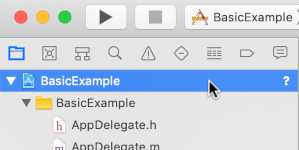
- คลิกBuild Phases ในแผงตรงกลาง

- ขยายส่วนลิงก์ไบนารีกับไลบรารี
- ที่ด้านล่างของรายการไลบรารี ให้คลิกไอคอนบวก [+]
- คลิกเพิ่มอื่นๆ
- ในไดเรกทอรีที่คุณแตกไฟล์ SDK ที่ดาวน์โหลด ให้เลือก GoogleInteractiveMediaAds.framework แล้วคลิก Open
- ที่ด้านล่างของรายการไลบรารี ให้คลิกไอคอนบวก [+] อีกครั้ง
- ในคอลัมน์สถานะ ให้ตรวจสอบว่า
GoogleInteractiveMediaAds.frameworkตั้งค่าเป็นRequired - ใส่แฟล็กตัวลิงก์
-ObjCในการตั้งค่าบิลด์ ดูข้อมูลเพิ่มเติมได้ที่ Apple QA1490
3. นำเข้า IMA SDK
เพิ่มเฟรมเวิร์ก IMA โดยใช้คำสั่งนำเข้า
Objective-C
#import "ViewController.h"
#import <AVKit/AVKit.h>
@import GoogleInteractiveMediaAds;
Swift
import AVFoundation
import GoogleInteractiveMediaAds
import UIKit
4. สร้างวิดีโอเพลเยอร์และผสานรวม IMA SDK
ตัวอย่างต่อไปนี้เริ่มต้น IMA SDK
Objective-C
NSString *const kContentURLString =
@"https://storage.googleapis.com/interactive-media-ads/media/stock.mp4";
NSString *const kAdTagURLString =
@"https://pubads.g.doubleclick.net/gampad/ads?"
@"iu=/21775744923/external/vmap_ad_samples&sz=640x480&"
@"cust_params=sample_ar%3Dpremidpostlongpod&ciu_szs=300x250&gdfp_req=1&ad_rule=1&"
@"output=vmap&unviewed_position_start=1&env=vp&cmsid=496&vid=short_onecue&correlator=";
@interface ViewController () <IMAAdsLoaderDelegate, IMAAdsManagerDelegate>
@property(nonatomic) IMAAdsLoader *adsLoader;
@property(nonatomic) IMAAdDisplayContainer *adDisplayContainer;
@property(nonatomic) IMAAdsManager *adsManager;
@property(nonatomic) IMAAVPlayerContentPlayhead *contentPlayhead;
@property(nonatomic) AVPlayerViewController *contentPlayerViewController;
@property(nonatomic, getter=isAdBreakActive) BOOL adBreakActive;
@end
@implementation ViewController
- (void)viewDidLoad {
[super viewDidLoad];
self.view.backgroundColor = [UIColor blackColor];
[self setupAdsLoader];
[self setupContentPlayer];
}
- (void)viewDidAppear:(BOOL)animated {
[super viewDidAppear:animated];
[self requestAds];
}
// Add the content video player as a child view controller.
- (void)showContentPlayer {
[self addChildViewController:self.contentPlayerViewController];
self.contentPlayerViewController.view.frame = self.view.bounds;
[self.view insertSubview:self.contentPlayerViewController.view atIndex:0];
[self.contentPlayerViewController didMoveToParentViewController:self];
}
// Remove and detach the content video player.
- (void)hideContentPlayer {
// The whole controller needs to be detached so that it doesn't capture resume events from the
// remote and play content underneath the ad.
[self.contentPlayerViewController willMoveToParentViewController:nil];
[self.contentPlayerViewController.view removeFromSuperview];
[self.contentPlayerViewController removeFromParentViewController];
}
Swift
class ViewController: UIViewController, IMAAdsLoaderDelegate, IMAAdsManagerDelegate {
static let contentURLString =
"https://devstreaming-cdn.apple.com/videos/streaming/examples/"
+ "img_bipbop_adv_example_fmp4/master.m3u8"
static let adTagURLString =
"https://pubads.g.doubleclick.net/gampad/ads?iu=/21775744923/external/single_ad_samples&"
+ "sz=640x480&cust_params=sample_ct%3Dlinear&ciu_szs=300x250%2C728x90&gdfp_req=1&output=vast&"
+ "unviewed_position_start=1&env=vp&correlator="
var adsLoader: IMAAdsLoader!
var adDisplayContainer: IMAAdDisplayContainer!
var adsManager: IMAAdsManager!
var contentPlayhead: IMAAVPlayerContentPlayhead?
var playerViewController: AVPlayerViewController!
var adBreakActive = false
deinit {
NotificationCenter.default.removeObserver(self)
}
override func viewDidLoad() {
super.viewDidLoad()
self.view.backgroundColor = UIColor.black
setUpContentPlayer()
setUpAdsLoader()
}
override func viewDidAppear(_ animated: Bool) {
super.viewDidAppear(animated)
requestAds()
}
ในตัวอย่างนี้ viewDidLoad() จะเริ่มต้น IMAAdsLoader และ
viewDidAppear() จะขอโฆษณาเมื่อมุมมองปรากฏ เมธอด Helper
showContentPlayer() และ hideContentPlayer() สลับระดับการมองเห็นเนื้อหาระหว่าง
การเล่นโฆษณา
ตัวอย่างนี้ใช้ตัวแปรค่าคงที่ adTagURLString เพื่อกำหนดแท็กโฆษณา VAST สำหรับคำขอโฆษณา และใช้คอมโพเนนต์ต่อไปนี้เพื่อจัดการ IMA SDK
adsLoader: จัดการคำขอโฆษณาและการตอบกลับ เราขอแนะนำให้ใช้ อินสแตนซ์เดียวสำหรับวงจรของแอปadDisplayContainer: ระบุมุมมองสำหรับการแสดงโฆษณาadsManager: จัดการการเล่นโฆษณาและรอเหตุการณ์โฆษณาcontentPlayhead: ติดตามความคืบหน้าของเนื้อหาเพื่อเรียกช่วงพักโฆษณาตอนกลางadBreakActive: ระบุว่าช่วงพักโฆษณากำลังเล่นอยู่เพื่อป้องกันไม่ให้ ข้ามโฆษณา
5. ใช้เครื่องมือติดตามหัวอ่านเนื้อหาและเครื่องมือสังเกตการณ์ตอนท้ายของสตรีม
IMA SDK ต้องติดตามตำแหน่งปัจจุบัน
ของเนื้อหาวิดีโอเพื่อเล่นโฆษณาตอนกลาง โดยสร้างคลาสที่ใช้IMAContentPlayhead หากคุณใช้ AVPlayer ดังที่แสดงในตัวอย่างนี้
SDK จะมีคลาส IMAAVPlayerContentPlayhead ที่ทำสิ่งนี้ให้คุณ
หากไม่ได้ใช้ AVPlayer คุณจะต้องใช้ IMAContentPlayhead ใน
คลาสของคุณเอง
Objective-C
- (void)setupContentPlayer {
// Create a content video player. Create a playhead to track content progress so the SDK knows
// when to play ads in a VMAP playlist.
NSURL *contentURL = [NSURL URLWithString:kContentURLString];
AVPlayer *player = [AVPlayer playerWithURL:contentURL];
self.contentPlayerViewController = [[AVPlayerViewController alloc] init];
self.contentPlayerViewController.player = player;
self.contentPlayerViewController.view.frame = self.view.bounds;
self.contentPlayhead =
[[IMAAVPlayerContentPlayhead alloc] initWithAVPlayer:self.contentPlayerViewController.player];
// Track end of content.
AVPlayerItem *contentPlayerItem = self.contentPlayerViewController.player.currentItem;
[[NSNotificationCenter defaultCenter] addObserver:self
selector:@selector(contentDidFinishPlaying:)
name:AVPlayerItemDidPlayToEndTimeNotification
object:contentPlayerItem];
// Attach content video player to view hierarchy.
[self showContentPlayer];
}
Swift
func setUpContentPlayer() {
// Load AVPlayer with path to our content.
let contentURL = URL(string: ViewController.contentURLString)!
let player = AVPlayer(url: contentURL)
playerViewController = AVPlayerViewController()
playerViewController.player = player
// Set up our content playhead and contentComplete callback.
contentPlayhead = IMAAVPlayerContentPlayhead(avPlayer: player)
NotificationCenter.default.addObserver(
self,
selector: #selector(ViewController.contentDidFinishPlaying(_:)),
name: NSNotification.Name.AVPlayerItemDidPlayToEndTime,
object: player.currentItem)
showContentPlayer()
}
นอกจากนี้ คุณยังต้องแจ้งให้ SDK ทราบเมื่อเนื้อหาเล่นจบแล้วเพื่อให้ SDK แสดงโฆษณาหลังม้วนฟิล์มได้
โดยทำได้ด้วยการเรียกใช้ contentComplete ใน
IMAAdsLoader โดยใช้ AVPlayerItemDidPlayToEndTimeNotification
Objective-C
- (void)contentDidFinishPlaying:(NSNotification *)notification {
// Notify the SDK that the postrolls should be played.
[self.adsLoader contentComplete];
}
- (void)dealloc {
[[NSNotificationCenter defaultCenter] removeObserver:self];
}
Swift
@objc func contentDidFinishPlaying(_ notification: Notification) {
adsLoader.contentComplete()
}
6. เริ่มต้นเครื่องมือโหลดโฆษณาและส่งคำขอโฆษณา
หากต้องการขอชุดโฆษณา คุณต้องสร้างอินสแตนซ์ IMAAdsLoader
คุณสามารถใช้โปรแกรมโหลดนี้เพื่อประมวลผลออบเจ็กต์ IMAAdsRequest ที่เชื่อมโยงกับ
URL แท็กโฆษณาที่ระบุ
แนวทางปฏิบัติแนะนำคือให้คงอินสแตนซ์ของ IMAAdsLoader ไว้เพียงอินสแตนซ์เดียวตลอดวงจรของแอป หากต้องการส่งคำขอโฆษณาเพิ่มเติม ให้สร้างออบเจ็กต์ IMAAdsRequest ใหม่ แต่ให้ใช้ IMAAdsLoader เดิม ดูข้อมูลเพิ่มเติมได้ที่คำถามที่พบบ่อยเกี่ยวกับ IMA SDK
Objective-C
- (void)setupAdsLoader {
self.adsLoader = [[IMAAdsLoader alloc] init];
self.adsLoader.delegate = self;
}
- (void)requestAds {
// Pass the main view as the container for ad display.
self.adDisplayContainer = [[IMAAdDisplayContainer alloc] initWithAdContainer:self.view
viewController:self];
IMAAdsRequest *request = [[IMAAdsRequest alloc] initWithAdTagUrl:kAdTagURLString
adDisplayContainer:self.adDisplayContainer
contentPlayhead:self.contentPlayhead
userContext:nil];
[self.adsLoader requestAdsWithRequest:request];
}
Swift
func setUpAdsLoader() {
adsLoader = IMAAdsLoader(settings: nil)
adsLoader.delegate = self
}
func requestAds() {
// Create ad display container for ad rendering.
adDisplayContainer = IMAAdDisplayContainer(adContainer: self.view, viewController: self)
// Create an ad request with our ad tag, display container, and optional user context.
let request = IMAAdsRequest(
adTagUrl: ViewController.adTagURLString,
adDisplayContainer: adDisplayContainer,
contentPlayhead: contentPlayhead,
userContext: nil)
adsLoader.requestAds(with: request)
}
7. ตั้งค่าผู้มอบสิทธิ์โปรแกรมโหลดโฆษณา
ในเหตุการณ์การโหลดที่สำเร็จ IMAAdsLoader จะเรียกใช้เมธอด adsLoadedWithData
ของตัวแทนที่กำหนด โดยส่งอินสแตนซ์ของ IMAAdsManager ไปให้ จากนั้นคุณ
จะเริ่มต้นใช้งานเครื่องมือจัดการโฆษณาได้ ซึ่งจะโหลดโฆษณาแต่ละรายการตามที่กำหนด
โดยการตอบกลับ URL ของแท็กโฆษณา
นอกจากนี้ อย่าลืมจัดการข้อผิดพลาดที่อาจเกิดขึ้นระหว่างกระบวนการโหลด หากโฆษณาไม่โหลด ให้ตรวจสอบว่าการเล่นสื่อยังคงดำเนินต่อไปโดยไม่มีโฆษณา เพื่อไม่ให้รบกวนประสบการณ์ของผู้ใช้
Objective-C
#pragma mark - IMAAdsLoaderDelegate
- (void)adsLoader:(IMAAdsLoader *)loader adsLoadedWithData:(IMAAdsLoadedData *)adsLoadedData {
// Initialize and listen to the ads manager loaded for this request.
self.adsManager = adsLoadedData.adsManager;
self.adsManager.delegate = self;
[self.adsManager initializeWithAdsRenderingSettings:nil];
}
- (void)adsLoader:(IMAAdsLoader *)loader failedWithErrorData:(IMAAdLoadingErrorData *)adErrorData {
// Fall back to playing content.
NSLog(@"Error loading ads: %@", adErrorData.adError.message);
[self.contentPlayerViewController.player play];
}
Swift
func adsLoader(_ loader: IMAAdsLoader, adsLoadedWith adsLoadedData: IMAAdsLoadedData) {
// Grab the instance of the IMAAdsManager and set ourselves as the delegate.
adsManager = adsLoadedData.adsManager
adsManager.delegate = self
adsManager.initialize(with: nil)
}
func adsLoader(_ loader: IMAAdsLoader, failedWith adErrorData: IMAAdLoadingErrorData) {
print("Error loading ads: \(adErrorData.adError.message ?? "No error message available.")")
showContentPlayer()
playerViewController.player?.play()
}
8. ตั้งค่าผู้รับมอบสิทธิ์ของ Ads Manager
สุดท้ายนี้ หากต้องการจัดการเหตุการณ์และการเปลี่ยนแปลงสถานะ ผู้จัดการโฆษณาต้องมีผู้มอบสิทธิ์ของตนเอง IMAAdManagerDelegate มีเมธอดในการจัดการเหตุการณ์และข้อผิดพลาดเกี่ยวกับโฆษณา
รวมถึงเมธอดในการทริกเกอร์การเล่นและการหยุดชั่วคราวในเนื้อหาวิดีโอ
เริ่มเล่น
didReceiveAdEvent สามารถใช้จัดการกิจกรรมได้หลายอย่าง
สำหรับตัวอย่างพื้นฐานนี้ ให้รอเหตุการณ์ LOADED เพื่อบอกให้ Ad Manager
เริ่มเล่นเนื้อหาและโฆษณา IMA SDK จะทริกเกอร์เหตุการณ์
ICON_FALLBACK_IMAGE_CLOSED เมื่อผู้ใช้ปิดกล่องโต้ตอบไอคอนสำรอง
หลังจากแตะไอคอน หลังจากดำเนินการนี้แล้ว การเล่นโฆษณาจะกลับมาทำงานอีกครั้ง
Objective-C
#pragma mark - IMAAdsManagerDelegate
- (void)adsManager:(IMAAdsManager *)adsManager didReceiveAdEvent:(IMAAdEvent *)event {
switch (event.type) {
case kIMAAdEvent_LOADED: {
// Play each ad once it has loaded.
[adsManager start];
break;
}
case kIMAAdEvent_ICON_FALLBACK_IMAGE_CLOSED: {
// Resume ad after user has closed dialog.
[adsManager resume];
break;
}
default:
break;
}
}
Swift
func adsManager(_ adsManager: IMAAdsManager, didReceive event: IMAAdEvent) {
switch event.type {
case IMAAdEventType.LOADED:
// Play each ad once it has been loaded.
adsManager.start()
case IMAAdEventType.ICON_FALLBACK_IMAGE_CLOSED:
// Resume playback after the user has closed the dialog.
adsManager.resume()
default:
break
}
}
การจัดการข้อผิดพลาด
เพิ่มตัวแฮนเดิลสำหรับข้อผิดพลาดเกี่ยวกับโฆษณาด้วย หากเกิดข้อผิดพลาด เช่น ในขั้นตอนก่อนหน้า ให้เล่นเนื้อหาต่อ
Objective-C
- (void)adsManager:(IMAAdsManager *)adsManager didReceiveAdError:(IMAAdError *)error {
// Fall back to playing content.
NSLog(@"AdsManager error: %@", error.message);
[self showContentPlayer];
[self.contentPlayerViewController.player play];
}
Swift
func adsManager(_ adsManager: IMAAdsManager, didReceive error: IMAAdError) {
// Fall back to playing content
print("AdsManager error: \(error.message ?? "No error message available.")")
showContentPlayer()
playerViewController.player?.play()
}
ทริกเกอร์เหตุการณ์การเล่นและการหยุดชั่วคราว
เมธอดตัวแทน 2 รายการสุดท้ายที่คุณต้องติดตั้งใช้งานใช้เพื่อทริกเกอร์เหตุการณ์เล่นและหยุดชั่วคราวในเนื้อหาวิดีโอพื้นฐาน เมื่อ IMA SDK ร้องขอ การทริกเกอร์การหยุดชั่วคราวและการเล่นเมื่อมีการร้องขอจะช่วยให้ผู้ใช้ไม่พลาดเนื้อหาวิดีโอบางส่วน เมื่อมีการแสดงโฆษณา
Objective-C
- (void)adsManagerDidRequestContentPause:(IMAAdsManager *)adsManager {
// Pause the content for the SDK to play ads.
[self.contentPlayerViewController.player pause];
[self hideContentPlayer];
// Trigger an update to send focus to the ad display container.
self.adBreakActive = YES;
[self setNeedsFocusUpdate];
}
- (void)adsManagerDidRequestContentResume:(IMAAdsManager *)adsManager {
// Resume the content since the SDK is done playing ads (at least for now).
[self showContentPlayer];
[self.contentPlayerViewController.player play];
// Trigger an update to send focus to the content player.
self.adBreakActive = NO;
[self setNeedsFocusUpdate];
}
Swift
func adsManagerDidRequestContentPause(_ adsManager: IMAAdsManager) {
// Pause the content for the SDK to play ads.
playerViewController.player?.pause()
hideContentPlayer()
// Trigger an update to send focus to the ad display container.
adBreakActive = true
setNeedsFocusUpdate()
}
func adsManagerDidRequestContentResume(_ adsManager: IMAAdsManager) {
// Resume the content since the SDK is done playing ads (at least for now).
showContentPlayer()
playerViewController.player?.play()
// Trigger an update to send focus to the content player.
adBreakActive = false
setNeedsFocusUpdate()
}
เท่านี้ก็เรียบร้อย ตอนนี้คุณขอและแสดงโฆษณาด้วย IMA SDK แล้ว ดูข้อมูลเพิ่มเติมเกี่ยวกับฟีเจอร์อื่นๆ ของ SDK ได้ในคำแนะนำอื่นๆ หรือตัวอย่างใน GitHub
ขั้นตอนถัดไป
หากต้องการเพิ่มรายได้จากโฆษณาในแพลตฟอร์ม tvOS ให้ได้สูงสุด ขอสิทธิ์ความโปร่งใสและการติดตามของแอปเพื่อใช้ IDFA