
如需启动导航会话,您的应用必须动态构建启动网址,以打开 Google 地图或 Waze。本指南介绍了如何使用创建行程中的经过身份验证的行程令牌来启动 Google 地图或 Waze,以及如何配置返回到您应用的体验。
如何启动 Google 地图或 Waze
如需启动 Google 地图或 Waze,您必须提供一种方法,让司机能够从您的应用中启动导航会话,使用所需参数构建启动网址,并提供应用 ID 以归因会话。
让司机从您的应用中启动导航
您应为司机提供一种从您的应用启动导航的方式。如果您允许司机使用按钮启动 Google 地图或 Waze,请确保正确注明出处,并清晰地标记该按钮,以免造成混淆。例如,在按钮上或按钮附近放置“Google 地图”或“Waze”字样。
构建启动网址
如需启动导航会话,请构建 Navigation Connect 启动网址。此网址是一个字符串,其中包含目的地、行程令牌和必需的导航参数。其功能类似于标准 Google 地图网址或 Waze 深层链接。
如需在司机的设备上启动 Google 地图或 Waze,请使用特定于平台的机制:
- Android:在
Intent中传递网址字符串。 - iOS:将网址字符串用作通用链接(或深层链接)。
设置目标位置的格式
为确保 Google 地图或 Waze 能够成功计算路线,请在设置目的地格式时遵循以下规则:
请指定一个可访问的目标位置。您可以将目的地作为地址字符串、纬度/经度坐标或地点 ID 传递。
请勿使用多个航点。如果您直接在网址中传递多个航点,Google 地图或 Waze 会显示错误。请改为创建单独的行程。
添加行程令牌和导航参数
如需完成启动网址,您必须添加从创建行程请求中收到的经过身份验证的行程令牌。您还必须添加导航参数,以指示 Google 地图或 Waze 开始主动导航。
Google 地图
对于 Google 地图,请在启动网址中添加以下参数:
dir_action=navigate:此参数会强制执行主动导航。action_token:此参数提供经过身份验证的行程令牌。
以下示例展示了如何使用不同的目的地格式来设置 Google 地图启动网址的格式:
-
经纬度坐标:
https://www.google.com/maps/dir/?api=1&destination=-33.8569%2C151.2152&dir_action=navigate&action_token=TRIP_TOKEN
-
地址字符串:
https://www.google.com/maps/dir/?api=1&destination=1600%20Amphitheatre%20Parkway...&dir_action=navigate&action_token=TRIP_TOKEN
-
地点 ID:
https://www.google.com/maps/dir/?api=1&destination_place_id=PLACE_ID&dir_action=navigate&action_token=TRIP_TOKEN
Waze
对于 Waze,请在启动网址中添加以下参数:
navigate=yes:此参数会强制启用主动导航。external_trip_token:此参数提供经过身份验证的行程令牌。
以下示例展示了如何使用不同的目的地格式设置 Waze 启动网址的格式:
-
经纬度坐标:
https://waze.com/ul?ll=-33.8569%2C151.2152&navigate=yes&external_trip_token=TRIP_TOKEN
-
地址字符串:
https://waze.com/ul?&q=1600%20Amphitheatre...&navigate=yes&external_trip_token=TRIP_TOKEN
-
地点 ID:
https://waze.com/ul?google_place_id=PLACE_ID&navigate=yes&external_trip_token=TRIP_TOKEN
提供您的应用 ID(仅限 Android)
如需使用 Navigation Connect 开始行程,您必须在 Android 上将导航会话归因于您的应用。为此,请提供经过验证的应用 ID。这会将您的应用标识为行程来源,以便 Google 地图或 Waze 将活跃行程链接回您的平台。应用 ID 缺失或无效会导致行程令牌身份验证失败。
提供应用 ID 可启用以下功能:
- 授权数据共享:验证您的应用是否已获得授权,可以接收活跃行程数据。
- 启用司机同意:在权限请求页面中填充您的商家名称和隐私权政策,确保司机知道谁在接收其实时位置信息和预计到达时间。
- 启用返回按钮:使 Google 地图或 Waze 能够构建品牌化返回按钮,以便司机可以切换回您的应用。
如需在 Android 设备上将应用 ID 传递给 Google 地图或 Waze,请使用 Intent.EXTRA_REFERRER_NAME 将软件包名称添加到启动 intent(其中包含启动网址字符串)中。
以下示例展示了如何将软件包名称添加到 intent:
intent.putExtra(Intent.EXTRA_REFERRER_NAME, "android-app://${application.packageName}")
如何让司机返回您的应用
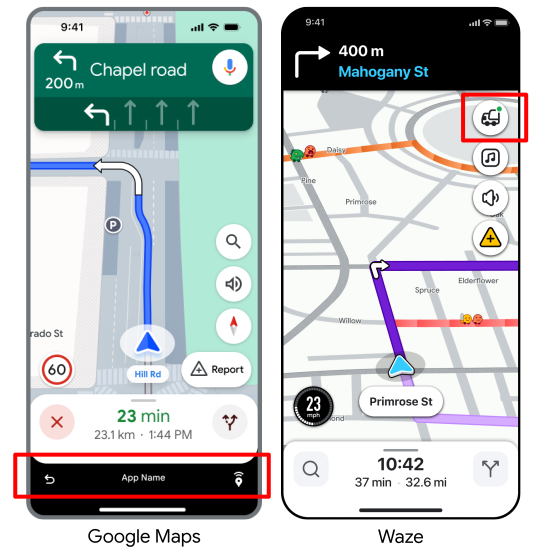
Navigation Connect 会显示底部栏(Google 地图)或品牌化返回按钮 (Waze),以便司机在行程中的任何时间点或到达目的地时无缝切换回您的应用。
Android
您必须创建一个指向应用 activity 的 PendingIntent。使用确切的键 "pendingIntent" 将此 PendingIntent 作为 extra 附加到启动 intent。当用户点按返回按钮时,Google 地图或 Waze 会执行此 intent,将您的应用调到前台。
intent.putExtra("pendingIntent", getPendingIntent())iOS
您无需在启动网址中添加任何内容即可启用返回按钮。iOS 版 Google 地图和 Waze 会自动使用您在验证应用时注册的通用链接。
代码示例
以下代码示例展示了如何使用 Navigation Connect 从您的应用启动 Google 地图或 Waze,并启用“返回应用”按钮。
Google 地图 (Android)
以下 Kotlin 代码展示了一个示例函数,该函数使用所需参数启动 Navigation Connect 会话。
private val destinationAddress = "1600 Amphitheatre Parkway, Mountain View, CA 94043"

        private fun launchNavConnect() {
           val jwtToken = "TRIP_TOKEN"

           try {
               // URL Encode the destination
               val encodedDestination = URLEncoder.encode(destinationAddress, "UTF-8")
               val navConnectUrl = "https://www.google.com/maps/dir/?api=1" +
                       "&destination=$encodedDestination" +
                       "&dir_action=navigate" +
                       "&action_token=$jwtToken"

               val intent = Intent(Intent.ACTION_VIEW, Uri.parse(navConnectUrl))
               // Explicitly set GMM package to ensure it opens in Google Maps
               intent.setPackage("com.google.android.apps.maps")
               // Add your application ID to the intent
               intent.putExtra(Intent.EXTRA_REFERRER_NAME, "android-app://${application.packageName}")
               // set up the NavConnect back button
               intent.putExtra("pendingIntent", getPendingIntent())
               startActivity(intent)

           } catch (e: Exception) {
               // handle errors
           }
        }

        private fun getPendingIntent(): PendingIntent? {
          val returnIntent = Intent(application, MainActivity::class.java) // replace with your activity to launch
          returnIntent.addFlags(Intent.FLAG_ACTIVITY_CLEAR_TOP or Intent.FLAG_ACTIVITY_SINGLE_TOP)
          val flags = PendingIntent.FLAG_IMMUTABLE
          if (Build.VERSION.SDK_INT < Build.VERSION_CODES.VANILLA_ICE_CREAM) {
            return PendingIntent.getActivity(application, 0, returnIntent, flags)
          }

          val options =
            ActivityOptions.makeBasic()
              .setPendingIntentCreatorBackgroundActivityStartMode(
                ActivityOptions.MODE_BACKGROUND_ACTIVITY_START_ALLOWED
              )

          return PendingIntent.getActivity(application, 0, returnIntent, flags, options.toBundle())
        }
Waze (Android)
以下 Kotlin 代码展示了一个示例函数,该函数使用所需参数启动 Navigation Connect 会话。
private val destinationAddress = "1600 Amphitheatre Parkway, Mountain View, CA 94043"

         private fun launchNavConnect() {
            val tripToken = "TRIP_TOKEN"

            try {
                // URL Encode the destination
                val encodedDestination = URLEncoder.encode(destinationAddress, "UTF-8")
                val navConnectUrl = "https://waze.com/ul?" +
                        "&q=$encodedDestination" +
                        "&navigate=yes" +
                        "&external_trip_token=$tripToken"

                val intent = Intent(Intent.ACTION_VIEW, Uri.parse(navConnectUrl))
                // Explicitly set package name to ensure it opens in Waze
                intent.setPackage("com.waze")
                // Add your application ID to the intent
                val referrerName = "android-app://${application.packageName}"
                intent.putExtra(Intent.EXTRA_REFERRER_NAME, referrerName)

                // set up the NavConnect back button
                intent.putExtra("pendingIntent", getPendingIntent())
                startActivity(intent)

            } catch (e: Exception) {
                // handle errors
            }
         }

         private fun getPendingIntent(): PendingIntent? {
           val returnIntent = Intent(application, MainActivity::class.java) // replace with your activity to launch
           returnIntent.addFlags(Intent.FLAG_ACTIVITY_CLEAR_TOP or Intent.FLAG_ACTIVITY_SINGLE_TOP)
           val flags = PendingIntent.FLAG_IMMUTABLE
           if (Build.VERSION.SDK_INT < Build.VERSION_CODES.VANILLA_ICE_CREAM) {
             return PendingIntent.getActivity(application, 0, returnIntent, flags)
           }

           val options =
             ActivityOptions.makeBasic()
               .setPendingIntentCreatorBackgroundActivityStartMode(
                 ActivityOptions.MODE_BACKGROUND_ACTIVITY_START_ALLOWED
               )

           return PendingIntent.getActivity(application, 0, returnIntent, flags, options.toBundle())
         }
Google 地图 (iOS)
以下 Swift 代码展示了一个示例函数,该函数使用所需参数在 iOS 版 Google 地图中启动 Navigation Connect 会话。
openGoogleMaps(latLng: "37.4220,-122.0841", placeId: "ChIJj61dQgK6j4AR4GeTYWZsKWw")

private func openGoogleMaps(latLng: String, placeId: String) {
  let tripToken = "TRIP_TOKEN"

  var components = URLComponents()
  components.scheme = "https"
  components.host = "www.google.com"
  components.path = "/maps/dir/"
  // Pass coordinates and a place ID for a precise destination.
  components.queryItems = [
    URLQueryItem(name: "api", value: "1"),
    URLQueryItem(name: "destination", value: latLng),
    URLQueryItem(name: "destination_place_id", value: placeId),
    URLQueryItem(name: "dir_action", value: "navigate"),
    URLQueryItem(name: "action_token", value: tripToken),
  ]

  guard let url = components.url else {
    return
  }

  // Open the launch URL as a Universal Link.
  UIApplication.shared.open(url, options: [:], completionHandler: nil)
}
Waze (iOS)
以下 Swift 代码展示了一个示例函数,该函数使用所需参数启动 Navigation Connect 会话。
openWazeUrl(queryItems: [URLQueryItem(name: "q", value: "1600 Amphitheatre Parkway")])

private func openWazeUrl(queryItems: [URLQueryItem]) {
  var components = URLComponents()
  components.scheme = "https"
  components.host = "waze.com"
  components.path = "/ul"

  // Create a mutable copy of the queryItems.
  var mutableQueryItems = queryItems

  // Add Trip Token
  guard let tokenText = tokenField.text, !tokenText.isEmpty else {
    return
  }
  let token = URLQueryItem(name: "external_trip_token", value: tokenText)

  mutableQueryItems.append(token)

  // Add compulsory params
  mutableQueryItems.append(URLQueryItem(name: "navigate", value: "yes"))

  // Construct and Launch URL
  components.queryItems = mutableQueryItems

  guard let url = components.url else {
    return
  }

  UIApplication.shared.open(url, options: [:], completionHandler: nil)
}