

ضبط ميزة "المعلومات عن الحوادث في الوقت الفعلي"
"الاضطرابات في الوقت الفعلي" هي مجموعة من الميزات التي تنبّه المستخدمين إلى الاضطرابات على طول مسارهم وتسمح لهم بالإبلاغ عن الاضطرابات التي يواجهونها والتحقّق منها. وتشمل الأمثلة على الاضطرابات حوادث المركبات والازدحام المروري ووجود الشرطة وكاميرات السرعة وأعمال البناء وإغلاق خطوط السير وبعض الأحوال الجوية. توضّح هذه الصفحة ميزات الإشعارات في الوقت الفعلي وخيارات ضبطها، بما في ذلك الاعتبارات المتعلّقة بالتطبيقات التي تستخدم واجهات مستخدم مخصّصة للتنقّل.
ميزات العرقلة في الوقت الفعلي
تتضمّن حزمة تطوير البرامج للتنقّل ميزات "معلومات الحوادث في الوقت الفعلي" التالية كجزء من تجربة التنقّل الأساسية:- تحذيرات تفاعلية حول الحوادث على طول الطريق
- تنبيهات آلية بشأن العرقلة مع إمكانية التصويت أثناء التنقّل النشط:
- الإبلاغ عن العرقلة أثناء التنقّل النشط
هذه الميزات قابلة للضبط ومفعَّلة تلقائيًا. تقدّم الأقسام التالية مزيدًا من المعلومات حول الميزات وخيارات الضبط المتاحة.
وسائل شرح تفاعلية حول العوائق على طول المسارات
عندما يعرض تطبيق مسارًا، سواء في نظرة عامة على المسار أو أثناء التنقّل النشط، تظهر أي عوائق حالية كتعليقات توضيحية على طول المسار. عند تفعيل طبقة "حركة المرور"، تظهر أيضًا على الخريطة الاضطرابات خارج المسار. تتضمّن وسائل الشرح رمزًا يشير إلى نوع الانقطاع.
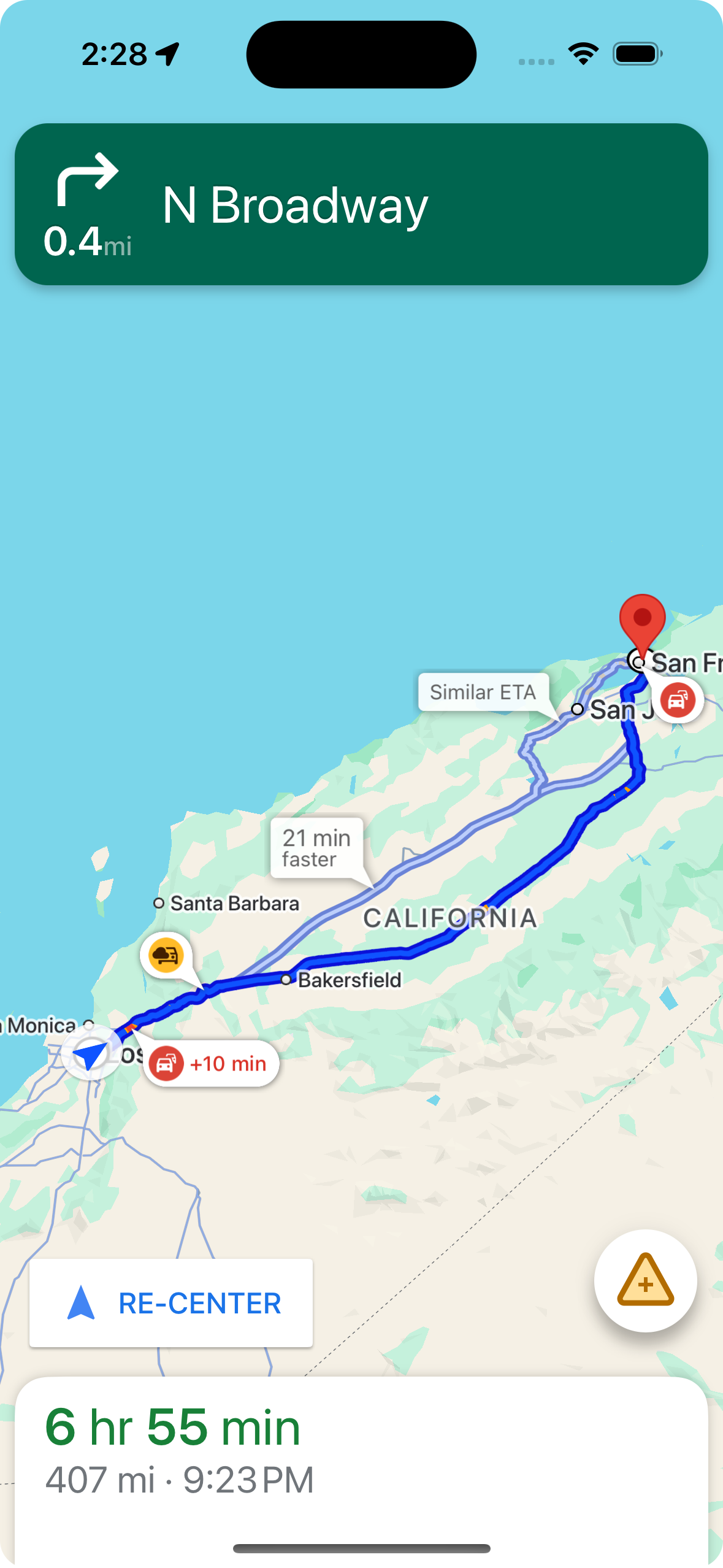
يمكنك التحكّم في عرض تحذيرات بشأن الحوادث على طول المسارات باستخدام shouldDisplayPrompts، والتي تتحكّم أيضًا في عرض التنبيهات الآلية عندما يقترب المستخدم من حادث.
mapView.navigator.shouldDisplayPrompts = true
عرض تفاصيل الانقطاع عندما ينقر المستخدم على وسيلة شرح
يؤدي النقر على وسيلة شرح الانقطاع إلى فتح بطاقة معلومات تتضمّن المزيد من التفاصيل. ينطبق ذلك على وسائل الشرح على المسار وخارج المسار، مع العلم أنّ وسائل الشرح خارج المسار لا تظهر إلا إذا كانت طبقة "حركة المرور" مفعَّلة. تعرض البطاقة نوع العرقلة ووقت الإبلاغ عنها آخر مرة، وأحيانًا خيارًا للتصويت على ما إذا كانت العرقلة لا تزال قائمة. يختلف نوع بطاقة المعلومات وخيارات ضبطها حسب ما إذا كان المستخدم في وضع التنقّل النشط.
بطاقات معلومات توضيحية في النظرات العامة على المسارات، قبل بدء التنقّل النشط
قبل بدء التنقّل النشط، يمكن للمستخدمين النقر على وسيلة شرح على المسار أو خارجه في الخريطة أو نظرة عامة على المسار لفتح بطاقة معلومات. تتطلّب التحذيرات خارج المسار تفعيل طبقة حركة المرور. تقدّم بطاقة المعلومات مزيدًا من التفاصيل حول الانقطاع.
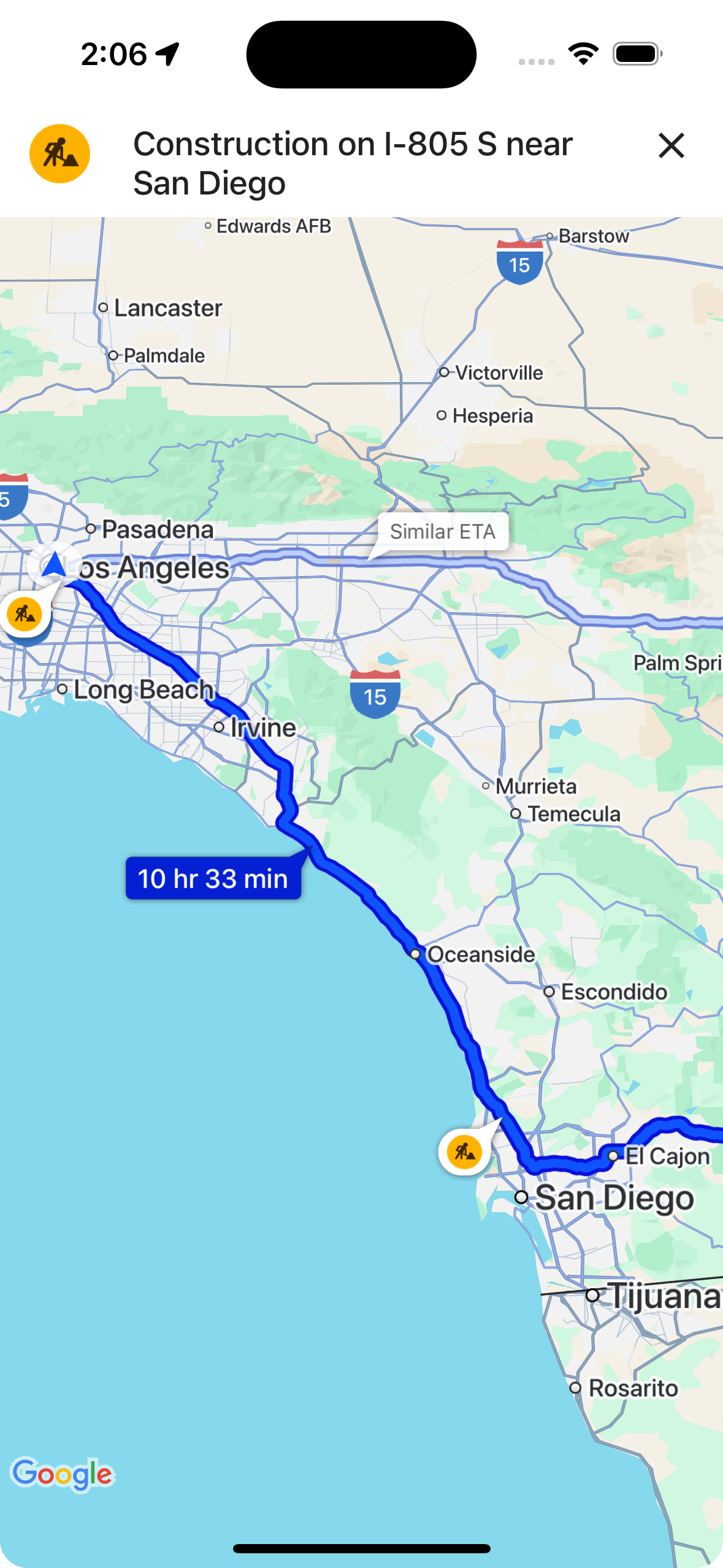
يمكنك التحكّم في قدرة المستخدمين على النقر على وسائل الشرح الخاصة بالتعطيل في نظرات عامة على المسار لعرض المزيد من المعلومات باستخدام showsIncidentCards.
mapView.settings.showsIncidentCards = true
بطاقات معلومات وسائل الشرح أثناء التنقّل النشط
أثناء التنقّل النشط، يمكن للمستخدمين النقر على وسيلة شرح لعرقلة على المسار أو خارجه لفتح بطاقة معلومات. تعرض البطاقة نوع الانقطاع وآخر وقت تم الإبلاغ عنه، وتتضمّن أزرارًا تتيح للمستخدمين التصويت على ما إذا كان الانقطاع لا يزال مستمرًا.
يمكن التصويت على العوائق التي تقع على المسار وخارجه ضمن مسافة 5 كم من المستخدم، باستثناء عمليات إغلاق الطرق. وتعالج Google هذه الأصوات للمساعدة في تحديد ما إذا كان سيستمر عرض العرقلة. قد تظهر الأصوات أيضًا على الخريطة لمستخدمي "خرائط Google" وNavigation SDK الآخرين.
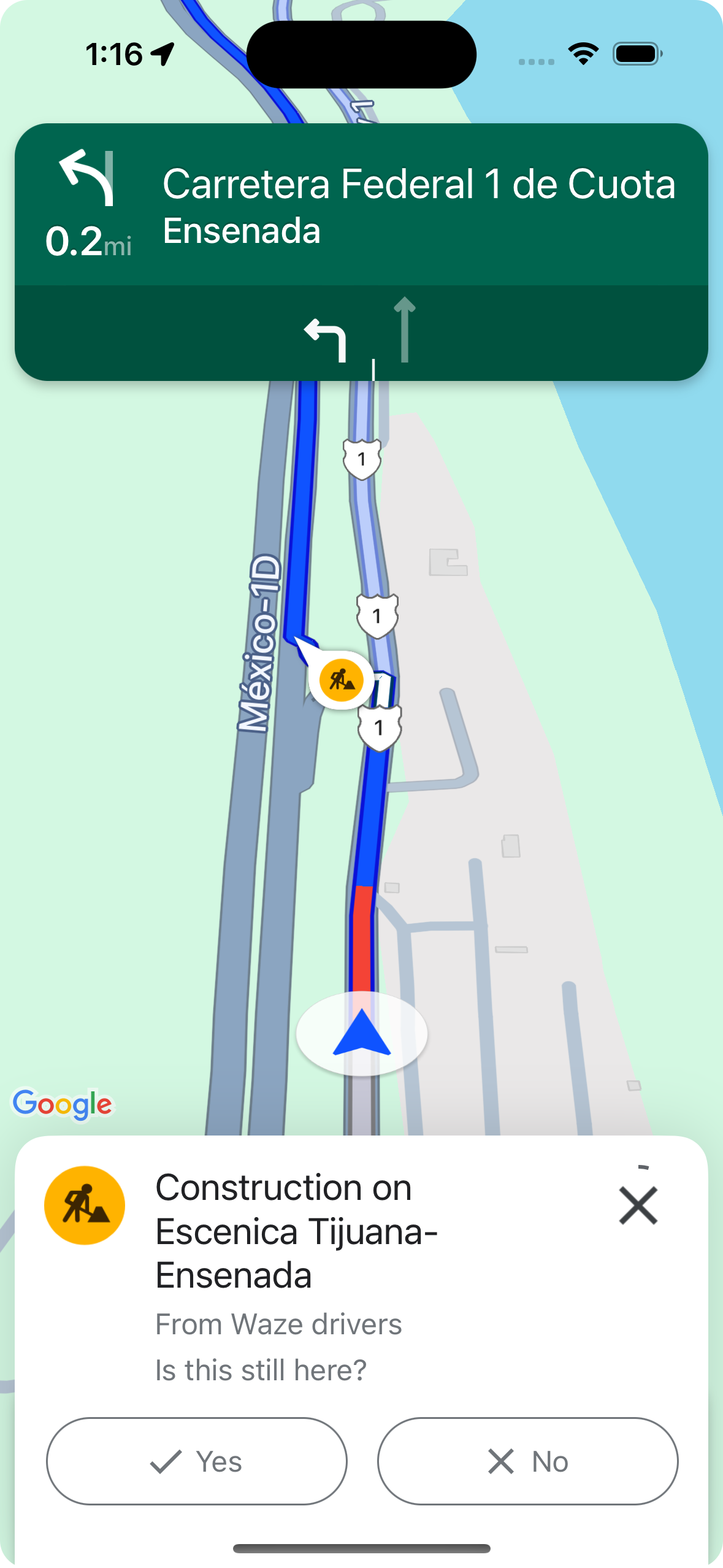
يمكنك التحكّم في عرض تحذيرات بشأن الحوادث وإمكانية النقر عليها أثناء التنقّل النشط باستخدام
shouldDisplayPrompts، الذي يتحكّم أيضًا في
عرض التحذيرات على طول المسارات و
عرض التنبيهات المبرمَجة عندما يقترب المستخدم من حادث.
mapView.navigator.shouldDisplayPrompts = true
تنبيهات تلقائية بشأن العوائق مع إمكانية التصويت أثناء التنقّل النشط
أثناء التنقّل النشط، عندما يقترب المستخدم من عائق على طول المسار، يظهر طلب يتضمّن معلومات عن العائق وأزرار للتصويت على ما إذا كان العائق لا يزال موجودًا. تعالج Google الأصوات التي يرسلها المستخدمون، وقد تظهر على الخريطة لمستخدمي "خرائط Google" وNavigation SDK الآخرين، كما تُستخدم لتحديد ما إذا كان يجب مواصلة عرض العرقلة.
يمكنك ضبط طريقة عرض رسائل التنبيه أثناء التنقّل النشط باستخدام
shouldDisplayPrompts، والتي تتحكّم أيضًا في عرض
التحذيرات على طول المسارات.
mapView.navigator.shouldDisplayPrompts = true
الإبلاغ عن العرقلة أثناء التنقّل النشط
أثناء وضع التنقّل النشط، يظهر زر على واجهة مستخدم التنقّل يتيح للمستخدمين الإبلاغ عن أي عوائق جديدة على طول مسارهم. عندما ينقر المستخدم على الزر، تظهر قائمة بأنواع العرقلة المتاحة للإبلاغ عنها. تعالج Google البلاغات التي يرسلها المستخدمون، وقد تظهر على الخريطة لمستخدمي "خرائط Google" وNavigation SDK الآخرين.

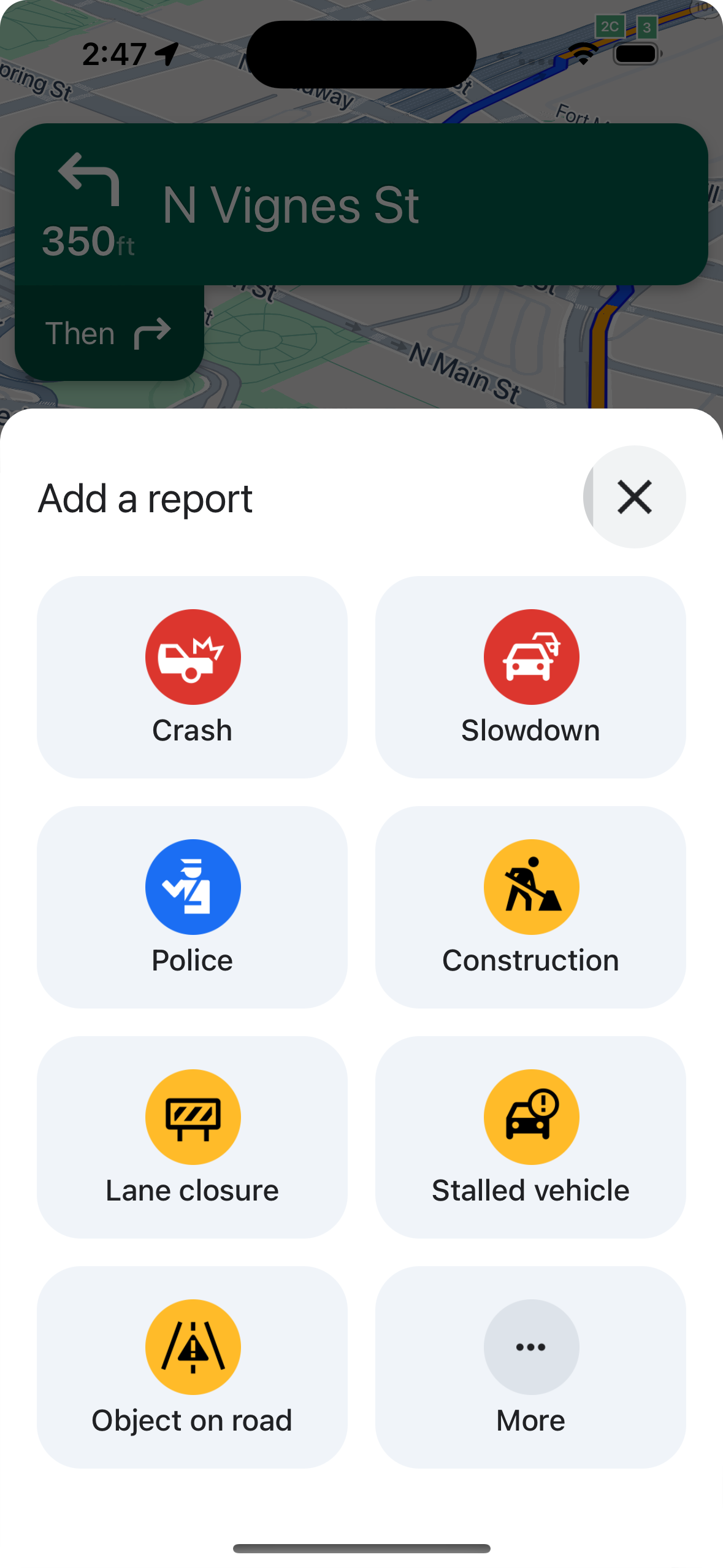
إظهار زر الإبلاغ العادي أو إخفاؤه
يمكنك ضبط مستوى ظهور زر الإبلاغ العادي أثناء التنقّل النشط باستخدام
navigationReportIncidentButtonEnabled.
// Enables the incident reporting FAB to show in situations where incident
// reporting is possible.
mapView.settings.navigationReportIncidentButtonEnabled = true
إضافة زر مخصّص للإبلاغ
بدلاً من زر الإبلاغ عن العرقلة العادي، يمكنك إضافة زر إبلاغ مخصّص إلى واجهة مستخدم التنقّل. عندما ينقر المستخدم على الزر المخصّص، يمكنك تفعيل عرض قائمة خيارات الإبلاغ عن طريق استدعاء الطريقة presentReportIncidentsPanel. قبل إضافة زر تقرير مخصّص، تأكَّد من أنّ التطبيق في وضع التنقّل النشط وأنّ المستخدم في بلد تم فيه تفعيل ميزة إعداد التقارير من خلال طلب reportIncidentsAvailable. إذا لم يكن أيّ من هذين الشرطين صحيحًا، لن تظهر قائمة خيارات الإبلاغ.
  // Check if reporting is available before displaying your button
  let isReportingAvailable = mapview.isIncidentReportingAvailable()
  customReportingIncidentButton.isHidden = !isReportingAvailable
  customReportingIncidentButton.addTarget(self, action: #selector(didTapReportIncidentButton), for: .touchUpInside)

  // Trigger the reporting flow if the button is clicked
  func didTapReportIncidentButton() {
          mapView.presentReportIncidentsPanel(self) { [weak self] error in
              guard let self = self else { return }
              if let error = error as NSError? {
                  if error.domain == GMSMapViewPresentReportIncidentPanelErrorDomain {
                      let errorCode = GMSMapViewPresentReportIncidentPanelErrorCode(rawValue: error.code)

                      switch errorCode {
                      case .internal:
                          self.showErrorMessage(
                              title: "Error Presenting Report Incident Panel",
                              message: "An internal error occurred."
                          )
                      case .reportingNotAvailable:
                          self.showErrorMessage(
                              title: "Error Presenting Report Incident Panel",
                              message: "Reporting is not available."
                          )
                      case .none:
                          self.showErrorMessage(
                              title: "Error Presenting Report Incident Panel",
                              message: "An unknown error occurred."
                          )
                      }
                  } else {
                      // Handle other potential errors (e.g., network errors)
                      self.showErrorMessage(
                          title: "Error Presenting Report Incident Panel",
                          message: "An unexpected error occurred: \(error.localizedDescription)"
                      )
                  }
              }
              // If error is nil, the panel was presented successfully. You can add any extra logic here.
          }
     }
العمل مع واجهات مستخدم التنقل المخصصة
إذا كان تنفيذك لـ Navigation SDK يتضمّن عناصر مخصّصة في واجهة المستخدم، عليك مراعاة عناصر التعطيل في الوقت الفعلي لتجنُّب التعارضات.
موضع زر الإبلاغ
By default, the disruption reporting button is positioned at the bottom end/trailing corner of the map—on the right side for left-to-right languages and left side for right-to-left languages. إذا كنت بحاجة إلى نقل زر الإبلاغ لإتاحة مساحة لعناصر في واجهة المستخدم المخصّصة، استخدِمbottomTrailingButtonsLayoutGuide.
Swift
// Create a new layout guide
let topRightLayoutGuide = UILayoutGuide()
self.view.addLayoutGuide(topRightLayoutGuide)

// Activate constraints using fixed constants here as an example
// assuming the current reporting button is of fixed height
topRightLayoutGuide.topAnchor.constraint(equalTo: _mapView.navigationHeaderLayoutGuide.bottomAnchor, constant: 50).isActive = true
topRightLayoutGuide.trailingAnchor.constraint(equalTo: self.view.safeAreaLayoutGuide.trailingAnchor, constant: -14).isActive = true

// Assign the layout guide
_mapView.bottomTrailingButtonsLayoutGuide = topRightLayoutGuide

// Create an alternate layout guide to use when the header and the footer are not full width
let topRightAlternateLayoutGuide = UILayoutGuide()
self.view.addLayoutGuide(topRightAlternateLayoutGuide)

// Activate constraints using fixed constants here as an example
// assuming the current RTD button is of fixed height
topRightAlternateLayoutGuide.topAnchor.constraint(equalTo: _mapView.navigationHeaderLayoutGuide.bottomAnchor, constant: 20).isActive = true
topRightAlternateLayoutGuide.trailingAnchor.constraint(equalTo: self.view.safeAreaLayoutGuide.trailingAnchor, constant: -10).isActive = true

// Assign the layout guide
_mapView.bottomTrailingButtonsAlternateLayoutGuide = topRightAlternateLayoutGuide
Objective-C
// Create a new layout guide
UILayoutGuide *topRightLayoutGuide = [[UILayoutGuide alloc] init];
[self.view addLayoutGuide:topRightLayoutGuide];

// Activate constraints using fixed constants here as an example
// assuming the current RTD button is of fixed height
[[topRightLayoutGuide.topAnchor
    constraintEqualToAnchor:_mapView.navigationHeaderLayoutGuide.bottomAnchor
                   constant:50]
    setActive:YES];

[[topRightLayoutGuide.trailingAnchor
    constraintEqualToAnchor:self.view.safeAreaLayoutGuide.trailingAnchor
                   constant:-14]
    setActive:YES];

// Assign the layout guide
_mapView.bottomTrailingButtonsLayoutGuide = topRightLayoutGuide;

// Create an alternate layout guide to use when the header and the footer are not full width
UILayoutGuide *topRightAlternateLayoutGuide = [[UILayoutGuide alloc] init];
[self.view addLayoutGuide:topRightAlternateLayoutGuide];

// Activate constraints using fixed constants here as an example
// assuming the current RTD button is of fixed height
[[topRightAlternateLayoutGuide.topAnchor
    constraintEqualToAnchor:_mapView.navigationHeaderLayoutGuide.bottomAnchor
                   constant:50]
    setActive:YES];

[[topRightAlternateLayoutGuide.trailingAnchor
    constraintEqualToAnchor:self.view.safeAreaLayoutGuide.trailingAnchor
                   constant:-14]
    setActive:YES];

// Assign the layout guide
_mapView.bottomTrailingButtonsAlternateLayoutGuide = topRightAlternateLayoutGuide;
Prompt Visibility API (تجريبية)
تساعدك واجهة Prompt Visibility API في تجنُّب التعارضات بين عناصر واجهة المستخدم التي تنشئها حزمة Navigation SDK وعناصر واجهة المستخدم المخصّصة من خلال إضافة متتبِّع لتلقّي استدعاء قبل ظهور عنصر في واجهة المستخدم في حزمة Navigation SDK وبمجرد إزالة العنصر. يمكنك تلقّي عمليات استدعاء لعناصر العرقلة في الوقت الفعلي، بما في ذلك بطاقات المعلومات والطلبات وقائمة الإبلاغ عن العرقلة، بالإضافة إلى الإشعارات الأخرى التي تنشئها حزمة تطوير البرامج (SDK) للتنقّل.Swift
// Additional methods added to GMSNavigatorListener
...
func navigatorWillPresentPrompt(_ navigator: GMSNavigator) {
  // Hide any sort of custom UI element.
}

func navigatorDidDismissPrompt(_ navigator: GMSNavigator) {
  // Show any sort of custom UI element.
}
...
Objective-C
// Additional methods added to GMSNavigatorListener
...
- (void)navigatorWillPresentPrompt:(GMSNavigator *)navigator {
  // Hide any sort of custom UI element.
}

- (void)navigatorDidDismissPrompt:(GMSNavigator *)navigator {
  // Show any sort of custom UI element.
}
...