
실시간 교통 장애 구성
실시간 중단은 사용자에게 경로상의 중단을 알리고 사용자가 발견한 중단을 신고하고 확인할 수 있는 기능 모음입니다. 교통 방해의 예로는 자동차 사고, 교통 혼잡, 경찰 및 과속 단속 카메라, 공사, 차선 통제, 특정 기상 조건 등이 있습니다. 이 페이지에서는 실시간 중단 기능과 구성 옵션(맞춤 탐색 UI를 사용하는 앱에 대한 고려사항 포함)을 설명합니다.
실시간 교통 장애 기능
Navigation SDK에는 핵심 탐색 환경의 일부로 다음과 같은 실시간 중단 기능이 포함되어 있습니다.이러한 기능은 구성 가능하며 기본적으로 사용 설정되어 있습니다. 다음 섹션에서는 기능과 사용 가능한 구성 옵션에 대해 자세히 설명합니다.
경로를 따라 표시되는 대화형 중단 콜아웃
앱이 경로 개요 또는 활성 내비게이션 중에 경로를 표시하면 현재 중단이 경로를 따라 콜아웃으로 표시됩니다. 교통정보 레이어를 사용 설정하면 경로 외의 교통 혼잡도 지도에 표시됩니다. 콜아웃에는 중단 유형을 나타내는 아이콘이 포함됩니다.
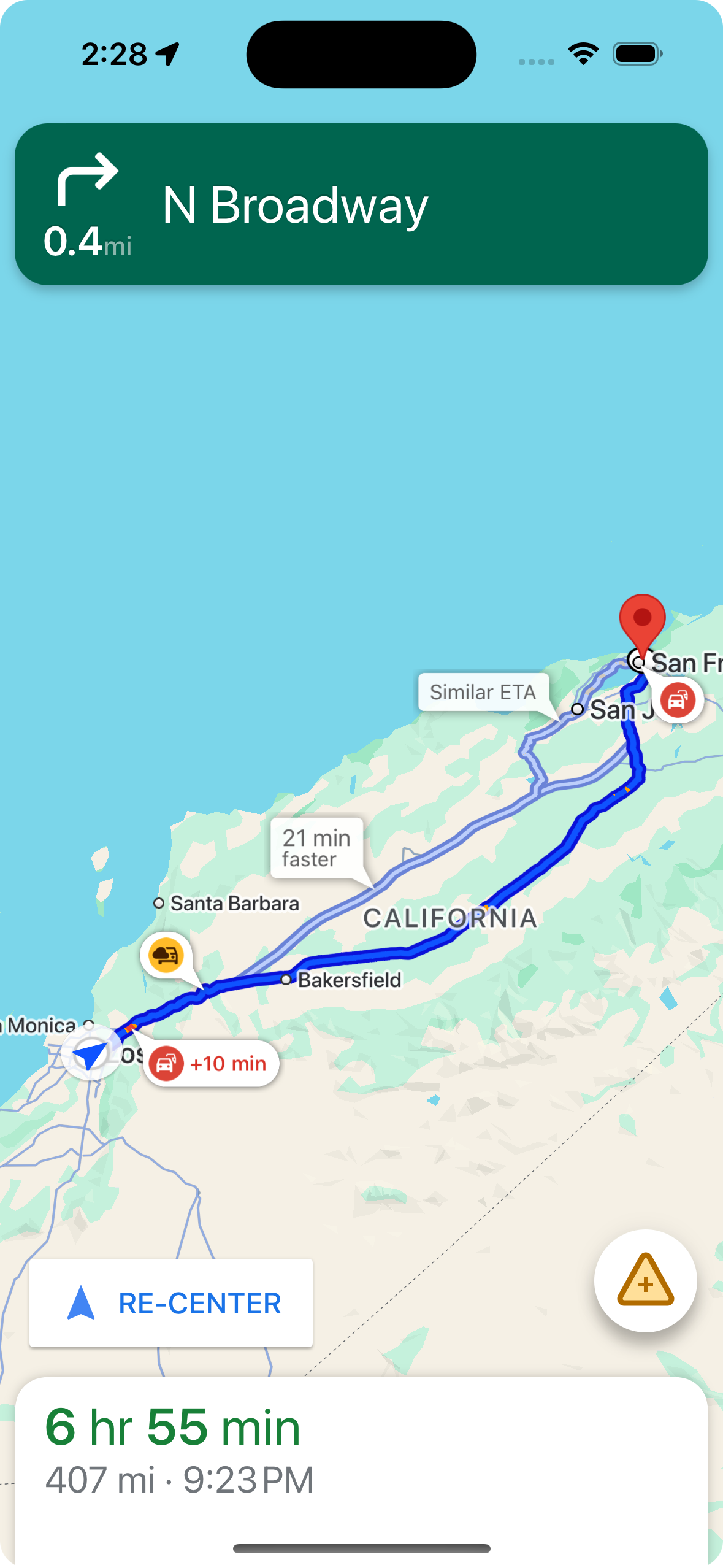
shouldDisplayPrompts를 사용하여 경로를 따라 중단 콜아웃을 표시할지 제어할 수 있습니다. 이 속성은 사용자가 중단에 접근할 때 자동 알림을 표시할지도 제어합니다.
mapView.navigator.shouldDisplayPrompts = true
사용자가 콜아웃을 탭할 때 중단 세부정보 표시
중단 콜아웃을 탭하면 자세한 내용이 포함된 정보 카드가 열립니다. 이는 경로상 및 경로 이탈 콜아웃 모두에 적용되지만 경로 이탈 콜아웃은 교통정보 레이어가 사용 설정된 경우에만 표시됩니다. 카드에는 중단 유형, 마지막으로 보고된 시간, 중단이 여전히 존재하는지 여부에 대한 투표 옵션이 표시됩니다. 정보 카드 유형 및 구성 옵션은 사용자가 활성 내비게이션에 있는지에 따라 다릅니다.
활성 내비게이션을 시작하기 전에 경로 개요에 콜아웃 정보 카드 표시
사용자는 내비게이션을 시작하기 전에 지도 또는 경로 개요에서 경로 내 또는 경로 외 콜아웃을 탭하여 정보 카드를 열 수 있습니다. 경로 이탈 콜아웃을 사용하려면 교통정보 레이어를 사용 설정해야 합니다. 정보 카드에는 중단에 관한 자세한 내용이 표시됩니다.
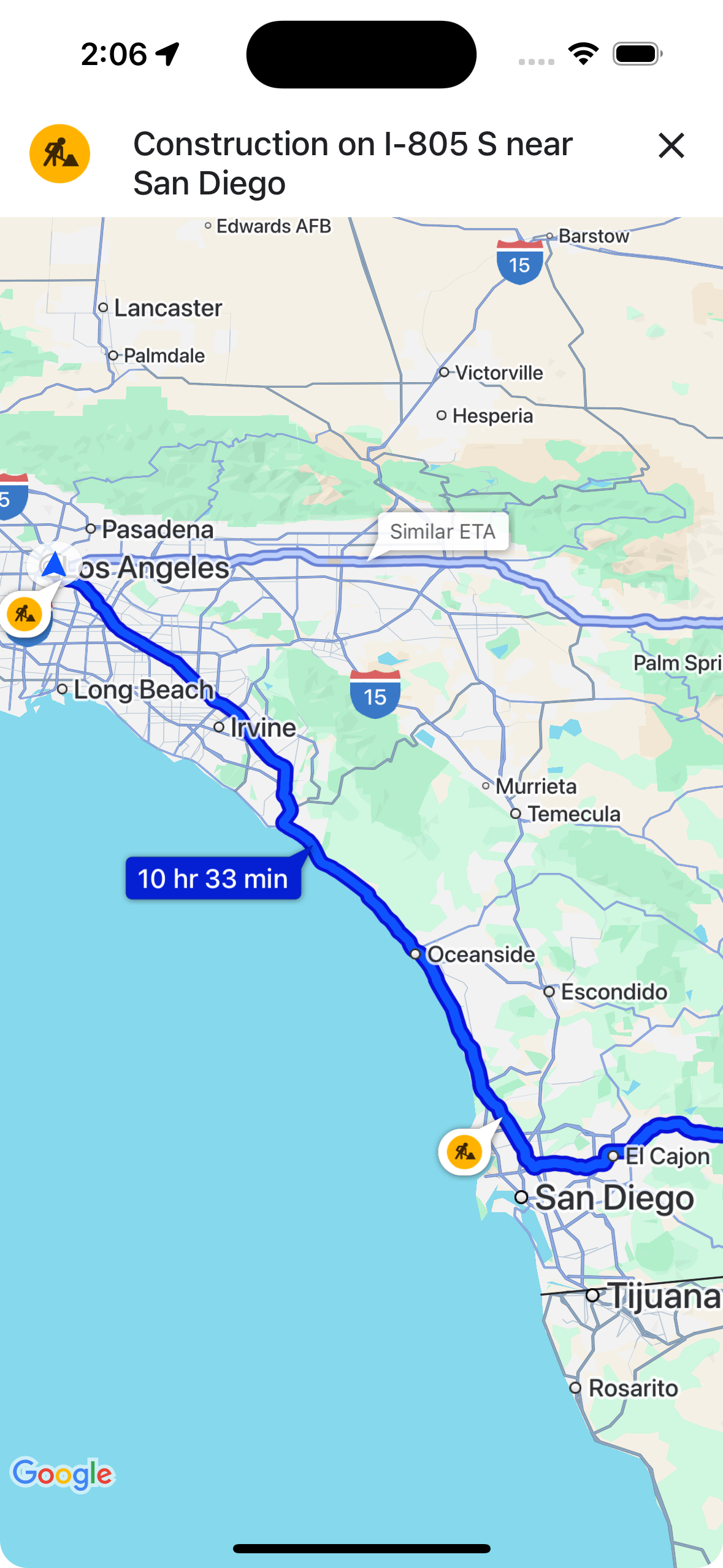
showsIncidentCards를 사용하여 사용자가 경로 개요에서 중단 콜아웃을 탭하여 자세한 정보를 표시할 수 있는 기능을 제어할 수 있습니다.
mapView.settings.showsIncidentCards = true
내비게이션이 진행 중일 때 정보 카드 표시
내비게이션이 진행 중일 때 사용자는 경로상 또는 경로 외 중단 콜아웃을 탭하여 정보 카드를 열 수 있습니다. 카드에는 중단 유형과 마지막으로 보고된 시간이 표시되며, 사용자가 중단이 여전히 존재하는지 투표할 수 있는 버튼이 포함되어 있습니다.
도로 폐쇄를 제외하고 사용자로부터 5km 이내에 있는 경로 내 및 경로 외 중단에 대해 투표할 수 있습니다. Google은 이러한 투표를 처리하여 중단 표시를 계속할지 여부를 결정합니다. 투표는 다른 Google 지도 및 Navigation SDK 사용자의 지도에도 표시될 수 있습니다.
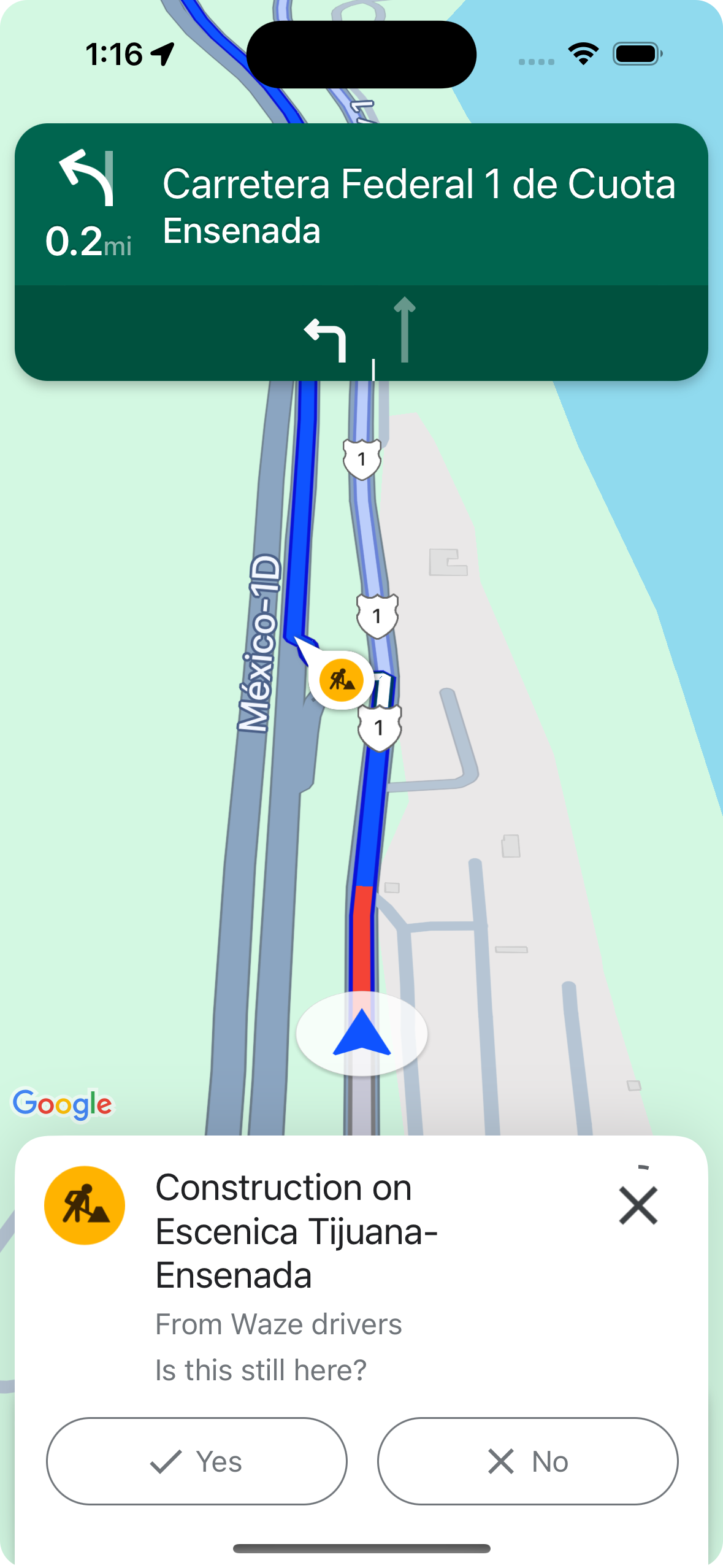
shouldDisplayPrompts를 사용하여 활성 내비게이션 중에 중단 콜아웃의 표시 및 탭 가능 여부를 제어할 수 있습니다. 이 API는 경로를 따라 콜아웃 표시 및 사용자가 중단에 접근할 때 자동 알림 표시도 제어합니다.
mapView.navigator.shouldDisplayPrompts = true
내비게이션이 활성화된 상태에서 투표를 통한 자동 정체 알림
활성 내비게이션 중에 사용자가 경로를 따라 중단에 접근하면 중단에 관한 정보와 중단이 여전히 존재하는지 투표하는 버튼이 포함된 메시지가 표시됩니다. 사용자가 제출한 투표는 Google에서 처리하며, 다른 Google 지도 및 Navigation SDK 사용자를 위해 지도에 표시될 수 있고, 중단 상황을 계속 표시할지 여부를 결정하는 데 사용될 수 있습니다.
shouldDisplayPrompts를 사용하여 내비게이션이 진행 중일 때 알림 메시지가 표시되도록 구성할 수 있습니다. 이 메서드는 경로를 따라 표시되는 콜아웃도 제어합니다.
mapView.navigator.shouldDisplayPrompts = true
내비게이션 이용 중 정체 신고
탐색 모드가 활성화되어 있는 동안 내비게이션 UI에 버튼이 표시되어 사용자가 경로를 따라 발생하는 새로운 중단 상황을 신고할 수 있습니다. 사용자가 버튼을 탭하면 신고할 수 있는 중단 유형이 포함된 메뉴가 표시됩니다. 사용자가 제출한 신고는 Google에서 처리하며 다른 Google 지도 및 Navigation SDK 사용자를 위해 지도에 표시될 수 있습니다.
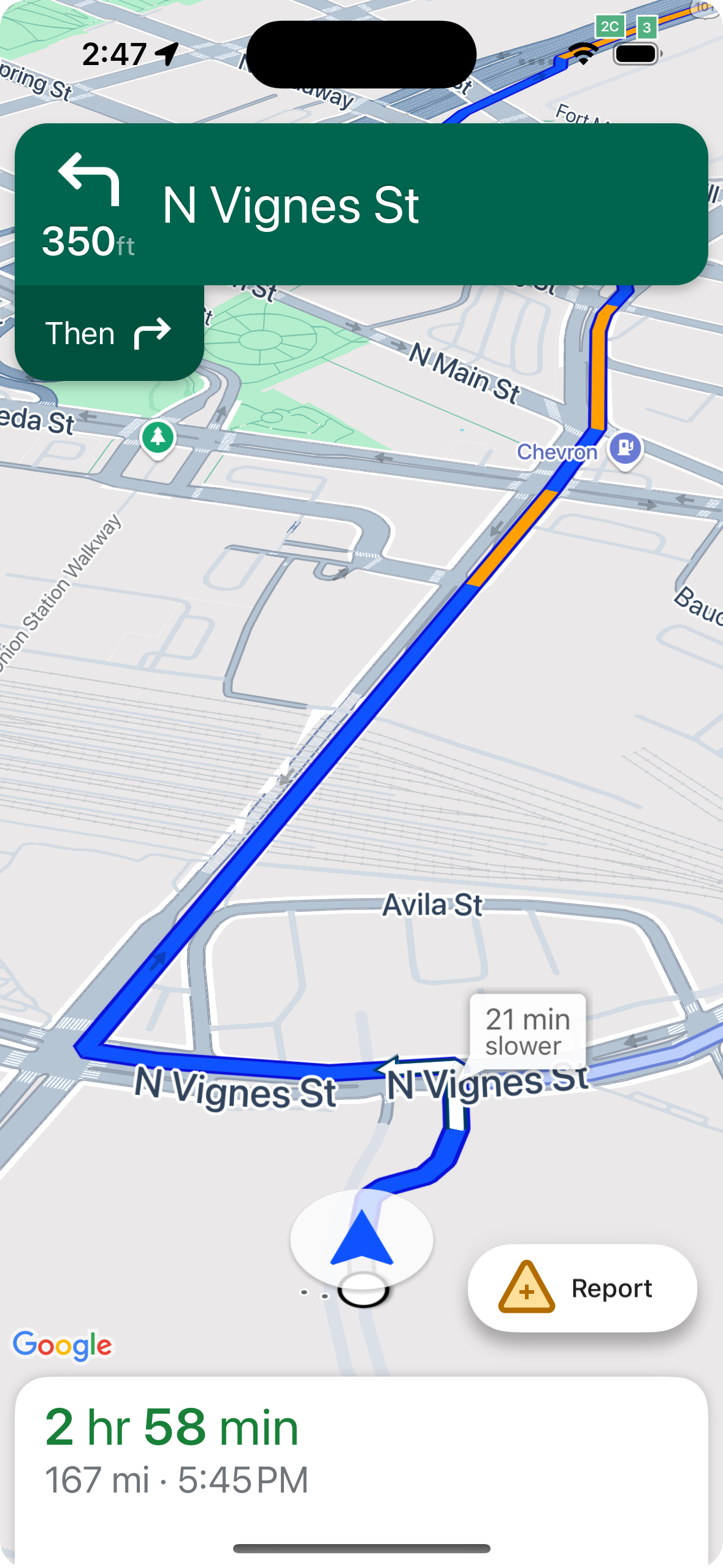

표준 보고 버튼 표시 또는 숨기기
navigationReportIncidentButtonEnabled를 사용하여 활성 내비게이션 중에 표준 신고 버튼의 공개 상태를 구성할 수 있습니다.
// Enables the incident reporting FAB to show in situations where incident
// reporting is possible.
mapView.settings.navigationReportIncidentButtonEnabled = true
맞춤 보고서 버튼 추가
표준 중단 보고 버튼 대신 맞춤 보고 버튼을 탐색 UI에 추가할 수 있습니다. 사용자가 맞춤 버튼을 클릭하면 presentReportIncidentsPanel 메서드를 호출하여 신고 메뉴를 표시할 수 있습니다. 맞춤 보고 버튼을 추가하기 전에 reportIncidentsAvailable를 호출하여 앱이 활성 내비게이션 상태이고 사용자가 보고가 사용 설정된 국가에 있는지 확인합니다. 이 중 하나라도 충족되지 않으면 신고 메뉴가 표시되지 않습니다.
  // Check if reporting is available before displaying your button
  let isReportingAvailable = mapview.isIncidentReportingAvailable()
  customReportingIncidentButton.isHidden = !isReportingAvailable
  customReportingIncidentButton.addTarget(self, action: #selector(didTapReportIncidentButton), for: .touchUpInside)

  // Trigger the reporting flow if the button is clicked
  func didTapReportIncidentButton() {
          mapView.presentReportIncidentsPanel(self) { [weak self] error in
              guard let self = self else { return }
              if let error = error as NSError? {
                  if error.domain == GMSMapViewPresentReportIncidentPanelErrorDomain {
                      let errorCode = GMSMapViewPresentReportIncidentPanelErrorCode(rawValue: error.code)

                      switch errorCode {
                      case .internal:
                          self.showErrorMessage(
                              title: "Error Presenting Report Incident Panel",
                              message: "An internal error occurred."
                          )
                      case .reportingNotAvailable:
                          self.showErrorMessage(
                              title: "Error Presenting Report Incident Panel",
                              message: "Reporting is not available."
                          )
                      case .none:
                          self.showErrorMessage(
                              title: "Error Presenting Report Incident Panel",
                              message: "An unknown error occurred."
                          )
                      }
                  } else {
                      // Handle other potential errors (e.g., network errors)
                      self.showErrorMessage(
                          title: "Error Presenting Report Incident Panel",
                          message: "An unexpected error occurred: \(error.localizedDescription)"
                      )
                  }
              }
              // If error is nil, the panel was presented successfully. You can add any extra logic here.
          }
     }
맞춤 탐색 UI 사용
Navigation SDK 구현에 맞춤 UI 요소가 포함된 경우 충돌을 방지하려면 실시간 중단 요소를 고려해야 합니다.
신고 버튼 위치
기본적으로 장애 신고 버튼은 지도의 하단 끝/후행 모서리에 배치됩니다. 왼쪽에서 오른쪽으로 쓰는 언어의 경우 오른쪽에, 오른쪽에서 왼쪽으로 쓰는 언어의 경우 왼쪽에 배치됩니다. 커스텀 UI 요소를 위한 공간을 만들기 위해 신고 버튼을 이동해야 하는 경우bottomTrailingButtonsLayoutGuide를 사용하세요.
Swift
// Create a new layout guide
let topRightLayoutGuide = UILayoutGuide()
self.view.addLayoutGuide(topRightLayoutGuide)

// Activate constraints using fixed constants here as an example
// assuming the current reporting button is of fixed height
topRightLayoutGuide.topAnchor.constraint(equalTo: _mapView.navigationHeaderLayoutGuide.bottomAnchor, constant: 50).isActive = true
topRightLayoutGuide.trailingAnchor.constraint(equalTo: self.view.safeAreaLayoutGuide.trailingAnchor, constant: -14).isActive = true

// Assign the layout guide
_mapView.bottomTrailingButtonsLayoutGuide = topRightLayoutGuide

// Create an alternate layout guide to use when the header and the footer are not full width
let topRightAlternateLayoutGuide = UILayoutGuide()
self.view.addLayoutGuide(topRightAlternateLayoutGuide)

// Activate constraints using fixed constants here as an example
// assuming the current RTD button is of fixed height
topRightAlternateLayoutGuide.topAnchor.constraint(equalTo: _mapView.navigationHeaderLayoutGuide.bottomAnchor, constant: 20).isActive = true
topRightAlternateLayoutGuide.trailingAnchor.constraint(equalTo: self.view.safeAreaLayoutGuide.trailingAnchor, constant: -10).isActive = true

// Assign the layout guide
_mapView.bottomTrailingButtonsAlternateLayoutGuide = topRightAlternateLayoutGuide
Objective-C
// Create a new layout guide
UILayoutGuide *topRightLayoutGuide = [[UILayoutGuide alloc] init];
[self.view addLayoutGuide:topRightLayoutGuide];

// Activate constraints using fixed constants here as an example
// assuming the current RTD button is of fixed height
[[topRightLayoutGuide.topAnchor
    constraintEqualToAnchor:_mapView.navigationHeaderLayoutGuide.bottomAnchor
                   constant:50]
    setActive:YES];

[[topRightLayoutGuide.trailingAnchor
    constraintEqualToAnchor:self.view.safeAreaLayoutGuide.trailingAnchor
                   constant:-14]
    setActive:YES];

// Assign the layout guide
_mapView.bottomTrailingButtonsLayoutGuide = topRightLayoutGuide;

// Create an alternate layout guide to use when the header and the footer are not full width
UILayoutGuide *topRightAlternateLayoutGuide = [[UILayoutGuide alloc] init];
[self.view addLayoutGuide:topRightAlternateLayoutGuide];

// Activate constraints using fixed constants here as an example
// assuming the current RTD button is of fixed height
[[topRightAlternateLayoutGuide.topAnchor
    constraintEqualToAnchor:_mapView.navigationHeaderLayoutGuide.bottomAnchor
                   constant:50]
    setActive:YES];

[[topRightAlternateLayoutGuide.trailingAnchor
    constraintEqualToAnchor:self.view.safeAreaLayoutGuide.trailingAnchor
                   constant:-14]
    setActive:YES];

// Assign the layout guide
_mapView.bottomTrailingButtonsAlternateLayoutGuide = topRightAlternateLayoutGuide;
Prompt Visibility API (실험용)
Prompt Visibility API를 사용하면 Navigation SDK UI 요소가 표시되기 전과 요소가 삭제되는 즉시 콜백을 수신하는 리스너를 추가하여 Navigation SDK에서 생성된 UI 요소와 자체 맞춤 UI 요소 간의 충돌을 방지할 수 있습니다. 정보 카드, 프롬프트, 중단 보고 메뉴를 비롯한 실시간 중단 요소와 Navigation SDK에서 생성된 기타 알림에 대한 콜백을 수신할 수 있습니다.Swift
// Additional methods added to GMSNavigatorListener
...
func navigatorWillPresentPrompt(_ navigator: GMSNavigator) {
  // Hide any sort of custom UI element.
}

func navigatorDidDismissPrompt(_ navigator: GMSNavigator) {
  // Show any sort of custom UI element.
}
...
Objective-C
// Additional methods added to GMSNavigatorListener
...
- (void)navigatorWillPresentPrompt:(GMSNavigator *)navigator {
  // Hide any sort of custom UI element.
}

- (void)navigatorDidDismissPrompt:(GMSNavigator *)navigator {
  // Show any sort of custom UI element.
}
...