

השלמה אוטומטית למקומות (מדור קודם) מחזירה חיזויים של מקומות בתגובה לשאילתות חיפוש של משתמשים. בזמן שהמשתמש מקליד, שירות ההשלמה האוטומטית מחזיר הצעות למקומות כמו עסקים, כתובות, קודי Plus Code ונקודות עניין.
אפשר להוסיף השלמה אוטומטית לאפליקציה בדרכים הבאות:
- הוסיפו רכיב אינטראקטיבי של השלמה אוטומטית כדי לחסוך זמן פיתוח ולוודא שחוויית המשתמש תהיה עקבית.
- קבלת תחזיות לגבי מקומות באופן פרוגרמטי כדי ליצור חוויית משתמש מותאמת.
הוספת רכיב אינטראקטיבי של ממשק משתמש להשלמה אוטומטית
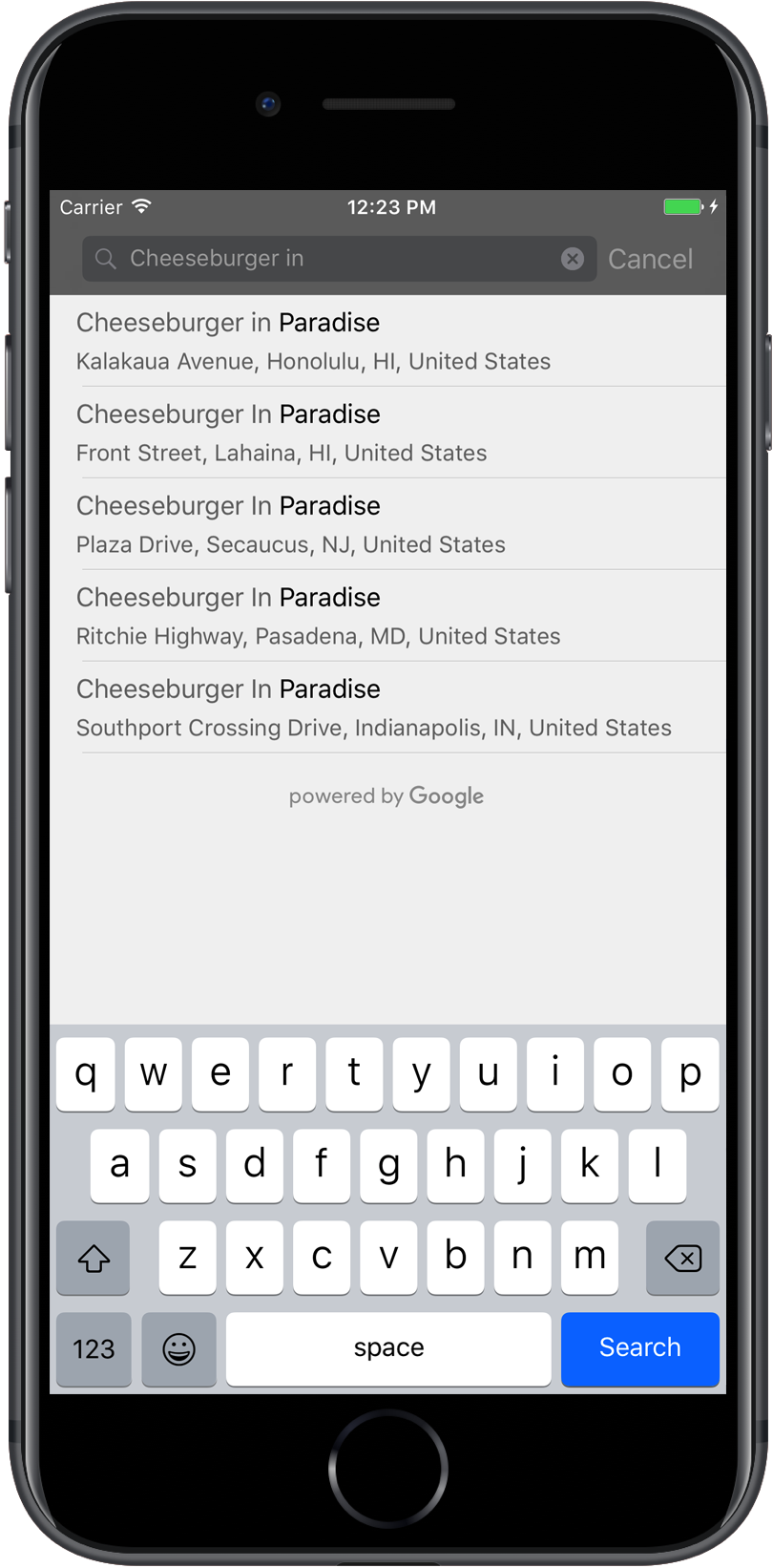
רכיב אינטראקטיבי של השלמה אוטומטית הוא תיבת דו-שיח לחיפוש עם פונקציונליות מובנית של השלמה אוטומטית. כשהמשתמש מזין מונחי חיפוש, אמצעי הבקרה מציג רשימה של מקומות צפויים לבחירה. כשהמשתמש בוחר מקום, מוחזרת לו דוגמה של GMSPlace, שהאפליקציה יכולה להשתמש בה כדי לקבל פרטים על המקום שנבחר.
אפשר להוסיף את רכיב האינטראקטיבי של ממשק המשתמש להשלמה אוטומטית לאפליקציה בדרכים הבאות:
הוספת אמצעי בקרה במסך מלא
השתמשו בפקד המסך המלא כשאתם רוצים הקשר מודאלי, שבו ממשק המשתמש של ההשלמה האוטומטית מחליף באופן זמני את ממשק המשתמש של האפליקציה עד שהמשתמש בוחר. הפונקציונליות הזו מסופקת על ידי המחלקה
GMSAutocompleteViewController. כשהמשתמש בוחר מקום, האפליקציה מקבלת קריאה חוזרת (callback).
כדי להוסיף לאפליקציה אמצעי בקרה למסך מלא:
- יוצרים רכיב בממשק המשתמש באפליקציה הראשית כדי להפעיל את אמצעי הבקרה של ממשק המשתמש להשלמה אוטומטית, למשל, מטפל במגע ב-
UIButton. - מטמיעים את פרוטוקול
GMSAutocompleteViewControllerDelegateבבקר התצוגה של ההורה. - יוצרים מופע של
GMSAutocompleteViewControllerומקצים את בקר התצוגה של ההורה כמאפיין הנציג. - יוצרים
GMSPlaceFieldכדי להגדיר את סוגי נתוני המקום שיוחזרו. - מוסיפים
GMSAutocompleteFilterכדי להגביל את השאילתה לסוג מסוים של מקום. - מציגים את
GMSAutocompleteViewControllerבאמצעות[self presentViewController...]. - מטפלים בבחירה של המשתמש בשיטת הנציג
didAutocompleteWithPlace. - סוגרים את הבקר בשיטות ההעברה של
didAutocompleteWithPlace,didFailAutocompleteWithErrorו-wasCancelled.
בדוגמה הבאה מוצגת דרך אפשרית להפעלת GMSAutocompleteViewController בתגובה להקשה של המשתמש על לחצן.
Swift
import UIKit
import GooglePlaces

class ViewController: UIViewController {

  override func viewDidLoad() {
    makeButton()
  }

  // Present the Autocomplete view controller when the button is pressed.
  @objc func autocompleteClicked(_ sender: UIButton) {
    let autocompleteController = GMSAutocompleteViewController()
    autocompleteController.delegate = self

    // Specify the place data types to return.
    let fields: GMSPlaceField = GMSPlaceField(rawValue: UInt(GMSPlaceField.name.rawValue) |
      UInt(GMSPlaceField.placeID.rawValue))!
    autocompleteController.placeFields = fields

    // Specify a filter.
    let filter = GMSAutocompleteFilter()
    filter.types = [kGMSPlaceTypeCollectionAddress]
    autocompleteController.autocompleteFilter = filter

    // Display the autocomplete view controller.
    present(autocompleteController, animated: true, completion: nil)
  }

  // Add a button to the view.
  func makeButton() {
    let btnLaunchAc = UIButton(frame: CGRect(x: 5, y: 150, width: 300, height: 35))
    btnLaunchAc.backgroundColor = .blue
    btnLaunchAc.setTitle("Launch autocomplete", for: .normal)
    btnLaunchAc.addTarget(self, action: #selector(autocompleteClicked), for: .touchUpInside)
    self.view.addSubview(btnLaunchAc)
  }

}

extension ViewController: GMSAutocompleteViewControllerDelegate {

  // Handle the user's selection.
  func viewController(_ viewController: GMSAutocompleteViewController, didAutocompleteWith place: GMSPlace) {
    print("Place name: \(place.name)")
    print("Place ID: \(place.placeID)")
    print("Place attributions: \(place.attributions)")
    dismiss(animated: true, completion: nil)
  }

  func viewController(_ viewController: GMSAutocompleteViewController, didFailAutocompleteWithError error: Error) {
    // TODO: handle the error.
    print("Error: ", error.localizedDescription)
  }

  // User canceled the operation.
  func wasCancelled(_ viewController: GMSAutocompleteViewController) {
    dismiss(animated: true, completion: nil)
  }

  // Turn the network activity indicator on and off again.
  func didRequestAutocompletePredictions(_ viewController: GMSAutocompleteViewController) {
    UIApplication.shared.isNetworkActivityIndicatorVisible = true
  }

  func didUpdateAutocompletePredictions(_ viewController: GMSAutocompleteViewController) {
    UIApplication.shared.isNetworkActivityIndicatorVisible = false
  }

}
Objective-C
#import "ViewController.h"
@import GooglePlaces;

@interface ViewController () <GMSAutocompleteViewControllerDelegate>

@end

@implementation ViewController {
  GMSAutocompleteFilter *_filter;
}

-   (void)viewDidLoad {
  [super viewDidLoad];
  [self makeButton];
}

  // Present the autocomplete view controller when the button is pressed.
-   (void)autocompleteClicked {
  GMSAutocompleteViewController *acController = [[GMSAutocompleteViewController alloc] init];
  acController.delegate = self;

  // Specify the place data types to return.
  GMSPlaceField fields = (GMSPlaceFieldName | GMSPlaceFieldPlaceID);
  acController.placeFields = fields;

  // Specify a filter.
  _filter = [[GMSAutocompleteFilter alloc] init];
  _filter.types = @[ kGMSPlaceTypeBank ];
  acController.autocompleteFilter = _filter;

  // Display the autocomplete view controller.
  [self presentViewController:acController animated:YES completion:nil];
}

  // Add a button to the view.
-   (void)makeButton{
  UIButton *btnLaunchAc = [UIButton buttonWithType:UIButtonTypeCustom];
  [btnLaunchAc addTarget:self
             action:@selector(autocompleteClicked) forControlEvents:UIControlEventTouchUpInside];
  [btnLaunchAc setTitle:@"Launch autocomplete" forState:UIControlStateNormal];
  btnLaunchAc.frame = CGRectMake(5.0, 150.0, 300.0, 35.0);
  btnLaunchAc.backgroundColor = [UIColor blueColor];
  [self.view addSubview:btnLaunchAc];
}

  // Handle the user's selection.
-   (void)viewController:(GMSAutocompleteViewController *)viewController
didAutocompleteWithPlace:(GMSPlace *)place {
  [self dismissViewControllerAnimated:YES completion:nil];
  // Do something with the selected place.
  NSLog(@"Place name %@", place.name);
  NSLog(@"Place ID %@", place.placeID);
  NSLog(@"Place attributions %@", place.attributions.string);
}

-   (void)viewController:(GMSAutocompleteViewController *)viewController
didFailAutocompleteWithError:(NSError *)error {
  [self dismissViewControllerAnimated:YES completion:nil];
  // TODO: handle the error.
  NSLog(@"Error: %@", [error description]);
}

  // User canceled the operation.
-   (void)wasCancelled:(GMSAutocompleteViewController *)viewController {
  [self dismissViewControllerAnimated:YES completion:nil];
}

  // Turn the network activity indicator on and off again.
-   (void)didRequestAutocompletePredictions:(GMSAutocompleteViewController *)viewController {
  [UIApplication sharedApplication].networkActivityIndicatorVisible = YES;
}

-   (void)didUpdateAutocompletePredictions:(GMSAutocompleteViewController *)viewController {
  [UIApplication sharedApplication].networkActivityIndicatorVisible = NO;
}

@end
הוספת בקר תוצאות
כדאי להשתמש בבקר תוצאות כשרוצים יותר שליטה בממשק המשתמש של קלט הטקסט. המתג של תוצאות החיפוש משנה את מצב התצוגה של רשימת התוצאות באופן דינמי, בהתאם למיקום הסמן בממשק המשתמש.
כדי להוסיף לאפליקציה רכיב בקרה של תוצאות:
- יצירת
GMSAutocompleteResultsViewController.- מטמיעים את הפרוטוקול
GMSAutocompleteResultsViewControllerDelegateב-parent view controller ומקצים את ה-parent view controller כמאפיין הנציג.
- מטמיעים את הפרוטוקול
- יוצרים אובייקט
UISearchControllerומעבירים אתGMSAutocompleteResultsViewControllerכארגומנט של בקר התוצאות. - מגדירים את
GMSAutocompleteResultsViewControllerכמאפייןsearchResultsUpdaterשלUISearchController. - מוסיפים את
searchBarשלUISearchControllerלממשק המשתמש של האפליקציה. - מטפלים בבחירה של המשתמש ב-method של הנציג
didAutocompleteWithPlace.
יש כמה דרכים להציב את שורת החיפוש של UISearchController בממשק המשתמש של האפליקציה:
- הוספת שורת חיפוש לסרגל הניווט
- הוספה של שורת חיפוש לחלק העליון של תצוגה
- הוספת סרגל חיפוש עם תוצאות בחלון קופץ
הוספה של שורת חיפוש לסרגל הניווט
בדוגמת הקוד הבאה מוצג איך מוסיפים בקר תוצאות, מוסיפים את searchBar לסרגל הניווט ומטפלים בבחירה של המשתמש:
Swift
class ViewController: UIViewController {

  var resultsViewController: GMSAutocompleteResultsViewController?
  var searchController: UISearchController?
  var resultView: UITextView?

  override func viewDidLoad() {
    super.viewDidLoad()

    resultsViewController = GMSAutocompleteResultsViewController()
    resultsViewController?.delegate = self

    searchController = UISearchController(searchResultsController: resultsViewController)
    searchController?.searchResultsUpdater = resultsViewController

    // Put the search bar in the navigation bar.
    searchController?.searchBar.sizeToFit()
    navigationItem.titleView = searchController?.searchBar

    // When UISearchController presents the results view, present it in
    // this view controller, not one further up the chain.
    definesPresentationContext = true

    // Prevent the navigation bar from being hidden when searching.
    searchController?.hidesNavigationBarDuringPresentation = false
  }
}

// Handle the user's selection.
extension ViewController: GMSAutocompleteResultsViewControllerDelegate {
  func resultsController(_ resultsController: GMSAutocompleteResultsViewController,
                         didAutocompleteWith place: GMSPlace) {
    searchController?.isActive = false
    // Do something with the selected place.
    print("Place name: \(place.name)")
    print("Place address: \(place.formattedAddress)")
    print("Place attributions: \(place.attributions)")
  }

  func resultsController(_ resultsController: GMSAutocompleteResultsViewController,
                         didFailAutocompleteWithError error: Error){
    // TODO: handle the error.
    print("Error: ", error.localizedDescription)
  }

  // Turn the network activity indicator on and off again.
  func didRequestAutocompletePredictions(_ viewController: GMSAutocompleteViewController) {
    UIApplication.shared.isNetworkActivityIndicatorVisible = true
  }

  func didUpdateAutocompletePredictions(_ viewController: GMSAutocompleteViewController) {
    UIApplication.shared.isNetworkActivityIndicatorVisible = false
  }
}
Objective-C
-   (void)viewDidLoad {
  _resultsViewController = [[GMSAutocompleteResultsViewController alloc] init];
  _resultsViewController.delegate = self;

  _searchController = [[UISearchController alloc]
                       initWithSearchResultsController:_resultsViewController];
  _searchController.searchResultsUpdater = _resultsViewController;

  // Put the search bar in the navigation bar.
  [_searchController.searchBar sizeToFit];
  self.navigationItem.titleView = _searchController.searchBar;

  // When UISearchController presents the results view, present it in
  // this view controller, not one further up the chain.
  self.definesPresentationContext = YES;

  // Prevent the navigation bar from being hidden when searching.
  _searchController.hidesNavigationBarDuringPresentation = NO;
}

// Handle the user's selection.
-   (void)resultsController:(GMSAutocompleteResultsViewController *)resultsController
  didAutocompleteWithPlace:(GMSPlace *)place {
    _searchController.active = NO;
    // Do something with the selected place.
    NSLog(@"Place name %@", place.name);
    NSLog(@"Place address %@", place.formattedAddress);
    NSLog(@"Place attributions %@", place.attributions.string);
}

-   (void)resultsController:(GMSAutocompleteResultsViewController *)resultsController
didFailAutocompleteWithError:(NSError *)error {
  [self dismissViewControllerAnimated:YES completion:nil];
  // TODO: handle the error.
  NSLog(@"Error: %@", [error description]);
}

// Turn the network activity indicator on and off again.
-   (void)didRequestAutocompletePredictionsForResultsController:
    (GMSAutocompleteResultsViewController *)resultsController {
  [UIApplication sharedApplication].networkActivityIndicatorVisible = YES;
}

-   (void)didUpdateAutocompletePredictionsForResultsController:
    (GMSAutocompleteResultsViewController *)resultsController {
  [UIApplication sharedApplication].networkActivityIndicatorVisible = NO;
}
הוספה של שורת חיפוש לחלק העליון של תצוגה
בדוגמת הקוד הבאה אפשר לראות איך מוסיפים את searchBar לחלק העליון של תצוגה.
Swift
import UIKit
import GooglePlaces

class ViewController: UIViewController {

  var resultsViewController: GMSAutocompleteResultsViewController?
  var searchController: UISearchController?
  var resultView: UITextView?

  override func viewDidLoad() {
    super.viewDidLoad()

    resultsViewController = GMSAutocompleteResultsViewController()
    resultsViewController?.delegate = self

    searchController = UISearchController(searchResultsController: resultsViewController)
    searchController?.searchResultsUpdater = resultsViewController

    let subView = UIView(frame: CGRect(x: 0, y: 65.0, width: 350.0, height: 45.0))

    subView.addSubview((searchController?.searchBar)!)
    view.addSubview(subView)
    searchController?.searchBar.sizeToFit()
    searchController?.hidesNavigationBarDuringPresentation = false

    // When UISearchController presents the results view, present it in
    // this view controller, not one further up the chain.
    definesPresentationContext = true
  }
}

// Handle the user's selection.
extension ViewController: GMSAutocompleteResultsViewControllerDelegate {
  func resultsController(_ resultsController: GMSAutocompleteResultsViewController,
                         didAutocompleteWith place: GMSPlace) {
    searchController?.isActive = false
    // Do something with the selected place.
    print("Place name: \(place.name)")
    print("Place address: \(place.formattedAddress)")
    print("Place attributions: \(place.attributions)")
  }

  func resultsController(_ resultsController: GMSAutocompleteResultsViewController,
                         didFailAutocompleteWithError error: Error){
    // TODO: handle the error.
    print("Error: ", error.localizedDescription)
  }

  // Turn the network activity indicator on and off again.
  func didRequestAutocompletePredictions(forResultsController resultsController: GMSAutocompleteResultsViewController) {
    UIApplication.shared.isNetworkActivityIndicatorVisible = true
  }

  func didUpdateAutocompletePredictions(forResultsController resultsController: GMSAutocompleteResultsViewController) {
    UIApplication.shared.isNetworkActivityIndicatorVisible = false
  }
}
Objective-C
-   (void)viewDidLoad {
    [super viewDidLoad];

    _resultsViewController = [[GMSAutocompleteResultsViewController alloc] init];
    _resultsViewController.delegate = self;

    _searchController = [[UISearchController alloc]
                             initWithSearchResultsController:_resultsViewController];
    _searchController.searchResultsUpdater = _resultsViewController;

    UIView *subView = [[UIView alloc] initWithFrame:CGRectMake(0, 65.0, 250, 50)];

    [subView addSubview:_searchController.searchBar];
    [_searchController.searchBar sizeToFit];
    [self.view addSubview:subView];

    // When UISearchController presents the results view, present it in
    // this view controller, not one further up the chain.
    self.definesPresentationContext = YES;
}

// Handle the user's selection.
-   (void)resultsController:(GMSAutocompleteResultsViewController *)resultsController
didAutocompleteWithPlace:(GMSPlace *)place {
  [self dismissViewControllerAnimated:YES completion:nil];
  // Do something with the selected place.
  NSLog(@"Place name %@", place.name);
  NSLog(@"Place address %@", place.formattedAddress);
  NSLog(@"Place attributions %@", place.attributions.string);
}

-   (void)resultsController:(GMSAutocompleteResultsViewController *)resultsController
didFailAutocompleteWithError:(NSError *)error {
  [self dismissViewControllerAnimated:YES completion:nil];
  // TODO: handle the error.
  NSLog(@"Error: %@", [error description]);
}

// Turn the network activity indicator on and off again.
-   (void)didRequestAutocompletePredictionsForResultsController:
    (GMSAutocompleteResultsViewController *)resultsController {
  [UIApplication sharedApplication].networkActivityIndicatorVisible = YES;
}

-   (void)didUpdateAutocompletePredictionsForResultsController:
    (GMSAutocompleteResultsViewController *)resultsController {
  [UIApplication sharedApplication].networkActivityIndicatorVisible = NO;
}
כברירת מחדל,
UISearchController
סרגל הניווט מוסתר בזמן ההצגה (אפשר להשבית את ההגדרה הזו). במקרים שבהם סרגל הניווט גלוי ואטום, UISearchController לא מגדיר את המיקום בצורה נכונה.
אפשר להשתמש בקוד הבא כפתרון עקיף:
Swift
navigationController?.navigationBar.translucent = false
searchController?.hidesNavigationBarDuringPresentation = false

// This makes the view area include the nav bar even though it is opaque.
// Adjust the view placement down.
self.extendedLayoutIncludesOpaqueBars = true
self.edgesForExtendedLayout = .top
Objective-C
self.navigationController.navigationBar.translucent = NO;
_searchController.hidesNavigationBarDuringPresentation = NO;

// This makes the view area include the nav bar even though it is opaque.
// Adjust the view placement down.
self.extendedLayoutIncludesOpaqueBars = YES;
self.edgesForExtendedLayout = UIRectEdgeTop;
הוספת סרגל חיפוש באמצעות תוצאות בחלון קופץ
בדוגמת הקוד הבאה מוצג מיקום של סרגל חיפוש בצד שמאל של סרגל הניווט, והצגת התוצאות בחלון קופץ.
Swift
import UIKit
import GooglePlaces

class ViewController: UIViewController {

  var resultsViewController: GMSAutocompleteResultsViewController?
  var searchController: UISearchController?
  var resultView: UITextView?

  override func viewDidLoad() {
    super.viewDidLoad()

    resultsViewController = GMSAutocompleteResultsViewController()
    resultsViewController?.delegate = self

    searchController = UISearchController(searchResultsController: resultsViewController)
    searchController?.searchResultsUpdater = resultsViewController

    // Add the search bar to the right of the nav bar,
    // use a popover to display the results.
    // Set an explicit size as we don't want to use the entire nav bar.
    searchController?.searchBar.frame = (CGRect(x: 0, y: 0, width: 250.0, height: 44.0))
    navigationItem.rightBarButtonItem = UIBarButtonItem(customView: (searchController?.searchBar)!)

    // When UISearchController presents the results view, present it in
    // this view controller, not one further up the chain.
    definesPresentationContext = true

    // Keep the navigation bar visible.
    searchController?.hidesNavigationBarDuringPresentation = false
    searchController?.modalPresentationStyle = .popover
  }
}
// Handle the user's selection.
extension ViewController: GMSAutocompleteResultsViewControllerDelegate {
  func resultsController(_ resultsController: GMSAutocompleteResultsViewController,
                         didAutocompleteWith place: GMSPlace) {
    searchController?.isActive = false
    // Do something with the selected place.
    print("Place name: \(place.name)")
    print("Place address: \(place.formattedAddress)")
    print("Place attributions: \(place.attributions)")
  }

  func resultsController(_ resultsController: GMSAutocompleteResultsViewController,
                         didFailAutocompleteWithError error: Error){
    // TODO: handle the error.
    print("Error: ", error.localizedDescription)
  }

  // Turn the network activity indicator on and off again.
  func didRequestAutocompletePredictions(forResultsController resultsController: GMSAutocompleteResultsViewController) {
    UIApplication.shared.isNetworkActivityIndicatorVisible = true
  }

  func didUpdateAutocompletePredictions(forResultsController resultsController: GMSAutocompleteResultsViewController) {
    UIApplication.shared.isNetworkActivityIndicatorVisible = false
  }
}
Objective-C
-   (void)viewDidLoad {
  [super viewDidLoad];

  _resultsViewController = [[GMSAutocompleteResultsViewController alloc] init];
  _resultsViewController.delegate = self;

  _searchController = [[UISearchController alloc]
                           initWithSearchResultsController:_resultsViewController];
  _searchController.searchResultsUpdater = _resultsViewController;

  // Add the search bar to the right of the nav bar,
  // use a popover to display the results.
  // Set an explicit size as we don't want to use the entire nav bar.
  _searchController.searchBar.frame = CGRectMake(0, 0, 250.0f, 44.0f);
  self.navigationItem.rightBarButtonItem =
  [[UIBarButtonItem alloc] initWithCustomView:_searchController.searchBar];

  // When UISearchController presents the results view, present it in
  // this view controller, not one further up the chain.
  self.definesPresentationContext = YES;

  // Keep the navigation bar visible.
  _searchController.hidesNavigationBarDuringPresentation = NO;

  _searchController.modalPresentationStyle = UIModalPresentationPopover;
}

// Handle the user's selection.
-   (void)resultsController:(GMSAutocompleteResultsViewController *)resultsController
didAutocompleteWithPlace:(GMSPlace *)place {
  [self dismissViewControllerAnimated:YES completion:nil];
  NSLog(@"Place name %@", place.name);
  NSLog(@"Place address %@", place.formattedAddress);
  NSLog(@"Place attributions %@", place.attributions.string);
}

-   (void)resultsController:(GMSAutocompleteResultsViewController *)resultsController
didFailAutocompleteWithError:(NSError *)error {
  [self dismissViewControllerAnimated:YES completion:nil];
  // TODO: handle the error.
  NSLog(@"Error: %@", [error description]);
}

// Turn the network activity indicator on and off again.
-   (void)didRequestAutocompletePredictionsForResultsController:
    (GMSAutocompleteResultsViewController *)resultsController {
  [UIApplication sharedApplication].networkActivityIndicatorVisible = YES;
}

-   (void)didUpdateAutocompletePredictionsForResultsController:
    (GMSAutocompleteResultsViewController *)resultsController {
  [UIApplication sharedApplication].networkActivityIndicatorVisible = NO;
}
שימוש במקור נתונים של טבלה
אם לאפליקציה יש ממשק משתמש מותאם אישית לחיפוש טקסט, אפשר להשתמש במחלקה
GMSAutocompleteTableDataSource
כדי להציג את תוצאות החיפוש בטבלה בבקר התצוגה.
כדי להשתמש ב-GMSAutocompleteTableDataSource כמקור הנתונים וכנציג של UITableView בבקר תצוגה:
- מטמיעים את הפרוטוקולים
GMSAutocompleteTableDataSourceDelegateו-UISearchBarDelegateבבקר התצוגה. - יוצרים מופע של
GMSAutocompleteTableDataSourceומקצים את בקר התצוגה כמאפיין הנציג. - מגדירים את
GMSAutocompleteTableDataSourceכמקור הנתונים ומאצילים את המאפיינים של המופעUITableViewב-view controller. - ב-handler של קלט טקסט החיפוש, קוראים ל-
sourceTextHasChangedב-GMSAutocompleteTableDataSource.- מטפלים בבחירה של המשתמש בשיטת הנציג
didAutocompleteWithPlace.
- מטפלים בבחירה של המשתמש בשיטת הנציג
- סוגרים את ה-controller ב-delegate methods
didAutocompleteWithPlace,didFailAutocompleteWithError,wasCancelled.
דוגמת הקוד הבאה ממחישה את השימוש במחלקה GMSAutocompleteTableDataSource כדי להפעיל את תצוגת הטבלה של UIViewController כשמוסיפים את UISearchBar בנפרד.
Swift
// Copyright 2020 Google LLC
//
// Licensed under the Apache License, Version 2.0 (the "License");
// you may not use this file except in compliance with the License.
// You may obtain a copy of the License at
//
//      http://www.apache.org/licenses/LICENSE-2.0
//
// Unless required by applicable law or agreed to in writing, software
// distributed under the License is distributed on an "AS IS" BASIS,
// WITHOUT WARRANTIES OR CONDITIONS OF ANY KIND, either express or implied.
// See the License for the specific language governing permissions and
// limitations under the License.

import GooglePlaces
import UIKit

class PlaceAutocompleteViewController: UIViewController {

  private var tableView: UITableView!
  private var tableDataSource: GMSAutocompleteTableDataSource!

  override func viewDidLoad() {
    super.viewDidLoad()

    let searchBar = UISearchBar(frame: CGRect(x: 0, y: 20, width: self.view.frame.size.width, height: 44.0))
    searchBar.delegate = self
    view.addSubview(searchBar)

    tableDataSource = GMSAutocompleteTableDataSource()
    tableDataSource.delegate = self

    tableView = UITableView(frame: CGRect(x: 0, y: 64, width: self.view.frame.size.width, height: self.view.frame.size.height - 44))
    tableView.delegate = tableDataSource
    tableView.dataSource = tableDataSource

    view.addSubview(tableView)
  }
}

extension PlaceAutocompleteViewController: UISearchBarDelegate {
  func searchBar(_ searchBar: UISearchBar, textDidChange searchText: String) {
    // Update the GMSAutocompleteTableDataSource with the search text.
    tableDataSource.sourceTextHasChanged(searchText)
  }
}

extension PlaceAutocompleteViewController: GMSAutocompleteTableDataSourceDelegate {
  func didUpdateAutocompletePredictions(for tableDataSource: GMSAutocompleteTableDataSource) {
    // Turn the network activity indicator off.
    UIApplication.shared.isNetworkActivityIndicatorVisible = false
    // Reload table data.
    tableView.reloadData()
  }

  func didRequestAutocompletePredictions(for tableDataSource: GMSAutocompleteTableDataSource) {
    // Turn the network activity indicator on.
    UIApplication.shared.isNetworkActivityIndicatorVisible = true
    // Reload table data.
    tableView.reloadData()
  }

  func tableDataSource(_ tableDataSource: GMSAutocompleteTableDataSource, didAutocompleteWith place: GMSPlace) {
    // Do something with the selected place.
    print("Place name: \(place.name)")
    print("Place address: \(place.formattedAddress)")
    print("Place attributions: \(place.attributions)")
  }

  func tableDataSource(_ tableDataSource: GMSAutocompleteTableDataSource, didFailAutocompleteWithError error: Error) {
    // Handle the error.
    print("Error: \(error.localizedDescription)")
  }

  func tableDataSource(_ tableDataSource: GMSAutocompleteTableDataSource, didSelect prediction: GMSAutocompletePrediction) -> Bool {
    return true
  }
}
Objective-C
// Copyright 2020 Google LLC
//
// Licensed under the Apache License, Version 2.0 (the "License");
// you may not use this file except in compliance with the License.
// You may obtain a copy of the License at
//
//      http://www.apache.org/licenses/LICENSE-2.0
//
// Unless required by applicable law or agreed to in writing, software
// distributed under the License is distributed on an "AS IS" BASIS,
// WITHOUT WARRANTIES OR CONDITIONS OF ANY KIND, either express or implied.
// See the License for the specific language governing permissions and
// limitations under the License.

#import "PlaceAutocompleteViewController.h"
@import GooglePlaces;
@import UIKit;

@interface PlaceAutocompleteViewController () <GMSAutocompleteTableDataSourceDelegate, UISearchBarDelegate>

@end

@implementation PlaceAutocompleteViewController {
  UITableView *tableView;
  GMSAutocompleteTableDataSource *tableDataSource;
}

- (void)viewDidLoad {
  [super viewDidLoad];

  UISearchBar *searchBar = [[UISearchBar alloc] initWithFrame:CGRectMake(0, 20, self.view.frame.size.width, 44)];
  searchBar.delegate = self;

  [self.view addSubview:searchBar];

  tableDataSource = [[GMSAutocompleteTableDataSource alloc] init];
  tableDataSource.delegate = self;

  tableView = [[UITableView alloc] initWithFrame:CGRectMake(0, 64, self.view.frame.size.width, self.view.frame.size.height - 44)];
  tableView.delegate = tableDataSource;
  tableView.dataSource = tableDataSource;

  [self.view addSubview:tableView];
}

#pragma mark - GMSAutocompleteTableDataSourceDelegate

- (void)didUpdateAutocompletePredictionsForTableDataSource:(GMSAutocompleteTableDataSource *)tableDataSource {
  // Turn the network activity indicator off.
  UIApplication.sharedApplication.networkActivityIndicatorVisible = NO;

  // Reload table data.
  [tableView reloadData];
}

- (void)didRequestAutocompletePredictionsForTableDataSource:(GMSAutocompleteTableDataSource *)tableDataSource {
  // Turn the network activity indicator on.
  UIApplication.sharedApplication.networkActivityIndicatorVisible = YES;

  // Reload table data.
  [tableView reloadData];
}

- (void)tableDataSource:(GMSAutocompleteTableDataSource *)tableDataSource didAutocompleteWithPlace:(GMSPlace *)place {
  // Do something with the selected place.
  NSLog(@"Place name: %@", place.name);
  NSLog(@"Place address: %@", place.formattedAddress);
  NSLog(@"Place attributions: %@", place.attributions);
}

- (void)tableDataSource:(GMSAutocompleteTableDataSource *)tableDataSource didFailAutocompleteWithError:(NSError *)error {
  // Handle the error
  NSLog(@"Error %@", error.description);
}

- (BOOL)tableDataSource:(GMSAutocompleteTableDataSource *)tableDataSource didSelectPrediction:(GMSAutocompletePrediction *)prediction {
  return YES;
}

#pragma mark - UISearchBarDelegate

- (void)searchBar:(UISearchBar *)searchBar textDidChange:(NSString *)searchText {
  // Update the GMSAutocompleteTableDataSource with the search text.
  [tableDataSource sourceTextHasChanged:searchText];
}

@end
התאמה אישית של צבעי הטקסט והרקע
אתם יכולים להגדיר את הצבעים של כל הטקסטים והרקעים בפקד של ממשק המשתמש להשלמה אוטומטית, כדי שהווידג'ט יתאים יותר למראה החזותי של האפליקציה. יש שתי דרכים להגדיר את צבעי הרכיבים האינטראקטיביים בממשק המשתמש:
- באמצעות פרוטוקול UIAppearance המובנה של iOS, כדי לעצב באופן גלובלי את הרכיבים האינטראקטיביים כשאפשר. ההגדרות האלה חלות על הרבה רכיבים אינטראקטיביים של ממשק המשתמש, אבל לא על כולם.
- באמצעות שימוש בשיטות SDK במחלקות הווידג'טים להגדרת מאפיינים שלא נתמכים על ידי פרוטוקול UIAppearance.
בדרך כלל, האפליקציה שלכם תשתמש בשילוב כלשהו של פרוטוקול UIAppearance ושיטות ה-SDK. בתרשים הבא מוצגים הרכיבים שאפשר לעצב:
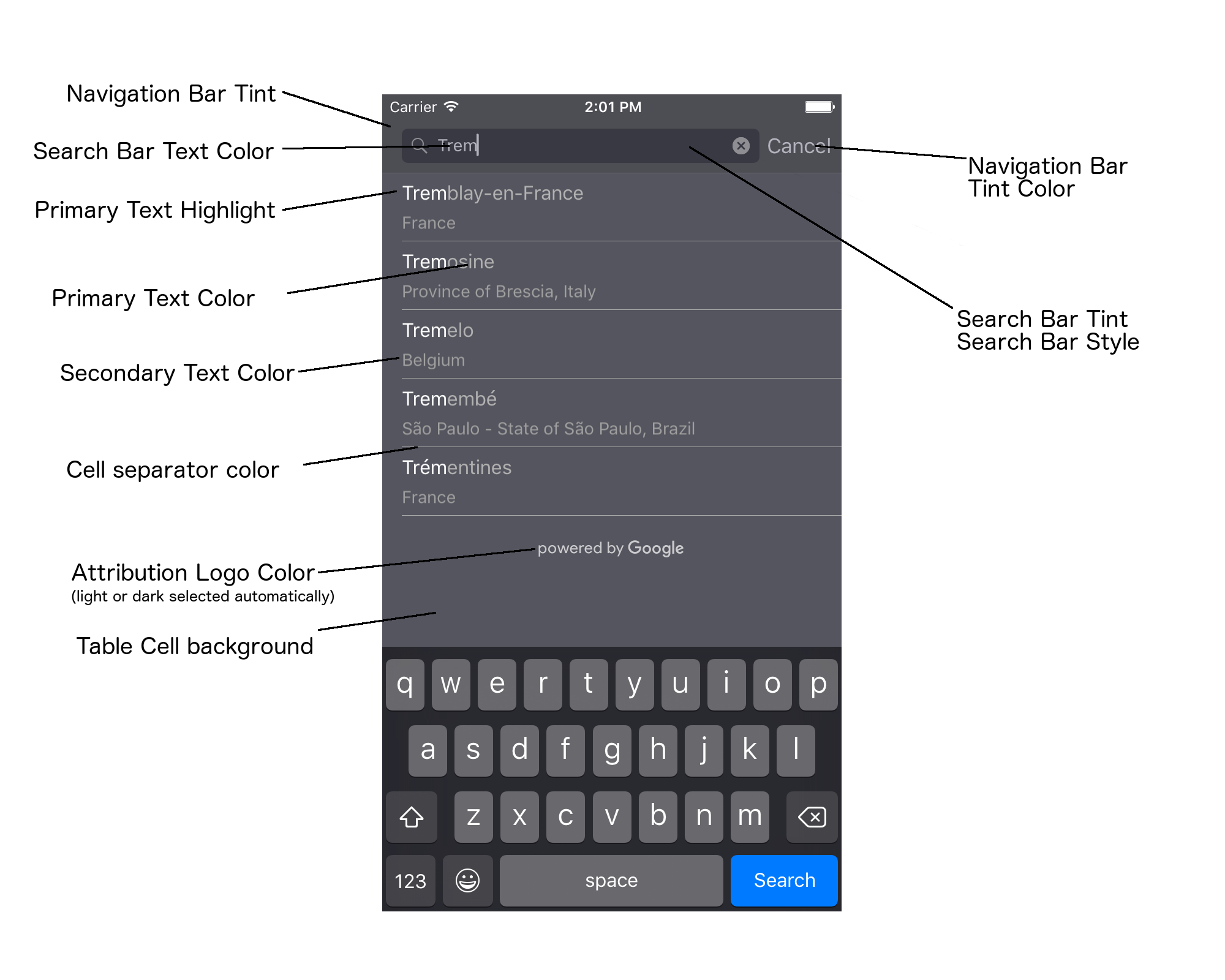
בטבלה הבאה מפורטים כל רכיבי ממשק המשתמש, ומוסבר איך צריך לעצב כל אחד מהם (פרוטוקול UIAppearance או שיטת SDK).
| רכיב בממשק המשתמש | שיטה | רעיונות לסטיילינג |
|---|---|---|
| גוון (רקע) של סרגל הניווט | פרוטוקול UIAppearance | התקשרות אל setBarTintColor בשרת proxy UINavigationBar. |
| צבע הגוון של סרגל הניווט (הסמן של הטקסט בסרגל החיפוש והכפתור 'ביטול') | פרוטוקול UIAppearance | התקשרות אל setTintColor בשרת ה-proxy UINavigationBar. |
| צבע הטקסט בשורת החיפוש | פרוטוקול UIAppearance | מגדירים את NSForegroundColorAttributeName ב-searchBarTextAttributes. |
| גוון הצבע של שורת החיפוש | לא רלוונטי | שורת החיפוש שקופה למחצה ויוצג כגרסה מוצללת של סרגל הניווט. |
| צבע הטקסט לדוגמה בשורת החיפוש (טקסט החיפוש שמוגדר כברירת מחדל) | פרוטוקול UIAppearance | מגדירים את NSForegroundColorAttributeName ב-placeholderAttributes. |
| טקסט ראשי (מוחל גם על טקסט של שגיאות והודעות) | פריט Method ב-SDK | התקשרו אל primaryTextColor. |
| הדגשת הטקסט הראשי | פריט Method ב-SDK | התקשרו אל primaryTextHighlightColor. |
| טקסט משני | פריט Method ב-SDK | התקשרו אל secondaryTextColor. |
| שגיאה וטקסט ההודעה | שיטת SDK | התקשרו אל primaryTextColor. |
| רקע של תא בטבלה | שיטת SDK | התקשרו אל tableCellBackgroundColor. |
| צבע הקו המפריד בין תאים בטבלה | שיטת SDK | התקשרו אל tableCellSeparatorColor. |
| הלחצן 'ניסיון חוזר' | שיטת SDK | התקשרו אל tintColor. |
| אינדיקטור של פעילות (סימן גרפי של התקדמות) | פרוטוקול UIAppearance | קוראים לפונקציה setColor בשרת ה-proxy של UIActivityIndicatorView. |
| הלוגו 'מופעל על ידי Google', תמונה של ענן עצוב | לא רלוונטי | המערכת בוחרת אוטומטית גרסה לבנה או אפורה על סמך הניגודיות של הרקע. |
| סמלים של זכוכית מגדלת וניקוי טקסט בשדה הטקסט של שורת החיפוש | לא רלוונטי | כדי לשנות את הסגנון, מחליפים את תמונות ברירת המחדל בתמונות בצבע הרצוי. |
שימוש בפרוטוקול UIAppearance
אפשר להשתמש בפרוטוקול UIAppearance כדי לקבל את פרוקסי המראה של רכיב בממשק המשתמש, ואז להשתמש בו כדי להגדיר את הצבע של רכיב בממשק המשתמש. כשמבצעים שינוי, הוא משפיע על כל המופעים של רכיב ממשק משתמש נתון. לדוגמה, בדוגמה הבאה, צבע הטקסט של מחלקות UITextField משתנה לירוק באופן גלובלי כשהן נכללות ב-UISearchBar:
[[UITextField appearanceWhenContainedIn:[UISearchBar class], nil]
    setDefaultTextAttributes:@{NSForegroundColorAttributeName:[UIColor greenColor]}];
מידע נוסף על הגדרת ערכי צבעים זמין בהפניה למחלקת UIColor.
קטעי הקוד הבאים מראים את כל פקודות ה-proxy שצריך להשתמש בהן כדי להגדיר את הסגנון של כל הרכיבים בממשק המשתמש של ההשלמה האוטומטית במסך מלא. מוסיפים את הקוד הזה ל-method didFinishLaunchingWithOptions ב-Appdelegate.m:
// Define some colors.
UIColor *darkGray = [UIColor darkGrayColor];
UIColor *lightGray = [UIColor lightGrayColor];

// Navigation bar background.
[[UINavigationBar appearance] setBarTintColor:darkGray];
[[UINavigationBar appearance] setTintColor:lightGray];

// Color of typed text in the search bar.
NSDictionary *searchBarTextAttributes = @{
                                          NSForegroundColorAttributeName: lightGray,
                                          NSFontAttributeName : [UIFont systemFontOfSize:[UIFont systemFontSize]]
                                          };
[UITextField appearanceWhenContainedInInstancesOfClasses:@[[UISearchBar class]]]
    .defaultTextAttributes = searchBarTextAttributes;

// Color of the placeholder text in the search bar prior to text entry.
NSDictionary *placeholderAttributes = @{
                                        NSForegroundColorAttributeName: lightGray,
                                        NSFontAttributeName : [UIFont systemFontOfSize:[UIFont systemFontSize]]
                                        };

// Color of the default search text.
// NOTE: In a production scenario, "Search" would be a localized string.
NSAttributedString *attributedPlaceholder =
[[NSAttributedString alloc] initWithString:@"Search"
                                attributes:placeholderAttributes];
[UITextField appearanceWhenContainedInInstancesOfClasses:@[[UISearchBar class]]]
    .attributedPlaceholder = attributedPlaceholder;

// Color of the in-progress spinner.
[[UIActivityIndicatorView appearance] setColor:lightGray];

// To style the two image icons in the search bar (the magnifying glass
// icon and the 'clear text' icon), replace them with different images.
[[UISearchBar appearance] setImage:[UIImage imageNamed:@"custom_clear_x_high"]
                  forSearchBarIcon:UISearchBarIconClear
                            state:UIControlStateHighlighted];
[[UISearchBar appearance] setImage:[UIImage imageNamed:@"custom_clear_x"]
                  forSearchBarIcon:UISearchBarIconClear
                            state:UIControlStateNormal];
[[UISearchBar appearance] setImage:[UIImage imageNamed:@"custom_search"]
                    forSearchBarIcon:UISearchBarIconSearch
                            state:UIControlStateNormal];

// Color of selected table cells.
UIView *selectedBackgroundView = [[UIView alloc] init];
selectedBackgroundView.backgroundColor = [UIColor lightGrayColor];
[UITableViewCell appearanceWhenContainedIn:[GMSAutocompleteViewController class], nil]
    .selectedBackgroundView = selectedBackgroundView;
הגדרת מאפייני סגנון של רכיב אינטראקטיבי בממשק המשתמש
לחלק מרכיבי הבקרה של ממשק המשתמש יש מאפיינים שלא מושפעים מהפרוטוקול UIAppearance, ולכן צריך להגדיר אותם ישירות. בדוגמת הקוד הבאה מוגדרים צבעי חזית ורקע, והם מוחלים על מופע של רכיב אינטראקטיבי בשם acController. מוסיפים את הקוד הזה לשיטה onLaunchClicked
ב-ViewController.m:
UIColor *darkGray = [UIColor darkGrayColor];
UIColor *lightGray = [UIColor lightGrayColor];

acController.secondaryTextColor = [UIColor colorWithWhite:1.0f alpha:0.5f];
acController.primaryTextColor = lightGray;
acController.primaryTextHighlightColor = [UIColor grayColor];
acController.tableCellBackgroundColor = darkGray;
acController.tableCellSeparatorColor = lightGray;
acController.tintColor = lightGray;
קבלת תחזיות לגבי מקומות באופן פרוגרמטי
אתם יכולים ליצור ממשק משתמש מותאם אישית לחיפוש כחלופה לממשק המשתמש שמסופק על ידי הווידג'ט של ההשלמה האוטומטית. כדי לעשות את זה, האפליקציה צריכה לקבל תחזיות לגבי מקומות באופן פרוגרמטי. האפליקציה יכולה לקבל רשימה של שמות מקומות או כתובות שחזתה באחת מהדרכים הבאות:
מתבצעת התקשרות אל GMSPlacesClient findAutocompletePredictionsFromQuery:
כדי לקבל רשימה של שמות מקומות או כתובות שחזויים, קודם יוצרים מופע של GMSPlacesClient, ואז קוראים למתודה GMSPlacesClient
findAutocompletePredictionsFromQuery: עם הפרמטרים הבאים:
- מחרוזת
autocompleteQueryשמכילה את הטקסט שהמשתמש הקליד. - A
GMSAutocompleteSessionToken, שמשמש לזיהוי כל סשן בנפרד. האפליקציה צריכה להעביר את אותו טוקן בכל קריאה לבקשת השלמה אוטומטית, ואז להעביר את הטוקן הזה, יחד עם מזהה מקום, בקריאה הבאה אלfetchPlacefromPlaceID:כדי לאחזר את פרטי המקום שנבחר על ידי המשתמש. - א
GMSAutocompleteFilterאל:- הטיה או הגבלה של התוצאות לאזור ספציפי.
- הגבלת התוצאות לסוג מסוים של מקום.
- אובייקט
GMSPlaceLocationBias/Restriction שמטה את התוצאות לאזור מסוים שמוגדר על ידי גבולות של קווי רוחב ואורך.
- שיטת קריאה חוזרת לטיפול בתחזיות שמוחזרות.
בדוגמאות הקוד הבאות מוצגת קריאה ל-findAutocompletePredictionsFromQuery:.
Swift
/**
 *   Create a new session token. Be sure to use the same token for calling
 *   findAutocompletePredictions, as well as the subsequent place details request.
 *   This ensures that the user's query and selection are billed as a single session.
 */
let token = GMSAutocompleteSessionToken.init()

// Create a type filter.
let filter = GMSAutocompleteFilter()
filter.types = [kGMSPlaceTypeBank]
filter.locationBias = GMSPlaceRectangularLocationOption( northEastBounds,
                                   southWestBounds);

placesClient?.findAutocompletePredictions(fromQuery: "cheesebu",

                                          filter: filter,
                                          sessionToken: token,
                                          callback: { (results, error) in
    if let error = error {
      print("Autocomplete error: \(error)")
      return
    }
    if let results = results {
      for result in results {
        print("Result \(result.attributedFullText) with placeID \(result.placeID)")
      }
    }
})
Objective-C
/**
 *   Create a new session token. Be sure to use the same token for calling
 *   findAutocompletePredictionsFromQuery:, as well as the subsequent place details request.
 *   This ensures that the user's query and selection are billed as a single session.
 */
GMSAutocompleteSessionToken *token = [[GMSAutocompleteSessionToken alloc] init];

// Create a type filter.
GMSAutocompleteFilter *_filter = [[GMSAutocompleteFilter alloc] init];
_filter.types = @[ kGMSPlaceTypeBank ];

[_placesClient findAutocompletePredictionsFromQuery:@"cheesebu"
filter:_filter sessionToken:token callback:^(NSArray<GMSAutocompletePrediction *> * _Nullable results, NSError * _Nullable error) {
  if (error != nil) {
    NSLog(@"An error occurred %@", [error localizedDescription]);
    return;
  }
  if (results != nil) {
    for (GMSAutocompletePrediction *result in results) {
      NSLog(@"Result %@ with PlaceID %@", result.attributedFullText, result.placeID);
    }
  }
}];
ממשק ה-API מפעיל את שיטת הקריאה החוזרת שצוינה, ומעביר מערך של אובייקטים מסוג GMSAutocompletePrediction.
כל אובייקט GMSAutocompletePrediction מכיל את הפרטים הבאים:
-
attributedFullText– הטקסט המלא של החיזוי, בפורמט שלNSAttributedString. לדוגמה, 'בית האופרה של סידני, סידני, ניו סאות' ויילס, אוסטרליה'. לכל טווח טקסט שתואם לקלט של המשתמש יש מאפיין,kGMSAutocompleteMatchAttribute. אתם יכולים להשתמש במאפיין הזה כדי להדגיש את הטקסט התואם בשאילתה של המשתמש, כמו בדוגמה שבהמשך. -
placeID– מזהה המקום של המקום החזוי. מזהה מקום הוא מזהה טקסטואלי שמזהה מקום באופן ייחודי. מידע נוסף על מזהי מקומות זמין במאמר סקירה כללית על מזהי מקומות. -
distanceMeters– המרחק בקו ישר מהמיקום שצוין ב-originאל היעד. אם המאפייןoriginלא מוגדר, לא יוחזר ערך מרחק.
בדוגמת הקוד הבאה מוסבר איך להדגיש בטקסט מודגש את החלקים בתוצאה שתואמים לטקסט בשאילתה של המשתמש, באמצעות enumerateAttribute:
Swift
let regularFont = UIFont.systemFont(ofSize: UIFont.labelFontSize)
let boldFont = UIFont.boldSystemFont(ofSize: UIFont.labelFontSize)

let bolded = prediction.attributedFullText.mutableCopy() as! NSMutableAttributedString
bolded.enumerateAttribute(kGMSAutocompleteMatchAttribute, in: NSMakeRange(0, bolded.length), options: []) {
  (value, range: NSRange, stop: UnsafeMutablePointer<ObjCBool>) -> Void in
    let font = (value == nil) ? regularFont : boldFont
    bolded.addAttribute(NSFontAttributeName, value: font, range: range)
}

label.attributedText = bolded
Objective-C
UIFont *regularFont = [UIFont systemFontOfSize:[UIFont labelFontSize]];
UIFont *boldFont = [UIFont boldSystemFontOfSize:[UIFont labelFontSize]];

NSMutableAttributedString *bolded = [prediction.attributedFullText mutableCopy];
[bolded enumerateAttribute:kGMSAutocompleteMatchAttribute
                   inRange:NSMakeRange(0, bolded.length)
                   options:0
                usingBlock:^(id value, NSRange range, BOOL *stop) {
                  UIFont *font = (value == nil) ? regularFont : boldFont;
                  [bolded addAttribute:NSFontAttributeName value:font range:range];
                }];

label.attributedText = bolded;
שימוש במאחזר
אם אתם רוצים ליצור פקד השלמה אוטומטית משלכם מאפס, אתם יכולים להשתמש ב-GMSAutocompleteFetcher, שעוטף את השיטה autocompleteQuery ב-GMSPlacesClient. הכלי לאחזור נתונים מגביל את מספר הבקשות, ומחזיר רק תוצאות של טקסט החיפוש שהוזן לאחרונה. הוא לא מספק רכיבים בממשק המשתמש.
כדי להטמיע את GMSAutocompleteFetcher:
- מטמיעים את הפרוטוקול
GMSAutocompleteFetcherDelegate. - יוצרים אובייקט
GMSAutocompleteFetcher. - מתקשרים אל
sourceTextHasChangedב-fetcher בזמן שהמשתמש מקליד. - מטפלים בחיזויים ובשגיאות באמצעות השיטות של הפרוטוקולים
didAutcompleteWithPredictionsו-didFailAutocompleteWithError.
בדוגמת הקוד הבאה אפשר לראות איך משתמשים ב-fetcher כדי לקבל קלט מהמשתמש ולהציג התאמות למקומות בתצוגת טקסט. הפונקציונליות של בחירת מקום הושמטה. FetcherSampleViewController נגזר מ-UIViewController ב-FetcherSampleViewController.h.
Swift
import UIKit
import GooglePlaces

class ViewController: UIViewController {

  var textField: UITextField?
  var resultText: UITextView?
  var fetcher: GMSAutocompleteFetcher?

  override func viewDidLoad() {
    super.viewDidLoad()

    view.backgroundColor = .white
    edgesForExtendedLayout = []

    // Set bounds to inner-west Sydney Australia.
    let neBoundsCorner = CLLocationCoordinate2D(latitude: -33.843366,
                                                longitude: 151.134002)
    let swBoundsCorner = CLLocationCoordinate2D(latitude: -33.875725,
                                                longitude: 151.200349)

    // Set up the autocomplete filter.
    let filter = GMSAutocompleteFilter()
    filter.locationRestriction = GMSPlaceRectangularLocationOption(neBoundsCorner, swBoundsCorner)

    // Create a new session token.
    let token: GMSAutocompleteSessionToken = GMSAutocompleteSessionToken.init()

    // Create the fetcher.
    fetcher = GMSAutocompleteFetcher(bounds: nil, filter: filter)
    fetcher?.delegate = self
    fetcher?.provide(token)

    textField = UITextField(frame: CGRect(x: 5.0, y: 10.0,
                                          width: view.bounds.size.width - 5.0,
                                          height: 64.0))
    textField?.autoresizingMask = .flexibleWidth
    textField?.addTarget(self, action: #selector(textFieldDidChange(textField:)),
                         for: .editingChanged)
    let placeholder = NSAttributedString(string: "Type a query...")

    textField?.attributedPlaceholder = placeholder

    resultText = UITextView(frame: CGRect(x: 0, y: 65.0,
                                          width: view.bounds.size.width,
                                          height: view.bounds.size.height - 65.0))
    resultText?.backgroundColor = UIColor(white: 0.95, alpha: 1.0)
    resultText?.text = "No Results"
    resultText?.isEditable = false

    self.view.addSubview(textField!)
    self.view.addSubview(resultText!)
  }

  @objc func textFieldDidChange(textField: UITextField) {
    fetcher?.sourceTextHasChanged(textField.text!)
  }

}

extension ViewController: GMSAutocompleteFetcherDelegate {
  func didAutocomplete(with predictions: [GMSAutocompletePrediction]) {
    let resultsStr = NSMutableString()
    for prediction in predictions {
      resultsStr.appendFormat("\n Primary text: %@\n", prediction.attributedPrimaryText)
      resultsStr.appendFormat("Place ID: %@\n", prediction.placeID)
    }

    resultText?.text = resultsStr as String
  }

  func didFailAutocompleteWithError(_ error: Error) {
    resultText?.text = error.localizedDescription
  }
}
Objective-C
#import "FetcherSampleViewController.h"
#import <GooglePlaces/GooglePlaces.h>

@interface FetcherSampleViewController () <GMSAutocompleteFetcherDelegate>

@end

@implementation FetcherSampleViewController {
  UITextField *_textField;
  UITextView *_resultText;
  GMSAutocompleteFetcher* _fetcher;
}

-   (void)viewDidLoad {
  [super viewDidLoad];

  self.view.backgroundColor = [UIColor whiteColor];
  self.edgesForExtendedLayout = UIRectEdgeNone;

  // Set bounds to inner-west Sydney Australia.
  CLLocationCoordinate2D neBoundsCorner = CLLocationCoordinate2DMake(-33.843366, 151.134002);
  CLLocationCoordinate2D swBoundsCorner = CLLocationCoordinate2DMake(-33.875725, 151.200349);

  GMSAutocompleteFilter *autocompleteFilter = [[GMSAutocompleteFilter alloc] init];
  autocompleteFilter.locationRestriction =
        GMSPlaceRectangularLocationOption(neBoundsCorner, swBoundsCorner);

  // Create the fetcher.
  _fetcher = [[GMSAutocompleteFetcher alloc] initWithBounds:nil
                                                     filter:filter];
  _fetcher.delegate = self;

  // Set up the UITextField and UITextView.
  _textField = [[UITextField alloc] initWithFrame:CGRectMake(5.0f,
                                                             0,
                                                             self.view.bounds.size.width - 5.0f,
                                                             44.0f)];
  _textField.autoresizingMask = UIViewAutoresizingFlexibleWidth;
  [_textField addTarget:self
                 action:@selector(textFieldDidChange:)
       forControlEvents:UIControlEventEditingChanged];
  _resultText =[[UITextView alloc] initWithFrame:CGRectMake(0,
                                                            45.0f,
                                                            self.view.bounds.size.width,
                                                            self.view.bounds.size.height - 45.0f)];
  _resultText.backgroundColor = [UIColor colorWithWhite:0.95f alpha:1.0f];
  _resultText.text = @"No Results";
  _resultText.editable = NO;
  [self.view addSubview:_textField];
  [self.view addSubview:_resultText];
}

-   (void)textFieldDidChange:(UITextField *)textField {
  NSLog(@"%@", textField.text);
  [_fetcher sourceTextHasChanged:textField.text];
}

#pragma mark - GMSAutocompleteFetcherDelegate
-   (void)didAutocompleteWithPredictions:(NSArray *)predictions {
  NSMutableString *resultsStr = [NSMutableString string];
  for (GMSAutocompletePrediction *prediction in predictions) {
      [resultsStr appendFormat:@"%@\n", [prediction.attributedPrimaryText string]];
  }
  _resultText.text = resultsStr;
}

-   (void)didFailAutocompleteWithError:(NSError *)error {
  _resultText.text = [NSString stringWithFormat:@"%@", error.localizedDescription];
}

@end
טוקנים לסשנים
אסימוני סשן מקבצים את שלבי השאילתה והבחירה של השלמה אוטומטית של חיפוש משתמש לסשן נפרד למטרות חיוב. הסשן מתחיל כשהמשתמש מתחיל להקליד שאילתה, ומסתיים כשהוא בוחר מקום. בכל סשן יכולות להיות כמה שאילתות, ואחריהן בחירה של מקום אחד. אחרי שהסשן מסתיים, האסימון כבר לא תקף. האפליקציה צריכה ליצור אסימון חדש לכל סשן. מומלץ להשתמש בטוקנים לסשן לכל הסשנים של השלמה אוטומטית שמתבצעים באופן פרוגרמטי (כשמשתמשים בבקר במסך מלא או בבקר התוצאות, ה-API מטפל בזה באופן אוטומטי).
Places SDK ל-iOS משתמש ב-GMSAutocompleteSessionToken כדי לזהות כל סשן. האפליקציה צריכה להעביר טוקן לסשן חדש בתחילת כל סשן חדש, ואז להעביר את אותו טוקן, יחד עם מזהה מקום, בקריאה הבאה ל-fetchPlacefromPlaceID: כדי לאחזר את Place Details עבור המקום שנבחר על ידי המשתמש.
משתמשים בקוד הבא כדי ליצור טוקן סשן חדש:
let token: GMSAutocompleteSessionToken = GMSAutocompleteSessionToken.init()
מכסות שימוש
- השימוש בשיטה
GMSPlacesClient findAutocompletePredictionsFromQueryכפוף למכסות שאילתות מדורגות. למידע נוסף על מגבלות השימוש
הצגת שיוכים באפליקציה
- אם האפליקציה שלכם משתמשת בשירות ההשלמה האוטומטית באופן פרוגרמטי, בממשק המשתמש שלכם צריך להופיע ייחוס 'מופעל על ידי Google' או שההשלמה האוטומטית צריכה להופיע במפה עם מיתוג של Google.
- אם האפליקציה שלכם משתמשת ברכיב האינטראקטיבי של ממשק המשתמש להשלמה אוטומטית, לא נדרשת פעולה נוספת (השיוך הנדרש מוצג כברירת מחדל).
- אם אתם מאחזרים ומציגים מידע נוסף על מקום אחרי אחזור מקום לפי מזהה, אתם צריכים להציג גם ייחוסים של צד שלישי.
לפרטים נוספים, קראו את המאמר בנושא שיוך (Attribution).
שליטה באינדיקטור של הפעילות ברשת
כדי לשלוט בסימן הפעילות ברשת בסרגל הסטטוס של האפליקציות, צריך להטמיע את שיטות הנציג האופציונליות המתאימות עבור מחלקת ההשלמה האוטומטית שבה אתם משתמשים, ולהפעיל או להשבית את סימן הרשת בעצמכם.
- ב-
GMSAutocompleteViewControllerצריך להטמיע את ה-methodsdidRequestAutocompletePredictions:ו-didUpdateAutocompletePredictions:של ה-delegate. - ב-
GMSAutocompleteResultsViewController, צריך להטמיע את ה-delegate methodsdidRequestAutocompletePredictionsForResultsController:ו-didUpdateAutocompletePredictionsForResultsController:. - ב-
GMSAutocompleteTableDataSourceצריך להטמיע את ה-methodsdidRequestAutocompletePredictionsForTableDataSource:ו-didUpdateAutocompletePredictionsForTableDataSource:.
אם תטמיעו את השיטות האלה ותגדירו את [UIApplication
sharedApplication].networkActivityIndicatorVisible ל-YES ואת NO ל-
, שורת הסטטוס תתאים לממשק המשתמש של ההשלמה האוטומטית.
הגבלת תוצאות ההשלמה האוטומטית
אפשר להגדיר את רכיב אינטראקטיבי של ממשק המשתמש להשלמה אוטומטית כך שהתוצאות יוגבלו לאזור גיאוגרפי ספציפי, ו/או לסנן את התוצאות לפי סוג מקום אחד או יותר, או לפי מדינה ספציפית או מדינות ספציפיות. כדי לצמצם את התוצאות, אפשר:
- כדי להעדיף (להטות) תוצאות בתוך האזור המוגדר, מגדירים את
locationBiasכ-on ב-GMSAutocompleteFilter(יכול להיות שעדיין יוחזרו תוצאות מחוץ לאזור המוגדר). אם גם המדיניותlocationRestrictionמוגדרת, המערכת תתעלם מהמדיניותlocationBias. כדי להציג רק (להגביל) תוצאות באזור המוגדר, צריך להגדיר את הערך
locationRestrictionבמאפייןGMSAutocompleteFilter(יוחזרו רק תוצאות באזור המוגדר).- הערה: ההגבלה הזו חלה רק על מסלולים שלמים. יכול להיות שיוחזרו תוצאות סינתטיות שנמצאות מחוץ לגבולות המלבניים, על סמך מסלול שחופף להגבלת המיקום.
כדי להחזיר רק תוצאות שתואמות לסוג מקום מסוים, מגדירים את
typesב-GMSAutocompleteFilter(לדוגמה, אם מציינים את kGMSPlaceTypeCollectionAddress, הווידג'ט יחזיר רק תוצאות עם כתובת מדויקת).כדי לקבל רק תוצאות מתוך עד חמש מדינות ספציפיות, מגדירים את הערך
countriesבמאפייןGMSAutocompleteFilter.
הטיית התוצאות לאזור ספציפי
כדי להעדיף (להטות) תוצאות בתוך האזור המוגדר, מגדירים את locationBias ב-GMSAutocompleteFilter, כמו שמוצג כאן:
northEast = CLLocationCoordinate2DMake(39.0, -95.0);  southWest =
CLLocationCoordinate2DMake(37.5, -100.0);  GMSAutocompleteFilter *filter =
[[GMSAutocompleteFilter alloc] init];  filter.locationBias =
GMSPlaceRectangularLocationOption(northEast, southWest);
הגבלת התוצאות לאזור ספציפי
כדי להציג רק (להגביל) תוצאות באזור המוגדר, צריך להגדיר את locationRestriction ב-GMSAutocompleteFilter, כמו שמוצג כאן:
northEast = CLLocationCoordinate2DMake(39.0, -95.0);  southWest =
CLLocationCoordinate2DMake(37.5, -100.0);  GMSAutocompleteFilter *filter =
[[GMSAutocompleteFilter alloc] init];  filter.locationRestriction =
GMSPlaceRectangularLocationOption(northEast, southWest);
סינון התוצאות לפי מדינה
כדי לסנן את התוצאות בחמש מדינות לכל היותר, מגדירים את countries ב-GMSAutocompleteFilter, כמו שמוצג כאן:
GMSAutocompleteFilter *filter = [[GMSAutocompleteFilter alloc] init];
filter.countries = @[ @"au", @"nz" ];
סינון התוצאות לפי סוג מקום או סוג אוסף
כדי להגביל את התוצאות לסוג מסוים או לאוסף סוגים, צריך להגדיר את המאפיין types של GMSAutoCompleteFilter.
המאפיין הזה מאפשר לציין מסננים שמפורטים בטבלאות 1, 2 ו-3 בדף Place Types. אם לא מציינים כלום, כל הסוגים מוחזרים.
כדי לציין מסנן של סוג או אוסף סוגים:
משתמשים במאפיין
typesכדי לציין עד חמישה ערכים של type מתוך טבלה 1 וטבלה 2 שמופיעות במאמר סוגי מקומות. ערכי הסוג מוגדרים על ידי הקבועים ב-GMSPlaceType.משתמשים במאפיין
typesכדי לציין אוסף סוגים מתוך טבלה 3 שמוצגת בסוגי מקומות. ערכי האוסף מסוג type מוגדרים על ידי הקבועים ב-GMSPlaceType.בבקשה מותר להשתמש רק בסוג אחד מתוך טבלה 3. אם מציינים ערך מטבלה 3, אי אפשר לציין ערך מטבלה 1 או מטבלה 2. אם תעשו זאת, תתרחש שגיאה.
לדוגמה, כדי להחזיר רק תוצאות שתואמות לסוג מקום מסוים, מגדירים את types ב-GMSAutocompleteFilter. בדוגמה הבאה מוגדר מסנן שמחזיר רק תוצאות עם כתובת מדויקת:
GMSAutocompleteFilter *filter = [[GMSAutocompleteFilter alloc] init];
filter.types = @[ kGMSPlaceTypeAirport, kGMSPlaceTypeAmusementPark ];
אופטימיזציה של השלמה אוטומטית למקומות (גרסה קודמת)
בקטע הזה מתוארות שיטות מומלצות שיעזרו לכם להפיק את המרב משירות השלמה אוטומטית למקומות (גרסה קודמת).
הנה כמה הנחיות כלליות:
- הדרך הכי מהירה לפתח ממשק משתמש תקין היא להשתמש בווידג'ט השלמה אוטומטית למקומות (מדור קודם) של Maps JavaScript API, בווידג'ט השלמה אוטומטית למקומות (מדור קודם) של Places SDK ל-Android או ברכיב אינטראקטיבי השלמה אוטומטית למקומות (מדור קודם) של Places SDK ל-iOS.
- להבין מההתחלה את שדות הנתונים החיוניים של השלמה אוטומטית למקומות (מדור קודם).
- השדות "הטיה לפי מיקום" ו"הגבלת מיקום" הם אופציונליים, אבל יכולה להיות להם השפעה משמעותית על הביצועים של ההשלמה האוטומטית.
- כדאי להשתמש בטיפול בשגיאות כדי לוודא שהאפליקציה תפעל בצורה תקינה גם אם ה-API יחזיר שגיאה.
- חשוב לוודא שהאפליקציה מטפלת במצב שבו לא נבחרה אפשרות, ומציעה למשתמשים דרך להמשיך.
שיטות מומלצות לאופטימיזציה של עלויות
אופטימיזציה בסיסית של עלויות
כדי להוזיל את עלות השימוש בשירות "השלמה אוטומטית למקומות (מדור קודם)", אתם יכולים להשתמש במסכות שדות בווידג'טים "פרטי מקומות (מדור קודם)" ו"השלמה אוטומטית למקומות (מדור קודם)" כדי להחזיר רק את שדות הנתונים של "השלמה אוטומטית למקומות (מדור קודם)" שאתם צריכים.
אופטימיזציה מתקדמת של עלויות
כדאי לשקול הטמעה פרוגרמטית של השלמה אוטומטית למקומות (מדור קודם) כדי לגשת אל SKU: Autocomplete - Per Request pricing ולבקש תוצאות של Geocoding API לגבי המקום שנבחר במקום Place Details (מדור קודם). תמחור לפי בקשה בשילוב עם Geocoding API משתלם יותר מתמחור לפי סשן אם שני התנאים הבאים מתקיימים:
- אם אתם צריכים רק את קו הרוחב וקו האורך או את הכתובת של המקום שהמשתמש בחר, תוכלו לקבל את המידע הזה באמצעות Geocoding API בעלות נמוכה יותר מאשר קריאה ל-Place Details (Legacy).
- אם המשתמשים בוחרים הצעות להשלמת החיפוש בממוצע של ארבע בקשות או פחות לתחזיות של השלמה אוטומטית למקומות (גרסה קודמת), התמחור לפי בקשה יכול להיות חסכוני יותר מהתמחור לפי סשן.
האם האפליקציה שלך דורשת מידע כלשהו מלבד הכתובת וקו הרוחב/קו האורך של החיזוי שנבחר?
כן, צריך עוד פרטים
שימוש בהשלמה אוטומטית למקומות (גרסה קודמת) מבוססת-סשן עם פרטי מקומות (גרסה קודמת).
מכיוון שהאפליקציה שלך דורשת Place Details (מדור קודם), כמו שם המקום, הסטטוס של העסק,
או שעות פעילות, ההטמעה של השלמה אוטומטית למקומות (מדור קודם) צריכה להשתמש בטוקן לסשן
(באופן פרוגרמטי או מובנה בווידג'טים של
JavaScript,
Android,
או iOS
) לכל סשן
בנוסף למק"טים הרלוונטיים של Places Data,
בהתאם לשדות הנתונים של המקום שאתה מבקש.1
הטמעת ווידג'ט
ניהול הסשנים מובנה באופן אוטומטי בווידג'טים של
JavaScript,
Android,
או iOS. הגדרה זו כוללת גם בקשות של השלמה אוטומטית למקומות (מדור קודם) וגם בקשות של Place Details (מדור קודם) לגבי החיזוי שנבחר. חשוב לציין את הפרמטר fields כדי לוודא שאתם מבקשים רק את שדות הנתונים של ההשלמה האוטומטית למקומות (מדור קודם) שאתם צריכים.
הטמעה פרוגרמטית
משתמשים בטוקן לסשן עם הבקשות של השלמה אוטומטית למקומות (מדור קודם). כשמבקשים Place Details (גרסה מדור קודם) לגבי החיזוי שנבחר, צריך לכלול את הפרמטרים הבאים:
- מזהה המקום מהתגובה של השלמה אוטומטית למקומות (מדור קודם)
- הטוקן לסשן שמשמש בבקשה של השלמה אוטומטית למקומות (מדור קודם)
- הפרמטר
fieldsשמציין את שדות הנתונים של ההשלמה האוטומטית למקומות (מדור קודם) שאתם צריכים
לא, צריך רק כתובת ומיקום
יכול להיות ש-Geocoding API יהיה אפשרות חסכונית יותר מאשר Place Details (מדור קודם) לאפליקציה שלכם, בהתאם לביצועים של השימוש שלכם ב-השלמה אוטומטית למקומות (מדור קודם). היעילות של ההשלמה האוטומטית למקומות (דור קודם) בכל אפליקציה משתנה בהתאם למה שהמשתמשים מזינים, למקום שבו משתמשים באפליקציה ולשאלה אם הוטמעו שיטות מומלצות לאופטימיזציה של הביצועים.
כדי לענות על השאלה הבאה, צריך לנתח כמה תווים משתמש מקליד בממוצע לפני שהוא בוחר חיזוי של השלמה אוטומטית למקומות (מדור קודם) באפליקציה.
האם המשתמשים שלכם בוחרים חיזוי של השלמה אוטומטית למקומות (מדור קודם) בארבע בקשות או פחות, בממוצע?
כן
מטמיעים את השלמה אוטומטית למקומות (מדור קודם) באופן פרוגרמטי בלי אסימוני סשן, ומפעילים את Geocoding API על החיזוי של המקום שנבחר.
Geocoding API מספק כתובות וקואורדינטות של קו רוחב וקו אורך.
ביצוע ארבע בקשות של השלמה אוטומטית – לכל בקשה וקריאה אחת ל-Geocoding API לגבי החיזוי של המקום שנבחר, עולה פחות מהעלות של השלמה אוטומטית למקומות (מדור קודם) לכל סשן.1
כדאי להשתמש בשיטות מומלצות לשיפור הביצועים כדי לעזור למשתמשים לקבל את התחזית שהם מחפשים גם אם הם מקלידים פחות תווים.
לא
שימוש ב-השלמה אוטומטית למקומות (מדור קודם) מבוסס-סשן עם Place Details (מדור קודם)
מכיוון שהמספר הממוצע של הבקשות שאתם צפויים לשלוח לפני שהמשתמש בוחר חיזוי של
השלמה אוטומטית למקומות (מדור קודם) גבוה מהעלות של תמחור לפי סשן, בהטמעה שלכם של השלמה אוטומטית למקומות (מדור קודם) צריך להשתמש בטוקן לסשן גם לבקשות של השלמה אוטומטית למקומות (מדור קודם) וגם לבקשה המשויכת של Place Details (מדור קודם)
לכל סשן.
1
הטמעה של ווידג'טים
ניהול הסשנים מוטמע אוטומטית בווידג'טים של
JavaScript,
Android,
או iOS. הגדרה זו כוללת גם בקשות של השלמה אוטומטית למקומות (גרסה קודמת) וגם בקשות של Place Details (גרסה קודמת) לגבי החיזוי שנבחר. חשוב לציין את הפרמטר fields כדי לוודא שאתם מבקשים רק את השדות שאתם צריכים.
הטמעה פרוגרמטית
משתמשים בטוקן לסשן עם הבקשות של השלמה אוטומטית למקומות (מדור קודם).
כששולחים בקשה לקבלת Place Details (ממשק קודם) לגבי החיזוי שנבחר,
צריך לכלול את הפרמטרים הבאים:
- מזהה המקום מהתשובה של ההשלמה האוטומטית למקומות (גרסה קודמת)
- טוקן לסשן שמשמש בבקשה של השלמה אוטומטית למקומות (מדור קודם)
- הפרמטר
fieldsשמציין שדות של נתונים בסיסיים כמו כתובת וגיאומטריה
אפשר לעכב את הבקשות להשלמה אוטומטית למקומות (מדור קודם)
אפשר להשתמש באסטרטגיות כמו עיכוב של בקשה להשלמה אוטומטית למקומות (מדור קודם) עד שהמשתמש מקליד את שלושת או ארבעת התווים הראשונים, כדי שהאפליקציה תשלח פחות בקשות. לדוגמה, אם שולחים בקשות להשלמה אוטומטית של מקומות (גרסה קודמת) לכל תו אחרי שהמשתמש הקליד את התו השלישי, ואם המשתמש מקליד שבעה תווים ואז בוחר תחזית שבשבילה שולחים בקשה אחת ל-Geocoding API, העלות הכוללת תהיה של 4 בקשות להשלמה אוטומטית של מקומות (גרסה קודמת) + Geocoding.1
אם עיכוב הבקשות יכול להוריד את הממוצע של הבקשות הפרוגרמטיות מתחת לארבע, אפשר לפעול לפי ההנחיות להטמעה של השלמה אוטומטית למקומות (מדור קודם) עם Geocoding API. חשוב לזכור שעיכוב של בקשות יכול להיתפס כזמן אחזור על ידי המשתמש, שאולי מצפה לראות תחזיות עם כל הקשה חדשה על המקשים.
כדאי להשתמש בשיטות מומלצות לשיפור הביצועים כדי לעזור למשתמשים לקבל את התחזית שהם מחפשים בפחות תווים.
-
למידע על עלויות, אפשר לעיין במחירונים של Google Maps Platform.
שיטות מומלצות לשיפור הביצועים
בהנחיות הבאות מוסבר איך לשפר את הביצועים של השלמה אוטומטית למקומות (דור קודם):
- מוסיפים הגבלות לפי מדינה, הטיה לפי מיקום והעדפת שפה (ביישומים פרוגרמטיים) להטמעה של השלמה אוטומטית למקומות (מדור קודם). אין צורך בהעדפת שפה בווידג'טים, כי הם בוחרים את העדפות השפה מתוך הדפדפן או המכשיר הנייד של המשתמש.
- אם השלמה אוטומטית למקומות (גרסה קודמת) מלווה במפה, אתם יכולים להטות את המיקום לפי אזור התצוגה של המפה.
- במקרים שבהם משתמש לא בוחר באחד מהחיזויים של השלמה אוטומטית למקומות (מדור קודם), בדרך כלל כי אף אחד מהחיזויים האלה לא מתאים לכתובת הרצויה, אפשר להשתמש מחדש בקלט של משתמשים המקורי כדי לנסות לקבל תוצאות רלוונטיות יותר:
- אם אתם מצפים שהמשתמש יזין רק פרטי כתובת, תוכלו להשתמש מחדש בקלט של משתמשים המקורי בקריאה ל-Geocoding API.
- אם אתם מצפים שהמשתמש יזין שאילתות לגבי מקום ספציפי לפי שם או כתובת, תשתמשו בבקשה של Place Details (גרסה קודמת). אם אתם מצפים לתוצאות רק באזור מסוים, אתם יכולים להשתמש בהטיה לפי מיקום.
- משתמשים שמזינים כתובות של יחידות משנה, כמו כתובות של יחידות או דירות ספציפיות בתוך בניין. לדוגמה, הכתובת בצ'כיה "Stroupežnického 3191/17, Praha" מניבה חיזוי חלקי בהשלמה האוטומטית למקומות (מדור קודם).
- משתמשים שמזינים כתובות עם קידומות של קטע רחוב כמו '23-30 29th St, Queens' בניו יורק או '47-380 Kamehameha Hwy, Kaneohe' באי קוואי בהוואי.
הטיית מיקום
כדי להטות את התוצאות לאזור מסוים, מעבירים פרמטר location ופרמטר radius. ההוראה הזו גורמת ל-השלמה אוטומטית למקומות (מדור קודם) להעדיף להציג תוצאות באזור המוגדר. יכול להיות שיוצגו תוצאות מחוץ לאזור שהוגדר. אפשר להשתמש בפרמטר includedRegionCodes כדי לסנן את התוצאות ולהציג רק מקומות במדינה מסוימת.
הגבלת מיקום
כדי להגביל את התוצאות לאזור מסוים, מעבירים פרמטר locationRestriction.
אפשר גם להגביל את התוצאות לאזור שהוגדר על ידי location
והפרמטר radius, על ידי הוספת הפרמטר
strictbounds. ההוראה הזו גורמת להשלמה אוטומטית למקומות (מדור קודם) להחזיר רק תוצאות באזור הזה.
פתרון בעיות
יכולות להתרחש מגוון רחב של שגיאות, אבל רוב השגיאות שסביר להניח שהאפליקציה שלכם תחווה נגרמות בדרך כלל משגיאות בהגדרות (לדוגמה, נעשה שימוש במפתח API שגוי או שמפתח ה-API הוגדר בצורה שגויה) או משגיאות שקשורות למכסה (האפליקציה חרגה מהמכסה שלה). מידע נוסף על מכסות זמין במאמר מכסות שימוש.
שגיאות שמתרחשות במהלך השימוש בפקדי ההשלמה האוטומטית מוחזרות ב-method didFailAutocompleteWithError() של פרוטוקולי ה-delegate השונים. המאפיין code של האובייקט NSError שסופק מוגדר לאחד מהערכים של הספירה GMSPlacesErrorCode.