

在查询街景数据洞见数据之前,您必须先注册,才能获得街景数据洞见产品的访问权限。完成账号启用流程后,您将能够订阅 Street View Insights 数据集。
前提条件
如需访问 Street View Insights 数据,您必须满足以下条件:
注册即可申请访问 Street View Insights。
拥有 Google Cloud 账号。
如果您没有账号,请点击开始使用按钮,体验 Cloud 控制台中面向新用户的交互式设置:
启用 BigQuery API。如需了解如何启用 BigQuery 以及有关使用 BigQuery 的教程,请参阅使用 Google Cloud 控制台查询公共数据集。
启用 Vertex AI。
确保您的账号具有 Analytics Hub Subscription Owner (
roles/analyticshub.subscriptionOwner) 角色才能执行订阅者任务。确保您的账号拥有 BigQuery User (
roles/bigquery.user) 角色,以便创建数据集。
订阅 Street View Insights 数据集
数据商品可在美国或欧盟多区域中使用。 如需了解详情,请参阅使用 BigQuery 查看和订阅数据集
如需订阅 Street View Insights 数据集,请执行以下操作:
前往 Cloud 控制台中的 BigQuery Analytics Hub。
找到“Street View Insights”数据集并将其打开。
打开商品详情。例如,对于欧盟商品详情:
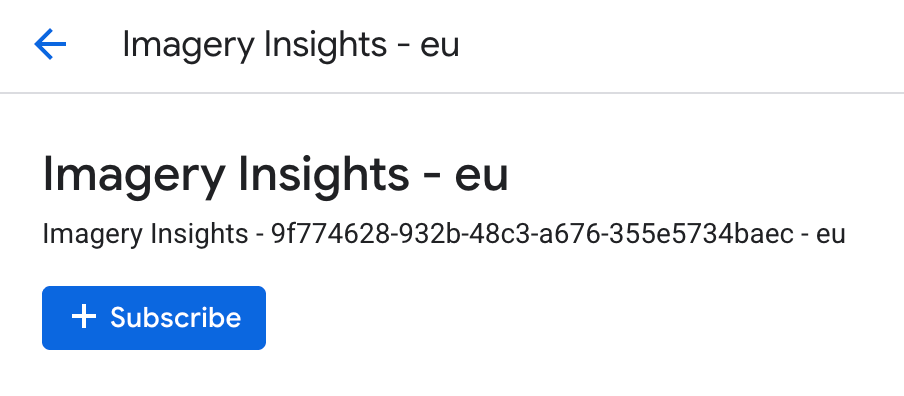
在对话框中选择订阅按钮。
在对话框中确认或修改项目、关联的数据集名称、主要区域和副本区域。您可以选择使用默认的商品详情名称,也可以选择设置名称以使用自己的命名惯例。
选择保存。
完成后,表订阅会显示在 Google Cloud 控制台的 BigQuery 探索器面板中。在 SQL 查询中,使用下表中显示的表名来访问数据。
访问您的 GCS 存储桶
| 存储桶名称 | 存储桶用途 | 备注 |
|---|---|---|
geoai_published_CUSTOMERID__LOCATION |
随每个快照发布的映像文件。 | 适用于所有客户 |
geoai_ephemeral_CUSTOMERID__LOCATION |
供客户用于存储中间图像资产的临时数据。 | 仅适用于在初始配置期间指定了客户感兴趣的业务领域的客户。 |
替换以下内容:
- 将
CUSTOMERID替换为注册电子邮件中提供的客户 ID。- 例如:
00000012-3333-4445-8999-aabbccddeeff。
- 例如:
LOCATION:在初始配置期间选择的 Google Cloud 位置(小写)。- 例如:
us、eu或jp。
- 例如: