
Before you can query Street View Insights data, you must first sign up to get access to the Street View Insights product. Once your account has been onboarded, you will be able to subscribe to the Street View Insights dataset.
Prerequisites
To access the Street View Insights data, you must:
Sign up to request access to Street View Insights.
Have a Google Cloud account.
If you don't have an account, click the Get Started button that links to an interactive setup experience in the Cloud console for new users:
Enable the BigQuery API. For instructions on enabling BigQuery and for a tutorial on using BigQuery, see Query a public dataset with the Google Cloud console.
Enable Vertex AI.
Ensure that your account has the Analytics Hub Subscription Owner (
roles/analyticshub.subscriptionOwner) role to perform subscriber tasks.Ensure that your account has the BigQuery User (
roles/bigquery.user) role to create datasets.
Subscribe to the Street View Insights dataset
Data listings are available for consumption in either the US or EU multi-regions. For more details, learn how to view and subscribe to datasets using BigQuery
To subscribe to the Street View Insights dataset:
Go to BigQuery Analytics Hub in the Cloud Console.
Find the "Street View Insights" dataset and open it.
Open a listing. For example for an EU listing:
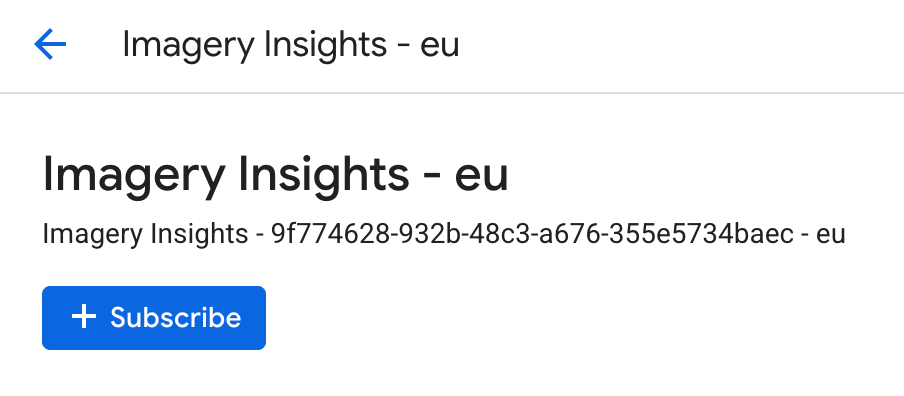
Select the Subscribe button in the dialog.
Confirm or edit the Project, Linked dataset name, Primary region, and Replica regions in the dialog. You can choose to use the default listing name or you can optionally set the name to use your own naming convention.
Select Save.
When complete, the table subscription appears in the BigQuery Explorer panel in the Google Cloud console. In your SQL queries, use the table name shown below to access the data.
Grant access to the linked dataset
Subscribing to a listing creates a read-only linked dataset in your Google Cloud project. By default, other principals—such as team members, Google groups, or service accounts—don't have access to this linked dataset. Grant access explicitly, even for principals or groups you provided during onboarding.
To let other principals view and query the linked dataset, complete the following steps:
In the BigQuery Explorer pane, expand your project, click Datasets, and select the linked dataset.
Click Sharing > Permissions, and then click Add principal.
In the New principals field, enter the email addresses of the users, Google groups, or service accounts that need access.
In the Select a role list, select BigQuery Data Viewer, which grants the
roles/bigquery.dataViewerrole.Click Save.
Principals who run SQL queries also need permission to create BigQuery jobs in
their query project, such as the roles/bigquery.jobUser or
roles/bigquery.user role. For more information, see
Control access to resources with IAM.
Access your GCS buckets
| Bucket Name | Bucket Purpose | Notes |
|---|---|---|
geoai_published_CUSTOMERID__LOCATION |
Image files published with each snapshot. | Available to all customers |
geoai_ephemeral_CUSTOMERID__LOCATION |
Ephemeral data for use by the customer for storing intermediate imagery assets. | Only available to customers who have specified a customer area of interest during onboarding. |
Replace the following:
CUSTOMERIDwith the customer ID provided in your onboarding email.- For example:
00000012-3333-4445-8999-aabbccddeeff.
- For example:
LOCATION: the lowercase Google Cloud location selected during your onboarding.- For example:
us,euorjp.
- For example: