
Ô 3D ảnh thực tế có định dạng glTF tiêu chuẩn OGC, nghĩa là bạn có thể sử dụng bất kỳ trình kết xuất nào hỗ trợ quy cách Ô 3D OGC để xây dựng hình ảnh trực quan 3D. Ví dụ: Cesium là một thư viện nguồn mở cơ bản để kết xuất hình ảnh trực quan 3D.
Làm việc với CesiumJS
CesiumJS là một thư viện Javascript nguồn mở để trực quan hoá 3D trên web. Để biết thêm thông tin về cách sử dụng CesiumJS, hãy xem Tìm hiểu về CesiumJS.
Quyền kiểm soát của người dùng
Trình kết xuất ô CesiumJS có một nhóm quyền kiểm soát tiêu chuẩn của người dùng.
| Hành động | Mô tả |
|---|---|
| Chế độ xem toàn cảnh | Nhấp chuột trái và kéo |
| Chế độ xem thu phóng | Nhấp chuột phải và kéo hoặc cuộn bánh xe chuột |
| Chế độ xem xoay | Nhấn Ctrl + nhấp chuột trái/phải và kéo hoặc nhấp chuột giữa và kéo |
Các phương pháp hay nhất
Bạn có thể áp dụng một số phương pháp để giảm thời gian tải 3D của CesiumJS. Ví dụ:
Bật các yêu cầu đồng thời bằng cách thêm câu lệnh sau vào HTML kết xuất:
Cesium.RequestScheduler.requestsByServer["tile.googleapis.com:443"] = <REQUEST_COUNT>REQUEST_COUNTcàng cao thì ô càng tải nhanh. Tuy nhiên, khi tải trong trình duyệt Chrome cóREQUEST_COUNTlớn hơn 10 và bộ nhớ đệm bị tắt, bạn có thể gặp phải một vấn đề đã biết của Chrome. Đối với hầu hết các trường hợp sử dụng, bạn nên sử dụngREQUEST_COUNTlà 18 để có hiệu suất tối ưu.Bật tính năng bỏ qua các cấp độ chi tiết. Để biết thêm thông tin, hãy xem vấn đề này của Cesium.
Đảm bảo bạn hiển thị đúng thông tin phân bổ dữ liệu bằng cách bật showCreditsOnScreen: true. Để biết thêm thông tin, hãy xem
Chính sách.
Chỉ số kết xuất
Để tìm tốc độ khung hình, hãy xem phương thức requestAnimationFrame được gọi bao nhiêu lần mỗi giây.
Để xem cách tính độ trễ khung hình, hãy xem lớp PerformanceDisplay.
Ví dụ về trình kết xuất CesiumJS
Bạn có thể sử dụng trình kết xuất CesiumJS với Ô 3D của Map Tiles API bằng cách chỉ cần cung cấp URL của bộ ô gốc.
Ví dụ đơn giản
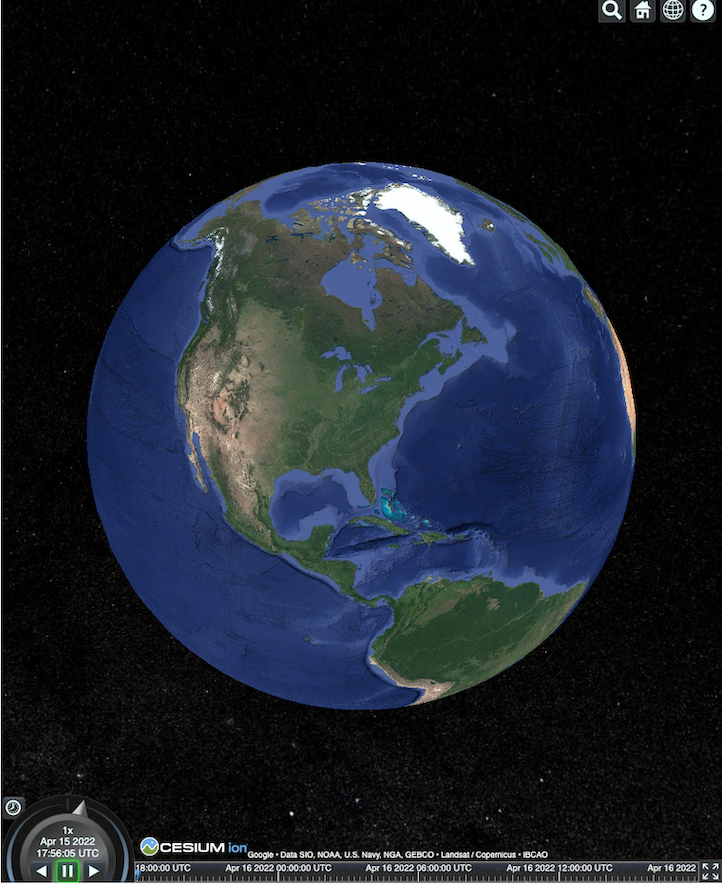
Ví dụ sau đây khởi động trình kết xuất CesiumJS, sau đó tải bộ ô gốc.
<!DOCTYPE html>
<head>
  <meta charset="utf-8">
  <title>CesiumJS 3D Tiles Simple Demo</title>
  <script src="https://ajax.googleapis.com/ajax/libs/cesiumjs/1.105/Build/Cesium/Cesium.js"></script>
  <link href="https://ajax.googleapis.com/ajax/libs/cesiumjs/1.105/Build/Cesium/Widgets/widgets.css" rel="stylesheet">
</head>
<body>
  <div id="cesiumContainer"></div>
  <script>

    // Enable simultaneous requests.
    Cesium.RequestScheduler.requestsByServer["tile.googleapis.com:443"] = 18;

    // Create the viewer.
    const viewer = new Cesium.Viewer('cesiumContainer', {
      imageryProvider: false,
      baseLayerPicker: false,
      geocoder: false,
      globe: false,
      // https://cesium.com/blog/2018/01/24/cesium-scene-rendering-performance/#enabling-request-render-mode
      requestRenderMode: true,
    });

    // Add 3D Tiles tileset.
    const tileset = viewer.scene.primitives.add(new Cesium.Cesium3DTileset({
      url: "https://tile.googleapis.com/v1/3dtiles/root.json?key=YOUR_API_KEY",
      // This property is needed to appropriately display attributions
      // as required.
      showCreditsOnScreen: true,
    }));
  </script>
</body>
Để biết thông tin về requestRenderMode, hãy xem
Bật chế độ kết xuất yêu cầu.
Trang HTML kết xuất như minh hoạ ở đây.
Tích hợp Places API
Bạn có thể sử dụng CesiumJS với Places API để truy xuất thêm thông tin. Bạn có thể sử dụng tiện ích Tự động hoàn thành để chuyển đến khung nhìn của Địa điểm. Ví dụ này sử dụng Places Autocomplete API, được bật bằng cách làm theo các hướng dẫn này, và Maps JavaScript API, được bật bằng cách làm theo các hướng dẫn này.
<!DOCTYPE html>
<head>
 <meta charset="utf-8" />
 <title>CesiumJS 3D Tiles Places API Integration Demo</title>
 <script src="https://ajax.googleapis.com/ajax/libs/cesiumjs/1.105/Build/Cesium/Cesium.js"></script>
 <link href="https://ajax.googleapis.com/ajax/libs/cesiumjs/1.105/Build/Cesium/Widgets/widgets.css" rel="stylesheet">
</head>
<body>
 <label for="pacViewPlace">Go to a place: </label>
 <input
   type="text"
   id="pacViewPlace"
   name="pacViewPlace"
   placeholder="Enter a location..."
   style="width: 300px"
 />
 <div id="cesiumContainer"></div>
 <script>
   // Enable simultaneous requests.
   Cesium.RequestScheduler.requestsByServer["tile.googleapis.com:443"] = 18;

   // Create the viewer.
   const viewer = new Cesium.Viewer("cesiumContainer", {
     imageryProvider: false,
     baseLayerPicker: false,
     requestRenderMode: true,
     geocoder: false,
     globe: false,
   });

   // Add 3D Tiles tileset.
   const tileset = viewer.scene.primitives.add(
     new Cesium.Cesium3DTileset({
       url: "https://tile.googleapis.com/v1/3dtiles/root.json?key=YOUR_API_KEY",
       // This property is required to display attributions as required.
       showCreditsOnScreen: true,
     })
   );

   const zoomToViewport = (viewport) => {
     viewer.entities.add({
       polyline: {
         positions: Cesium.Cartesian3.fromDegreesArray([
           viewport.getNorthEast().lng(), viewport.getNorthEast().lat(),
           viewport.getSouthWest().lng(), viewport.getNorthEast().lat(),
           viewport.getSouthWest().lng(), viewport.getSouthWest().lat(),
           viewport.getNorthEast().lng(), viewport.getSouthWest().lat(),
           viewport.getNorthEast().lng(), viewport.getNorthEast().lat(),
         ]),
         width: 10,
         clampToGround: true,
         material: Cesium.Color.RED,
       },
     });
     viewer.flyTo(viewer.entities);
   };

   function initAutocomplete() {
     const autocomplete = new google.maps.places.Autocomplete(
       document.getElementById("pacViewPlace"),
       {
         fields: [
           "geometry",
           "name",
         ],
       }
     );
     autocomplete.addListener("place_changed", () => {
       viewer.entities.removeAll();
       const place = autocomplete.getPlace();
       if (!place.geometry || !place.geometry.viewport) {
         window.alert("No viewport for input: " + place.name);
         return;
       }
       zoomToViewport(place.geometry.viewport);
     });
   }
 </script>
 <script
   async=""
   src="https://maps.googleapis.com/maps/api/js?key=YOUR_API_KEY&libraries=places&callback=initAutocomplete"
 ></script>
</body>
Chế độ xem xoay của máy bay không người lái
Bạn có thể điều khiển camera để tạo ảnh động thông qua bộ ô. Khi kết hợp với Places API và Elevation API, ảnh động này mô phỏng một chuyến bay tương tác của máy bay không người lái qua bất kỳ địa điểm yêu thích nào.
Mã mẫu này sẽ đưa bạn bay quanh địa điểm mà bạn đã chọn trong tiện ích Tự động hoàn thành.
<!DOCTYPE html>
<head>
  <meta charset="utf-8" />
  <title>CesiumJS 3D Tiles Rotating Drone View Demo</title>
  <script src="https://ajax.googleapis.com/ajax/libs/cesiumjs/1.105/Build/Cesium/Cesium.js"></script>
  <link href="https://ajax.googleapis.com/ajax/libs/cesiumjs/1.105/Build/Cesium/Widgets/widgets.css" rel="stylesheet">
</head>
<body>
  <label for="pacViewPlace">Go to a place: </label>
  <input type="text" id="pacViewPlace" name="pacViewPlace" placeholder="Enter a location..." style="width: 300px" />
  <div id="cesiumContainer"></div>
  <script>
    // Enable simultaneous requests.
    Cesium.RequestScheduler.requestsByServer["tile.googleapis.com:443"] = 18;

    // Create the viewer and remove unneeded options.
    const viewer = new Cesium.Viewer("cesiumContainer", {
      imageryProvider: false,
      baseLayerPicker: false,
      homeButton: false,
      fullscreenButton: false,
      navigationHelpButton: false,
      vrButton: false,
      sceneModePicker: false,
      geocoder: false,
      globe: false,
      infobox: false,
      selectionIndicator: false,
      timeline: false,
      projectionPicker: false,
      clockViewModel: null,
      animation: false,
      requestRenderMode: true,
    });

    // Add 3D Tile set.
    const tileset = viewer.scene.primitives.add(
      new Cesium.Cesium3DTileset({
        url: "https://tile.googleapis.com/v1/3dtiles/root.json?key=YOUR_API_KEY",
        // This property is required to display attributions.
        showCreditsOnScreen: true,
      })
    );

    // Point the camera at a location and elevation, at a viewport-appropriate distance.
    function pointCameraAt(location, viewport, elevation) {
      const distance = Cesium.Cartesian3.distance(
        Cesium.Cartesian3.fromDegrees(
          viewport.getSouthWest().lng(), viewport.getSouthWest().lat(), elevation),
        Cesium.Cartesian3.fromDegrees(
          viewport.getNorthEast().lng(), viewport.getNorthEast().lat(), elevation)
      ) / 2;
      const target = new Cesium.Cartesian3.fromDegrees(location.lng(), location.lat(), elevation);
      const pitch = -Math.PI / 4;
      const heading = 0;
      viewer.camera.lookAt(target, new Cesium.HeadingPitchRange(heading, pitch, distance));
    }

    // Rotate the camera around a location and elevation, at a viewport-appropriate distance.
    let unsubscribe = null;
    function rotateCameraAround(location, viewport, elevation) {
      if(unsubscribe) unsubscribe();
      pointCameraAt(location, viewport, elevation);
      unsubscribe = viewer.clock.onTick.addEventListener(() => {
        viewer.camera.rotate(Cesium.Cartesian3.UNIT_Z);
      });
    }

    function initAutocomplete() {
      const autocomplete = new google.maps.places.Autocomplete(
        document.getElementById("pacViewPlace"), {
          fields: [
            "geometry",
            "name",
          ],
        }
      );

      autocomplete.addListener("place_changed", async () => {
        const place = autocomplete.getPlace();

        if (!(place.geometry && place.geometry.viewport && place.geometry.location)) {
          window.alert(`Insufficient geometry data for place: ${place.name}`);
          return;
        }
        // Get place elevation using the ElevationService.
        const elevatorService = new google.maps.ElevationService();
        const elevationResponse =  await elevatorService.getElevationForLocations({
          locations: [place.geometry.location],
        });

        if(!(elevationResponse.results && elevationResponse.results.length)){
          window.alert(`Insufficient elevation data for place: ${place.name}`);
          return;
        }
        const elevation = elevationResponse.results[0].elevation || 10;

        rotateCameraAround(
          place.geometry.location,
          place.geometry.viewport,
          elevation
        );
      });
    }
  </script>
  <script async src="https://maps.googleapis.com/maps/api/js?key=YOUR_API_KEY&libraries=places&callback=initAutocomplete"></script>
</body>
Vẽ đường nhiều đoạn và nhãn
Mã mẫu này minh hoạ cách thêm đường nhiều đoạn và nhãn vào bản đồ. Bạn có thể thêm đường nhiều đoạn vào bản đồ để hiển thị chỉ đường lái xe và đường đi bộ, hoặc để hiển thị ranh giới tài sản, hoặc để tính toán thời gian lái xe và đi bộ. Bạn cũng có thể nhận các thuộc tính mà không cần kết xuất cảnh.
Bạn có thể đưa người dùng tham quan có hướng dẫn một khu vực xung quanh hoặc hiển thị các tài sản lân cận hiện đang được bán, sau đó bạn có thể thêm các đối tượng 3D như biển quảng cáo vào cảnh.
Bạn có thể tóm tắt một chuyến đi, liệt kê các tài sản mà bạn đã xem, hiển thị các thông tin chi tiết này trong các đối tượng ảo.
<!DOCTYPE html>
<head>
  <meta charset="utf-8" />
  <title>CesiumJS 3D Tiles Polyline and Label Demo</title>
  <script src="https://ajax.googleapis.com/ajax/libs/cesiumjs/1.105/Build/Cesium/Cesium.js"></script>
  <link
    href="https://ajax.googleapis.com/ajax/libs/cesiumjs/1.105/Build/Cesium/Widgets/widgets.css"
    rel="stylesheet"
  />
</head>
<body>
  <div id="cesiumContainer"></div>
  <script>
    // Enable simultaneous requests.
    Cesium.RequestScheduler.requestsByServer["tile.googleapis.com:443"] = 18;

    // Create the viewer.
    const viewer = new Cesium.Viewer("cesiumContainer", {
      imageryProvider: false,
      baseLayerPicker: false,
      requestRenderMode: true,
      geocoder: false,
      globe: false,
    });

    // Add 3D Tiles tileset.
    const tileset = viewer.scene.primitives.add(
      new Cesium.Cesium3DTileset({
        url: "https://tile.googleapis.com/v1/3dtiles/root.json?key=YOUR_API_KEY",

        // This property is required to display attributions as required.
        showCreditsOnScreen: true,
      })
    );

    // Draws a circle at the position, and a line from the previous position.
    const drawPointAndLine = (position, prevPosition) => {
      viewer.entities.removeAll();
      if (prevPosition) {
        viewer.entities.add({
          polyline: {
            positions: [prevPosition, position],
            width: 3,
            material: Cesium.Color.WHITE,
            clampToGround: true,
            classificationType: Cesium.ClassificationType.CESIUM_3D_TILE,
          },
        });
      }
      viewer.entities.add({
        position: position,
        ellipsoid: {
          radii: new Cesium.Cartesian3(1, 1, 1),
          material: Cesium.Color.RED,
        },
      });
    };

    // Compute, draw, and display the position's height relative to the previous position.
    var prevPosition;
    const processHeights = (newPosition) => {
      drawPointAndLine(newPosition, prevPosition);

      const newHeight = Cesium.Cartographic.fromCartesian(newPosition).height;
      let labelText = "Current altitude (meters above sea level):\n\t" + newHeight;
      if (prevPosition) {
        const prevHeight =
          Cesium.Cartographic.fromCartesian(prevPosition).height;
        labelText += "\nHeight from previous point (meters):\n\t" + Math.abs(newHeight - prevHeight);
      }
      viewer.entities.add({
        position: newPosition,
        label: {
          text: labelText,
          disableDepthTestDistance: Number.POSITIVE_INFINITY,
          pixelOffset: new Cesium.Cartesian2(0, -10),
          showBackground: true,
          verticalOrigin: Cesium.VerticalOrigin.BOTTOM,
        }
      });

      prevPosition = newPosition;
    };

    const handler = new Cesium.ScreenSpaceEventHandler(viewer.canvas);
    handler.setInputAction(function (event) {
      const earthPosition = viewer.scene.pickPosition(event.position);
      if (Cesium.defined(earthPosition)) {
        processHeights(earthPosition);
      }
    }, Cesium.ScreenSpaceEventType.LEFT_CLICK);
  </script>
</body>
Quỹ đạo camera
Trong Cesium, bạn có thể xoay camera quanh một địa điểm yêu thích, tránh va chạm với các toà nhà. Ngoài ra, bạn có thể làm cho các toà nhà trở nên trong suốt khi camera di chuyển qua chúng.
Trước tiên, hãy khoá camera vào một điểm, sau đó bạn có thể tạo quỹ đạo camera để giới thiệu tài sản của mình. Bạn có thể thực hiện việc này bằng cách sử dụng
lookAtTransform
hàm của camera với một trình nghe sự kiện, như minh hoạ trong mã mẫu này.
// Lock the camera onto a point.
const center = Cesium.Cartesian3.fromRadians(
  2.4213211833389243,
  0.6171926869414084,
  3626.0426275055174
);

const transform = Cesium.Transforms.eastNorthUpToFixedFrame(center);

viewer.scene.camera.lookAtTransform(
  transform,
  new Cesium.HeadingPitchRange(0, -Math.PI / 8, 2900)
);

// Orbit around this point.
viewer.clock.onTick.addEventListener(function (clock) {
  viewer.scene.camera.rotateRight(0.005);
});
Để biết thêm thông tin về cách điều khiển camera, hãy xem Điều khiển camera
Làm việc với Cesium cho Unreal
Để sử dụng Trình bổ trợ Cesium cho Unreal với 3D Tiles API, hãy làm theo các bước dưới đây.
Cài đặt trình bổ trợ Cesium cho Unreal.
Tạo một dự án Unreal mới.
Kết nối với Google Photorealistic 3D Tiles API.
Mở cửa sổ Cesium bằng cách chọn Cesium > Cesium trong trình đơn.
Chọn Blank 3D Tiles Tileset.
Trong World Outliner, hãy mở bảng điều khiển Details bằng cách chọn Cesium3DTileset này.
Thay đổi Source từ From Cesium Ion thành From URL.
Đặt URL thành URL Ô 3D của Google.
https://tile.googleapis.com/v1/3dtiles/root.json?key=YOUR_API_KEY- Bật Show Credits On Screen để hiển thị đúng thông tin phân bổ.
Thao tác này sẽ tải thế giới. Để chuyển đến bất kỳ LatLng nào, hãy chọn mục CesiumGeoreference trong bảng điều khiển Outliner, sau đó chỉnh sửa Origin Latitude/Longitude/Height trong bảng điều khiển Details.
Làm việc với Cesium cho Unity
Để sử dụng ô ảnh thực tế với Cesium cho Unity, hãy làm theo các bước dưới đây.
Tạo một dự án Unity mới.
Thêm một Registry có phạm vi mới trong phần Package Manager (thông qua Editor > Project Settings).
Tên: Cesium
URL: https://unity.pkg.cesium.com
Phạm vi: com.cesium.unity
Cài đặt gói Cesium cho Unity.
Kết nối với Google Photorealistic 3D Tiles API.
Mở cửa sổ Cesium bằng cách chọn Cesium > Cesium trong trình đơn.
Nhấp vào Blank 3D Tiles Tileset.
Trên bảng điều khiển bên trái, trong tuỳ chọn Tileset Source (Nguồn bộ ô) trong phần Source (Nguồn), hãy chọn From URL (Từ URL) (thay vì From Cesium Ion).
Đặt URL thành URL Ô 3D của Google.
https://tile.googleapis.com/v1/3dtiles/root.json?key=YOUR_API_KEY- Bật Show Credits On Screen để hiển thị đúng thông tin phân bổ.
Thao tác này sẽ tải thế giới. Để chuyển đến bất kỳ LatLng nào, hãy chọn mục CesiumGeoreference trong Scene Hierarchy (Hệ phân cấp cảnh), sau đó chỉnh sửa Origin Latitude/Longitude/Height trong Inspector (Trình kiểm tra).
Làm việc với deck.gl
deck.gl, được hỗ trợ bởi WebGL, là một khung JavaScript nguồn mở để trực quan hoá dữ liệu quy mô lớn, hiệu suất cao.
Phân bổ
Đảm bảo bạn hiển thị đúng thông tin phân bổ dữ liệu bằng cách trích xuất trường copyright từ ô gltf asset, sau đó hiển thị trường này trên khung hiển thị đã kết xuất. Để biết thêm thông tin, hãy xem
bài viết Hiển thị thông tin phân bổ dữ liệu.
Ví dụ về trình kết xuất deck.gl
Ví dụ đơn giản
Ví dụ sau đây khởi động trình kết xuất deck.gl, sau đó tải một địa điểm ở dạng 3D. Trong mã của bạn, hãy nhớ thay thế YOUR_API_KEY bằng khoá API thực tế.
<!DOCTYPE html>
<html>
 <head>
   <title>deck.gl Photorealistic 3D Tiles example</title>
   <script src="https://unpkg.com/deck.gl@latest/dist.min.js"></script>
   <style>
     body { margin: 0; padding: 0;}
     #map { position: absolute; top: 0;bottom: 0;width: 100%;}
     #credits { position: absolute; bottom: 0; right: 0; padding: 2px; font-size: 15px; color: white;
        text-shadow: -1px 0 black, 0 1px black, 1px 0 black, 0 -1px black;}
   </style>
 </head>

 <body>
   <div id="map"></div>
   <div id="credits"></div>
   <script>
     const GOOGLE_API_KEY = YOUR_API_KEY;
     const TILESET_URL = `https://tile.googleapis.com/v1/3dtiles/root.json`;
     const creditsElement = document.getElementById('credits');
     new deck.DeckGL({
       container: 'map',
       initialViewState: {
         latitude: 50.0890,
         longitude: 14.4196,
         zoom: 16,
         bearing: 90,
         pitch: 60,
         height: 200
       },
       controller: {minZoom: 8},
       layers: [
         new deck.Tile3DLayer({
           id: 'google-3d-tiles',
           data: TILESET_URL,
           loadOptions: {
            fetch: {
              headers: {
                'X-GOOG-API-KEY': GOOGLE_API_KEY
              }
            }
          },
           onTilesetLoad: tileset3d => {
             tileset3d.options.onTraversalComplete = selectedTiles => {
               const credits = new Set();
               selectedTiles.forEach(tile => {
                 const {copyright} = tile.content.gltf.asset;
                 copyright.split(';').forEach(credits.add, credits);
                 creditsElement.innerHTML = [...credits].join('; ');
               });
               return selectedTiles;
             }
           }
         })
       ]
     });
   </script>
 </body>
</html>
Trực quan hoá các lớp 2D trên cùng Ô 3D ảnh thực tế của Google
TerrainExtension của deck.gl TerrainExtension kết xuất dữ liệu 2D (nếu không) lên bề mặt 3D. Ví dụ: bạn có thể phủ GeoJSON của dấu chân toà nhà lên trên Hình học của Ô 3D ảnh thực tế.
Trong ví dụ sau, một lớp toà nhà được trực quan hoá bằng các đa giác được điều chỉnh theo bề mặt Ô 3D ảnh thực tế.
<!DOCTYPE html>
<html>
 <head>
   <title>Google 3D tiles example</title>
   <script src="https://unpkg.com/deck.gl@latest/dist.min.js"></script>
   <style>
     body { margin: 0; padding: 0;}
     #map { position: absolute; top: 0;bottom: 0;width: 100%;}
     #credits { position: absolute; bottom: 0; right: 0; padding: 2px; font-size: 15px; color: white;
        text-shadow: -1px 0 black, 0 1px black, 1px 0 black, 0 -1px black;}
   </style>
 </head>

 <body>
   <div id="map"></div>
   <div id="credits"></div>
   <script>
     const GOOGLE_API_KEY = YOUR_API_KEY;
     const TILESET_URL = `https://tile.googleapis.com/v1/3dtiles/root.json`;
     const BUILDINGS_URL = 'https://raw.githubusercontent.com/visgl/deck.gl-data/master/examples/google-3d-tiles/buildings.geojson'
     const creditsElement = document.getElementById('credits');
     const deckgl = new deck.DeckGL({
       container: 'map',
       initialViewState: {
         latitude: 50.0890,
         longitude: 14.4196,
         zoom: 16,
         bearing: 90,
         pitch: 60,
         height: 200
       },
       controller: true,
       layers: [
         new deck.Tile3DLayer({
           id: 'google-3d-tiles',
           data: TILESET_URL,
           loadOptions: {
            fetch: {
              headers: {
                'X-GOOG-API-KEY': GOOGLE_API_KEY
              }
            }
          },
          onTilesetLoad: tileset3d => {
             tileset3d.options.onTraversalComplete = selectedTiles => {
               const credits = new Set();
               selectedTiles.forEach(tile => {
                 const {copyright} = tile.content.gltf.asset;
                 copyright.split(';').forEach(credits.add, credits);
                 creditsElement.innerHTML = [...credits].join('; ');
               });
               return selectedTiles;
             }
           },
           operation: 'terrain+draw'
         }),
         new deck.GeoJsonLayer({
           id: 'buildings',
           // This dataset is created by CARTO, using other Open Datasets available. More info at: https://3dtiles.carto.com/#about.
           data: 'https://raw.githubusercontent.com/visgl/deck.gl-data/master/examples/google-3d-tiles/buildings.geojson',
           stroked: false,
           filled: true,
           getFillColor: ({properties}) => {
             const {tpp} = properties;
             // quantiles break
             if (tpp < 0.6249)
               return [254, 246, 181]
             else if (tpp < 0.6780)
               return [255, 194, 133]
             else if (tpp < 0.8594)
               return [250, 138, 118]
             return [225, 83, 131]
           },
           opacity: 0.2,
           extensions: [new deck._TerrainExtension()]
         })
       ]
     });
   </script>
 </body>
</html>