دیالوگ های تعاملی بسازید

این صفحه توضیح می‌دهد که چگونه یک برنامه چت گوگل می‌تواند پنجره‌های گفتگو را برای نمایش رابط‌های کاربری (UI) باز کند و به کاربران پاسخ دهد.

دیالوگ‌ها رابط‌های کاربری مبتنی بر کارت و پنجره‌ای هستند که از یک فضای چت یا پیام باز می‌شوند. دیالوگ و محتوای آن فقط برای کاربری که آن را باز کرده قابل مشاهده است.

برنامه‌های چت می‌توانند از دیالوگ‌ها برای درخواست و جمع‌آوری اطلاعات از کاربران چت، از جمله فرم‌های چند مرحله‌ای، استفاده کنند. برای جزئیات بیشتر در مورد ساخت ورودی‌های فرم، به بخش جمع‌آوری و پردازش اطلاعات از کاربران مراجعه کنید.

پیش‌نیازها

اچ‌تی‌پی

یک افزونه‌ی Google Workspace که Google Chat را توسعه می‌دهد. برای ساخت آن، راهنمای سریع HTTP را تکمیل کنید.

اسکریپت برنامه‌ها

یک افزونه‌ی Google Workspace که Google Chat را توسعه می‌دهد. برای ساخت آن، راهنمای سریع Apps Script را تکمیل کنید.

باز کردن یک کادر محاوره‌ای

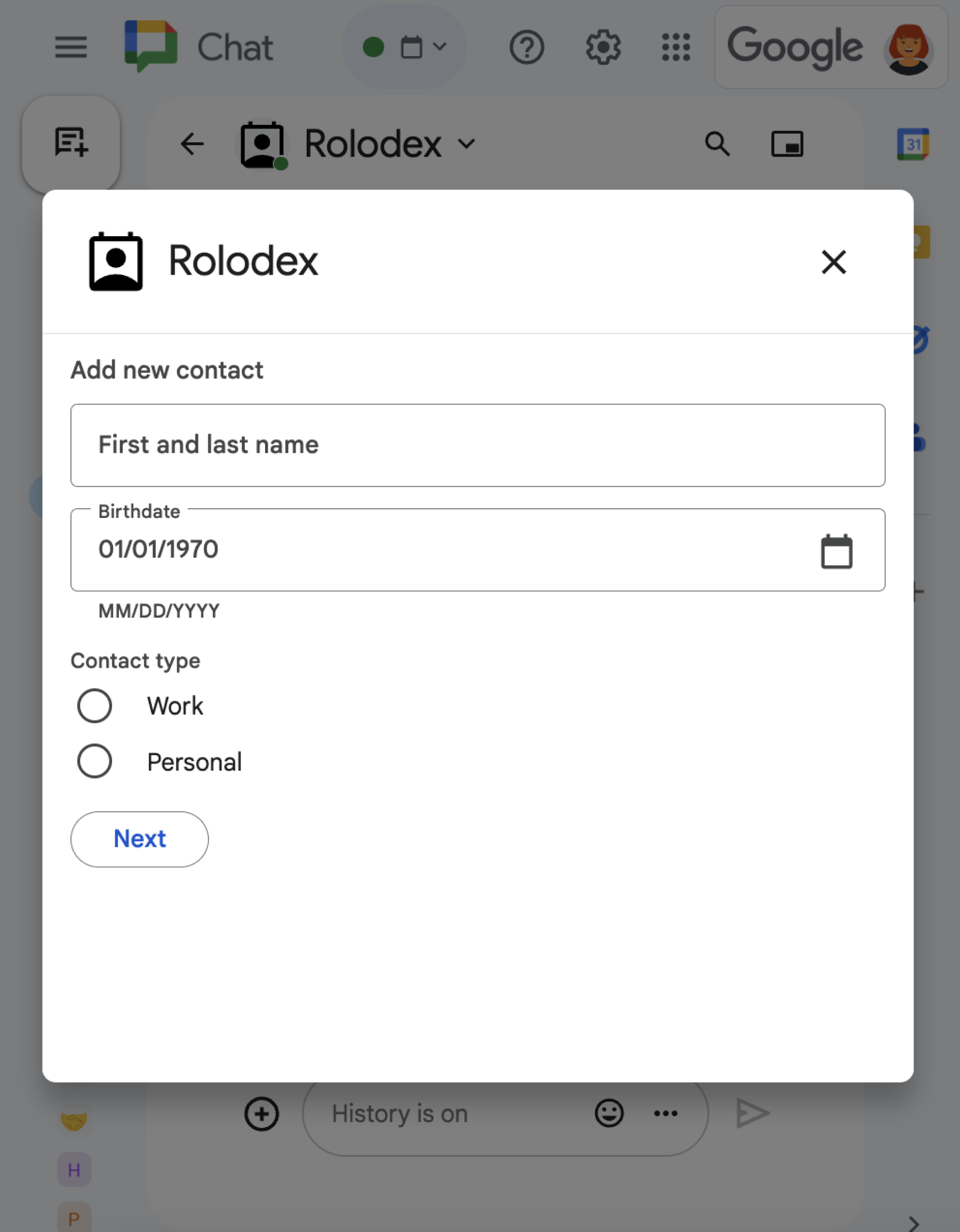
یک پنجره محاوره‌ای که شامل انواع ویجت‌های مختلف است.
شکل ۱ : یک برنامه چت که یک پنجره محاوره‌ای برای جمع‌آوری اطلاعات تماس باز می‌کند.

این بخش نحوه پاسخ دادن و تنظیم یک گفتگو را با انجام موارد زیر توضیح می‌دهد:

  1. درخواست گفتگو را از تعامل کاربر فعال می‌کند.
  2. با بازگرداندن و باز کردن یک کادر محاوره‌ای، درخواست را مدیریت کنید.
  3. پس از ارسال اطلاعات توسط کاربران، با بستن کادر محاوره‌ای یا بازگرداندن کادر محاوره‌ای دیگر، اطلاعات ارسالی را پردازش کنید.

ایجاد یک درخواست محاوره‌ای

یک برنامه چت فقط می‌تواند دیالوگ‌هایی را برای پاسخ به تعامل کاربر، مانند یک دستور یا کلیک روی دکمه‌ای از یک پیام در یک کارت، باز کند.

برای پاسخ به کاربران با یک دیالوگ، یک برنامه چت باید تعاملی ایجاد کند که درخواست دیالوگ را فعال کند، مانند موارد زیر:

  • پاسخ به یک فرمان. برای فعال کردن درخواست از یک فرمان، باید هنگام پیکربندی فرمان، کادر انتخاب Opens a dialog را علامت بزنید.
  • به کلیک دکمه در یک پیام ، چه به عنوان بخشی از یک کارت و چه در پایین پیام، پاسخ دهید. برای اجرای درخواست از یک دکمه در یک پیام، می‌توانید با تنظیم interaction آن با OPEN_DIALOG ، عملکرد onClick دکمه را پیکربندی کنید.
دکمه‌ای که یک کادر محاوره‌ای را باز می‌کند
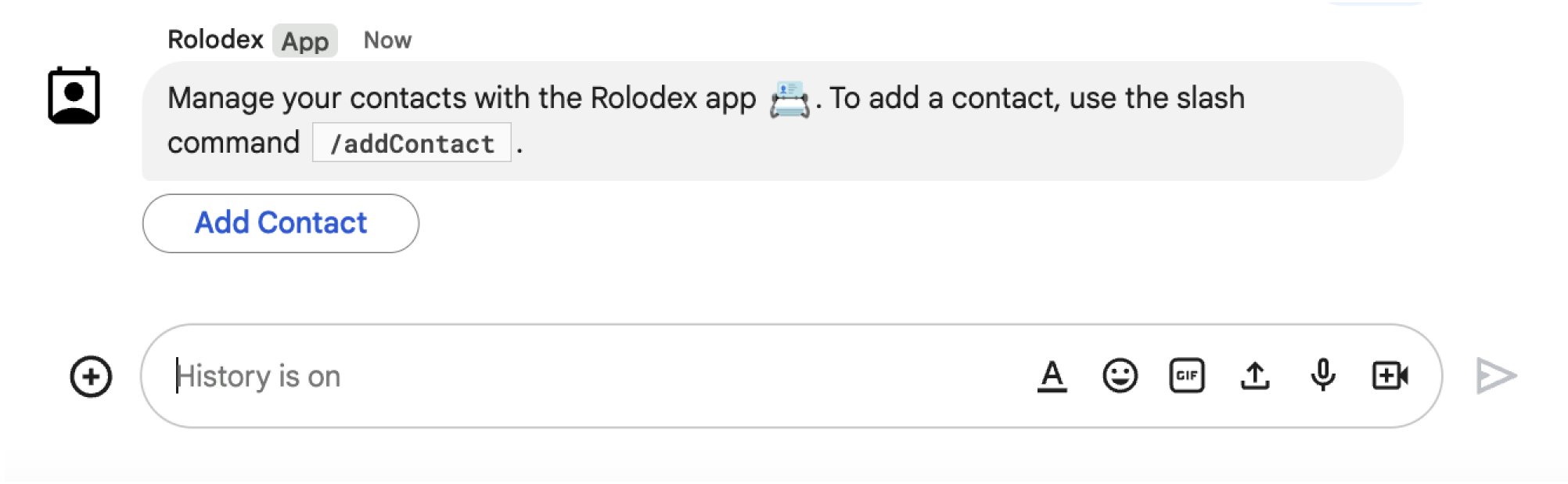
شکل ۲ : یک برنامه چت پیامی ارسال می‌کند که کاربران را به استفاده از دستور /addContact اسلش ترغیب می‌کند.
این پیام همچنین شامل دکمه‌ای است که کاربران می‌توانند برای اجرای دستور روی آن کلیک کنند.

نمونه کد زیر نحوه‌ی فعال‌سازی درخواست دیالوگ از یک دکمه در یک پیام کارت را نشان می‌دهد. برای باز کردن دیالوگ، فیلد onClick.action.interaction دکمه را روی OPEN_DIALOG تنظیم کنید:

نود جی اس

گره/چت/فرم-تماس-برنامه/index.js
{ buttonList: { buttons: [{
  text: "ADD CONTACT",
  onClick: { action: {
    function: FUNCTION_URL,
    interaction: "OPEN_DIALOG",
    parameters: [
      { key: "actionName", value: "openInitialDialog" }
    ]
  }}
}]}}

FUNCTION_URL با نقطه پایانی HTTP که کلیک‌های دکمه را مدیریت می‌کند، جایگزین کنید.

پایتون

پایتون/چت/contact-form-app/main.py
{ 'buttonList': { 'buttons': [{
  'text': "ADD CONTACT",
  'onClick': { 'action': {
    'function': FUNCTION_URL,
    'interaction': "OPEN_DIALOG",
    'parameters': [
      { 'key': "actionName", 'value': "openInitialDialog" }
    ]
  }}
}]}}

FUNCTION_URL با نقطه پایانی HTTP که کلیک‌های دکمه را مدیریت می‌کند، جایگزین کنید.

جاوا

java/chat/contact-form-app/src/main/java/com/google/chat/contact/App.java
.setButtonList(new GoogleAppsCardV1ButtonList().setButtons(List.of(new GoogleAppsCardV1Button()
  .setText("ADD CONTACT")
  .setOnClick(new GoogleAppsCardV1OnClick().setAction(new GoogleAppsCardV1Action()
    .setFunction(FUNCTION_URL)
    .setInteraction("OPEN_DIALOG")
    .setParameters(List.of(
      new GoogleAppsCardV1ActionParameter().setKey("actionName").setValue("openInitialDialog"))))))))));

FUNCTION_URL با نقطه پایانی HTTP که کلیک‌های دکمه را مدیریت می‌کند، جایگزین کنید.

اسکریپت برنامه‌ها

این مثال با برگرداندن JSON کارت، یک پیام کارت ارسال می‌کند. همچنین می‌توانید از سرویس کارت Apps Script استفاده کنید.

apps-script/chat/contact-form-app/Code.gs
{ buttonList: { buttons: [{
  text: "ADD CONTACT",
  onClick: { action: {
    function: "openInitialDialog",
    interaction: "OPEN_DIALOG"
  }}
}]}}

باز کردن کادر محاوره‌ای اولیه

وقتی کاربری یک درخواست دیالوگ را ارسال می‌کند، برنامه چت شما یک شیء رویداد با یک payload دریافت می‌کند که مشخص می‌کند یک شیء dialogEventType به عنوان REQUEST_DIALOG است.

برای باز کردن یک کادر محاوره‌ای، برنامه چت شما می‌تواند با برگرداندن یک شیء RenderActions به همراه pushCard ناوبری برای نمایش یک کارت، به درخواست پاسخ دهد. کارت باید شامل هر عنصر رابط کاربری (UI)، از جمله یک یا چند sections[] از ویجت‌ها باشد. برای جمع‌آوری اطلاعات از کاربران، می‌توانید ویجت‌های ورودی فرم و یک ویجت دکمه را مشخص کنید. برای کسب اطلاعات بیشتر در مورد طراحی ورودی‌های فرم، به بخش جمع‌آوری و پردازش اطلاعات از کاربران مراجعه کنید.

نمونه کد زیر نشان می‌دهد که چگونه یک برنامه چت، پاسخی را برمی‌گرداند که یک کادر محاوره‌ای را باز می‌کند:

نود جی اس

گره/چت/فرم-تماس-برنامه/index.js
/**
 * Opens the initial step of the dialog that lets users add contact details.
 *
 * @return {Object} open the dialog.
 */
function openInitialDialog() {
  return { action: { navigations: [{ pushCard: { sections: [{ widgets: [
    { textInput: {
      name: "contactName",
      label: "First and last name",
      type: "SINGLE_LINE"
    }},
    { dateTimePicker: {
      name: "contactBirthdate",
      label: "Birthdate",
      type: "DATE_ONLY"
    }},
    { selectionInput: {
      name: "contactType",
      label: "Contact type",
      type: "RADIO_BUTTON",
      items: [
        { text: "Work", value: "Work", selected: false },
        { text: "Personal", value: "Personal", selected: false }
      ]
    }},
    { buttonList: { buttons: [{
      text: "NEXT",
      onClick: { action: {
        function: FUNCTION_URL,
        parameters: [
          { key: "actionName", value: "openConfirmationDialog" }
        ]
      }}
    }]}}
  ]}]}}]}};
}

FUNCTION_URL با نقطه پایانی HTTP که کلیک‌های دکمه را مدیریت می‌کند، جایگزین کنید.

پایتون

پایتون/چت/contact-form-app/main.py
def open_initial_dialog() -> Mapping[str, Any]:
  """Opens the initial step of the dialog that lets users add contact details.

  Returns:
    Mapping[str, Any]: open the dialog.
  """
  return { 'action': { 'navigations': [{ 'pushCard': { 'sections': [{ 'widgets': [
    { 'textInput': {
      'name': "contactName",
      'label': "First and last name",
      'type': "SINGLE_LINE"
    }},
    { 'dateTimePicker': {
      'name': "contactBirthdate",
      'label': "Birthdate",
      'type': "DATE_ONLY"
    }},
    { 'selectionInput': {
      'name': "contactType",
      'label': "Contact type",
      'type': "RADIO_BUTTON",
      'items': [
        { 'text': "Work", 'value': "Work", 'selected': False },
        { 'text': "Personal", 'value': "Personal", 'selected': False }
      ]
    }},
    { 'buttonList': { 'buttons': [{
      'text': "NEXT",
      'onClick': { 'action': {
        'function': FUNCTION_URL,
        'parameters': [
          { 'key': "actionName", 'value': "openConfirmationDialog" }
        ]
      }}
    }]}}
  ]}]}}]}}

FUNCTION_URL با نقطه پایانی HTTP که کلیک‌های دکمه را مدیریت می‌کند، جایگزین کنید.

جاوا

java/chat/contact-form-app/src/main/java/com/google/chat/contact/App.java
/**
 * Opens the initial step of the dialog that lets users add contact details.
 *
 * @return {Object} open the dialog.
 */
GenericJson openInitialDialog() {
  GoogleAppsCardV1Card cardV2 = new GoogleAppsCardV1Card()
    .setSections(List.of(new GoogleAppsCardV1Section().setWidgets(List.of(
      new GoogleAppsCardV1Widget().setTextInput(new GoogleAppsCardV1TextInput()
        .setName("contactName")
        .setLabel("First and last name")
        .setType("SINGLE_LINE")),
      new GoogleAppsCardV1Widget().setDateTimePicker(new GoogleAppsCardV1DateTimePicker()
        .setName("contactBirthdate")
        .setLabel("Birthdate")
        .setType("DATE_ONLY")),
      new GoogleAppsCardV1Widget().setSelectionInput(new GoogleAppsCardV1SelectionInput()
        .setName("contactType")
        .setLabel("Contact type")
        .setType("RADIO_BUTTON")
        .setItems(List.of(
          new GoogleAppsCardV1SelectionItem()
            .setText("Work")
            .setValue("Work")
            .setSelected(false),
          new GoogleAppsCardV1SelectionItem()
            .setText("Personal")
            .setValue("Personal")
            .setSelected(false)))),
      new GoogleAppsCardV1Widget().setButtonList(new GoogleAppsCardV1ButtonList().setButtons(List.of(
        new GoogleAppsCardV1Button()
          .setText("NEXT")
          .setOnClick(new GoogleAppsCardV1OnClick().setAction(new GoogleAppsCardV1Action()
            .setFunction(FUNCTION_URL)
            .setParameters(List.of(
              new GoogleAppsCardV1ActionParameter().setKey("actionName").setValue("openConfirmationDialog"))))))))))));
  return new GenericJson() {{
    put("action", new GenericJson() {{
      put("navigations", List.of(new GenericJson() {{
        put("pushCard", cardV2);
      }}));
    }});
  }};
}

FUNCTION_URL با نقطه پایانی HTTP که کلیک‌های دکمه را مدیریت می‌کند، جایگزین کنید.

اسکریپت برنامه‌ها

این مثال با برگرداندن JSON کارت، یک پیام کارت ارسال می‌کند. همچنین می‌توانید از سرویس کارت Apps Script استفاده کنید.

apps-script/chat/contact-form-app/Code.gs
/**
 * Opens the initial step of the dialog that lets users add contact details.
 *
 * @param {Object} event The event object from the Google Workspace add-on.
 * @return {Object} open the dialog.
 */
function openInitialDialog(event) {
  return { action: { navigations: [{ pushCard: { sections: [{ widgets: [
    { textInput: {
      name: "contactName",
      label: "First and last name",
      type: "SINGLE_LINE"
    }},
    { dateTimePicker: {
      name: "contactBirthdate",
      label: "Birthdate",
      type: "DATE_ONLY"
    }},
    { selectionInput: {
      name: "contactType",
      label: "Contact type",
      type: "RADIO_BUTTON",
      items: [
        { text: "Work", value: "Work", selected: false },
        { text: "Personal", value: "Personal", selected: false }
      ]
    }},
    { buttonList: { buttons: [{
      text: "NEXT",
      onClick: { action: { function : "openConfirmationDialog" }}
    }]}}
  ]}]}}]}};
}

مدیریت ارسال دیالوگ

وقتی کاربران روی دکمه‌ای که یک کادر محاوره‌ای را ارسال می‌کند کلیک می‌کنند، برنامه چت شما یک شیء رویداد با یک شیء ButtonClickedPayload دریافت می‌کند. در این payload، dialogEventType روی SUBMIT_DIALOG تنظیم شده است. برای درک نحوه جمع‌آوری و پردازش اطلاعات در کادر محاوره‌ای، به بخش جمع‌آوری و پردازش اطلاعات از کاربران Google Chat مراجعه کنید.

برنامه چت شما باید با انجام یکی از موارد زیر به شیء رویداد پاسخ دهد:

اختیاری: یک کادر محاوره‌ای دیگر برگردانید

پس از ارسال دیالوگ اولیه توسط کاربران، برنامه‌های چت می‌توانند یک یا چند دیالوگ اضافی را برای کمک به کاربران در بررسی اطلاعات قبل از ارسال، تکمیل فرم‌های چند مرحله‌ای یا پر کردن پویای محتوای فرم، برگردانند.

برای پردازش داده‌هایی که کاربران وارد می‌کنند، برنامه چت داده‌های موجود در شیء commonEventObject.formInputs مربوط به رویداد را مدیریت می‌کند. برای کسب اطلاعات بیشتر در مورد بازیابی مقادیر از ویجت‌های ورودی، به بخش «جمع‌آوری و پردازش اطلاعات از کاربران» مراجعه کنید.

برای پیگیری هرگونه داده‌ای که کاربران از کادر محاوره‌ای اولیه وارد می‌کنند، باید پارامترهایی را به دکمه‌ای که کادر محاوره‌ای بعدی را باز می‌کند اضافه کنید. برای جزئیات بیشتر، به بخش انتقال داده به کارت دیگر مراجعه کنید.

در این مثال، یک برنامه چت یک کادر محاوره‌ای اولیه را باز می‌کند که قبل از ارسال، به کادر محاوره‌ای دوم برای تأیید منتهی می‌شود:

نود جی اس

گره/چت/فرم-تماس-برنامه/index.js
/**
 * Responds to a message in Google Chat.
 *
 * @return {Object} response that handles dialogs.
 */
function handleMessage() {
  return { hostAppDataAction: { chatDataAction: { createMessageAction: { message: {
    text: "To add a contact, use the `ADD CONTACT` button below.",
    accessoryWidgets: [
      { buttonList: { buttons: [{
        text: "ADD CONTACT",
        onClick: { action: {
          function: FUNCTION_URL,
          interaction: "OPEN_DIALOG",
          parameters: [
            { key: "actionName", value: "openInitialDialog" }
          ]
        }}
      }]}}
    ]
  }}}}};
}

/**
 * Responds to a button clicked in Google Chat.
 *
 * @param {Object} event The event object from the Google Workspace add-on.
 * @return {Object} response depending on the button clicked.
 */
function handleButtonClicked(event) {
  // Initial dialog form page
  if (event.commonEventObject.parameters.actionName === "openInitialDialog") {
    return openInitialDialog();
  // Confirmation dialog form page
  } else if (event.commonEventObject.parameters.actionName === "openConfirmationDialog") {
    return openConfirmationDialog(event);
  // Submission dialog form page
  } else if (event.commonEventObject.parameters.actionName === "submitDialog") {
    return submitDialog(event);
  }
}

/**
 * Opens the initial step of the dialog that lets users add contact details.
 *
 * @return {Object} open the dialog.
 */
function openInitialDialog() {
  return { action: { navigations: [{ pushCard: { sections: [{ widgets: [
    { textInput: {
      name: "contactName",
      label: "First and last name",
      type: "SINGLE_LINE"
    }},
    { dateTimePicker: {
      name: "contactBirthdate",
      label: "Birthdate",
      type: "DATE_ONLY"
    }},
    { selectionInput: {
      name: "contactType",
      label: "Contact type",
      type: "RADIO_BUTTON",
      items: [
        { text: "Work", value: "Work", selected: false },
        { text: "Personal", value: "Personal", selected: false }
      ]
    }},
    { buttonList: { buttons: [{
      text: "NEXT",
      onClick: { action: {
        function: FUNCTION_URL,
        parameters: [
          { key: "actionName", value: "openConfirmationDialog" }
        ]
      }}
    }]}}
  ]}]}}]}};
}

/**
 * Opens the second step of the dialog that lets users confirm details.
 *
 * @param {Object} event The event object from the Google Workspace add-on.
 * @return {Object} update the dialog.
 */
function openConfirmationDialog(event) {
  // Retrieve the form input values
  const name = event.commonEventObject.formInputs["contactName"].stringInputs.value[0];
  const birthdate = event.commonEventObject.formInputs["contactBirthdate"].dateInput.msSinceEpoch;
  const type = event.commonEventObject.formInputs["contactType"].stringInputs.value[0];
  // Display the input values for confirmation
  return { action: { navigations: [{ pushCard: { sections: [{ widgets: [
    { textParagraph: { text: "Confirm contact information and submit:" }},
    { textParagraph: { text: "<b>Name:</b> " + name }},
    { textParagraph: { text: "<b>Birthday:</b> " + new Date(birthdate) }},
    { textParagraph: { text: "<b>Type:</b> " + type }},
    { buttonList: { buttons: [{
      text: "SUBMIT",
      onClick: { action: {
        function: FUNCTION_URL,
        parameters: [
          { key: "actionName", value: "submitDialog" },
          // Pass input values as parameters for last dialog step (submission)
          { key: "contactName", value: name },
          { key: "contactBirthdate", value: birthdate },
          { key: "contactType", value: type }
        ]
      }}
    }]}}
  ]}]}}]}};
}

FUNCTION_URL با نقطه پایانی HTTP که کلیک‌های دکمه را مدیریت می‌کند، جایگزین کنید.

پایتون

پایتون/چت/contact-form-app/main.py
def handle_message() -> Mapping[str, Any]:
  """Responds to a message in Google Chat.

  Returns:
    Mapping[str, Any]: the response that handles dialogs.
  """
  return { 'hostAppDataAction': { 'chatDataAction': { 'createMessageAction': { 'message': {
    'text': "To add a contact, use the `ADD CONTACT` button below.",
    'accessoryWidgets': [
      { 'buttonList': { 'buttons': [{
        'text': "ADD CONTACT",
        'onClick': { 'action': {
          'function': FUNCTION_URL,
          'interaction': "OPEN_DIALOG",
          'parameters': [
            { 'key': "actionName", 'value': "openInitialDialog" }
          ]
        }}
      }]}}
    ]
  }}}}}


def handle_button_clicked(event: Mapping[str, Any]) -> Mapping[str, Any]:
  """Responds to a button clicked in Google Chat.

  Args:
    Mapping[str, Any] event: the event object from the Google Workspace add-on

  Returns:
    Mapping[str, Any]: the response depending on the button clicked.
  """
  # Initial dialog form page
  if "openInitialDialog" == event['commonEventObject']['parameters']['actionName']:
    return open_initial_dialog()
  # Confirmation dialog form page
  elif "openConfirmationDialog" == event['commonEventObject']['parameters']['actionName'] :
    return open_confirmation_dialog(event)
  # Submission dialog form page
  elif "submitDialog" == event['commonEventObject']['parameters']['actionName']:
    return submit_dialog(event)


def open_initial_dialog() -> Mapping[str, Any]:
  """Opens the initial step of the dialog that lets users add contact details.

  Returns:
    Mapping[str, Any]: open the dialog.
  """
  return { 'action': { 'navigations': [{ 'pushCard': { 'sections': [{ 'widgets': [
    { 'textInput': {
      'name': "contactName",
      'label': "First and last name",
      'type': "SINGLE_LINE"
    }},
    { 'dateTimePicker': {
      'name': "contactBirthdate",
      'label': "Birthdate",
      'type': "DATE_ONLY"
    }},
    { 'selectionInput': {
      'name': "contactType",
      'label': "Contact type",
      'type': "RADIO_BUTTON",
      'items': [
        { 'text': "Work", 'value': "Work", 'selected': False },
        { 'text': "Personal", 'value': "Personal", 'selected': False }
      ]
    }},
    { 'buttonList': { 'buttons': [{
      'text': "NEXT",
      'onClick': { 'action': {
        'function': FUNCTION_URL,
        'parameters': [
          { 'key': "actionName", 'value': "openConfirmationDialog" }
        ]
      }}
    }]}}
  ]}]}}]}}


def open_confirmation_dialog(event: Mapping[str, Any]) -> Mapping[str, Any]:
  """Opens the second step of the dialog that lets users confirm details.

  Args:
    Mapping[str, Any] event: the event object from the Google Workspace add-on

  Returns:
    Mapping[str, Any]: update the dialog.
  """
  name = event.get('commonEventObject').get('formInputs')["contactName"].get('stringInputs').get('value')[0]
  birthdateEpoch = event.get('commonEventObject').get('formInputs')["contactBirthdate"].get('dateInput').get('msSinceEpoch')
  birthdate = datetime.fromtimestamp(int(birthdateEpoch) / 1000.0).strftime("%Y-%m-%d")
  type = event.get('commonEventObject').get('formInputs')["contactType"].get('stringInputs').get('value')[0]
  # Display the input values for confirmation
  return { 'action': { 'navigations': [{ 'pushCard': { 'sections': [{ 'widgets': [
    { 'textParagraph': { 'text': "Confirm contact information and submit:" }},
    { 'textParagraph': { 'text': "<b>Name:</b> " + name }},
    { 'textParagraph': { 'text': "<b>Birthday:</b> " + birthdate }},
    { 'textParagraph': { 'text': "<b>Type:</b> " + type }},
    { 'buttonList': { 'buttons': [{
      'text': "SUBMIT",
      'onClick': { 'action': {
        'function': FUNCTION_URL,
        'parameters': [
          { 'key': "actionName", 'value': "submitDialog" },
          # Pass input values as parameters for last dialog step (submission)
          { 'key': "contactName", 'value': name },
          { 'key': "contactBirthdate", 'value': birthdate },
          { 'key': "contactType", 'value': type }
        ]
      }}
    }]}}
  ]}]}}]}}

FUNCTION_URL با نقطه پایانی HTTP که کلیک‌های دکمه را مدیریت می‌کند، جایگزین کنید.

جاوا

java/chat/contact-form-app/src/main/java/com/google/chat/contact/App.java
/**
 * Responds to a message in Google Chat.
 *
 * @return response that handles dialogs.
 */
GenericJson handleMessage() {
  Message message = new Message()
    .setText("To add a contact, use the `ADD CONTACT` button below.")
    .setAccessoryWidgets(List.of(new AccessoryWidget()
      .setButtonList(new GoogleAppsCardV1ButtonList().setButtons(List.of(new GoogleAppsCardV1Button()
        .setText("ADD CONTACT")
        .setOnClick(new GoogleAppsCardV1OnClick().setAction(new GoogleAppsCardV1Action()
          .setFunction(FUNCTION_URL)
          .setInteraction("OPEN_DIALOG")
          .setParameters(List.of(
            new GoogleAppsCardV1ActionParameter().setKey("actionName").setValue("openInitialDialog"))))))))));
  return new GenericJson() {{
    put("hostAppDataAction", new GenericJson() {{
      put("chatDataAction", new GenericJson() {{
        put("createMessageAction", new GenericJson() {{
          put("message", message);
        }});
      }});
    }});
  }};
}

/**
 * Responds to a button clicked in Google Chat.
 *
 * @param event The event object from the Google Workspace add-on.
 * @return response depending on the button clicked.
 */
GenericJson handleButtonClicked(JsonNode event) {
  String actionName = event.at("/commonEventObject/parameters/actionName").asText();
  // Initial dialog form page
  if ("openInitialDialog".equals(actionName)) {
    return openInitialDialog();
  // Confirmation dialog form page
  } else if ("openConfirmationDialog".equals(actionName)) {
    return openConfirmationDialog(event);
  // Submission dialog form page
  } else if ("submitDialog".equals(actionName)) {
    return submitDialog(event);
  }
  return null; 
}

/**
 * Opens the initial step of the dialog that lets users add contact details.
 *
 * @return {Object} open the dialog.
 */
GenericJson openInitialDialog() {
  GoogleAppsCardV1Card cardV2 = new GoogleAppsCardV1Card()
    .setSections(List.of(new GoogleAppsCardV1Section().setWidgets(List.of(
      new GoogleAppsCardV1Widget().setTextInput(new GoogleAppsCardV1TextInput()
        .setName("contactName")
        .setLabel("First and last name")
        .setType("SINGLE_LINE")),
      new GoogleAppsCardV1Widget().setDateTimePicker(new GoogleAppsCardV1DateTimePicker()
        .setName("contactBirthdate")
        .setLabel("Birthdate")
        .setType("DATE_ONLY")),
      new GoogleAppsCardV1Widget().setSelectionInput(new GoogleAppsCardV1SelectionInput()
        .setName("contactType")
        .setLabel("Contact type")
        .setType("RADIO_BUTTON")
        .setItems(List.of(
          new GoogleAppsCardV1SelectionItem()
            .setText("Work")
            .setValue("Work")
            .setSelected(false),
          new GoogleAppsCardV1SelectionItem()
            .setText("Personal")
            .setValue("Personal")
            .setSelected(false)))),
      new GoogleAppsCardV1Widget().setButtonList(new GoogleAppsCardV1ButtonList().setButtons(List.of(
        new GoogleAppsCardV1Button()
          .setText("NEXT")
          .setOnClick(new GoogleAppsCardV1OnClick().setAction(new GoogleAppsCardV1Action()
            .setFunction(FUNCTION_URL)
            .setParameters(List.of(
              new GoogleAppsCardV1ActionParameter().setKey("actionName").setValue("openConfirmationDialog"))))))))))));
  return new GenericJson() {{
    put("action", new GenericJson() {{
      put("navigations", List.of(new GenericJson() {{
        put("pushCard", cardV2);
      }}));
    }});
  }};
}

/**
 * Opens the second step of the dialog that lets users confirm details.
 *
 * @param event The event object from the Google Workspace add-on.
 * @return update the dialog.
 */
GenericJson openConfirmationDialog(JsonNode event) {
  // Retrieve the form input values
  String name = event.at("/commonEventObject/formInputs/contactName/stringInputs/value").get(0).asText();
  String birthdateEpoch = event.at("/commonEventObject/formInputs/contactBirthdate/dateInput/msSinceEpoch").asText();
  String birthdate = new SimpleDateFormat("MM/dd/yyyy").format(new Date((long)Double.parseDouble(birthdateEpoch)));
  String type = event.at("/commonEventObject/formInputs/contactType/stringInputs/value").get(0).asText();
  // Display the input values for confirmation
  GoogleAppsCardV1Card cardV2 = new GoogleAppsCardV1Card()
    .setSections(List.of(new GoogleAppsCardV1Section().setWidgets(List.of(
      new GoogleAppsCardV1Widget().setTextParagraph(new GoogleAppsCardV1TextParagraph()
        .setText("Confirm contact information and submit:")),
      new GoogleAppsCardV1Widget().setTextParagraph(new GoogleAppsCardV1TextParagraph()
        .setText("<b>Name:</b> " + name)),
      new GoogleAppsCardV1Widget().setTextParagraph(new GoogleAppsCardV1TextParagraph()
        .setText("<b>Birthday:</b> " + birthdate)),
      new GoogleAppsCardV1Widget().setTextParagraph(new GoogleAppsCardV1TextParagraph()
        .setText("<b>Type:</b> " + type)),
      new GoogleAppsCardV1Widget().setButtonList(new GoogleAppsCardV1ButtonList().setButtons(List.of(
        new GoogleAppsCardV1Button()
          .setText("SUBMIT")
          .setOnClick(new GoogleAppsCardV1OnClick().setAction(new GoogleAppsCardV1Action()
            .setFunction(FUNCTION_URL)
            .setParameters(List.of(
              new GoogleAppsCardV1ActionParameter().setKey("actionName").setValue("submitDialog"),
              // Pass input values as parameters for last dialog step (submission)
              new GoogleAppsCardV1ActionParameter().setKey("contactName").setValue(name),
              new GoogleAppsCardV1ActionParameter().setKey("contactBirthdate").setValue(birthdate),
              new GoogleAppsCardV1ActionParameter().setKey("contactType").setValue(type))))))))))));
  return new GenericJson() {{
    put("action", new GenericJson() {{
      put("navigations", List.of(new GenericJson() {{
        put("pushCard", cardV2);
      }}));
    }});
  }};
}

FUNCTION_URL با نقطه پایانی HTTP که کلیک‌های دکمه را مدیریت می‌کند، جایگزین کنید.

اسکریپت برنامه‌ها

این مثال با برگرداندن JSON کارت، یک پیام کارت ارسال می‌کند. همچنین می‌توانید از سرویس کارت Apps Script استفاده کنید.

apps-script/chat/contact-form-app/Code.gs
/**
 * Responds to a message in Google Chat.
 *
 * @param {Object} event The event object from the Google Workspace add-on.
 * @return {Object} response that handles dialogs.
 */
function onMessage(event) {
  // Reply with a message that contains a button to open the initial dialog
  return { hostAppDataAction: { chatDataAction: { createMessageAction: { message: {
    text: "To add a contact, use the `ADD CONTACT` button below.",
    accessoryWidgets: [
      { buttonList: { buttons: [{
        text: "ADD CONTACT",
        onClick: { action: {
          function: "openInitialDialog",
          interaction: "OPEN_DIALOG"
        }}
      }]}}
    ]
  }}}}};
}

/**
 * Opens the initial step of the dialog that lets users add contact details.
 *
 * @param {Object} event The event object from the Google Workspace add-on.
 * @return {Object} open the dialog.
 */
function openInitialDialog(event) {
  return { action: { navigations: [{ pushCard: { sections: [{ widgets: [
    { textInput: {
      name: "contactName",
      label: "First and last name",
      type: "SINGLE_LINE"
    }},
    { dateTimePicker: {
      name: "contactBirthdate",
      label: "Birthdate",
      type: "DATE_ONLY"
    }},
    { selectionInput: {
      name: "contactType",
      label: "Contact type",
      type: "RADIO_BUTTON",
      items: [
        { text: "Work", value: "Work", selected: false },
        { text: "Personal", value: "Personal", selected: false }
      ]
    }},
    { buttonList: { buttons: [{
      text: "NEXT",
      onClick: { action: { function : "openConfirmationDialog" }}
    }]}}
  ]}]}}]}};
}

/**
 * Opens the second step of the dialog that lets users confirm details.
 *
 * @param {Object} event The event object from the Google Workspace add-on.
 * @return {Object} update the dialog.
 */
function openConfirmationDialog(event) {
  // Retrieve the form input values
  const name = event.commonEventObject.formInputs["contactName"].stringInputs.value[0];
  const birthdate = event.commonEventObject.formInputs["contactBirthdate"].dateInput.msSinceEpoch;
  const type = event.commonEventObject.formInputs["contactType"].stringInputs.value[0];
  // Display the input values for confirmation
  return { action: { navigations: [{ pushCard: { sections: [{ widgets: [
    { textParagraph: { text: "Confirm contact information and submit:" }},
    { textParagraph: { text: "<b>Name:</b> " + name }},
    { textParagraph: { text: "<b>Birthday:</b> " + new Date(birthdate) }},
    { textParagraph: { text: "<b>Type:</b> " + type }},
    { buttonList: { buttons: [{
      text: "SUBMIT",
      onClick: { action: {
        function: "submitDialog",
        // Pass input values as parameters for last dialog step (submission)
        parameters: [
          { key: "contactName", value: name },
          { key: "contactBirthdate", value: birthdate },
          { key: "contactType", value: type }
        ]
      }}
    }]}}
  ]}]}}]}};
}

بستن کادر محاوره‌ای

وقتی کاربران روی دکمه ارسال در یک کادر محاوره‌ای کلیک می‌کنند، برنامه چت شما اکشن مرتبط با آن را اجرا می‌کند و شیء رویداد را با buttonClickedPayload که به صورت زیر تنظیم شده است، ارائه می‌دهد:

  • isDialogEvent true است.
  • dialogEventType SUBMIT_DIALOG است.

برنامه چت باید یک شیء RenderActions با EndNavigation تنظیم شده روی CLOSE_DIALOG برگرداند.

اختیاری: نمایش یک اعلان موقت

وقتی کادر محاوره‌ای را می‌بندید، می‌توانید یک اعلان متنی موقت نیز به کاربری که در حال تعامل با برنامه است، نمایش دهید.

برای نمایش یک اعلان، شیء RenderActions را به همراه فیلد notification تنظیم شده، برگردانید.

مثال زیر کادر محاوره‌ای را با یک اعلان متنی می‌بندد:

نود جی اس

گره/چت/فرم-تماس-برنامه/index.js
// Validate the parameters.
if (!event.commonEventObject.parameters["contactName"]) {
  return { action: {
    navigations: [{ endNavigation: { action: "CLOSE_DIALOG"}}],
    notification: { text: "Failure, the contact name was missing!" }
  }};
}

پایتون

پایتون/چت/contact-form-app/main.py
# Validate the parameters.
if event.get('commonEventObject').get('parameters')["contactName"] == "":
  return { 'action': {
    'navigations': [{ 'endNavigation': { 'action': "CLOSE_DIALOG"}}],
    'notification': { 'text': "Failure, the contact name was missing!" }
  }}

جاوا

java/chat/contact-form-app/src/main/java/com/google/chat/contact/App.java
    // Validate the parameters.
    if (event.at("/commonEventObject/parameters/contactName").asText().isEmpty()) {
      return new GenericJson() {{
        put("action", new GenericJson() {{
          put("navigations", List.of(new GenericJson() {{
            put("endNavigation", new GenericJson() {{
              put("action", "CLOSE_DIALOG");
            }});
          }}));
          put("notification", new GenericJson() {{
            put("text", "Failure, the contact name was missing!");
          }});
        }});
      }};
    }

    return new GenericJson() {{
      put("hostAppDataAction", new GenericJson() {{
        put("chatDataAction", new GenericJson() {{
          put("createMessageAction", new GenericJson() {{
            put("message", new Message()
              .setText( "✅ " + event.at("/commonEventObject/parameters/contactName").asText() +
                        " has been added to your contacts."));
          }});
        }});
      }});
    }};
  }
}

اسکریپت برنامه‌ها

این مثال با برگرداندن JSON کارت، یک پیام کارت ارسال می‌کند. همچنین می‌توانید از سرویس کارت Apps Script استفاده کنید.

apps-script/chat/contact-form-app/Code.gs
// Validate the parameters.
if (!event.commonEventObject.parameters["contactName"]) {
  return { action: {
    navigations: [{ endNavigation: { action: "CLOSE_DIALOG"}}],
    notification: { text: "Failure, the contact name was missing!" }
  }};
}

برای جزئیات بیشتر در مورد ارسال پارامترها بین کادرهای محاوره‌ای، به بخش انتقال داده به کارت دیگر مراجعه کنید.

اختیاری: ارسال پیام چت تأیید

وقتی کادر محاوره‌ای را می‌بندید، می‌توانید یک پیام چت جدید ارسال کنید یا یک پیام موجود را به‌روزرسانی کنید.

برای ارسال پیام جدید، یک شیء DataActions را با فیلد CreateMessageAction که با پیام جدید تنظیم شده است، برگردانید. برای مثال، برای بستن کادر محاوره‌ای و ارسال پیام متنی، کد زیر را برگردانید:

مثال زیر با ارسال یک پیام جدید، پنجره گفتگو را می‌بندد:

نود جی اس

گره/چت/فرم-تماس-برنامه/index.js
return { hostAppDataAction: { chatDataAction: { createMessageAction: { message: {
  text: "✅ " + event.commonEventObject.parameters["contactName"] + " has been added to your contacts."
}}}}};

پایتون

پایتون/چت/contact-form-app/main.py
return { 'hostAppDataAction': { 'chatDataAction': { 'createMessageAction': { 'message': {
  'text': "✅ " + event.get('commonEventObject').get('parameters')["contactName"] + " has been added to your contacts."
}}}}}

جاوا

java/chat/contact-form-app/src/main/java/com/google/chat/contact/App.java
return new GenericJson() {{
  put("hostAppDataAction", new GenericJson() {{
    put("chatDataAction", new GenericJson() {{
      put("createMessageAction", new GenericJson() {{
        put("message", new Message()
          .setText( "✅ " + event.at("/commonEventObject/parameters/contactName").asText() +
                    " has been added to your contacts."));
      }});
    }});
  }});
}};

اسکریپت برنامه‌ها

این مثال با برگرداندن JSON کارت، یک پیام کارت ارسال می‌کند. همچنین می‌توانید از سرویس کارت Apps Script استفاده کنید.

apps-script/chat/contact-form-app/Code.gs
return { hostAppDataAction: { chatDataAction: { createMessageAction: { message: {
  text: "✅ " + event.commonEventObject.parameters["contactName"] + " has been added to your contacts."
}}}}};

برای به‌روزرسانی یک پیام پس از ارسال یک دیالوگ توسط کاربر، یک شیء DataActions را که شامل یکی از اقدامات زیر است، برگردانید:

عیب‌یابی

وقتی یک برنامه یا کارت چت گوگل خطایی را برمی‌گرداند، رابط چت پیامی با عنوان «مشکلی پیش آمده است» یا «درخواست شما قابل پردازش نیست» نمایش می‌دهد. گاهی اوقات رابط کاربری چت هیچ پیام خطایی را نمایش نمی‌دهد، اما برنامه یا کارت چت نتیجه غیرمنتظره‌ای را ایجاد می‌کند؛ برای مثال، ممکن است پیام کارت ظاهر نشود.

اگرچه ممکن است پیام خطا در رابط کاربری چت نمایش داده نشود، پیام‌های خطای توصیفی و داده‌های گزارش برای کمک به شما در رفع خطاها هنگام فعال بودن ثبت خطا برای برنامه‌های چت در دسترس هستند. برای کمک به مشاهده، اشکال‌زدایی و رفع خطاها، به عیب‌یابی و رفع خطاهای گوگل چت مراجعه کنید.