Google চ্যাট বার্তাগুলিতে লিঙ্কগুলির পূর্বরূপ দেখুন

ব্যবহারকারীরা Google Chat-এ কোনও লিঙ্ক শেয়ার করলে প্রসঙ্গ পরিবর্তন রোধ করতে, আপনার Chat অ্যাপ তাদের মেসেজে একটি কার্ড সংযুক্ত করে লিঙ্কটির প্রিভিউ দেখতে পারে যা আরও তথ্য দেয় এবং Google Chat থেকে সরাসরি পদক্ষেপ নিতে সাহায্য করে।

উদাহরণস্বরূপ, একটি গুগল চ্যাট স্পেস কল্পনা করুন যেখানে একটি কোম্পানির সমস্ত গ্রাহক পরিষেবা এজেন্ট এবং Case-y নামক একটি চ্যাট অ্যাপ রয়েছে। এজেন্টরা প্রায়শই চ্যাট স্পেসে গ্রাহক পরিষেবা মামলার লিঙ্কগুলি ভাগ করে নেয় এবং প্রতিবার তারা যখন এটি করে তখন তাদের সহকর্মীদের অ্যাসাইনি, স্ট্যাটাস এবং বিষয়ের মতো বিশদ দেখতে কেস লিঙ্কটি খুলতে হয়। একইভাবে, যদি কেউ কোনও মামলার মালিকানা নিতে বা স্ট্যাটাস পরিবর্তন করতে চায়, তাহলে তাদের লিঙ্কটি খুলতে হবে।

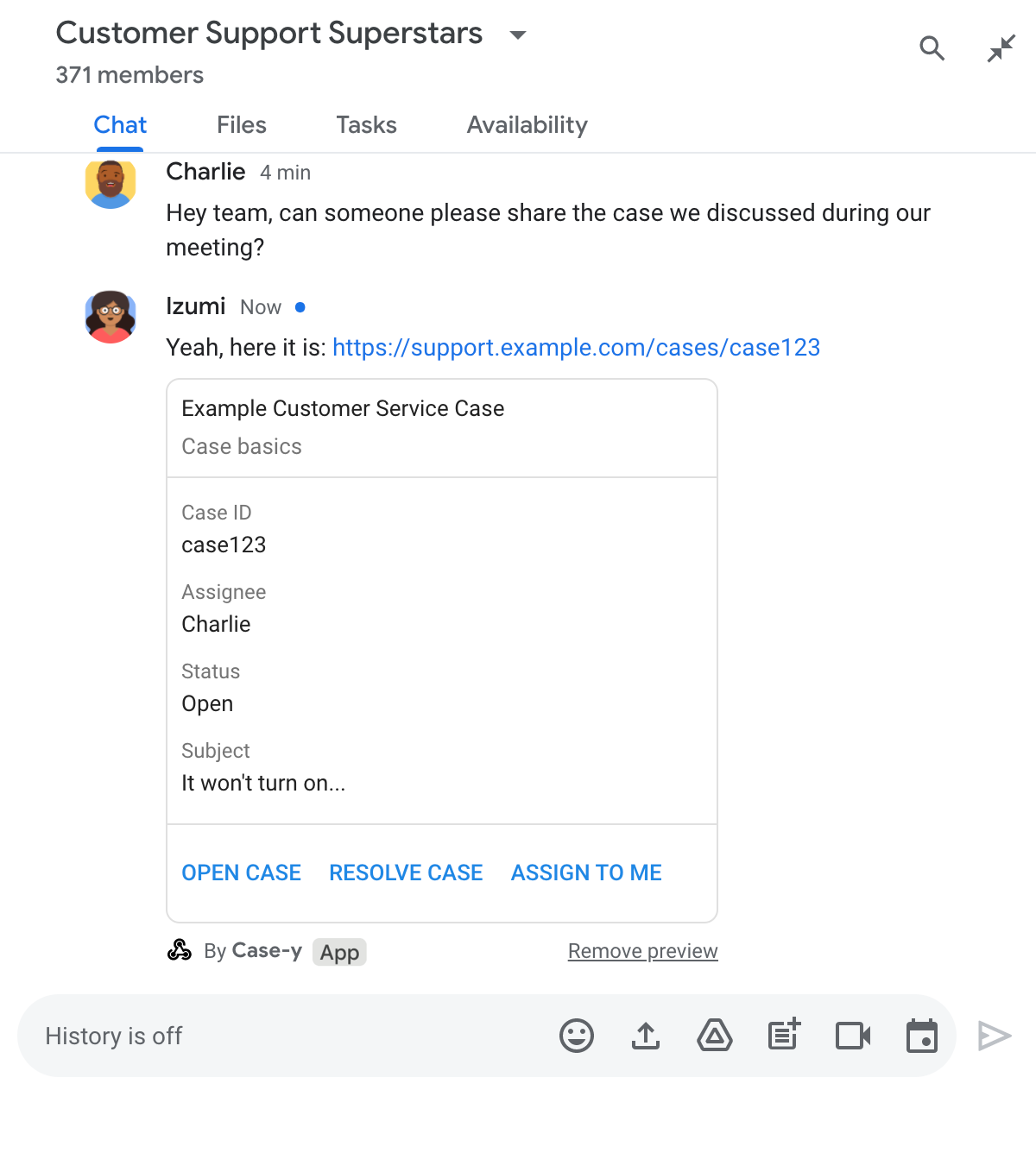
লিঙ্ক প্রিভিউ করার মাধ্যমে স্পেসের রেসিডেন্ট চ্যাট অ্যাপ, কেস-ওয়াই, যখনই কেউ কেস লিঙ্ক শেয়ার করে তখন অ্যাসাইনি, স্ট্যাটাস এবং বিষয় দেখানো একটি কার্ড সংযুক্ত করতে পারে। কার্ডের বোতামগুলি এজেন্টদের কেসের মালিকানা নিতে এবং চ্যাট স্ট্রিম থেকে সরাসরি স্ট্যাটাস পরিবর্তন করতে দেয়।

যখন কেউ তাদের মেসেজে একটি লিঙ্ক যোগ করে, তখন একটি চিপ প্রদর্শিত হয় যা তাদের জানায় যে একটি চ্যাট অ্যাপ লিঙ্কটির প্রিভিউ দেখতে পারে।
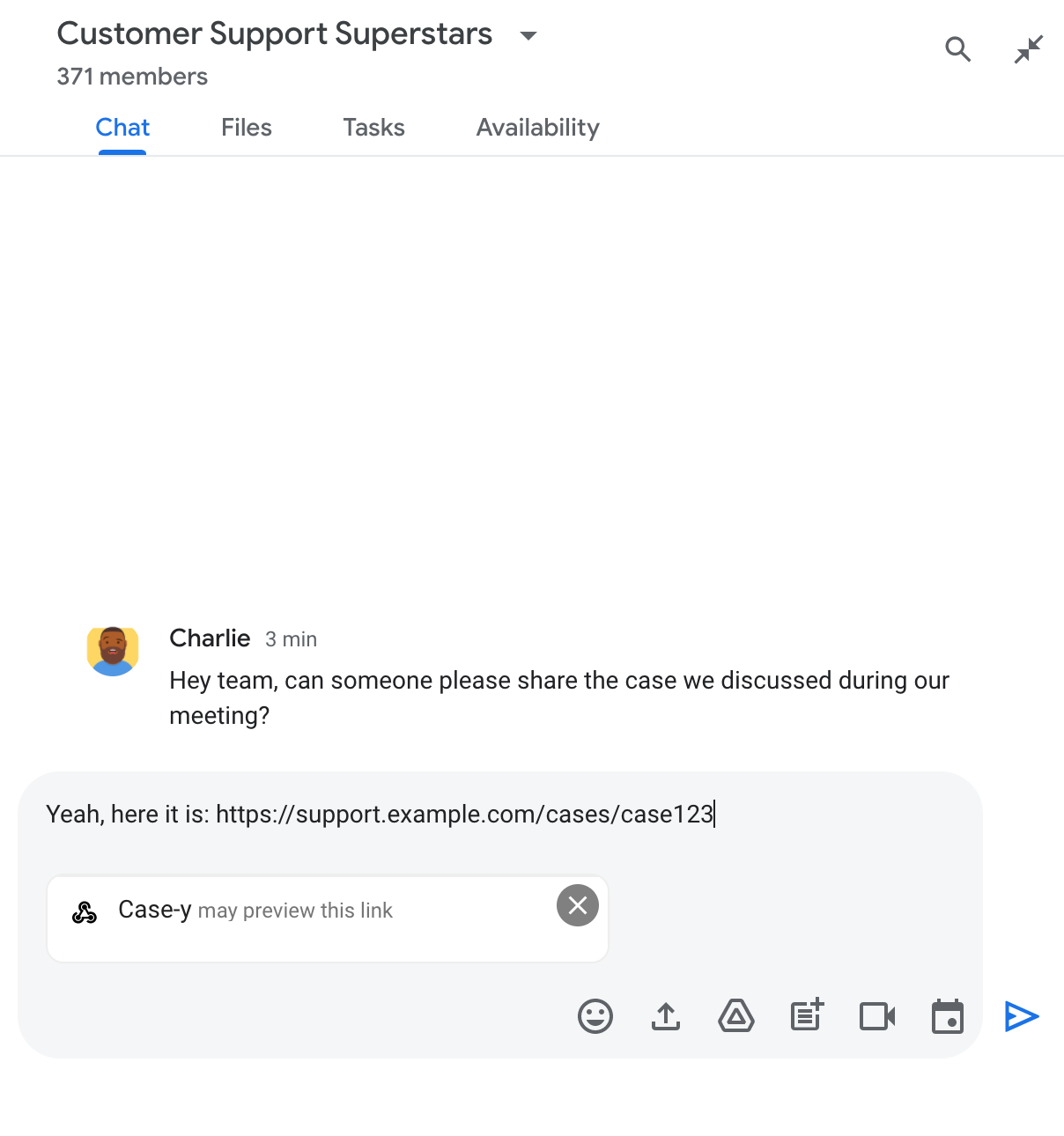
চিপটি ইঙ্গিত করছে যে কোনও চ্যাট অ্যাপ কোনও লিঙ্কের প্রিভিউ দেখতে পারে

বার্তা পাঠানোর পর, লিঙ্কটি চ্যাট অ্যাপে পাঠানো হয়, যা পরে কার্ডটি তৈরি করে এবং ব্যবহারকারীর বার্তার সাথে সংযুক্ত করে।

মেসেজে একটি কার্ড সংযুক্ত করে চ্যাট অ্যাপ একটি লিঙ্কের প্রিভিউ দেখাচ্ছে

লিঙ্কের পাশাপাশি, কার্ডটি লিঙ্ক সম্পর্কে অতিরিক্ত তথ্য প্রদান করে, যার মধ্যে বোতামের মতো ইন্টারেক্টিভ উপাদানও অন্তর্ভুক্ত থাকে। আপনার চ্যাট অ্যাপ ব্যবহারকারীর ইন্টারঅ্যাকশনের প্রতিক্রিয়ায় সংযুক্ত কার্ডটি আপডেট করতে পারে, যেমন বোতাম ক্লিক।

যদি কেউ চান না যে চ্যাট অ্যাপ তাদের মেসেজে একটি কার্ড সংযুক্ত করে তাদের লিঙ্কটি প্রিভিউ করুক, তাহলে তারা প্রিভিউ চিপে ক্লিক করে প্রিভিউ প্রতিরোধ করতে পারেন। ব্যবহারকারীরা প্রিভিউ সরান ক্লিক করে যেকোনো সময় সংযুক্ত কার্ডটি সরাতে পারেন।

পূর্বশর্ত

HTTP সম্পর্কে

একটি Google Workspace অ্যাড-অন যা Google Chat কে প্রসারিত করে। এটি তৈরি করতে, HTTP কুইকস্টার্ট সম্পূর্ণ করুন।

অ্যাপস স্ক্রিপ্ট

একটি Google Workspace অ্যাড-অন যা Google Chat কে প্রসারিত করে। এটি তৈরি করতে, Apps Script quickstart সম্পূর্ণ করুন।

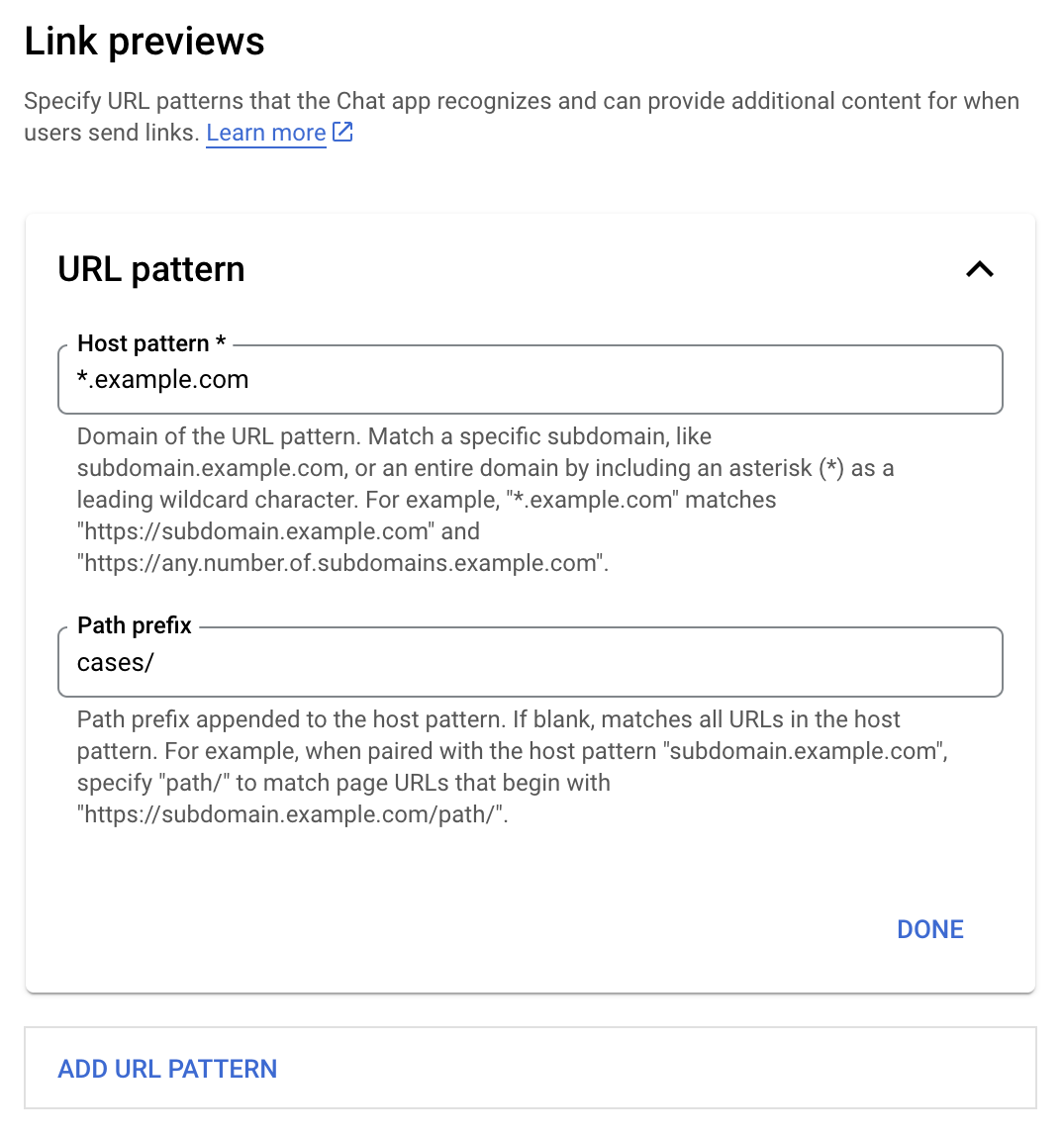
Google Cloud Console-এ আপনার Chat অ্যাপের কনফিগারেশন পৃষ্ঠায় URL প্যাটার্ন হিসেবে example.com , support.example.com , এবং support.example.com/cases/ - এর মতো নির্দিষ্ট লিঙ্কগুলি নিবন্ধন করুন যাতে আপনার Chat অ্যাপ সেগুলি প্রিভিউ করতে পারে।

লিঙ্ক প্রিভিউ কনফিগারেশন মেনু

  1. গুগল ক্লাউড কনসোলটি খুলুন।
  2. "গুগল ক্লাউড" এর পাশে, ডাউন অ্যারো ক্লিক করুন এবং আপনার চ্যাট অ্যাপের প্রজেক্টটি খুলুন।
  3. অনুসন্ধানের ক্ষেত্রে, Google Chat API টাইপ করুন এবং Google Chat API এ ক্লিক করুন।
  4. পরিচালনা > কনফিগারেশন ক্লিক করুন।
  5. লিঙ্ক প্রিভিউ-এর অধীনে, একটি URL প্যাটার্ন যোগ বা সম্পাদনা করুন।
    1. নতুন URL প্যাটার্নের জন্য লিঙ্ক প্রিভিউ কনফিগার করতে, URL প্যাটার্ন যোগ করুন এ ক্লিক করুন।
    2. বিদ্যমান URL প্যাটার্নের কনফিগারেশন সম্পাদনা করতে, নিচের তীরটি ক্লিক করুন।
  6. হোস্ট প্যাটার্ন ক্ষেত্রে, URL প্যাটার্নের ডোমেনটি লিখুন। চ্যাট অ্যাপটি এই ডোমেনের লিঙ্কগুলির প্রিভিউ দেখাবে।

    subdomain.example.com এর মতো একটি নির্দিষ্ট সাবডোমেনের জন্য Chat অ্যাপ প্রিভিউ লিঙ্ক পেতে, সাবডোমেনটি অন্তর্ভুক্ত করুন।

    সম্পূর্ণ ডোমেনের জন্য Chat অ্যাপ প্রিভিউ লিঙ্ক পেতে, সাবডোমেন হিসেবে তারকাচিহ্ন (*) সহ একটি ওয়াইল্ডকার্ড অক্ষর নির্দিষ্ট করুন। উদাহরণস্বরূপ, *.example.com subdomain.example.com এবং any.number.of.subdomains.example.com এর সাথে মেলে।

  7. পাথ প্রিফিক্স ক্ষেত্রে, হোস্ট প্যাটার্ন ডোমেনে যোগ করার জন্য একটি পাথ লিখুন।

    হোস্ট প্যাটার্ন ডোমেনের সমস্ত URL মেলাতে, পাথ প্রিফিক্স খালি রাখুন।

    উদাহরণস্বরূপ, যদি হোস্ট প্যাটার্নটি support.example.com হয়, তাহলে support.example.com/cases/ এ হোস্ট করা কেসের URL গুলি মেলাতে, cases/ লিখুন।

  8. সম্পন্ন ক্লিক করুন।

  9. সংরক্ষণ করুন ক্লিক করুন।

এখন, যখনই কেউ এমন একটি লিঙ্ক অন্তর্ভুক্ত করে যা আপনার চ্যাট অ্যাপ অন্তর্ভুক্ত চ্যাট স্পেসে থাকা কোনও বার্তার সাথে লিঙ্ক প্রিভিউ URL প্যাটার্নের সাথে মেলে, তখন আপনার অ্যাপটি লিঙ্কটির প্রিভিউ দেখায়।

কোনও নির্দিষ্ট লিঙ্কের জন্য লিঙ্ক প্রিভিউ কনফিগার করার পরে, আপনার চ্যাট অ্যাপ লিঙ্কটিতে আরও তথ্য সংযুক্ত করে লিঙ্কটি চিনতে এবং প্রিভিউ করতে পারে।

আপনার চ্যাট অ্যাপের অন্তর্ভুক্ত চ্যাট স্পেসের ভিতরে, যখন কারো বার্তায় এমন একটি লিঙ্ক থাকে যা একটি লিঙ্ক প্রিভিউ URL প্যাটার্নের সাথে মেলে, তখন আপনার চ্যাট অ্যাপটি MessagePayload সহ একটি ইভেন্ট অবজেক্ট পায়। পেলোডে, message.matchedUrl অবজেক্টে সেই লিঙ্কটি থাকে যা ব্যবহারকারী বার্তায় অন্তর্ভুক্ত করেছেন:

JSON সম্পর্কে

message: {
  matchedUrl: {
    url: "https://support.example.com/cases/case123"
  },
  ... // other message attributes redacted
}

MESSAGE ইভেন্ট পেলোডে matchedUrl ফিল্ডের উপস্থিতি পরীক্ষা করে, আপনার চ্যাট অ্যাপ প্রিভিউ করা লিঙ্ক সহ বার্তায় তথ্য যোগ করতে পারে। আপনার চ্যাট অ্যাপ হয় একটি মৌলিক টেক্সট বার্তা দিয়ে উত্তর দিতে পারে অথবা একটি কার্ড সংযুক্ত করতে পারে।

একটি টেক্সট মেসেজ দিয়ে উত্তর দিন

সাধারণ উত্তরের জন্য, আপনার চ্যাট অ্যাপটি একটি লিঙ্কের উত্তরে একটি টেক্সট মেসেজ দিয়ে একটি লিঙ্কের প্রিভিউ করতে পারে। এই উদাহরণে একটি বার্তা সংযুক্ত করা হয়েছে যা লিঙ্কের URL পুনরাবৃত্তি করে যা একটি লিঙ্ক প্রিভিউ URL প্যাটার্নের সাথে মেলে।

নোড.জেএস

নোড/চ্যাট/প্রিভিউ-লিঙ্ক/index.js
// Reply with a text message for URLs of the subdomain "text"
if (chatMessage.matchedUrl.url.includes("text.example.com")) {
  return { hostAppDataAction: { chatDataAction: { createMessageAction: { message: {
    text: 'event.chat.messagePayload.message.matchedUrl.url: ' + chatMessage.matchedUrl.url
  }}}}};
}

FUNCTION_URL HTTP এন্ডপয়েন্ট দিয়ে প্রতিস্থাপন করুন যা বোতাম ক্লিক পরিচালনা করে।

পাইথন

পাইথন/চ্যাট/প্রিভিউ-লিঙ্ক/মেইন.পি
# Reply with a text message for URLs of the subdomain "text"
if "text.example.com" in chatMessage.get('matchedUrl').get('url'):
  return { 'hostAppDataAction': { 'chatDataAction': { 'createMessageAction': { 'message': {
    'text': 'event.chat.messagePayload.message.matchedUrl.url: ' + chatMessage.get('matchedUrl').get('url')
  }}}}}

FUNCTION_URL HTTP এন্ডপয়েন্ট দিয়ে প্রতিস্থাপন করুন যা বোতাম ক্লিক পরিচালনা করে।

জাভা

জাভা/চ্যাট/প্রিভিউ-লিঙ্ক/এসআরসি/মেইন/জাভা/কম/গুগল/চ্যাট/প্রিভিউলিঙ্ক/অ্যাপ.জাভা
// Reply with a text message for URLs of the subdomain "text"
if (chatMessage.at("/matchedUrl/url").asText().contains("text.example.com")) {
  return new GenericJson() {{
    put("hostAppDataAction", new GenericJson() {{
      put("chatDataAction", new GenericJson() {{
        put("createMessageAction", new GenericJson() {{
          put("message", new GenericJson() {{
            put("text", "event.chat.messagePayload.message.matchedUrl.url: " + chatMessage.at("/matchedUrl/url").asText());
          }});
        }});
      }});
    }});
  }};
}

FUNCTION_URL HTTP এন্ডপয়েন্ট দিয়ে প্রতিস্থাপন করুন যা বোতাম ক্লিক পরিচালনা করে।

অ্যাপস স্ক্রিপ্ট

অ্যাপস-স্ক্রিপ্ট/চ্যাট/প্রিভিউ-লিঙ্ক/প্রিভিউ-লিঙ্ক.জিএস
// Reply with a text message for URLs of the subdomain "text".
if (chatMessage.matchedUrl.url.includes("text.example.com")) {
  return { hostAppDataAction: { chatDataAction: { createMessageAction: { message: {
    text: 'event.chat.messagePayload.message.matchedUrl.url: ' + chatMessage.matchedUrl.url
  }}}}};
}

একটি প্রিভিউ করা লিঙ্কে একটি কার্ড সংযুক্ত করতে, UpdateInlinePreviewAction ধরণের ChatDataActionMarkup অবজেক্ট দিয়ে DataActions অ্যাকশনটি ফেরত পাঠান।

নিম্নলিখিত উদাহরণে, একটি চ্যাট অ্যাপ URL প্যাটার্ন support.example.com ধারণকারী বার্তাগুলিতে একটি প্রিভিউ কার্ড যোগ করে।

মেসেজে একটি কার্ড সংযুক্ত করে চ্যাট অ্যাপ একটি লিঙ্কের প্রিভিউ দেখাচ্ছে

নোড.জেএস

নোড/চ্যাট/প্রিভিউ-লিঙ্ক/index.js
// Attach a card to the message for URLs of the subdomain "support"
if (chatMessage.matchedUrl.url.includes("support.example.com")) {
  // A hard-coded card is used in this example. In a real-life scenario,
  // the case information would be fetched and used to build the card.
  return { hostAppDataAction: { chatDataAction: { updateInlinePreviewAction: { cardsV2: [{
    cardId: 'attachCard',
    card: {
      header: {
        title: 'Example Customer Service Case',
        subtitle: 'Case basics',
      },
      sections: [{ widgets: [
      { decoratedText: { topLabel: 'Case ID', text: 'case123'}},
      { decoratedText: { topLabel: 'Assignee', text: 'Charlie'}},
      { decoratedText: { topLabel: 'Status', text: 'Open'}},
      { decoratedText: { topLabel: 'Subject', text: 'It won\'t turn on...' }},
      { buttonList: { buttons: [{
        text: 'OPEN CASE',
        onClick: { openLink: {
          url: 'https://support.example.com/orders/case123'
        }},
      }, {
        text: 'RESOLVE CASE',
        onClick: { openLink: {
          url: 'https://support.example.com/orders/case123?resolved=y',
        }},
      }, {
        text: 'ASSIGN TO ME',
        onClick: { action: { function: FUNCTION_URL }}
      }]}}
      ]}]
    }
  }]}}}};
}

FUNCTION_URL HTTP এন্ডপয়েন্ট দিয়ে প্রতিস্থাপন করুন যা বোতাম ক্লিক পরিচালনা করে।

পাইথন

পাইথন/চ্যাট/প্রিভিউ-লিঙ্ক/মেইন.পি
# Attach a card to the message for URLs of the subdomain "support"
if "support.example.com" in chatMessage.get('matchedUrl').get('url'):
  # A hard-coded card is used in this example. In a real-life scenario,
  # the case information would be fetched and used to build the card.
  return { 'hostAppDataAction': { 'chatDataAction': { 'updateInlinePreviewAction': { 'cardsV2': [{
    'cardId': 'attachCard',
    'card': {
      'header': {
        'title': 'Example Customer Service Case',
        'subtitle': 'Case basics',
      },
      'sections': [{ 'widgets': [
      { 'decoratedText': { 'topLabel': 'Case ID', 'text': 'case123'}},
      { 'decoratedText': { 'topLabel': 'Assignee', 'text': 'Charlie'}},
      { 'decoratedText': { 'topLabel': 'Status', 'text': 'Open'}},
      { 'decoratedText': { 'topLabel': 'Subject', 'text': 'It won\'t turn on...' }},
      { 'buttonList': { 'buttons': [{
        'text': 'OPEN CASE',
        'onClick': { 'openLink': {
          'url': 'https://support.example.com/orders/case123'
        }},
      }, {
        'text': 'RESOLVE CASE',
        'onClick': { 'openLink': {
          'url': 'https://support.example.com/orders/case123?resolved=y',
        }},
      }, {
        'text': 'ASSIGN TO ME',
        'onClick': { 'action': { 'function': FUNCTION_URL }}
      }]}}
      ]}]
    }
  }]}}}}

FUNCTION_URL HTTP এন্ডপয়েন্ট দিয়ে প্রতিস্থাপন করুন যা বোতাম ক্লিক পরিচালনা করে।

জাভা

জাভা/চ্যাট/প্রিভিউ-লিঙ্ক/এসআরসি/মেইন/জাভা/কম/গুগল/চ্যাট/প্রিভিউলিঙ্ক/অ্যাপ.জাভা
// Attach a card to the message for URLs of the subdomain "support"
if (chatMessage.at("/matchedUrl/url").asText().contains("support.example.com")) {
  // A hard-coded card is used in this example. In a real-life scenario,
  // the case information would be fetched and used to build the card.
  CardWithId cardV2 = new CardWithId()
    .setCardId("attachCard")
    .setCard(new GoogleAppsCardV1Card()
      .setHeader(new GoogleAppsCardV1CardHeader()
        .setTitle("Example Customer Service Case")
        .setSubtitle("Case basics"))
      .setSections(List.of(new GoogleAppsCardV1Section().setWidgets(List.of(
        new GoogleAppsCardV1Widget().setDecoratedText(new GoogleAppsCardV1DecoratedText()
          .setTopLabel("Case ID")
          .setText("case123")),
        new GoogleAppsCardV1Widget().setDecoratedText(new GoogleAppsCardV1DecoratedText()
          .setTopLabel("Assignee")
          .setText("Charlie")),
        new GoogleAppsCardV1Widget().setDecoratedText(new GoogleAppsCardV1DecoratedText()
          .setTopLabel("Status")
          .setText("Open")),
        new GoogleAppsCardV1Widget().setDecoratedText(new GoogleAppsCardV1DecoratedText()
          .setTopLabel("Subject")
          .setText("It won't turn on...")),
        new GoogleAppsCardV1Widget().setButtonList(new GoogleAppsCardV1ButtonList()
          .setButtons(List.of(
            new GoogleAppsCardV1Button()
              .setText("OPEN CASE")
            .setOnClick(new GoogleAppsCardV1OnClick()
                .setOpenLink(new GoogleAppsCardV1OpenLink()
                  .setUrl("https://support.example.com/orders/case123"))),
            new GoogleAppsCardV1Button()
              .setText("RESOLVE CASE")
            .setOnClick(new GoogleAppsCardV1OnClick()
                .setOpenLink(new GoogleAppsCardV1OpenLink()
                  .setUrl("https://support.example.com/orders/case123?resolved=y"))),
            new GoogleAppsCardV1Button()
              .setText("ASSIGN TO ME")
              .setOnClick(new GoogleAppsCardV1OnClick()
                .setAction(new GoogleAppsCardV1Action().setFunction(FUNCTION_URL)))
          ))
        )
      ))))
    );

  return new GenericJson() {{
    put("hostAppDataAction", new GenericJson() {{
      put("chatDataAction", new GenericJson() {{
        put("updateInlinePreviewAction", new GenericJson() {{
          put("cardsV2", List.of(cardV2));
        }});
      }});
    }});
  }};
}

FUNCTION_URL HTTP এন্ডপয়েন্ট দিয়ে প্রতিস্থাপন করুন যা বোতাম ক্লিক পরিচালনা করে।

অ্যাপস স্ক্রিপ্ট

অ্যাপস-স্ক্রিপ্ট/চ্যাট/প্রিভিউ-লিঙ্ক/প্রিভিউ-লিঙ্ক.জিএস
// Attach a card to the message for URLs of the subdomain "support".
if (chatMessage.matchedUrl.url.includes("support.example.com")) {
  // A hard-coded card is used in this example. In a real-life scenario,
  // the case information would be fetched and used to build the card.
  return { hostAppDataAction: { chatDataAction: { updateInlinePreviewAction: { cardsV2: [{
    cardId: 'attachCard',
    card: {
      header: {
        title: 'Example Customer Service Case',
        subtitle: 'Case summary',
      },
      sections: [{ widgets: [
      { decoratedText: { topLabel: 'Case ID', text: 'case123'}},
      { decoratedText: { topLabel: 'Assignee', text: 'Charlie'}},
      { decoratedText: { topLabel: 'Status', text: 'Open'}},
      { decoratedText: { topLabel: 'Subject', text: 'It won\'t turn on...' }},
      { buttonList: { buttons: [{
        text: 'OPEN CASE',
        onClick: { openLink: {
          url: 'https://support.example.com/orders/case123'
        }},
      }, {
        text: 'RESOLVE CASE',
        onClick: { openLink: {
          url: 'https://support.example.com/orders/case123?resolved=y',
        }},
      }, {
        text: 'ASSIGN TO ME',
        // Clicking this button triggers the execution of the function
        // "assign" from the Apps Script project.
        onClick: { action: { function: 'assign'}}
      }]}}
      ]}]
    }
  }]}}}};
}

ব্যবহারকারীরা যখন কার্ডের বোতামে ক্লিক করার মতো ইন্টারঅ্যাক্ট করে, তখন আপনার চ্যাট অ্যাপটি একটি লিঙ্ক প্রিভিউ কার্ড আপডেট করতে পারে।

কার্ডটি আপডেট করার জন্য, আপনার চ্যাট অ্যাপকে নিম্নলিখিত ChatDataActionMarkup অবজেক্টগুলির মধ্যে একটি দিয়ে DataActions অ্যাকশনটি ফেরত পাঠাতে হবে:

  • যদি কোনও ব্যবহারকারী বার্তাটি পাঠিয়ে থাকেন, তাহলে একটি UpdateMessageAction অবজেক্ট ফেরত দিন।
  • যদি চ্যাট অ্যাপটি বার্তাটি পাঠিয়ে থাকে, তাহলে একটি UpdateInlinePreviewAction অবজেক্ট ফেরত দিন।

কে বার্তাটি পাঠিয়েছে তা নির্ধারণ করতে, ইভেন্ট পেলোড ( buttonClickedPayload ) ব্যবহার করে প্রেরক ( message.sender.type ) HUMAN (user) নাকি BOT (Chat app) এ সেট করা আছে তা পরীক্ষা করুন।

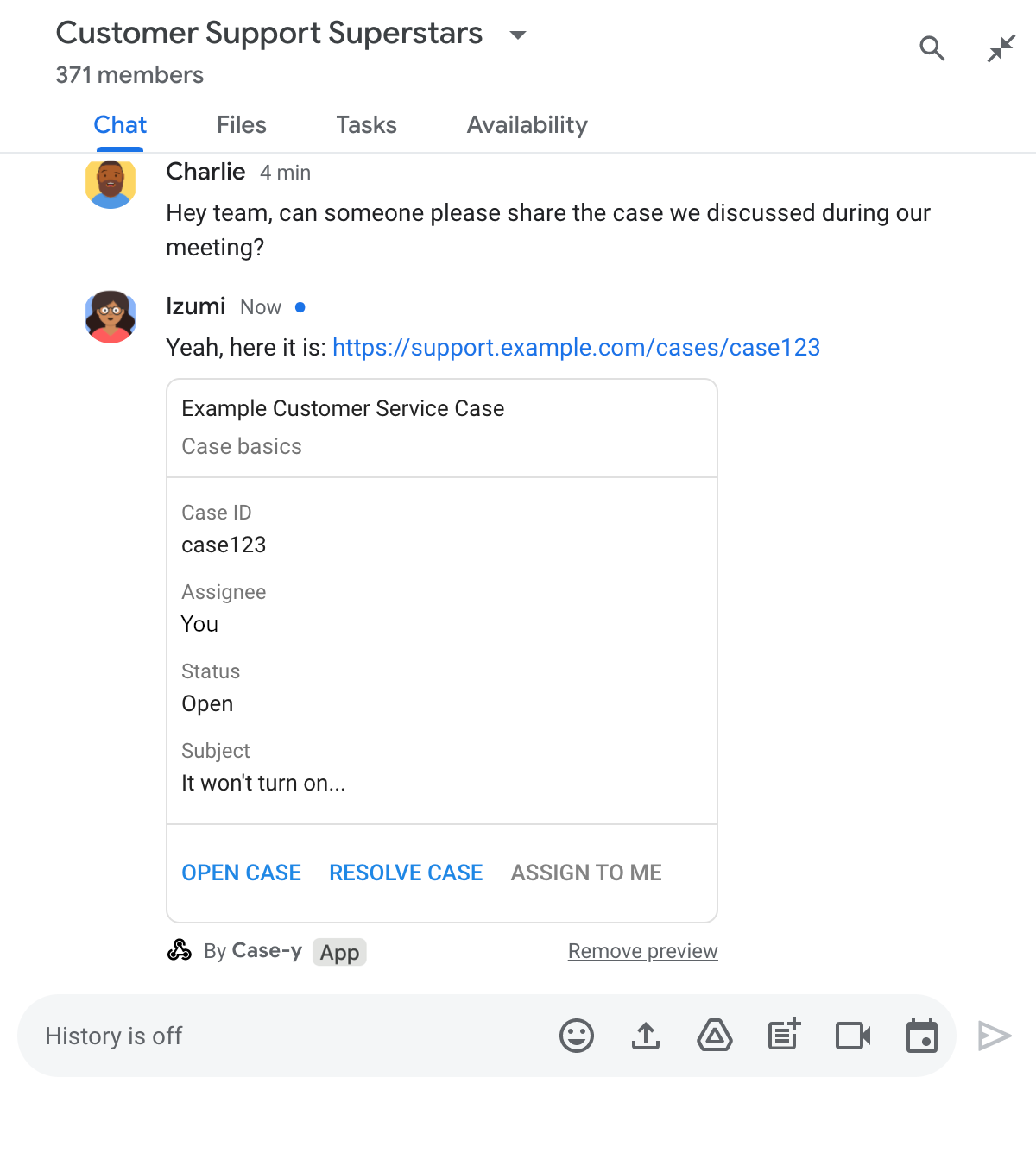
নিম্নলিখিত উদাহরণটি দেখায় যে কীভাবে একটি চ্যাট অ্যাপ কোনও ব্যবহারকারী যখনই "Assign to Me" বোতামে ক্লিক করে তখনই একটি লিঙ্ক প্রিভিউ আপডেট করে, কার্ডের " Assignee" ক্ষেত্রটি আপডেট করে এবং বোতামটি নিষ্ক্রিয় করে।

চ্যাট অ্যাপটি একটি বার্তার সাথে সংযুক্ত একটি কার্ডের আপডেটেড সংস্করণ সহ একটি লিঙ্কের প্রিভিউ দেখাচ্ছে

নোড.জেএস

নোড/চ্যাট/প্রিভিউ-লিঙ্ক/index.js
/**
 * Respond to clicks by assigning and updating the card that's attached to a
 * message previewed link of the pattern "support.example.com".
 *
 * @param {Object} chatMessage The chat message object from Google Workspace Add On event.
 * @return {Object} Action response depending on the message author.
 */
function handleCardClick(chatMessage) {
  // Creates the updated card that displays "You" for the assignee
  // and that disables the button.
  //
  // A hard-coded card is used in this example. In a real-life scenario,
  // an actual assign action would be performed before building the card.
  const message = { cardsV2: [{
    cardId: 'attachCard',
    card: {
      header: {
        title: 'Example Customer Service Case',
        subtitle: 'Case basics',
      },
      sections: [{ widgets: [
        { decoratedText: { topLabel: 'Case ID', text: 'case123'}},
        // The assignee is now "You"
        { decoratedText: { topLabel: 'Assignee', text: 'You'}},
        { decoratedText: { topLabel: 'Status', text: 'Open'}},
        { decoratedText: { topLabel: 'Subject', text: 'It won\'t turn on...' }},
        { buttonList: { buttons: [{
          text: 'OPEN CASE',
          onClick: { openLink: {
            url: 'https://support.example.com/orders/case123'
          }},
        }, {
          text: 'RESOLVE CASE',
          onClick: { openLink: {
            url: 'https://support.example.com/orders/case123?resolved=y',
          }},
        }, {
          text: 'ASSIGN TO ME',
          // The button is now disabled
          disabled: true,
          onClick: { action: { function: FUNCTION_URL }}
        }]}}
      ]}]
    }
  }]};

  // Use the adequate action response type. It depends on whether the message
  // the preview link card is attached to was created by a human or a Chat app.
  if(chatMessage.sender.type === 'HUMAN') {
    return { hostAppDataAction: { chatDataAction: { updateInlinePreviewAction: message }}};
  } else {
    return { hostAppDataAction: { chatDataAction: { updateMessageAction: message }}};
  }
}

FUNCTION_URL HTTP এন্ডপয়েন্ট দিয়ে প্রতিস্থাপন করুন যা বোতাম ক্লিক পরিচালনা করে।

পাইথন

পাইথন/চ্যাট/প্রিভিউ-লিঙ্ক/মেইন.পি
def handle_card_click(chatMessage: dict) -> dict:
  """Respond to clicks by assigning and updating the card that's attached to a
  message previewed link of the pattern "support.example.com".

  - Reply with text messages that echo "text.example.com" link URLs in messages.
  - Attach cards to messages with "support.example.com" link URLs.

  Args:
      chatMessage (Mapping[str, Any]): The chat message object from Google Workspace Add On event.

  Returns:
      Mapping[str, Any]: Action response depending on the message author.
  """
  # Creates the updated card that displays "You" for the assignee
  # and that disables the button.
  #
  # A hard-coded card is used in this example. In a real-life scenario,
  # an actual assign action would be performed before building the card.
  message = { 'cardsV2': [{
    'cardId': 'attachCard',
    'card': {
      'header': {
        'title': 'Example Customer Service Case',
        'subtitle': 'Case basics',
      },
      'sections': [{ 'widgets': [
      { 'decoratedText': { 'topLabel': 'Case ID', 'text': 'case123'}},
      # The assignee is now "You"
      { 'decoratedText': { 'topLabel': 'Assignee', 'text': 'You'}},
      { 'decoratedText': { 'topLabel': 'Status', 'text': 'Open'}},
      { 'decoratedText': { 'topLabel': 'Subject', 'text': 'It won\'t turn on...' }},
      { 'buttonList': { 'buttons': [{
        'text': 'OPEN CASE',
        'onClick': { 'openLink': {
          'url': 'https://support.example.com/orders/case123'
        }},
      }, {
        'text': 'RESOLVE CASE',
        'onClick': { 'openLink': {
          'url': 'https://support.example.com/orders/case123?resolved=y',
        }},
      }, {
        'text': 'ASSIGN TO ME',
        # The button is now disabled
        'disabled': True,
        'onClick': { 'action': { 'function': FUNCTION_URL }}
      }]}}
      ]}]
    }
  }]}

  # Use the adequate action response type. It depends on whether the message
  # the preview link card is attached to was created by a human or a Chat app.
  if chatMessage.get('sender').get('type') == 'HUMAN':
    return { 'hostAppDataAction': { 'chatDataAction': { 'updateInlinePreviewAction': message }}}
  else:
    return { 'hostAppDataAction': { 'chatDataAction': { 'updateMessageAction': message }}}

FUNCTION_URL HTTP এন্ডপয়েন্ট দিয়ে প্রতিস্থাপন করুন যা বোতাম ক্লিক পরিচালনা করে।

জাভা

জাভা/চ্যাট/প্রিভিউ-লিঙ্ক/এসআরসি/মেইন/জাভা/কম/গুগল/চ্যাট/প্রিভিউলিঙ্ক/অ্যাপ.জাভা
/**
 * Respond to clicks by assigning and updating the card that's attached to a
 * message previewed link of the pattern "support.example.com".
 *
 * @param chatMessage The chat message object from Google Workspace Add On event.
 * @return Action response depending on the message author.
 */
GenericJson handleCardClick(JsonNode chatMessage) {
  // Creates the updated card that displays "You" for the assignee
  // and that disables the button.
  //
  // A hard-coded card is used in this example. In a real-life scenario,
  // an actual assign action would be performed before building the card.
  Message message = new Message().setCardsV2(List.of(new CardWithId()
    .setCardId("attachCard")
    .setCard(new GoogleAppsCardV1Card()
      .setHeader(new GoogleAppsCardV1CardHeader()
        .setTitle("Example Customer Service Case")
        .setSubtitle("Case basics"))
      .setSections(List.of(new GoogleAppsCardV1Section().setWidgets(List.of(
        new GoogleAppsCardV1Widget().setDecoratedText(new GoogleAppsCardV1DecoratedText()
          .setTopLabel("Case ID")
          .setText("case123")),
        // The assignee is now "You"
        new GoogleAppsCardV1Widget().setDecoratedText(new GoogleAppsCardV1DecoratedText()
          .setTopLabel("Assignee")
          .setText("You")),
        new GoogleAppsCardV1Widget().setDecoratedText(new GoogleAppsCardV1DecoratedText()
          .setTopLabel("Status")
          .setText("Open")),
        new GoogleAppsCardV1Widget().setDecoratedText(new GoogleAppsCardV1DecoratedText()
          .setTopLabel("Subject")
          .setText("It won't turn on...")),
        new GoogleAppsCardV1Widget().setButtonList(new GoogleAppsCardV1ButtonList()
          .setButtons(List.of(
            new GoogleAppsCardV1Button()
              .setText("OPEN CASE")
              .setOnClick(new GoogleAppsCardV1OnClick()
                .setOpenLink(new GoogleAppsCardV1OpenLink()
                  .setUrl("https://support.example.com/orders/case123"))),
            new GoogleAppsCardV1Button()
              .setText("RESOLVE CASE")
              .setOnClick(new GoogleAppsCardV1OnClick()
                .setOpenLink(new GoogleAppsCardV1OpenLink()
                  .setUrl("https://support.example.com/orders/case123?resolved=y"))),
            new GoogleAppsCardV1Button()
              .setText("ASSIGN TO ME")
              // The button is now disabled
              .setDisabled(true)
              .setOnClick(new GoogleAppsCardV1OnClick()
                .setAction(new GoogleAppsCardV1Action().setFunction(FUNCTION_URL)))
          ))
        )
      ))))
    )
  ));

  // Use the adequate action response type. It depends on whether the message
  // the preview link card is attached to was created by a human or a Chat app.
  if("HUMAN".equals(chatMessage.at("/sender/type").asText())) {
    return new GenericJson() {{
      put("hostAppDataAction", new GenericJson() {{
        put("chatDataAction", new GenericJson() {{
          put("updateInlinePreviewAction", message);
        }});
      }});
    }};
  } else {
    return new GenericJson() {{
      put("hostAppDataAction", new GenericJson() {{
        put("chatDataAction", new GenericJson() {{
          put("updateMessageAction", message);
        }});
      }});
    }};
  }
}

FUNCTION_URL HTTP এন্ডপয়েন্ট দিয়ে প্রতিস্থাপন করুন যা বোতাম ক্লিক পরিচালনা করে।

অ্যাপস স্ক্রিপ্ট

অ্যাপস-স্ক্রিপ্ট/চ্যাট/প্রিভিউ-লিঙ্ক/প্রিভিউ-লিঙ্ক.জিএস
/**
 * Assigns and updates the card that's attached to a message with a
 * previewed link of the pattern "support.example.com".
 *
 * @param {Object} event The event object from the Google Workspace add-on.
 * @return {Object} Action response depending on the message author.
 */
function assign(event) {
  // Creates the updated card that displays "You" for the assignee
  // and that disables the button.
  //
  // A hard-coded card is used in this example. In a real-life scenario,
  // an actual assign action would be performed before building the card.
  const message = { cardsV2: [{
    cardId: 'attachCard',
    card: {
      header: {
        title: 'Example Customer Service Case',
        subtitle: 'Case summary',
      },
      sections: [{ widgets: [
        { decoratedText: { topLabel: 'Case ID', text: 'case123'}},
        // The assignee is now "You"
        { decoratedText: { topLabel: 'Assignee', text: 'You'}},
        { decoratedText: { topLabel: 'Status', text: 'Open'}},
        { decoratedText: { topLabel: 'Subject', text: 'It won\'t turn on...' }},
        { buttonList: { buttons: [{
          text: 'OPEN CASE',
          onClick: { openLink: {
            url: 'https://support.example.com/orders/case123'
          }},
        }, {
          text: 'RESOLVE CASE',
          onClick: { openLink: {
            url: 'https://support.example.com/orders/case123?resolved=y',
          }},
        }, {
          text: 'ASSIGN TO ME',
          // The button is now disabled
          disabled: true,
          onClick: { action: { function: 'assign'}}
        }]}}
      ]}]
    }
  }]};

  // Use the adequate action response type. It depends on whether the message
  // the preview link card is attached to was created by a human or a Chat app.
  if(event.chat.buttonClickedPayload.message.sender.type === 'HUMAN') {
    return { hostAppDataAction: { chatDataAction: { updateInlinePreviewAction: message }}};
  } else {
    return { hostAppDataAction: { chatDataAction: { updateMessageAction: message }}};
  }
}

সীমাবদ্ধতা এবং বিবেচনা

আপনার চ্যাট অ্যাপের জন্য লিঙ্ক প্রিভিউ কনফিগার করার সময়, এই সীমা এবং বিবেচনাগুলি লক্ষ্য করুন:

  • প্রতিটি চ্যাট অ্যাপ সর্বোচ্চ ৫টি URL প্যাটার্নের জন্য লিঙ্ক প্রিভিউ সমর্থন করে।
  • চ্যাট অ্যাপগুলি প্রতি বার্তায় একটি লিঙ্কের প্রিভিউ করে। যদি একটি বার্তায় একাধিক প্রিভিউযোগ্য লিঙ্ক থাকে, তাহলে শুধুমাত্র প্রথম প্রিভিউযোগ্য লিঙ্কের প্রিভিউ দেখা যাবে।
  • চ্যাট অ্যাপগুলি শুধুমাত্র https:// দিয়ে শুরু হওয়া লিঙ্কগুলির প্রিভিউ দেখে, তাই https://support.example.com/cases/ প্রিভিউ দেখে, কিন্তু support.example.com/cases/ তা করে না।
  • যদি না মেসেজে অন্যান্য তথ্য থাকে যা চ্যাট অ্যাপে পাঠানো হয়, যেমন স্ল্যাশ কমান্ড , তাহলে লিঙ্ক প্রিভিউয়ের মাধ্যমে শুধুমাত্র লিঙ্ক URLটি চ্যাট অ্যাপে পাঠানো হয়।
  • যদি কোনও ব্যবহারকারী লিঙ্কটি পোস্ট করেন, তাহলে চ্যাট অ্যাপটি কেবল তখনই লিঙ্ক প্রিভিউ কার্ডটি আপডেট করতে পারে যদি ব্যবহারকারীরা কার্ডের সাথে ইন্টারঅ্যাক্ট করে, যেমন একটি বোতাম ক্লিকের মাধ্যমে। আপনি ব্যবহারকারীর বার্তা অ্যাসিঙ্ক্রোনাসভাবে আপডেট করার জন্য Message রিসোর্সে চ্যাট API এর update() পদ্ধতিতে কল করতে পারবেন না।
  • চ্যাট অ্যাপগুলিকে স্পেসে থাকা সকলের জন্য লিঙ্কগুলির প্রিভিউ দেখতে হবে, তাই বার্তাটিতে privateMessageViewer ক্ষেত্রটি বাদ দিতে হবে।

লিঙ্ক প্রিভিউ বাস্তবায়নের সময়, অ্যাপের লগগুলি পড়ে আপনার চ্যাট অ্যাপটি ডিবাগ করার প্রয়োজন হতে পারে। লগগুলি পড়তে, Google ক্লাউড কনসোলে লগস এক্সপ্লোরারে যান।