Cómo obtener vistas previas de vínculos en los mensajes de Google Chat

Para evitar el cambio de contexto cuando los usuarios comparten un vínculo en Google Chat, tu app de Chat puede obtener una vista previa del vínculo adjuntando una tarjeta al mensaje que proporcione más información y permita que las personas realicen acciones directamente desde Google Chat.

Por ejemplo, imagina un espacio de Google Chat que incluye a todos los agentes de atención al cliente de una empresa y una app de Chat llamada Case-y. Los agentes suelen compartir vínculos a casos de atención al cliente en el espacio de chat y, cada vez que lo hacen, sus compañeros deben abrir el vínculo del caso para ver detalles como el asignatario, el estado y el asunto. Del mismo modo, si alguien quiere hacerse cargo de un caso o cambiar su estado, debe abrir el vínculo.

La vista previa de vínculos permite que la app de Chat residente del espacio, Case-y, adjunte una tarjeta que muestre el asignatario, el estado y el asunto cada vez que alguien comparta un vínculo a un caso. Los botones de la tarjeta permiten que los agentes se hagan cargo del caso y cambien el estado directamente desde el flujo de chat.

Cuando alguien agrega un vínculo a su mensaje, aparece un chip que le informa que una app de Chat podría mostrar una vista previa del vínculo.
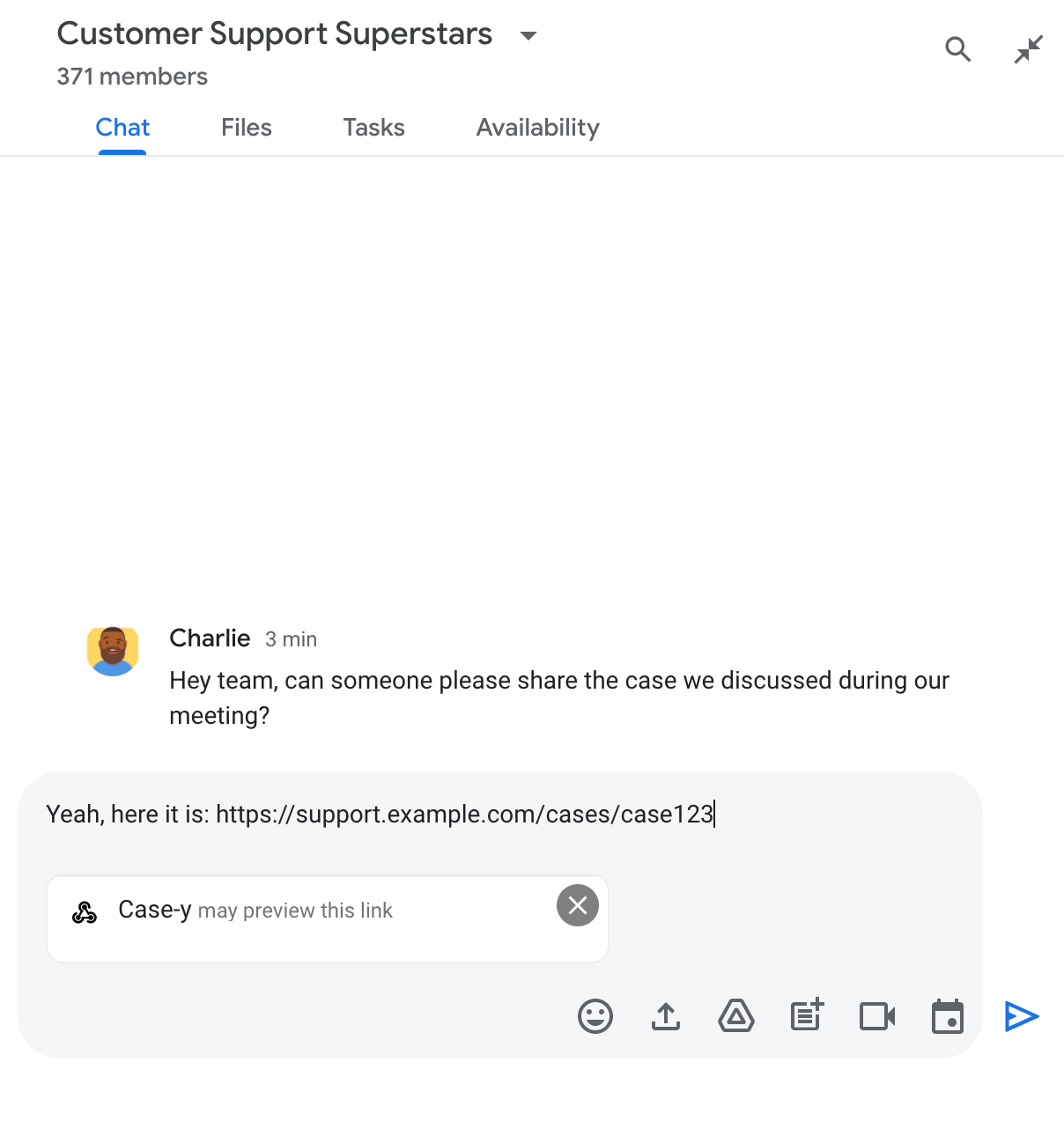
Chip que indica que una app de Chat podría obtener una vista previa de un vínculo

Después de enviar el mensaje, el vínculo se envía a la app de Chat, que luego genera y adjunta la tarjeta al mensaje del usuario.
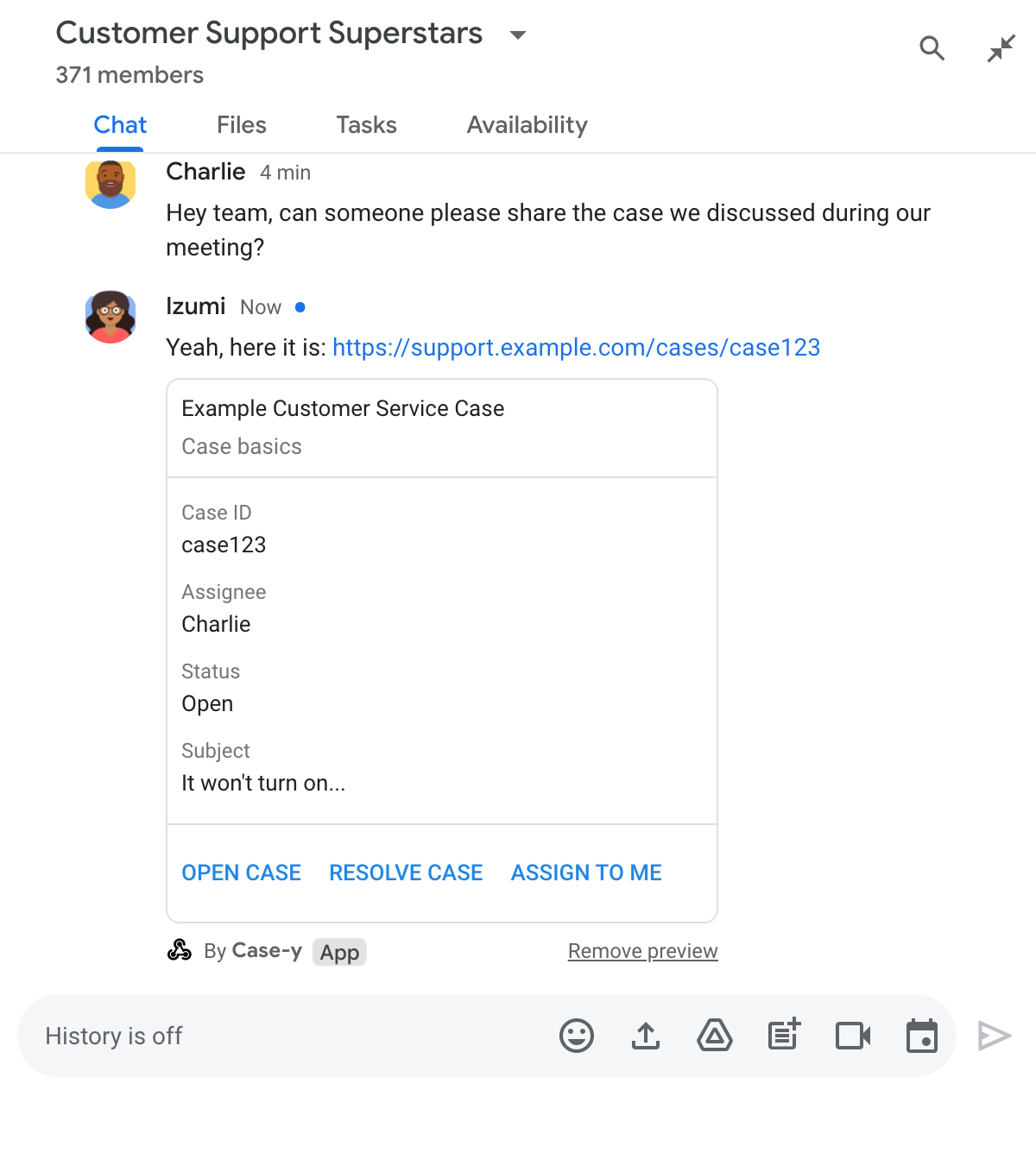
La app de chat muestra una vista previa de un vínculo adjuntando una tarjeta al mensaje

Junto con el vínculo, la tarjeta proporciona información adicional sobre él, incluidos elementos interactivos, como botones. Tu app de Chat puede actualizar la tarjeta adjunta en respuesta a las interacciones del usuario, como los clics en botones.

Si alguien no quiere que la app de Chat muestre una vista previa de su vínculo adjuntando una tarjeta a su mensaje, puede evitar la vista previa haciendo clic en en el chip de vista previa. Los usuarios pueden quitar la tarjeta adjunta en cualquier momento haciendo clic en Quitar vista previa.

Requisitos previos

HTTP

Es un complemento de Google Workspace que extiende Google Chat. Para compilar uno, completa la guía de inicio rápido de HTTP.

Apps Script

Es un complemento de Google Workspace que extiende Google Chat. Para compilar una, completa la guía de inicio rápido de Apps Script.

Registra vínculos específicos, como example.com, support.example.com y support.example.com/cases/, como patrones de URL en la página de configuración de tu app de Chat en la consola de Google Cloud para que tu app de Chat pueda obtener una vista previa de ellos.
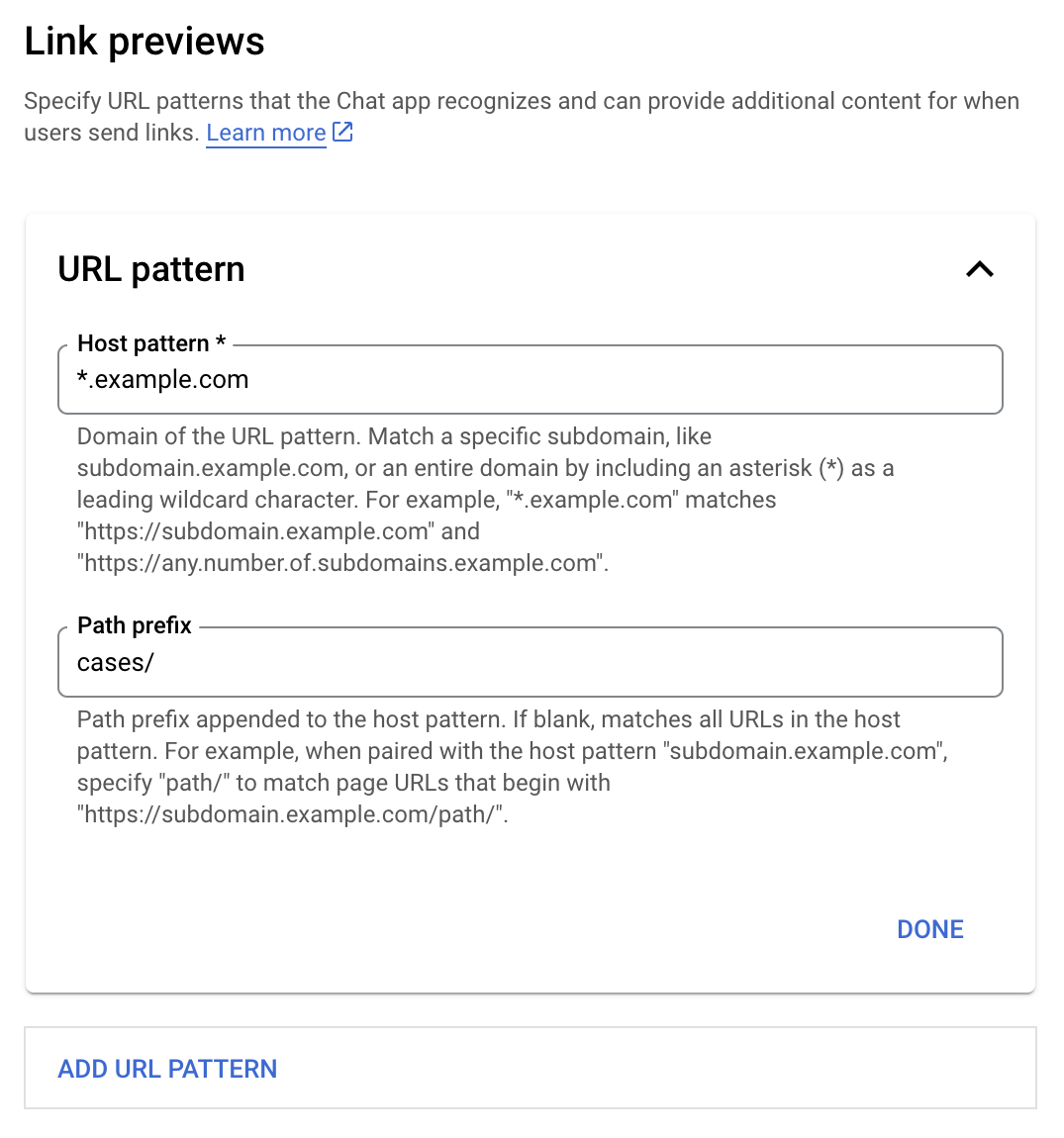
Menú de configuración de vistas previas de vínculos

  1. Abre Google Cloud Console
  2. Junto a "Google Cloud", haz clic en la flecha hacia abajo y abre el proyecto de tu app de Chat.
  3. En el campo de búsqueda, escribe Google Chat API y haz clic en API de Google Chat.
  4. Haz clic en Administrar > Configuración.
  5. En Vista previa de vínculos, agrega o edita un patrón de URL.
    1. Para configurar las vistas previas de vínculos para un nuevo patrón de URL, haz clic en Agregar patrón de URL.
    2. Para editar la configuración de un patrón de URL existente, haz clic en la flecha hacia abajo .
  6. En el campo Patrón de host, ingresa el dominio del patrón de URL. La app de Chat obtendrá una vista previa de los vínculos a este dominio.

    Para que la app de Chat muestre una vista previa de los vínculos de un subdominio específico, como subdomain.example.com, incluye el subdominio.

    Para que la app de Chat muestre vistas previas de los vínculos de todo el dominio, especifica un carácter comodín con un asterisco (*) como subdominio. Por ejemplo, *.example.com coincide con subdomain.example.com y any.number.of.subdomains.example.com.

  7. En el campo Prefijo de ruta de acceso, ingresa una ruta de acceso para agregar al dominio del patrón de host.

    Para que coincidan todas las URLs del dominio del patrón de host, deja Prefijo de ruta de acceso vacío.

    Por ejemplo, si el patrón de host es support.example.com, para que coincidan las URLs de los casos alojados en support.example.com/cases/, ingresa cases/.

  8. Haz clic en Listo.

  9. Haz clic en Guardar.

Ahora, cada vez que alguien incluya un vínculo que coincida con un patrón de URL de vista previa de vínculo en un mensaje de un espacio de Chat que incluya tu app de Chat, tu app mostrará una vista previa del vínculo.

Después de configurar la vista previa de un vínculo determinado, tu app de Chat puede reconocerlo y mostrar una vista previa adjuntándole más información.

En los espacios de Chat que incluyen tu app de Chat, cuando el mensaje de alguien contiene un vínculo que coincide con un patrón de URL de vista previa de vínculo, tu app de Chat recibe un objeto de evento con un MessagePayload. En la carga útil, el objeto message.matchedUrl contiene el vínculo que el usuario incluyó en el mensaje:

JSON

message: {
  matchedUrl: {
    url: "https://support.example.com/cases/case123"
  },
  ... // other message attributes redacted
}

Si verificas la presencia del campo matchedUrl en la carga útil del evento MESSAGE, tu app de Chat puede agregar información al mensaje con el vínculo con vista previa. Tu app de Chat puede responder con un mensaje de texto básico o adjuntar una tarjeta.

Cómo responder con un mensaje de texto

En el caso de las respuestas básicas, tu app de Chat puede obtener una vista previa de un vínculo respondiendo con un mensaje de texto a un vínculo. En este ejemplo, se adjunta un mensaje que repite la URL del vínculo que coincide con un patrón de URL de vista previa del vínculo.

Node.js

node/chat/preview-link/index.js
// Reply with a text message for URLs of the subdomain "text"
if (chatMessage.matchedUrl.url.includes("text.example.com")) {
  return { hostAppDataAction: { chatDataAction: { createMessageAction: { message: {
    text: 'event.chat.messagePayload.message.matchedUrl.url: ' + chatMessage.matchedUrl.url
  }}}}};
}

Reemplaza FUNCTION_URL por el extremo HTTP que controla los clics en el botón.

Python

python/chat/preview-link/main.py
# Reply with a text message for URLs of the subdomain "text"
if "text.example.com" in chatMessage.get('matchedUrl').get('url'):
  return { 'hostAppDataAction': { 'chatDataAction': { 'createMessageAction': { 'message': {
    'text': 'event.chat.messagePayload.message.matchedUrl.url: ' + chatMessage.get('matchedUrl').get('url')
  }}}}}

Reemplaza FUNCTION_URL por el extremo HTTP que controla los clics en el botón.

Java

java/chat/preview-link/src/main/java/com/google/chat/previewLink/App.java
// Reply with a text message for URLs of the subdomain "text"
if (chatMessage.at("/matchedUrl/url").asText().contains("text.example.com")) {
  return new GenericJson() {{
    put("hostAppDataAction", new GenericJson() {{
      put("chatDataAction", new GenericJson() {{
        put("createMessageAction", new GenericJson() {{
          put("message", new GenericJson() {{
            put("text", "event.chat.messagePayload.message.matchedUrl.url: " + chatMessage.at("/matchedUrl/url").asText());
          }});
        }});
      }});
    }});
  }};
}

Reemplaza FUNCTION_URL por el extremo HTTP que controla los clics en el botón.

Apps Script

apps-script/chat/preview-link/preview-link.gs
// Reply with a text message for URLs of the subdomain "text".
if (chatMessage.matchedUrl.url.includes("text.example.com")) {
  return { hostAppDataAction: { chatDataAction: { createMessageAction: { message: {
    text: 'event.chat.messagePayload.message.matchedUrl.url: ' + chatMessage.matchedUrl.url
  }}}}};
}

Para adjuntar una tarjeta a un vínculo con vista previa, devuelve la acción DataActions con el objeto ChatDataActionMarkup del tipo UpdateInlinePreviewAction.

En el siguiente ejemplo, una app de Chat agrega una tarjeta de vista previa a los mensajes que contienen el patrón de URL support.example.com.

La app de chat muestra una vista previa de un vínculo adjuntando una tarjeta al mensaje

Node.js

node/chat/preview-link/index.js
// Attach a card to the message for URLs of the subdomain "support"
if (chatMessage.matchedUrl.url.includes("support.example.com")) {
  // A hard-coded card is used in this example. In a real-life scenario,
  // the case information would be fetched and used to build the card.
  return { hostAppDataAction: { chatDataAction: { updateInlinePreviewAction: { cardsV2: [{
    cardId: 'attachCard',
    card: {
      header: {
        title: 'Example Customer Service Case',
        subtitle: 'Case basics',
      },
      sections: [{ widgets: [
      { decoratedText: { topLabel: 'Case ID', text: 'case123'}},
      { decoratedText: { topLabel: 'Assignee', text: 'Charlie'}},
      { decoratedText: { topLabel: 'Status', text: 'Open'}},
      { decoratedText: { topLabel: 'Subject', text: 'It won\'t turn on...' }},
      { buttonList: { buttons: [{
        text: 'OPEN CASE',
        onClick: { openLink: {
          url: 'https://support.example.com/orders/case123'
        }},
      }, {
        text: 'RESOLVE CASE',
        onClick: { openLink: {
          url: 'https://support.example.com/orders/case123?resolved=y',
        }},
      }, {
        text: 'ASSIGN TO ME',
        onClick: { action: { function: FUNCTION_URL }}
      }]}}
      ]}]
    }
  }]}}}};
}

Reemplaza FUNCTION_URL por el extremo HTTP que controla los clics en los botones.

Python

python/chat/preview-link/main.py
# Attach a card to the message for URLs of the subdomain "support"
if "support.example.com" in chatMessage.get('matchedUrl').get('url'):
  # A hard-coded card is used in this example. In a real-life scenario,
  # the case information would be fetched and used to build the card.
  return { 'hostAppDataAction': { 'chatDataAction': { 'updateInlinePreviewAction': { 'cardsV2': [{
    'cardId': 'attachCard',
    'card': {
      'header': {
        'title': 'Example Customer Service Case',
        'subtitle': 'Case basics',
      },
      'sections': [{ 'widgets': [
      { 'decoratedText': { 'topLabel': 'Case ID', 'text': 'case123'}},
      { 'decoratedText': { 'topLabel': 'Assignee', 'text': 'Charlie'}},
      { 'decoratedText': { 'topLabel': 'Status', 'text': 'Open'}},
      { 'decoratedText': { 'topLabel': 'Subject', 'text': 'It won\'t turn on...' }},
      { 'buttonList': { 'buttons': [{
        'text': 'OPEN CASE',
        'onClick': { 'openLink': {
          'url': 'https://support.example.com/orders/case123'
        }},
      }, {
        'text': 'RESOLVE CASE',
        'onClick': { 'openLink': {
          'url': 'https://support.example.com/orders/case123?resolved=y',
        }},
      }, {
        'text': 'ASSIGN TO ME',
        'onClick': { 'action': { 'function': FUNCTION_URL }}
      }]}}
      ]}]
    }
  }]}}}}

Reemplaza FUNCTION_URL por el extremo HTTP que controla los clics en el botón.

Java

java/chat/preview-link/src/main/java/com/google/chat/previewLink/App.java
// Attach a card to the message for URLs of the subdomain "support"
if (chatMessage.at("/matchedUrl/url").asText().contains("support.example.com")) {
  // A hard-coded card is used in this example. In a real-life scenario,
  // the case information would be fetched and used to build the card.
  CardWithId cardV2 = new CardWithId()
    .setCardId("attachCard")
    .setCard(new GoogleAppsCardV1Card()
      .setHeader(new GoogleAppsCardV1CardHeader()
        .setTitle("Example Customer Service Case")
        .setSubtitle("Case basics"))
      .setSections(List.of(new GoogleAppsCardV1Section().setWidgets(List.of(
        new GoogleAppsCardV1Widget().setDecoratedText(new GoogleAppsCardV1DecoratedText()
          .setTopLabel("Case ID")
          .setText("case123")),
        new GoogleAppsCardV1Widget().setDecoratedText(new GoogleAppsCardV1DecoratedText()
          .setTopLabel("Assignee")
          .setText("Charlie")),
        new GoogleAppsCardV1Widget().setDecoratedText(new GoogleAppsCardV1DecoratedText()
          .setTopLabel("Status")
          .setText("Open")),
        new GoogleAppsCardV1Widget().setDecoratedText(new GoogleAppsCardV1DecoratedText()
          .setTopLabel("Subject")
          .setText("It won't turn on...")),
        new GoogleAppsCardV1Widget().setButtonList(new GoogleAppsCardV1ButtonList()
          .setButtons(List.of(
            new GoogleAppsCardV1Button()
              .setText("OPEN CASE")
            .setOnClick(new GoogleAppsCardV1OnClick()
                .setOpenLink(new GoogleAppsCardV1OpenLink()
                  .setUrl("https://support.example.com/orders/case123"))),
            new GoogleAppsCardV1Button()
              .setText("RESOLVE CASE")
            .setOnClick(new GoogleAppsCardV1OnClick()
                .setOpenLink(new GoogleAppsCardV1OpenLink()
                  .setUrl("https://support.example.com/orders/case123?resolved=y"))),
            new GoogleAppsCardV1Button()
              .setText("ASSIGN TO ME")
              .setOnClick(new GoogleAppsCardV1OnClick()
                .setAction(new GoogleAppsCardV1Action().setFunction(FUNCTION_URL)))
          ))
        )
      ))))
    );

  return new GenericJson() {{
    put("hostAppDataAction", new GenericJson() {{
      put("chatDataAction", new GenericJson() {{
        put("updateInlinePreviewAction", new GenericJson() {{
          put("cardsV2", List.of(cardV2));
        }});
      }});
    }});
  }};
}

Reemplaza FUNCTION_URL por el extremo HTTP que controla los clics en el botón.

Apps Script

apps-script/chat/preview-link/preview-link.gs
// Attach a card to the message for URLs of the subdomain "support".
if (chatMessage.matchedUrl.url.includes("support.example.com")) {
  // A hard-coded card is used in this example. In a real-life scenario,
  // the case information would be fetched and used to build the card.
  return { hostAppDataAction: { chatDataAction: { updateInlinePreviewAction: { cardsV2: [{
    cardId: 'attachCard',
    card: {
      header: {
        title: 'Example Customer Service Case',
        subtitle: 'Case summary',
      },
      sections: [{ widgets: [
      { decoratedText: { topLabel: 'Case ID', text: 'case123'}},
      { decoratedText: { topLabel: 'Assignee', text: 'Charlie'}},
      { decoratedText: { topLabel: 'Status', text: 'Open'}},
      { decoratedText: { topLabel: 'Subject', text: 'It won\'t turn on...' }},
      { buttonList: { buttons: [{
        text: 'OPEN CASE',
        onClick: { openLink: {
          url: 'https://support.example.com/orders/case123'
        }},
      }, {
        text: 'RESOLVE CASE',
        onClick: { openLink: {
          url: 'https://support.example.com/orders/case123?resolved=y',
        }},
      }, {
        text: 'ASSIGN TO ME',
        // Clicking this button triggers the execution of the function
        // "assign" from the Apps Script project.
        onClick: { action: { function: 'assign'}}
      }]}}
      ]}]
    }
  }]}}}};
}

Tu app de Chat puede actualizar una tarjeta de vista previa de vínculo cuando los usuarios interactúan con ella, por ejemplo, cuando hacen clic en un botón de la tarjeta.

Para actualizar la tarjeta, tu app de Chat debe devolver la acción DataActions con uno de los siguientes objetos ChatDataActionMarkup:

Para determinar quién envió el mensaje, usa la carga útil del evento (buttonClickedPayload) para verificar si el remitente (message.sender.type) está configurado como HUMAN (usuario) o BOT (app de Chat).

En el siguiente ejemplo, se muestra cómo una app de Chat actualiza la vista previa de un vínculo cada vez que un usuario hace clic en el botón Asignar a mí. Para ello, actualiza el campo Asignatario de la tarjeta y deshabilita el botón.
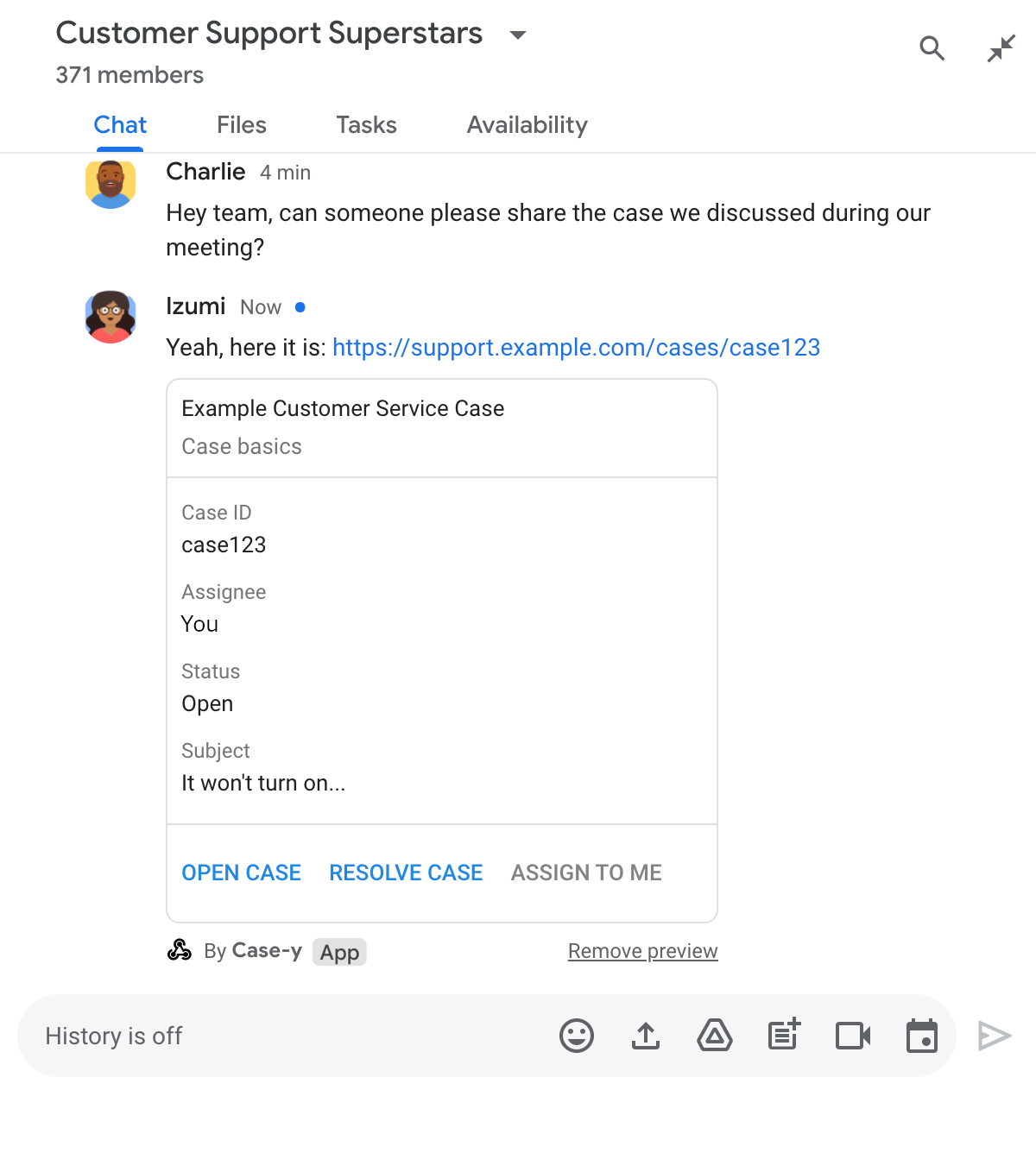
App de chat que muestra una vista previa de un vínculo con una versión actualizada de una tarjeta adjunta a un mensaje

Node.js

node/chat/preview-link/index.js
/**
 * Respond to clicks by assigning and updating the card that's attached to a
 * message previewed link of the pattern "support.example.com".
 *
 * @param {Object} chatMessage The chat message object from Google Workspace Add On event.
 * @return {Object} Action response depending on the message author.
 */
function handleCardClick(chatMessage) {
  // Creates the updated card that displays "You" for the assignee
  // and that disables the button.
  //
  // A hard-coded card is used in this example. In a real-life scenario,
  // an actual assign action would be performed before building the card.
  const message = { cardsV2: [{
    cardId: 'attachCard',
    card: {
      header: {
        title: 'Example Customer Service Case',
        subtitle: 'Case basics',
      },
      sections: [{ widgets: [
        { decoratedText: { topLabel: 'Case ID', text: 'case123'}},
        // The assignee is now "You"
        { decoratedText: { topLabel: 'Assignee', text: 'You'}},
        { decoratedText: { topLabel: 'Status', text: 'Open'}},
        { decoratedText: { topLabel: 'Subject', text: 'It won\'t turn on...' }},
        { buttonList: { buttons: [{
          text: 'OPEN CASE',
          onClick: { openLink: {
            url: 'https://support.example.com/orders/case123'
          }},
        }, {
          text: 'RESOLVE CASE',
          onClick: { openLink: {
            url: 'https://support.example.com/orders/case123?resolved=y',
          }},
        }, {
          text: 'ASSIGN TO ME',
          // The button is now disabled
          disabled: true,
          onClick: { action: { function: FUNCTION_URL }}
        }]}}
      ]}]
    }
  }]};

  // Use the adequate action response type. It depends on whether the message
  // the preview link card is attached to was created by a human or a Chat app.
  if(chatMessage.sender.type === 'HUMAN') {
    return { hostAppDataAction: { chatDataAction: { updateInlinePreviewAction: message }}};
  } else {
    return { hostAppDataAction: { chatDataAction: { updateMessageAction: message }}};
  }
}

Reemplaza FUNCTION_URL por el extremo HTTP que controla los clics en los botones.

Python

python/chat/preview-link/main.py
def handle_card_click(chatMessage: dict) -> dict:
  """Respond to clicks by assigning and updating the card that's attached to a
  message previewed link of the pattern "support.example.com".

  - Reply with text messages that echo "text.example.com" link URLs in messages.
  - Attach cards to messages with "support.example.com" link URLs.

  Args:
      chatMessage (Mapping[str, Any]): The chat message object from Google Workspace Add On event.

  Returns:
      Mapping[str, Any]: Action response depending on the message author.
  """
  # Creates the updated card that displays "You" for the assignee
  # and that disables the button.
  #
  # A hard-coded card is used in this example. In a real-life scenario,
  # an actual assign action would be performed before building the card.
  message = { 'cardsV2': [{
    'cardId': 'attachCard',
    'card': {
      'header': {
        'title': 'Example Customer Service Case',
        'subtitle': 'Case basics',
      },
      'sections': [{ 'widgets': [
      { 'decoratedText': { 'topLabel': 'Case ID', 'text': 'case123'}},
      # The assignee is now "You"
      { 'decoratedText': { 'topLabel': 'Assignee', 'text': 'You'}},
      { 'decoratedText': { 'topLabel': 'Status', 'text': 'Open'}},
      { 'decoratedText': { 'topLabel': 'Subject', 'text': 'It won\'t turn on...' }},
      { 'buttonList': { 'buttons': [{
        'text': 'OPEN CASE',
        'onClick': { 'openLink': {
          'url': 'https://support.example.com/orders/case123'
        }},
      }, {
        'text': 'RESOLVE CASE',
        'onClick': { 'openLink': {
          'url': 'https://support.example.com/orders/case123?resolved=y',
        }},
      }, {
        'text': 'ASSIGN TO ME',
        # The button is now disabled
        'disabled': True,
        'onClick': { 'action': { 'function': FUNCTION_URL }}
      }]}}
      ]}]
    }
  }]}

  # Use the adequate action response type. It depends on whether the message
  # the preview link card is attached to was created by a human or a Chat app.
  if chatMessage.get('sender').get('type') == 'HUMAN':
    return { 'hostAppDataAction': { 'chatDataAction': { 'updateInlinePreviewAction': message }}}
  else:
    return { 'hostAppDataAction': { 'chatDataAction': { 'updateMessageAction': message }}}

Reemplaza FUNCTION_URL por el extremo HTTP que controla los clics en el botón.

Java

java/chat/preview-link/src/main/java/com/google/chat/previewLink/App.java
/**
 * Respond to clicks by assigning and updating the card that's attached to a
 * message previewed link of the pattern "support.example.com".
 *
 * @param chatMessage The chat message object from Google Workspace Add On event.
 * @return Action response depending on the message author.
 */
GenericJson handleCardClick(JsonNode chatMessage) {
  // Creates the updated card that displays "You" for the assignee
  // and that disables the button.
  //
  // A hard-coded card is used in this example. In a real-life scenario,
  // an actual assign action would be performed before building the card.
  Message message = new Message().setCardsV2(List.of(new CardWithId()
    .setCardId("attachCard")
    .setCard(new GoogleAppsCardV1Card()
      .setHeader(new GoogleAppsCardV1CardHeader()
        .setTitle("Example Customer Service Case")
        .setSubtitle("Case basics"))
      .setSections(List.of(new GoogleAppsCardV1Section().setWidgets(List.of(
        new GoogleAppsCardV1Widget().setDecoratedText(new GoogleAppsCardV1DecoratedText()
          .setTopLabel("Case ID")
          .setText("case123")),
        // The assignee is now "You"
        new GoogleAppsCardV1Widget().setDecoratedText(new GoogleAppsCardV1DecoratedText()
          .setTopLabel("Assignee")
          .setText("You")),
        new GoogleAppsCardV1Widget().setDecoratedText(new GoogleAppsCardV1DecoratedText()
          .setTopLabel("Status")
          .setText("Open")),
        new GoogleAppsCardV1Widget().setDecoratedText(new GoogleAppsCardV1DecoratedText()
          .setTopLabel("Subject")
          .setText("It won't turn on...")),
        new GoogleAppsCardV1Widget().setButtonList(new GoogleAppsCardV1ButtonList()
          .setButtons(List.of(
            new GoogleAppsCardV1Button()
              .setText("OPEN CASE")
              .setOnClick(new GoogleAppsCardV1OnClick()
                .setOpenLink(new GoogleAppsCardV1OpenLink()
                  .setUrl("https://support.example.com/orders/case123"))),
            new GoogleAppsCardV1Button()
              .setText("RESOLVE CASE")
              .setOnClick(new GoogleAppsCardV1OnClick()
                .setOpenLink(new GoogleAppsCardV1OpenLink()
                  .setUrl("https://support.example.com/orders/case123?resolved=y"))),
            new GoogleAppsCardV1Button()
              .setText("ASSIGN TO ME")
              // The button is now disabled
              .setDisabled(true)
              .setOnClick(new GoogleAppsCardV1OnClick()
                .setAction(new GoogleAppsCardV1Action().setFunction(FUNCTION_URL)))
          ))
        )
      ))))
    )
  ));

  // Use the adequate action response type. It depends on whether the message
  // the preview link card is attached to was created by a human or a Chat app.
  if("HUMAN".equals(chatMessage.at("/sender/type").asText())) {
    return new GenericJson() {{
      put("hostAppDataAction", new GenericJson() {{
        put("chatDataAction", new GenericJson() {{
          put("updateInlinePreviewAction", message);
        }});
      }});
    }};
  } else {
    return new GenericJson() {{
      put("hostAppDataAction", new GenericJson() {{
        put("chatDataAction", new GenericJson() {{
          put("updateMessageAction", message);
        }});
      }});
    }};
  }
}

Reemplaza FUNCTION_URL por el extremo HTTP que controla los clics en los botones.

Apps Script

apps-script/chat/preview-link/preview-link.gs
/**
 * Assigns and updates the card that's attached to a message with a
 * previewed link of the pattern "support.example.com".
 *
 * @param {Object} event The event object from the Google Workspace add-on.
 * @return {Object} Action response depending on the message author.
 */
function assign(event) {
  // Creates the updated card that displays "You" for the assignee
  // and that disables the button.
  //
  // A hard-coded card is used in this example. In a real-life scenario,
  // an actual assign action would be performed before building the card.
  const message = { cardsV2: [{
    cardId: 'attachCard',
    card: {
      header: {
        title: 'Example Customer Service Case',
        subtitle: 'Case summary',
      },
      sections: [{ widgets: [
        { decoratedText: { topLabel: 'Case ID', text: 'case123'}},
        // The assignee is now "You"
        { decoratedText: { topLabel: 'Assignee', text: 'You'}},
        { decoratedText: { topLabel: 'Status', text: 'Open'}},
        { decoratedText: { topLabel: 'Subject', text: 'It won\'t turn on...' }},
        { buttonList: { buttons: [{
          text: 'OPEN CASE',
          onClick: { openLink: {
            url: 'https://support.example.com/orders/case123'
          }},
        }, {
          text: 'RESOLVE CASE',
          onClick: { openLink: {
            url: 'https://support.example.com/orders/case123?resolved=y',
          }},
        }, {
          text: 'ASSIGN TO ME',
          // The button is now disabled
          disabled: true,
          onClick: { action: { function: 'assign'}}
        }]}}
      ]}]
    }
  }]};

  // Use the adequate action response type. It depends on whether the message
  // the preview link card is attached to was created by a human or a Chat app.
  if(event.chat.buttonClickedPayload.message.sender.type === 'HUMAN') {
    return { hostAppDataAction: { chatDataAction: { updateInlinePreviewAction: message }}};
  } else {
    return { hostAppDataAction: { chatDataAction: { updateMessageAction: message }}};
  }
}

Límites y consideraciones

A medida que configures las vistas previas de vínculos para tu app de Chat, ten en cuenta estos límites y consideraciones:

  • Cada app de Chat admite vistas previas de vínculos para hasta 5 patrones de URL.
  • Las apps de Chat muestran la vista previa de un vínculo por mensaje. Si hay varios vínculos con vista previa en un solo mensaje, solo se mostrará la vista previa del primer vínculo.
  • Las apps de chat solo muestran vistas previas de los vínculos que comienzan con https://, por lo que https://support.example.com/cases/ muestra una vista previa, pero support.example.com/cases/ no.
  • A menos que el mensaje incluya otra información que se envíe a la app de Chat, como un comando de barra, solo la URL del vínculo se envía a la app de Chat a través de las vistas previas de vínculos.
  • Si un usuario publica el vínculo, la app de Chat solo puede actualizar la tarjeta de vista previa del vínculo si los usuarios interactúan con la tarjeta, por ejemplo, haciendo clic en un botón. No puedes llamar al método update() de la API de Chat en el recurso Message para actualizar el mensaje de un usuario de forma asíncrona.
  • Las apps de chat deben mostrar una vista previa de los vínculos para todos los usuarios del espacio, por lo que el mensaje debe omitir el campo privateMessageViewer.

A medida que implementes las vistas previas de vínculos, es posible que debas depurar tu app de Chat leyendo sus registros. Para leer los registros, visita el Explorador de registros en la consola de Google Cloud.