پیش‌نمایش پیوندها در پیام‌های چت Google

برای جلوگیری از تغییر زمینه هنگام اشتراک‌گذاری لینک توسط کاربران در گوگل چت، برنامه چت شما می‌تواند با پیوست کردن کارتی به پیام آنها که اطلاعات بیشتری ارائه می‌دهد و به افراد امکان می‌دهد مستقیماً از گوگل چت اقدام کنند، پیش‌نمایشی از لینک را نمایش دهد .

برای مثال، یک فضای چت گوگل را تصور کنید که شامل تمام نمایندگان خدمات مشتری یک شرکت به علاوه یک برنامه چت به نام Case-y است. نمایندگان مرتباً پیوندهایی به پرونده‌های خدمات مشتری در فضای چت به اشتراک می‌گذارند و هر بار که این کار را انجام می‌دهند، همکارانشان باید لینک پرونده را باز کنند تا جزئیاتی مانند واگذارکننده، وضعیت و موضوع را ببینند. به همین ترتیب، اگر کسی بخواهد مالکیت یک پرونده را به دست بگیرد یا وضعیت را تغییر دهد، باید لینک را باز کند.

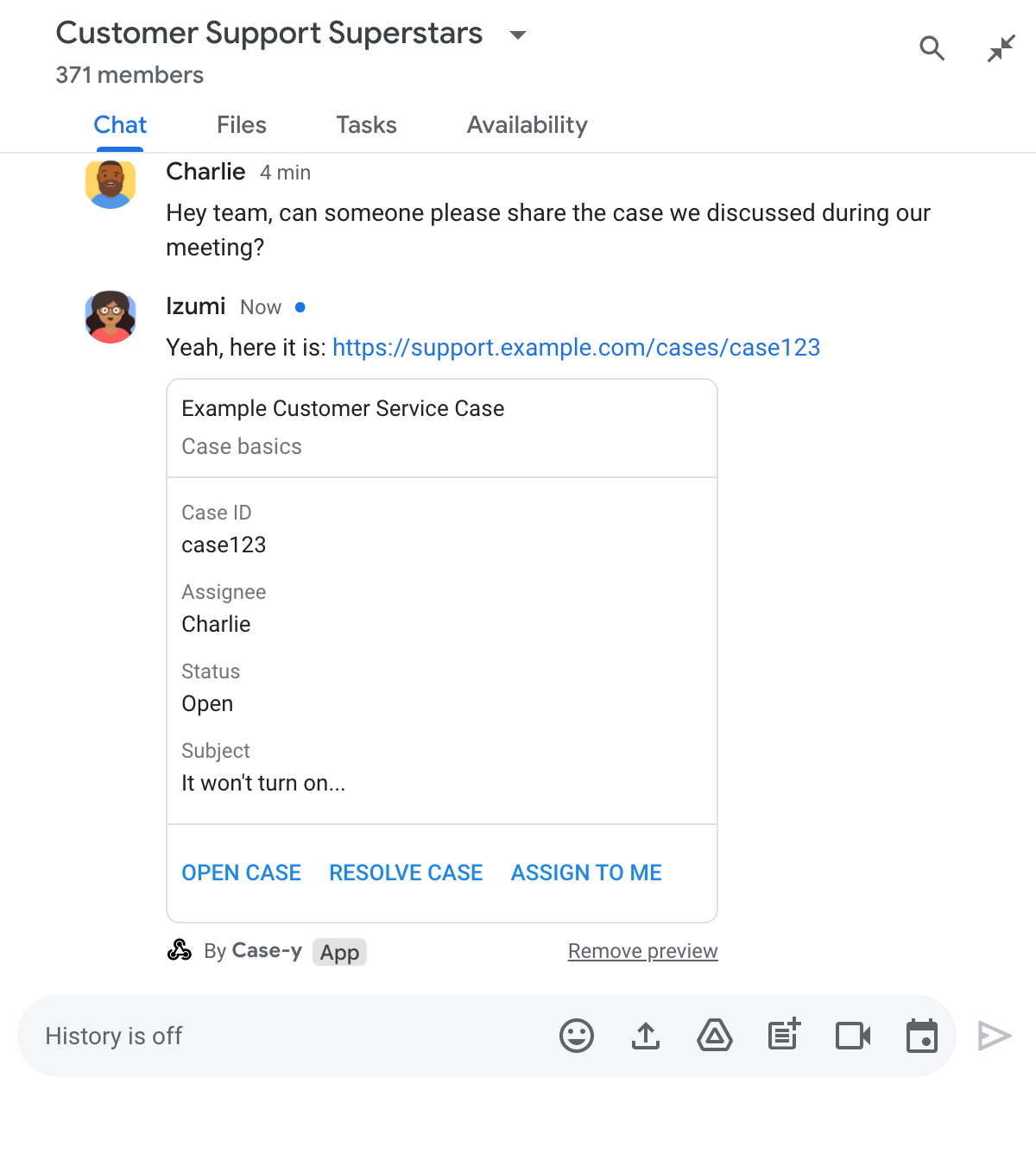
پیش‌نمایش لینک، برنامه چت مستقر در این فضا، Case-y، را قادر می‌سازد تا هر زمان که کسی لینک پرونده‌ای را به اشتراک می‌گذارد، کارتی را پیوست کند که نشان دهنده واگذارکننده، وضعیت و موضوع است. دکمه‌های روی کارت به نمایندگان اجازه می‌دهد تا مالکیت پرونده را به دست بگیرند و وضعیت را مستقیماً از جریان چت تغییر دهند.

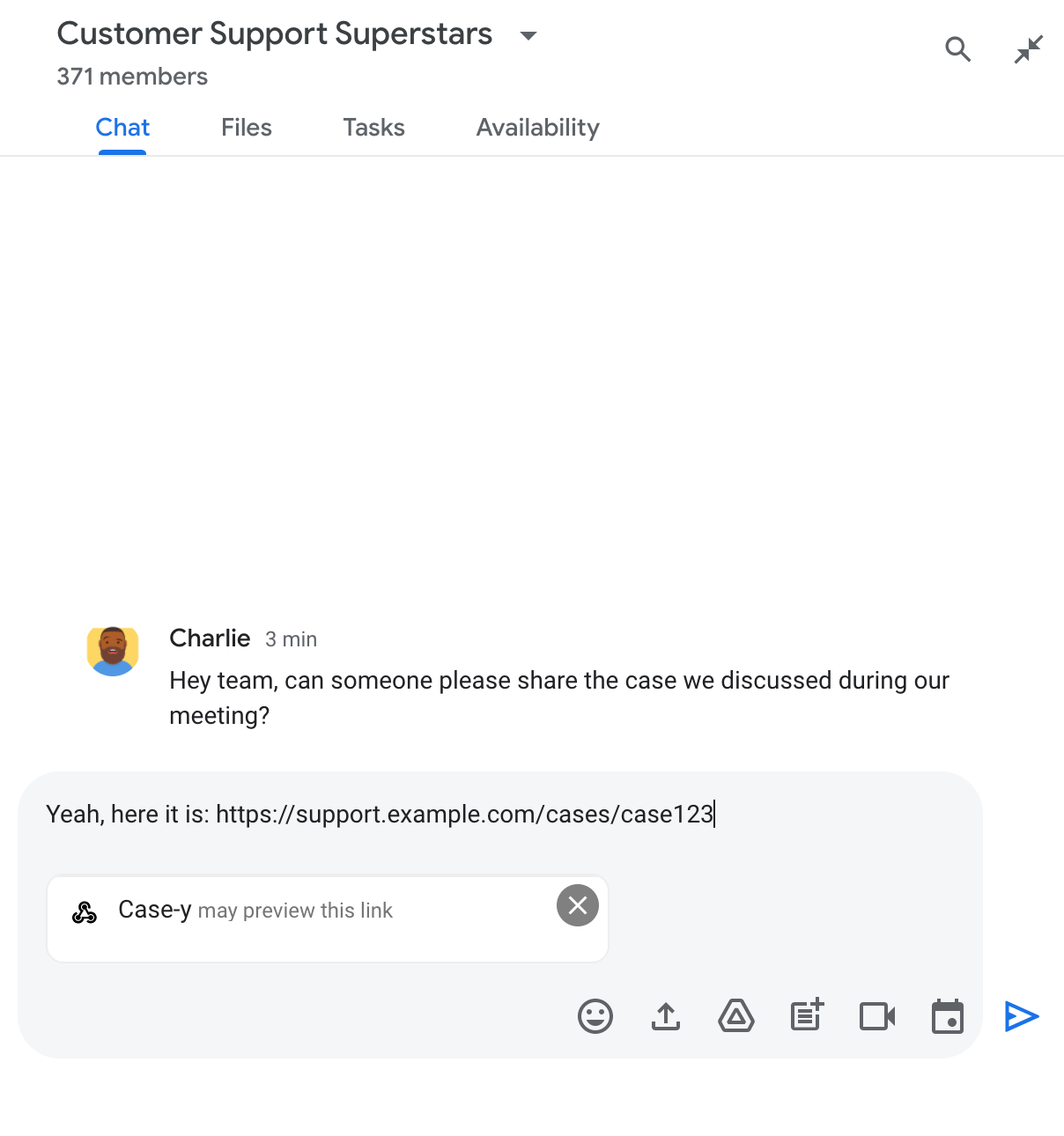
وقتی کسی لینکی به پیام خود اضافه می‌کند، یک تراشه ظاهر می‌شود که به او اطلاع می‌دهد که یک برنامه چت ممکن است لینک را پیش‌نمایش کند.

تراشه‌ای که نشان می‌دهد یک برنامه چت ممکن است لینکی را پیش‌نمایش کند

پس از ارسال پیام، لینک به برنامه چت ارسال می‌شود، که سپس کارت را تولید و به پیام کاربر پیوست می‌کند.

پیش‌نمایش لینک با پیوست کردن کارت به پیام در برنامه چت

در کنار لینک، کارت اطلاعات بیشتری در مورد لینک، از جمله عناصر تعاملی مانند دکمه‌ها، ارائه می‌دهد. برنامه چت شما می‌تواند کارت پیوست شده را در پاسخ به تعاملات کاربر، مانند کلیک روی دکمه، به‌روزرسانی کند.

اگر کسی نمی‌خواهد برنامه چت با پیوست کردن کارت به پیامش، پیش‌نمایش لینک او را نشان دهد، می‌تواند با کلیک روی روی تراشه پیش‌نمایش، از پیش‌نمایش جلوگیری کند. کاربران می‌توانند در هر زمان با کلیک روی حذف پیش‌نمایش، کارت پیوست‌شده را حذف کنند.

پیش‌نیازها

اچ‌تی‌پی

یک افزونه‌ی Google Workspace که Google Chat را توسعه می‌دهد. برای ساخت آن، راهنمای سریع HTTP را تکمیل کنید.

اسکریپت برنامه‌ها

یک افزونه‌ی Google Workspace که Google Chat را توسعه می‌دهد. برای ساخت آن، راهنمای سریع Apps Script را تکمیل کنید.

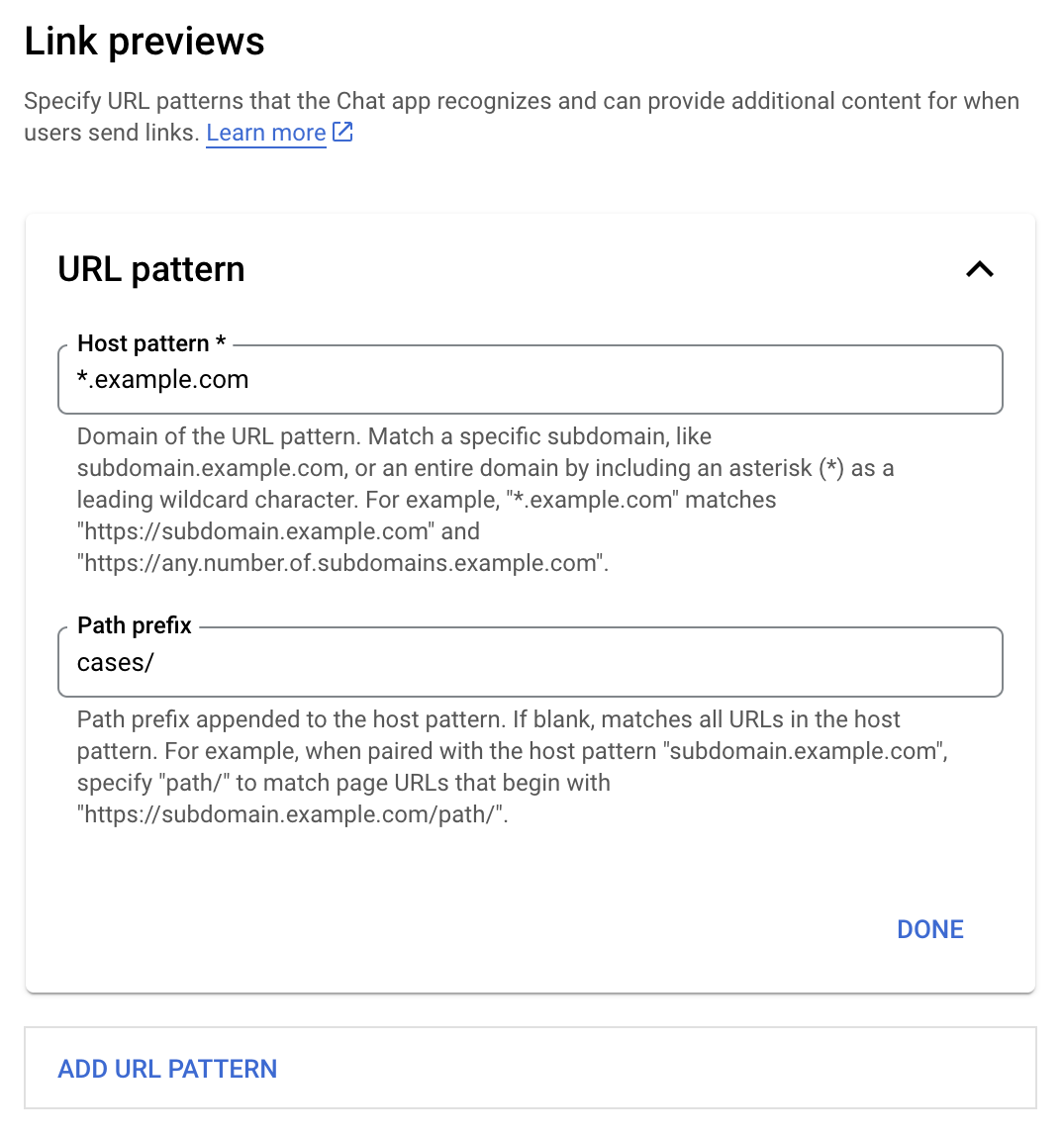
لینک‌های خاصی - مانند example.com ، support.example.com و support.example.com/cases/ - را به عنوان الگوهای URL در صفحه پیکربندی برنامه چت خود در کنسول Google Cloud ثبت کنید تا برنامه چت شما بتواند آنها را پیش‌نمایش کند.

منوی پیکربندی پیش‌نمایش لینک‌ها

  1. کنسول گوگل کلود را باز کنید.
  2. کنار «Google Cloud»، روی فلش رو به پایین کلیک کنید و پروژه برنامه چت خود را باز کنید.
  3. در فیلد جستجو، عبارت Google Chat API تایپ کنید و روی Google Chat API کلیک کنید.
  4. روی مدیریت > پیکربندی کلیک کنید.
  5. در پیش‌نمایش‌های پیوند، الگوی نشانی وب را اضافه یا ویرایش کنید.
    1. برای پیکربندی پیش‌نمایش‌های لینک برای یک الگوی URL جدید، روی «افزودن الگوی URL» کلیک کنید.
    2. برای ویرایش پیکربندی یک الگوی URL موجود، روی پیکان رو به پایین کلیک کنید.
  6. در فیلد الگوی میزبان ، دامنه الگوی URL را وارد کنید. برنامه چت، لینک‌های این دامنه را پیش‌نمایش می‌دهد.

    برای اینکه لینک‌های پیش‌نمایش برنامه چت برای یک زیردامنه خاص، مانند subdomain.example.com ، نمایش داده شوند، زیردامنه را نیز اضافه کنید.

    برای داشتن لینک‌های پیش‌نمایش برنامه چت برای کل دامنه، یک کاراکتر wildcard با ستاره (*) به عنوان زیر دامنه مشخص کنید. برای مثال، *.example.com با subdomain.example.com و any.number.of.subdomains.example.com مطابقت دارد.

  7. در فیلد پیشوند مسیر ، مسیری را برای اضافه شدن به دامنه الگوی میزبان وارد کنید.

    برای تطبیق همه URLها در دامنه الگوی میزبان، پیشوند مسیر را خالی بگذارید.

    برای مثال، اگر الگوی میزبان support.example.com باشد، برای تطبیق URLها برای موارد میزبانی شده در support.example.com/cases/ ، cases/ را وارد کنید.

  8. روی انجام شد کلیک کنید.

  9. روی ذخیره کلیک کنید.

اکنون، هر زمان که کسی پیوندی را که با الگوی URL پیش‌نمایش پیوند مطابقت دارد، به پیامی در فضای چت که شامل برنامه چت شما می‌شود، اضافه کند، برنامه شما پیش‌نمایشی از پیوند را نشان می‌دهد.

پس از پیکربندی پیش‌نمایش لینک برای یک لینک مشخص، برنامه چت شما می‌تواند با پیوست کردن اطلاعات بیشتر به آن، لینک را شناسایی و پیش‌نمایش کند.

در فضاهای چت که شامل برنامه چت شما می‌شوند، وقتی پیام کسی حاوی لینکی است که با الگوی URL پیش‌نمایش لینک مطابقت دارد، برنامه چت شما یک شیء رویداد با MessagePayload دریافت می‌کند. در payload، شیء message.matchedUrl حاوی لینکی است که کاربر در پیام قرار داده است:

جی‌سون

message: {
  matchedUrl: {
    url: "https://support.example.com/cases/case123"
  },
  ... // other message attributes redacted
}

با بررسی وجود فیلد matchedUrl در رویداد MESSAGE ، برنامه چت شما می‌تواند اطلاعاتی را به پیام با لینک پیش‌نمایش‌شده اضافه کند. برنامه چت شما می‌تواند با یک پیام متنی ساده پاسخ دهد یا یک کارت پیوست کند.

با پیامک پاسخ دهید

برای پاسخ‌های اولیه، برنامه چت شما می‌تواند با پاسخ دادن به یک لینک با یک پیام متنی، پیش‌نمایشی از آن را نمایش دهد. این مثال پیامی را پیوست می‌کند که URL لینکی را که با الگوی URL پیش‌نمایش لینک مطابقت دارد، تکرار می‌کند.

نود جی اس

گره/چت/پیش‌نمایش-لینک/index.js
// Reply with a text message for URLs of the subdomain "text"
if (chatMessage.matchedUrl.url.includes("text.example.com")) {
  return { hostAppDataAction: { chatDataAction: { createMessageAction: { message: {
    text: 'event.chat.messagePayload.message.matchedUrl.url: ' + chatMessage.matchedUrl.url
  }}}}};
}

FUNCTION_URL با نقطه پایانی HTTP که کلیک‌های دکمه را مدیریت می‌کند، جایگزین کنید.

پایتون

پایتون/چت/پیش‌نمایش-لینک/main.py
# Reply with a text message for URLs of the subdomain "text"
if "text.example.com" in chatMessage.get('matchedUrl').get('url'):
  return { 'hostAppDataAction': { 'chatDataAction': { 'createMessageAction': { 'message': {
    'text': 'event.chat.messagePayload.message.matchedUrl.url: ' + chatMessage.get('matchedUrl').get('url')
  }}}}}

FUNCTION_URL با نقطه پایانی HTTP که کلیک‌های دکمه را مدیریت می‌کند، جایگزین کنید.

جاوا

java/chat/preview-link/src/main/java/com/google/chat/previewLink/App.java
// Reply with a text message for URLs of the subdomain "text"
if (chatMessage.at("/matchedUrl/url").asText().contains("text.example.com")) {
  return new GenericJson() {{
    put("hostAppDataAction", new GenericJson() {{
      put("chatDataAction", new GenericJson() {{
        put("createMessageAction", new GenericJson() {{
          put("message", new GenericJson() {{
            put("text", "event.chat.messagePayload.message.matchedUrl.url: " + chatMessage.at("/matchedUrl/url").asText());
          }});
        }});
      }});
    }});
  }};
}

FUNCTION_URL با نقطه پایانی HTTP که کلیک‌های دکمه را مدیریت می‌کند، جایگزین کنید.

اسکریپت برنامه‌ها

apps-script/chat/preview-link/preview-link.gs
// Reply with a text message for URLs of the subdomain "text".
if (chatMessage.matchedUrl.url.includes("text.example.com")) {
  return { hostAppDataAction: { chatDataAction: { createMessageAction: { message: {
    text: 'event.chat.messagePayload.message.matchedUrl.url: ' + chatMessage.matchedUrl.url
  }}}}};
}

برای پیوست کردن یک کارت به یک لینک پیش‌نمایش‌شده، اکشن DataActions به همراه شیء ChatDataActionMarkup از نوع UpdateInlinePreviewAction برگردانید.

در مثال زیر، یک برنامه چت یک کارت پیش‌نمایش به پیام‌هایی که حاوی الگوی URL support.example.com هستند اضافه می‌کند.

پیش‌نمایش لینک با پیوست کردن کارت به پیام در برنامه چت

نود جی اس

گره/چت/پیش‌نمایش-لینک/index.js
// Attach a card to the message for URLs of the subdomain "support"
if (chatMessage.matchedUrl.url.includes("support.example.com")) {
  // A hard-coded card is used in this example. In a real-life scenario,
  // the case information would be fetched and used to build the card.
  return { hostAppDataAction: { chatDataAction: { updateInlinePreviewAction: { cardsV2: [{
    cardId: 'attachCard',
    card: {
      header: {
        title: 'Example Customer Service Case',
        subtitle: 'Case basics',
      },
      sections: [{ widgets: [
      { decoratedText: { topLabel: 'Case ID', text: 'case123'}},
      { decoratedText: { topLabel: 'Assignee', text: 'Charlie'}},
      { decoratedText: { topLabel: 'Status', text: 'Open'}},
      { decoratedText: { topLabel: 'Subject', text: 'It won\'t turn on...' }},
      { buttonList: { buttons: [{
        text: 'OPEN CASE',
        onClick: { openLink: {
          url: 'https://support.example.com/orders/case123'
        }},
      }, {
        text: 'RESOLVE CASE',
        onClick: { openLink: {
          url: 'https://support.example.com/orders/case123?resolved=y',
        }},
      }, {
        text: 'ASSIGN TO ME',
        onClick: { action: { function: FUNCTION_URL }}
      }]}}
      ]}]
    }
  }]}}}};
}

FUNCTION_URL با نقطه پایانی HTTP که کلیک‌های دکمه را مدیریت می‌کند، جایگزین کنید.

پایتون

پایتون/چت/پیش‌نمایش-لینک/main.py
# Attach a card to the message for URLs of the subdomain "support"
if "support.example.com" in chatMessage.get('matchedUrl').get('url'):
  # A hard-coded card is used in this example. In a real-life scenario,
  # the case information would be fetched and used to build the card.
  return { 'hostAppDataAction': { 'chatDataAction': { 'updateInlinePreviewAction': { 'cardsV2': [{
    'cardId': 'attachCard',
    'card': {
      'header': {
        'title': 'Example Customer Service Case',
        'subtitle': 'Case basics',
      },
      'sections': [{ 'widgets': [
      { 'decoratedText': { 'topLabel': 'Case ID', 'text': 'case123'}},
      { 'decoratedText': { 'topLabel': 'Assignee', 'text': 'Charlie'}},
      { 'decoratedText': { 'topLabel': 'Status', 'text': 'Open'}},
      { 'decoratedText': { 'topLabel': 'Subject', 'text': 'It won\'t turn on...' }},
      { 'buttonList': { 'buttons': [{
        'text': 'OPEN CASE',
        'onClick': { 'openLink': {
          'url': 'https://support.example.com/orders/case123'
        }},
      }, {
        'text': 'RESOLVE CASE',
        'onClick': { 'openLink': {
          'url': 'https://support.example.com/orders/case123?resolved=y',
        }},
      }, {
        'text': 'ASSIGN TO ME',
        'onClick': { 'action': { 'function': FUNCTION_URL }}
      }]}}
      ]}]
    }
  }]}}}}

FUNCTION_URL با نقطه پایانی HTTP که کلیک‌های دکمه را مدیریت می‌کند، جایگزین کنید.

جاوا

java/chat/preview-link/src/main/java/com/google/chat/previewLink/App.java
// Attach a card to the message for URLs of the subdomain "support"
if (chatMessage.at("/matchedUrl/url").asText().contains("support.example.com")) {
  // A hard-coded card is used in this example. In a real-life scenario,
  // the case information would be fetched and used to build the card.
  CardWithId cardV2 = new CardWithId()
    .setCardId("attachCard")
    .setCard(new GoogleAppsCardV1Card()
      .setHeader(new GoogleAppsCardV1CardHeader()
        .setTitle("Example Customer Service Case")
        .setSubtitle("Case basics"))
      .setSections(List.of(new GoogleAppsCardV1Section().setWidgets(List.of(
        new GoogleAppsCardV1Widget().setDecoratedText(new GoogleAppsCardV1DecoratedText()
          .setTopLabel("Case ID")
          .setText("case123")),
        new GoogleAppsCardV1Widget().setDecoratedText(new GoogleAppsCardV1DecoratedText()
          .setTopLabel("Assignee")
          .setText("Charlie")),
        new GoogleAppsCardV1Widget().setDecoratedText(new GoogleAppsCardV1DecoratedText()
          .setTopLabel("Status")
          .setText("Open")),
        new GoogleAppsCardV1Widget().setDecoratedText(new GoogleAppsCardV1DecoratedText()
          .setTopLabel("Subject")
          .setText("It won't turn on...")),
        new GoogleAppsCardV1Widget().setButtonList(new GoogleAppsCardV1ButtonList()
          .setButtons(List.of(
            new GoogleAppsCardV1Button()
              .setText("OPEN CASE")
            .setOnClick(new GoogleAppsCardV1OnClick()
                .setOpenLink(new GoogleAppsCardV1OpenLink()
                  .setUrl("https://support.example.com/orders/case123"))),
            new GoogleAppsCardV1Button()
              .setText("RESOLVE CASE")
            .setOnClick(new GoogleAppsCardV1OnClick()
                .setOpenLink(new GoogleAppsCardV1OpenLink()
                  .setUrl("https://support.example.com/orders/case123?resolved=y"))),
            new GoogleAppsCardV1Button()
              .setText("ASSIGN TO ME")
              .setOnClick(new GoogleAppsCardV1OnClick()
                .setAction(new GoogleAppsCardV1Action().setFunction(FUNCTION_URL)))
          ))
        )
      ))))
    );

  return new GenericJson() {{
    put("hostAppDataAction", new GenericJson() {{
      put("chatDataAction", new GenericJson() {{
        put("updateInlinePreviewAction", new GenericJson() {{
          put("cardsV2", List.of(cardV2));
        }});
      }});
    }});
  }};
}

FUNCTION_URL با نقطه پایانی HTTP که کلیک‌های دکمه را مدیریت می‌کند، جایگزین کنید.

اسکریپت برنامه‌ها

apps-script/chat/preview-link/preview-link.gs
// Attach a card to the message for URLs of the subdomain "support".
if (chatMessage.matchedUrl.url.includes("support.example.com")) {
  // A hard-coded card is used in this example. In a real-life scenario,
  // the case information would be fetched and used to build the card.
  return { hostAppDataAction: { chatDataAction: { updateInlinePreviewAction: { cardsV2: [{
    cardId: 'attachCard',
    card: {
      header: {
        title: 'Example Customer Service Case',
        subtitle: 'Case summary',
      },
      sections: [{ widgets: [
      { decoratedText: { topLabel: 'Case ID', text: 'case123'}},
      { decoratedText: { topLabel: 'Assignee', text: 'Charlie'}},
      { decoratedText: { topLabel: 'Status', text: 'Open'}},
      { decoratedText: { topLabel: 'Subject', text: 'It won\'t turn on...' }},
      { buttonList: { buttons: [{
        text: 'OPEN CASE',
        onClick: { openLink: {
          url: 'https://support.example.com/orders/case123'
        }},
      }, {
        text: 'RESOLVE CASE',
        onClick: { openLink: {
          url: 'https://support.example.com/orders/case123?resolved=y',
        }},
      }, {
        text: 'ASSIGN TO ME',
        // Clicking this button triggers the execution of the function
        // "assign" from the Apps Script project.
        onClick: { action: { function: 'assign'}}
      }]}}
      ]}]
    }
  }]}}}};
}

برنامه چت شما می‌تواند کارت پیش‌نمایش لینک را هنگام تعامل کاربران با آن، مانند کلیک کردن روی دکمه‌ای روی کارت، به‌روزرسانی کند.

برای به‌روزرسانی کارت، برنامه‌ی چت شما باید اکشن DataActions به همراه یکی از اشیاء ChatDataActionMarkup زیر برگرداند:

  • اگر کاربر پیام را ارسال کرده باشد، یک شیء UpdateMessageAction را برمی‌گرداند.
  • اگر برنامه چت پیام را ارسال کرده باشد، یک شیء UpdateInlinePreviewAction را برمی‌گرداند.

برای تعیین اینکه چه کسی پیام را ارسال کرده است، از payload رویداد ( buttonClickedPayload ) استفاده کنید تا بررسی کنید که آیا فرستنده ( message.sender.type ) روی HUMAN (کاربر) یا BOT (برنامه چت) تنظیم شده است.

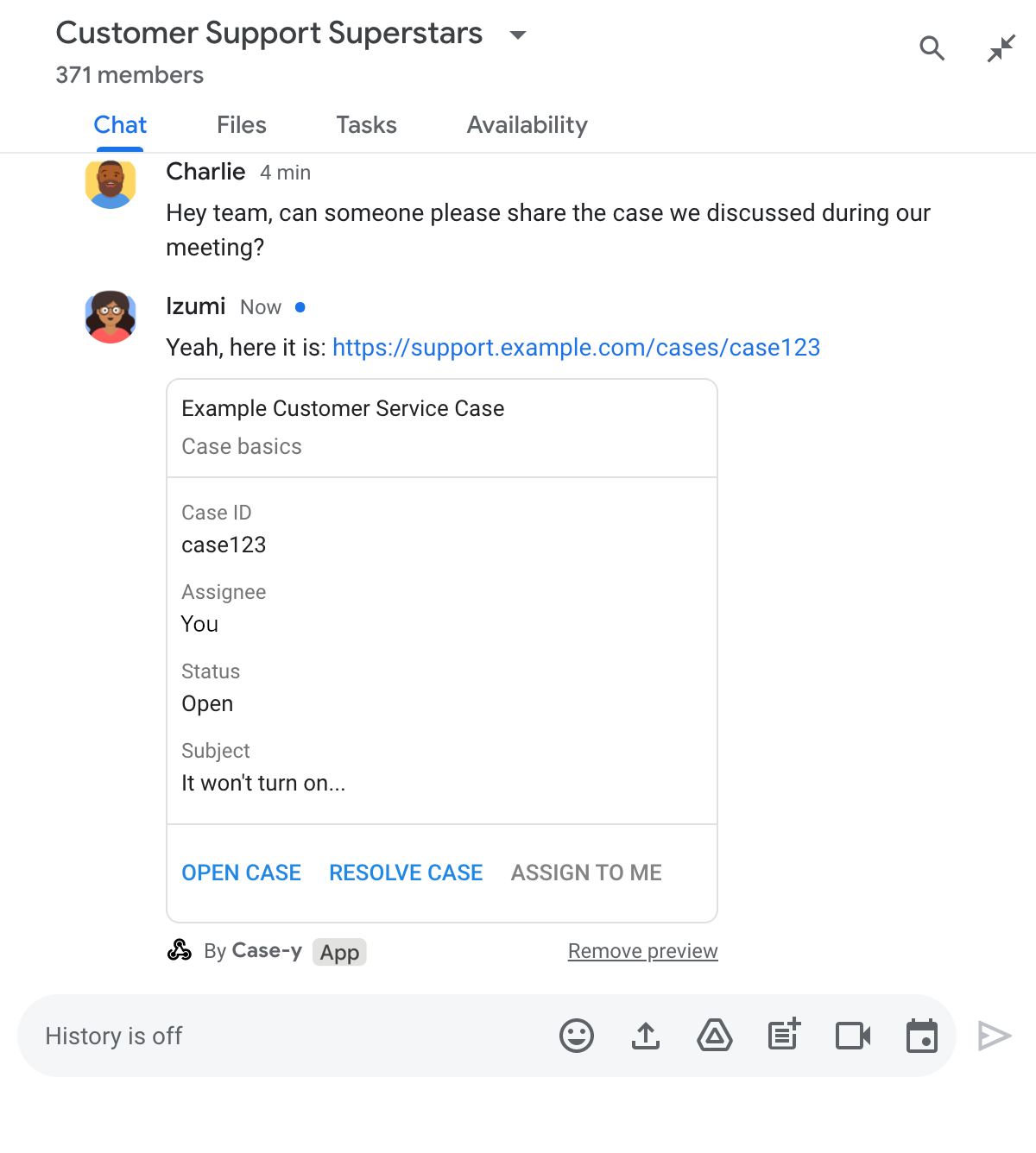
مثال زیر نشان می‌دهد که چگونه یک برنامه چت، هر زمان که کاربر روی دکمه «به من اختصاص بده» کلیک می‌کند، پیش‌نمایش لینک را با به‌روزرسانی فیلد «گیرنده کارت» و غیرفعال کردن دکمه، به‌روزرسانی می‌کند.

پیش‌نمایش برنامه چت از یک لینک به همراه نسخه به‌روز شده کارت پیوست شده به پیام

نود جی اس

گره/چت/پیش‌نمایش-لینک/index.js
/**
 * Respond to clicks by assigning and updating the card that's attached to a
 * message previewed link of the pattern "support.example.com".
 *
 * @param {Object} chatMessage The chat message object from Google Workspace Add On event.
 * @return {Object} Action response depending on the message author.
 */
function handleCardClick(chatMessage) {
  // Creates the updated card that displays "You" for the assignee
  // and that disables the button.
  //
  // A hard-coded card is used in this example. In a real-life scenario,
  // an actual assign action would be performed before building the card.
  const message = { cardsV2: [{
    cardId: 'attachCard',
    card: {
      header: {
        title: 'Example Customer Service Case',
        subtitle: 'Case basics',
      },
      sections: [{ widgets: [
        { decoratedText: { topLabel: 'Case ID', text: 'case123'}},
        // The assignee is now "You"
        { decoratedText: { topLabel: 'Assignee', text: 'You'}},
        { decoratedText: { topLabel: 'Status', text: 'Open'}},
        { decoratedText: { topLabel: 'Subject', text: 'It won\'t turn on...' }},
        { buttonList: { buttons: [{
          text: 'OPEN CASE',
          onClick: { openLink: {
            url: 'https://support.example.com/orders/case123'
          }},
        }, {
          text: 'RESOLVE CASE',
          onClick: { openLink: {
            url: 'https://support.example.com/orders/case123?resolved=y',
          }},
        }, {
          text: 'ASSIGN TO ME',
          // The button is now disabled
          disabled: true,
          onClick: { action: { function: FUNCTION_URL }}
        }]}}
      ]}]
    }
  }]};

  // Use the adequate action response type. It depends on whether the message
  // the preview link card is attached to was created by a human or a Chat app.
  if(chatMessage.sender.type === 'HUMAN') {
    return { hostAppDataAction: { chatDataAction: { updateInlinePreviewAction: message }}};
  } else {
    return { hostAppDataAction: { chatDataAction: { updateMessageAction: message }}};
  }
}

FUNCTION_URL با نقطه پایانی HTTP که کلیک‌های دکمه را مدیریت می‌کند، جایگزین کنید.

پایتون

پایتون/چت/پیش‌نمایش-لینک/main.py
def handle_card_click(chatMessage: dict) -> dict:
  """Respond to clicks by assigning and updating the card that's attached to a
  message previewed link of the pattern "support.example.com".

  - Reply with text messages that echo "text.example.com" link URLs in messages.
  - Attach cards to messages with "support.example.com" link URLs.

  Args:
      chatMessage (Mapping[str, Any]): The chat message object from Google Workspace Add On event.

  Returns:
      Mapping[str, Any]: Action response depending on the message author.
  """
  # Creates the updated card that displays "You" for the assignee
  # and that disables the button.
  #
  # A hard-coded card is used in this example. In a real-life scenario,
  # an actual assign action would be performed before building the card.
  message = { 'cardsV2': [{
    'cardId': 'attachCard',
    'card': {
      'header': {
        'title': 'Example Customer Service Case',
        'subtitle': 'Case basics',
      },
      'sections': [{ 'widgets': [
      { 'decoratedText': { 'topLabel': 'Case ID', 'text': 'case123'}},
      # The assignee is now "You"
      { 'decoratedText': { 'topLabel': 'Assignee', 'text': 'You'}},
      { 'decoratedText': { 'topLabel': 'Status', 'text': 'Open'}},
      { 'decoratedText': { 'topLabel': 'Subject', 'text': 'It won\'t turn on...' }},
      { 'buttonList': { 'buttons': [{
        'text': 'OPEN CASE',
        'onClick': { 'openLink': {
          'url': 'https://support.example.com/orders/case123'
        }},
      }, {
        'text': 'RESOLVE CASE',
        'onClick': { 'openLink': {
          'url': 'https://support.example.com/orders/case123?resolved=y',
        }},
      }, {
        'text': 'ASSIGN TO ME',
        # The button is now disabled
        'disabled': True,
        'onClick': { 'action': { 'function': FUNCTION_URL }}
      }]}}
      ]}]
    }
  }]}

  # Use the adequate action response type. It depends on whether the message
  # the preview link card is attached to was created by a human or a Chat app.
  if chatMessage.get('sender').get('type') == 'HUMAN':
    return { 'hostAppDataAction': { 'chatDataAction': { 'updateInlinePreviewAction': message }}}
  else:
    return { 'hostAppDataAction': { 'chatDataAction': { 'updateMessageAction': message }}}

FUNCTION_URL با نقطه پایانی HTTP که کلیک‌های دکمه را مدیریت می‌کند، جایگزین کنید.

جاوا

java/chat/preview-link/src/main/java/com/google/chat/previewLink/App.java
/**
 * Respond to clicks by assigning and updating the card that's attached to a
 * message previewed link of the pattern "support.example.com".
 *
 * @param chatMessage The chat message object from Google Workspace Add On event.
 * @return Action response depending on the message author.
 */
GenericJson handleCardClick(JsonNode chatMessage) {
  // Creates the updated card that displays "You" for the assignee
  // and that disables the button.
  //
  // A hard-coded card is used in this example. In a real-life scenario,
  // an actual assign action would be performed before building the card.
  Message message = new Message().setCardsV2(List.of(new CardWithId()
    .setCardId("attachCard")
    .setCard(new GoogleAppsCardV1Card()
      .setHeader(new GoogleAppsCardV1CardHeader()
        .setTitle("Example Customer Service Case")
        .setSubtitle("Case basics"))
      .setSections(List.of(new GoogleAppsCardV1Section().setWidgets(List.of(
        new GoogleAppsCardV1Widget().setDecoratedText(new GoogleAppsCardV1DecoratedText()
          .setTopLabel("Case ID")
          .setText("case123")),
        // The assignee is now "You"
        new GoogleAppsCardV1Widget().setDecoratedText(new GoogleAppsCardV1DecoratedText()
          .setTopLabel("Assignee")
          .setText("You")),
        new GoogleAppsCardV1Widget().setDecoratedText(new GoogleAppsCardV1DecoratedText()
          .setTopLabel("Status")
          .setText("Open")),
        new GoogleAppsCardV1Widget().setDecoratedText(new GoogleAppsCardV1DecoratedText()
          .setTopLabel("Subject")
          .setText("It won't turn on...")),
        new GoogleAppsCardV1Widget().setButtonList(new GoogleAppsCardV1ButtonList()
          .setButtons(List.of(
            new GoogleAppsCardV1Button()
              .setText("OPEN CASE")
              .setOnClick(new GoogleAppsCardV1OnClick()
                .setOpenLink(new GoogleAppsCardV1OpenLink()
                  .setUrl("https://support.example.com/orders/case123"))),
            new GoogleAppsCardV1Button()
              .setText("RESOLVE CASE")
              .setOnClick(new GoogleAppsCardV1OnClick()
                .setOpenLink(new GoogleAppsCardV1OpenLink()
                  .setUrl("https://support.example.com/orders/case123?resolved=y"))),
            new GoogleAppsCardV1Button()
              .setText("ASSIGN TO ME")
              // The button is now disabled
              .setDisabled(true)
              .setOnClick(new GoogleAppsCardV1OnClick()
                .setAction(new GoogleAppsCardV1Action().setFunction(FUNCTION_URL)))
          ))
        )
      ))))
    )
  ));

  // Use the adequate action response type. It depends on whether the message
  // the preview link card is attached to was created by a human or a Chat app.
  if("HUMAN".equals(chatMessage.at("/sender/type").asText())) {
    return new GenericJson() {{
      put("hostAppDataAction", new GenericJson() {{
        put("chatDataAction", new GenericJson() {{
          put("updateInlinePreviewAction", message);
        }});
      }});
    }};
  } else {
    return new GenericJson() {{
      put("hostAppDataAction", new GenericJson() {{
        put("chatDataAction", new GenericJson() {{
          put("updateMessageAction", message);
        }});
      }});
    }};
  }
}

FUNCTION_URL با نقطه پایانی HTTP که کلیک‌های دکمه را مدیریت می‌کند، جایگزین کنید.

اسکریپت برنامه‌ها

apps-script/chat/preview-link/preview-link.gs
/**
 * Assigns and updates the card that's attached to a message with a
 * previewed link of the pattern "support.example.com".
 *
 * @param {Object} event The event object from the Google Workspace add-on.
 * @return {Object} Action response depending on the message author.
 */
function assign(event) {
  // Creates the updated card that displays "You" for the assignee
  // and that disables the button.
  //
  // A hard-coded card is used in this example. In a real-life scenario,
  // an actual assign action would be performed before building the card.
  const message = { cardsV2: [{
    cardId: 'attachCard',
    card: {
      header: {
        title: 'Example Customer Service Case',
        subtitle: 'Case summary',
      },
      sections: [{ widgets: [
        { decoratedText: { topLabel: 'Case ID', text: 'case123'}},
        // The assignee is now "You"
        { decoratedText: { topLabel: 'Assignee', text: 'You'}},
        { decoratedText: { topLabel: 'Status', text: 'Open'}},
        { decoratedText: { topLabel: 'Subject', text: 'It won\'t turn on...' }},
        { buttonList: { buttons: [{
          text: 'OPEN CASE',
          onClick: { openLink: {
            url: 'https://support.example.com/orders/case123'
          }},
        }, {
          text: 'RESOLVE CASE',
          onClick: { openLink: {
            url: 'https://support.example.com/orders/case123?resolved=y',
          }},
        }, {
          text: 'ASSIGN TO ME',
          // The button is now disabled
          disabled: true,
          onClick: { action: { function: 'assign'}}
        }]}}
      ]}]
    }
  }]};

  // Use the adequate action response type. It depends on whether the message
  // the preview link card is attached to was created by a human or a Chat app.
  if(event.chat.buttonClickedPayload.message.sender.type === 'HUMAN') {
    return { hostAppDataAction: { chatDataAction: { updateInlinePreviewAction: message }}};
  } else {
    return { hostAppDataAction: { chatDataAction: { updateMessageAction: message }}};
  }
}

محدودیت‌ها و ملاحظات

هنگام پیکربندی پیش‌نمایش لینک‌ها برای برنامه چت خود، به این محدودیت‌ها و ملاحظات توجه داشته باشید:

  • هر برنامه چت از پیش‌نمایش لینک‌ها برای حداکثر ۵ الگوی URL پشتیبانی می‌کند.
  • برنامه‌های چت در هر پیام، یک لینک را پیش‌نمایش می‌دهند. اگر چندین لینک قابل پیش‌نمایش در یک پیام وجود داشته باشد، فقط اولین لینک قابل پیش‌نمایش نمایش داده می‌شود.
  • برنامه‌های چت فقط لینک‌هایی را که با https:// شروع می‌شوند، پیش‌نمایش می‌دهند، بنابراین https://support.example.com/cases/ پیش‌نمایش می‌دهد، اما support.example.com/cases/ این کار را نمی‌کند.
  • مگر اینکه پیام شامل اطلاعات دیگری باشد که به برنامه چت ارسال می‌شود، مانند یک دستور اسلش ، در غیر این صورت فقط URL لینک از طریق پیش‌نمایش‌های لینک به برنامه چت ارسال می‌شود.
  • اگر کاربری لینک را ارسال کند، برنامه چت فقط در صورتی می‌تواند پیش‌نمایش کارت لینک را به‌روزرسانی کند که کاربران با کارت تعامل داشته باشند، مثلاً با کلیک روی دکمه. شما نمی‌توانید متد update() از API چت را روی منبع Message فراخوانی کنید تا پیام کاربر را به‌صورت غیرهمزمان به‌روزرسانی کنید.
  • برنامه‌های چت باید لینک‌ها را برای همه افراد حاضر در فضا پیش‌نمایش کنند، بنابراین فیلد privateMessageViewer در پیام باید حذف شود.

همزمان با پیاده‌سازی پیش‌نمایش لینک‌ها، ممکن است لازم باشد با خواندن گزارش‌های برنامه، برنامه چت خود را اشکال‌زدایی کنید. برای خواندن گزارش‌ها، به Logs Explorer در کنسول Google Cloud مراجعه کنید.