Melihat pratinjau link dalam pesan Google Chat

Untuk mencegah peralihan konteks saat pengguna membagikan link di Google Chat, aplikasi Chat Anda dapat melihat pratinjau link dengan melampirkan kartu ke pesan mereka yang memberikan informasi lebih lanjut dan memungkinkan orang mengambil tindakan langsung dari Google Chat.

Misalnya, bayangkan ruang Google Chat yang mencakup semua agen layanan pelanggan perusahaan dan aplikasi Chat bernama Case-y. Agen sering membagikan link ke kasus layanan pelanggan di ruang Chat, dan setiap kali mereka melakukannya, rekan kerja mereka harus membuka link kasus untuk melihat detail seperti penerima tugas, status, dan subjek. Demikian pula, jika seseorang ingin mengambil kepemilikan kasus atau mengubah status, dia harus membuka link tersebut.

Pratinjau link memungkinkan aplikasi Chat bawaan ruang, Case-y, melampirkan kartu yang menampilkan penerima tugas, status, dan subjek setiap kali seseorang membagikan link kasus. Tombol di kartu memungkinkan agen mengambil kepemilikan kasus dan mengubah status langsung dari aliran chat.

Saat seseorang menambahkan link ke pesannya, chip akan muncul yang memberi tahu mereka bahwa aplikasi Chat mungkin menampilkan pratinjau link tersebut.
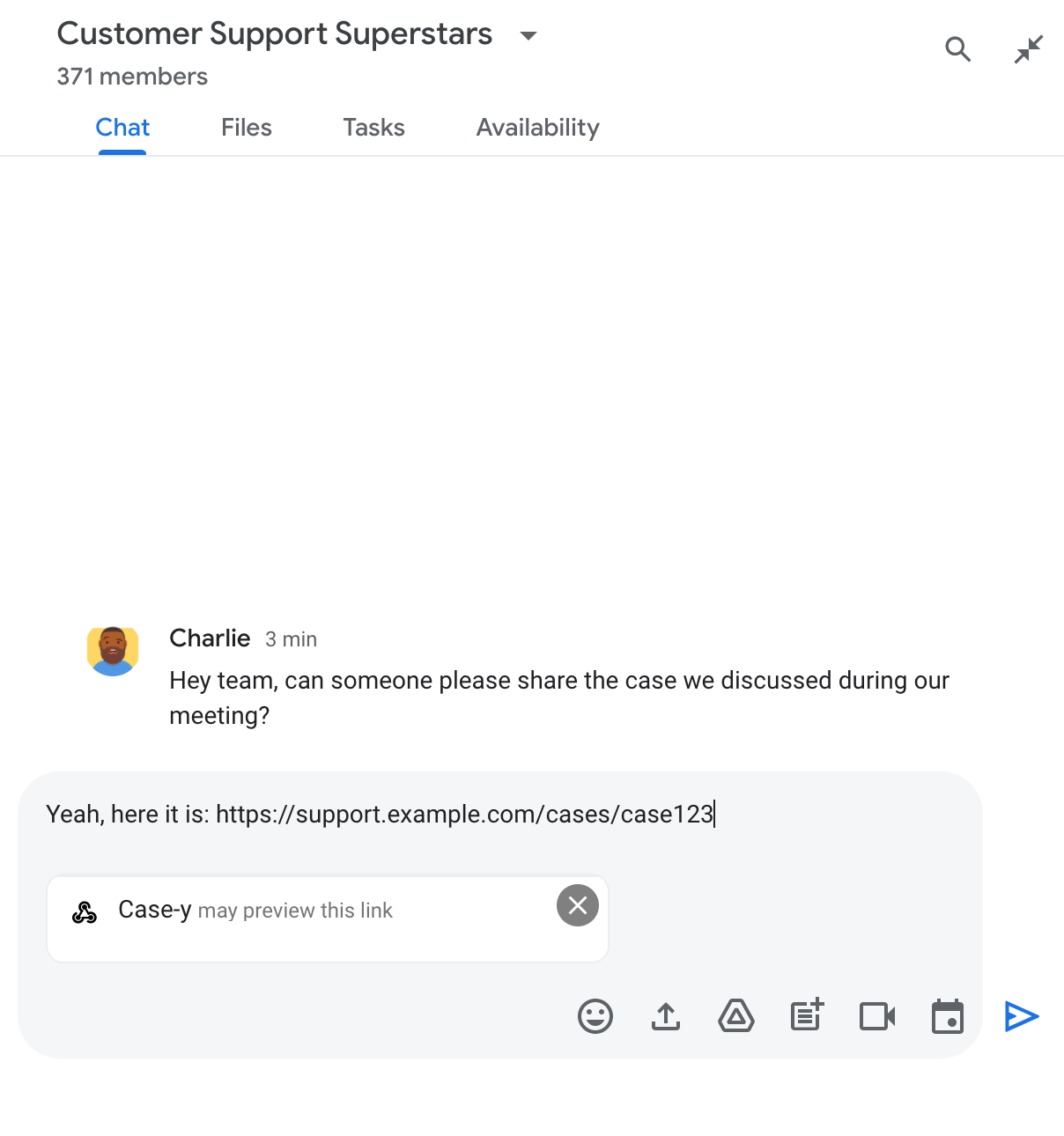
Chip yang menunjukkan bahwa aplikasi Chat mungkin menampilkan pratinjau link

Setelah mengirim pesan, link akan dikirim ke aplikasi Chat, yang kemudian membuat dan melampirkan kartu ke pesan pengguna.
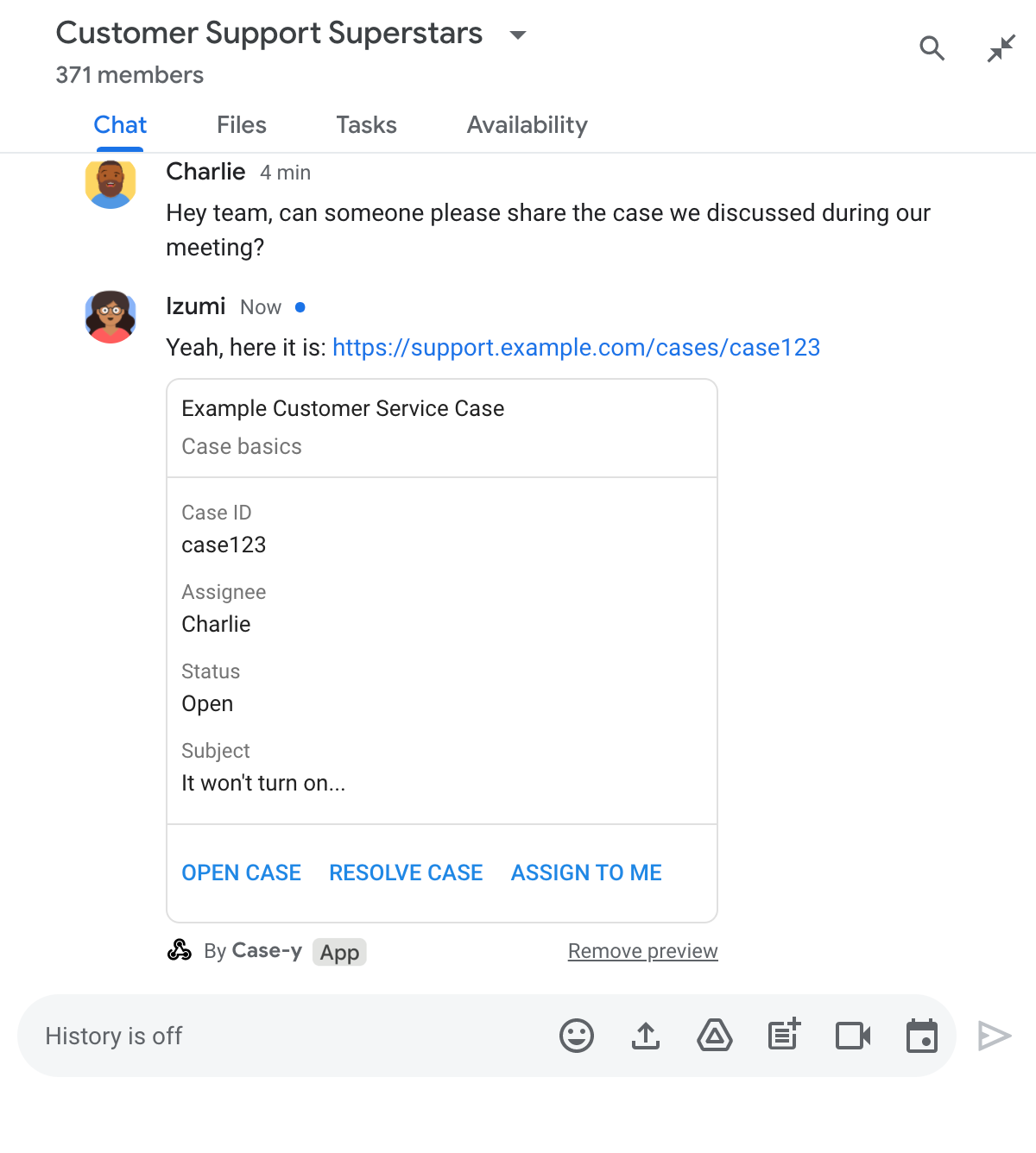
Aplikasi Chat melihat pratinjau link dengan melampirkan kartu ke pesan

Di samping link, kartu ini memberikan informasi tambahan tentang link tersebut, termasuk elemen interaktif seperti tombol. Aplikasi Chat Anda dapat memperbarui kartu terlampir sebagai respons terhadap interaksi pengguna, seperti klik tombol.

Jika seseorang tidak ingin aplikasi Chat menampilkan pratinjau linknya dengan melampirkan kartu ke pesannya, dia dapat mencegah pratinjau dengan mengklik pada chip pratinjau. Pengguna dapat menghapus kartu terlampir kapan saja dengan mengklik Hapus pratinjau.

Prasyarat

HTTP

Add-on Google Workspace yang memperluas Google Chat. Untuk membuatnya, selesaikan HTTP quickstart.

Apps Script

Add-on Google Workspace yang memperluas Google Chat. Untuk membuatnya, selesaikan panduan memulai Apps Script.

Daftarkan link tertentu - seperti example.com, support.example.com, dan support.example.com/cases/ - sebagai pola URL di halaman konfigurasi aplikasi Chat Anda di konsol Google Cloud agar aplikasi Chat Anda dapat melihat pratinjaunya.
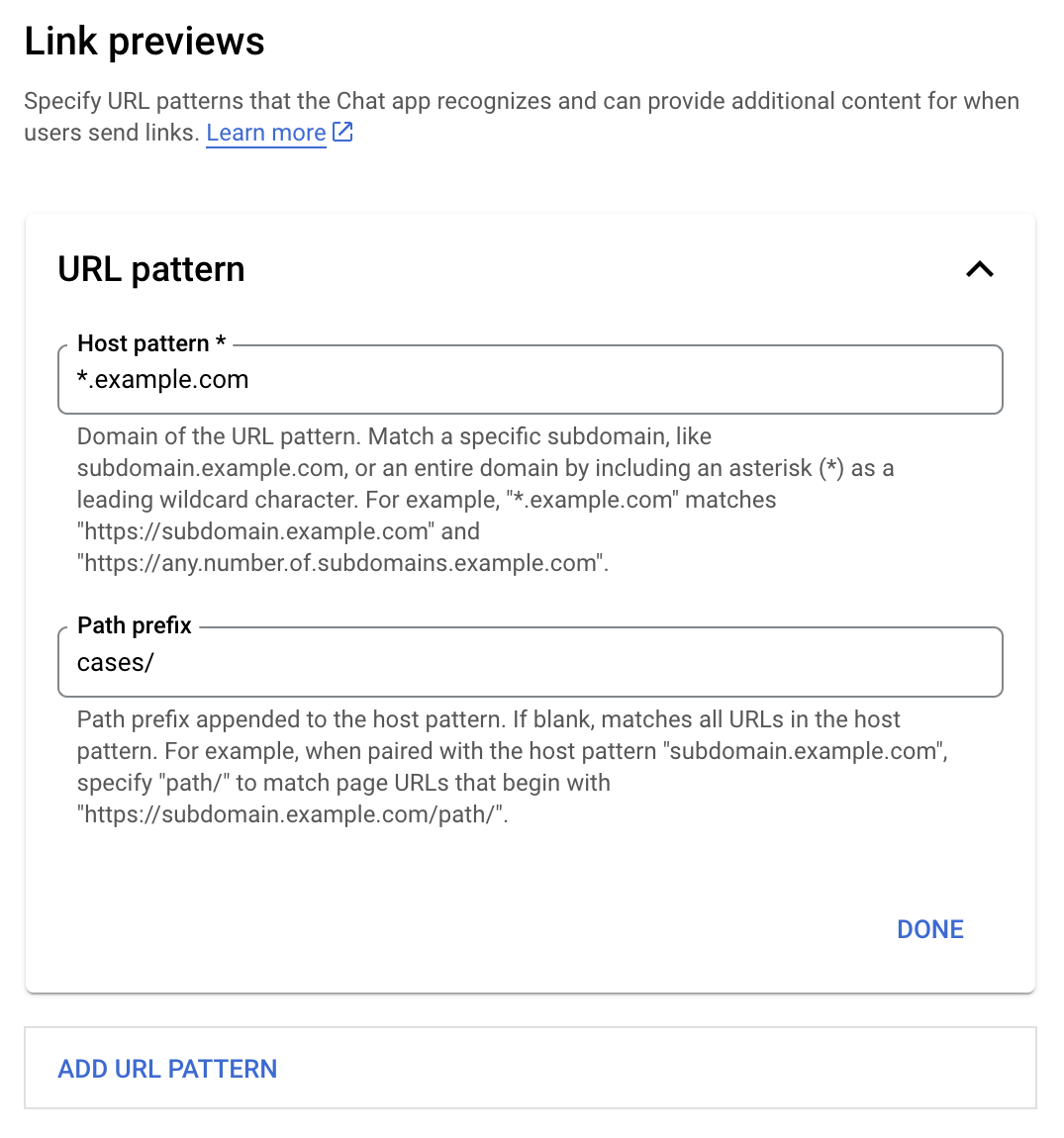
Menu konfigurasi pratinjau link

  1. Buka Konsol Google Cloud.
  2. Di samping "Google Cloud", klik Panah bawah dan buka project aplikasi Chat Anda.
  3. Di kolom penelusuran, ketik Google Chat API, lalu klik Google Chat API.
  4. Klik Kelola > Konfigurasi.
  5. Di bagian Pratinjau link, tambahkan atau edit pola URL.
    1. Untuk mengonfigurasi pratinjau link untuk pola URL baru, klik Tambahkan Pola URL.
    2. Untuk mengedit konfigurasi pola URL yang ada, klik Panah bawah .
  6. Di kolom Pola host, masukkan domain pola URL. Aplikasi Chat akan menampilkan pratinjau link ke domain ini.

    Untuk membuat aplikasi Chat menampilkan pratinjau link untuk subdomain tertentu, seperti subdomain.example.com, sertakan subdomain tersebut.

    Agar aplikasi Chat menampilkan pratinjau link untuk seluruh domain, tentukan karakter pengganti dengan tanda bintang (*) sebagai subdomain. Misalnya, *.example.com cocok dengan subdomain.example.com dan any.number.of.subdomains.example.com.

  7. Di kolom Awalan jalur, masukkan jalur yang akan ditambahkan ke domain pola host.

    Untuk mencocokkan semua URL di domain pola host, biarkan Awalan jalur kosong.

    Misalnya, jika pola Host adalah support.example.com, untuk mencocokkan URL kasus yang dihosting di support.example.com/cases/, masukkan cases/.

  8. Klik Selesai.

  9. Klik Simpan.

Sekarang, setiap kali seseorang menyertakan link yang cocok dengan pola URL pratinjau link ke pesan di ruang Chat yang menyertakan aplikasi Chat Anda, aplikasi Anda akan menampilkan pratinjau link tersebut.

Setelah Anda mengonfigurasi pratinjau link untuk link tertentu, aplikasi Chat Anda dapat mengenali dan melihat pratinjau link dengan melampirkan informasi selengkapnya ke link tersebut.

Di dalam ruang Chat yang menyertakan aplikasi Chat Anda, saat pesan seseorang berisi link yang cocok dengan pola URL pratinjau link, aplikasi Chat Anda akan menerima objek peristiwa dengan MessagePayload. Dalam payload, objek message.matchedUrl berisi link yang disertakan pengguna dalam pesan:

JSON

message: {
  matchedUrl: {
    url: "https://support.example.com/cases/case123"
  },
  ... // other message attributes redacted
}

Dengan memeriksa keberadaan kolom matchedUrl di payload peristiwa MESSAGE, aplikasi Chat Anda dapat menambahkan informasi ke pesan dengan link yang telah dilihat pratinjaunya. Aplikasi Chat Anda dapat membalas dengan pesan teks biasa atau melampirkan kartu.

Membalas dengan pesan teks

Untuk respons dasar, aplikasi Chat Anda dapat melihat pratinjau link dengan membalas link menggunakan pesan teks. Contoh ini melampirkan pesan yang mengulangi URL link yang cocok dengan pola URL pratinjau link.

Node.js

node/chat/preview-link/index.js
// Reply with a text message for URLs of the subdomain "text"
if (chatMessage.matchedUrl.url.includes("text.example.com")) {
  return { hostAppDataAction: { chatDataAction: { createMessageAction: { message: {
    text: 'event.chat.messagePayload.message.matchedUrl.url: ' + chatMessage.matchedUrl.url
  }}}}};
}

Ganti FUNCTION_URL dengan endpoint HTTP yang menangani klik tombol.

Python

python/chat/preview-link/main.py
# Reply with a text message for URLs of the subdomain "text"
if "text.example.com" in chatMessage.get('matchedUrl').get('url'):
  return { 'hostAppDataAction': { 'chatDataAction': { 'createMessageAction': { 'message': {
    'text': 'event.chat.messagePayload.message.matchedUrl.url: ' + chatMessage.get('matchedUrl').get('url')
  }}}}}

Ganti FUNCTION_URL dengan endpoint HTTP yang menangani klik tombol.

Java

java/chat/preview-link/src/main/java/com/google/chat/previewLink/App.java
// Reply with a text message for URLs of the subdomain "text"
if (chatMessage.at("/matchedUrl/url").asText().contains("text.example.com")) {
  return new GenericJson() {{
    put("hostAppDataAction", new GenericJson() {{
      put("chatDataAction", new GenericJson() {{
        put("createMessageAction", new GenericJson() {{
          put("message", new GenericJson() {{
            put("text", "event.chat.messagePayload.message.matchedUrl.url: " + chatMessage.at("/matchedUrl/url").asText());
          }});
        }});
      }});
    }});
  }};
}

Ganti FUNCTION_URL dengan endpoint HTTP yang menangani klik tombol.

Apps Script

apps-script/chat/preview-link/preview-link.gs
// Reply with a text message for URLs of the subdomain "text".
if (chatMessage.matchedUrl.url.includes("text.example.com")) {
  return { hostAppDataAction: { chatDataAction: { createMessageAction: { message: {
    text: 'event.chat.messagePayload.message.matchedUrl.url: ' + chatMessage.matchedUrl.url
  }}}}};
}

Untuk melampirkan kartu ke link yang dipratinjau, tampilkan tindakan DataActions dengan objek ChatDataActionMarkup berjenis UpdateInlinePreviewAction.

Dalam contoh berikut, aplikasi Chat menambahkan kartu pratinjau ke pesan yang berisi pola URL support.example.com.

Aplikasi Chat melihat pratinjau link dengan melampirkan kartu ke pesan

Node.js

node/chat/preview-link/index.js
// Attach a card to the message for URLs of the subdomain "support"
if (chatMessage.matchedUrl.url.includes("support.example.com")) {
  // A hard-coded card is used in this example. In a real-life scenario,
  // the case information would be fetched and used to build the card.
  return { hostAppDataAction: { chatDataAction: { updateInlinePreviewAction: { cardsV2: [{
    cardId: 'attachCard',
    card: {
      header: {
        title: 'Example Customer Service Case',
        subtitle: 'Case basics',
      },
      sections: [{ widgets: [
      { decoratedText: { topLabel: 'Case ID', text: 'case123'}},
      { decoratedText: { topLabel: 'Assignee', text: 'Charlie'}},
      { decoratedText: { topLabel: 'Status', text: 'Open'}},
      { decoratedText: { topLabel: 'Subject', text: 'It won\'t turn on...' }},
      { buttonList: { buttons: [{
        text: 'OPEN CASE',
        onClick: { openLink: {
          url: 'https://support.example.com/orders/case123'
        }},
      }, {
        text: 'RESOLVE CASE',
        onClick: { openLink: {
          url: 'https://support.example.com/orders/case123?resolved=y',
        }},
      }, {
        text: 'ASSIGN TO ME',
        onClick: { action: { function: FUNCTION_URL }}
      }]}}
      ]}]
    }
  }]}}}};
}

Ganti FUNCTION_URL dengan endpoint HTTP yang menangani klik tombol.

Python

python/chat/preview-link/main.py
# Attach a card to the message for URLs of the subdomain "support"
if "support.example.com" in chatMessage.get('matchedUrl').get('url'):
  # A hard-coded card is used in this example. In a real-life scenario,
  # the case information would be fetched and used to build the card.
  return { 'hostAppDataAction': { 'chatDataAction': { 'updateInlinePreviewAction': { 'cardsV2': [{
    'cardId': 'attachCard',
    'card': {
      'header': {
        'title': 'Example Customer Service Case',
        'subtitle': 'Case basics',
      },
      'sections': [{ 'widgets': [
      { 'decoratedText': { 'topLabel': 'Case ID', 'text': 'case123'}},
      { 'decoratedText': { 'topLabel': 'Assignee', 'text': 'Charlie'}},
      { 'decoratedText': { 'topLabel': 'Status', 'text': 'Open'}},
      { 'decoratedText': { 'topLabel': 'Subject', 'text': 'It won\'t turn on...' }},
      { 'buttonList': { 'buttons': [{
        'text': 'OPEN CASE',
        'onClick': { 'openLink': {
          'url': 'https://support.example.com/orders/case123'
        }},
      }, {
        'text': 'RESOLVE CASE',
        'onClick': { 'openLink': {
          'url': 'https://support.example.com/orders/case123?resolved=y',
        }},
      }, {
        'text': 'ASSIGN TO ME',
        'onClick': { 'action': { 'function': FUNCTION_URL }}
      }]}}
      ]}]
    }
  }]}}}}

Ganti FUNCTION_URL dengan endpoint HTTP yang menangani klik tombol.

Java

java/chat/preview-link/src/main/java/com/google/chat/previewLink/App.java
// Attach a card to the message for URLs of the subdomain "support"
if (chatMessage.at("/matchedUrl/url").asText().contains("support.example.com")) {
  // A hard-coded card is used in this example. In a real-life scenario,
  // the case information would be fetched and used to build the card.
  CardWithId cardV2 = new CardWithId()
    .setCardId("attachCard")
    .setCard(new GoogleAppsCardV1Card()
      .setHeader(new GoogleAppsCardV1CardHeader()
        .setTitle("Example Customer Service Case")
        .setSubtitle("Case basics"))
      .setSections(List.of(new GoogleAppsCardV1Section().setWidgets(List.of(
        new GoogleAppsCardV1Widget().setDecoratedText(new GoogleAppsCardV1DecoratedText()
          .setTopLabel("Case ID")
          .setText("case123")),
        new GoogleAppsCardV1Widget().setDecoratedText(new GoogleAppsCardV1DecoratedText()
          .setTopLabel("Assignee")
          .setText("Charlie")),
        new GoogleAppsCardV1Widget().setDecoratedText(new GoogleAppsCardV1DecoratedText()
          .setTopLabel("Status")
          .setText("Open")),
        new GoogleAppsCardV1Widget().setDecoratedText(new GoogleAppsCardV1DecoratedText()
          .setTopLabel("Subject")
          .setText("It won't turn on...")),
        new GoogleAppsCardV1Widget().setButtonList(new GoogleAppsCardV1ButtonList()
          .setButtons(List.of(
            new GoogleAppsCardV1Button()
              .setText("OPEN CASE")
            .setOnClick(new GoogleAppsCardV1OnClick()
                .setOpenLink(new GoogleAppsCardV1OpenLink()
                  .setUrl("https://support.example.com/orders/case123"))),
            new GoogleAppsCardV1Button()
              .setText("RESOLVE CASE")
            .setOnClick(new GoogleAppsCardV1OnClick()
                .setOpenLink(new GoogleAppsCardV1OpenLink()
                  .setUrl("https://support.example.com/orders/case123?resolved=y"))),
            new GoogleAppsCardV1Button()
              .setText("ASSIGN TO ME")
              .setOnClick(new GoogleAppsCardV1OnClick()
                .setAction(new GoogleAppsCardV1Action().setFunction(FUNCTION_URL)))
          ))
        )
      ))))
    );

  return new GenericJson() {{
    put("hostAppDataAction", new GenericJson() {{
      put("chatDataAction", new GenericJson() {{
        put("updateInlinePreviewAction", new GenericJson() {{
          put("cardsV2", List.of(cardV2));
        }});
      }});
    }});
  }};
}

Ganti FUNCTION_URL dengan endpoint HTTP yang menangani klik tombol.

Apps Script

apps-script/chat/preview-link/preview-link.gs
// Attach a card to the message for URLs of the subdomain "support".
if (chatMessage.matchedUrl.url.includes("support.example.com")) {
  // A hard-coded card is used in this example. In a real-life scenario,
  // the case information would be fetched and used to build the card.
  return { hostAppDataAction: { chatDataAction: { updateInlinePreviewAction: { cardsV2: [{
    cardId: 'attachCard',
    card: {
      header: {
        title: 'Example Customer Service Case',
        subtitle: 'Case summary',
      },
      sections: [{ widgets: [
      { decoratedText: { topLabel: 'Case ID', text: 'case123'}},
      { decoratedText: { topLabel: 'Assignee', text: 'Charlie'}},
      { decoratedText: { topLabel: 'Status', text: 'Open'}},
      { decoratedText: { topLabel: 'Subject', text: 'It won\'t turn on...' }},
      { buttonList: { buttons: [{
        text: 'OPEN CASE',
        onClick: { openLink: {
          url: 'https://support.example.com/orders/case123'
        }},
      }, {
        text: 'RESOLVE CASE',
        onClick: { openLink: {
          url: 'https://support.example.com/orders/case123?resolved=y',
        }},
      }, {
        text: 'ASSIGN TO ME',
        // Clicking this button triggers the execution of the function
        // "assign" from the Apps Script project.
        onClick: { action: { function: 'assign'}}
      }]}}
      ]}]
    }
  }]}}}};
}

Aplikasi Chat Anda dapat memperbarui kartu pratinjau link saat pengguna berinteraksi dengannya, seperti mengklik tombol di kartu.

Untuk memperbarui kartu, aplikasi Chat Anda harus menampilkan tindakan DataActions dengan salah satu objek ChatDataActionMarkup berikut:

Untuk menentukan siapa yang mengirim pesan, gunakan payload peristiwa (buttonClickedPayload) untuk memeriksa apakah pengirim (message.sender.type) disetel ke HUMAN (pengguna) atau BOT (aplikasi Chat).

Contoh berikut menunjukkan cara aplikasi Chat memperbarui pratinjau link setiap kali pengguna mengklik tombol Tetapkan ke Saya dengan memperbarui kolom Penerima Tugas kartu dan menonaktifkan tombol.
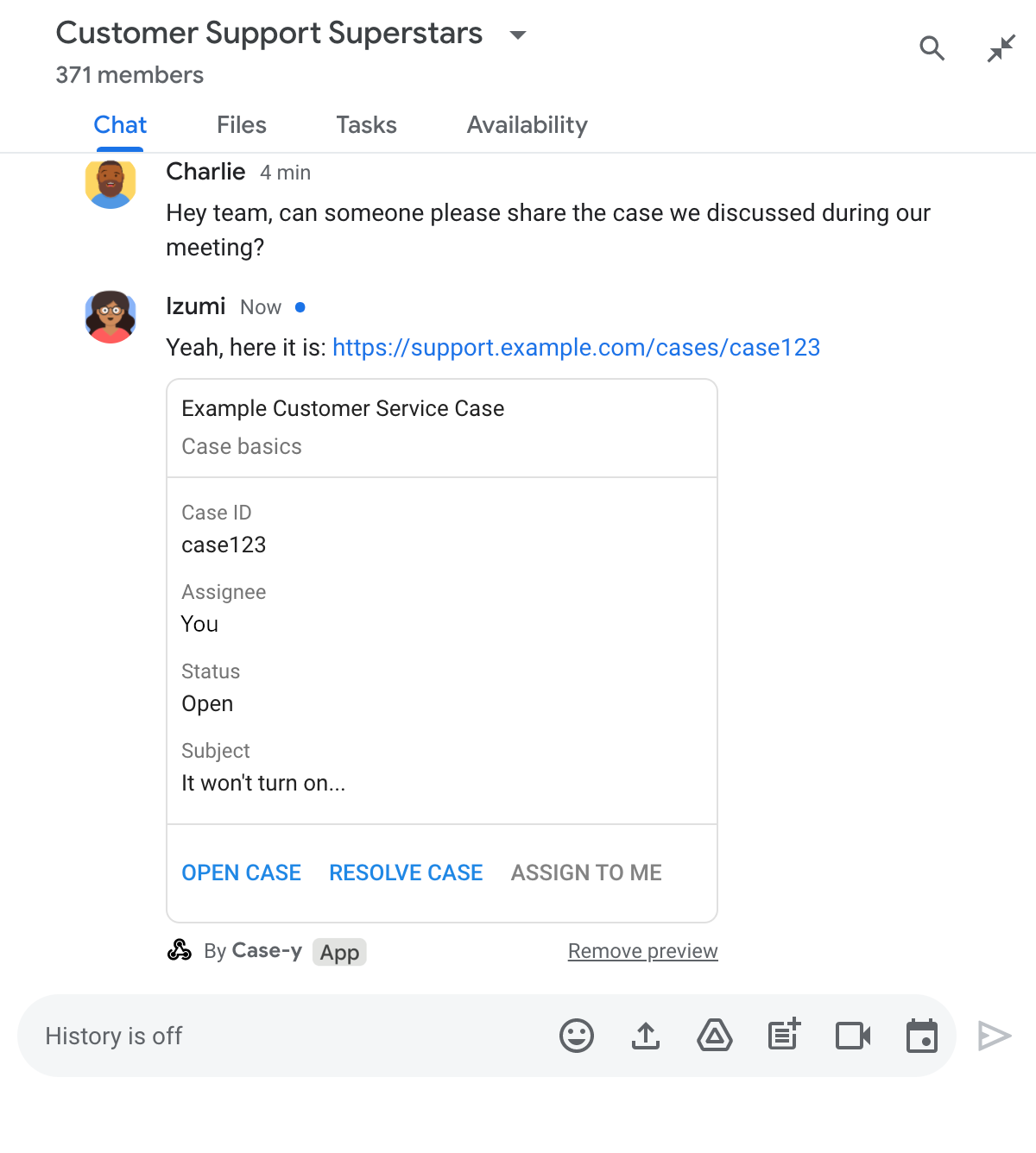
Aplikasi Chat melihat pratinjau link dengan versi kartu yang diperbarui yang dilampirkan ke pesan

Node.js

node/chat/preview-link/index.js
/**
 * Respond to clicks by assigning and updating the card that's attached to a
 * message previewed link of the pattern "support.example.com".
 *
 * @param {Object} chatMessage The chat message object from Google Workspace Add On event.
 * @return {Object} Action response depending on the message author.
 */
function handleCardClick(chatMessage) {
  // Creates the updated card that displays "You" for the assignee
  // and that disables the button.
  //
  // A hard-coded card is used in this example. In a real-life scenario,
  // an actual assign action would be performed before building the card.
  const message = { cardsV2: [{
    cardId: 'attachCard',
    card: {
      header: {
        title: 'Example Customer Service Case',
        subtitle: 'Case basics',
      },
      sections: [{ widgets: [
        { decoratedText: { topLabel: 'Case ID', text: 'case123'}},
        // The assignee is now "You"
        { decoratedText: { topLabel: 'Assignee', text: 'You'}},
        { decoratedText: { topLabel: 'Status', text: 'Open'}},
        { decoratedText: { topLabel: 'Subject', text: 'It won\'t turn on...' }},
        { buttonList: { buttons: [{
          text: 'OPEN CASE',
          onClick: { openLink: {
            url: 'https://support.example.com/orders/case123'
          }},
        }, {
          text: 'RESOLVE CASE',
          onClick: { openLink: {
            url: 'https://support.example.com/orders/case123?resolved=y',
          }},
        }, {
          text: 'ASSIGN TO ME',
          // The button is now disabled
          disabled: true,
          onClick: { action: { function: FUNCTION_URL }}
        }]}}
      ]}]
    }
  }]};

  // Use the adequate action response type. It depends on whether the message
  // the preview link card is attached to was created by a human or a Chat app.
  if(chatMessage.sender.type === 'HUMAN') {
    return { hostAppDataAction: { chatDataAction: { updateInlinePreviewAction: message }}};
  } else {
    return { hostAppDataAction: { chatDataAction: { updateMessageAction: message }}};
  }
}

Ganti FUNCTION_URL dengan endpoint HTTP yang menangani klik tombol.

Python

python/chat/preview-link/main.py
def handle_card_click(chatMessage: dict) -> dict:
  """Respond to clicks by assigning and updating the card that's attached to a
  message previewed link of the pattern "support.example.com".

  - Reply with text messages that echo "text.example.com" link URLs in messages.
  - Attach cards to messages with "support.example.com" link URLs.

  Args:
      chatMessage (Mapping[str, Any]): The chat message object from Google Workspace Add On event.

  Returns:
      Mapping[str, Any]: Action response depending on the message author.
  """
  # Creates the updated card that displays "You" for the assignee
  # and that disables the button.
  #
  # A hard-coded card is used in this example. In a real-life scenario,
  # an actual assign action would be performed before building the card.
  message = { 'cardsV2': [{
    'cardId': 'attachCard',
    'card': {
      'header': {
        'title': 'Example Customer Service Case',
        'subtitle': 'Case basics',
      },
      'sections': [{ 'widgets': [
      { 'decoratedText': { 'topLabel': 'Case ID', 'text': 'case123'}},
      # The assignee is now "You"
      { 'decoratedText': { 'topLabel': 'Assignee', 'text': 'You'}},
      { 'decoratedText': { 'topLabel': 'Status', 'text': 'Open'}},
      { 'decoratedText': { 'topLabel': 'Subject', 'text': 'It won\'t turn on...' }},
      { 'buttonList': { 'buttons': [{
        'text': 'OPEN CASE',
        'onClick': { 'openLink': {
          'url': 'https://support.example.com/orders/case123'
        }},
      }, {
        'text': 'RESOLVE CASE',
        'onClick': { 'openLink': {
          'url': 'https://support.example.com/orders/case123?resolved=y',
        }},
      }, {
        'text': 'ASSIGN TO ME',
        # The button is now disabled
        'disabled': True,
        'onClick': { 'action': { 'function': FUNCTION_URL }}
      }]}}
      ]}]
    }
  }]}

  # Use the adequate action response type. It depends on whether the message
  # the preview link card is attached to was created by a human or a Chat app.
  if chatMessage.get('sender').get('type') == 'HUMAN':
    return { 'hostAppDataAction': { 'chatDataAction': { 'updateInlinePreviewAction': message }}}
  else:
    return { 'hostAppDataAction': { 'chatDataAction': { 'updateMessageAction': message }}}

Ganti FUNCTION_URL dengan endpoint HTTP yang menangani klik tombol.

Java

java/chat/preview-link/src/main/java/com/google/chat/previewLink/App.java
/**
 * Respond to clicks by assigning and updating the card that's attached to a
 * message previewed link of the pattern "support.example.com".
 *
 * @param chatMessage The chat message object from Google Workspace Add On event.
 * @return Action response depending on the message author.
 */
GenericJson handleCardClick(JsonNode chatMessage) {
  // Creates the updated card that displays "You" for the assignee
  // and that disables the button.
  //
  // A hard-coded card is used in this example. In a real-life scenario,
  // an actual assign action would be performed before building the card.
  Message message = new Message().setCardsV2(List.of(new CardWithId()
    .setCardId("attachCard")
    .setCard(new GoogleAppsCardV1Card()
      .setHeader(new GoogleAppsCardV1CardHeader()
        .setTitle("Example Customer Service Case")
        .setSubtitle("Case basics"))
      .setSections(List.of(new GoogleAppsCardV1Section().setWidgets(List.of(
        new GoogleAppsCardV1Widget().setDecoratedText(new GoogleAppsCardV1DecoratedText()
          .setTopLabel("Case ID")
          .setText("case123")),
        // The assignee is now "You"
        new GoogleAppsCardV1Widget().setDecoratedText(new GoogleAppsCardV1DecoratedText()
          .setTopLabel("Assignee")
          .setText("You")),
        new GoogleAppsCardV1Widget().setDecoratedText(new GoogleAppsCardV1DecoratedText()
          .setTopLabel("Status")
          .setText("Open")),
        new GoogleAppsCardV1Widget().setDecoratedText(new GoogleAppsCardV1DecoratedText()
          .setTopLabel("Subject")
          .setText("It won't turn on...")),
        new GoogleAppsCardV1Widget().setButtonList(new GoogleAppsCardV1ButtonList()
          .setButtons(List.of(
            new GoogleAppsCardV1Button()
              .setText("OPEN CASE")
              .setOnClick(new GoogleAppsCardV1OnClick()
                .setOpenLink(new GoogleAppsCardV1OpenLink()
                  .setUrl("https://support.example.com/orders/case123"))),
            new GoogleAppsCardV1Button()
              .setText("RESOLVE CASE")
              .setOnClick(new GoogleAppsCardV1OnClick()
                .setOpenLink(new GoogleAppsCardV1OpenLink()
                  .setUrl("https://support.example.com/orders/case123?resolved=y"))),
            new GoogleAppsCardV1Button()
              .setText("ASSIGN TO ME")
              // The button is now disabled
              .setDisabled(true)
              .setOnClick(new GoogleAppsCardV1OnClick()
                .setAction(new GoogleAppsCardV1Action().setFunction(FUNCTION_URL)))
          ))
        )
      ))))
    )
  ));

  // Use the adequate action response type. It depends on whether the message
  // the preview link card is attached to was created by a human or a Chat app.
  if("HUMAN".equals(chatMessage.at("/sender/type").asText())) {
    return new GenericJson() {{
      put("hostAppDataAction", new GenericJson() {{
        put("chatDataAction", new GenericJson() {{
          put("updateInlinePreviewAction", message);
        }});
      }});
    }};
  } else {
    return new GenericJson() {{
      put("hostAppDataAction", new GenericJson() {{
        put("chatDataAction", new GenericJson() {{
          put("updateMessageAction", message);
        }});
      }});
    }};
  }
}

Ganti FUNCTION_URL dengan endpoint HTTP yang menangani klik tombol.

Apps Script

apps-script/chat/preview-link/preview-link.gs
/**
 * Assigns and updates the card that's attached to a message with a
 * previewed link of the pattern "support.example.com".
 *
 * @param {Object} event The event object from the Google Workspace add-on.
 * @return {Object} Action response depending on the message author.
 */
function assign(event) {
  // Creates the updated card that displays "You" for the assignee
  // and that disables the button.
  //
  // A hard-coded card is used in this example. In a real-life scenario,
  // an actual assign action would be performed before building the card.
  const message = { cardsV2: [{
    cardId: 'attachCard',
    card: {
      header: {
        title: 'Example Customer Service Case',
        subtitle: 'Case summary',
      },
      sections: [{ widgets: [
        { decoratedText: { topLabel: 'Case ID', text: 'case123'}},
        // The assignee is now "You"
        { decoratedText: { topLabel: 'Assignee', text: 'You'}},
        { decoratedText: { topLabel: 'Status', text: 'Open'}},
        { decoratedText: { topLabel: 'Subject', text: 'It won\'t turn on...' }},
        { buttonList: { buttons: [{
          text: 'OPEN CASE',
          onClick: { openLink: {
            url: 'https://support.example.com/orders/case123'
          }},
        }, {
          text: 'RESOLVE CASE',
          onClick: { openLink: {
            url: 'https://support.example.com/orders/case123?resolved=y',
          }},
        }, {
          text: 'ASSIGN TO ME',
          // The button is now disabled
          disabled: true,
          onClick: { action: { function: 'assign'}}
        }]}}
      ]}]
    }
  }]};

  // Use the adequate action response type. It depends on whether the message
  // the preview link card is attached to was created by a human or a Chat app.
  if(event.chat.buttonClickedPayload.message.sender.type === 'HUMAN') {
    return { hostAppDataAction: { chatDataAction: { updateInlinePreviewAction: message }}};
  } else {
    return { hostAppDataAction: { chatDataAction: { updateMessageAction: message }}};
  }
}

Batas dan pertimbangan

Saat Anda mengonfigurasi pratinjau link untuk aplikasi Chat, perhatikan batas dan pertimbangan berikut:

  • Setiap aplikasi Chat mendukung pratinjau link untuk hingga 5 pola URL.
  • Aplikasi Chat menampilkan pratinjau satu link per pesan. Jika ada beberapa link yang dapat dipratinjau dalam satu pesan, hanya link pertama yang dapat dipratinjau yang akan dipratinjau.
  • Aplikasi chat hanya menampilkan pratinjau link yang diawali dengan https://, sehingga https://support.example.com/cases/ menampilkan pratinjau, tetapi support.example.com/cases/ tidak.
  • Kecuali jika pesan menyertakan informasi lain yang dikirim ke aplikasi Chat, seperti perintah garis miring, hanya URL link yang dikirim ke aplikasi Chat oleh pratinjau link.
  • Jika pengguna memposting link, aplikasi Chat hanya dapat memperbarui kartu pratinjau link jika pengguna berinteraksi dengan kartu tersebut, seperti dengan mengklik tombol. Anda tidak dapat memanggil metode update() Chat API pada resource Message untuk memperbarui pesan pengguna secara asinkron.
  • Aplikasi chat harus melihat pratinjau link untuk semua orang di ruang, sehingga pesan harus menghilangkan kolom privateMessageViewer.

Saat menerapkan pratinjau link, Anda mungkin perlu men-debug aplikasi Chat dengan membaca log aplikasi. Untuk membaca log, buka Logs Explorer di konsol Google Cloud.