Предварительный просмотр ссылок в сообщениях Google Chat

Чтобы предотвратить переключение контекста, когда пользователи делятся ссылкой в ​​Google Chat, ваше приложение Chat может выполнить предварительный просмотр ссылки, прикрепив к сообщению карточку, которая предоставляет дополнительную информацию и позволяет людям выполнять действия прямо из Google Chat.

Например, представьте себе пространство Google Chat, включающее всех агентов службы поддержки клиентов компании, а также чат-приложение Case-y. Агенты часто делятся ссылками на обращения в службу поддержки клиентов в пространстве Chat, и каждый раз, когда они это делают, их коллеги должны открывать ссылку на обращение, чтобы увидеть информацию, такую ​​как ответственное лицо, статус и тема. Аналогично, если кто-то хочет взять на себя ответственность за обращение или изменить его статус, ему необходимо открыть ссылку.

Предварительный просмотр ссылок позволяет чат-приложению Case-y, встроенному в пространство, прикреплять карточку с указанием ответственного, статуса и темы к каждому обращению, которым кто-либо делится. Кнопки на карточке позволяют агентам взять на себя ответственность за обращение и изменить статус прямо из чата.

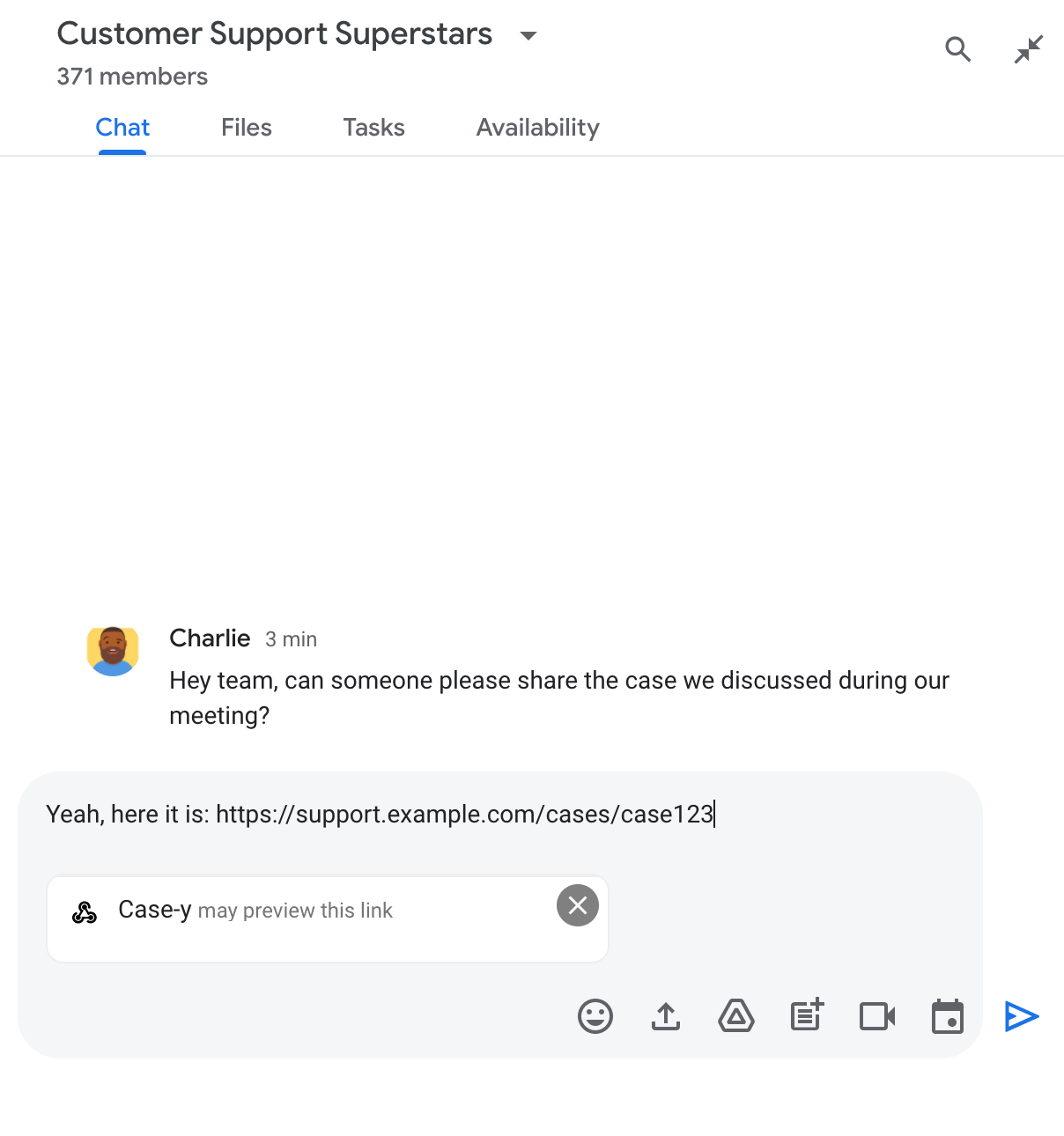
Когда кто-то добавляет ссылку в свое сообщение, появляется чип, информирующий о том, что приложение Chat может просмотреть ссылку.

Чип, указывающий, что приложение чата может просматривать ссылку

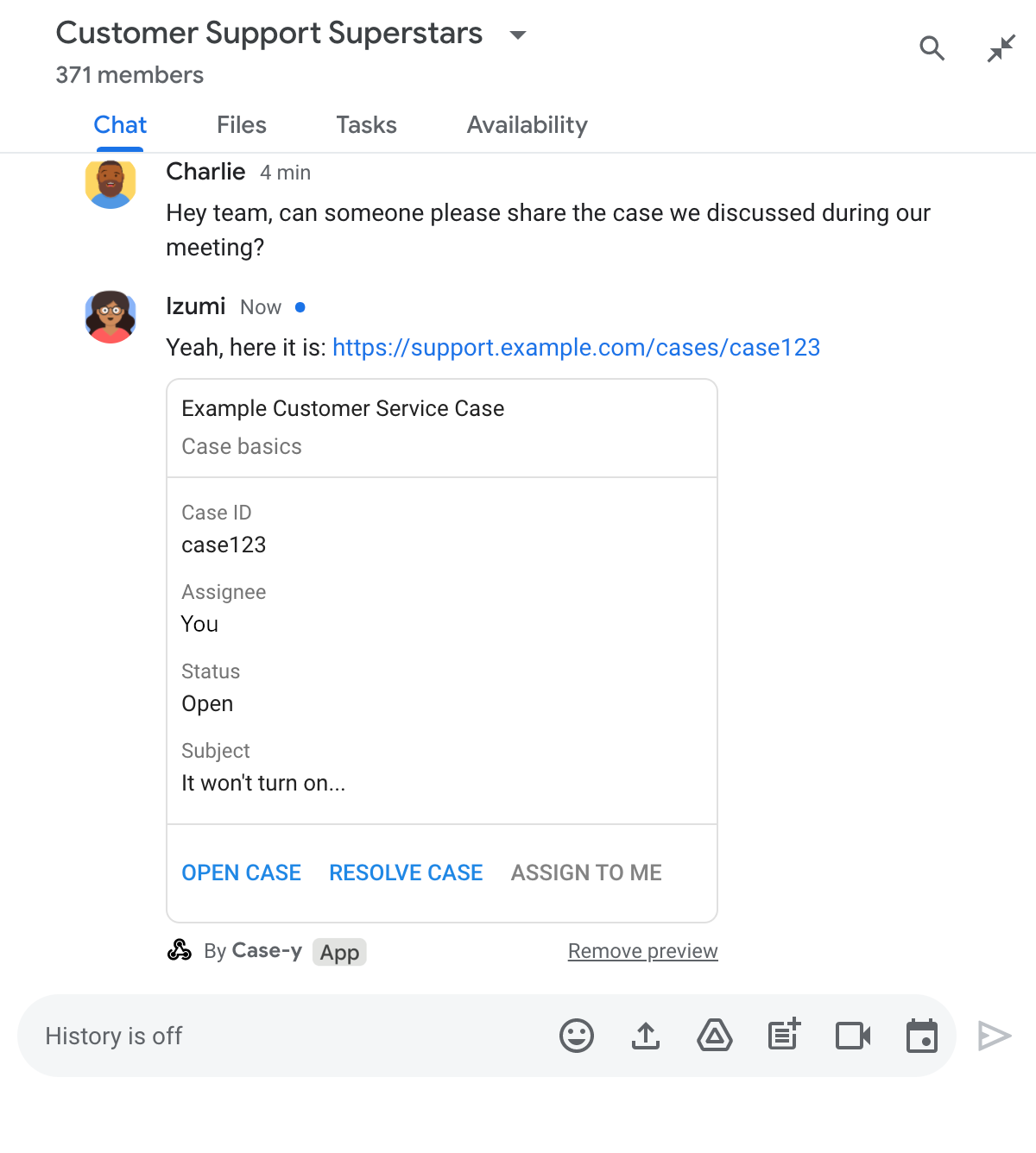
После отправки сообщения ссылка отправляется в приложение чата, которое затем генерирует и прикрепляет карточку к сообщению пользователя.
Приложение чата, просматривающее ссылку путем прикрепления карточки к сообщению

Помимо ссылки, карточка содержит дополнительную информацию о ней, включая интерактивные элементы, такие как кнопки. Ваше приложение Chat может обновлять прикреплённую карточку в ответ на действия пользователя, например, нажатие кнопок.

Если пользователь не хочет, чтобы приложение Chat открывало предварительный просмотр ссылки, прикрепляя карточку к сообщению, он может отменить предварительный просмотр, нажав на чипе предварительного просмотра. Пользователи могут в любой момент удалить прикреплённую карточку, нажав «Удалить предварительный просмотр» .

Предпосылки

HTTP

Надстройка для Google Workspace, расширяющая возможности Google Chat. Чтобы создать её, выполните краткое руководство по HTTP .

Скрипт приложений

Надстройка для Google Workspace, расширяющая возможности Google Chat. Чтобы создать её, выполните краткое руководство по Apps Script .

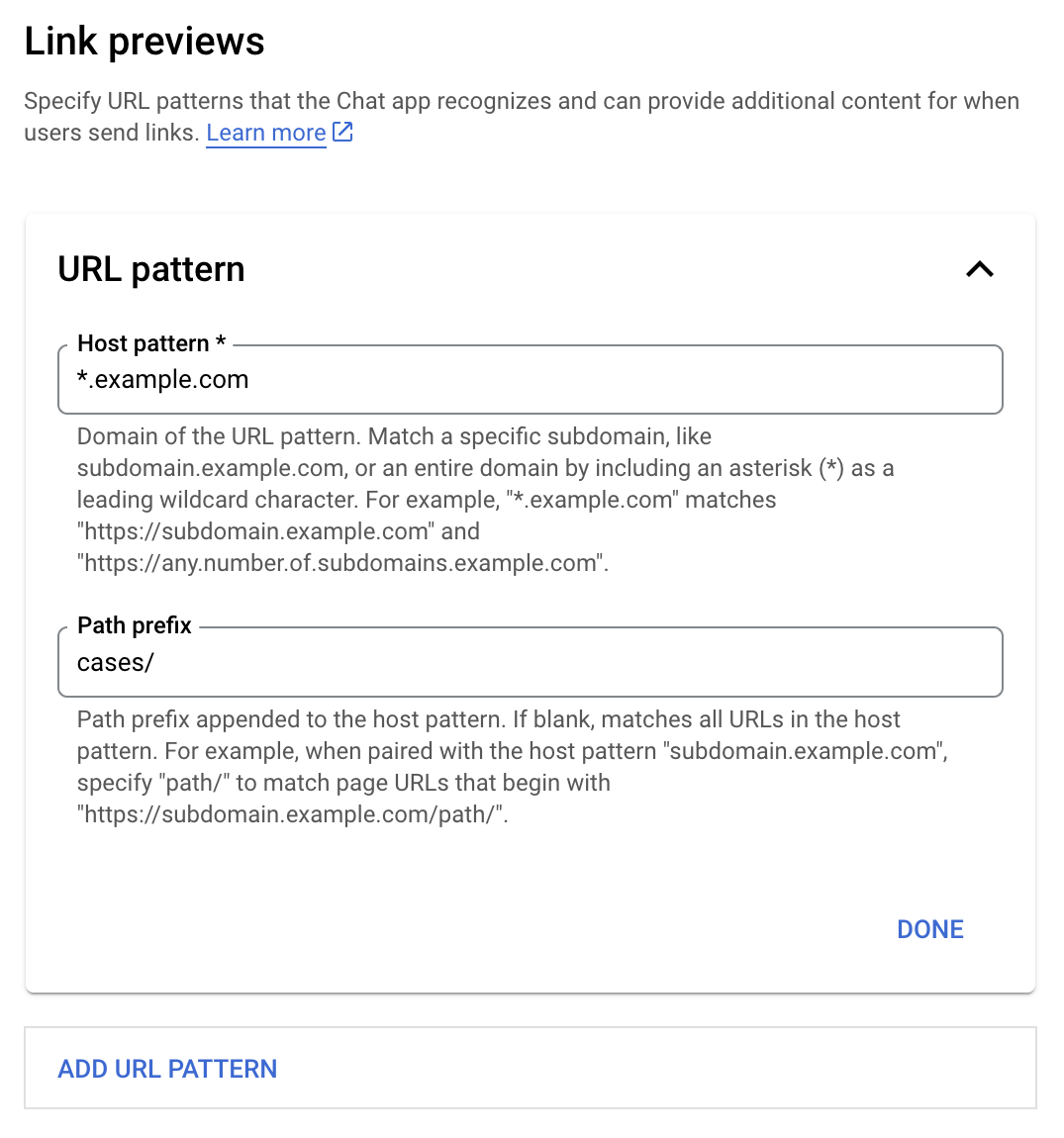
Зарегистрируйте определенные ссылки — например example.com , support.example.com и support.example.com/cases/ — в качестве шаблонов URL на странице конфигурации вашего приложения Chat в консоли Google Cloud, чтобы ваше приложение Chat могло просматривать их.

Меню конфигурации предпросмотра ссылок

  1. Откройте консоль Google Cloud .
  2. Рядом с «Google Cloud» нажмите стрелку вниз и откройте проект приложения чата.
  3. В поле поиска введите Google Chat API и нажмите Google Chat API .
  4. Нажмите Управление > Конфигурация .
  5. В разделе «Предварительный просмотр ссылок» добавьте или отредактируйте шаблон URL.
    1. Чтобы настроить предварительный просмотр ссылок для нового шаблона URL, нажмите Добавить шаблон URL .
    2. Чтобы изменить конфигурацию существующего шаблона URL, нажмите стрелку вниз .
  6. В поле « Шаблон хоста» введите домен шаблона URL. Приложение чата будет отображать ссылки на этот домен.

    Чтобы получить ссылки предварительного просмотра приложения чата для определенного поддомена, например subdomain.example.com , включите этот поддомен.

    Чтобы ссылки предварительного просмотра приложения Chat отображались для всего домена, укажите подстановочный знак со звёздочкой (*) в качестве поддомена. Например, *.example.com соответствует subdomain.example.com и any.number.of.subdomains.example.com .

  7. В поле Префикс пути введите путь, который будет добавлен к домену шаблона хоста.

    Чтобы сопоставить все URL-адреса в домене шаблона хоста, оставьте префикс пути пустым.

    Например, если шаблон хоста — support.example.com , то для сопоставления URL-адресов для случаев, размещенных на support.example.com/cases/ , введите cases/ .

  8. Нажмите Готово .

  9. Нажмите « Сохранить ».

Теперь, когда кто-то добавляет ссылку, соответствующую шаблону URL-адреса предварительного просмотра ссылки, в сообщение в чат-пространстве, включающем ваше приложение Chat, ваше приложение отображает предварительный просмотр ссылки.

После настройки предварительного просмотра для определенной ссылки ваше приложение Chat сможет распознавать и просматривать ссылку, прикрепляя к ней дополнительную информацию.

В чат-пространствах, включающих ваше приложение, когда чьё-либо сообщение содержит ссылку, соответствующую шаблону URL-адреса для предварительного просмотра ссылки, ваше приложение получает объект события с MessagePayload . В полезной нагрузке объект message.matchedUrl содержит ссылку, которую пользователь включил в сообщение:

JSON

message: {
  matchedUrl: {
    url: "https://support.example.com/cases/case123"
  },
  ... // other message attributes redacted
}

Проверяя наличие поля matchedUrl в полезной нагрузке события MESSAGE , ваше приложение Chat может добавлять информацию к сообщению с предварительно просмотренной ссылкой. Приложение Chat может либо ответить простым текстовым сообщением, либо прикрепить открытку.

Ответить текстовым сообщением

Для простых ответов ваше приложение Chat может отправлять текстовые сообщения для предварительного просмотра ссылки. В этом примере прикрепляется сообщение, повторяющее URL-адрес ссылки, соответствующий шаблону URL-адреса для предварительного просмотра ссылки.

Node.js

node/chat/preview-link/index.js
// Reply with a text message for URLs of the subdomain "text"
if (chatMessage.matchedUrl.url.includes("text.example.com")) {
  return { hostAppDataAction: { chatDataAction: { createMessageAction: { message: {
    text: 'event.chat.messagePayload.message.matchedUrl.url: ' + chatMessage.matchedUrl.url
  }}}}};
}

Замените FUNCTION_URL на конечную точку HTTP, которая обрабатывает нажатия кнопок.

Питон

python/chat/preview-link/main.py
# Reply with a text message for URLs of the subdomain "text"
if "text.example.com" in chatMessage.get('matchedUrl').get('url'):
  return { 'hostAppDataAction': { 'chatDataAction': { 'createMessageAction': { 'message': {
    'text': 'event.chat.messagePayload.message.matchedUrl.url: ' + chatMessage.get('matchedUrl').get('url')
  }}}}}

Замените FUNCTION_URL на конечную точку HTTP, которая обрабатывает нажатия кнопок.

Ява

java/chat/preview-link/src/main/java/com/google/chat/previewLink/App.java
// Reply with a text message for URLs of the subdomain "text"
if (chatMessage.at("/matchedUrl/url").asText().contains("text.example.com")) {
  return new GenericJson() {{
    put("hostAppDataAction", new GenericJson() {{
      put("chatDataAction", new GenericJson() {{
        put("createMessageAction", new GenericJson() {{
          put("message", new GenericJson() {{
            put("text", "event.chat.messagePayload.message.matchedUrl.url: " + chatMessage.at("/matchedUrl/url").asText());
          }});
        }});
      }});
    }});
  }};
}

Замените FUNCTION_URL на конечную точку HTTP, которая обрабатывает нажатия кнопок.

Скрипт приложений

apps-script/chat/preview-link/preview-link.gs
// Reply with a text message for URLs of the subdomain "text".
if (chatMessage.matchedUrl.url.includes("text.example.com")) {
  return { hostAppDataAction: { chatDataAction: { createMessageAction: { message: {
    text: 'event.chat.messagePayload.message.matchedUrl.url: ' + chatMessage.matchedUrl.url
  }}}}};
}

Чтобы прикрепить карточку к предварительно просматриваемой ссылке, верните действие DataActions с объектом ChatDataActionMarkup типа UpdateInlinePreviewAction .

В следующем примере приложение чата добавляет карточку предварительного просмотра к сообщениям, содержащим шаблон URL support.example.com .

Приложение чата, просматривающее ссылку путем прикрепления карточки к сообщению

Node.js

node/chat/preview-link/index.js
// Attach a card to the message for URLs of the subdomain "support"
if (chatMessage.matchedUrl.url.includes("support.example.com")) {
  // A hard-coded card is used in this example. In a real-life scenario,
  // the case information would be fetched and used to build the card.
  return { hostAppDataAction: { chatDataAction: { updateInlinePreviewAction: { cardsV2: [{
    cardId: 'attachCard',
    card: {
      header: {
        title: 'Example Customer Service Case',
        subtitle: 'Case basics',
      },
      sections: [{ widgets: [
      { decoratedText: { topLabel: 'Case ID', text: 'case123'}},
      { decoratedText: { topLabel: 'Assignee', text: 'Charlie'}},
      { decoratedText: { topLabel: 'Status', text: 'Open'}},
      { decoratedText: { topLabel: 'Subject', text: 'It won\'t turn on...' }},
      { buttonList: { buttons: [{
        text: 'OPEN CASE',
        onClick: { openLink: {
          url: 'https://support.example.com/orders/case123'
        }},
      }, {
        text: 'RESOLVE CASE',
        onClick: { openLink: {
          url: 'https://support.example.com/orders/case123?resolved=y',
        }},
      }, {
        text: 'ASSIGN TO ME',
        onClick: { action: { function: FUNCTION_URL }}
      }]}}
      ]}]
    }
  }]}}}};
}

Замените FUNCTION_URL на конечную точку HTTP, которая обрабатывает нажатия кнопок.

Питон

python/chat/preview-link/main.py
# Attach a card to the message for URLs of the subdomain "support"
if "support.example.com" in chatMessage.get('matchedUrl').get('url'):
  # A hard-coded card is used in this example. In a real-life scenario,
  # the case information would be fetched and used to build the card.
  return { 'hostAppDataAction': { 'chatDataAction': { 'updateInlinePreviewAction': { 'cardsV2': [{
    'cardId': 'attachCard',
    'card': {
      'header': {
        'title': 'Example Customer Service Case',
        'subtitle': 'Case basics',
      },
      'sections': [{ 'widgets': [
      { 'decoratedText': { 'topLabel': 'Case ID', 'text': 'case123'}},
      { 'decoratedText': { 'topLabel': 'Assignee', 'text': 'Charlie'}},
      { 'decoratedText': { 'topLabel': 'Status', 'text': 'Open'}},
      { 'decoratedText': { 'topLabel': 'Subject', 'text': 'It won\'t turn on...' }},
      { 'buttonList': { 'buttons': [{
        'text': 'OPEN CASE',
        'onClick': { 'openLink': {
          'url': 'https://support.example.com/orders/case123'
        }},
      }, {
        'text': 'RESOLVE CASE',
        'onClick': { 'openLink': {
          'url': 'https://support.example.com/orders/case123?resolved=y',
        }},
      }, {
        'text': 'ASSIGN TO ME',
        'onClick': { 'action': { 'function': FUNCTION_URL }}
      }]}}
      ]}]
    }
  }]}}}}

Замените FUNCTION_URL на конечную точку HTTP, которая обрабатывает нажатия кнопок.

Ява

java/chat/preview-link/src/main/java/com/google/chat/previewLink/App.java
// Attach a card to the message for URLs of the subdomain "support"
if (chatMessage.at("/matchedUrl/url").asText().contains("support.example.com")) {
  // A hard-coded card is used in this example. In a real-life scenario,
  // the case information would be fetched and used to build the card.
  CardWithId cardV2 = new CardWithId()
    .setCardId("attachCard")
    .setCard(new GoogleAppsCardV1Card()
      .setHeader(new GoogleAppsCardV1CardHeader()
        .setTitle("Example Customer Service Case")
        .setSubtitle("Case basics"))
      .setSections(List.of(new GoogleAppsCardV1Section().setWidgets(List.of(
        new GoogleAppsCardV1Widget().setDecoratedText(new GoogleAppsCardV1DecoratedText()
          .setTopLabel("Case ID")
          .setText("case123")),
        new GoogleAppsCardV1Widget().setDecoratedText(new GoogleAppsCardV1DecoratedText()
          .setTopLabel("Assignee")
          .setText("Charlie")),
        new GoogleAppsCardV1Widget().setDecoratedText(new GoogleAppsCardV1DecoratedText()
          .setTopLabel("Status")
          .setText("Open")),
        new GoogleAppsCardV1Widget().setDecoratedText(new GoogleAppsCardV1DecoratedText()
          .setTopLabel("Subject")
          .setText("It won't turn on...")),
        new GoogleAppsCardV1Widget().setButtonList(new GoogleAppsCardV1ButtonList()
          .setButtons(List.of(
            new GoogleAppsCardV1Button()
              .setText("OPEN CASE")
            .setOnClick(new GoogleAppsCardV1OnClick()
                .setOpenLink(new GoogleAppsCardV1OpenLink()
                  .setUrl("https://support.example.com/orders/case123"))),
            new GoogleAppsCardV1Button()
              .setText("RESOLVE CASE")
            .setOnClick(new GoogleAppsCardV1OnClick()
                .setOpenLink(new GoogleAppsCardV1OpenLink()
                  .setUrl("https://support.example.com/orders/case123?resolved=y"))),
            new GoogleAppsCardV1Button()
              .setText("ASSIGN TO ME")
              .setOnClick(new GoogleAppsCardV1OnClick()
                .setAction(new GoogleAppsCardV1Action().setFunction(FUNCTION_URL)))
          ))
        )
      ))))
    );

  return new GenericJson() {{
    put("hostAppDataAction", new GenericJson() {{
      put("chatDataAction", new GenericJson() {{
        put("updateInlinePreviewAction", new GenericJson() {{
          put("cardsV2", List.of(cardV2));
        }});
      }});
    }});
  }};
}

Замените FUNCTION_URL на конечную точку HTTP, которая обрабатывает нажатия кнопок.

Скрипт приложений

apps-script/chat/preview-link/preview-link.gs
// Attach a card to the message for URLs of the subdomain "support".
if (chatMessage.matchedUrl.url.includes("support.example.com")) {
  // A hard-coded card is used in this example. In a real-life scenario,
  // the case information would be fetched and used to build the card.
  return { hostAppDataAction: { chatDataAction: { updateInlinePreviewAction: { cardsV2: [{
    cardId: 'attachCard',
    card: {
      header: {
        title: 'Example Customer Service Case',
        subtitle: 'Case summary',
      },
      sections: [{ widgets: [
      { decoratedText: { topLabel: 'Case ID', text: 'case123'}},
      { decoratedText: { topLabel: 'Assignee', text: 'Charlie'}},
      { decoratedText: { topLabel: 'Status', text: 'Open'}},
      { decoratedText: { topLabel: 'Subject', text: 'It won\'t turn on...' }},
      { buttonList: { buttons: [{
        text: 'OPEN CASE',
        onClick: { openLink: {
          url: 'https://support.example.com/orders/case123'
        }},
      }, {
        text: 'RESOLVE CASE',
        onClick: { openLink: {
          url: 'https://support.example.com/orders/case123?resolved=y',
        }},
      }, {
        text: 'ASSIGN TO ME',
        // Clicking this button triggers the execution of the function
        // "assign" from the Apps Script project.
        onClick: { action: { function: 'assign'}}
      }]}}
      ]}]
    }
  }]}}}};
}

Ваше приложение чата может обновлять карточку предварительного просмотра ссылки, когда пользователи взаимодействуют с ней, например, нажимают кнопку на карточке.

Чтобы обновить карточку, ваше приложение чата должно вернуть действие DataActions с одним из следующих объектов ChatDataActionMarkup :

  • Если пользователь отправил сообщение, вернуть объект UpdateMessageAction .
  • Если приложение чата отправило сообщение, верните объект UpdateInlinePreviewAction .

Чтобы определить, кто отправил сообщение, используйте полезную нагрузку события ( buttonClickedPayload ), чтобы проверить, задан ли отправитель ( message.sender.type ) как HUMAN (пользователь) или BOT (чат-приложение).

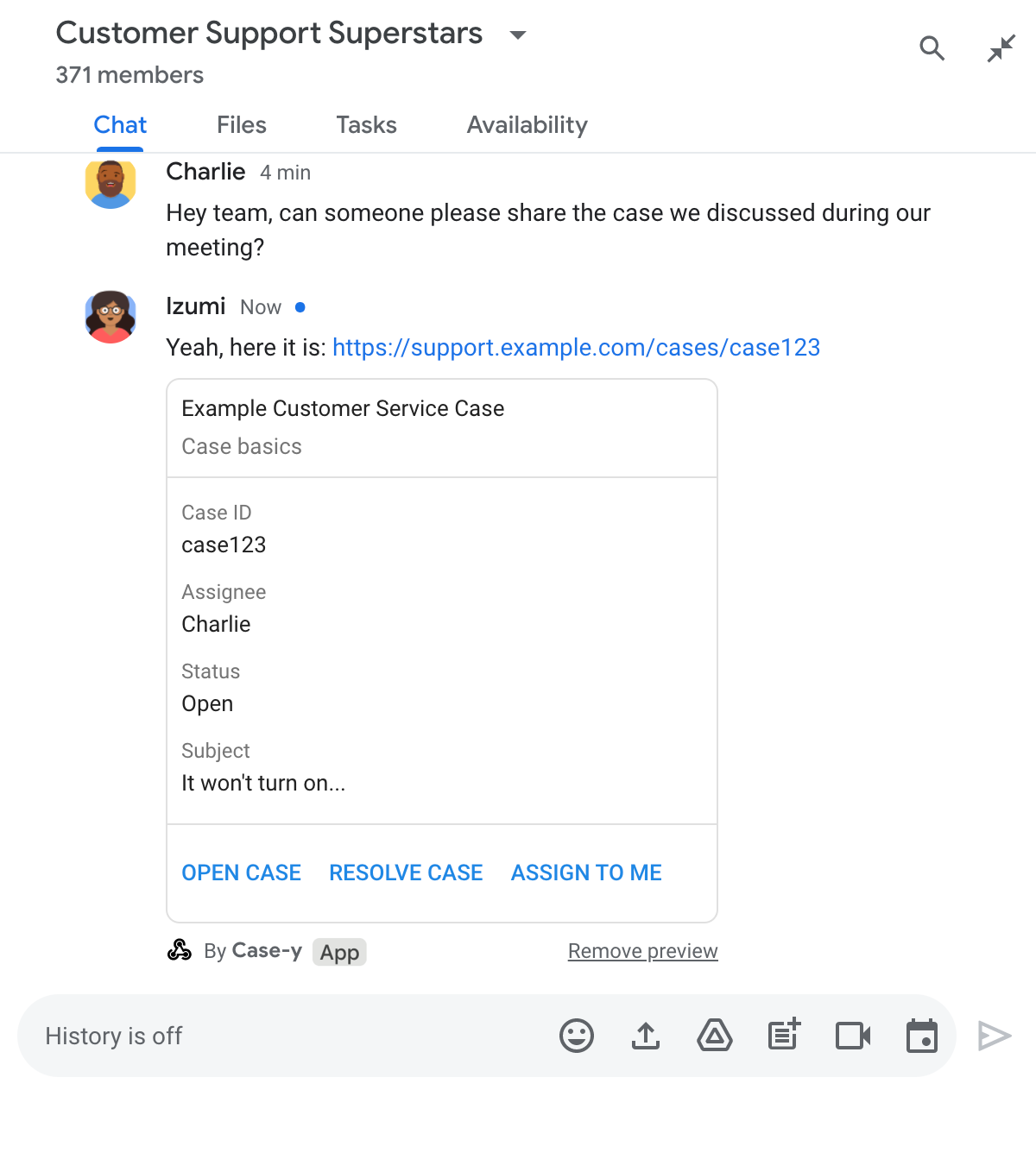
В следующем примере показано, как приложение чата обновляет предварительный просмотр ссылки всякий раз, когда пользователь нажимает кнопку « Назначить мне» , обновляя поле «Назначенный» карточки и отключая кнопку.

Приложение чата, просматривающее ссылку с обновленной версией карточки, прикрепленной к сообщению

Node.js

node/chat/preview-link/index.js
/**
 * Respond to clicks by assigning and updating the card that's attached to a
 * message previewed link of the pattern "support.example.com".
 *
 * @param {Object} chatMessage The chat message object from Google Workspace Add On event.
 * @return {Object} Action response depending on the message author.
 */
function handleCardClick(chatMessage) {
  // Creates the updated card that displays "You" for the assignee
  // and that disables the button.
  //
  // A hard-coded card is used in this example. In a real-life scenario,
  // an actual assign action would be performed before building the card.
  const message = { cardsV2: [{
    cardId: 'attachCard',
    card: {
      header: {
        title: 'Example Customer Service Case',
        subtitle: 'Case basics',
      },
      sections: [{ widgets: [
        { decoratedText: { topLabel: 'Case ID', text: 'case123'}},
        // The assignee is now "You"
        { decoratedText: { topLabel: 'Assignee', text: 'You'}},
        { decoratedText: { topLabel: 'Status', text: 'Open'}},
        { decoratedText: { topLabel: 'Subject', text: 'It won\'t turn on...' }},
        { buttonList: { buttons: [{
          text: 'OPEN CASE',
          onClick: { openLink: {
            url: 'https://support.example.com/orders/case123'
          }},
        }, {
          text: 'RESOLVE CASE',
          onClick: { openLink: {
            url: 'https://support.example.com/orders/case123?resolved=y',
          }},
        }, {
          text: 'ASSIGN TO ME',
          // The button is now disabled
          disabled: true,
          onClick: { action: { function: FUNCTION_URL }}
        }]}}
      ]}]
    }
  }]};

  // Use the adequate action response type. It depends on whether the message
  // the preview link card is attached to was created by a human or a Chat app.
  if(chatMessage.sender.type === 'HUMAN') {
    return { hostAppDataAction: { chatDataAction: { updateInlinePreviewAction: message }}};
  } else {
    return { hostAppDataAction: { chatDataAction: { updateMessageAction: message }}};
  }
}

Замените FUNCTION_URL на конечную точку HTTP, которая обрабатывает нажатия кнопок.

Питон

python/chat/preview-link/main.py
def handle_card_click(chatMessage: dict) -> dict:
  """Respond to clicks by assigning and updating the card that's attached to a
  message previewed link of the pattern "support.example.com".

  - Reply with text messages that echo "text.example.com" link URLs in messages.
  - Attach cards to messages with "support.example.com" link URLs.

  Args:
      chatMessage (Mapping[str, Any]): The chat message object from Google Workspace Add On event.

  Returns:
      Mapping[str, Any]: Action response depending on the message author.
  """
  # Creates the updated card that displays "You" for the assignee
  # and that disables the button.
  #
  # A hard-coded card is used in this example. In a real-life scenario,
  # an actual assign action would be performed before building the card.
  message = { 'cardsV2': [{
    'cardId': 'attachCard',
    'card': {
      'header': {
        'title': 'Example Customer Service Case',
        'subtitle': 'Case basics',
      },
      'sections': [{ 'widgets': [
      { 'decoratedText': { 'topLabel': 'Case ID', 'text': 'case123'}},
      # The assignee is now "You"
      { 'decoratedText': { 'topLabel': 'Assignee', 'text': 'You'}},
      { 'decoratedText': { 'topLabel': 'Status', 'text': 'Open'}},
      { 'decoratedText': { 'topLabel': 'Subject', 'text': 'It won\'t turn on...' }},
      { 'buttonList': { 'buttons': [{
        'text': 'OPEN CASE',
        'onClick': { 'openLink': {
          'url': 'https://support.example.com/orders/case123'
        }},
      }, {
        'text': 'RESOLVE CASE',
        'onClick': { 'openLink': {
          'url': 'https://support.example.com/orders/case123?resolved=y',
        }},
      }, {
        'text': 'ASSIGN TO ME',
        # The button is now disabled
        'disabled': True,
        'onClick': { 'action': { 'function': FUNCTION_URL }}
      }]}}
      ]}]
    }
  }]}

  # Use the adequate action response type. It depends on whether the message
  # the preview link card is attached to was created by a human or a Chat app.
  if chatMessage.get('sender').get('type') == 'HUMAN':
    return { 'hostAppDataAction': { 'chatDataAction': { 'updateInlinePreviewAction': message }}}
  else:
    return { 'hostAppDataAction': { 'chatDataAction': { 'updateMessageAction': message }}}

Замените FUNCTION_URL на конечную точку HTTP, которая обрабатывает нажатия кнопок.

Ява

java/chat/preview-link/src/main/java/com/google/chat/previewLink/App.java
/**
 * Respond to clicks by assigning and updating the card that's attached to a
 * message previewed link of the pattern "support.example.com".
 *
 * @param chatMessage The chat message object from Google Workspace Add On event.
 * @return Action response depending on the message author.
 */
GenericJson handleCardClick(JsonNode chatMessage) {
  // Creates the updated card that displays "You" for the assignee
  // and that disables the button.
  //
  // A hard-coded card is used in this example. In a real-life scenario,
  // an actual assign action would be performed before building the card.
  Message message = new Message().setCardsV2(List.of(new CardWithId()
    .setCardId("attachCard")
    .setCard(new GoogleAppsCardV1Card()
      .setHeader(new GoogleAppsCardV1CardHeader()
        .setTitle("Example Customer Service Case")
        .setSubtitle("Case basics"))
      .setSections(List.of(new GoogleAppsCardV1Section().setWidgets(List.of(
        new GoogleAppsCardV1Widget().setDecoratedText(new GoogleAppsCardV1DecoratedText()
          .setTopLabel("Case ID")
          .setText("case123")),
        // The assignee is now "You"
        new GoogleAppsCardV1Widget().setDecoratedText(new GoogleAppsCardV1DecoratedText()
          .setTopLabel("Assignee")
          .setText("You")),
        new GoogleAppsCardV1Widget().setDecoratedText(new GoogleAppsCardV1DecoratedText()
          .setTopLabel("Status")
          .setText("Open")),
        new GoogleAppsCardV1Widget().setDecoratedText(new GoogleAppsCardV1DecoratedText()
          .setTopLabel("Subject")
          .setText("It won't turn on...")),
        new GoogleAppsCardV1Widget().setButtonList(new GoogleAppsCardV1ButtonList()
          .setButtons(List.of(
            new GoogleAppsCardV1Button()
              .setText("OPEN CASE")
              .setOnClick(new GoogleAppsCardV1OnClick()
                .setOpenLink(new GoogleAppsCardV1OpenLink()
                  .setUrl("https://support.example.com/orders/case123"))),
            new GoogleAppsCardV1Button()
              .setText("RESOLVE CASE")
              .setOnClick(new GoogleAppsCardV1OnClick()
                .setOpenLink(new GoogleAppsCardV1OpenLink()
                  .setUrl("https://support.example.com/orders/case123?resolved=y"))),
            new GoogleAppsCardV1Button()
              .setText("ASSIGN TO ME")
              // The button is now disabled
              .setDisabled(true)
              .setOnClick(new GoogleAppsCardV1OnClick()
                .setAction(new GoogleAppsCardV1Action().setFunction(FUNCTION_URL)))
          ))
        )
      ))))
    )
  ));

  // Use the adequate action response type. It depends on whether the message
  // the preview link card is attached to was created by a human or a Chat app.
  if("HUMAN".equals(chatMessage.at("/sender/type").asText())) {
    return new GenericJson() {{
      put("hostAppDataAction", new GenericJson() {{
        put("chatDataAction", new GenericJson() {{
          put("updateInlinePreviewAction", message);
        }});
      }});
    }};
  } else {
    return new GenericJson() {{
      put("hostAppDataAction", new GenericJson() {{
        put("chatDataAction", new GenericJson() {{
          put("updateMessageAction", message);
        }});
      }});
    }};
  }
}

Замените FUNCTION_URL на конечную точку HTTP, которая обрабатывает нажатия кнопок.

Скрипт приложений

apps-script/chat/preview-link/preview-link.gs
/**
 * Assigns and updates the card that's attached to a message with a
 * previewed link of the pattern "support.example.com".
 *
 * @param {Object} event The event object from the Google Workspace add-on.
 * @return {Object} Action response depending on the message author.
 */
function assign(event) {
  // Creates the updated card that displays "You" for the assignee
  // and that disables the button.
  //
  // A hard-coded card is used in this example. In a real-life scenario,
  // an actual assign action would be performed before building the card.
  const message = { cardsV2: [{
    cardId: 'attachCard',
    card: {
      header: {
        title: 'Example Customer Service Case',
        subtitle: 'Case summary',
      },
      sections: [{ widgets: [
        { decoratedText: { topLabel: 'Case ID', text: 'case123'}},
        // The assignee is now "You"
        { decoratedText: { topLabel: 'Assignee', text: 'You'}},
        { decoratedText: { topLabel: 'Status', text: 'Open'}},
        { decoratedText: { topLabel: 'Subject', text: 'It won\'t turn on...' }},
        { buttonList: { buttons: [{
          text: 'OPEN CASE',
          onClick: { openLink: {
            url: 'https://support.example.com/orders/case123'
          }},
        }, {
          text: 'RESOLVE CASE',
          onClick: { openLink: {
            url: 'https://support.example.com/orders/case123?resolved=y',
          }},
        }, {
          text: 'ASSIGN TO ME',
          // The button is now disabled
          disabled: true,
          onClick: { action: { function: 'assign'}}
        }]}}
      ]}]
    }
  }]};

  // Use the adequate action response type. It depends on whether the message
  // the preview link card is attached to was created by a human or a Chat app.
  if(event.chat.buttonClickedPayload.message.sender.type === 'HUMAN') {
    return { hostAppDataAction: { chatDataAction: { updateInlinePreviewAction: message }}};
  } else {
    return { hostAppDataAction: { chatDataAction: { updateMessageAction: message }}};
  }
}

Ограничения и соображения

При настройке предварительного просмотра ссылок для вашего приложения Chat обратите внимание на следующие ограничения и соображения:

  • Каждое приложение чата поддерживает предварительный просмотр ссылок для 5 шаблонов URL.
  • Приложения чата позволяют просматривать только одну ссылку в каждом сообщении. Если в одном сообщении есть несколько ссылок для просмотра, отображается только первая из них.
  • Приложения чата позволяют просматривать только ссылки, начинающиеся с https:// , поэтому https://support.example.com/cases/ выполняет предварительный просмотр, а support.example.com/cases/ нет.
  • Если сообщение не содержит другой информации, отправляемой в приложение Chat, например, команды с косой чертой , то при предварительном просмотре ссылок в приложение Chat отправляется только URL-адрес ссылки.
  • Если пользователь публикует ссылку, приложение Chat может обновить карточку предварительного просмотра ссылки только при взаимодействии пользователя с карточкой, например, при нажатии кнопки. Вы не можете вызвать метод update() API Chat для ресурса Message для асинхронного обновления сообщения пользователя.
  • Приложения чата должны предоставлять предварительный просмотр ссылок всем участникам чата, поэтому в сообщении не должно быть поля privateMessageViewer .

При реализации предварительного просмотра ссылок вам может потребоваться отладить приложение Chat, прочитав его логи. Чтобы ознакомиться с журналами, откройте Logs Explorer в консоли Google Cloud.