
This page explains how to build a Google Chat app as a Google Workspace Add-on that uses Dialogflow ES to understand and respond to natural language. You can also use Dialogflow CX, which has a direct integration with Google Chat, to build a Dialogflow CX Google Chat app by following the Dialogflow CX Google Chat guide.
Objectives
- Set up your environment.
- Create and deploy a Dialogflow ES agent.
- Create and deploy a Chat app powered by the Dialogflow ES agent.
- Test the Chat app.
Prerequisites
- A Business or Enterprise Google Workspace account with access to Google Chat.
- A Google Cloud project with billing enabled. To check that an existing project has billing enabled, see Verify the billing status of your projects. To create a project and set up billing, see Create a Google Cloud project.
Architecture
The following diagram shows the architecture of a Chat app built with Dialogflow:
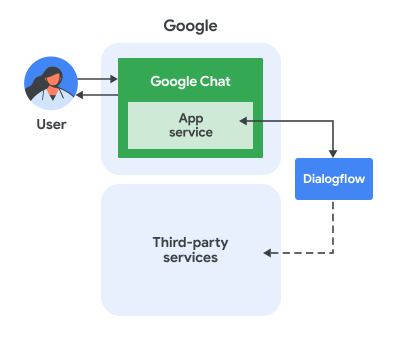
In the preceding diagram, a user interacting with a Dialogflow Chat app has the following flow of information:
- A user sends a message in Chat to a Chat app, either in a direct message or in a Chat space.
- A Dialogflow virtual agent, which resides in , receives and processes the message to produce a response.
- Optionally, using a Dialogflow webhook, the Dialogflow agent can interact with external third-party services, such as a project management system or a ticketing tool.
- The Dialogflow agent sends a response back to the Chat app service in Chat.
- The response is delivered to the Chat space.
Set up the environment
Before using Google APIs, you need to turn them on in a Google Cloud project. You can turn on one or more APIs in a single Google Cloud project.In the Google API Console, enable the Google Chat API and the Dialogflow API.
Confirm that you're enabling the APIs in the correct Cloud project, then click Next.
Confirm that you're enabling the correct APIs, then click Enable.
Create a Dialogflow ES agent
If you don't have an existing Dialogflow ES agent:
- Go to the Dialogflow ES Console.
- Click Create Agent.
- Give it a name, select a default language, and time zone.
- Associate it with your Cloud project.
- Click Create.
- Build your intents and entities as needed for your Chat app conversational flow. You can start with a greeting intent.
- Take note of your Project ID.
For a detailed guide, see Build an Agent.
Create a Chat app and connect it with the Dialogflow agent
After creating a Dialogflow ES agent, follow these steps to turn it into a Chat app:
In the Google API Console, go to Google Chat API. Search for "Google Chat API" and click Google Chat API, then click Manage.
Click Configuration and set up the Chat app:
- In App name, enter
Dialogflow App. - In Avatar URL, enter
https://developers.google.com/workspace/chat/images/quickstart-app-avatar.png. - In Description, enter
Responds to real human conversation. - Under Functionality, select Join spaces and group conversations.
- Under Connection settings, select Dialogflow.
- Under Dialogflow settings, select Dialogflow ES.
- Make this Chat app available to specific people and groups in your domain and enter your email address.
- Under Logs, select Log errors to Logging.
- In App name, enter
Click Save.
The Chat app is ready to receive and respond to messages on Chat.
Test the Chat app
Test the Dialogflow ES Chat app by messaging it in Google Chat.
Open Google Chat using the Google Workspace account that you provided when you added yourself as a trusted tester.
- Click New chat.
- In the Add 1 or more people field, type the name of your Chat app.
Select your Chat app from the results. A direct message opens.
In the new direct message with the app, type
Helloand pressenter.The Dialogflow Chat app responds by a greeting message.
Text Responses
Text responses are sent to Google Chat as Text messages. With this formatting you can make text bold or italics by wrapping the text in certain (markdown light) symbols.
The text message response, visually looks the same as the Default Text Response in the Dialogflow Console. However, the raw API response will look a bit different. It also sets the platform config to GOOGLE_HANGOUTS, which could be interesting when building agents for multiple integrations.
"fulfillmentMessages": [
{
   "text": {
   "text": [
        "This is a test."
   ]
},
  "platform": "GOOGLE_HANGOUTS"
},
Cards
Card responses are sent to Google Chat as Card messages.
Images
Image responses are sent to Google Chat as Google Chat Image Widgets.
Custom Payload
To send other types of Google Chat messages, you can use a custom payload.
Google Chat Custom Payload lets you create more advanced cards. One card can have one or many sections. Each section could have a header. You can have a look into the Google Workspace Add-on extend Chat cards reference guide, to see some of the combinations you can create with this. However, using custom payloads means that you will have to provide the JSON format.
Here is an example of a custom payload for creating a message with a card:
{ "hangouts": { "hostAppDataAction": { "chatDataAction": {
  "createMessageAction": { "message": { "cardsV2": [{
    "cardId": "pizza",
    "card": {
      "header": {
        "title": "Pizza Delivery Customer Support",
        "subtitle": "pizzadelivery@example.com",
        "imageUrl": "https://goo.gl/aeDtrS"
      },
      "sections": [{ "widgets": [{ "textParagraph": {
        "text": " Your pizza is here!"
      }}]}]
    }
  }]}}
}}}}
Limits and considerations
- When using Google Workspace add-ons with Dialogflow, Chat event objects
have the following limitations and considerations:
- App Home Events: Support for
APP_HOMEevents is not yet available. - Dialogflow Query Input: The text sent as query input to the
Dialogflow agent depends on the event type:
MESSAGE: The value of theargumentTextfield from the Chat message.APP_COMMAND: The string"APP_COMMAND_PAYLOAD".ADDED_TO_SPACE: A default welcome event is sent.REMOVED_FROM_SPACE: The string"REMOVED_FROM_SPACE_PAYLOAD".CARD_CLICKED: The string"BUTTON_CLICKED_PAYLOAD".WIDGET_UPDATED: The string"WIDGET_UPDATED_PAYLOAD"(used for autocomplete).
- Full Event Payload: The full JSON payload of the
Chat interaction event is sent to Dialogflow within the
WebhookRequest.payloadfield. You can access this in your Dialogflow webhook. For more information, see the Dialogflow ES webhook request documentation.
- App Home Events: Support for
- Considerations for responding to
commands and
receiving data from cards or dialogs:
- If the Dialogflow agent needs to process the Chat interaction event JSON payload, it can do so by using a Dialogflow webhook to inspect the custom payload in the query parameter.
- To display a dialog from the
Dialogflow Agent, respond with a single custom JSON payload that
contains a
RenderActionsobject with the navigationpushCard. - To process data entered from cards, you can use a Dialogflow webhook and respond with a single custom JSON payload containing the appropriate action.
- Link previews aren't supported.
- If the Dialogflow agent responds with just one message, then the message
is sent to Google Chat synchronously. If the Dialogflow agent responds
with multiple messages, then all messages are sent to Chat
asynchronously by calling the
createmethod on thespaces.messagesresource in Chat API once for each message. - When using the Dialogflow ES integration with Chat, the Dialogflow agent and the Chat app must be set up in the same Google Cloud project.
Troubleshoot
To debug your Chat app, start by reviewing the error logs. Since this app uses Dialogflow, you have several logging and troubleshooting resources available:
Google Workspace add-on Logs: Query logs for detailed information about the add-on's behavior, including its interactions with Chat. See Query logs for Google Workspace Add-ons.
Google Google Chat app Errors: For general Chat app error messages and fixes, refer to Troubleshoot and fix Chat app errors.
Dialogflow ES Conversation History: History | Dialogflow ES
Dialogflow General Troubleshooting: Troubleshooting | Dialogflow
Clean up
To avoid incurring charges to your account for the resources used in this tutorial, we recommend that you delete the Cloud project.
- In the Google API Console, go to the Manage resources page. Click Menu > IAM & Admin > Manage Resources.
- In the project list, select the project you want to delete and then click Delete .
- In the dialog, type the project ID and then click Shut down to delete the project.
Related topics
- Dialogflow CX is another way to use Dialogflow with a Chat app.