Build an HTTP Google Chat app

  • This guide details building a Google Chat add-on using an HTTP service, allowing interaction with Google Cloud or on-premises servers.

  • The architecture involves a user sending a message, triggering an HTTP request to the add-on's server, processing the request (potentially with other services), and sending a response back to the user in Chat.

  • Prerequisites include a Google Workspace account and a Google Cloud project with billing enabled.

  • The setup involves enabling necessary APIs, creating and deploying a Cloud Function to handle messages, authorizing the add-on, and configuring it in the Google Chat API settings.

  • By following the steps, developers can build a flexible and integrated Google Chat add-on leveraging an HTTP service for enhanced functionality.

This page explains how to build a Google Workspace add-on that works in Google Chat using an HTTP service.

This quickstart shows you how to build an HTTP service using Google Cloud services. To build the Chat app, you write and deploy a Cloud Run function that the Chat app uses to respond to a user's message.

With an HTTP architecture, you configure Chat to integrate with Google Cloud or an on-premises server by using HTTP, as shown in the following diagram:
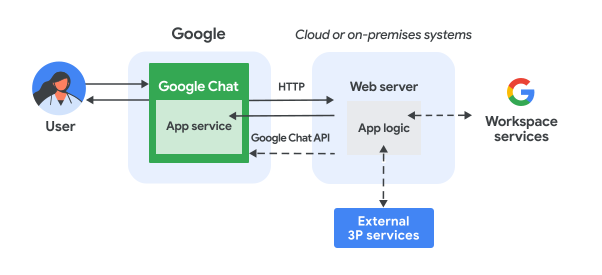
Architecture of a Chat app using a web service in an on-premises server.

In the preceding diagram, a user interacting with an HTTP Chat app has the following flow of information:

  1. A user sends a message in Chat to a Chat app, either in a direct message or in a Chat space.
  2. An HTTP request is sent to a web server that is either a cloud or on-premises system that contains the Chat app logic.
  3. Optionally, the Chat app logic can integrate with Google Workspace services (like Calendar and Sheets), other Google services (like Maps, YouTube, and Vertex AI), or other web services (like a project management system or ticketing tool).
  4. The web server sends an HTTP response back to the Chat app service in Chat.
  5. The response is delivered to the user.
  6. Optionally, the Chat app can call the Chat API to asynchronously post messages or perform other operations.

This architecture provides you the flexibility to use existing libraries and components that already exist in your system because these Chat apps can be designed using different programming languages.

Objectives

  • Set up your environment.
  • Create and deploy a Cloud Run function.
  • Configure a Google Workspace add-on for the Chat app.
  • Test the app.

Prerequisites

Set up the environment

Before using Google APIs, you need to turn them on in a Google Cloud project. You can turn on one or more APIs in a single Google Cloud project.
  • In the Google Cloud console, enable the Cloud Build API, Cloud Functions API, Cloud Pub/Sub API, Cloud Logging API, Artifact Registry API, and Cloud Run API.

    Enable the APIs

Create and deploy a Cloud Run function

Create and deploy a Cloud Run function that generates a Chat card with the sender's display name and avatar image. When the Chat app receives a message, it runs the function and responds with the card.

To create and deploy the function for your Chat app, complete the following steps:

Node.js

  1. In the Google Cloud console, go to the Cloud Run page:

    Go to Cloud Run

    Make sure that the project for your Chat app is selected.

  2. Click Write a function.

  3. On the Create service page, set up your function:

    1. In the Service name field, enter addonchatapp.
    2. In the Region list, select a region.
    3. In the Runtime list, select the most recent version of Node.js.
    4. In the Authentication section, select Require authentication.
    5. Click Create, and wait for Cloud Run to create the service. The console redirects you to the Source tab.
  4. In the Source tab:

    1. In Entry point, delete the default text and enter avatarApp.
    2. Replace the contents of index.js with the following code:
    node/chat/avatar-app/index.js
    import { http } from '@google-cloud/functions-framework';
    
    // The ID of the slash command "/about".
    // You must use the same ID in the Google Chat API configuration.
    const ABOUT_COMMAND_ID = 1;
    
    /**
     * Handle requests from Google Workspace add on
     *
     * @param {Object} req Request sent by Google Chat
     * @param {Object} res Response to be sent back to Google Chat
     */
    http('avatarApp', (req, res) => {
      const chatEvent = req.body.chat;
      let message;
      if (chatEvent.appCommandPayload) {
        message = handleAppCommand(chatEvent);
      } else {
        message = handleMessage(chatEvent);
      }
      res.send({ hostAppDataAction: { chatDataAction: { createMessageAction: {
        message: message
      }}}});
    });
    
    /**
     * Responds to an APP_COMMAND event in Google Chat.
     *
     * @param {Object} event the event object from Google Chat
     * @return the response message object.
     */
    function handleAppCommand(event) {
      switch (event.appCommandPayload.appCommandMetadata.appCommandId) {
        case ABOUT_COMMAND_ID:
          return {
            text: 'The Avatar app replies to Google Chat messages.'
          };
      }
    }
    
    /**
     * Responds to a MESSAGE event in Google Chat.
     *
     * @param {Object} event the event object from Google Chat
     * @return the response message object.
     */
    function handleMessage(event) {
      // Stores the Google Chat user as a variable.
      const chatUser = event.messagePayload.message.sender;
      const displayName = chatUser.displayName;
      const avatarUrl = chatUser.avatarUrl;
      return {
        text: 'Here\'s your avatar',
        cardsV2: [{
          cardId: 'avatarCard',
          card: {
            name: 'Avatar Card',
            header: {
              title: `Hello ${displayName}!`,
            },
            sections: [{ widgets: [{
              textParagraph: { text: 'Your avatar picture: ' }
            }, {
              image: { imageUrl: avatarUrl }
            }]}]
          }
        }]
      };
    }
    1. Click Save and redeploy.

Python

  1. In the Google Cloud console, go to the Cloud Run page:

    Go to Cloud Run

    Make sure that the project for your Chat app is selected.

  2. Click Write a function.

  3. On the Create service page, set up your function:

    1. In the Service name field, enter addonchatapp.
    2. In the Region list, select a region.
    3. In the Runtime list, select the most recent version of Python.
    4. In the Authentication section, select Require authentication.
    5. Click Create, and wait for Cloud Run to create the service. The console redirects you to the Source tab.
  4. In the Source tab:

    1. In Entry point, delete the default text and enter avatar_app.
    2. Replace the contents of main.py with the following code:
    python/chat/avatar-app/main.py
    from typing import Any, Mapping
    
    import flask
    import functions_framework
    
    # The ID of the slash command "/about".
    # You must use the same ID in the Google Chat API configuration.
    ABOUT_COMMAND_ID = 1
    
    @functions_framework.http
    def avatar_app(req: flask.Request) -> Mapping[str, Any]:
      """Handle requests from Google Workspace add on
    
      Args:
        flask.Request req: the request sent by Google Chat
    
      Returns:
        Mapping[str, Any]: the response to be sent back to Google Chat
      """
      chat_event = req.get_json(silent=True)["chat"]
      if chat_event and "appCommandPayload" in chat_event:
        message = handle_app_command(chat_event)
      else:
        message = handle_message(chat_event)
      return { "hostAppDataAction": { "chatDataAction": { "createMessageAction": {
          "message": message
      }}}}
    
    def handle_app_command(event: Mapping[str, Any]) -> Mapping[str, Any]:
      """Responds to an APP_COMMAND event in Google Chat.
    
      Args:
        Mapping[str, Any] event: the event object from Google Chat
    
      Returns:
        Mapping[str, Any]: the response message object.
      """
      if event["appCommandPayload"]["appCommandMetadata"]["appCommandId"] == ABOUT_COMMAND_ID:
        return {
          "text": "The Avatar app replies to Google Chat messages.",
        }
      return {}
    
    def handle_message(event: Mapping[str, Any]) -> Mapping[str, Any]:
      """Responds to a MESSAGE event in Google Chat.
    
      Args:
        Mapping[str, Any] event: the event object from Google Chat
    
      Returns:
        Mapping[str, Any]: the response message object.
      """
      # Stores the Google Chat user as a variable.
      chat_user = event["messagePayload"]["message"]["sender"]
      display_name = chat_user.get("displayName", "")
      avatar_url = chat_user.get("avatarUrl", "")
      return {
        "text": "Here's your avatar",
        "cardsV2": [{
          "cardId": "avatarCard",
          "card": {
            "name": "Avatar Card",
            "header": {
              "title": f"Hello {display_name}!"
            },
            "sections": [{ "widgets": [
              { "textParagraph": { "text": "Your avatar picture:" }},
              { "image": { "imageUrl": avatar_url }},
            ]}]
          }
        }]
      }
    1. Click Save and redeploy.

Java

  1. In the Google Cloud console, go to the Cloud Run page:

    Go to Cloud Run

    Make sure that the project for your Chat app is selected.

  2. Click Write a function.

  3. On the Create service page, set up your function:

    1. In the Service name field, enter addonchatapp.
    2. In the Region list, select a region.
    3. In the Runtime list, select the most recent version of Java.
    4. In the Authentication section, select Require authentication.
    5. Click Create, and wait for Cloud Run to create the service. The console redirects you to the Source tab.
  4. In the Source tab:

    1. In Entry point, delete the default text and enter App.
    2. Rename the default Java file to src/main/java/com/google/chat/avatar/App.java.
    3. Replace the contents of App.java with the following code:
    java/chat/avatar-app/src/main/java/com/google/chat/avatar/App.java
    package com.google.chat.avatar;
    
    import com.google.api.services.chat.v1.model.CardWithId;
    import com.google.api.services.chat.v1.model.GoogleAppsCardV1Card;
    import com.google.api.services.chat.v1.model.GoogleAppsCardV1CardHeader;
    import com.google.api.services.chat.v1.model.GoogleAppsCardV1Image;
    import com.google.api.services.chat.v1.model.GoogleAppsCardV1Section;
    import com.google.api.services.chat.v1.model.GoogleAppsCardV1TextParagraph;
    import com.google.api.services.chat.v1.model.GoogleAppsCardV1Widget;
    import com.google.api.services.chat.v1.model.Message;
    import com.google.cloud.functions.HttpFunction;
    import com.google.cloud.functions.HttpRequest;
    import com.google.cloud.functions.HttpResponse;
    import com.google.gson.Gson;
    import com.google.gson.JsonObject;
    import java.util.List;
    
    public class App implements HttpFunction {
      // The ID of the slash command "/about".
      // You must use the same ID in the Google Chat API configuration.
      private static final int ABOUT_COMMAND_ID = 1;
    
      private static final Gson gson = new Gson();
    
      /**
       * Handle requests from Google Workspace add on
       * 
       * @param request the request sent by Google Chat
       * @param response the response to be sent back to Google Chat
       */
      @Override
      public void service(HttpRequest request, HttpResponse response) throws Exception {
        JsonObject event = gson.fromJson(request.getReader(), JsonObject.class);
        JsonObject chatEvent = event.getAsJsonObject("chat");
        Message message;
        if (chatEvent.has("appCommandPayload")) {
          message = handleAppCommand(chatEvent);
        } else {
          message = handleMessage(chatEvent);
        }
        JsonObject createMessageAction = new JsonObject();
        createMessageAction.add("message", gson.fromJson(gson.toJson(message), JsonObject.class));
        JsonObject chatDataAction = new JsonObject();
        chatDataAction.add("createMessageAction", createMessageAction);
        JsonObject hostAppDataAction = new JsonObject();
        hostAppDataAction.add("chatDataAction", chatDataAction);
        JsonObject dataActions = new JsonObject();
        dataActions.add("hostAppDataAction", hostAppDataAction);
        response.getWriter().write(gson.toJson(dataActions));
      }
    
      /**
       * Handles an APP_COMMAND event in Google Chat.
       *
       * @param event the event object from Google Chat
       * @return the response message object.
       */
      private Message handleAppCommand(JsonObject event) throws Exception {
        switch (event.getAsJsonObject("appCommandPayload")
          .getAsJsonObject("appCommandMetadata").get("appCommandId").getAsInt()) {
          case ABOUT_COMMAND_ID:
            return new Message()
              .setText("The Avatar app replies to Google Chat messages.");
          default:
            return null;
        }
      }
    
      /**
       * Handles a MESSAGE event in Google Chat.
       *
       * @param event the event object from Google Chat
       * @return the response message object.
       */
      private Message handleMessage(JsonObject event) throws Exception {
        // Stores the Google Chat user as a variable.
        JsonObject chatUser = event.getAsJsonObject("messagePayload").getAsJsonObject("message").getAsJsonObject("sender");
        String displayName = chatUser.has("displayName") ? chatUser.get("displayName").getAsString() : "";
        String avatarUrl = chatUser.has("avatarUrl") ? chatUser.get("avatarUrl").getAsString() : "";
        return new Message()
          .setText("Here's your avatar")
          .setCardsV2(List.of(new CardWithId()
            .setCardId("avatarCard")
            .setCard(new GoogleAppsCardV1Card()
              .setName("Avatar Card")
              .setHeader(new GoogleAppsCardV1CardHeader()
                .setTitle(String.format("Hello %s!", displayName)))
              .setSections(List.of(new GoogleAppsCardV1Section().setWidgets(List.of(
                new GoogleAppsCardV1Widget().setTextParagraph(new GoogleAppsCardV1TextParagraph()
                  .setText("Your avatar picture:")),
                new GoogleAppsCardV1Widget()
                  .setImage(new GoogleAppsCardV1Image().setImageUrl(avatarUrl)))))))));
      }
    }
  5. Replace the contents of pom.xml with the following code:

    java/chat/avatar-app/pom.xml
    <project xmlns="http://maven.apache.org/POM/4.0.0"
     xmlns:xsi="http://www.w3.org/2001/XMLSchema-instance"
     xsi:schemaLocation="http://maven.apache.org/POM/4.0.0 http://maven.apache.org/xsd/maven-4.0.0.xsd">
      <modelVersion>4.0.0</modelVersion>
    
      <groupId>com.google.chat</groupId>
      <artifactId>avatar-app</artifactId>
      <version>1.0-SNAPSHOT</version>
    
      <properties>
        <maven.compiler.target>17</maven.compiler.target>
        <maven.compiler.source>17</maven.compiler.source>
      </properties>
    
      <dependencies>
        <dependency>
          <groupId>com.google.cloud.functions</groupId>
          <artifactId>functions-framework-api</artifactId>
          <version>1.1.4</version>
        </dependency>
        <dependency>
          <groupId>com.google.code.gson</groupId>
          <artifactId>gson</artifactId>
          <version>2.9.1</version>
        </dependency>
        <dependency>
          <groupId>com.google.apis</groupId>
          <artifactId>google-api-services-chat</artifactId>
          <version>v1-rev20230115-2.0.0</version>
        </dependency>
      </dependencies>
    
      <build>
        <plugins>
          <plugin>
            <groupId>org.apache.maven.plugins</groupId>
            <artifactId>maven-compiler-plugin</artifactId>
            <version>3.8.1</version>
            <configuration>
            <excludes>
              <exclude>.google/</exclude>
            </excludes>
            </configuration>
          </plugin>
        </plugins>
      </build>
    </project>
    1. Click Save and redeploy.

The Cloud Run service details page opens. Wait for the function to deploy.

Configure the add-on

After the Cloud Run function is deployed, follow these steps to create a add-on and deploy the Google Chat app:

  1. In the Google Cloud console, go to the Cloud Run page:

    Go to Cloud Run

    Make sure that the project for which you enabled Cloud Run is selected.

  2. In the list of functions, click addonchatapp.

  3. On the Service details page, copy the URL for the function. The URL ends in run.app.

  4. In the Google Cloud search field, search for "Google Chat API", then click Google Chat API, and click Manage.

    Go to Chat API

  5. Click Configuration and set up the Google Chat app:

    1. In App name, enter Add-on Chat app.
    2. In Avatar URL, enter https://developers.google.com/workspace/add-ons/images/quickstart-app-avatar.png.
    3. In Description, enter Add-on Chat app.
    4. Under Functionality, select Join spaces and group conversations.
    5. Under Connection settings, select HTTP endpoint URL.
    6. Copy the Service account email. You need this email when you authorize your add-on to invoke your function.
    7. Under Triggers, select Use a common HTTP endpoint URL for all triggers, and paste the URL for the Cloud Run function trigger into the box.
    8. Under Visibility, select Make this Google Chat app available to specific people and groups in your domain and enter your email address.
    9. Under Logs, select Log errors to Logging.
  6. Click Save.

Next, authorize the Chat app to invoke the Cloud Run function.

Authorize Google Chat to invoke your function

To Authorize Google Workspace add-on to invoke your function, add the Google Workspace add-on service account with the Cloud Run Service Invoker role.

  1. In the Google Cloud console, go to the Cloud Run page:

    Go to Cloud Run

  2. In the Cloud Run services list, select the checkbox next to the receiving function. (Don't click the function itself.)

  3. Click Permissions. The Permissions panel opens.

  4. Click Add principal.

  5. In New principals, enter the email address of the Google Workspace add-on service account associated to your Chat app.

    The service account email address is on the Chat API configuration page, under Connection settings > HTTP endpoint URL > Service Account Email:

    Go to Chat API configuration

  6. In Select a role, select Cloud Run > Cloud Run Service Invoker.

  7. Click Save.

The Chat app is ready to receive and respond to messages on Chat.

Test your Chat app

To test your Chat app, open a direct message space with the Chat app and send a message:

  1. Open Google Chat using the Google Workspace account that you provided when you added yourself as a trusted tester.

    Go to Google Chat

  2. Click New chat.
  3. In the Add 1 or more people field, type the name of your Chat app.
  4. Select your Chat app from the results. A direct message opens.

  5. In the new direct message with the app, type Hello and press enter.

The Chat app's message contains a card that displays the sender's name and avatar image, as demonstrated in the following image:
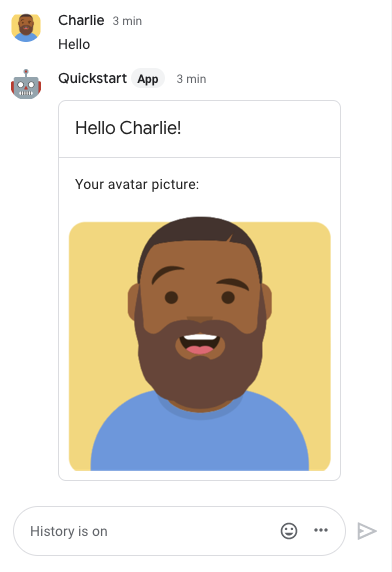
Chat app responding with a card featuring the sender's display name and avatar
image

To add trusted testers and learn more about testing interactive features, see Test interactive features for Google Chat apps.

Troubleshoot

When a Google Chat app or card returns an error, the Chat interface surfaces a message saying "Something went wrong." or "Unable to process your request." Sometimes the Chat UI doesn't display any error message, but the Chat app or card produces an unexpected result; for example, a card message might not appear.

Although an error message might not display in the Chat UI, descriptive error messages and log data are available to help you fix errors when error logging for Chat apps is turned on. For help viewing, debugging, and fixing errors, see Troubleshoot and fix Google Chat errors.

Clean up

To avoid incurring charges to your Google Cloud account for the resources used in this tutorial, we recommend that you delete the Cloud project.

  1. In the Google Cloud console, go to the Manage resources page. Click Menu > IAM & Admin > Manage Resources.

    Go to Resource Manager

  2. In the project list, select the project you want to delete and then click Delete .
  3. In the dialog, type the project ID and then click Shut down to delete the project.