建構 HTTP Google Chat 應用程式

本頁說明如何使用 HTTP 服務,建構可在 Google Chat 中運作的 Google Workspace 外掛程式。

本快速入門導覽課程說明如何使用 Google Cloud 服務建構 HTTP 服務。如要建構 Chat 應用程式,請編寫並部署 Cloud Run 函式,供 Chat 應用程式用來回覆使用者訊息。

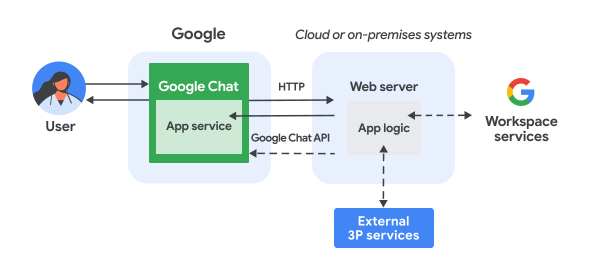
在 HTTP 架構中,您可以設定 Chat 透過 HTTP 與 Google Cloud 或地端伺服器整合,如下圖所示:

使用地端伺服器中的網路服務,建構 Chat 應用程式的架構。

在上圖中,使用者與 HTTP Chat 應用程式互動時,資訊流程如下:

  1. 使用者在 Chat 中傳送訊息給 Chat 應用程式,無論是透過即時訊息或 Chat 聊天室。
  2. HTTP 要求會傳送至網路伺服器,該伺服器是雲端或地端系統,內含 Chat 應用程式邏輯。
  3. 視需要,Chat 應用程式邏輯可以整合 Google Workspace 服務 (例如 Google 日曆和 Google 試算表)、其他 Google 服務 (例如 Google 地圖、YouTube 和 Vertex AI),或是其他網路服務 (例如專案管理系統或票證工具)。
  4. 網路伺服器會將 HTTP 回應傳回給 Chat 中的 Chat 應用程式服務。
  5. 系統將回應送達使用者。
  6. Chat 應用程式可以選擇呼叫 Chat API,以非同步方式發布訊息或執行其他作業。

由於這些 Chat 應用程式可使用不同的程式設計語言設計,因此您能彈性運用系統中現有的程式庫和元件。

目標

  • 設定環境。
  • 建立及部署 Cloud Run 函式。
  • 為 Chat 擴充應用程式設定 Google Workspace 外掛程式。
  • 測試應用程式。

必要條件

設定環境

使用 Google API 前,您需要在 Google Cloud 專案中啟用這些 API。 您可以在單一 Google Cloud 專案中啟用一或多個 API。
  • 在 Google Cloud 控制台中,啟用 Cloud Build API、Cloud Functions API、Cloud Pub/Sub API、Cloud Logging API、Artifact Registry API 和 Cloud Run API。

    啟用 API

建立及部署 Cloud Run 函式

建立並部署 Cloud Run 函式,產生含有傳送者顯示名稱和個人資料相片的 Chat 資訊卡。當 Chat 應用程式收到訊息時,會執行函式並以資訊卡回覆。

如要為 Chat 應用程式建立及部署函式,請完成下列步驟:

Node.js

  1. 前往 Google Cloud 控制台的 Cloud Run 頁面:

    前往 Cloud Run

    確認已選取 Chat 應用程式的專案。

  2. 按一下「編寫函式」

  3. 在「建立服務」頁面中,設定函式:

    1. 在「Service name」(服務名稱) 欄位中輸入 addonchatapp
    2. 在「Region」(區域) 清單中選取區域。
    3. 在「Runtime」(執行階段) 清單中,選取最新版的 Node.js。
    4. 在「驗證」部分,選取「需要驗證」
    5. 按一下「建立」,然後等待 Cloud Run 建立服務。 控制台會將您重新導向至「來源」分頁。
  4. 在「來源」分頁中:

    1. 在「進入點」中,刪除預設文字並輸入 avatarApp
    2. index.js 的內容替換為下列程式碼:
    node/chat/avatar-app/index.js
    import { http } from '@google-cloud/functions-framework';
    
    // The ID of the slash command "/about".
    // You must use the same ID in the Google Chat API configuration.
    const ABOUT_COMMAND_ID = 1;
    
    /**
     * Handle requests from Google Workspace add on
     *
     * @param {Object} req Request sent by Google Chat
     * @param {Object} res Response to be sent back to Google Chat
     */
    http('avatarApp', (req, res) => {
      const chatEvent = req.body.chat;
      let message;
      if (chatEvent.appCommandPayload) {
        message = handleAppCommand(chatEvent);
      } else {
        message = handleMessage(chatEvent);
      }
      res.send({ hostAppDataAction: { chatDataAction: { createMessageAction: {
        message: message
      }}}});
    });
    
    /**
     * Responds to an APP_COMMAND event in Google Chat.
     *
     * @param {Object} event the event object from Google Chat
     * @return the response message object.
     */
    function handleAppCommand(event) {
      switch (event.appCommandPayload.appCommandMetadata.appCommandId) {
        case ABOUT_COMMAND_ID:
          return {
            text: 'The Avatar app replies to Google Chat messages.'
          };
      }
    }
    
    /**
     * Responds to a MESSAGE event in Google Chat.
     *
     * @param {Object} event the event object from Google Chat
     * @return the response message object.
     */
    function handleMessage(event) {
      // Stores the Google Chat user as a variable.
      const chatUser = event.messagePayload.message.sender;
      const displayName = chatUser.displayName;
      const avatarUrl = chatUser.avatarUrl;
      return {
        text: 'Here\'s your avatar',
        cardsV2: [{
          cardId: 'avatarCard',
          card: {
            name: 'Avatar Card',
            header: {
              title: `Hello ${displayName}!`,
            },
            sections: [{ widgets: [{
              textParagraph: { text: 'Your avatar picture: ' }
            }, {
              image: { imageUrl: avatarUrl }
            }]}]
          }
        }]
      };
    }
    1. 按一下「儲存並重新部署」

Python

  1. 前往 Google Cloud 控制台的 Cloud Run 頁面:

    前往 Cloud Run

    確認已選取 Chat 應用程式的專案。

  2. 按一下「編寫函式」

  3. 在「建立服務」頁面中,設定函式:

    1. 在「Service name」(服務名稱) 欄位中輸入 addonchatapp
    2. 在「Region」(區域) 清單中選取區域。
    3. 在「Runtime」清單中,選取最新版本的 Python。
    4. 在「驗證」部分,選取「需要驗證」
    5. 按一下「建立」,然後等待 Cloud Run 建立服務。 控制台會將您重新導向至「來源」分頁。
  4. 在「來源」分頁中:

    1. 在「進入點」中,刪除預設文字並輸入 avatar_app
    2. main.py 的內容替換為下列程式碼:
    python/chat/avatar-app/main.py
    from typing import Any, Mapping
    
    import flask
    import functions_framework
    
    # The ID of the slash command "/about".
    # You must use the same ID in the Google Chat API configuration.
    ABOUT_COMMAND_ID = 1
    
    @functions_framework.http
    def avatar_app(req: flask.Request) -> Mapping[str, Any]:
      """Handle requests from Google Workspace add on
    
      Args:
        flask.Request req: the request sent by Google Chat
    
      Returns:
        Mapping[str, Any]: the response to be sent back to Google Chat
      """
      chat_event = req.get_json(silent=True)["chat"]
      if chat_event and "appCommandPayload" in chat_event:
        message = handle_app_command(chat_event)
      else:
        message = handle_message(chat_event)
      return { "hostAppDataAction": { "chatDataAction": { "createMessageAction": {
          "message": message
      }}}}
    
    def handle_app_command(event: Mapping[str, Any]) -> Mapping[str, Any]:
      """Responds to an APP_COMMAND event in Google Chat.
    
      Args:
        Mapping[str, Any] event: the event object from Google Chat
    
      Returns:
        Mapping[str, Any]: the response message object.
      """
      if event["appCommandPayload"]["appCommandMetadata"]["appCommandId"] == ABOUT_COMMAND_ID:
        return {
          "text": "The Avatar app replies to Google Chat messages.",
        }
      return {}
    
    def handle_message(event: Mapping[str, Any]) -> Mapping[str, Any]:
      """Responds to a MESSAGE event in Google Chat.
    
      Args:
        Mapping[str, Any] event: the event object from Google Chat
    
      Returns:
        Mapping[str, Any]: the response message object.
      """
      # Stores the Google Chat user as a variable.
      chat_user = event["messagePayload"]["message"]["sender"]
      display_name = chat_user.get("displayName", "")
      avatar_url = chat_user.get("avatarUrl", "")
      return {
        "text": "Here's your avatar",
        "cardsV2": [{
          "cardId": "avatarCard",
          "card": {
            "name": "Avatar Card",
            "header": {
              "title": f"Hello {display_name}!"
            },
            "sections": [{ "widgets": [
              { "textParagraph": { "text": "Your avatar picture:" }},
              { "image": { "imageUrl": avatar_url }},
            ]}]
          }
        }]
      }
    1. 按一下「儲存並重新部署」

Java

  1. 前往 Google Cloud 控制台的 Cloud Run 頁面:

    前往 Cloud Run

    確認已選取 Chat 應用程式的專案。

  2. 按一下「編寫函式」

  3. 在「建立服務」頁面中,設定函式:

    1. 在「Service name」(服務名稱) 欄位中輸入 addonchatapp
    2. 在「Region」(區域) 清單中選取區域。
    3. 在「執行階段」清單中,選取最新版本的 Java。
    4. 在「驗證」部分,選取「需要驗證」
    5. 按一下「建立」,然後等待 Cloud Run 建立服務。 控制台會將您重新導向至「來源」分頁。
  4. 在「來源」分頁中:

    1. 在「進入點」中,刪除預設文字並輸入 App
    2. 將預設 Java 檔案重新命名為 src/main/java/com/google/chat/avatar/App.java
    3. App.java 的內容替換為下列程式碼:
    java/chat/avatar-app/src/main/java/com/google/chat/avatar/App.java
    package com.google.chat.avatar;
    
    import com.google.api.services.chat.v1.model.CardWithId;
    import com.google.api.services.chat.v1.model.GoogleAppsCardV1Card;
    import com.google.api.services.chat.v1.model.GoogleAppsCardV1CardHeader;
    import com.google.api.services.chat.v1.model.GoogleAppsCardV1Image;
    import com.google.api.services.chat.v1.model.GoogleAppsCardV1Section;
    import com.google.api.services.chat.v1.model.GoogleAppsCardV1TextParagraph;
    import com.google.api.services.chat.v1.model.GoogleAppsCardV1Widget;
    import com.google.api.services.chat.v1.model.Message;
    import com.google.cloud.functions.HttpFunction;
    import com.google.cloud.functions.HttpRequest;
    import com.google.cloud.functions.HttpResponse;
    import com.google.gson.Gson;
    import com.google.gson.JsonObject;
    import java.util.List;
    
    public class App implements HttpFunction {
      // The ID of the slash command "/about".
      // You must use the same ID in the Google Chat API configuration.
      private static final int ABOUT_COMMAND_ID = 1;
    
      private static final Gson gson = new Gson();
    
      /**
       * Handle requests from Google Workspace add on
       * 
       * @param request the request sent by Google Chat
       * @param response the response to be sent back to Google Chat
       */
      @Override
      public void service(HttpRequest request, HttpResponse response) throws Exception {
        JsonObject event = gson.fromJson(request.getReader(), JsonObject.class);
        JsonObject chatEvent = event.getAsJsonObject("chat");
        Message message;
        if (chatEvent.has("appCommandPayload")) {
          message = handleAppCommand(chatEvent);
        } else {
          message = handleMessage(chatEvent);
        }
        JsonObject createMessageAction = new JsonObject();
        createMessageAction.add("message", gson.fromJson(gson.toJson(message), JsonObject.class));
        JsonObject chatDataAction = new JsonObject();
        chatDataAction.add("createMessageAction", createMessageAction);
        JsonObject hostAppDataAction = new JsonObject();
        hostAppDataAction.add("chatDataAction", chatDataAction);
        JsonObject dataActions = new JsonObject();
        dataActions.add("hostAppDataAction", hostAppDataAction);
        response.getWriter().write(gson.toJson(dataActions));
      }
    
      /**
       * Handles an APP_COMMAND event in Google Chat.
       *
       * @param event the event object from Google Chat
       * @return the response message object.
       */
      private Message handleAppCommand(JsonObject event) throws Exception {
        switch (event.getAsJsonObject("appCommandPayload")
          .getAsJsonObject("appCommandMetadata").get("appCommandId").getAsInt()) {
          case ABOUT_COMMAND_ID:
            return new Message()
              .setText("The Avatar app replies to Google Chat messages.");
          default:
            return null;
        }
      }
    
      /**
       * Handles a MESSAGE event in Google Chat.
       *
       * @param event the event object from Google Chat
       * @return the response message object.
       */
      private Message handleMessage(JsonObject event) throws Exception {
        // Stores the Google Chat user as a variable.
        JsonObject chatUser = event.getAsJsonObject("messagePayload").getAsJsonObject("message").getAsJsonObject("sender");
        String displayName = chatUser.has("displayName") ? chatUser.get("displayName").getAsString() : "";
        String avatarUrl = chatUser.has("avatarUrl") ? chatUser.get("avatarUrl").getAsString() : "";
        return new Message()
          .setText("Here's your avatar")
          .setCardsV2(List.of(new CardWithId()
            .setCardId("avatarCard")
            .setCard(new GoogleAppsCardV1Card()
              .setName("Avatar Card")
              .setHeader(new GoogleAppsCardV1CardHeader()
                .setTitle(String.format("Hello %s!", displayName)))
              .setSections(List.of(new GoogleAppsCardV1Section().setWidgets(List.of(
                new GoogleAppsCardV1Widget().setTextParagraph(new GoogleAppsCardV1TextParagraph()
                  .setText("Your avatar picture:")),
                new GoogleAppsCardV1Widget()
                  .setImage(new GoogleAppsCardV1Image().setImageUrl(avatarUrl)))))))));
      }
    }
  5. pom.xml 的內容替換為下列程式碼:

    java/chat/avatar-app/pom.xml
    <project xmlns="http://maven.apache.org/POM/4.0.0"
     xmlns:xsi="http://www.w3.org/2001/XMLSchema-instance"
     xsi:schemaLocation="http://maven.apache.org/POM/4.0.0 http://maven.apache.org/xsd/maven-4.0.0.xsd">
      <modelVersion>4.0.0</modelVersion>
    
      <groupId>com.google.chat</groupId>
      <artifactId>avatar-app</artifactId>
      <version>1.0-SNAPSHOT</version>
    
      <properties>
        <maven.compiler.target>17</maven.compiler.target>
        <maven.compiler.source>17</maven.compiler.source>
      </properties>
    
      <dependencies>
        <dependency>
          <groupId>com.google.cloud.functions</groupId>
          <artifactId>functions-framework-api</artifactId>
          <version>1.1.4</version>
        </dependency>
        <dependency>
          <groupId>com.google.code.gson</groupId>
          <artifactId>gson</artifactId>
          <version>2.9.1</version>
        </dependency>
        <dependency>
          <groupId>com.google.apis</groupId>
          <artifactId>google-api-services-chat</artifactId>
          <version>v1-rev20230115-2.0.0</version>
        </dependency>
      </dependencies>
    
      <build>
        <plugins>
          <plugin>
            <groupId>org.apache.maven.plugins</groupId>
            <artifactId>maven-compiler-plugin</artifactId>
            <version>3.8.1</version>
            <configuration>
            <excludes>
              <exclude>.google/</exclude>
            </excludes>
            </configuration>
          </plugin>
        </plugins>
      </build>
    </project>
    1. 按一下「儲存並重新部署」

Cloud Run 服務詳細資料頁面隨即開啟。等待函式部署完成。

設定外掛程式

部署 Cloud Run 函式後,請按照下列步驟建立外掛程式並部署 Google Chat 應用程式:

  1. 前往 Google Cloud 控制台的 Cloud Run 頁面:

    前往 Cloud Run

    請確保選取的是已啟用 Cloud Run 的專案。

  2. 在函式清單中,按一下「addonchatapp」addonchatapp

  3. 在「服務詳細資料」頁面中,複製函式的「網址」。網址結尾為 run.app

  4. 在 Google Cloud 搜尋欄位中搜尋「Google Chat API」,然後依序點選「Google Chat API」和「管理」

    前往 Chat API

  5. 按一下「設定」,然後設定 Google Chat 應用程式:

    1. 在「應用程式名稱」中輸入 Add-on Chat app
    2. 在「顯示圖片網址」中輸入 https://developers.google.com/workspace/add-ons/images/quickstart-app-avatar.png
    3. 在「Description」(說明) 中輸入 Add-on Chat app
    4. 在「功能」下方,選取「加入聊天室和群組對話」
    5. 在「連線設定」下方,選取「HTTP 端點網址」
    6. 複製「服務帳戶電子郵件地址」。授權外掛程式叫用函式時,您需要使用這個電子郵件地址。
    7. 在「觸發條件」下方,選取「為所有觸發條件使用通用的 HTTP 端點網址」,然後將 Cloud Run 函式觸發條件的網址貼到方塊中。
    8. 在「顯示設定」下方,選取「將這個 Google Chat 擴充應用程式提供給網域中的特定使用者和群組」,然後輸入電子郵件地址。
    9. 在「記錄」下方,選取「將錯誤記錄至 Logging」
  6. 按一下 [儲存]

接著,授權 Chat 應用程式叫用 Cloud Run 函式。

授權 Google Chat 叫用函式

如要授權 Google Workspace 外掛程式叫用函式,請新增具有 Cloud Run 服務叫用者角色的 Google Workspace 外掛程式服務帳戶。

  1. 前往 Google Cloud 控制台的 Cloud Run 頁面:

    前往 Cloud Run

  2. 在 Cloud Run 服務清單中,選取接收函式旁的核取方塊。(請勿點選函式本身)。

  3. 按一下 [權限],「權限」面板隨即開啟。

  4. 按一下「新增主體」

  5. 在「新增主體」中,輸入與 Chat 應用程式相關聯的 Google Workspace 外掛程式服務帳戶電子郵件地址。

    服務帳戶電子郵件地址位於 Chat API 設定頁面,依序點選「連線設定」 >「HTTP 端點網址」 >「服務帳戶電子郵件」

    前往 Chat API 設定

  6. 在「請選擇角色」中,依序選取「Cloud Run」 >「Cloud Run 服務叫用者」

  7. 按一下 [儲存]

Chat 應用程式已準備好接收及回覆 Chat 訊息。

測試 Chat 應用程式

如要測試 Chat 應用程式,請開啟與該應用程式互傳的即時訊息,然後傳送訊息:

  1. 使用您在新增自己為信任測試人員時提供的 Google Workspace 帳戶,開啟 Google Chat。

    前往 Google Chat

  2. 按一下 「發起新即時通訊」
  3. 在「新增 1 位以上使用者」欄位中,輸入 Chat 應用程式的名稱。
  4. 從結果中選取 Chat 應用程式。系統會開啟即時訊息。

  5. 在與應用程式互傳的新即時訊息中,輸入 Hello 並按下 enter

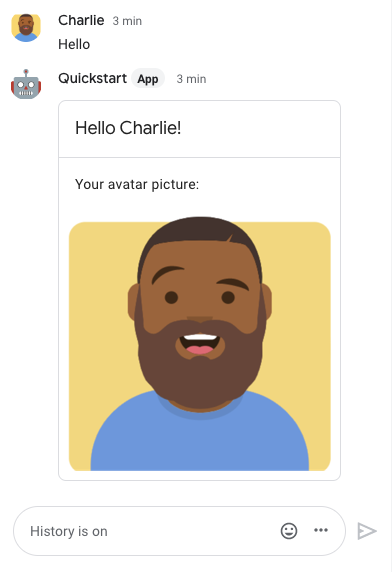
Chat 應用程式的訊息包含顯示傳送者名稱和個人資料相片的資訊卡,如下圖所示:

Chat 應用程式會回覆一張卡片,顯示傳送者的顯示名稱和個人資料相片

如要新增信任的測試人員,並進一步瞭解如何測試互動式功能,請參閱「測試 Google Chat 應用程式的互動式功能」。

疑難排解

如果 Google Chat 應用程式或資訊卡傳回錯誤,Chat 介面會顯示「發生錯誤」訊息。或「無法處理您的要求」。有時 Chat UI 不會顯示任何錯誤訊息,但 Chat 應用程式或資訊卡會產生非預期的結果,例如資訊卡訊息可能不會顯示。

即使 Chat 使用者介面可能不會顯示錯誤訊息,但如果開啟 Chat 應用程式的錯誤記錄功能,系統就會提供說明性錯誤訊息和記錄資料,協助您修正錯誤。如需查看、偵錯及修正錯誤的相關協助,請參閱「排解及修正 Google Chat 錯誤」。

清除所用資源

為避免系統向您的 Google Cloud 帳戶收取本教學課程中所用資源的相關費用,建議您刪除 Cloud 專案。

  1. 在 Google Cloud 控制台中,前往「管理資源」頁面。依序點選「選單」「IAM 與管理」>「管理資源」>

    前往 Resource Manager

  2. 在專案清單中選取要刪除的專案,然後按一下「刪除」圖示
  3. 在對話方塊中輸入專案 ID,然後按一下「Shut down」(關閉) 即可刪除專案。