ارسال پیام بااستفاده از Google Chat API

این راهنما نحوه استفاده از روش create() در منبع Message در Google Chat API را برای انجام هریک از کارهای زیر توضیح می‌دهد:

  • پیام‌هایی ارسال کنید که حاوی نوشتار، کارت، و ابزاره‌های تعاملی است.
  • به‌طور خصوصی به کاربر Chat خاصی پیام ارسال کنید.
  • رشته پیامی را شروع کنید یا به آن پاسخ دهید.
  • نام‌گذاری پیام، تا بتوانید آن را در سایر درخواست‌های Chat API مشخص کنید.

حداکثر اندازه پیام (شامل هرگونه نوشتار یا کارت) ۳۲٬۰۰۰ بایت است. برای ارسال پیامی که از این اندازه فراتر می‌رود، برنامه Chat شما باید به‌جای آن چند پیام ارسال کند.

علاوه‌بر فراخوانی Chat API برای ایجاد پیام، برنامه‌های Chat می‌توانند پیام‌هایی را برای پاسخ به تعاملات کاربر ایجاد و ارسال کنند، مثلاً پست کردن پیام خوشامدگویی پس‌از اینکه کاربر برنامه Chat را به فضا اضافه می‌کند. هنگام پاسخ دادن به تعامل‌ها، برنامه‌های Chat می‌توانند از انواع دیگر ویژگی‌های پیام‌رسانی، ازجمله گفتگوهای تعاملی و میاناهای پیش‌نمایش پیوند، استفاده کنند. برای پاسخ دادن به کاربر، برنامه Chat پیام را به‌صورت هم‌زمان و بدون فراخوانی Chat API برمی‌گرداند. برای آشنایی با ارسال پیام برای پاسخ دادن به تعامل‌ها، به دریافت و پاسخ دادن به تعامل‌ها با برنامه Google Chat مراجعه کنید.

نحوه نمایش و ارجاع پیام‌های ایجادشده با Chat API توسط Chat

می‌توانید روش create() را بااستفاده از اصالت‌سنجی برنامه و اصالت‌سنجی کاربر فراخوانی کنید. Chat فرستنده پیام را به‌طور متفاوتی نسبت می‌دهد که به نوع اصالت‌سنجی مورداستفاده شما بستگی دارد.

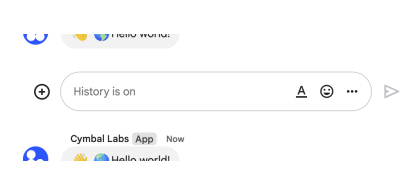
وقتی به‌عنوان برنامه Chat اصالت‌سنجی می‌کنید، برنامه Chat پیام را ارسال می‌کند.

فراخوانی روش create()‎ با اصالت‌سنجی برنامه.
شکل ۱: با اصالت‌سنجی برنامه، برنامه Chat پیام را ارسال می‌کند. برای اینکه مشخص شود فرستنده شخص نیست، Chat در کنار نام آن App را نمایش می‌دهد.

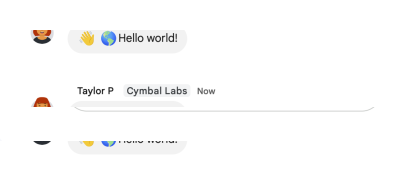
وقتی به‌عنوان کاربر اصالت‌سنجی می‌کنید، برنامه Chat پیام را ازطرف کاربر ارسال می‌کند. Chat همچنین با نمایش نام برنامه Chat، آن را به پیام نسبت می‌دهد.

فراخوانی روش create()‎ با اصالت‌سنجی کاربر.
شکل ۲: با اصالت‌سنجی کاربر، کاربر پیام را ارسال می‌کند و Chat نام برنامه Chat را در کنار نام کاربر نمایش می‌دهد.

نوع اصالت‌سنجی همچنین تعیین می‌کند که کدام ویژگی‌ها و میاناهای پیام‌رسانی را می‌توانید در پیام بگنجانید. با اصالت‌سنجی برنامه، برنامه‌های Chat می‌توانند پیام‌هایی ارسال کنند که حاوی نوشتار غنی‌شده، میاناهای مبتنی بر کارت، و ابزاره‌های تعاملی است. با اصالت‌سنجی کاربر، می‌توانید پیام‌های نوشتاری ارسال کنید یا پیام‌هایی با کارت ایجاد کنید، همان‌طور که در ایجاد و به‌روزرسانی کارت‌های تعاملی مستند شده است.

برای کسب اطلاعات بیشتر درباره ویژگی‌های پیام‌رسانی موجود برای Chat API، به نمای کلی پیام‌های Google Chat مراجعه کنید.

این راهنما نحوه استفاده از هریک از انواع اصالت‌سنجی را برای ارسال پیام با Chat API توضیح می‌دهد.

پیش‌نیازها

Node.js

Python

جاوا

Apps Script

ارسال پیام به‌عنوان برنامه Chat

این بخش نحوه ارسال پیام‌های حاوی نوشتار، کارت، و ابزاره‌های جانبی تعاملی را بااستفاده از اصالت‌سنجی برنامه توضیح می‌دهد.

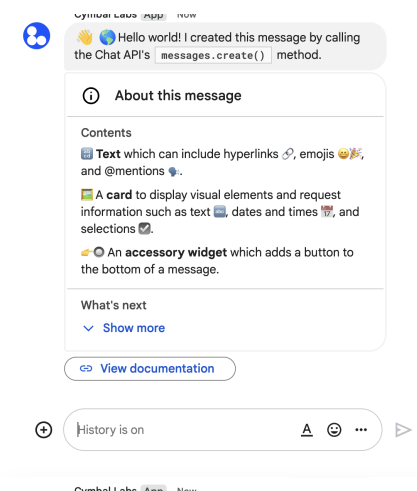
پیام با اصالت‌سنجی برنامه ارسال شد
شکل ۴. برنامه Chat پیامی با نوشتار، کارت، و دکمه جانبی ارسال می‌کند.

برای فراخوانی روش CreateMessage() بااستفاده از اصالت‌سنجی برنامه، باید فیلدهای زیر را در درخواست مشخص کنید:

  • chat.bot دامنه مجوز.
  • منبع Space که می‌خواهید پیام را در آن پست کنید. برنامه Chat باید عضو فضا باشد.
  • منبع Message برای ایجاد. برای تعریف محتوای پیام، می‌توانید نوشتار غنی‌شده (text)، یک یا چند میانای کارت (cardsV2)، یا هر دو را اضافه کنید.

درصورت تمایل، می‌توانید موارد زیر را اضافه کنید:

کد زیر نمونه‌ای از نحوه ارسال پیام توسط برنامه Chat را نشان می‌دهد که به‌عنوان برنامه Chat پست شده است و حاوی نوشتار، کارت، و دکمه قابل‌کلیک در پایین پیام است:

Node.js

chat/client-libraries/cloud/create-message-app-cred.js
import {createClientWithAppCredentials} from './authentication-utils.js';

// This sample shows how to create message with app credential
async function main() {
  // Create a client
  const chatClient = createClientWithAppCredentials();

  // Initialize request argument(s)
  const request = {
    // Replace SPACE_NAME here.
    parent: 'spaces/SPACE_NAME',
    message: {
      text:
        '👋🌎 Hello world! I created this message by calling ' +
        "the Chat API's `messages.create()` method.",
      cardsV2: [
        {
          card: {
            header: {
              title: 'About this message',
              imageUrl:
                'https://fonts.gstatic.com/s/i/short-term/release/googlesymbols/info/default/24px.svg',
            },
            sections: [
              {
                header: 'Contents',
                widgets: [
                  {
                    textParagraph: {
                      text:
                        '🔡 <b>Text</b> which can include ' +
                        'hyperlinks 🔗, emojis 😄🎉, and @mentions 🗣️.',
                    },
                  },
                  {
                    textParagraph: {
                      text:
                        '🖼️ A <b>card</b> to display visual elements' +
                        'and request information such as text 🔤, ' +
                        'dates and times 📅, and selections ☑️.',
                    },
                  },
                  {
                    textParagraph: {
                      text:
                        '👉🔘 An <b>accessory widget</b> which adds ' +
                        'a button to the bottom of a message.',
                    },
                  },
                ],
              },
              {
                header: "What's next",
                collapsible: true,
                widgets: [
                  {
                    textParagraph: {
                      text: "❤️ <a href='https://developers.google.com/workspace/chat/api/reference/rest/v1/spaces.messages.reactions/create'>Add a reaction</a>.",
                    },
                  },
                  {
                    textParagraph: {
                      text:
                        "🔄 <a href='https://developers.google.com/workspace/chat/api/reference/rest/v1/spaces.messages/patch'>Update</a> " +
                        "or ❌ <a href='https://developers.google.com/workspace/chat/api/reference/rest/v1/spaces.messages/delete'>delete</a> " +
                        'the message.',
                    },
                  },
                ],
              },
            ],
          },
        },
      ],
      accessoryWidgets: [
        {
          buttonList: {
            buttons: [
              {
                text: 'View documentation',
                icon: {materialIcon: {name: 'link'}},
                onClick: {
                  openLink: {
                    url: 'https://developers.google.com/workspace/chat/create-messages',
                  },
                },
              },
            ],
          },
        },
      ],
    },
  };

  // Make the request
  const response = await chatClient.createMessage(request);

  // Handle the response
  console.log(response);
}

await main();

Python

chat/client-libraries/cloud/create_message_app_cred.py
from authentication_utils import create_client_with_app_credentials
from google.apps import chat_v1 as google_chat

# This sample shows how to create message with app credential
def create_message_with_app_cred():
    # Create a client
    client = create_client_with_app_credentials()

    # Initialize request argument(s)
    request = google_chat.CreateMessageRequest(
        # Replace SPACE_NAME here.
        parent = "spaces/SPACE_NAME",
        message = {
            "text": '👋🌎 Hello world! I created this message by calling ' +
                    'the Chat API\'s `messages.create()` method.',
            "cards_v2" : [{ "card": {
                "header": {
                    "title": 'About this message',
                    "image_url": 'https://fonts.gstatic.com/s/i/short-term/release/googlesymbols/info/default/24px.svg'
                },
                "sections": [{
                    "header": "Contents",
                    "widgets": [{ "text_paragraph": {
                            "text": '🔡 <b>Text</b> which can include ' +
                                    'hyperlinks 🔗, emojis 😄🎉, and @mentions 🗣️.'
                        }}, { "text_paragraph": {
                            "text": '🖼️ A <b>card</b> to display visual elements' +
                                    'and request information such as text 🔤, ' +
                                    'dates and times 📅, and selections ☑️.'
                        }}, { "text_paragraph": {
                            "text": '👉🔘 An <b>accessory widget</b> which adds ' +
                                    'a button to the bottom of a message.'
                        }}
                    ]}, {
                        "header": "What's next",
                        "collapsible": True,
                        "widgets": [{ "text_paragraph": {
                                "text": "❤️ <a href='https://developers.google.com/workspace/chat/api/reference/rest/v1/spaces.messages.reactions/create'>Add a reaction</a>."
                            }}, { "text_paragraph": {
                                "text": "🔄 <a href='https://developers.google.com/workspace/chat/api/reference/rest/v1/spaces.messages/patch'>Update</a> " +
                                        "or ❌ <a href='https://developers.google.com/workspace/chat/api/reference/rest/v1/spaces.messages/delete'>delete</a> " +
                                        "the message."
                            }
                        }]
                    }
                ]
            }}],
            "accessory_widgets": [{ "button_list": { "buttons": [{
                "text": 'View documentation',
                "icon": { "material_icon": { "name": 'link' }},
                "on_click": { "open_link": {
                    "url": 'https://developers.google.com/workspace/chat/create-messages'
                }}
            }]}}]
        }
    )

    # Make the request
    response = client.create_message(request)

    # Handle the response
    print(response)

create_message_with_app_cred()

جاوا

chat/client-libraries/cloud/src/main/java/com/google/workspace/api/chat/samples/CreateMessageAppCred.java
import com.google.apps.card.v1.Button;
import com.google.apps.card.v1.ButtonList;
import com.google.apps.card.v1.Card;
import com.google.apps.card.v1.Icon;
import com.google.apps.card.v1.MaterialIcon;
import com.google.apps.card.v1.OnClick;
import com.google.apps.card.v1.OpenLink;
import com.google.apps.card.v1.TextParagraph;
import com.google.apps.card.v1.Widget;
import com.google.apps.card.v1.Card.CardHeader;
import com.google.apps.card.v1.Card.Section;
import com.google.chat.v1.AccessoryWidget;
import com.google.chat.v1.CardWithId;
import com.google.chat.v1.ChatServiceClient;
import com.google.chat.v1.CreateMessageRequest;
import com.google.chat.v1.Message;

// This sample shows how to create message with app credential.
public class CreateMessageAppCred {

  public static void main(String[] args) throws Exception {
    try (ChatServiceClient chatServiceClient =
        AuthenticationUtils.createClientWithAppCredentials()) {
      CreateMessageRequest.Builder request = CreateMessageRequest.newBuilder()
        // Replace SPACE_NAME here.
        .setParent("spaces/SPACE_NAME")
        .setMessage(Message.newBuilder()
          .setText( "👋🌎 Hello world! I created this message by calling " +
                    "the Chat API\'s `messages.create()` method.")
          .addCardsV2(CardWithId.newBuilder().setCard(Card.newBuilder()
            .setHeader(CardHeader.newBuilder()
              .setTitle("About this message")
              .setImageUrl("https://fonts.gstatic.com/s/i/short-term/release/googlesymbols/info/default/24px.svg"))
            .addSections(Section.newBuilder()
              .setHeader("Contents")
              .addWidgets(Widget.newBuilder().setTextParagraph(TextParagraph.newBuilder().setText(
                "🔡 <b>Text</b> which can include " +
                "hyperlinks 🔗, emojis 😄🎉, and @mentions 🗣️.")))
              .addWidgets(Widget.newBuilder().setTextParagraph(TextParagraph.newBuilder().setText(
                "🖼️ A <b>card</b> to display visual elements " +
                "and request information such as text 🔤, " +
                "dates and times 📅, and selections ☑️.")))
              .addWidgets(Widget.newBuilder().setTextParagraph(TextParagraph.newBuilder().setText(
                "👉🔘 An <b>accessory widget</b> which adds " +
                "a button to the bottom of a message."))))
            .addSections(Section.newBuilder()
              .setHeader("What's next")
              .setCollapsible(true)
              .addWidgets(Widget.newBuilder().setTextParagraph(TextParagraph.newBuilder().setText(
                "❤️ <a href='https://developers.google.com/workspace/chat/api/reference/rest/v1/spaces.messages.reactions/create'>Add a reaction</a>.")))
              .addWidgets(Widget.newBuilder().setTextParagraph(TextParagraph.newBuilder().setText(
                "🔄 <a href='https://developers.google.com/workspace/chat/api/reference/rest/v1/spaces.messages/patch'>Update</a> " +
                "or ❌ <a href='https://developers.google.com/workspace/chat/api/reference/rest/v1/spaces.messages/delete'>delete</a> " +
                "the message."))))))
          .addAccessoryWidgets(AccessoryWidget.newBuilder()
            .setButtonList(ButtonList.newBuilder()
              .addButtons(Button.newBuilder()
                .setText("View documentation")
                .setIcon(Icon.newBuilder()
                  .setMaterialIcon(MaterialIcon.newBuilder().setName("link")))
                .setOnClick(OnClick.newBuilder()
                  .setOpenLink(OpenLink.newBuilder()
                    .setUrl("https://developers.google.com/workspace/chat/create-messages")))))));
      Message response = chatServiceClient.createMessage(request.build());

      System.out.println(JsonFormat.printer().print(response));
    }
  }
}

Apps Script

chat/advanced-service/Main.gs
/**
 * This sample shows how to create message with app credential
 *
 * It relies on the OAuth2 scope 'https://www.googleapis.com/auth/chat.bot'
 * used by service accounts.
 */
function createMessageAppCred() {
  // Initialize request argument(s)
  // TODO(developer): Replace SPACE_NAME here.
  const parent = "spaces/SPACE_NAME";
  const message = {
    text:
      "👋🌎 Hello world! I created this message by calling " +
      "the Chat API's `messages.create()` method.",
    cardsV2: [
      {
        card: {
          header: {
            title: "About this message",
            imageUrl:
              "https://fonts.gstatic.com/s/i/short-term/release/googlesymbols/info/default/24px.svg",
          },
          sections: [
            {
              header: "Contents",
              widgets: [
                {
                  textParagraph: {
                    text:
                      "🔡 <b>Text</b> which can include " +
                      "hyperlinks 🔗, emojis 😄🎉, and @mentions 🗣️.",
                  },
                },
                {
                  textParagraph: {
                    text:
                      "🖼️ A <b>card</b> to display visual elements" +
                      "and request information such as text 🔤, " +
                      "dates and times 📅, and selections ☑️.",
                  },
                },
                {
                  textParagraph: {
                    text:
                      "👉🔘 An <b>accessory widget</b> which adds " +
                      "a button to the bottom of a message.",
                  },
                },
              ],
            },
            {
              header: "What's next",
              collapsible: true,
              widgets: [
                {
                  textParagraph: {
                    text: "❤️ <a href='https://developers.google.com/workspace/chat/api/reference/rest/v1/spaces.messages.reactions/create'>Add a reaction</a>.",
                  },
                },
                {
                  textParagraph: {
                    text:
                      "🔄 <a href='https://developers.google.com/workspace/chat/api/reference/rest/v1/spaces.messages/patch'>Update</a> " +
                      "or ❌ <a href='https://developers.google.com/workspace/chat/api/reference/rest/v1/spaces.messages/delete'>delete</a> " +
                      "the message.",
                  },
                },
              ],
            },
          ],
        },
      },
    ],
    accessoryWidgets: [
      {
        buttonList: {
          buttons: [
            {
              text: "View documentation",
              icon: { materialIcon: { name: "link" } },
              onClick: {
                openLink: {
                  url: "https://developers.google.com/workspace/chat/create-messages",
                },
              },
            },
          ],
        },
      },
    ],
  };
  const parameters = {};

  // Make the request
  const response = Chat.Spaces.Messages.create(
    message,
    parent,
    parameters,
    getHeaderWithAppCredentials(),
  );

  // Handle the response
  console.log(response);
}

برای اجرای این نمونه، SPACE_NAME را با شناسه فیلد name فضا جایگزین کنید. می‌توانید شناسه را با فراخوانی روش ListSpaces() یا از نشانی وب فضا دریافت کنید.

افزودن ابزاره‌های تعاملی در پایین پیام

در اولین نمونه کد این راهنما، پیام برنامه Chat دکمه‌ای کلیک‌کردنی را در پایین پیام نمایش می‌دهد که به‌عنوان ابزاره جانبی شناخته می‌شود. ابزاره‌های جانبی بعداز هر نوشتار یا کارتی در پیام نشان داده می‌شوند. می‌توانید از این ابزاره‌ها برای ترغیب کاربران به تعامل با پیامتان به روش‌های مختلف استفاده کنید، ازجمله:

  • دقت یا رضایت‌بخش بودن پیام را رده‌بندی کنید.
  • مشکل مربوط به پیام یا برنامه Chat را گزارش کنید.
  • پیوندی به محتوای مرتبط، مانند اسناد، باز کنید.
  • بستن یا به‌تعویق انداختن پیام‌های مشابه از برنامه Chat برای مدت زمانی مشخص.

برای افزودن ابزاره‌های جانبی، فیلد accessoryWidgets[] را در بدنه درخواستتان اضافه کنید و یک یا چند ابزاره‌ای را که می‌خواهید اضافه شود مشخص کنید.

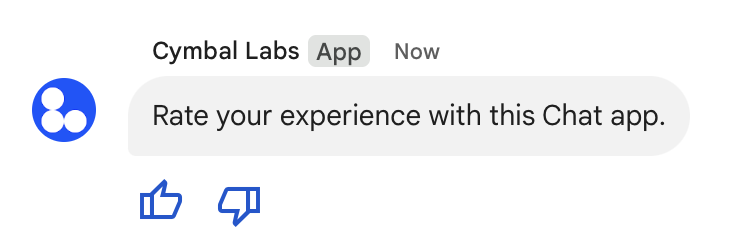
تصویر زیر برنامه Chat را نشان می‌دهد که پیام نوشتاری را با ابزاره‌های جانبی پیوست می‌کند تا کاربران بتوانند به تجربه‌شان با برنامه Chat امتیاز دهند.

ابزاره لوازم جانبی.
شکل ۵: پیام برنامه Chat با نوشتار و ابزاره‌های جانبی.

در زیر، بدنه درخواستی نشان داده شده است که پیام نوشتاری با دو دکمه جانبی ایجاد می‌کند. وقتی کاربر روی دکمه‌ای کلیک می‌کند، تابع مربوطه (مانند doUpvote) تعامل را پردازش می‌کند:

{
  text: "Rate your experience with this Chat app.",
  accessoryWidgets: [{ buttonList: { buttons: [{
    icon: { material_icon: {
      name: "thumb_up"
    }},
    color: { red: 0, blue: 255, green: 0 },
    onClick: { action: {
      function: "doUpvote"
    }}
  }, {
    icon: { material_icon: {
      name: "thumb_down"
    }},
    color: { red: 0, blue: 255, green: 0 },
    onClick: { action: {
      function: "doDownvote"
    }}
  }]}}]
}

ارسال پیام به‌صورت خصوصی

برنامه‌های Chat می‌توانند پیام‌ها را به‌صورت خصوصی ارسال کنند تا پیام فقط برای کاربر خاصی در فضا قابل‌مشاهده باشد. وقتی برنامه Chat پیام خصوصی ارسال می‌کند، پیام برچسبی را نشان می‌دهد که به کاربر اطلاع می‌دهد پیام فقط برای او قابل‌مشاهده است.

برای ارسال پیام خصوصی بااستفاده از Chat API، فیلد privateMessageViewer را در بدنه درخواستتان مشخص کنید. برای مشخص کردن کاربر، مقدار را روی منبع User تنظیم می‌کنید که نشان‌دهنده کاربر Chat است. همچنین می‌توانید از فیلد name منبع User استفاده کنید، همان‌طور که در مثال زیر نشان داده شده است:

{
  text: "Hello private world!",
  privateMessageViewer: {
    name: "users/USER_ID"
  }
}

برای استفاده از این نمونه، USER_ID را با شناسه یکتایی برای کاربر، مثل 12345678987654321 یا hao@cymbalgroup.com، جایگزین کنید. برای اطلاعات بیشتر درباره مشخص کردن کاربران، به شناسایی و مشخص کردن کاربران Google Chat مراجعه کنید.

برای ارسال پیام به‌صورت خصوصی، باید موارد زیر را در درخواستتان حذف کنید:

اعلان‌های اجباری یا پیام‌های بی‌صدا ارسال کند

وقتی برنامه Chat پیامی ارسال می‌کند، می‌تواند از یکی از این گزینه‌ها برای مطلع کردن کاربران استفاده کند:

  • اعلان اجباری: Chat همیشه اعلان لحظه‌ای به گیرندگان ارسال می‌کند، صرف‌نظر از تنظیمات اعلان یا وضعیت «مزاحم نشوید» (DND) آن‌ها. در Chat، پیام باعث می‌شود که در فهرست «صفحه اصلی» یا فهرست ثبت‌نام‌شدگان گیرندگان، رفتار پررنگ شدن و بالا آمدن ایجاد شود و نشانی نشان داده می‌شود.
  • ارسال پیام بی‌صدا: Chat اعلان‌های لحظه‌ای را برای گیرندگان متوقف می‌کند. در Chat، پیام باعث پررنگ شدن یا بالا آمدن در فهرست گیرندگان یا فهرست «صفحه اصلی» نمی‌شود و نشان را نمایش نمی‌دهد. اگر پیام بی‌صدا آخرین پیام در مکالمه باشد، محتوای آن در گزیده «صفحه اصلی» نشان داده نمی‌شود.

چه اجباری باشد چه بی‌صدا، این پیام‌ها شامل یک نشانگر بصری هستند که به گیرندگان درباره رفتار اعلان ویژه اطلاع می‌دهد.

اعلان‌های اجباری و پیام‌های بی‌صدا فقط برای برنامه‌های Chat که از اصالت‌سنجی برنامه استفاده می‌کنند دردسترس است.

اعلان اجباری و پیام‌های بی‌صدا این محدودیت‌ها را دارند:

  • کاربران خارجی: اعلان‌های اجباری و پیام‌های بی‌صدا برای کاربران خارجی (مهمانان) در فضا اعمال نمی‌شود. کاربران خارجی اعلان‌ها را براساس تنظیمات خودشان دریافت می‌کنند.
  • نام‌بردن: پیام‌های بی‌صدا از نام‌بردن از کاربران پشتیبانی نمی‌کنند. اگر در پیام بی‌صدا از نام‌بری استفاده کنید، به‌عنوان نوشتار ساده درنظر گرفته می‌شود.
  • رشته‌سازی: نمی‌توانید با پیام بی‌صدا رشته‌ای را شروع کنید یا به آن پاسخ دهید.
  • نوع فضا: اعلان‌های اجباری و پیام‌های بی‌صدا در پیام‌های مستقیم (DMs) یا فضاهایی که متعلق به افرادی هستند که حساب Google Workspace ندارند، پشتیبانی نمی‌شوند.
  • اعلان‌های ایمیلی: پیام‌های بی‌صدا اعلان‌های ایمیلی را فعال نمی‌کنند. پیام‌های اعلان اجباری فقط درصورتی اعلان ایمیلی را راه‌اندازی می‌کنند که نام‌بردن از کاربر خاصی را نیز دربر داشته باشند.

برای اجبار به اعلان یا ارسال پیام بی‌صدا، فیلد createMessageNotificationOptions را در درخواستتان اضافه کنید و notificationType را روی یکی از موارد زیر تنظیم کنید:

مقدار رفتار
NOTIFICATION_TYPE_FORCE_NOTIFY اعلان را اجباری می‌کند.
NOTIFICATION_TYPE_SILENT پیام را بی‌صدا ارسال می‌کند.

مثال زیر بدنه JSON درخواست ارسال پیام با اعلان اجباری را نشان می‌دهد:

{
  "text": "Critical update: the server is down!",
  "createMessageNotificationOptions": {
    "notificationType": "NOTIFICATION_TYPE_FORCE_NOTIFY"
  }
}

ارسال پیامک ازطرف کاربر

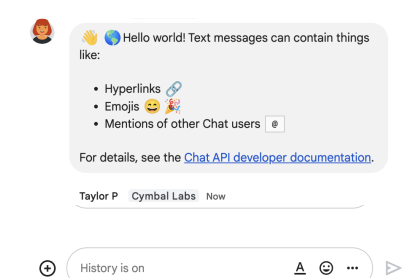
این بخش نحوه ارسال پیام ازطرف کاربر را بااستفاده از اصالت‌سنجی کاربر توضیح می‌دهد. با اصالت‌سنجی کاربر، می‌توانید پیامک ارسال کنید یا ازطرف کاربر پیام‌هایی با کارت ایجاد کنید. برای جزئیات مربوط به ارسال کارت ازطرف کاربر، به ایجاد و به‌روزرسانی کارت‌های تعاملی مراجعه کنید.

پیام با اصالت‌سنجی کاربر ارسال شد
شکل ۳. برنامه Chat پیام نوشتاری را ازطرف کاربر ارسال می‌کند.

برای فراخوانی روش CreateMessage() بااستفاده از اصالت‌سنجی کاربر، باید فیلدهای زیر را در درخواست مشخص کنید:

  • محدوده مجاز که از اصالت‌سنجی کاربر برای این روش پشتیبانی می‌کند. نمونه زیر از گستره chat.messages.create استفاده می‌کند.
  • منبع Space که می‌خواهید پیام را در آن پست کنید. کاربر اصالت‌سنجی‌شده باید عضو فضا باشد.
  • منبع Message برای ایجاد. برای تعریف محتوای پیام، باید فیلد text را اضافه کنید.

درصورت تمایل، می‌توانید موارد زیر را اضافه کنید:

کد زیر نمونه‌ای از نحوه ارسال پیام نوشتاری توسط برنامه Chat در فضایی مشخص ازطرف کاربر اصالت‌سنجی‌شده را نشان می‌دهد:

Node.js

chat/client-libraries/cloud/create-message-user-cred.js
import {createClientWithUserCredentials} from './authentication-utils.js';

const USER_AUTH_OAUTH_SCOPES = [
  'https://www.googleapis.com/auth/chat.messages.create',
];

// This sample shows how to create message with user credential
async function main() {
  // Create a client
  const chatClient = await createClientWithUserCredentials(
    USER_AUTH_OAUTH_SCOPES,
  );

  // Initialize request argument(s)
  const request = {
    // Replace SPACE_NAME here.
    parent: 'spaces/SPACE_NAME',
    message: {
      text:
        '👋🌎 Hello world!' +
        'Text messages can contain things like:\n\n' +
        '* Hyperlinks 🔗\n' +
        '* Emojis 😄🎉\n' +
        '* Mentions of other Chat users `@` \n\n' +
        'For details, see the ' +
        '<https://developers.google.com/workspace/chat/format-messages' +
        '|Chat API developer documentation>.',
    },
  };

  // Make the request
  const response = await chatClient.createMessage(request);

  // Handle the response
  console.log(response);
}

await main();

Python

chat/client-libraries/cloud/create_message_user_cred.py
from authentication_utils import create_client_with_user_credentials
from google.apps import chat_v1 as google_chat

SCOPES = ["https://www.googleapis.com/auth/chat.messages.create"]

def create_message_with_user_cred():
    # Create a client
    client = create_client_with_user_credentials(SCOPES)

    # Initialize request argument(s)
    request = google_chat.CreateMessageRequest(
        # Replace SPACE_NAME here.
        parent = "spaces/SPACE_NAME",
        message = {
            "text": '👋🌎 Hello world!' +
                    'Text messages can contain things like:\n\n' +
                    '* Hyperlinks 🔗\n' +
                    '* Emojis 😄🎉\n' +
                    '* Mentions of other Chat users `@` \n\n' +
                    'For details, see the ' +
                    '<https://developers.google.com/workspace/chat/format-messages' +
                    '|Chat API developer documentation>.'
        }
    )

    # Make the request
    response = client.create_message(request)

    # Handle the response
    print(response)

create_message_with_user_cred()

جاوا

chat/client-libraries/cloud/src/main/java/com/google/workspace/api/chat/samples/CreateMessageUserCred.java
import com.google.chat.v1.ChatServiceClient;
import com.google.chat.v1.CreateMessageRequest;
import com.google.chat.v1.Message;

// This sample shows how to create message with user credential.
public class CreateMessageUserCred {

  private static final String SCOPE =
    "https://www.googleapis.com/auth/chat.messages.create";

  public static void main(String[] args) throws Exception {
    try (ChatServiceClient chatServiceClient =
        AuthenticationUtils.createClientWithUserCredentials(
          ImmutableList.of(SCOPE))) {
      CreateMessageRequest.Builder request = CreateMessageRequest.newBuilder()
        // Replace SPACE_NAME here.
        .setParent("spaces/SPACE_NAME")
        .setMessage(Message.newBuilder()
          .setText( "👋🌎 Hello world!" +
                    "Text messages can contain things like:\n\n" +
                    "* Hyperlinks 🔗\n" +
                    "* Emojis 😄🎉\n" +
                    "* Mentions of other Chat users `@` \n\n" +
                    "For details, see the " +
                    "<https://developers.google.com/workspace/chat/format-messages" +
                    "|Chat API developer documentation>."));
      Message response = chatServiceClient.createMessage(request.build());

      System.out.println(JsonFormat.printer().print(response));
    }
  }
}

Apps Script

chat/advanced-service/Main.gs
/**
 * This sample shows how to create message with user credential
 *
 * It relies on the OAuth2 scope 'https://www.googleapis.com/auth/chat.messages.create'
 * referenced in the manifest file (appsscript.json).
 */
function createMessageUserCred() {
  // Initialize request argument(s)
  // TODO(developer): Replace SPACE_NAME here.
  const parent = "spaces/SPACE_NAME";
  const message = {
    text:
      "👋🌎 Hello world!" +
      "Text messages can contain things like:\n\n" +
      "* Hyperlinks 🔗\n" +
      "* Emojis 😄🎉\n" +
      "* Mentions of other Chat users `@` \n\n" +
      "For details, see the " +
      "<https://developers.google.com/workspace/chat/format-messages" +
      "|Chat API developer documentation>.",
  };

  // Make the request
  const response = Chat.Spaces.Messages.create(message, parent);

  // Handle the response
  console.log(response);
}

برای اجرای این نمونه، SPACE_NAME را با شناسه فیلد name فضا جایگزین کنید. می‌توانید شناسه را با فراخوانی روش ListSpaces() یا از نشانی وب فضا دریافت کنید.

شروع کردن یا پاسخ دادن در رشته

برای فضاهایی که از رشته استفاده می‌کنند، می‌توانید مشخص کنید که پیام جدید رشته‌ای را شروع کند یا به رشته‌ای موجود پاسخ دهد.

به‌طور پیش‌فرض، پیام‌هایی که بااستفاده از Chat API ایجاد می‌کنید رشته جدیدی را شروع می‌کنند. برای کمک به شما در شناسایی رشته و پاسخ دادن به آن در آینده، می‌توانید کلید رشته را در درخواستتان مشخص کنید:

  • در بدنه درخواستتان، فیلد thread.threadKey را مشخص کنید.
  • پارامتر پُرسمان messageReplyOption را مشخص کنید تا تعیین شود اگر کلید ازقبل وجود داشته باشد چه اتفاقی می‌افتد.

برای ایجاد پیامی که به رشته‌ای موجود پاسخ می‌دهد:

  • در بدنه درخواستتان، فیلد thread را اضافه کنید. اگر تنظیم شده باشد، می‌توانید threadKey ایجادشده را مشخص کنید. درغیراین‌صورت، باید از name رشته استفاده کنید.
  • پارامتر پُرسمان messageReplyOption را مشخص کنید.

کد زیر نمونه‌ای از نحوه ارسال پیام نوشتاری توسط برنامه Chat را نشان می‌دهد که ازطرف کاربر اصالت‌سنجی‌شده، رشته مشخصی را که با کلید فضای مشخصی شناسایی شده است شروع می‌کند یا به آن پاسخ می‌دهد:

Node.js

chat/client-libraries/cloud/create-message-user-cred-thread-key.js
import {protos} from '@google-apps/chat';
import {createClientWithUserCredentials} from './authentication-utils.js';

const USER_AUTH_OAUTH_SCOPES = [
  'https://www.googleapis.com/auth/chat.messages.create',
];

// This sample shows how to create message with user credential with thread key
async function main() {
  // Create a client
  const chatClient = await createClientWithUserCredentials(
    USER_AUTH_OAUTH_SCOPES,
  );

  // Initialize request argument(s)
  const request = {
    // Replace SPACE_NAME here.
    parent: 'spaces/SPACE_NAME',
    // Creates the message as a reply to the thread specified by thread_key
    // If it fails, the message starts a new thread instead
    messageReplyOption:
      protos.google.chat.v1.CreateMessageRequest.MessageReplyOption
        .REPLY_MESSAGE_FALLBACK_TO_NEW_THREAD,
    message: {
      text: 'Hello with user credential!',
      thread: {
        // Thread key specifies a thread and is unique to the chat app
        // that sets it
        threadKey: 'THREAD_KEY',
      },
    },
  };

  // Make the request
  const response = await chatClient.createMessage(request);

  // Handle the response
  console.log(response);
}

await main();

Python

chat/client-libraries/cloud/create_message_user_cred_thread_key.py
from authentication_utils import create_client_with_user_credentials
from google.apps import chat_v1 as google_chat

import google.apps.chat_v1.CreateMessageRequest.MessageReplyOption

SCOPES = ["https://www.googleapis.com/auth/chat.messages.create"]

# This sample shows how to create message with user credential with thread key
def create_message_with_user_cred_thread_key():
    # Create a client
    client = create_client_with_user_credentials(SCOPES)

    # Initialize request argument(s)
    request = google_chat.CreateMessageRequest(
        # Replace SPACE_NAME here
        parent = "spaces/SPACE_NAME",
        # Creates the message as a reply to the thread specified by thread_key.
        # If it fails, the message starts a new thread instead.
        message_reply_option = MessageReplyOption.REPLY_MESSAGE_FALLBACK_TO_NEW_THREAD,
        message = {
            "text": "Hello with user credential!",
            "thread": {
                # Thread key specifies a thread and is unique to the chat app
                # that sets it.
                "thread_key": "THREAD_KEY"
            }
        }
    )

    # Make the request
    response = client.create_message(request)

    # Handle the response
    print(response)

create_message_with_user_cred_thread_key()

جاوا

chat/client-libraries/cloud/src/main/java/com/google/workspace/api/chat/samples/CreateMessageUserCredThreadKey.java
import com.google.chat.v1.ChatServiceClient;
import com.google.chat.v1.CreateMessageRequest;
import com.google.chat.v1.CreateMessageRequest.MessageReplyOption;
import com.google.chat.v1.Message;
import com.google.chat.v1.Thread;

// This sample shows how to create message with a thread key with user
// credential.
public class CreateMessageUserCredThreadKey {

  private static final String SCOPE =
    "https://www.googleapis.com/auth/chat.messages.create";

  public static void main(String[] args) throws Exception {
    try (ChatServiceClient chatServiceClient =
        AuthenticationUtils.createClientWithUserCredentials(
          ImmutableList.of(SCOPE))) {
      CreateMessageRequest.Builder request = CreateMessageRequest.newBuilder()
        // Replace SPACE_NAME here.
        .setParent("spaces/SPACE_NAME")
        // Creates the message as a reply to the thread specified by thread_key.
        // If it fails, the message starts a new thread instead.
        .setMessageReplyOption(
          MessageReplyOption.REPLY_MESSAGE_FALLBACK_TO_NEW_THREAD)
        .setMessage(Message.newBuilder()
          .setText("Hello with user credentials!")
          // Thread key specifies a thread and is unique to the chat app
          // that sets it.
          .setThread(Thread.newBuilder().setThreadKey("THREAD_KEY")));
      Message response = chatServiceClient.createMessage(request.build());

      System.out.println(JsonFormat.printer().print(response));
    }
  }
}

Apps Script

chat/advanced-service/Main.gs
/**
 * This sample shows how to create message with user credential with thread key
 *
 * It relies on the OAuth2 scope 'https://www.googleapis.com/auth/chat.messages.create'
 * referenced in the manifest file (appsscript.json).
 */
function createMessageUserCredThreadKey() {
  // Initialize request argument(s)
  // TODO(developer): Replace SPACE_NAME here.
  const parent = "spaces/SPACE_NAME";
  // Creates the message as a reply to the thread specified by thread_key
  // If it fails, the message starts a new thread instead
  const messageReplyOption = "REPLY_MESSAGE_FALLBACK_TO_NEW_THREAD";
  const message = {
    text: "Hello with user credential!",
    thread: {
      // Thread key specifies a thread and is unique to the chat app
      // that sets it
      threadKey: "THREAD_KEY",
    },
  };

  // Make the request
  const response = Chat.Spaces.Messages.create(message, parent, {
    messageReplyOption: messageReplyOption,
  });

  // Handle the response
  console.log(response);
}

برای اجرای این نمونه، موارد زیر را جایگزین کنید:

  • THREAD_KEY: کلید رشته موجود در فضا، یا برای ایجاد رشته جدید، نامی یکتا برای رشته.
  • SPACE_NAME: شناسه از فیلد name فضا. می‌توانید شناسه را با فراخوانی روش ListSpaces() یا از نشانی وب فضا دریافت کنید.

نام‌گذاری پیام

برای بازیابی یا مشخص کردن پیام در تماس‌های API آینده، می‌توانید با تنظیم فیلد messageId در درخواستتان، نامی برای پیام انتخاب کنید. نام‌گذاری پیام به شما امکان می‌دهد پیام را بدون نیاز به ذخیره کردن شناسه اختصاص‌داده‌شده توسط سیستم از نام منبع پیام (که در فیلد name نشان داده شده است) مشخص کنید.

برای مثال، برای بازیابی پیام بااستفاده از روش get()، از نام منبع برای مشخص کردن پیام موردنظر برای بازیابی استفاده می‌کنید. نام منبع به‌صورت spaces/{space}/messages/{message} قالب‌بندی شده است که در آن {message} نشان‌دهنده شناسه اختصاص‌داده‌شده توسط سیستم یا نام سفارشی است که هنگام ایجاد پیام تنظیم کرده‌اید.

برای نام‌گذاری پیام، هنگام ایجاد پیام، شناسه سفارشی را در فیلد messageId مشخص کنید. فیلد messageId مقدار را برای فیلد clientAssignedMessageId منبع Message تنظیم می‌کند.

فقط هنگام ایجاد پیام می‌توانید برای آن نام انتخاب کنید. نمی‌توانید شناسه سفارشی را برای پیام‌های موجود نام‌گذاری یا اصلاح کنید. شناسه سفارشی باید شرایط زیر را داشته باشد:

  • با client- شروع می‌شود. برای مثال، client-custom-name یک شناسه سفارشی معتبر است، اما custom-name معتبر نیست.
  • حداکثر ۶۳ نویسه دارد و فقط شامل حروف کوچک، اعداد، و خط تیره است.
  • در فضا منحصربه‌فرد است. برنامه Chat نمی‌تواند از شناسه سفارشی یکسان برای پیام‌های مختلف استفاده کند.

کد زیر نمونه‌ای از نحوه ارسال پیام نوشتاری با شناسه به فضایی مشخص ازطرف کاربر اصالت‌سنجی‌شده توسط برنامه Chat را نشان می‌دهد:

Node.js

chat/client-libraries/cloud/create-message-user-cred-message-id.js
import {createClientWithUserCredentials} from './authentication-utils.js';

const USER_AUTH_OAUTH_SCOPES = [
  'https://www.googleapis.com/auth/chat.messages.create',
];

// This sample shows how to create a message with user credentials and a custom
// message id
async function main() {
  // Create a client
  const chatClient = await createClientWithUserCredentials(
    USER_AUTH_OAUTH_SCOPES,
  );

  // Initialize request argument(s)
  const request = {
    // Replace SPACE_NAME here.
    parent: 'spaces/SPACE_NAME',
    // Message id lets chat apps get, update or delete a message without needing
    // to store the system assigned ID in the message's resource name
    messageId: 'client-MESSAGE-ID',
    message: {text: 'Hello with user credential!'},
  };

  // Make the request
  const response = await chatClient.createMessage(request);

  // Handle the response
  console.log(response);
}

await main();

Python

chat/client-libraries/cloud/create_message_user_cred_message_id.py
from authentication_utils import create_client_with_user_credentials
from google.apps import chat_v1 as google_chat

SCOPES = ["https://www.googleapis.com/auth/chat.messages.create"]

# This sample shows how to create message with user credential with message id
def create_message_with_user_cred_message_id():
    # Create a client
    client = create_client_with_user_credentials(SCOPES)

    # Initialize request argument(s)
    request = google_chat.CreateMessageRequest(
        # Replace SPACE_NAME here
        parent = "spaces/SPACE_NAME",
        # Message id let chat apps get, update or delete a message without needing
        # to store the system assigned ID in the message's resource name.
        message_id = "client-MESSAGE-ID",
        message = {
            "text": "Hello with user credential!"
        }
    )

    # Make the request
    response = client.create_message(request)

    # Handle the response
    print(response)

create_message_with_user_cred_message_id()

جاوا

chat/client-libraries/cloud/src/main/java/com/google/workspace/api/chat/samples/CreateMessageUserCredMessageId.java
import com.google.chat.v1.ChatServiceClient;
import com.google.chat.v1.CreateMessageRequest;
import com.google.chat.v1.Message;

// This sample shows how to create message with message id specified with user
// credential.
public class CreateMessageUserCredMessageId {

  private static final String SCOPE =
    "https://www.googleapis.com/auth/chat.messages.create";

  public static void main(String[] args) throws Exception {
    try (ChatServiceClient chatServiceClient =
        AuthenticationUtils.createClientWithUserCredentials(
          ImmutableList.of(SCOPE))) {
      CreateMessageRequest.Builder request = CreateMessageRequest.newBuilder()
        // Replace SPACE_NAME here.
        .setParent("spaces/SPACE_NAME")
        .setMessage(Message.newBuilder()
          .setText("Hello with user credentials!"))
        // Message ID lets chat apps get, update or delete a message without
        // needing to store the system assigned ID in the message's resource
        // name.
        .setMessageId("client-MESSAGE-ID");
      Message response = chatServiceClient.createMessage(request.build());

      System.out.println(JsonFormat.printer().print(response));
    }
  }
}

Apps Script

chat/advanced-service/Main.gs
/**
 * This sample shows how to create message with user credential with message id
 *
 * It relies on the OAuth2 scope 'https://www.googleapis.com/auth/chat.messages.create'
 * referenced in the manifest file (appsscript.json).
 */
function createMessageUserCredMessageId() {
  // Initialize request argument(s)
  // TODO(developer): Replace SPACE_NAME here.
  const parent = "spaces/SPACE_NAME";
  // Message id lets chat apps get, update or delete a message without needing
  // to store the system assigned ID in the message's resource name
  const messageId = "client-MESSAGE-ID";
  const message = { text: "Hello with user credential!" };

  // Make the request
  const response = Chat.Spaces.Messages.create(message, parent, {
    messageId: messageId,
  });

  // Handle the response
  console.log(response);
}

برای اجرای این نمونه، موارد زیر را جایگزین کنید:

  • SPACE_NAME: شناسه از فیلد name فضا. می‌توانید شناسه را با فراخوانی روش ListSpaces() یا از نشانی وب فضا دریافت کنید.
  • ‫MESSAGE-ID: نامی برای پیام که با custom- شروع می‌شود. باید با نام‌های پیام دیگری که توسط برنامه Chat در فضای مشخص‌شده ایجاد شده است متفاوت باشد.

نقل‌قول کردن پیام

می‌توانید با فراخوانی CreateMessage() (rpc، rest) و تنظیم quotedMessageMetadata (rpc، rest) در درخواست، پیام دیگری را نقل‌قول کنید.

می‌توانید پیام‌ها را در رشته یا در گپ اصلی نقل‌قول کنید، اما نمی‌توانید پیامی را از رشته‌ای دیگر نقل‌قول کنید.

کد زیر نحوه ایجاد پیامی را نشان می‌دهد که پیام دیگری را نقل‌قول می‌کند:

Node.js

import {createClientWithUserCredentials} from './authentication-utils.js';

const USER_AUTH_OAUTH_SCOPES = ['https://www.googleapis.com/auth/chat.messages.create'];

// This sample shows how to create a message that quotes another message.
async function main() {

  // Create a client
  const chatClient = await createClientWithUserCredentials(USER_AUTH_OAUTH_SCOPES);

  // Initialize request argument(s)
  const request = {

    // TODO(developer): Replace SPACE_NAME .
    parent: 'spaces/SPACE_NAME',

    message: {
      text: 'I am responding to a quoted message!',

      // quotedMessageMetadata lets Chat apps respond to a message by quoting it.
      quotedMessageMetadata: {

        // TODO(developer): Replace QUOTED_MESSAGE_NAME
        // and QUOTED_MESSAGE_LAST_UPDATE_TIME.
        name: 'QUOTED_MESSAGE_NAME',
        lastUpdateTime: 'QUOTED_MESSAGE_LAST_UPDATE_TIME'
      }
    }
  };

  // Make the request
  const response = await chatClient.createMessage(request);

  // Handle the response
  console.log(response);
}

main().catch(console.error);

Python

from authentication_utils import create_client_with_user_credentials
from google.apps import chat_v1 as google_chat
from google.protobuf.timestamp_pb2 import Timestamp

SCOPES = ['https://www.googleapis.com/auth/chat.messages.create']

# This sample shows how to create a message that quotes another message.
def create_message_quote_message():
    '''Creates a message that quotes another message.'''

    # Create a client
    client = create_client_with_user_credentials(SCOPES)

    # Create a timestamp from the RFC-3339 string.
    # TODO(developer): Replace QUOTED_MESSAGE_LAST_UPDATE_TIME.
    last_update_time = Timestamp()
    last_update_time.FromJsonString('QUOTED_MESSAGE_LAST_UPDATE_TIME')

    # Initialize request argument(s)
    request = google_chat.CreateMessageRequest(

        # TODO(developer): Replace SPACE_NAME.
        parent='spaces/SPACE_NAME',

        # Create the message.
        message = google_chat.Message(
            text='I am responding to a quoted message!',

            # quotedMessageMetadata lets Chat apps respond to a message by quoting it.
            quoted_message_metadata=google_chat.QuotedMessageMetadata(

                name='QUOTED_MESSAGE_NAME',
                last_update_time=last_update_time
            )
        )
    )

    # Make the request
    response = client.create_message(request)

    # Handle the response
    print(response)

create_message_quote_message()

جاوا

import com.google.chat.v1.ChatServiceClient;
import com.google.chat.v1.CreateMessageRequest;
import com.google.chat.v1.Message;
import com.google.chat.v1.QuotedMessageMetadata;
import com.google.protobuf.util.Timestamps;
import com.google.workspace.api.chat.samples.utils.AuthenticationUtils;
import java.text.ParseException;

// This sample shows how to create a message that quotes another message.
public class CreateMessageQuoteMessage {
  public static void main(String[] args) throws Exception, ParseException {
    // Create a client.
    ChatServiceClient chatClient = AuthenticationUtils.createClientWithUserCredentials();

    // Initialize request argument(s).
    // TODO(developer): Replace SPACE_NAME, QUOTED_MESSAGE_NAME,
    // and QUOTED_MESSAGE_LAST_UPDATE_TIME here.
    String parent = "spaces/SPACE_NAME";
    String quotedMessageName = "QUOTED_MESSAGE_NAME";
    String lastUpdateTime = "QUOTED_MESSAGE_LAST_UPDATE_TIME";

    QuotedMessageMetadata quotedMessageMetadata =
        QuotedMessageMetadata.newBuilder()
            .setName(quotedMessageName)
            .setLastUpdateTime(Timestamps.parse(lastUpdateTime))
            .build();

    Message message = Message.newBuilder()
        .setText("I am responding to a quoted message!")
        .setQuotedMessageMetadata(quotedMessageMetadata)
        .build();

    CreateMessageRequest request =
        CreateMessageRequest.newBuilder()
            .setParent(parent)
            .setMessage(message)
            .build();

    // Make the request.
    Message response = chatClient.createMessage(request);

    // Handle the response.
    System.out.println(response);
  }
}

Apps Script

/**
 * Creates a message that quotes another message.
 *
 * Relies on the OAuth2 scope 'https://www.googleapis.com/auth/chat.messages.create'
 * referenced in the manifest file (appsscript.json).
 */
function createMessageQuoteMessage() {

  // Initialize request argument(s)
  // TODO(developer): Replace SPACE_NAME here.
  const parent = 'spaces/SPACE_NAME';

  const message = {

    // The text content of the message.
    text: 'I am responding to a quoted message!',

    // quotedMessageMetadata lets Chat apps respond to a message by quoting it.
    //
    // TODO(developer): Replace QUOTED_MESSAGE_NAME
    // and QUOTED_MESSAGE_LAST_UPDATE_TIME .
    quotedMessageMetadata: {
      name: 'QUOTED_MESSAGE_NAME',
      lastUpdateTime: 'QUOTED_MESSAGE_LAST_UPDATE_TIME',
    }
  };

  // Make the request
  const response = Chat.Spaces.Messages.create(message, parent);

  // Handle the response
  console.log(response);
}

برای اجرای این نمونه، موارد زیر را جایگزین کنید:

  • SPACE_NAME: شناسه از فیلد name فضا. می‌توانید شناسه را با فراخوانی روش ListSpaces() (rpc، rest) یا از نشانی وب فضا دریافت کنید.
  • QUOTED_MESSAGE_NAME: منبع پیام name (rpc، rest) پیام برای نقل‌قول در قالب spaces/{space}/messages/{message}.
  • QUOTED_MESSAGE_LAST_UPDATE_TIME: زمان آخرین به‌روزرسانی پیامی که می‌خواهید نقل‌قول کنید. اگر پیام هرگز ویرایش نشده باشد، با createTime (rpc، rest) مطابقت دارد. اگر پیام ویرایش شده باشد، با lastUpdateTime (rpc، rest) مطابقت دارد.

عیب‌یابی

وقتی برنامه Google Chat یا کارت خطایی را برمی‌گرداند، میانای Chat پیامی با این مضمون نشان می‌دهد: «مشکلی پیش آمد.» یا «نمی‌توانیم درخواستتان را پردازش کنیم.» گاهی اوقات میانای کاربری Chat هیچ پیام خطایی نمایش نمی‌دهد، اما برنامه Chat یا کارت نتیجه غیرمنتظره‌ای تولید می‌کند؛ برای مثال، ممکن است پیام کارت ظاهر نشود.

اگرچه ممکن است پیام خطا در میانای کاربری Chat نمایش داده نشود، پیام‌های خطای توصیفی و داده‌های گزارش برای کمک به شما در رفع خطاها هنگامی که ثبت خطا برای برنامه‌های Chat روشن است، دردسترس هستند. برای دریافت راهنمایی درباره مشاهده، اشکال‌زدایی، و رفع خطاها، عیب‌یابی و رفع خطاهای Google Chat را ببینید.