
Bei „Go-To Actions“ wird der Nutzer auf Ihre Website weitergeleitet, wo er die Aktion ausführen kann. Im Gegensatz zu One Click Actions können „Go-To Actions“ mehrmals verwendet werden.
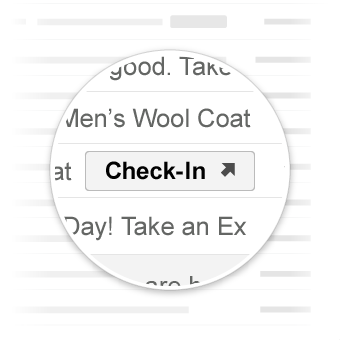
„Go-To Actions“ in Gmail.
Anwendungsfälle
Die folgenden „Go-To Actions“ werden derzeit von Gmail unterstützt:
Möglicherweise werden in Zukunft weitere Aktionen unterstützt.
Aktion ansehen
Sie können E‑Mails, bei denen Nutzer Ihre Website aufrufen müssen, um die Aktion auszuführen, eine Schaltfläche ViewAction hinzufügen.
Mit der folgenden Deklaration wird einer E‑Mail eine Schaltfläche ViewAction hinzugefügt:
JSON-LD
<script type="application/ld+json">
{
  "@context": "http://schema.org",
  "@type": "EmailMessage",
  "potentialAction": {
    "@type": "ViewAction",
    "url": "https://watch-movies.com/watch?movieId=abc123",
    "name": "Watch movie"
  },
  "description": "Watch the 'Avengers' movie online"
}
</script>
Mikrodaten
<div itemscope itemtype="http://schema.org/EmailMessage">
  <div itemprop="potentialAction" itemscope itemtype="http://schema.org/ViewAction">
    <link itemprop="target" href="https://watch-movies.com/watch?movieId=abc123"/>
    <meta itemprop="name" content="Watch movie"/>
  </div>
  <meta itemprop="description" content="Watch the 'Avengers' movie online"/>
</div>
Publisher-Daten
Sie können Details zur Organisation hinzufügen, die die E‑Mail sendet, indem Sie das Feld publisher festlegen:
JSON-LD
<script type="application/ld+json">
{
  "@context": "http://schema.org",
  "@type": "EmailMessage",
  "description": "Watch the 'Avengers' movie online",
  "potentialAction": {
    "@type": "ViewAction",
    "url": "https://watch-movies.com/watch?movieId=abc123",
    "name": "Watch movie"
  },
  "publisher": {
    "@type": "Organization",
    "name": "Google Play",
    "url": "https://play.google.com",
    "url/googlePlus": "https://plus.google.com/106886664866983861036"
  }
}
</script>
Mikrodaten
<div itemscope itemtype="http://schema.org/EmailMessage">
  <meta itemprop="description" content="Watch the 'Avengers' movie online"/>
  <div itemprop="potentialAction" itemscope itemtype="http://schema.org/ViewAction">
    <link itemprop="target" href="https://watch-movies.com/watch?movieId=abc123"/>
    <meta itemprop="name" content="Watch movie"/>
  </div>
  <div itemprop="publisher" itemscope itemtype="http://schema.org/Organization">
    <meta itemprop="name" content="Google Play"/>
    <link itemprop="url" href="https://play.google.com"/>
    <link itemprop="url/googlePlus" href="https://plus.google.com/106886664866983861036"/>
  </div>
</div>
Aktion verfolgen
Sie können E‑Mails, bei denen Nutzer Ihre Website aufrufen müssen, um die Zustellung von Paketen zu verfolgen, eine Schaltfläche TrackAction hinzufügen.
Wenn Sie die Eigenschaft trackingUrl angeben, wird automatisch eine Aktion generiert. Wenn Sie direkt zu einer mobilen App verlinken möchten, fügen Sie auch eine TrackAction hinzu, wie unten gezeigt:
JSON-LD
<script type="application/ld+json">
{
  "@context": "http://schema.org",
  "@type": "ParcelDelivery",
  "deliveryAddress": {
    "@type": "PostalAddress",
    "streetAddress": "24 Willie Mays Plaza",
    "addressLocality": "San Francisco",
    "addressRegion": "CA",
    "addressCountry": "US",
    "postalCode": "94107"
  },
  "expectedArrivalUntil": "2013-03-12T12:00:00-08:00",
  "carrier": {
    "@type": "Organization",
    "name": "FedEx"
  },
  "itemShipped": {
    "@type": "Product",
    "name": "iPod Mini"
  },
  "partOfOrder": {
    "@type": "Order",
    "orderNumber": "176057",
    "merchant": {
      "@type": "Organization",
      "name": "Bob Dole"
    }
  },
  "trackingUrl": "http://fedex.com/track/1234567890"
  "potentialAction": {
    "@type": "TrackAction",
    "target": "http://fedex.com/track/1234567890"
  },
}
</script>
Mikrodaten
<div itemscope itemtype="http://schema.org/ParcelDelivery">
  <div itemprop="deliveryAddress" itemscope itemtype="http://schema.org/PostalAddress">
    <meta itemprop="streetAddress" content="24 Willie Mays Plaza"/>
    <meta itemprop="addressLocality" content="San Francisco"/>
    <meta itemprop="addressRegion" content="CA"/>
    <meta itemprop="addressCountry" content="US"/>
    <meta itemprop="postalCode" content="94107"/>
  </div>
  <meta itemprop="expectedArrivalUntil" content="2013-03-12T12:00:00-08:00"/>
  <div itemprop="carrier" itemscope itemtype="http://schema.org/Organization">
    <meta itemprop="name" content="FedEx"/>
  </div>
  <div itemprop="itemShipped" itemscope itemtype="http://schema.org/Product">
    <meta itemprop="name" content="iPod Mini"/>
  </div>
  <div itemprop="partOfOrder" itemscope itemtype="http://schema.org/Order">
    <meta itemprop="orderNumber" content="176057"/>
    <div itemprop="merchant" itemscope itemtype="http://schema.org/Organization">
      <meta itemprop="name" content="Bob Dole"/>
    </div>
  </div>
  <link itemprop="trackingUrl" href="http://fedex.com/track/1234567890"/>
  <div itemprop="potentialAction" itemscope itemtype="http://schema.org/TrackAction">
    <link itemprop="target" href="http://fedex.com/track/1234567890"/>
  </div>
</div>
Markup testen
Sie können Ihr Markup mit dem Testtool für E‑Mail-Markup validieren. Fügen Sie Ihren Markup-Code ein und klicken Sie auf die Schaltfläche Validieren , um den Inhalt zu scannen und einen Bericht zu allen Fehlern zu erhalten.
Spezifikation
Eine Spezifikation der verschiedenen „Go-To Action“-Typen finden Sie in der Dokumentation für den jeweiligen Typ ViewAction oder TrackAction.