Daten in einer Präsentation zusammenführen

Eine nützliche Anwendung der Google Slides API besteht darin, Informationen aus einer oder mehreren Datenquellen in eine Vorlagenpräsentation einzufügen.

Auf dieser Seite wird beschrieben, wie Sie Daten aus einer externen Quelle übernehmen und in eine vorhandene Vorlagenpräsentation einfügen. Das Konzept ähnelt dem eines Seriendrucks mit einem Textverarbeitungsprogramm und einer Tabellenkalkulation.

Es gibt mehrere Gründe, warum dieser Ansatz nützlich ist:

  • Designer können das Design einer Präsentation ganz einfach mit dem Google Präsentationen-Editor optimieren. Das ist viel einfacher, als Parameter in Ihrer App anzupassen, um das gerenderte Folien-Design festzulegen.

  • Die Trennung von Inhalten und Präsentation ist ein bekanntes Designprinzip mit vielen Vorteilen.
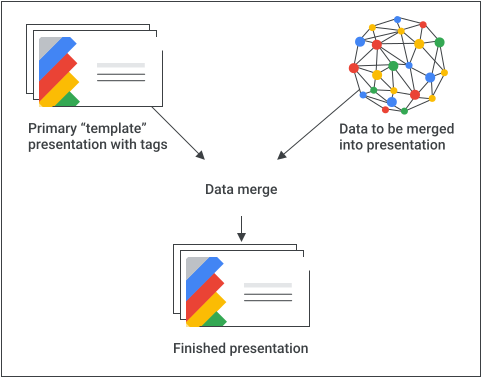
Konzeptionelles Diagramm einer Zusammenführung.

Grundrezept

Hier ein Beispiel dafür, wie Sie mit der Slides API Daten in eine Präsentation einfügen können:

  1. Erstellen Sie die Präsentation so, wie sie aussehen soll, und verwenden Sie Platzhalterinhalte, um das Design zu gestalten.

  2. Ersetzen Sie für jedes einzufügende Inhaltselement den Platzhalterinhalt durch ein Tag. Tags sind Textfelder oder Formen mit einem eindeutigen String. Verwenden Sie Strings, die normalerweise nicht vorkommen. Ein gutes Tag wäre beispielsweise {{account-holder-name}}.

  3. Verwenden Sie in Ihrem Code die Google Drive API, um eine Kopie der Präsentation zu erstellen.

  4. Verwenden Sie in Ihrem Code die batchUpdate Methode der Slides API mit einer Reihe von replaceAllText -Anfragen, um alle Textersetzungen in der Präsentation vorzunehmen. Verwenden Sie replaceAllShapesWithImage -Anfragen, um alle Bildersetzungen in der Präsentation vorzunehmen.

.

Nachdem Sie eine Präsentation mit Tags erstellt haben, müssen Sie eine Kopie erstellen und die Slides API verwenden, um die Kopie zu bearbeiten. Verwenden Sie die Slides API nicht, um Ihre primäre „Vorlagenkopie“ zu bearbeiten.

Die folgenden Abschnitte enthalten Code-Snippets, die einige Schritte dieses Prozesses veranschaulichen. Im Video oben sehen Sie auch ein vollständiges Beispiel (Python), in dem mehrere Konzepte aus den einzelnen Abschnitten unten kombiniert werden.

Text einfügen

Mit einer replaceAllText Anfrage können Sie alle Instanzen eines bestimmten Textstrings in einer Präsentation durch neuen Text ersetzen. Für Zusammenführungen ist das einfacher, als jede Textinstanz einzeln zu suchen und zu ersetzen. Ein Grund dafür, dass dies der anspruchsvollste Ansatz ist, liegt darin, dass die IDs von Seitenelementen schwer vorherzusagen sind, insbesondere wenn Mitarbeiter die Vorlagenpräsentation optimieren und verwalten.

Beispiel

In diesem Beispiel wird die Drive API verwendet, um eine Vorlagenpräsentation zu kopieren und eine neue Instanz der Präsentation zu erstellen. Anschließend werden mit der Google Sheets API Daten aus einer Google Sheets-Tabelle gelesen und mit der Slides API die neue Präsentation aktualisiert.

Im Beispiel werden Daten aus drei Zellen in einer Zeile eines benannten Bereichs in der Tabelle verwendet. Diese Daten werden dann in der Präsentation überall dort ersetzt, wo die Strings {{customer-name}}, {{case-description}}, oder {{total-portfolio}} vorkommen.

Apps Script

slides/api/Snippets.gs
/**
 * Use the Sheets API to load data, one record per row.
 * @param {string} templatePresentationId
 * @param {string} dataSpreadsheetId
 * @returns {*[]}
 */
function textMerging(templatePresentationId, dataSpreadsheetId) {
  const responses = [];
  const dataRangeNotation = "Customers!A2:M6";
  try {
    const values = SpreadsheetApp.openById(dataSpreadsheetId)
      .getRange(dataRangeNotation)
      .getValues();

    // For each record, create a new merged presentation.
    for (let i = 0; i < values.length; ++i) {
      const row = values[i];
      const customerName = row[2]; // name in column 3
      const caseDescription = row[5]; // case description in column 6
      const totalPortfolio = row[11]; // total portfolio in column 12

      // Duplicate the template presentation using the Drive API.
      const copyTitle = `${customerName} presentation`;
      let copyFile = {
        title: copyTitle,
        parents: [{ id: "root" }],
      };
      copyFile = Drive.Files.copy(copyFile, templatePresentationId);
      const presentationCopyId = copyFile.id;

      // Create the text merge (replaceAllText) requests for this presentation.
      const requests = [
        {
          replaceAllText: {
            containsText: {
              text: "{{customer-name}}",
              matchCase: true,
            },
            replaceText: customerName,
          },
        },
        {
          replaceAllText: {
            containsText: {
              text: "{{case-description}}",
              matchCase: true,
            },
            replaceText: caseDescription,
          },
        },
        {
          replaceAllText: {
            containsText: {
              text: "{{total-portfolio}}",
              matchCase: true,
            },
            replaceText: `${totalPortfolio}`,
          },
        },
      ];

      // Execute the requests for this presentation.
      const result = Slides.Presentations.batchUpdate(
        {
          requests: requests,
        },
        presentationCopyId,
      );
      // Count the total number of replacements made.
      let numReplacements = 0;
      for (const reply of result.replies) {
        numReplacements += reply.replaceAllText.occurrencesChanged;
      }
      console.log(
        "Created presentation for %s with ID: %s",
        customerName,
        presentationCopyId,
      );
      console.log("Replaced %s text instances", numReplacements);
    }
  } catch (err) {
    // TODO (Developer) - Handle exception
    console.log("Failed with error: %s", err.error);
  }
}

Ok

slides/snippets/presentations.go
// Use the Sheets API to load data, one record per row.
dataRangeNotation := "Customers!A2:M6"
sheetsResponse, _ := sheetsService.Spreadsheets.Values.Get(dataSpreadsheetId, dataRangeNotation).Do()
values := sheetsResponse.Values

// For each record, create a new merged presentation.
for _, row := range values {
	customerName := row[2].(string)
	caseDescription := row[5].(string)
	totalPortfolio := row[11].(string)

	// Duplicate the template presentation using the Drive API.
	copyTitle := customerName + " presentation"
	file := drive.File{
		Title: copyTitle,
	}
	presentationFile, _ := driveService.Files.Copy(templatePresentationId, &file).Do()
	presentationId := presentationFile.Id

	// Create the text merge (replaceAllText) requests for this presentation.
	requests := []*slides.Request{{
		ReplaceAllText: &slides.ReplaceAllTextRequest{
			ContainsText: &slides.SubstringMatchCriteria{
				Text:      "{{customer-name}}",
				MatchCase: true,
			},
			ReplaceText: customerName,
		},
	}, {
		ReplaceAllText: &slides.ReplaceAllTextRequest{
			ContainsText: &slides.SubstringMatchCriteria{
				Text:      "{{case-description}}",
				MatchCase: true,
			},
			ReplaceText: caseDescription,
		},
	}, {
		ReplaceAllText: &slides.ReplaceAllTextRequest{
			ContainsText: &slides.SubstringMatchCriteria{
				Text:      "{{total-portfolio}}",
				MatchCase: true,
			},
			ReplaceText: totalPortfolio,
		},
	}}

	// Execute the requests for this presentation.
	body := &slides.BatchUpdatePresentationRequest{
		Requests: requests,
	}
	response, _ := slidesService.Presentations.BatchUpdate(presentationId, body).Do()

Java

slides/snippets/src/main/java/TextMerging.java
import com.google.api.client.googleapis.json.GoogleJsonError;
import com.google.api.client.googleapis.json.GoogleJsonResponseException;
import com.google.api.client.http.HttpRequestInitializer;
import com.google.api.client.http.javanet.NetHttpTransport;
import com.google.api.client.json.gson.GsonFactory;
import com.google.api.services.drive.Drive;
import com.google.api.services.drive.model.File;
import com.google.api.services.sheets.v4.Sheets;
import com.google.api.services.sheets.v4.model.ValueRange;
import com.google.api.services.slides.v1.Slides;
import com.google.api.services.slides.v1.SlidesScopes;
import com.google.api.services.slides.v1.model.BatchUpdatePresentationRequest;
import com.google.api.services.slides.v1.model.BatchUpdatePresentationResponse;
import com.google.api.services.slides.v1.model.ReplaceAllTextRequest;
import com.google.api.services.slides.v1.model.Request;
import com.google.api.services.slides.v1.model.Response;
import com.google.api.services.slides.v1.model.SubstringMatchCriteria;
import com.google.auth.http.HttpCredentialsAdapter;
import com.google.auth.oauth2.GoogleCredentials;

import java.io.IOException;
import java.util.ArrayList;
import java.util.Arrays;
import java.util.List;

/* Class to demonstrate the use of Slides Text Merging API */
public class TextMerging {
  /**
   * Changes specified texts with data from spreadsheet.
   *
   * @param templatePresentationId - id of the presentation.
   * @param dataSpreadsheetId      - id of the spreadsheet containing data.
   * @return merged presentation id
   * @throws IOException - if credentials file not found.
   */
  public static List<BatchUpdatePresentationResponse> textMerging(
      String templatePresentationId, String dataSpreadsheetId) throws IOException {
        /* Load pre-authorized user credentials from the environment.
           TODO(developer) - See https://developers.google.com/identity for
            guides on implementing OAuth2 for your application. */
    GoogleCredentials credentials = GoogleCredentials.getApplicationDefault()
        .createScoped(Arrays.asList(SlidesScopes.PRESENTATIONS,
            SlidesScopes.DRIVE, SlidesScopes.SPREADSHEETS));
    HttpRequestInitializer requestInitializer = new HttpCredentialsAdapter(
        credentials);

    // Create the slides API client
    Slides service = new Slides.Builder(new NetHttpTransport(),
        GsonFactory.getDefaultInstance(),
        requestInitializer)
        .setApplicationName("Slides samples")
        .build();

    // Create the drive API client
    Drive driveService = new Drive.Builder(new NetHttpTransport(),
        GsonFactory.getDefaultInstance(),
        requestInitializer)
        .setApplicationName("Slides samples")
        .build();

    // Create the sheets API client
    Sheets sheetsService = new Sheets.Builder(new NetHttpTransport(),
        GsonFactory.getDefaultInstance(),
        requestInitializer)
        .setApplicationName("Slides samples")
        .build();

    List<BatchUpdatePresentationResponse> responses = new ArrayList<>(5);
    // Use the Sheets API to load data, one record per row.
    String dataRangeNotation = "Customers!A2:M6";
    ValueRange sheetsResponse = sheetsService.spreadsheets().values()
        .get(dataSpreadsheetId, dataRangeNotation).execute();
    List<List<Object>> values = sheetsResponse.getValues();

    try {
      // For each record, create a new merged presentation.
      for (List<Object> row : values) {
        String customerName = row.get(2).toString();     // name in column 3
        String caseDescription = row.get(5).toString();  // case description in column 6
        String totalPortfolio = row.get(11).toString();  // total portfolio in column 12

        // Duplicate the template presentation using the Drive API.
        String copyTitle = customerName + " presentation";
        File content = new File().setName(copyTitle);
        File presentationFile =
            driveService.files().copy(templatePresentationId, content).execute();
        String presentationId = presentationFile.getId();

        // Create the text merge (replaceAllText) requests for this presentation.
        List<Request> requests = new ArrayList<>();
        requests.add(new Request()
            .setReplaceAllText(new ReplaceAllTextRequest()
                .setContainsText(new SubstringMatchCriteria()
                    .setText("{{customer-name}}")
                    .setMatchCase(true))
                .setReplaceText(customerName)));
        requests.add(new Request()
            .setReplaceAllText(new ReplaceAllTextRequest()
                .setContainsText(new SubstringMatchCriteria()
                    .setText("{{case-description}}")
                    .setMatchCase(true))
                .setReplaceText(caseDescription)));
        requests.add(new Request()
            .setReplaceAllText(new ReplaceAllTextRequest()
                .setContainsText(new SubstringMatchCriteria()
                    .setText("{{total-portfolio}}")
                    .setMatchCase(true))
                .setReplaceText(totalPortfolio)));

        // Execute the requests for this presentation.
        BatchUpdatePresentationRequest body =
            new BatchUpdatePresentationRequest().setRequests(requests);
        BatchUpdatePresentationResponse response =
            service.presentations().batchUpdate(presentationId, body).execute();

        // Count total number of replacements made.
        int numReplacements = 0;
        for (Response resp : response.getReplies()) {
          numReplacements += resp.getReplaceAllText().getOccurrencesChanged();
        }
        // Prints the merged presentation id and count of replacements.
        System.out.println("Created merged presentation for " +
            customerName + " with ID: " + presentationId);
        System.out.println("Replaced " + numReplacements + " text instances.");
      }
    } catch (NullPointerException ne) {
      System.out.println("Text not found to replace with image.");
    } catch (GoogleJsonResponseException e) {
      // TODO(developer) - handle error appropriately
      GoogleJsonError error = e.getDetails();
      if (error.getCode() == 404) {
        System.out.printf("Presentation not found with id '%s'.\n", templatePresentationId);
      } else {
        throw e;
      }
    }
    return responses;
  }
}

JavaScript

slides/snippets/slides_text_merging.js
function textMerging(templatePresentationId, dataSpreadsheetId, callback) {
  // Use the Sheets API to load data, one record per row.
  const responses = [];
  const dataRangeNotation = 'Customers!A2:M6';
  try {
    gapi.client.sheets.spreadsheets.values.get({
      spreadsheetId: dataSpreadsheetId,
      range: dataRangeNotation,
    }).then((sheetsResponse) => {
      const values = sheetsResponse.result.values;
      // For each record, create a new merged presentation.
      for (let i = 0; i < values.length; ++i) {
        const row = values[i];
        const customerName = row[2]; // name in column 3
        const caseDescription = row[5]; // case description in column 6
        const totalPortfolio = row[11]; // total portfolio in column 12

        // Duplicate the template presentation using the Drive API.
        const copyTitle = customerName + ' presentation';
        const request = {
          name: copyTitle,
        };
        gapi.client.drive.files.copy({
          fileId: templatePresentationId,
          requests: request,
        }).then((driveResponse) => {
          const presentationCopyId = driveResponse.result.id;

          // Create the text merge (replaceAllText) requests for this presentation.
          const requests = [{
            replaceAllText: {
              containsText: {
                text: '{{customer-name}}',
                matchCase: true,
              },
              replaceText: customerName,
            },
          }, {
            replaceAllText: {
              containsText: {
                text: '{{case-description}}',
                matchCase: true,
              },
              replaceText: caseDescription,
            },
          }, {
            replaceAllText: {
              containsText: {
                text: '{{total-portfolio}}',
                matchCase: true,
              },
              replaceText: totalPortfolio,
            },
          }];

          // Execute the requests for this presentation.
          gapi.client.slides.presentations.batchUpdate({
            presentationId: presentationCopyId,
            requests: requests,
          }).then((batchUpdateResponse) => {
            const result = batchUpdateResponse.result;
            responses.push(result.replies);
            // Count the total number of replacements made.
            let numReplacements = 0;
            for (let i = 0; i < result.replies.length; ++i) {
              numReplacements += result.replies[i].replaceAllText.occurrencesChanged;
            }
            console.log(`Created presentation for ${customerName} with ID: ${presentationCopyId}`);
            console.log(`Replaced ${numReplacements} text instances`);
            if (responses.length === values.length) { // callback for the last value
              if (callback) callback(responses);
            }
          });
        });
      }
    });
  } catch (err) {
    document.getElementById('content').innerText = err.message;
    return;
  }
}

Node.js

slides/snippets/slides_text_merging.js
import {GoogleAuth} from 'google-auth-library';
import {google} from 'googleapis';

/**
 * Merges text from a spreadsheet into a template presentation.
 * @param {string} templatePresentationId The ID of the template presentation.
 * @param {string} dataSpreadsheetId The ID of the spreadsheet containing the data.
 */
async function textMerging(templatePresentationId, dataSpreadsheetId) {
  // Authenticate with Google and get an authorized client.
  const auth = new GoogleAuth({
    scopes: [
      'https://www.googleapis.com/auth/presentations',
      'https://www.googleapis.com/auth/drive',
      'https://www.googleapis.com/auth/spreadsheets',
    ],
  });

  // Create new clients for Slides, Sheets, and Drive APIs.
  const slidesService = google.slides({version: 'v1', auth});
  const sheetsService = google.sheets({version: 'v4', auth});
  const driveService = google.drive({version: 'v2', auth});

  // Use the Sheets API to load data from the spreadsheet.
  const dataRangeNotation = 'A2:M6';
  const sheetsResponse = await sheetsService.spreadsheets.values.get({
    spreadsheetId: dataSpreadsheetId,
    range: dataRangeNotation,
  });
  const values = sheetsResponse.data.values;

  // For each row of data, create a new presentation by copying the template
  // and replacing the placeholder text with the data.
  for (let i = 0; i < values.length; ++i) {
    const row = values[i];
    const customerName = row[2]; // Column 3
    const caseDescription = row[5]; // Column 6
    const totalPortfolio = row[11]; // Column 12

    // Duplicate the template presentation.
    const title = `${customerName} presentation`;
    const driveResponse = await driveService.files.copy({
      fileId: templatePresentationId,
      requestBody: {
        title,
      },
    });
    const presentationCopyId = driveResponse.data.id;

    // Create the text merge requests for this presentation.
    const requests = [
      {
        replaceAllText: {
          containsText: {
            text: '{{customer-name}}',
            matchCase: true,
          },
          replaceText: customerName,
        },
      },
      {
        replaceAllText: {
          containsText: {
            text: '{{case-description}}',
            matchCase: true,
          },
          replaceText: caseDescription,
        },
      },
      {
        replaceAllText: {
          containsText: {
            text: '{{total-portfolio}}',
            matchCase: true,
          },
          replaceText: totalPortfolio,
        },
      },
    ];

    // Execute the requests to replace the placeholder text.
    const batchUpdateResponse = await slidesService.presentations.batchUpdate({
      presentationId: presentationCopyId,
      requestBody: {
        requests,
      },
    });
    const result = batchUpdateResponse.data;

    // Count the total number of replacements made.
    let numReplacements = 0;
    for (let i = 0; i < result.replies.length; ++i) {
      numReplacements += result.replies[i].replaceAllText.occurrencesChanged;
    }
    console.log(
      `Created presentation for ${customerName} with ID: ${presentationCopyId}`,
    );
    console.log(`Replaced ${numReplacements} text instances.`);
  }
}

PHP

slides/snippets/src/SlidesTextMerging.php
<?php
use Google\Client;
use Google\Service\Drive;
use Google\Service\Slides;
use Google\Service\Slides\Request;

function textMerging($templatePresentationId, $dataSpreadsheetId)
{

    /* Load pre-authorized user credentials from the environment.
       TODO(developer) - See https://developers.google.com/identity for
        guides on implementing OAuth2 for your application. */
    $client = new Google\Client();
    $client->useApplicationDefaultCredentials();
    $client->addScope(Google\Service\Drive::DRIVE);
    $slidesService = new Google_Service_Slides($client);
    $driveService = new Google_Service_Drive($client);
    $sheetsService = new Google_Service_Sheets($client);
    try {
        $responses = array();
        // Use the Sheets API to load data, one record per row.
        $dataRangeNotation = 'Customers!A2:M6';
        $sheetsResponse =
            $sheetsService->spreadsheets_values->get($dataSpreadsheetId, $dataRangeNotation);
        $values = $sheetsResponse['values'];

        // For each record, create a new merged presentation.
        foreach ($values as $row) {
            $customerName = $row[2];     // name in column 3
            $caseDescription = $row[5];  // case description in column 6
            $totalPortfolio = $row[11];  // total portfolio in column 12

            // Duplicate the template presentation using the Drive API.
            $copy = new Google_Service_Drive_DriveFile(array(
                'name' => $customerName . ' presentation'
            ));
            $driveResponse = $driveService->files->copy($templatePresentationId, $copy);
            $presentationCopyId = $driveResponse->id;

            // Create the text merge (replaceAllText) requests for this presentation.
            $requests = array();
            $requests[] = new Google_Service_Slides_Request(array(
                'replaceAllText' => array(
                    'containsText' => array(
                        'text' => '{{customer-name}}',
                        'matchCase' => true
                    ),
                    'replaceText' => $customerName
                )
            ));
            $requests[] = new Google_Service_Slides_Request(array(
                'replaceAllText' => array(
                    'containsText' => array(
                        'text' => '{{case-description}}',
                        'matchCase' => true
                    ),
                    'replaceText' => $caseDescription
                )
            ));
            $requests[] = new Google_Service_Slides_Request(array(
                'replaceAllText' => array(
                    'containsText' => array(
                        'text' => '{{total-portfolio}}',
                        'matchCase' => true
                    ),
                    'replaceText' => $totalPortfolio
                )
            ));

            // Execute the requests for this presentation.
            $batchUpdateRequest = new Google_Service_Slides_BatchUpdatePresentationRequest(array(
                'requests' => $requests
            ));
            $response =
                $slidesService->presentations->batchUpdate($presentationCopyId, $batchUpdateRequest);
            $responses[] = $response;
            // Count the total number of replacements made.
            $numReplacements = 0;
            foreach ($response->getReplies() as $reply) {
                $numReplacements += $reply->getReplaceAllText()->getOccurrencesChanged();
            }
            printf("Created presentation for %s with ID: %s\n", $customerName, $presentationCopyId);
            printf("Replaced %d text instances.\n", $numReplacements);
        }
        return $responses;
    } catch (Exception $e) {
        echo 'Message: ' . $e->getMessage();
    }
}

Python

slides/snippets/slides_text_merging.py
import google.auth
from googleapiclient.discovery import build
from googleapiclient.errors import HttpError


def text_merging(template_presentation_id, data_spreadsheet_id):
  """
  Run Text merging the user has access to.
  Load pre-authorized user credentials from the environment.
  TODO(developer) - See https://developers.google.com/identity
  for guides on implementing OAuth2 for the application.
  """
  creds, _ = google.auth.default()
  # pylint: disable=maybe-no-member

  try:
    service = build("slides", "v1", credentials=creds)
    sheets_service = build("sheets", "v4", credentials=creds)
    drive_service = build("drive", "v3", credentials=creds)
    # Use the Sheets API to load data, one record per row.
    data_range_notation = "Customers!A2:M6"
    sheets_response = (
        sheets_service.spreadsheets()
        .values()
        .get(spreadsheetId=data_spreadsheet_id, range=data_range_notation)
        .execute()
    )
    values = sheets_response.get("values")

    # For each record, create a new merged presentation.
    for row in values:
      customer_name = row[2]  # name in column 3
      case_description = row[5]  # case description in column 6
      total_portfolio = row[11]  # total portfolio in column 12

      # Duplicate the template presentation using the Drive API.
      copy_title = customer_name + " presentation"
      body = {"name": copy_title}
      drive_response = (
          drive_service.files()
          .copy(fileId=template_presentation_id, body=body)
          .execute()
      )
      presentation_copy_id = drive_response.get("id")

      # Create the text merge (replaceAllText) requests
      # for this presentation.
      requests = [
          {
              "replaceAllText": {
                  "containsText": {
                      "text": "{{customer-name}}",
                      "matchCase": True,
                  },
                  "replaceText": customer_name,
              }
          },
          {
              "replaceAllText": {
                  "containsText": {
                      "text": "{{case-description}}",
                      "matchCase": True,
                  },
                  "replaceText": case_description,
              }
          },
          {
              "replaceAllText": {
                  "containsText": {
                      "text": "{{total-portfolio}}",
                      "matchCase": True,
                  },
                  "replaceText": total_portfolio,
              }
          },
      ]

      # Execute the requests for this presentation.
      body = {"requests": requests}
      response = (
          service.presentations()
          .batchUpdate(presentationId=presentation_copy_id, body=body)
          .execute()
      )

      # Count the total number of replacements made.
      num_replacements = 0
      for reply in response.get("replies"):
        if reply.get("occurrencesChanged") is not None:
          num_replacements += reply.get("replaceAllText").get(
              "occurrencesChanged"
          )
      print(
          "Created presentation for "
          f"{customer_name} with ID: {presentation_copy_id}"
      )
      print(f"Replaced {num_replacements} text instances")

  except HttpError as error:
    print(f"An error occurred: {error}")
    return error


if __name__ == "__main__":
  # Put the template_presentation_id, data_spreadsheet_id
  # of slides

  text_merging(
      "10QnVUx1X2qHsL17WUidGpPh_SQhXYx40CgIxaKk8jU4",
      "17eqFZl_WK4WVixX8PjvjfLD77DraoFwMDXeiHB3dvuM",
  )

Ruby

slides/snippets/lib/file_snippets.rb
# Use the Sheets API to load data, one record per row.
data_range_notation = 'Customers!A2:M6'
sheets_response = sheets_service.get_spreadsheet_values(
  data_spreadsheet_id,
  data_range_notation
)
values = sheets_response.values

# For each record, create a new merged presentation.
values.each do |row|
  customer_name = row[2]       # name in column 3
  case_description = row[5]    # case description in column 6
  total_portfolio = row[11]    # total portfolio in column 12

  # Duplicate the template presentation using the Drive API.
  copy_title = customer_name + ' presentation'
  body = Google::Apis::SlidesV1::Presentation.new
  body.title = copy_title
  drive_response = drive_service.copy_file(template_presentation_id, body)
  presentation_copy_id = drive_response.id

  # Create the text merge (replace_all_text) requests for this presentation.
  requests = [] << {
    replace_all_text: {
      contains_text: {
        text:       '{{customer-name}}',
        match_case: true
      },
      replace_text:  customer_name
    }
  } << {
    replace_all_text: {
      contains_text: {
        text:       '{{case-description}}',
        match_case: true
      },
      replace_text:  case_description
    }
  } << {
    replace_all_text: {
      contains_text: {
        text:       '{{total-portfolio}}',
        match_case: true
      },
      replace_text:  total_portfolio
    }
  }

  # Execute the requests for this presentation.
  req = Google::Apis::SlidesV1::BatchUpdatePresentationRequest.new(requests: requests)
  response = slides_service.batch_update_presentation(
    presentation_copy_id,
    req
  )

Bilder einfügen

Sie können auch Bilder in Ihre Präsentation einfügen. Verwenden Sie dazu eine replaceAllShapesWithImage -Anfrage. Mit dieser Anfrage werden alle Formen, die den angegebenen Textstring enthalten, durch das angegebene Bild ersetzt. Das Bild wird automatisch so positioniert und skaliert, dass es in die Begrenzungen der Tag-Form passt, wobei das Seitenverhältnis des Bildes beibehalten wird.

Beispiel

In diesem Beispiel wird die Google Drive API verwendet, um eine Vorlagenpräsentation zu kopieren und eine neue Instanz der Präsentation zu erstellen. Anschließend werden mit der Slides API alle Formen mit dem Text {{company-logo}}gesucht und durch ein Firmenlogo ersetzt. Außerdem werden alle Formen mit dem Text {{customer-graphic}} durch ein anderes Bild ersetzt.

Apps Script

slides/api/Snippets.gs
/**
 * Duplicate the template presentation using the Drive API.
 * @param {string} templatePresentationId
 * @param {string} imageUrl
 * @param {string} customerName
 * @returns {*}
 */
function imageMerging(templatePresentationId, imageUrl, customerName) {
  const logoUrl = imageUrl;
  const customerGraphicUrl = imageUrl;

  const copyTitle = `${customerName} presentation`;
  let copyFile = {
    title: copyTitle,
    parents: [{ id: "root" }],
  };

  try {
    copyFile = Drive.Files.copy(copyFile, templatePresentationId);
    const presentationCopyId = copyFile.id;

    // Create the image merge (replaceAllShapesWithImage) requests.
    const requests = [
      {
        replaceAllShapesWithImage: {
          imageUrl: logoUrl,
          imageReplaceMethod: "CENTER_INSIDE",
          containsText: {
            text: "{{company-logo}}",
            matchCase: true,
          },
        },
      },
      {
        replaceAllShapesWithImage: {
          imageUrl: customerGraphicUrl,
          imageReplaceMethod: "CENTER_INSIDE",
          containsText: {
            text: "{{customer-graphic}}",
            matchCase: true,
          },
        },
      },
    ];

    // Execute the requests for this presentation.
    const batchUpdateResponse = Slides.Presentations.batchUpdate(
      {
        requests: requests,
      },
      presentationCopyId,
    );
    let numReplacements = 0;
    for (const reply of batchUpdateResponse.replies) {
      numReplacements += reply.replaceAllShapesWithImage.occurrencesChanged;
    }
    console.log("Created merged presentation with ID: %s", presentationCopyId);
    console.log("Replaced %s shapes with images.", numReplacements);

    return batchUpdateResponse;
  } catch (err) {
    // TODO (Developer) - Handle exception
    console.log("Failed with error: %s", err.error);
  }
}

Ok

slides/snippets/presentations.go
// Duplicate the template presentation using the Drive API.
copyTitle := customerName + " presentation"
file := drive.File{
	Title: copyTitle,
}
presentationFile, _ := driveService.Files.Copy(templatePresentationId, &file).Do()
presentationId := presentationFile.Id

// Create the image merge (replaceAllShapesWithImage) requests.
requests := []*slides.Request{{
	ReplaceAllShapesWithImage: &slides.ReplaceAllShapesWithImageRequest{
		ImageUrl:      logoURL,
		ReplaceMethod: "CENTER_INSIDE",
		ContainsText: &slides.SubstringMatchCriteria{
			Text:      "{{company-logo}}",
			MatchCase: true,
		},
	},
}, {
	ReplaceAllShapesWithImage: &slides.ReplaceAllShapesWithImageRequest{
		ImageUrl:      customerGraphicURL,
		ReplaceMethod: "CENTER_INSIDE",
		ContainsText: &slides.SubstringMatchCriteria{
			Text:      "{{customer-graphic}}",
			MatchCase: true,
		},
	},
}}

// Execute the requests for this presentation.
body := &slides.BatchUpdatePresentationRequest{Requests: requests}
response, _ := slidesService.Presentations.BatchUpdate(presentationId, body).Do()

// Count total number of replacements made.
var numReplacements int64 = 0
for _, resp := range response.Replies {
	numReplacements += resp.ReplaceAllShapesWithImage.OccurrencesChanged
}
fmt.Printf("Created merged presentation with ID %s\n", presentationId)
fmt.Printf("Replaced %d shapes instances with images.\n", numReplacements)

Java

slides/snippets/src/main/java/ImageMerging.java
import com.google.api.client.http.HttpRequestInitializer;
import com.google.api.client.http.javanet.NetHttpTransport;
import com.google.api.client.json.gson.GsonFactory;
import com.google.api.services.drive.Drive;
import com.google.api.services.drive.model.File;
import com.google.api.services.slides.v1.Slides;
import com.google.api.services.slides.v1.SlidesScopes;
import com.google.api.services.slides.v1.model.BatchUpdatePresentationRequest;
import com.google.api.services.slides.v1.model.BatchUpdatePresentationResponse;
import com.google.api.services.slides.v1.model.Request;
import com.google.api.services.slides.v1.model.Response;
import com.google.api.services.slides.v1.model.ReplaceAllShapesWithImageRequest;
import com.google.api.services.slides.v1.model.SubstringMatchCriteria;
import com.google.auth.http.HttpCredentialsAdapter;
import com.google.auth.oauth2.GoogleCredentials;

import java.io.IOException;
import java.util.ArrayList;
import java.util.Arrays;
import java.util.List;

/* Class to demonstrate the use of Slides Image Merging API */
public class ImageMerging {
  /**
   * Changes specified texts into images.
   *
   * @param templatePresentationId - id of the presentation.
   * @param imageUrl               - Url of the image.
   * @param customerName           - Name of the customer.
   * @return merged presentation id
   * @throws IOException - if credentials file not found.
   */
  public static BatchUpdatePresentationResponse imageMerging(String templatePresentationId,
                                                             String imageUrl,
                                                             String customerName)
      throws IOException {
        /* Load pre-authorized user credentials from the environment.
           TODO(developer) - See https://developers.google.com/identity for
            guides on implementing OAuth2 for your application. */
    GoogleCredentials credentials = GoogleCredentials.getApplicationDefault()
        .createScoped(Arrays.asList(SlidesScopes.PRESENTATIONS,
            SlidesScopes.DRIVE));
    HttpRequestInitializer requestInitializer = new HttpCredentialsAdapter(
        credentials);

    // Create the slides API client
    Slides service = new Slides.Builder(new NetHttpTransport(),
        GsonFactory.getDefaultInstance(),
        requestInitializer)
        .setApplicationName("Slides samples")
        .build();

    // Create the drive API client
    Drive driveService = new Drive.Builder(new NetHttpTransport(),
        GsonFactory.getDefaultInstance(),
        requestInitializer)
        .setApplicationName("Slides samples")
        .build();

    // Duplicate the template presentation using the Drive API.
    String copyTitle = customerName + " presentation";
    File content = new File().setName(copyTitle);
    File presentationFile =
        driveService.files().copy(templatePresentationId, content).execute();
    String presentationId = presentationFile.getId();

    // Create the image merge (replaceAllShapesWithImage) requests.
    List<Request> requests = new ArrayList<>();
    requests.add(new Request()
        .setReplaceAllShapesWithImage(new ReplaceAllShapesWithImageRequest()
            .setImageUrl(imageUrl)
            .setImageReplaceMethod("CENTER_INSIDE")
            .setContainsText(new SubstringMatchCriteria()
                .setText("{{company-logo}}")
                .setMatchCase(true))));

    // Execute the requests.
    BatchUpdatePresentationRequest body =
        new BatchUpdatePresentationRequest().setRequests(requests);
    BatchUpdatePresentationResponse response =
        service.presentations().batchUpdate(presentationId, body).execute();

    int numReplacements = 0;
    try {
      // Count total number of replacements made.
      for (Response resp : response.getReplies()) {
        numReplacements += resp.getReplaceAllShapesWithImage().getOccurrencesChanged();
      }

      // Prints the merged presentation id and count of replacements.
      System.out.println("Created merged presentation with ID: " + presentationId);
      System.out.println("Replaced " + numReplacements + " shapes instances with images.");
    } catch (NullPointerException ne) {
      System.out.println("Text not found to replace with image.");
    }
    return response;
  }
}

JavaScript

slides/snippets/slides_image_merging.js
function imageMerging(
    templatePresentationId,
    imageUrl,
    customerName,
    callback,
) {
  const logoUrl = imageUrl;
  const customerGraphicUrl = imageUrl;

  // Duplicate the template presentation using the Drive API.
  const copyTitle = customerName + ' presentation';
  try {
    gapi.client.drive.files
        .copy({
          fileId: templatePresentationId,
          resource: {
            name: copyTitle,
          },
        })
        .then((driveResponse) => {
          const presentationCopyId = driveResponse.result.id;

          // Create the image merge (replaceAllShapesWithImage) requests.
          const requests = [
            {
              replaceAllShapesWithImage: {
                imageUrl: logoUrl,
                replaceMethod: 'CENTER_INSIDE',
                containsText: {
                  text: '{{company-logo}}',
                  matchCase: true,
                },
              },
            },
            {
              replaceAllShapesWithImage: {
                imageUrl: customerGraphicUrl,
                replaceMethod: 'CENTER_INSIDE',
                containsText: {
                  text: '{{customer-graphic}}',
                  matchCase: true,
                },
              },
            },
          ];
          // Execute the requests for this presentation.
          gapi.client.slides.presentations
              .batchUpdate({
                presentationId: presentationCopyId,
                requests: requests,
              })
              .then((batchUpdateResponse) => {
                let numReplacements = 0;
                for (
                  let i = 0;
                  i < batchUpdateResponse.result.replies.length;
                  ++i
                ) {
                  numReplacements +=
                batchUpdateResponse.result.replies[i].replaceAllShapesWithImage
                    .occurrencesChanged;
                }
                console.log(
                    `Created merged presentation with ID: ${presentationCopyId}`,
                );
                console.log(`Replaced ${numReplacements} shapes with images.`);
                if (callback) callback(batchUpdateResponse.result);
              });
        });
  } catch (err) {
    document.getElementById('content').innerText = err.message;
    return;
  }
}

Node.js

slides/snippets/slides_image_merging.js
import {GoogleAuth} from 'google-auth-library';
import {google} from 'googleapis';

/**
 * Replaces shapes in a presentation with images.
 * @param {string} templatePresentationId The ID of the template presentation.
 * @param {string} imageUrl The URL of the image to use.
 * @param {string} customerName The name of the customer for the new presentation title.
 * @return {Promise<object>} The response from the batch update.
 */
async function imageMerging(templatePresentationId, imageUrl, customerName) {
  // Authenticate with Google and get an authorized client.
  const auth = new GoogleAuth({
    scopes: [
      'https://www.googleapis.com/auth/presentations',
      'https://www.googleapis.com/auth/drive',
    ],
  });

  // Create new clients for Slides and Drive APIs.
  const slidesService = google.slides({version: 'v1', auth});
  const driveService = google.drive({version: 'v2', auth});

  const logoUrl = imageUrl;
  const customerGraphicUrl = imageUrl;

  // Duplicate the template presentation.
  const copyTitle = `${customerName} presentation`;
  const driveResponse = await driveService.files.copy({
    fileId: templatePresentationId,
    requestBody: {
      name: copyTitle,
    },
  });
  const presentationCopyId = driveResponse.data.id;

  // Create the image merge requests.
  const requests = [
    {
      replaceAllShapesWithImage: {
        imageUrl: logoUrl,
        replaceMethod: 'CENTER_INSIDE',
        containsText: {
          text: '{{company-logo}}',
          matchCase: true,
        },
      },
    },
    {
      replaceAllShapesWithImage: {
        imageUrl: customerGraphicUrl,
        replaceMethod: 'CENTER_INSIDE',
        containsText: {
          text: '{{customer-graphic}}',
          matchCase: true,
        },
      },
    },
  ];

  // Execute the requests to replace the shapes with images.
  const batchUpdateResponse = await slidesService.presentations.batchUpdate({
    presentationId: presentationCopyId,
    requestBody: {
      requests,
    },
  });

  // Count the total number of replacements made.
  let numReplacements = 0;
  for (let i = 0; i < batchUpdateResponse.data.replies.length; ++i) {
    numReplacements +=
      batchUpdateResponse.data.replies[i].replaceAllShapesWithImage
        .occurrencesChanged;
  }
  console.log(`Created merged presentation with ID: ${presentationCopyId}`);
  console.log(`Replaced ${numReplacements} shapes with images.`);
  return batchUpdateResponse.data;
}

PHP

slides/snippets/src/SlidesImageMerging.php
<?php
use Google\Client;
use Google\Service\Drive;
use Google\Service\Slides;
use Google\Service\DriveFile;
use Google\Service\Slides\Request;


function imageMerging($templatePresentationId, $imageUrl, $customerName)
{
    /* Load pre-authorized user credentials from the environment.
       TODO(developer) - See https://developers.google.com/identity for
        guides on implementing OAuth2 for your application. */
    $client = new Google\Client();
    $client->useApplicationDefaultCredentials();
    $client->addScope(Google\Service\Drive::DRIVE);
    $slidesService = new Google_Service_Slides($client);
    $driveService = new Google_Service_Drive($client);
    // Duplicate the template presentation using the Drive API.
    $copy = new Google_Service_Drive_DriveFile([
        'name' => $customerName . ' presentation'
    ]);

    $driveResponse = $driveService->files->copy($templatePresentationId, $copy);
    $presentationCopyId = $driveResponse->id;

    // Create the image merge (replaceAllShapesWithImage) requests.

    $requests[] = new Google_Service_Slides_Request([
        'replaceAllShapesWithImage' => [
            'imageUrl' => $imageUrl,
            'replaceMethod' => 'CENTER_INSIDE',
            'containsText' => [
                'text' => '{{company-logo}}',
                'matchCase' => true
            ]
        ]
    ]);
    $requests[] = new Google_Service_Slides_Request([
        'replaceAllShapesWithImage' => [
            'imageUrl' => $imageUrl,
            'replaceMethod' => 'CENTER_INSIDE',
            'containsText' => [
                'text' => '{{customer-graphic}}',
                'matchCase' => true
            ]
        ]
    ]);

    // Execute the requests.
    $batchUpdateRequest = new Google_Service_Slides_BatchUpdatePresentationRequest([
        'requests' => $requests
    ]);
    $response =
        $slidesService->presentations->batchUpdate($presentationCopyId, $batchUpdateRequest);

    // Count the total number of replacements made.
    $numReplacements = 0;
    foreach ($response->getReplies() as $reply) {
        $numReplacements += $reply->getReplaceAllShapesWithImage()->getOccurrencesChanged();
    }
    printf("Created presentation for %s with ID: %s\n", $customerName, $presentationCopyId);
    printf("Replaced %d shapes with images.\n", $numReplacements);
    return $response;
}

Python

slides/snippets/slides_image_merging.py
import google.auth
from googleapiclient.discovery import build
from googleapiclient.errors import HttpError


def image_merging(template_presentation_id, image_url, customer_name):
  """image_merging require template_presentation_id,
  image_url and customer_name
  Load pre-authorized user credentials from the environment.
  TODO(developer) - See https://developers.google.com/identity
  for guides on implementing OAuth2 for the application.
  """
  creds, _ = google.auth.default()
  # pylint: disable=maybe-no-member
  try:
    slides_service = build("slides", "v1", credentials=creds)
    drive_service = build("drive", "v3", credentials=creds)
    logo_url = image_url

    customer_graphic_url = image_url

    # Duplicate the template presentation using the Drive API.
    copy_title = customer_name + " presentation"
    drive_response = (
        drive_service.files()
        .copy(fileId=template_presentation_id, body={"name": copy_title})
        .execute()
    )
    presentation_copy_id = drive_response.get("id")

    # Create the image merge (replaceAllShapesWithImage) requests.
    requests = []
    requests.append(
        {
            "replaceAllShapesWithImage": {
                "imageUrl": logo_url,
                "replaceMethod": "CENTER_INSIDE",
                "containsText": {
                    "text": "{{company-logo}}",
                    "matchCase": True,
                },
            }
        }
    )
    requests.append(
        {
            "replaceAllShapesWithImage": {
                "imageUrl": customer_graphic_url,
                "replaceMethod": "CENTER_INSIDE",
                "containsText": {
                    "text": "{{customer-graphic}}",
                    "matchCase": True,
                },
            }
        }
    )

    # Execute the requests.
    body = {"requests": requests}
    response = (
        slides_service.presentations()
        .batchUpdate(presentationId=presentation_copy_id, body=body)
        .execute()
    )

    # Count the number of replacements made.
    num_replacements = 0

    for reply in response.get("replies"):
      # add below line

      if reply.get("occurrencesChanged") is not None:
        # end tag
        num_replacements += reply.get("replaceAllShapesWithImage").get(
            "occurrencesChanged"
        )

    print(f"Created merged presentation with ID:{presentation_copy_id}")
    print(f"Replaced {num_replacements} shapes with images")
  except HttpError as error:
    print(f"An error occurred: {error}")
    print("Images is not merged")
    return error

  return response


if __name__ == "__main__":
  # Put the template_presentation_id, image_url and customer_name

  image_merging(
      "10QnVUx1X2qHsL17WUidGpPh_SQhXYx40CgIxaKk8jU4",
      "https://www.google.com/images/branding/"
      "googlelogo/2x/googlelogo_color_272x92dp.png",
      "Fake Customer",
  )

Ruby

slides/snippets/lib/file_snippets.rb
# Duplicate the template presentation using the Drive API.
copy_title = customer_name + ' presentation'
body = Google::Apis::SlidesV1::Presentation.new
body.title = copy_title
drive_response = drive_service.copy_file(template_presentation_id, body)
presentation_copy_id = drive_response.id

# Create the image merge (replace_all_shapes_with_image) requests.
requests = [] << {
  replace_all_shapes_with_image: {
    image_url:      logo_url,
    replace_method: 'CENTER_INSIDE',
    contains_text:  {
      text:       '{{company-logo}}',
      match_case: true
    }
  }
} << {
  replace_all_shapes_with_image: {
    image_url:      customer_graphic_url,
    replace_method: 'CENTER_INSIDE',
    contains_text:  {
      text:       '{{customer-graphic}}',
      match_case: true
    }
  }
}

# Execute the requests.
req = Google::Apis::SlidesV1::BatchUpdatePresentationRequest.new(requests: requests)
response = slides_service.batch_update_presentation(
  presentation_copy_id,
  req
)

# Count the number of replacements made.
num_replacements = 0
response.replies.each do |reply|
  num_replacements += reply.replace_all_shapes_with_image.occurrences_changed
end
puts "Created presentation for #{customer_name} with ID: #{presentation_copy_id}"
puts "Replaced #{num_replacements} shapes with images"

Bestimmte Textfelder oder Bildinstanzen ersetzen

Die replaceAllText und replaceAllShapesWithImage Anfragen sind nützlich, um Tags in einer Präsentation zu ersetzen. Manchmal müssen Sie jedoch nur Elemente ersetzen, die bestimmte Kriterien erfüllen, z. B. sich auf einer bestimmten Folie befinden.

In diesen Fällen müssen Sie die IDs der Tag-Formen abrufen, die Sie ersetzen möchten. Bei Textersetzungen löschen Sie den vorhandenen Text in diesen Formen und fügen dann den neuen Text ein. Weitere Informationen finden Sie im Beispiel Text in einer bestimmten Form bearbeiten.

Bildersetzungen sind komplexer. So fügen Sie ein Bild ein:

  1. Rufen Sie die ID der Tag-Form ab.
  2. Kopieren Sie die Größen- und Transformationsinformationen aus dem Tag.
  3. Fügen Sie das Bild mit den Größen- und Transformationsinformationen auf der Seite ein.
  4. Löschen Sie die Tag-Form.

Das Seitenverhältnis des Bildes muss beibehalten werden, während es auf die gewünschte Größe skaliert wird. Das erfordert möglicherweise etwas Aufwand, wie im folgenden Abschnitt beschrieben. Weitere Informationen finden Sie auch in diesem Beispiel: Ein Form-Tag durch ein Bild ersetzen.

Seitenverhältnis beibehalten

Wenn Sie Bilder mit der Slides API erstellen, basieren die Anpassungen des Seitenverhältnisses nur auf der Bildgröße, nicht auf den Größen- und Transformationsdaten. Die in der Anfrage createImageangegebenen Größenangaben werden als gewünschte Größe des Bildes betrachtet. Die API passt das Seitenverhältnis des Bildes an diese gewünschte Größe an und wendet dann die angegebene Transformation an.

Wenn Sie ein Tag durch ein Bild ersetzen, behalten Sie das Seitenverhältnis des Bildes bei, indem Sie die Größe und Skalierung des Bildes so festlegen:

  • Breite: auf das Produkt aus der width und scaleX des Tags festlegen
  • Höhe: auf das Produkt aus dem height und scaleY des Tags festlegen
  • scale_x: auf 1 festlegen
  • scale_y: auf 1 festlegen

Dadurch wird das Seitenverhältnis des Bildes von der Slides API an die visuelle Größe des Tags angepasst, nicht an die nicht skalierte Größe. Weitere Informationen finden Sie unter Ein Form-Tag durch ein Bild ersetzen. Wenn Sie die Skalierungsparameter auf 1 festlegen, wird verhindert, dass das Bild zweimal skaliert wird.

So wird sichergestellt, dass das Seitenverhältnis des Bildes beibehalten wird und das Bild die Größe der Tag-Form nicht überschreitet. Das Bild hat denselben Mittelpunkt wie die Tag-Form.

Vorlagen verwalten

Für Vorlagenpräsentationen, die von der Anwendung definiert und verwaltet werden, erstellen Sie die Vorlage mit einem speziellen Konto, das die Anwendung repräsentiert. Dienstkonten sind eine gute Wahl und vermeiden Komplikationen mit Google Workspace-Richtlinien, die die Freigabe einschränken.

Wenn Sie Instanzen von Präsentationen aus Vorlagen erstellen, verwenden Sie immer Anmeldedaten von Endnutzern. So haben Nutzer die volle Kontrolle über die resultierende Präsentation und vermeiden Skalierungsprobleme im Zusammenhang mit den Limits pro Nutzer in Google Drive.

So erstellen Sie eine Vorlage mit einem Dienstkonto und den Anmeldedaten der Anwendung:

  1. Erstellen Sie eine Präsentation mit presentations.create in der Slides API.
  2. Aktualisieren Sie die Berechtigungen, damit die Empfänger der Präsentation sie mit permissions.create in der Drive API lesen können.
  3. Aktualisieren Sie die Berechtigungen, damit Vorlagenautoren mit permissions.create in der Drive API darauf schreiben können.
  4. Bearbeiten Sie die Vorlage nach Bedarf.

So erstellen Sie eine Instanz der Präsentation mit den Anmeldedaten des Nutzers:

  1. Erstellen Sie mit files.copy in der Drive API eine Kopie der Vorlage.
  2. Ersetzen Sie Werte mit presentation.batchUpdate in der Slides API.