
এই নির্দেশিকাটি iPhone X-এ সঠিকভাবে বিজ্ঞাপন রেন্ডার করার জন্য আপনার অ্যাপগুলিকে কীভাবে কোড করবেন তার সেরা অনুশীলনগুলি প্রদর্শন করে।
পূর্বশর্ত
- Google Mobile Ads SDK ভার্সন 7.26.0 বা তার বেশি ইমপোর্ট করুন, হয় নিজে থেকে অথবা Firebase এর অংশ হিসেবে ।
ব্যানার বিজ্ঞাপন
ব্যানার বিজ্ঞাপনগুলি "নিরাপদ এলাকায়" স্থাপন করা আবশ্যক যাতে গোলাকার কোণ, সেন্সর হাউজিং এবং হোম ইন্ডিকেটর দ্বারা অস্পষ্ট না হয়। এই পৃষ্ঠায় আপনি নিরাপদ এলাকার উপরে বা নীচে ব্যানার স্থাপনের জন্য সীমাবদ্ধতাগুলি কীভাবে যুক্ত করবেন তার উদাহরণ পাবেন।
স্টোরিবোর্ড/ইন্টারফেস বিল্ডার
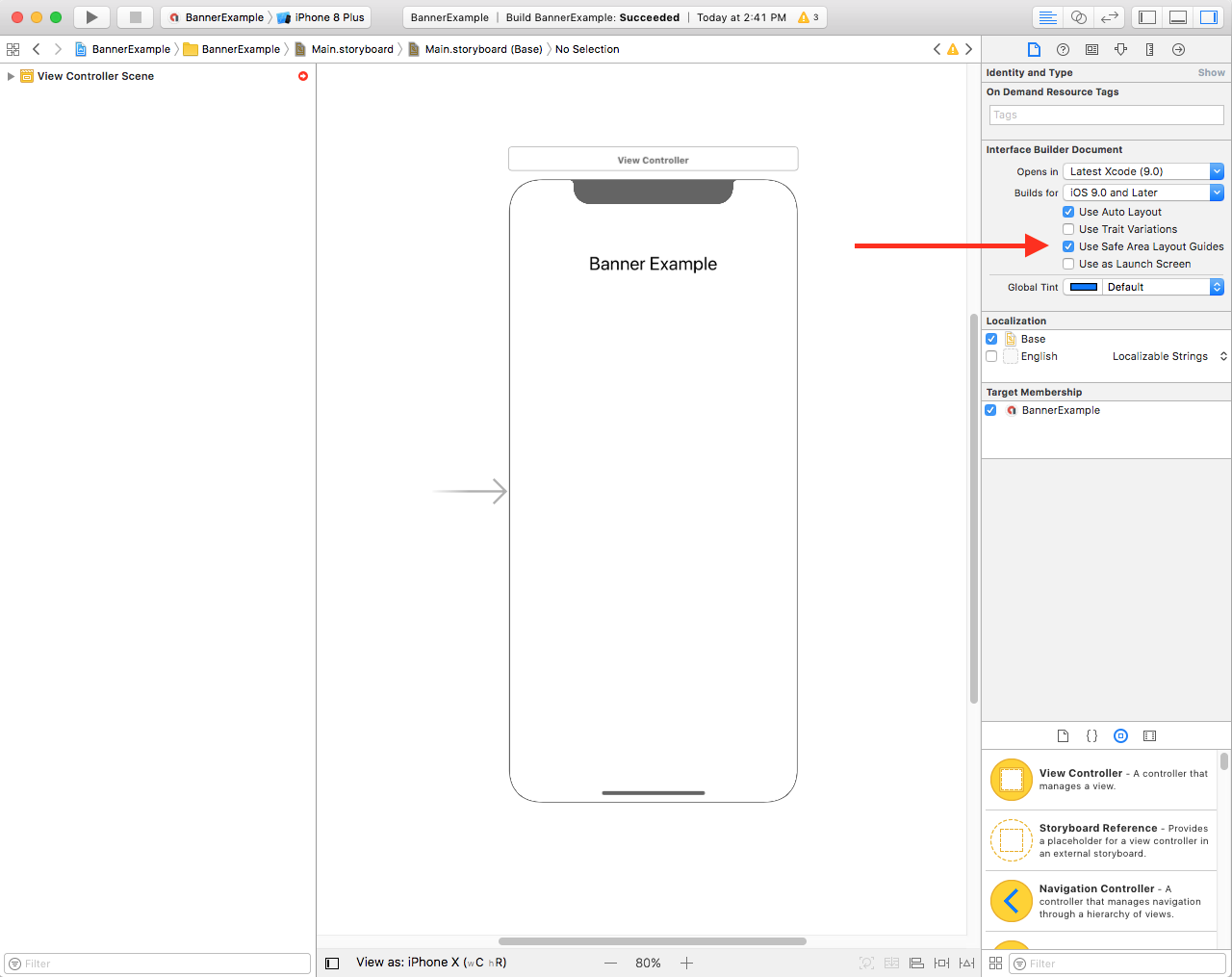
যদি আপনার অ্যাপটি ইন্টারফেস বিল্ডার ব্যবহার করে, তাহলে প্রথমে নিশ্চিত করুন যে আপনি সেফ এরিয়া লেআউট গাইড সক্রিয় করেছেন। এটি করার জন্য আপনাকে Xcode 9+ চালাতে হবে এবং iOS 9+ টার্গেট করতে হবে।
আপনার ইন্টারফেস বিল্ডার ফাইলটি খুলুন এবং আপনার ভিউ কন্ট্রোলার দৃশ্যে ক্লিক করুন। আপনি ডানদিকে ইন্টারফেস বিল্ডার ডকুমেন্ট বিকল্পগুলি দেখতে পাবেন। নিরাপদ অঞ্চল লেআউট গাইড ব্যবহার করুন চেক করুন এবং নিশ্চিত করুন যে আপনি সর্বনিম্ন iOS 9.0 এবং তার পরবর্তী সংস্করণের জন্য তৈরি করছেন।
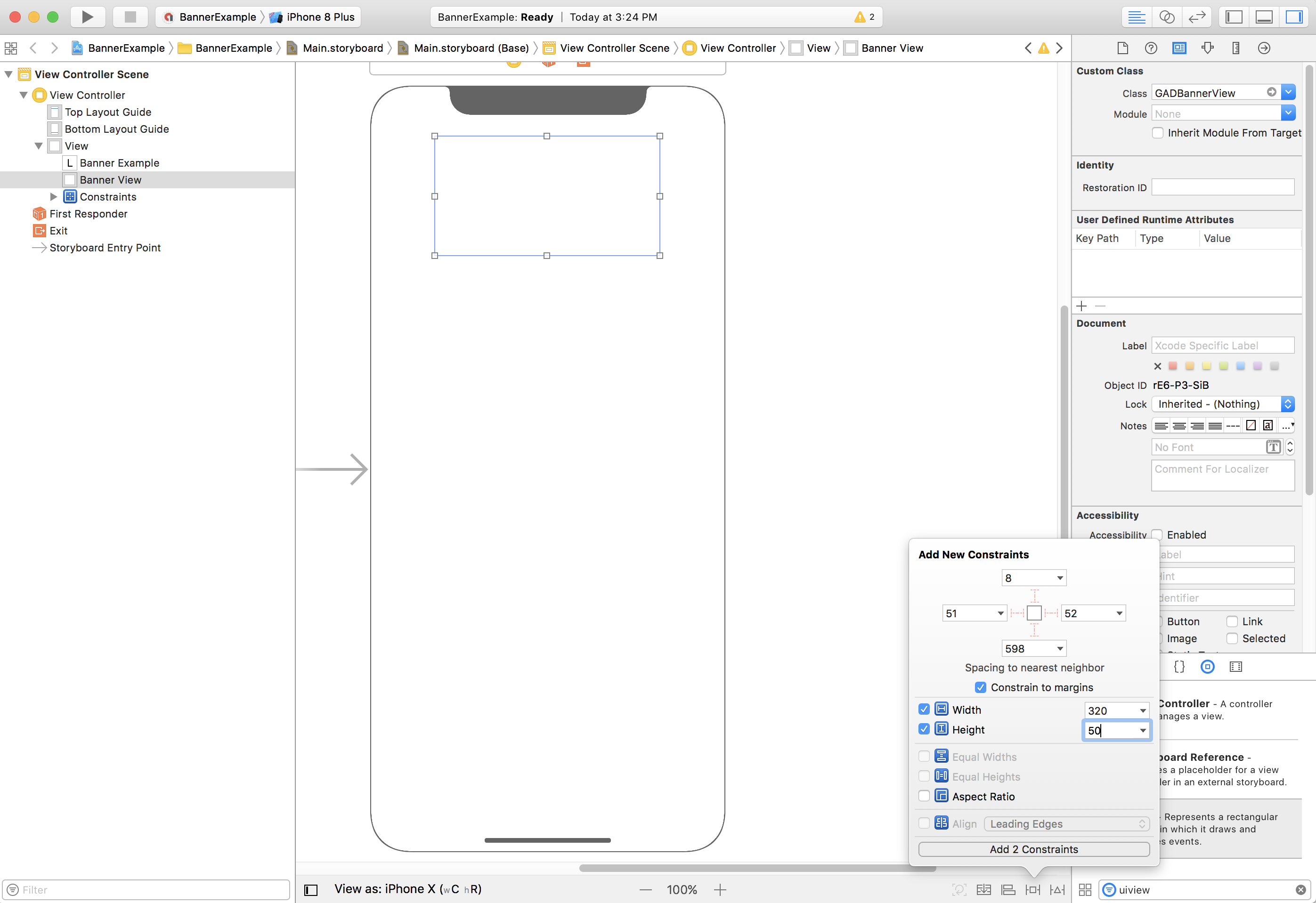
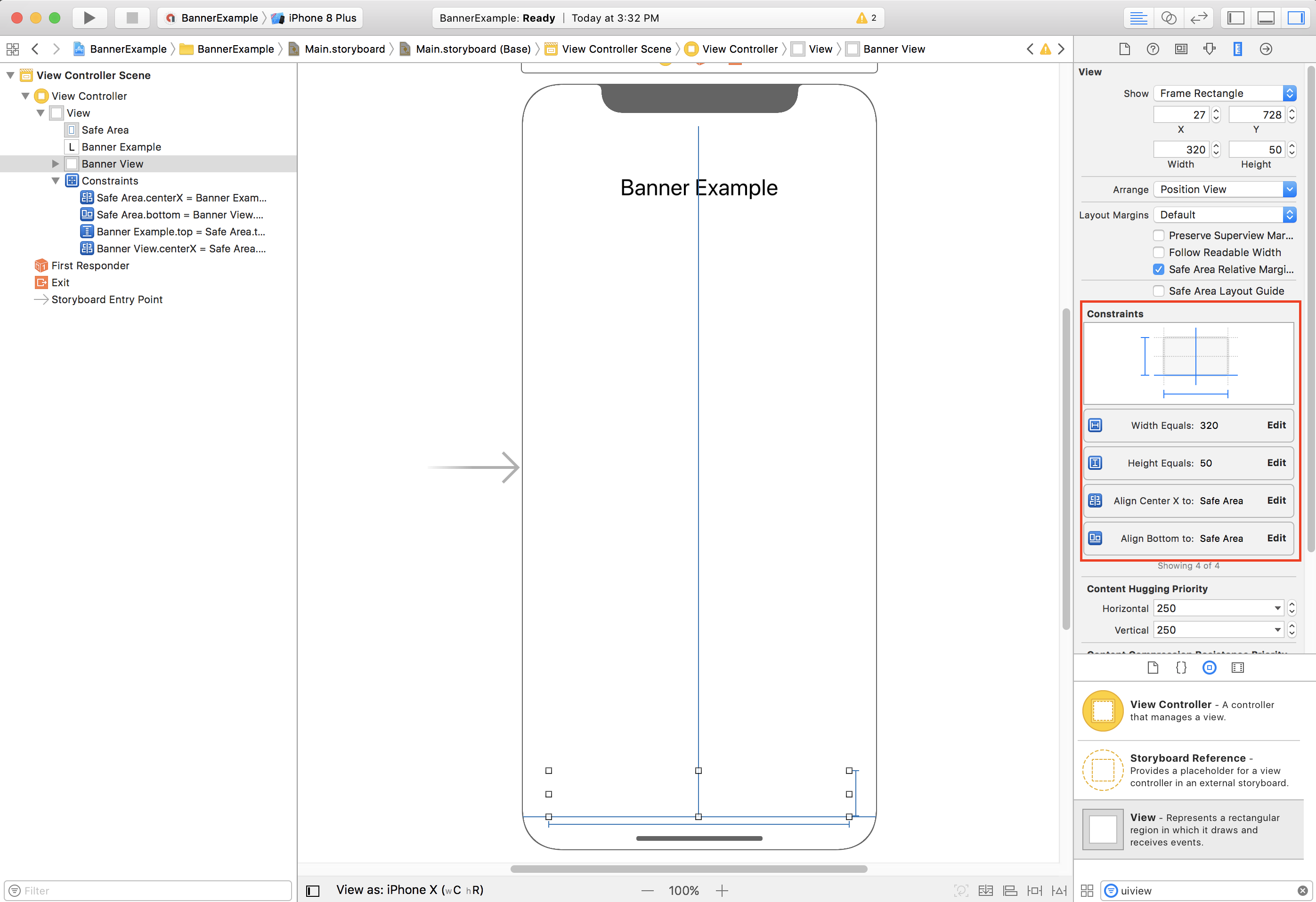
আমরা আপনাকে প্রস্থ এবং উচ্চতার সীমাবদ্ধতা ব্যবহার করে প্রয়োজনীয় আকারে ব্যানারটি সীমাবদ্ধ করার পরামর্শ দিচ্ছি।
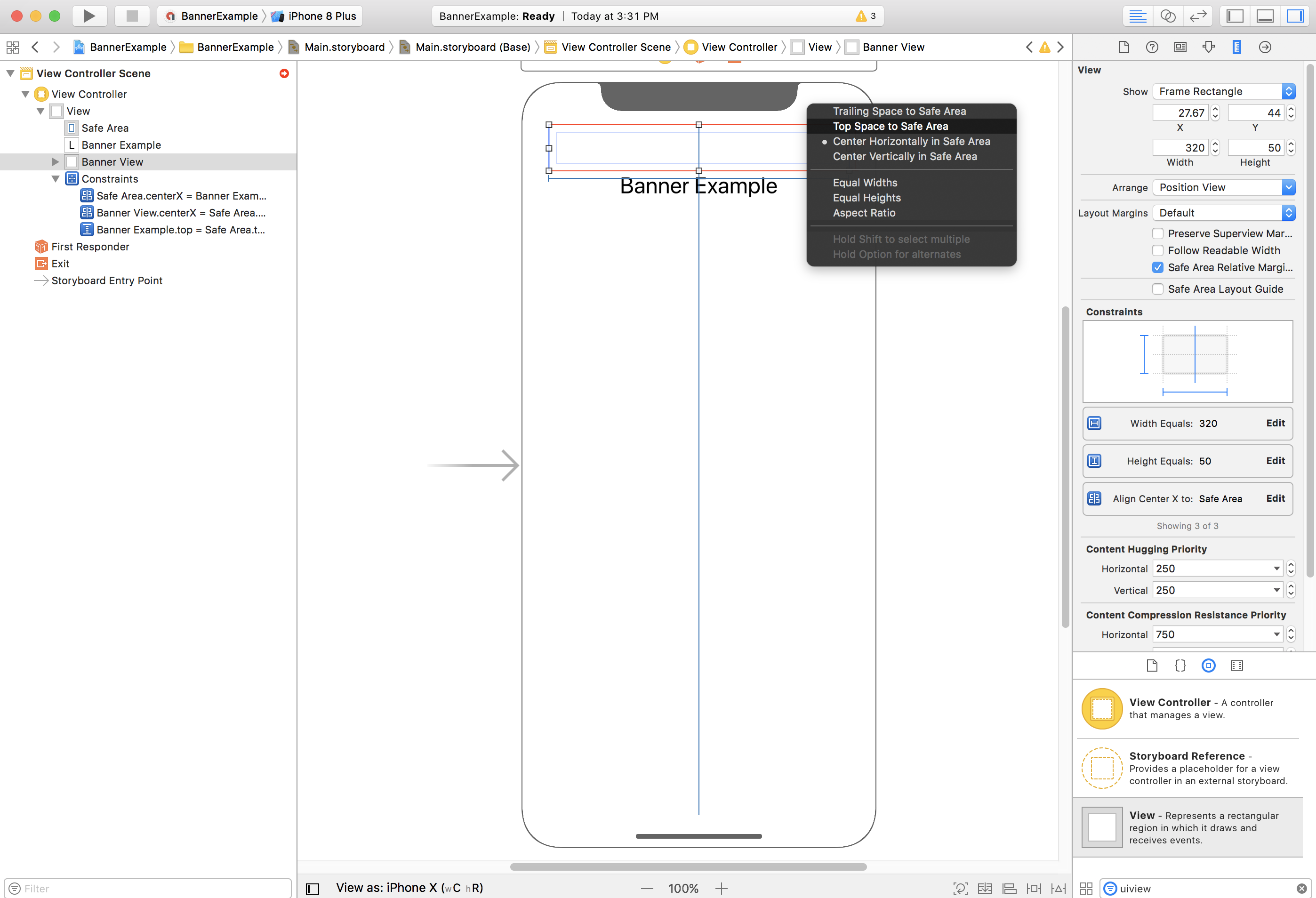
এখন আপনি GADBannerView এর Top প্রপার্টিটি Safe Area এর উপরে সীমাবদ্ধ করে ব্যানারটিকে Safe Area এর উপরে সারিবদ্ধ করতে পারেন:
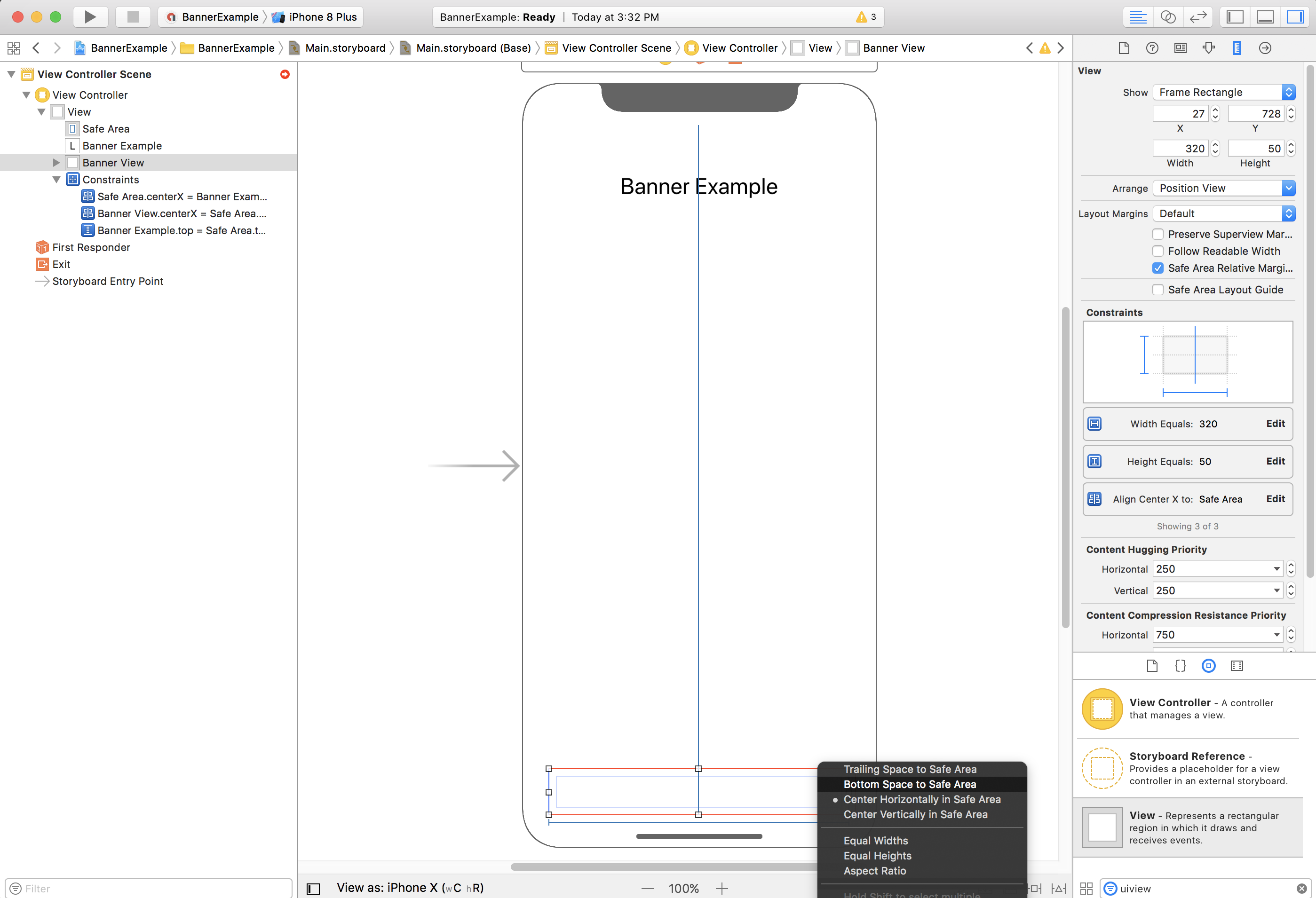
একইভাবে, আপনি GADBannerView এর Bottom প্রপার্টিটি নিরাপদ এলাকার নীচে সীমাবদ্ধ করে ব্যানারটি নিরাপদ এলাকার নীচে সারিবদ্ধ করতে পারেন:
আপনার সীমাবদ্ধতাগুলি এখন নীচের স্ক্রিনশটের মতো দেখাবে (আকার/অবস্থান পরিবর্তিত হতে পারে):
ভিউকন্ট্রোলার
এখানে একটি সহজ ভিউ কন্ট্রোলার কোড স্নিপেট দেওয়া হল যা উপরের স্টোরিবোর্ডে কনফিগার করা GADBannerView এ ব্যানার দেখানোর জন্য প্রয়োজনীয় ন্যূনতম কাজ করে:
সুইফট
class ViewController: UIViewController {

  /// The banner view.
  @IBOutlet var bannerView: BannerView!

  override func viewDidLoad() {
    super.viewDidLoad()
    // Replace this ad unit ID with your own ad unit ID.
    bannerView.adUnitID = "ca-app-pub-3940256099942544/2934735716"
    bannerView.rootViewController = self
    bannerView.load(Request())
  }

}
অবজেক্টিভ-সি
@interface ViewController()

@property(nonatomic, strong) IBOutlet GADBannerView *bannerView;

@end

@implementation ViewController

- (void)viewDidLoad {
  [super viewDidLoad];

  // Replace this ad unit ID with your own ad unit ID.
  self.bannerView.adUnitID = @"ca-app-pub-3940256099942544/2934735716";
  self.bannerView.rootViewController = self;
  GADRequest *request = [GADRequest request];
  [self.bannerView loadRequest:request];
}
নিরাপদ এলাকার প্রান্তে ব্যানার সারিবদ্ধ করা
যদি আপনি একটি বাম- অথবা ডান-সারিবদ্ধ ব্যানার রাখতে চান, তাহলে ব্যানারের বাম/ডান প্রান্তটি নিরাপদ এলাকার বাম/ডান প্রান্তে সীমাবদ্ধ করুন, সুপারভিউয়ের বাম/ডান প্রান্তে নয়।
যদি আপনার "Use Safe Area Layout Guides" সক্রিয় থাকে, তাহলে ইন্টারফেস বিল্ডার ভিউতে সীমাবদ্ধতা যোগ করার সময় নিরাপদ এলাকার প্রান্তগুলি ব্যবহার করবে।
প্রোগ্রাম্যাটিক
যদি আপনার অ্যাপটি প্রোগ্রাম্যাটিকভাবে ব্যানার বিজ্ঞাপন তৈরি করে, তাহলে আপনি সীমাবদ্ধতা নির্ধারণ করতে পারেন এবং ব্যানার বিজ্ঞাপনটিকে কোডে স্থাপন করতে পারেন। এই উদাহরণটি দেখায় কিভাবে একটি ব্যানারকে নিরাপদ এলাকার নীচে অনুভূমিকভাবে কেন্দ্রীভূত করতে হয়:
সুইফট
class ViewController: UIViewController {

  var bannerView: BannerView!

  override func viewDidLoad() {
    super.viewDidLoad()

    // Instantiate the banner view with your desired banner size.
    bannerView = BannerView(adSize: AdSizeBanner)
    addBannerViewToView(bannerView)
    bannerView.rootViewController = self
    // Set the ad unit ID to your own ad unit ID here.
    bannerView.adUnitID = "ca-app-pub-3940256099942544/2934735716"
    bannerView.load(Request())
  }

  func addBannerViewToView(_ bannerView: UIView) {
    bannerView.translatesAutoresizingMaskIntoConstraints = false
    view.addSubview(bannerView)
    if #available(iOS 11.0, *) {
      positionBannerAtBottomOfSafeArea(bannerView)
    }
    else {
      positionBannerAtBottomOfView(bannerView)
    }
  }

  @available (iOS 11, *)
  func positionBannerAtBottomOfSafeArea(_ bannerView: UIView) {
    // Position the banner. Stick it to the bottom of the Safe Area.
    // Centered horizontally.
    let guide: UILayoutGuide = view.safeAreaLayoutGuide

    NSLayoutConstraint.activate(
      [bannerView.centerXAnchor.constraint(equalTo: guide.centerXAnchor),
       bannerView.bottomAnchor.constraint(equalTo: guide.bottomAnchor)]
    )
  }

  func positionBannerAtBottomOfView(_ bannerView: UIView) {
    // Center the banner horizontally.
    view.addConstraint(NSLayoutConstraint(item: bannerView,
                                          attribute: .centerX,
                                          relatedBy: .equal,
                                          toItem: view,
                                          attribute: .centerX,
                                          multiplier: 1,
                                          constant: 0))
    // Lock the banner to the top of the bottom layout guide.
    view.addConstraint(NSLayoutConstraint(item: bannerView,
                                          attribute: .bottom,
                                          relatedBy: .equal,
                                          toItem: self.bottomLayoutGuide,
                                          attribute: .top,
                                          multiplier: 1,
                                          constant: 0))
  }

}
অবজেক্টিভ-সি
@interface ViewController()

@property(nonatomic, strong) GADBannerView *bannerView;

@end

@implementation ViewController

- (void)viewDidLoad {
  [super viewDidLoad];

  // Instantiate the banner view with your desired banner size.
  self.bannerView = [[GADBannerView alloc] initWithAdSize:GADAdSizeBanner];
  [self addBannerViewToView:self.bannerView];

  // Replace this ad unit ID with your own ad unit ID.
  self.bannerView.adUnitID = @"ca-app-pub-3940256099942544/2934735716";
  self.bannerView.rootViewController = self;
  GADRequest *request = [GADRequest request];
  [self.bannerView loadRequest:request];
}

#pragma mark - view positioning

-(void)addBannerViewToView:(UIView *_Nonnull)bannerView {
  self.bannerView.translatesAutoresizingMaskIntoConstraints = NO;
  [self.view addSubview:self.bannerView];
  if (@available(ios 11.0, *)) {
    [self positionBannerViewAtBottomOfSafeArea:bannerView];
  } else {
    [self positionBannerViewAtBottomOfView:bannerView];
  }
}

- (void)positionBannerViewAtBottomOfSafeArea:(UIView *_Nonnull)bannerView NS_AVAILABLE_IOS(11.0) {
  // Position the banner. Stick it to the bottom of the Safe Area.
  // Centered horizontally.
  UILayoutGuide *guide = self.view.safeAreaLayoutGuide;
  [NSLayoutConstraint activateConstraints:@[
    [bannerView.centerXAnchor constraintEqualToAnchor:guide.centerXAnchor],
    [bannerView.bottomAnchor constraintEqualToAnchor:guide.bottomAnchor]
  ]];
}

- (void)positionBannerViewAtBottomOfView:(UIView *_Nonnull)bannerView {
  [self.view addConstraint:[NSLayoutConstraint constraintWithItem:bannerView
                                                        attribute:NSLayoutAttributeCenterX
                                                        relatedBy:NSLayoutRelationEqual
                                                           toItem:self.view
                                                        attribute:NSLayoutAttributeCenterX
                                                       multiplier:1
                                                         constant:0]];
  [self.view addConstraint:[NSLayoutConstraint constraintWithItem:bannerView
                                                        attribute:NSLayoutAttributeBottom
                                                        relatedBy:NSLayoutRelationEqual
                                                           toItem:self.bottomLayoutGuide
                                                        attribute:NSLayoutAttributeTop
                                                       multiplier:1
                                                         constant:0]];
}

@end
উপরের কৌশলগুলি সহজেই ব্যবহৃত বৈশিষ্ট্য এবং অ্যাঙ্করগুলি পরিবর্তন করে নিরাপদ এলাকার শীর্ষে সীমাবদ্ধ করার জন্য ব্যবহার করা যেতে পারে।
স্মার্ট ব্যানার
আপনি যদি স্মার্ট ব্যানার ব্যবহার করেন, বিশেষ করে ল্যান্ডস্কেপে, তাহলে আমরা সুপারিশ করব যে আপনি নিরাপদ এলাকার বাম এবং ডান প্রান্তে ব্যানারের প্রান্তগুলি সারিবদ্ধ করার জন্য সীমাবদ্ধতা ব্যবহার করুন।
ইন্টারফেস বিল্ডারে, উপরে বর্ণিত "Use Safe Area Layout Guides" বিকল্পটি চেক করে এটি iOS 9-এ সমর্থিত।
কোডে, আপনার প্রান্তের সীমাবদ্ধতাগুলি নিরাপদ এলাকা লেআউট নির্দেশিকাগুলির সাথে সাপেক্ষে তৈরি করা উচিত যেখানে উপলব্ধ। এখানে একটি কোড স্নিপেট রয়েছে যা ভিউতে একটি ব্যানার ভিউ যোগ করে এবং ভিউয়ের নীচে, পূর্ণ-প্রস্থে সীমাবদ্ধ করে:
সুইফট
func addBannerViewToView(_ bannerView: BannerView) {
  bannerView.translatesAutoresizingMaskIntoConstraints = false
  view.addSubview(bannerView)
  if #available(iOS 11.0, *) {
    // In iOS 11, we need to constrain the view to the safe area.
    positionBannerViewFullWidthAtBottomOfSafeArea(bannerView)
  }
  else {
    // In lower iOS versions, safe area is not available so we use
    // bottom layout guide and view edges.
    positionBannerViewFullWidthAtBottomOfView(bannerView)
  }
}

// MARK: - view positioning
@available (iOS 11, *)
func positionBannerViewFullWidthAtBottomOfSafeArea(_ bannerView: UIView) {
  // Position the banner. Stick it to the bottom of the Safe Area.
  // Make it constrained to the edges of the safe area.
  let guide = view.safeAreaLayoutGuide
  NSLayoutConstraint.activate([
    guide.leftAnchor.constraint(equalTo: bannerView.leftAnchor),
    guide.rightAnchor.constraint(equalTo: bannerView.rightAnchor),
    guide.bottomAnchor.constraint(equalTo: bannerView.bottomAnchor)
  ])
}

func positionBannerViewFullWidthAtBottomOfView(_ bannerView: UIView) {
  view.addConstraint(NSLayoutConstraint(item: bannerView,
                                        attribute: .leading,
                                        relatedBy: .equal,
                                        toItem: view,
                                        attribute: .leading,
                                        multiplier: 1,
                                        constant: 0))
  view.addConstraint(NSLayoutConstraint(item: bannerView,
                                        attribute: .trailing,
                                        relatedBy: .equal,
                                        toItem: view,
                                        attribute: .trailing,
                                        multiplier: 1,
                                        constant: 0))
  view.addConstraint(NSLayoutConstraint(item: bannerView,
                                        attribute: .bottom,
                                        relatedBy: .equal,
                                        toItem: bottomLayoutGuide,
                                        attribute: .top,
                                        multiplier: 1,
                                        constant: 0))
}
অবজেক্টিভ-সি
- (void)addBannerViewToView:(UIView *)bannerView {
  bannerView.translatesAutoresizingMaskIntoConstraints = NO;
  [self.view addSubview:bannerView];
  if (@available(ios 11.0, *)) {
    // In iOS 11, we need to constrain the view to the safe area.
    [self positionBannerViewFullWidthAtBottomOfSafeArea:bannerView];
  } else {
    // In lower iOS versions, safe area is not available so we use
    // bottom layout guide and view edges.
    [self positionBannerViewFullWidthAtBottomOfView:bannerView];
  }
}

#pragma mark - view positioning

- (void)positionBannerViewFullWidthAtBottomOfSafeArea:(UIView *_Nonnull)bannerView NS_AVAILABLE_IOS(11.0) {
  // Position the banner. Stick it to the bottom of the Safe Area.
  // Make it constrained to the edges of the safe area.
  UILayoutGuide *guide = self.view.safeAreaLayoutGuide;

  [NSLayoutConstraint activateConstraints:@[
    [guide.leftAnchor constraintEqualToAnchor:bannerView.leftAnchor],
    [guide.rightAnchor constraintEqualToAnchor:bannerView.rightAnchor],
    [guide.bottomAnchor constraintEqualToAnchor:bannerView.bottomAnchor]
  ]];
}

- (void)positionBannerViewFullWidthAtBottomOfView:(UIView *_Nonnull)bannerView {
  [self.view addConstraint:[NSLayoutConstraint constraintWithItem:bannerView
                                                        attribute:NSLayoutAttributeLeading
                                                        relatedBy:NSLayoutRelationEqual
                                                           toItem:self.view
                                                        attribute:NSLayoutAttributeLeading
                                                       multiplier:1
                                                         constant:0]];
  [self.view addConstraint:[NSLayoutConstraint constraintWithItem:bannerView
                                                        attribute:NSLayoutAttributeTrailing
                                                        relatedBy:NSLayoutRelationEqual
                                                           toItem:self.view
                                                        attribute:NSLayoutAttributeTrailing
                                                       multiplier:1
                                                         constant:0]];
  [self.view addConstraint:[NSLayoutConstraint constraintWithItem:bannerView
                                                        attribute:NSLayoutAttributeBottom
                                                        relatedBy:NSLayoutRelationEqual
                                                           toItem:self.bottomLayoutGuide
                                                        attribute:NSLayoutAttributeTop
                                                       multiplier:1
                                                         constant:0]];
}
নেটিভ বিজ্ঞাপন
যদি আপনার অ্যাপটি স্ক্রিনের উপরে বা নীচে নেটিভ বিজ্ঞাপন পিন করে, তাহলে ব্যানার বিজ্ঞাপনের মতো নেটিভ বিজ্ঞাপনের ক্ষেত্রেও একই নীতি প্রযোজ্য হবে। মূল পার্থক্য হল, GADBannerView এ সীমাবদ্ধতা যোগ করার পরিবর্তে, নিরাপদ এলাকা লেআউট নির্দেশিকা মেনে চলার জন্য আপনাকে আপনার GADNativeAdView (অথবা বিজ্ঞাপনের জন্য ধারণকারী দৃশ্য) তে সীমাবদ্ধতা যোগ করতে হবে। নেটিভ ভিউয়ের জন্য আমরা আরও স্পষ্ট আকারের সীমাবদ্ধতা প্রদান করার পরামর্শ দিই।
ইন্টারস্টিশিয়াল এবং পুরস্কৃত বিজ্ঞাপন
৭.২৬.০ সংস্করণ অনুসারে, গুগল মোবাইল বিজ্ঞাপন SDK আইফোন এক্সের জন্য ইন্টারস্টিশিয়াল এবং পুরস্কৃত বিজ্ঞাপন ফর্ম্যাটগুলিকে সম্পূর্ণরূপে সমর্থন করে।