
این راهنما بهترین شیوهها را در مورد نحوه کدنویسی برنامههای شما برای نمایش صحیح تبلیغات در آیفون X نشان میدهد.
پیشنیازها
- SDK مربوط به تبلیغات موبایلی گوگل نسخه ۷.۲۶.۰ یا بالاتر را به تنهایی یا به عنوان بخشی از Firebase وارد کنید.
تبلیغات بنری
بنرهای تبلیغاتی باید در «منطقه امن» قرار داده شوند تا از پنهان شدن توسط گوشههای گرد، محفظه حسگر و نشانگر صفحه اصلی جلوگیری شود. در این صفحه، نمونههایی از نحوه اضافه کردن محدودیتها برای قرار دادن بنر در بالا یا پایین منطقه امن را خواهید یافت.
استوریبورد/سازنده رابط کاربری
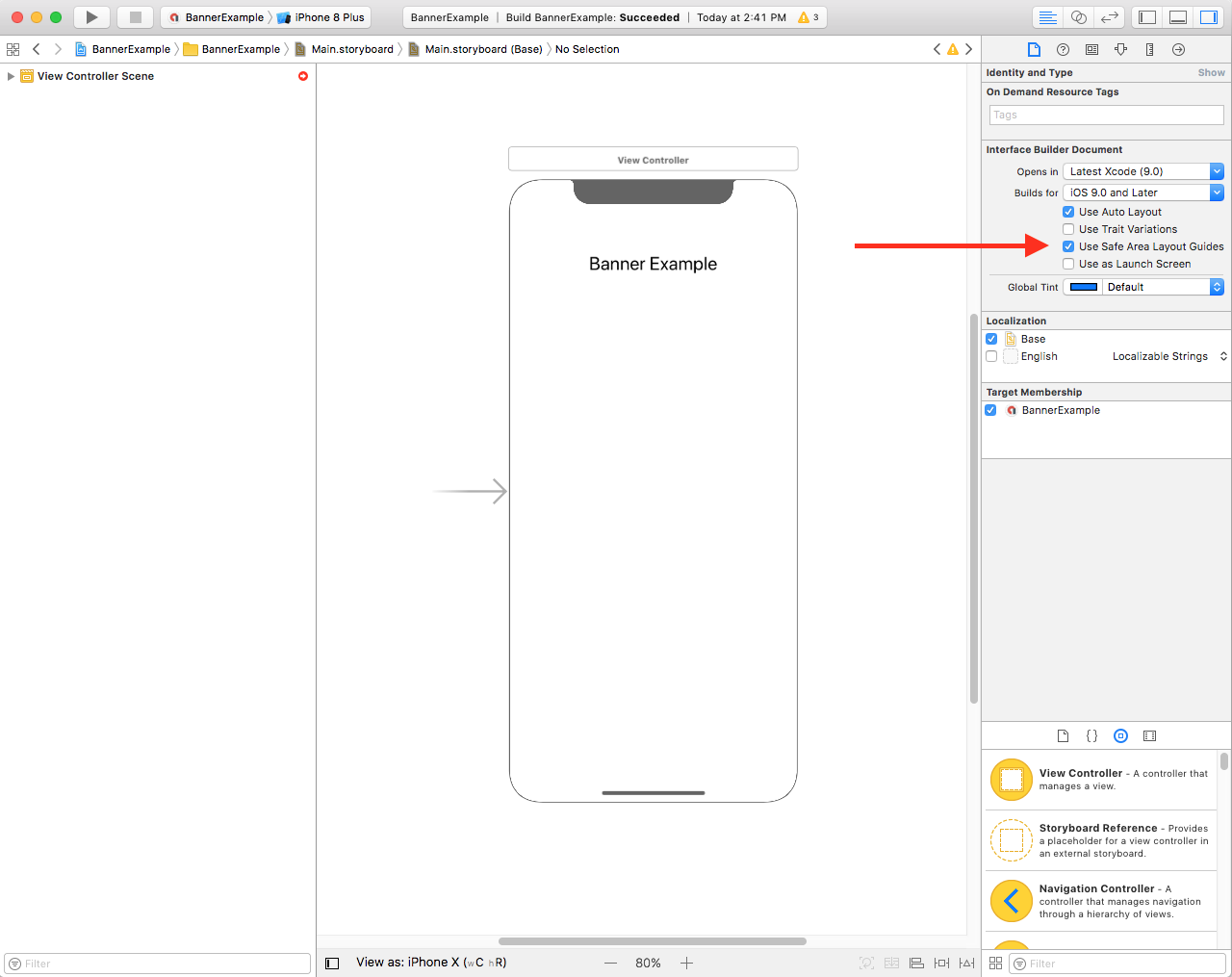
اگر برنامه شما از Interface Builder استفاده میکند، ابتدا مطمئن شوید که راهنماهای طرحبندی Safe Area را فعال کردهاید. برای انجام این کار باید Xcode 9+ را اجرا کنید و iOS 9+ را هدف قرار دهید.
فایل سازنده رابط کاربری (Interface Builder) خود را باز کنید و روی صحنه کنترلر نمای (view controller scene) خود کلیک کنید. گزینههای سند سازنده رابط کاربری (Interface Builder Document) را در سمت راست مشاهده خواهید کرد. گزینه «استفاده از راهنماهای طرحبندی منطقه امن» (Use Safe Area Layout Guides) را علامت بزنید و مطمئن شوید که حداقل برای iOS 9.0 و بالاتر در حال ساخت هستید.
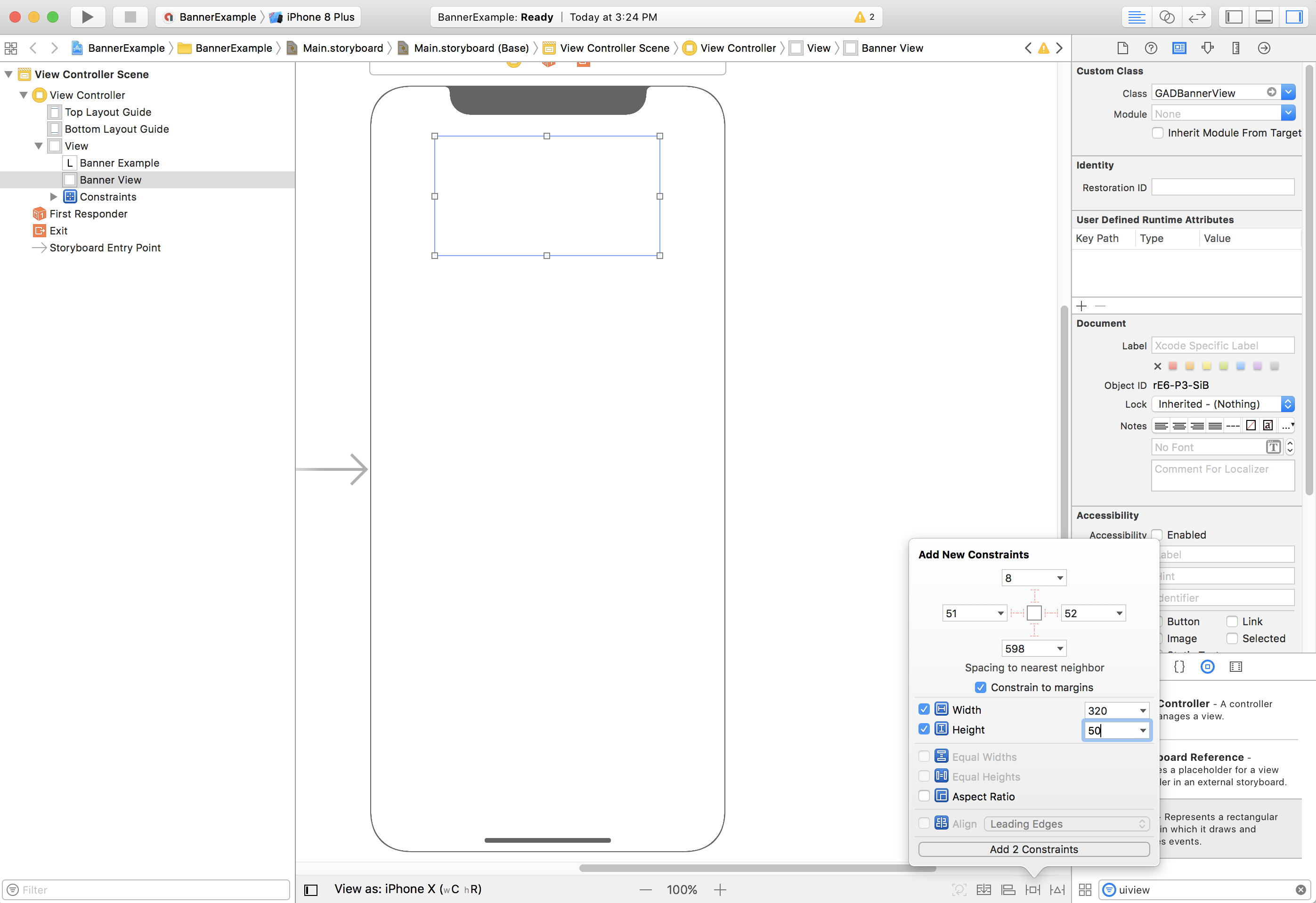
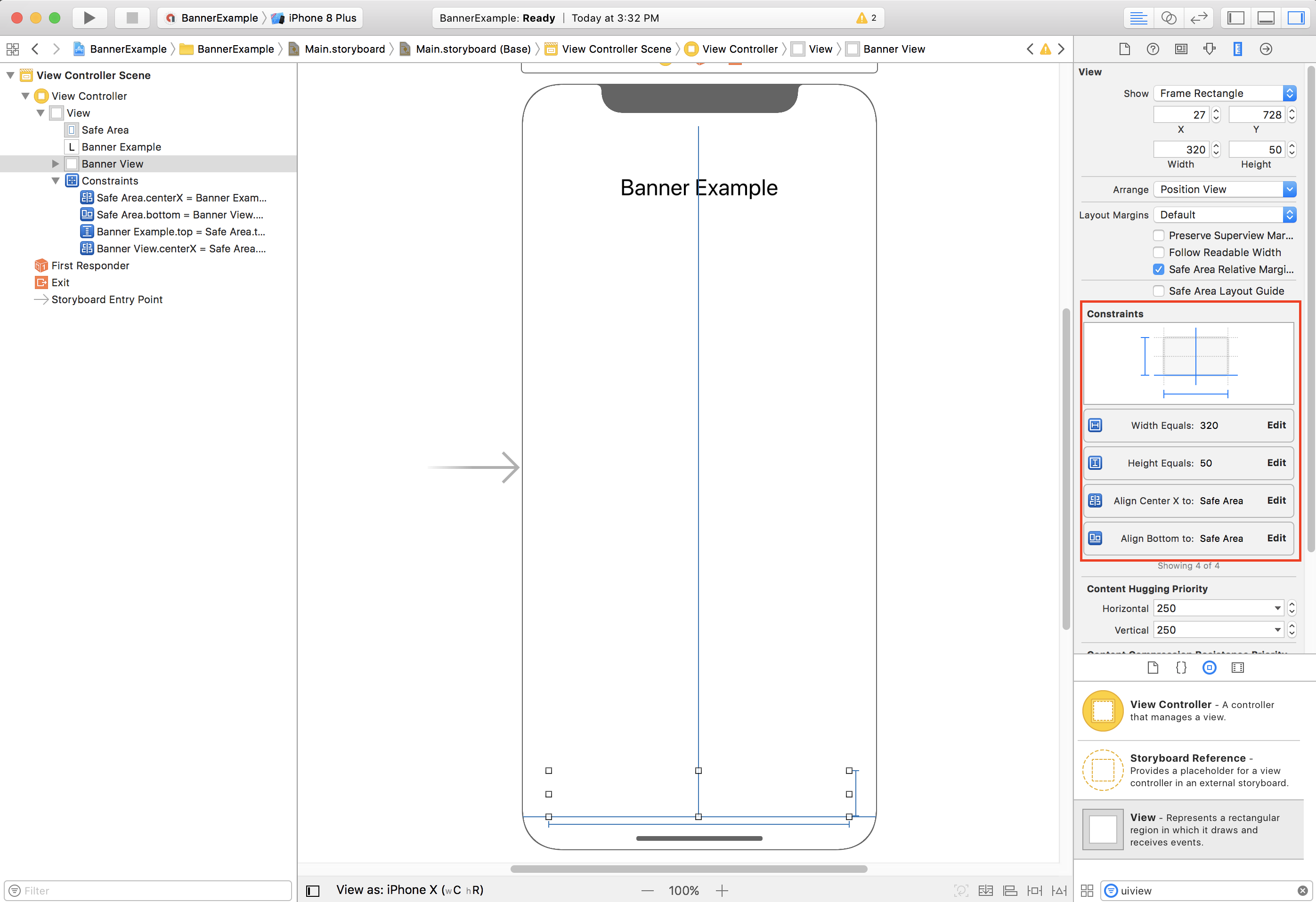
توصیه میکنیم با استفاده از محدودیتهای عرض و ارتفاع، اندازه بنر را به اندازه مورد نیاز محدود کنید.
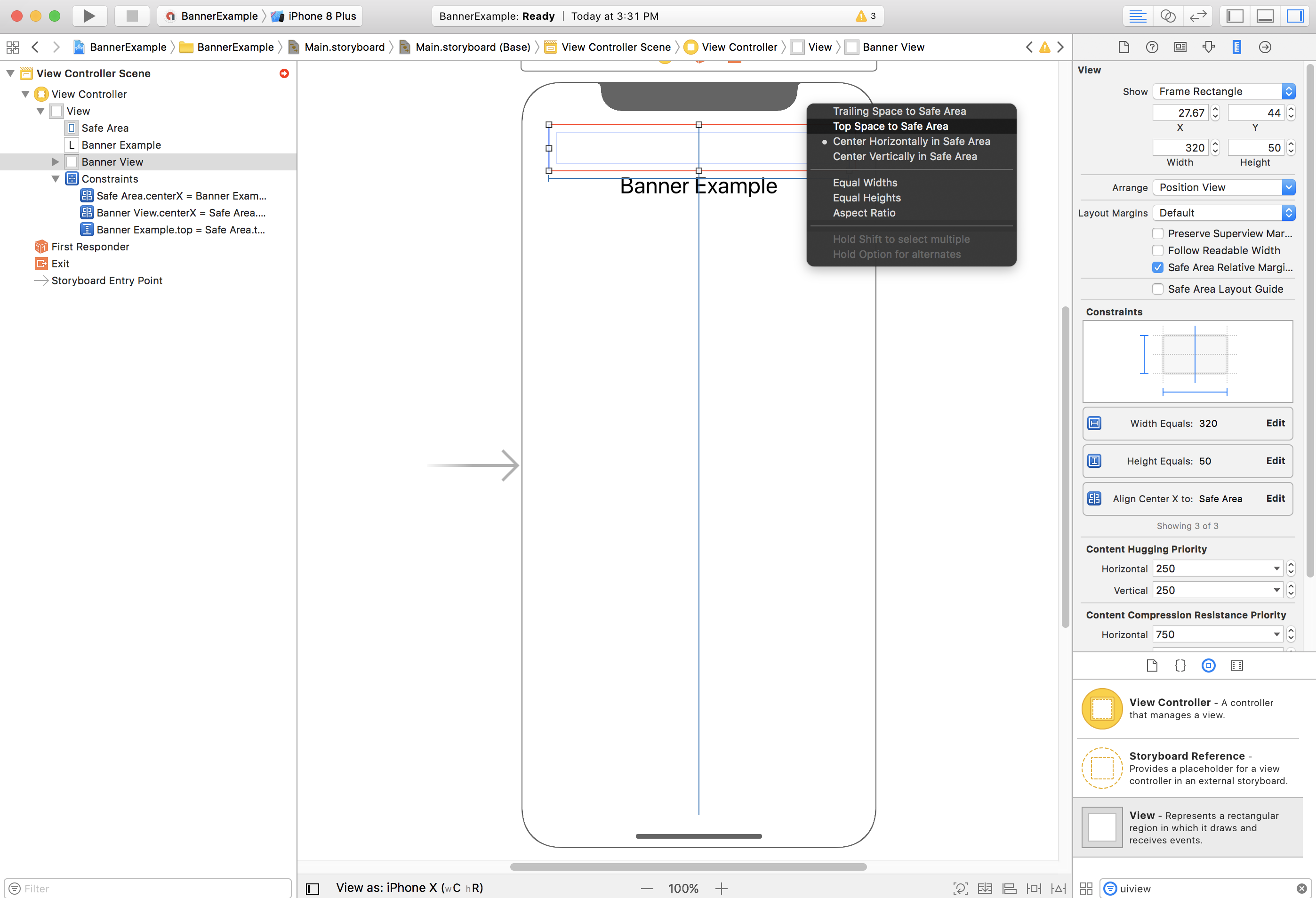
اکنون میتوانید با محدود کردن ویژگی Top از GADBannerView به بالای Safe Area، بنر را در بالای Safe Area تراز کنید:
به طور مشابه، میتوانید با محدود کردن ویژگی Bottom از GADBannerView به پایین منطقه امن، بنر را در پایین منطقه امن تراز کنید:
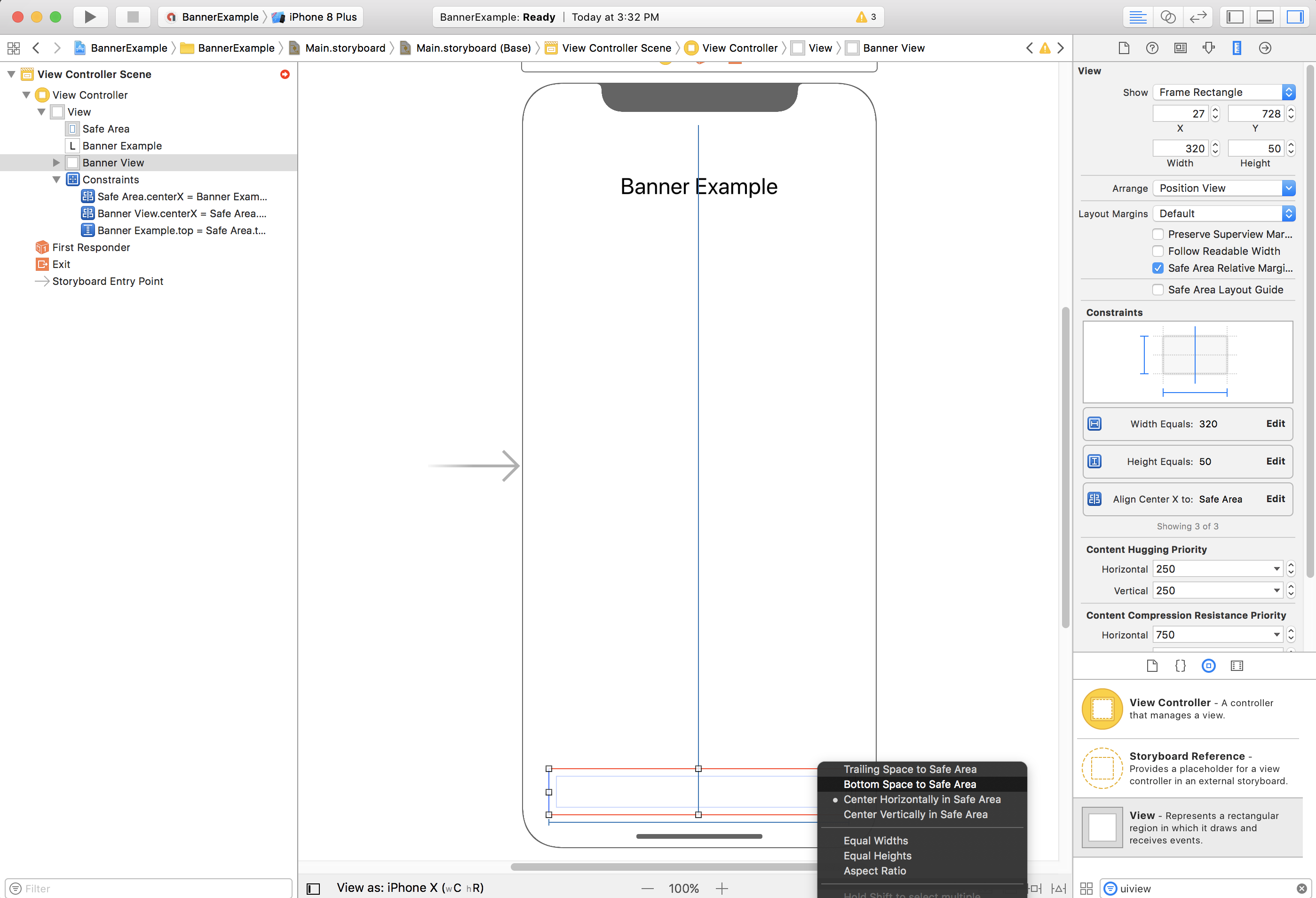
اکنون محدودیتهای شما باید مشابه تصویر زیر باشند (اندازه/موقعیت میتواند متفاوت باشد):
ویوکنترلر
در اینجا یک قطعه کد ساده برای کنترلر نما آورده شده است که حداقل کارهای لازم برای نمایش یک بنر در GADBannerView را مطابق پیکربندی شده در استوریبورد بالا انجام میدهد:
سویفت
class ViewController: UIViewController {

  /// The banner view.
  @IBOutlet var bannerView: BannerView!

  override func viewDidLoad() {
    super.viewDidLoad()
    // Replace this ad unit ID with your own ad unit ID.
    bannerView.adUnitID = "ca-app-pub-3940256099942544/2934735716"
    bannerView.rootViewController = self
    bannerView.load(Request())
  }

}
هدف-سی
@interface ViewController()

@property(nonatomic, strong) IBOutlet GADBannerView *bannerView;

@end

@implementation ViewController

- (void)viewDidLoad {
  [super viewDidLoad];

  // Replace this ad unit ID with your own ad unit ID.
  self.bannerView.adUnitID = @"ca-app-pub-3940256099942544/2934735716";
  self.bannerView.rootViewController = self;
  GADRequest *request = [GADRequest request];
  [self.bannerView loadRequest:request];
}
تراز کردن بنرها با لبه منطقه امن
اگر میخواهید بنر شما چپچین یا راستچین باشد، لبه چپ/راست بنر را به لبه چپ/راست منطقه امن محدود کنید و نه به لبه چپ/راست نمای بالا.
اگر گزینهی «استفاده از راهنماهای طرحبندی ناحیهی امن» را فعال کرده باشید، سازندهی رابط کاربری هنگام افزودن محدودیت به نما، بهطور پیشفرض از لبههای ناحیهی امن استفاده میکند.
برنامهای
اگر برنامه شما بنرهای تبلیغاتی را به صورت برنامهنویسی شده ایجاد میکند، میتوانید محدودیتها را تعریف کرده و بنر تبلیغاتی را در کد قرار دهید. این مثال نحوه محدود کردن یک بنر به قرار گرفتن افقی در مرکز پایین منطقه امن را نشان میدهد:
سویفت
class ViewController: UIViewController {

  var bannerView: BannerView!

  override func viewDidLoad() {
    super.viewDidLoad()

    // Instantiate the banner view with your desired banner size.
    bannerView = BannerView(adSize: AdSizeBanner)
    addBannerViewToView(bannerView)
    bannerView.rootViewController = self
    // Set the ad unit ID to your own ad unit ID here.
    bannerView.adUnitID = "ca-app-pub-3940256099942544/2934735716"
    bannerView.load(Request())
  }

  func addBannerViewToView(_ bannerView: UIView) {
    bannerView.translatesAutoresizingMaskIntoConstraints = false
    view.addSubview(bannerView)
    if #available(iOS 11.0, *) {
      positionBannerAtBottomOfSafeArea(bannerView)
    }
    else {
      positionBannerAtBottomOfView(bannerView)
    }
  }

  @available (iOS 11, *)
  func positionBannerAtBottomOfSafeArea(_ bannerView: UIView) {
    // Position the banner. Stick it to the bottom of the Safe Area.
    // Centered horizontally.
    let guide: UILayoutGuide = view.safeAreaLayoutGuide

    NSLayoutConstraint.activate(
      [bannerView.centerXAnchor.constraint(equalTo: guide.centerXAnchor),
       bannerView.bottomAnchor.constraint(equalTo: guide.bottomAnchor)]
    )
  }

  func positionBannerAtBottomOfView(_ bannerView: UIView) {
    // Center the banner horizontally.
    view.addConstraint(NSLayoutConstraint(item: bannerView,
                                          attribute: .centerX,
                                          relatedBy: .equal,
                                          toItem: view,
                                          attribute: .centerX,
                                          multiplier: 1,
                                          constant: 0))
    // Lock the banner to the top of the bottom layout guide.
    view.addConstraint(NSLayoutConstraint(item: bannerView,
                                          attribute: .bottom,
                                          relatedBy: .equal,
                                          toItem: self.bottomLayoutGuide,
                                          attribute: .top,
                                          multiplier: 1,
                                          constant: 0))
  }

}
هدف-سی
@interface ViewController()

@property(nonatomic, strong) GADBannerView *bannerView;

@end

@implementation ViewController

- (void)viewDidLoad {
  [super viewDidLoad];

  // Instantiate the banner view with your desired banner size.
  self.bannerView = [[GADBannerView alloc] initWithAdSize:GADAdSizeBanner];
  [self addBannerViewToView:self.bannerView];

  // Replace this ad unit ID with your own ad unit ID.
  self.bannerView.adUnitID = @"ca-app-pub-3940256099942544/2934735716";
  self.bannerView.rootViewController = self;
  GADRequest *request = [GADRequest request];
  [self.bannerView loadRequest:request];
}

#pragma mark - view positioning

-(void)addBannerViewToView:(UIView *_Nonnull)bannerView {
  self.bannerView.translatesAutoresizingMaskIntoConstraints = NO;
  [self.view addSubview:self.bannerView];
  if (@available(ios 11.0, *)) {
    [self positionBannerViewAtBottomOfSafeArea:bannerView];
  } else {
    [self positionBannerViewAtBottomOfView:bannerView];
  }
}

- (void)positionBannerViewAtBottomOfSafeArea:(UIView *_Nonnull)bannerView NS_AVAILABLE_IOS(11.0) {
  // Position the banner. Stick it to the bottom of the Safe Area.
  // Centered horizontally.
  UILayoutGuide *guide = self.view.safeAreaLayoutGuide;
  [NSLayoutConstraint activateConstraints:@[
    [bannerView.centerXAnchor constraintEqualToAnchor:guide.centerXAnchor],
    [bannerView.bottomAnchor constraintEqualToAnchor:guide.bottomAnchor]
  ]];
}

- (void)positionBannerViewAtBottomOfView:(UIView *_Nonnull)bannerView {
  [self.view addConstraint:[NSLayoutConstraint constraintWithItem:bannerView
                                                        attribute:NSLayoutAttributeCenterX
                                                        relatedBy:NSLayoutRelationEqual
                                                           toItem:self.view
                                                        attribute:NSLayoutAttributeCenterX
                                                       multiplier:1
                                                         constant:0]];
  [self.view addConstraint:[NSLayoutConstraint constraintWithItem:bannerView
                                                        attribute:NSLayoutAttributeBottom
                                                        relatedBy:NSLayoutRelationEqual
                                                           toItem:self.bottomLayoutGuide
                                                        attribute:NSLayoutAttributeTop
                                                       multiplier:1
                                                         constant:0]];
}

@end
تکنیکهای فوق را میتوان به راحتی با تغییر ویژگیها و لنگرهای مورد استفاده، برای محدود کردن به بالای منطقه امن استفاده کرد.
بنرهای هوشمند
اگر از بنرهای هوشمند، به خصوص در حالت افقی، استفاده میکنید، توصیه میکنیم از قیدهایی برای تراز کردن لبههای بنر با لبههای چپ و راست ناحیه امن استفاده کنید.
در رابط کاربری، این قابلیت با تیک زدن گزینهی «استفاده از راهنماهای طرحبندی منطقهی امن» همانطور که در بالا توضیح داده شد، تا iOS 9 پشتیبانی میشود.
در کد، باید محدودیتهای لبه خود را نسبت به راهنماهای طرحبندی منطقه امن در صورت وجود، ایجاد کنید. در اینجا قطعه کدی وجود دارد که یک نمای بنر به نما اضافه میکند و آن را به پایین نما، به صورت تمام عرض، محدود میکند:
سویفت
func addBannerViewToView(_ bannerView: BannerView) {
  bannerView.translatesAutoresizingMaskIntoConstraints = false
  view.addSubview(bannerView)
  if #available(iOS 11.0, *) {
    // In iOS 11, we need to constrain the view to the safe area.
    positionBannerViewFullWidthAtBottomOfSafeArea(bannerView)
  }
  else {
    // In lower iOS versions, safe area is not available so we use
    // bottom layout guide and view edges.
    positionBannerViewFullWidthAtBottomOfView(bannerView)
  }
}

// MARK: - view positioning
@available (iOS 11, *)
func positionBannerViewFullWidthAtBottomOfSafeArea(_ bannerView: UIView) {
  // Position the banner. Stick it to the bottom of the Safe Area.
  // Make it constrained to the edges of the safe area.
  let guide = view.safeAreaLayoutGuide
  NSLayoutConstraint.activate([
    guide.leftAnchor.constraint(equalTo: bannerView.leftAnchor),
    guide.rightAnchor.constraint(equalTo: bannerView.rightAnchor),
    guide.bottomAnchor.constraint(equalTo: bannerView.bottomAnchor)
  ])
}

func positionBannerViewFullWidthAtBottomOfView(_ bannerView: UIView) {
  view.addConstraint(NSLayoutConstraint(item: bannerView,
                                        attribute: .leading,
                                        relatedBy: .equal,
                                        toItem: view,
                                        attribute: .leading,
                                        multiplier: 1,
                                        constant: 0))
  view.addConstraint(NSLayoutConstraint(item: bannerView,
                                        attribute: .trailing,
                                        relatedBy: .equal,
                                        toItem: view,
                                        attribute: .trailing,
                                        multiplier: 1,
                                        constant: 0))
  view.addConstraint(NSLayoutConstraint(item: bannerView,
                                        attribute: .bottom,
                                        relatedBy: .equal,
                                        toItem: bottomLayoutGuide,
                                        attribute: .top,
                                        multiplier: 1,
                                        constant: 0))
}
هدف-سی
- (void)addBannerViewToView:(UIView *)bannerView {
  bannerView.translatesAutoresizingMaskIntoConstraints = NO;
  [self.view addSubview:bannerView];
  if (@available(ios 11.0, *)) {
    // In iOS 11, we need to constrain the view to the safe area.
    [self positionBannerViewFullWidthAtBottomOfSafeArea:bannerView];
  } else {
    // In lower iOS versions, safe area is not available so we use
    // bottom layout guide and view edges.
    [self positionBannerViewFullWidthAtBottomOfView:bannerView];
  }
}

#pragma mark - view positioning

- (void)positionBannerViewFullWidthAtBottomOfSafeArea:(UIView *_Nonnull)bannerView NS_AVAILABLE_IOS(11.0) {
  // Position the banner. Stick it to the bottom of the Safe Area.
  // Make it constrained to the edges of the safe area.
  UILayoutGuide *guide = self.view.safeAreaLayoutGuide;

  [NSLayoutConstraint activateConstraints:@[
    [guide.leftAnchor constraintEqualToAnchor:bannerView.leftAnchor],
    [guide.rightAnchor constraintEqualToAnchor:bannerView.rightAnchor],
    [guide.bottomAnchor constraintEqualToAnchor:bannerView.bottomAnchor]
  ]];
}

- (void)positionBannerViewFullWidthAtBottomOfView:(UIView *_Nonnull)bannerView {
  [self.view addConstraint:[NSLayoutConstraint constraintWithItem:bannerView
                                                        attribute:NSLayoutAttributeLeading
                                                        relatedBy:NSLayoutRelationEqual
                                                           toItem:self.view
                                                        attribute:NSLayoutAttributeLeading
                                                       multiplier:1
                                                         constant:0]];
  [self.view addConstraint:[NSLayoutConstraint constraintWithItem:bannerView
                                                        attribute:NSLayoutAttributeTrailing
                                                        relatedBy:NSLayoutRelationEqual
                                                           toItem:self.view
                                                        attribute:NSLayoutAttributeTrailing
                                                       multiplier:1
                                                         constant:0]];
  [self.view addConstraint:[NSLayoutConstraint constraintWithItem:bannerView
                                                        attribute:NSLayoutAttributeBottom
                                                        relatedBy:NSLayoutRelationEqual
                                                           toItem:self.bottomLayoutGuide
                                                        attribute:NSLayoutAttributeTop
                                                       multiplier:1
                                                         constant:0]];
}
تبلیغات بومی
اگر برنامه شما تبلیغات بومی را به بالا یا پایین صفحه نمایش پین میکند، همان اصولی که برای تبلیغات بنری اعمال میشود، برای تبلیغات بومی نیز اعمال میشود. تفاوت کلیدی این است که به جای اضافه کردن محدودیت به GADBannerView ، باید محدودیتهایی را به GADNativeAdView خود (یا نمای حاوی تبلیغ) اضافه کنید تا از راهنماهای طرحبندی Safe Area پیروی کند. برای نماهای بومی، توصیه میکنیم محدودیتهای اندازه صریحتری ارائه دهید.
تبلیغات بینابینی و پاداشی
از نسخه ۷.۲۶.۰ به بعد، SDK تبلیغات موبایلی گوگل (Google Mobile Ads SDK) به طور کامل از قالبهای تبلیغاتی بینابینی و پاداشی برای آیفون X پشتیبانی میکند.