دیالوگ ها و نوارهای جانبی در اسناد Google Workspace

اسکریپت‌هایی که به Google Docs، Sheets یا Forms متصل هستند می‌توانند انواع مختلفی از عناصر رابط کاربری را نمایش دهند - هشدارها و اعلان‌های از پیش ساخته شده، به علاوه دیالوگ‌ها و نوارهای کناری که حاوی صفحات سرویس HTML سفارشی هستند. معمولاً این عناصر از آیتم‌های منو باز می‌شوند. (توجه داشته باشید که در Google Forms، عناصر رابط کاربری فقط برای ویرایشگری که فرم را برای تغییر آن باز می‌کند قابل مشاهده هستند، نه برای کاربری که فرم را برای پاسخ دادن باز می‌کند.)

پنجره‌های هشدار

یک هشدار، یک کادر محاوره‌ای از پیش ساخته شده است که در داخل ویرایشگر Google Docs، Sheets، Slides یا Forms باز می‌شود. این کادر یک پیام و یک دکمه "OK" را نمایش می‌دهد؛ عنوان و دکمه‌های جایگزین اختیاری هستند. این شبیه به فراخوانی window.alert() در جاوا اسکریپت سمت کلاینت در یک مرورگر وب است.

هشدارها اسکریپت سمت سرور را در حین باز بودن پنجره محاوره‌ای به حالت تعلیق در می‌آورند. اسکریپت پس از بستن پنجره محاوره‌ای توسط کاربر از سر گرفته می‌شود، اما اتصالات JDBC در طول مدت تعلیق ادامه نمی‌یابند.

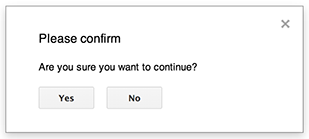
همانطور که در مثال زیر نشان داده شده است، Google Docs، Forms، Slides و Sheets همگی از متد Ui.alert() استفاده می‌کنند که در سه نوع موجود است. برای لغو دکمه پیش‌فرض "OK"، مقداری را از Ui.ButtonSet enum به عنوان آرگومان buttons ارسال کنید. برای ارزیابی اینکه کاربر روی کدام دکمه کلیک کرده است، مقدار برگشتی alert() را با Ui.Button enum مقایسه کنید.

function onOpen() {
  SpreadsheetApp.getUi() // Or DocumentApp or SlidesApp or FormApp.
    .createMenu("Custom Menu")
    .addItem("Show alert", "showAlert")
    .addToUi();
}

function showAlert() {
  var ui = SpreadsheetApp.getUi(); // Same variations.

  var result = ui.alert(
    "Please confirm",
    "Are you sure you want to continue?",
    ui.ButtonSet.YES_NO,
  );

  // Process the user's response.
  if (result == ui.Button.YES) {
    // User clicked "Yes".
    ui.alert("Confirmation received.");
  } else {
    // User clicked "No" or X in the title bar.
    ui.alert("Permission denied.");
  }
}

دیالوگ‌های سریع

یک اعلان، یک کادر محاوره‌ای از پیش ساخته شده است که در داخل ویرایشگر Google Docs، Sheets، Slides یا Forms باز می‌شود. این کادر یک پیام، یک فیلد ورودی متن و یک دکمه "OK" را نمایش می‌دهد؛ عنوان و دکمه‌های جایگزین اختیاری هستند. این شبیه به فراخوانی window.prompt() در جاوا اسکریپت سمت کلاینت در یک مرورگر وب است.

اعلان‌ها اسکریپت سمت سرور را در حین باز بودن پنجره محاوره‌ای به حالت تعلیق در می‌آورند. اسکریپت پس از بستن پنجره توسط کاربر از سر گرفته می‌شود، اما اتصالات JDBC در طول مدت تعلیق ادامه نمی‌یابند.

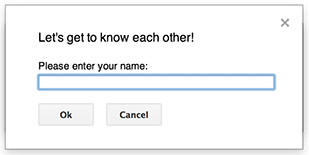
همانطور که در مثال زیر نشان داده شده است، Google Docs¸ Forms، Slides و Sheets همگی از متد Ui.prompt() استفاده می‌کنند که در سه نوع موجود است. برای لغو دکمه پیش‌فرض "OK"، مقداری از enum Ui.ButtonSet را به عنوان آرگومان buttons ارسال کنید. برای ارزیابی پاسخ کاربر، مقدار بازگشتی را برای prompt() دریافت کنید، سپس PromptResponse.getResponseText() را برای بازیابی ورودی کاربر فراخوانی کنید و مقدار بازگشتی برای PromptResponse.getSelectedButton() را با enum Ui.Button مقایسه کنید.

function onOpen() {
  SpreadsheetApp.getUi() // Or DocumentApp or SlidesApp or FormApp.
    .createMenu("Custom Menu")
    .addItem("Show prompt", "showPrompt")
    .addToUi();
}

function showPrompt() {
  var ui = SpreadsheetApp.getUi(); // Same variations.

  var result = ui.prompt(
    "Let's get to know each other!",
    "Please enter your name:",
    ui.ButtonSet.OK_CANCEL,
  );

  // Process the user's response.
  var button = result.getSelectedButton();
  var text = result.getResponseText();
  if (button == ui.Button.OK) {
    // User clicked "OK".
    ui.alert("Your name is " + text + ".");
  } else if (button == ui.Button.CANCEL) {
    // User clicked "Cancel".
    ui.alert("I didn't get your name.");
  } else if (button == ui.Button.CLOSE) {
    // User clicked X in the title bar.
    ui.alert("You closed the dialog.");
  }
}

دیالوگ‌های سفارشی

یک کادر محاوره‌ای سفارشی می‌تواند رابط کاربری سرویس HTML را در داخل ویرایشگر Google Docs، Sheets، Slides یا Forms نمایش دهد.

دیالوگ‌های سفارشی، اسکریپت سمت سرور را در حین باز بودن دیالوگ به حالت تعلیق در نمی‌آورند . کامپوننت سمت کلاینت می‌تواند با استفاده از API google.script برای رابط‌های سرویس HTML، اسکریپت سمت سرور را به صورت غیرهمزمان فراخوانی کند.

این کادر محاوره‌ای می‌تواند با فراخوانی google.script.host.close() در سمت کلاینتِ یک ​​رابط سرویس HTML، خود را ببندد. این کادر محاوره‌ای نمی‌تواند توسط رابط‌های دیگر بسته شود، فقط توسط کاربر یا خودش قابل بستن است.

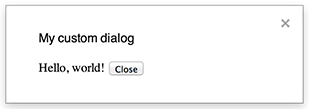
همانطور که در مثال زیر نشان داده شده است، Google Docs، Forms، Slides و Sheets همگی از متد Ui.showModalDialog() برای باز کردن کادر محاوره‌ای استفاده می‌کنند.

کد.gs

function onOpen() {
  SpreadsheetApp.getUi() // Or DocumentApp or SlidesApp or FormApp.
      .createMenu('Custom Menu')
      .addItem('Show dialog', 'showDialog')
      .addToUi();
}

function showDialog() {
  var html = HtmlService.createHtmlOutputFromFile('Page')
      .setWidth(400)
      .setHeight(300);
  SpreadsheetApp.getUi() // Or DocumentApp or SlidesApp or FormApp.
      .showModalDialog(html, 'My custom dialog');
}

صفحه.html

Hello, world! <input type="button" value="Close" onclick="google.script.host.close()" />

ستون‌های فرعی سفارشی

یک نوار کناری می‌تواند رابط کاربری سرویس HTML را در داخل ویرایشگر Google Docs، Forms، Slides و Sheets نمایش دهد.

نوارهای کناری اسکریپت سمت سرور را در حالی که کادر محاوره‌ای باز است، به حالت تعلیق در نمی‌آورند . کامپوننت سمت کلاینت می‌تواند با استفاده از API google.script برای رابط‌های سرویس HTML، فراخوانی‌های ناهمزمان به اسکریپت سمت سرور انجام دهد.

نوار کناری می‌تواند با فراخوانی google.script.host.close() در سمت کلاینت یک رابط سرویس HTML، خود را ببندد. نوار کناری نمی‌تواند توسط رابط‌های دیگر بسته شود، فقط توسط کاربر یا خودش می‌تواند بسته شود.

همانطور که در مثال زیر نشان داده شده است، Google Docs، Forms، Slides و Sheets همگی از متد Ui.showSidebar() برای باز کردن نوار کناری استفاده می‌کنند.

کد.gs

function onOpen() {
  SpreadsheetApp.getUi() // Or DocumentApp or SlidesApp or FormApp.
      .createMenu('Custom Menu')
      .addItem('Show sidebar', 'showSidebar')
      .addToUi();
}

function showSidebar() {
  var html = HtmlService.createHtmlOutputFromFile('Page')
      .setTitle('My custom sidebar');
  SpreadsheetApp.getUi() // Or DocumentApp or SlidesApp or FormApp.
      .showSidebar(html);
}

صفحه.html

Hello, world! <input type="button" value="Close" onclick="google.script.host.close()" />

پنجره‌های محاوره‌ای باز کردن فایل

Google Picker یک API جاوا اسکریپت است که به کاربران اجازه می‌دهد فایل‌های گوگل درایو را انتخاب یا آپلود کنند. کتابخانه Google Picker می‌تواند در سرویس HTML برای ایجاد یک کادر محاوره‌ای سفارشی استفاده شود که به کاربران اجازه می‌دهد فایل‌های موجود را انتخاب کنند یا فایل‌های جدید را آپلود کنند، سپس آن انتخاب را برای استفاده بیشتر به اسکریپت شما ارسال کنند.

الزامات

برای استفاده از Google Picker با Apps Script چندین الزام وجود دارد.

مثال

مثال زیر Google Picker را در Apps Script نشان می‌دهد.

کد.gs

/**
 * Creates a custom menu in Google Sheets when the spreadsheet opens.
 */
function onOpen() {
  SpreadsheetApp.getUi()
    .createMenu("Picker")
    .addItem("Start", "showPicker")
    .addToUi();
}

/**
 * Displays an HTML-service dialog in Google Sheets that contains client-side
 * JavaScript code for the Google Picker API.
 */
function showPicker() {
  const html = HtmlService.createHtmlOutputFromFile("dialog.html")
    .setWidth(800)
    .setHeight(600)
    .setSandboxMode(HtmlService.SandboxMode.IFRAME);
  SpreadsheetApp.getUi().showModalDialog(html, "Select a file");
}
// Ensure the Drive API is enabled.
if (!Drive) {
  throw new Error("Please enable the Drive advanced service.");
}

/**
 * Checks that the file can be accessed.
 * @param {string} fileId The ID of the file.
 * @return {Object} The file resource.
 */
function getFile(fileId) {
  return Drive.Files.get(fileId, { fields: "*" });
}

/**
 * Gets the user's OAuth 2.0 access token so that it can be passed to Picker.
 * This technique keeps Picker from needing to show its own authorization
 * dialog, but is only possible if the OAuth scope that Picker needs is
 * available in Apps Script. In this case, the function includes an unused call
 * to a DriveApp method to ensure that Apps Script requests access to all files
 * in the user's Drive.
 *
 * @return {string} The user's OAuth 2.0 access token.
 */
function getOAuthToken() {
  return ScriptApp.getOAuthToken();
}

دیالوگ.html

انتخابگر/گفتگو.html
<!DOCTYPE html>
<html>
  <head>
    <link
      rel="stylesheet"
      href="https://ssl.gstatic.com/docs/script/css/add-ons.css"
    />
    <style>
      #result {
        display: flex;
        flex-direction: column;
        gap: 0.25em;
      }

      pre {
        font-size: x-small;
        max-height: 25vh;
        overflow-y: scroll;
        background: #eeeeee;
        padding: 1em;
        border: 1px solid #cccccc;
      }
    </style>
    <script>
      // TODO: Replace the value for DEVELOPER_KEY with the API key obtained
      // from the Google Developers Console.
      const DEVELOPER_KEY = "AIza...";
      // TODO: Replace the value for CLOUD_PROJECT_NUMBER with the project
      // number obtained from the Google Developers Console.
      const CLOUD_PROJECT_NUMBER = "1234567890";

      let pickerApiLoaded = false;
      let oauthToken;

      /**
       * Loads the Google Picker API.
       */
      function onApiLoad() {
        gapi.load("picker", {
          callback: function () {
            pickerApiLoaded = true;
          },
        });
      }

      /**
       * Gets the user's OAuth 2.0 access token from the server-side script so that
       * it can be passed to Picker. This technique keeps Picker from needing to
       * show its own authorization dialog, but is only possible if the OAuth scope
       * that Picker needs is available in Apps Script. Otherwise, your Picker code
       * will need to declare its own OAuth scopes.
       */
      function getOAuthToken() {
        google.script.run
          .withSuccessHandler((token) => {
            oauthToken = token;
            createPicker(token);
          })
          .withFailureHandler(showError)
          .getOAuthToken();
      }

      /**
       * Creates a Picker that can access the user's spreadsheets. This function
       * uses advanced options to hide the Picker's left navigation panel and
       * default title bar.
       *
       * @param {string} token An OAuth 2.0 access token that lets Picker access the
       *     file type specified in the addView call.
       */
      function createPicker(token) {
        document.getElementById("result").innerHTML = "";

        if (pickerApiLoaded && token) {
          const picker = new google.picker.PickerBuilder()
            // Instruct Picker to display only spreadsheets in Drive. For other
            // views, see https://developers.google.com/picker/reference/picker.viewid
            .addView(
              new google.picker.DocsView(
                google.picker.ViewId.SPREADSHEETS
              ).setOwnedByMe(true)
            )
            // Hide the navigation panel so that Picker fills more of the dialog.
            .enableFeature(google.picker.Feature.NAV_HIDDEN)
            // Hide the title bar since an Apps Script dialog already has a title.
            .hideTitleBar()
            .setOAuthToken(token)
            .setDeveloperKey(DEVELOPER_KEY)
            .setAppId(CLOUD_PROJECT_NUMBER)
            .setCallback(pickerCallback)
            .setOrigin(google.script.host.origin)
            .build();
          picker.setVisible(true);
        } else {
          showError("Unable to load the file picker.");
        }
      }

      /**
       * @typedef {Object} PickerResponse
       * @property {string} action
       * @property {PickerDocument[]} docs
       */

      /**
       * @typedef {Object} PickerDocument
       * @property {string} id
       * @property {string} name
       * @property {string} mimeType
       * @property {string} url
       * @property {string} lastEditedUtc
       */

      /**
       * A callback function that extracts the chosen document's metadata from the
       * response object. For details on the response object, see
       * https://developers.google.com/picker/reference/picker.responseobject
       *
       * @param {PickerResponse} data The response object.
       */
      function pickerCallback(data) {
        const action = data[google.picker.Response.ACTION];
        if (action == google.picker.Action.PICKED) {
          handlePicked(data);
        } else if (action == google.picker.Action.CANCEL) {
          document.getElementById("result").innerHTML = "Picker canceled.";
        }
      }

      /**
       * Handles `"PICKED"` responsed from the Google Picker.
       *
       * @param {PickerResponse} data The response object.
       */
      function handlePicked(data) {
        const doc = data[google.picker.Response.DOCUMENTS][0];
        const id = doc[google.picker.Document.ID];

        google.script.run
          .withSuccessHandler((driveFilesGetResponse) => {
            // Render the response from Picker and the Drive.Files.Get API.
            const resultElement = document.getElementById("result");
            resultElement.innerHTML = "";

            for (const response of [
              {
                title: "Picker response",
                content: JSON.stringify(data, null, 2),
              },
              {
                title: "Drive.Files.Get response",
                content: JSON.stringify(driveFilesGetResponse, null, 2),
              },
            ]) {
              const titleElement = document.createElement("h3");
              titleElement.appendChild(document.createTextNode(response.title));
              resultElement.appendChild(titleElement);

              const contentElement = document.createElement("pre");
              contentElement.appendChild(
                document.createTextNode(response.content)
              );
              resultElement.appendChild(contentElement);
            }
          })
          .withFailureHandler(showError)
          .getFile(data[google.picker.Response.DOCUMENTS][0].id);
      }

      /**
       * Displays an error message within the #result element.
       *
       * @param {string} message The error message to display.
       */
      function showError(message) {
        document.getElementById("result").innerHTML = "Error: " + message;
      }
    </script>
  </head>

  <body>
    <div>
      <button onclick="getOAuthToken()">Select a file</button>
      <div id="result"></div>
    </div>
    <script src="https://apis.google.com/js/api.js?onload=onApiLoad"></script>
  </body>
</html>

appsscript.json

فایل picker/appsscript.json
{
  "timeZone": "America/Los_Angeles",
  "exceptionLogging": "STACKDRIVER",
  "runtimeVersion": "V8",
  "oauthScopes": [
    "https://www.googleapis.com/auth/script.container.ui",
    "https://www.googleapis.com/auth/drive.file"
  ],
  "dependencies": {
    "enabledAdvancedServices": [
      {
        "userSymbol": "Drive",
        "version": "v3",
        "serviceId": "drive"
      }
    ]
  }
}