

借助 Google 文档的 Google Apps 脚本,您可以访问文档中任何标签页的内容。
什么是标签页?
Google 文档具有一个名为“标签页”的组织层。 Google 文档允许用户在单个文档中创建一个或多个标签页,类似于现在的 Google 表格中的标签页。每个标签页都有自己的标题和 ID(附加在网址中)。标签页还可以有子标签页, 即嵌套在另一个标签页下的标签页。
访问标签页
您可以使用
Document.getTabs访问标签页属性和内容,
该方法会返回 Tab 列表。后面的部分简要介绍了
Tab 类;如需了解详情,请参阅 Tab 类文档
。
标签页属性
您可以使用
Tab.getId 和
Tab.getTitle 等方法检索标签页属性。
标签页内容
您可以使用
Tab.asDocumentTab检索每个标签页中的文档内容。
“文档类结构的变化
”部分介绍了如何使用此方法。
标签页层次结构
您可以通过
Tab.getChildTabs在 Apps 脚本中公开子标签页。
如需访问所有标签页中的内容,您需要遍历子标签页的“树”。
例如,假设某个文档包含以下标签页层次结构:
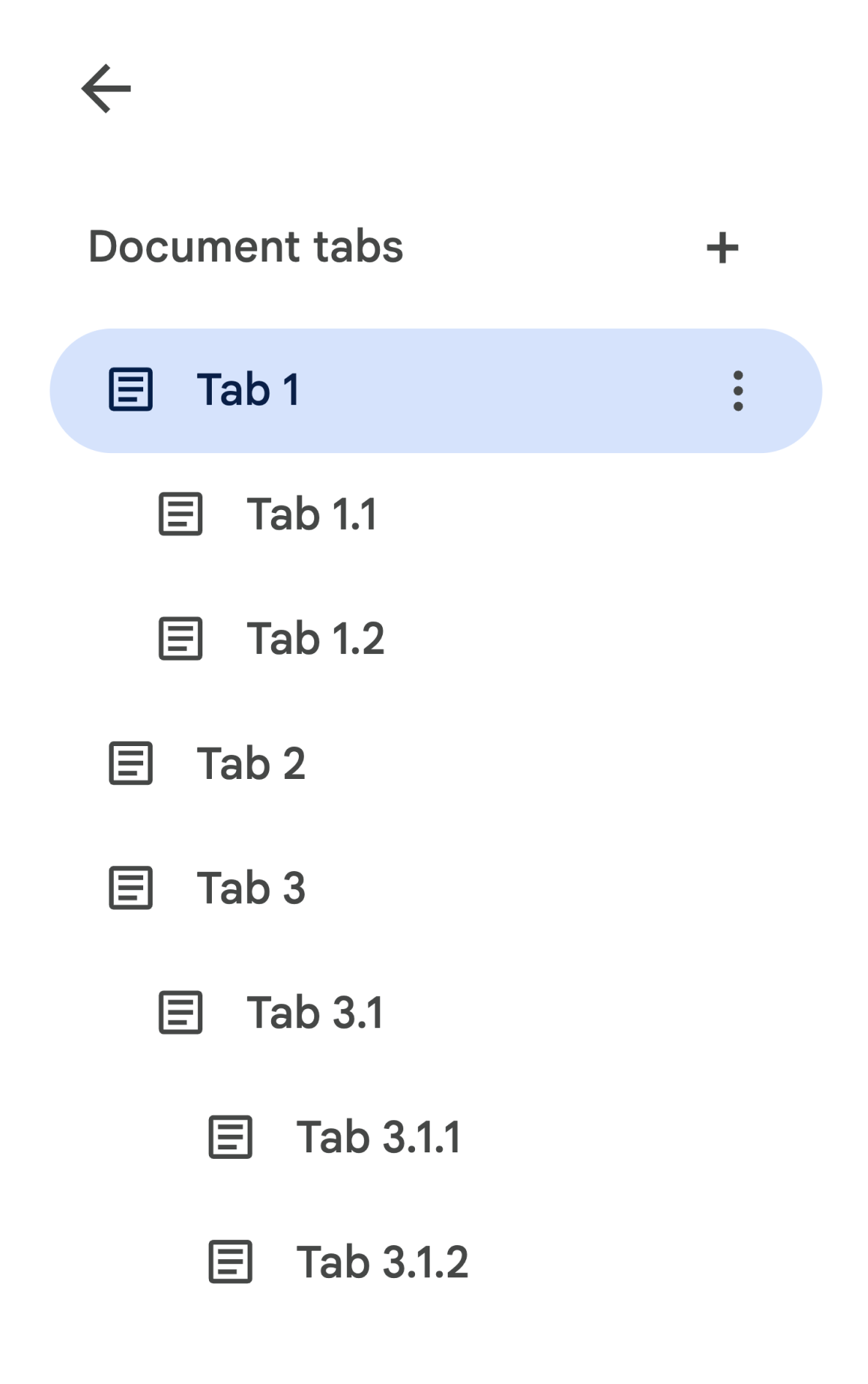
如需访问标签页 3.1.2,请执行以下操作:
// Print the ID of Tab 3.1.2.
const doc = DocumentApp.getActiveDocument();
const tab = doc.getTabs()[2].getChildTabs()[0].getChildTabs()[1];
console.log(tab.getId());
如需查看遍历文档中所有标签页的示例代码,请参阅后面部分中的示例代码块。
检索标签页的其他方式
您还可以通过以下两种方式检索标签页:
Document.getTab:返回具有指定 ID 的标签页。Document.getActiveTab: 返回用户的活动标签页。仅适用于 绑定到文档的脚本。后面的部分将对此进行更详细的介绍。
文档类结构的变化
过去,文档没有标签页的概念,因此文档类公开了用于直接访问和修改文档文本内容的方法。以下方法属于此类:
Document.addBookmarkDocument.addFooterDocument.addHeaderDocument.addNamedRangeDocument.getBodyDocument.getBookmarkDocument.getBookmarksDocument.getFooterDocument.getFootnotesDocument.getHeaderDocument.getNamedRangeByIdDocument.getNamedRangesDocument.getNamedRangesDocument.newPositionDocument.newRange
随着标签页的结构层次的增加,这些方法在语义上不再表示文档中所有标签页的文本内容。文本内容现在将以不同的层表示;所有上述文本方法都可以通过
DocumentTab 访问。
Document 类中的这些现有方法将访问或修改活动标签页(在绑定到特定文档的脚本中)或第一个标签页(如果没有活动标签页)中的内容。
访问特定标签页中的文本内容
建议您不要使用 Document 中的文本方法,而是使用
DocumentTab 类中的方法(可通过
Tab.asDocumentTab
方法访问)。例如:
// Print the text from the body of the active tab.
const doc = DocumentApp.getActiveDocument();
const documentTab = doc.getActiveTab().asDocumentTab();
const body = documentTab.getBody();
console.log(body.getText());
用户选择的变化
用户选择的概念仅适用于绑定到文档的脚本,并且只能由这些脚本使用或 更改。
文本选择方法
Document 类提供了 getter 和 setter,用于管理用户在活动文档中选择文本的位置。这些方法在运行脚本的用户的活动标签页的上下文中运行。
Document.getCursor:返回用户在活动标签页中的光标位置。Document.getSelection:返回用户在活动标签页中的选择范围。Document.setCursor:设置用户在活动文档中的光标位置。如果位置位于非活动标签页中,则用户的活动标签页也会切换到与该位置关联的标签页。Document.setSelection:设置用户在活动文档中的选择范围。如果范围位于非活动标签页中,则用户的活动标签页也会切换到与该范围关联的标签页。
标签页选择方法和使用场景
引入标签页后,您可以获取和设置运行脚本的用户的活动标签页。请使用以下方法:
Document.getActiveTab: 返回活动文档中用户的活动Tab。Document.setActiveTab:将当前文档中用户选择的Tab设置为具有指定 ID 的标签页。
用户的整体“选择”由活动标签页以及当前光标位置或选择范围组成。使用活动选择的两种模式是明确将用户的活动标签页修改为特定标签页,或使用用户的活动标签页。
使用
Document.setActiveTab明确更改用户的活动标签页。
或者,调用
Document.setCursor
或 Document.setSelection
使用非活动标签页中的 Position 或 Range 会使该标签页变为新的活动标签页。
如果脚本的预期行为是使用用户的活动标签页
而不更改它,则
Document.setActiveTab
不是必需的。
Document.getCursor
和 Document.getSelection
方法基于用户运行
脚本的标签页在活动标签页上运行。
文档不支持跨不同标签页进行多项标签页选择或多个位置或范围选择。因此,使用
Document.setActiveTab
会清除之前的光标位置或选择范围。
特定标签页的位置和范围方法
特定标签页为 Position 和 Range 的文本选择概念赋予了意义。只有当脚本知道位置或范围所在的特定标签页时,光标位置或选择范围才有意义。
这是通过使用
DocumentTab.newPosition和
DocumentTab.newRange
方法实现的,这些方法会构建一个位置或范围,以定位到从中调用该方法的特定
DocumentTab。相比之下,
Document.newPosition
和 Document.newRange
会在活动标签页(如果
脚本未绑定,则为第一个标签页)中构建位置或范围。
如需查看使用选择的示例代码,请参阅后面部分中的示例代码块。
标签页的常见使用模式
以下代码示例介绍了与标签页互动的各种方式。
从文档中的所有标签页读取标签页内容
在标签页功能之前执行此操作的现有代码可以迁移为支持
标签页,方法是遍历标签页树并调用 Tab 和
DocumentTab 中的 getter 方法,而不是 Document。以下部分代码示例展示了如何打印文档中每个标签页的所有文本内容。此标签页遍历代码可以适用于许多其他不关心标签页实际使用结构的用例。
/** Logs all text contents from all tabs in the active document. */
function logAllText() {
  // Generate a list of all the tabs in the document, including any
  // nested child tabs. DocumentApp.openById('abc123456') can also
  // be used instead of DocumentApp.getActiveDocument().
  const doc = DocumentApp.getActiveDocument();
  const allTabs = getAllTabs(doc);

  // Log the content from each tab in the document.
  for (const tab of allTabs) {
    // Get the DocumentTab from the generic Tab object.
    const documentTab = tab.asDocumentTab();
    // Get the body from the given DocumentTab.
    const body = documentTab.getBody();
    // Get the body text and log it to the console.
    console.log(body.getText());
  }
}

/**
 * Returns a flat list of all tabs in the document, in the order
 * they would appear in the UI (i.e. top-down ordering). Includes
 * all child tabs.
 */
function getAllTabs(doc) {
  const allTabs = [];
  // Iterate over all tabs and recursively add any child tabs to
  // generate a flat list of Tabs.
  for (const tab of doc.getTabs()) {
    addCurrentAndChildTabs(tab, allTabs);
  }
  return allTabs;
}

/**
 * Adds the provided tab to the list of all tabs, and recurses
 * through and adds all child tabs.
 */
function addCurrentAndChildTabs(tab, allTabs) {
  allTabs.push(tab);
  for (const childTab of tab.getChildTabs()) {
    addCurrentAndChildTabs(childTab, allTabs);
  }
}
从文档中的第一个“阅读”标签页读取标签页内容
这类似于读取所有标签页。
/**
 * Logs all text contents from the first tab in the active
 * document.
 */
function logAllText() {
  // Generate a list of all the tabs in the document, including any
  // nested child tabs.
  const doc = DocumentApp.getActiveDocument();
  const allTabs = getAllTabs(doc);

  // Log the content from the first tab in the document.
  const firstTab = allTabs[0];
  // Get the DocumentTab from the generic Tab object.
  const documentTab = firstTab.asDocumentTab();
  // Get the body from the DocumentTab.
  const body = documentTab.getBody();
  // Get the body text and log it to the console.
  console.log(body.getText());
}
更新第一个标签页中的标签页内容
以下部分代码示例展示了如何在进行更新时定位到特定标签页。
/** Inserts text into the first tab of the active document. */
function insertTextInFirstTab() {
  // Get the first tab's body.
  const doc = DocumentApp.getActiveDocument();
  const firstTab = doc.getTabs()[0];
  const firstDocumentTab = firstTab.asDocumentTab();
  const firstTabBody = firstDocumentTab.getBody();

  // Append a paragraph and a page break to the first tab's body
  // section.
  firstTabBody.appendParagraph("A paragraph.");
  firstTabBody.appendPageBreak();
}
更新活动标签页或所选标签页中的标签页内容
以下部分代码示例展示了如何在进行更新时定位到活动标签页。
/**
 * Inserts text into the active/selected tab of the active
 * document.
 */
function insertTextInActiveTab() {
  // Get the active/selected tab's body.
  const doc = DocumentApp.getActiveDocument();
  const activeTab = doc.getActiveTab();
  const activeDocumentTab = activeTab.asDocumentTab();
  const activeTabBody = activeDocumentTab.getBody();

  // Append a paragraph and a page break to the active tab's body
  // section.
  activeTabBody.appendParagraph("A paragraph.");
  activeTabBody.appendPageBreak();
}
在活动标签页中设置光标位置或选择范围
以下部分代码示例展示了如何在用户的活动标签页中更新光标位置或选择范围。这仅适用于绑定脚本。
/**
 * Changes the user's selection to select all tables within the tab
 * with the provided ID.
 */
function selectAllTables(tabId) {
  const doc = DocumentApp.getActiveDocument();
  const tab = doc.getTab(tabId);
  const documentTab = tab.asDocumentTab();

  // Build a range that encompasses all tables within the specified
  // tab.
  const rangeBuilder = documentTab.newRange();
  const tables = documentTab.getBody().getTables();
  for (let i = 0; i < tables.length; i++) {
    rangeBuilder.addElement(tables[i]);
  }
  // Set the document's selection to the tables within the specified
  // tab. Note that this actually switches the user's active tab as
  // well.
  doc.setSelection(rangeBuilder.build());
}
设置活动标签页或所选标签页
以下部分代码示例展示了如何更改用户的活动标签页。 这仅适用于绑定脚本。
/** * Changes the user's selected tab to the tab immediately following * the currently selected one. Handles child tabs. * *Only changes the selection if there is a tab following the
* currently selected one. */ function selectNextTab() { const doc = DocumentApp.getActiveDocument(); const allTabs = getAllTabs(doc); const activeTab = doc.getActiveTab(); // Find the index of the currently active tab. let activeTabIndex = -1; for (let i = 0; i < allTabs.length; i++) { if (allTabs[i].getId() === activeTab.getId()) { activeTabIndex = i; } } // Update the user's selected tab if there is a valid next tab. const nextTabIndex = activeTabIndex + 1; if (nextTabIndex < allTabs.length) { doc.setActiveTab(allTabs[nextTabIndex].getId()); } }