תיבות דו-שיח וסרגלי צד במסמכים של Google Workspace

סקריפטים שמקשרים ל-Google Docs, ל-Sheets או ל-Forms יכולים להציג כמה סוגים של רכיבי ממשק משתמש – התראות, הנחיות והודעות קופצות מוכנות מראש, וגם תיבות דו-שיח וסרגלי צד שמכילים דפים מותאמים אישית של שירות HTML. בדרך כלל, פותחים את הרכיבים האלה מפריטי תפריט. (הערה: ב-Google Forms, רכיבי ממשק המשתמש גלויים רק לעורך שפותח את הטופס כדי לשנות אותו, ולא למשתמש שפותח את הטופס כדי להשיב עליו).

תיבות דו-שיח של התראות

התראה היא תיבת דו-שיח מוכנה מראש שנפתחת בתוך כלי העריכה של Google Docs,‏ Sheets,‏ Slides או Forms. מוצגת הודעה ולחצן 'אישור'. כותרת ולחצנים חלופיים הם אופציונליים. היא דומה לקריאה ל-window.alert() ב-JavaScript בצד הלקוח בדפדפן אינטרנט.

ההתראות משעות את הסקריפט בצד השרת בזמן שתיבת הדו-שיח פתוחה. הסקריפט ממשיך לפעול אחרי שהמשתמש סוגר את תיבת הדו-שיח, אבל חיבורי JDBC לא נשמרים במהלך ההשעיה.

כפי שמוצג בדוגמה הבאה, Google Docs,‏ Forms,‏ Slides ו-Sheets משתמשים בשיטה Ui.alert(), שזמינה בשלושה וריאנטים. כדי לשנות את ברירת המחדל של הלחצן 'אישור', מעבירים ערך מה-enum‏ Ui.ButtonSet כארגומנט buttons. כדי להעריך על איזה לחצן המשתמש לחץ, משווים את ערך ההחזרה של alert() עם ה-enum Ui.Button.

function onOpen() {
  SpreadsheetApp.getUi() // Or DocumentApp or SlidesApp or FormApp.
    .createMenu("Custom Menu")
    .addItem("Show alert", "showAlert")
    .addToUi();
}

function showAlert() {
  const ui = SpreadsheetApp.getUi(); // Same variations.

  const result = ui.alert(
    "Please confirm",
    "Are you sure you want to continue?",
    ui.ButtonSet.YES_NO,
  );

  // Process the user's response.
  if (result === ui.Button.YES) {
    // User clicked "Yes".
    ui.alert("Confirmation received.");
  } else {
    // User clicked "No" or X in the title bar.
    ui.alert("Permission denied.");
  }
}

הצגת תיבות דו-שיח

הנחיה היא תיבת דו-שיח מוכנה מראש שנפתחת בתוך עורך של Google Docs,‏ Sheets,‏ Slides או Forms. היא מציגה הודעה, שדה להזנת טקסט ולחצן 'אישור'. כותרת ולחצנים חלופיים הם אופציונליים. היא דומה לקריאה ל-window.prompt() ב-JavaScript בצד הלקוח בדפדפן אינטרנט.

ההנחיות משעות את הסקריפט בצד השרת בזמן שתיבת הדו-שיח פתוחה. הסקריפט ממשיך לפעול אחרי שהמשתמש סוגר את תיבת הדו-שיח, אבל חיבורי JDBC לא נשמרים במהלך ההשעיה.

כפי שמוצג בדוגמה הבאה, כל המוצרים של Google Docs,‏ Forms, ‏ Slides ו-Sheets משתמשים בשיטה Ui.prompt(), שזמינה בשלושה סוגים. כדי לשנות את ברירת המחדל של הכפתור 'אישור', מעבירים ערך מה-enum‏ Ui.ButtonSet כארגומנט buttons. כדי להעריך את התגובה של המשתמש, צריך לתעד את ערך ההחזרה של prompt(), ואז לקרוא ל-PromptResponse.getResponseText() כדי לאחזר את הקלט של המשתמש ולהשוות את ערך ההחזרה של PromptResponse.getSelectedButton() ל-enum‏ Ui.Button.

function onOpen() {
  SpreadsheetApp.getUi() // Or DocumentApp or SlidesApp or FormApp.
    .createMenu("Custom Menu")
    .addItem("Show prompt", "showPrompt")
    .addToUi();
}

function showPrompt() {
  const ui = SpreadsheetApp.getUi(); // Same variations.

  const result = ui.prompt(
    "Let's get to know each other!",
    "Please enter your name:",
    ui.ButtonSet.OK_CANCEL,
  );

  // Process the user's response.
  const button = result.getSelectedButton();
  const text = result.getResponseText();
  if (button === ui.Button.OK) {
    // User clicked "OK".
    ui.alert("Your name is " + text + ".");
  } else if (button === ui.Button.CANCEL) {
    // User clicked "Cancel".
    ui.alert("I didn't get your name.");
  } else if (button === ui.Button.CLOSE) {
    // User clicked X in the title bar.
    ui.alert("You closed the dialog.");
  }
}

הודעות קצרות בגיליון אלקטרוני

הודעה קצרה היא חלון קטן של תיבת דו-שיח שמופיע בפינה השמאלית התחתונה של עורך Sheets ומציג הודעה, אבל לא משעה את הסקריפט. זו דרך טובה להציג הודעות סטטוס או עדכונים שלא דורשים אינטראקציה מצד המשתמש.

כפי שמוצג בדוגמה הבאה, Sheets משתמש בשיטה Spreadsheet.toast(). חשוב לדעת שהודעות קצרות זמינות רק ב-Sheets.

function showToast() {
  SpreadsheetApp.getActiveSpreadsheet().toast("Task completed successfully.");
}

תיבות דו-שיח בהתאמה אישית
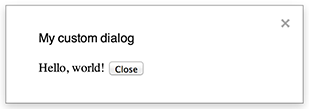
בתיבת דו-שיח מותאמת אישית אפשר להציג ממשק משתמש של שירות HTML בתוך כלי העריכה של Google Docs, ‏Sheets, ‏Slides או Forms.

תיבות דו-שיח מותאמות אישית לא משעות את הסקריפט בצד השרת בזמן שתיבת הדו-שיח פתוחה. מכיוון שהן אסינכרוניות, הפונקציה בצד השרת שפותחת את תיבת הדו-שיח מסתיימת באופן מיידי. כדי להעביר נתונים מהתיבת הדו-שיח המותאמת אישית בחזרה לשרת, צריך להשתמש ב-API‏ google.script בקוד בצד הלקוח.

תיבת הדו-שיח יכולה להיסגר בעצמה על ידי קריאה ל-google.script.host.close() בצד הלקוח של ממשק שירות HTML. אי אפשר לסגור את תיבת הדו-שיח באמצעות ממשקים אחרים, אלא רק באמצעות המשתמש או באמצעות עצמה.

כפי שמוצג בדוגמה הבאה, ב-Google Docs,‏ Forms,‏ Slides ו-Sheets נעשה שימוש בשיטה Ui.showModalDialog() כדי לפתוח את תיבת הדו-שיח.

Code.gs

function onOpen() {
  SpreadsheetApp.getUi() // Or DocumentApp or SlidesApp or FormApp.
      .createMenu('Custom Menu')
      .addItem('Show dialog', 'showDialog')
      .addToUi();
}

function showDialog() {
  const html = HtmlService.createHtmlOutputFromFile('Page')
      .setWidth(400)
      .setHeight(300);
  SpreadsheetApp.getUi() // Or DocumentApp or SlidesApp or FormApp.
      .showModalDialog(html, 'My custom dialog');
}

Page.html

Hello, world! <input type="button" value="Close" onclick="google.script.host.close()" />

סרגלי צד בהתאמה אישית

בסרגל צד אפשר להציג ממשק משתמש של שירות HTML בתוך כלי העריכה של Google Docs,‏ Forms,‏ Slides ו-Sheets.

סרגלי צד לא משעים את הסקריפט בצד השרת בזמן שתיבת הדו-שיח פתוחה. הרכיב בצד הלקוח יכול לבצע קריאות אסינכרוניות לסקריפט בצד השרת באמצעות google.script API לממשקי שירות HTML.

אפשר לסגור את סרגל הצד באמצעות קריאה ל-google.script.host.close() בצד הלקוח של ממשק שירות HTML. אי אפשר לסגור את סרגל הצד דרך ממשקים אחרים, אלא רק דרך המשתמש או דרך עצמו.

כפי שמוצג בדוגמה הבאה, ב-Google Docs,‏ Forms,‏ Slides ו-Sheets נעשה שימוש במתודה Ui.showSidebar() כדי לפתוח את סרגל הצד.

Code.gs

function onOpen() {
  SpreadsheetApp.getUi() // Or DocumentApp or SlidesApp or FormApp.
      .createMenu('Custom Menu')
      .addItem('Show sidebar', 'showSidebar')
      .addToUi();
}

function showSidebar() {
  const html = HtmlService.createHtmlOutputFromFile('Page')
      .setTitle('My custom sidebar');
  SpreadsheetApp.getUi() // Or DocumentApp or SlidesApp or FormApp.
      .showSidebar(html);
}

Page.html

Hello, world! <input type="button" value="Close" onclick="google.script.host.close()" />

תיבות דו-שיח לפתיחת קובץ

Google Picker הוא JavaScript API שמאפשר למשתמשים לבחור או להעלות קבצים מ-Google Drive. אפשר להשתמש בספריית Google Picker בשירות HTML כדי ליצור תיבת דו-שיח מותאמת אישית שמאפשרת למשתמשים לבחור קבצים קיימים או להעלות קבצים חדשים, ואז להעביר את הבחירה הזו בחזרה לסקריפט שלכם לשימוש נוסף.

דרישות

יש כמה דרישות לשימוש ב-Google Picker עם Apps Script.

דוגמה

בדוגמה הבאה מוצג Google Picker ב-Apps Script.

code.gs

/**
 * Creates a custom menu in Google Sheets when the spreadsheet opens.
 */
function onOpen() {
  SpreadsheetApp.getUi()
    .createMenu("Picker")
    .addItem("Start", "showPicker")
    .addToUi();
}

/**
 * Displays an HTML-service dialog in Google Sheets that contains client-side
 * JavaScript code for the Google Picker API.
 */
function showPicker() {
  const html = HtmlService.createHtmlOutputFromFile("dialog.html")
    .setWidth(800)
    .setHeight(600)
    .setSandboxMode(HtmlService.SandboxMode.IFRAME);
  SpreadsheetApp.getUi().showModalDialog(html, "Select a file");
}
// Ensure the Drive API is enabled.
if (!Drive) {
  throw new Error("Please enable the Drive advanced service.");
}

/**
 * Checks that the file can be accessed.
 * @param {string} fileId The ID of the file.
 * @return {Object} The file resource.
 */
function getFile(fileId) {
  return Drive.Files.get(fileId, { fields: "*" });
}

/**
 * Gets the user's OAuth 2.0 access token so that it can be passed to Picker.
 * This technique keeps Picker from needing to show its own authorization
 * dialog, but is only possible if the OAuth scope that Picker needs is
 * available in Apps Script. In this case, the function includes an unused call
 * to a DriveApp method to ensure that Apps Script requests access to all files
 * in the user's Drive.
 *
 * @return {string} The user's OAuth 2.0 access token.
 */
function getOAuthToken() {
  return ScriptApp.getOAuthToken();
}

dialog.html

picker/dialog.html
<!DOCTYPE html>
<html>
  <head>
    <link
      rel="stylesheet"
      href="https://ssl.gstatic.com/docs/script/css/add-ons.css"
    />
    <style>
      #result {
        display: flex;
        flex-direction: column;
        gap: 0.25em;
      }

      pre {
        font-size: x-small;
        max-height: 25vh;
        overflow-y: scroll;
        background: #eeeeee;
        padding: 1em;
        border: 1px solid #cccccc;
      }
    </style>
    <script>
      // TODO: Replace the value for DEVELOPER_KEY with the API key obtained
      // from the Google Developers Console.
      const DEVELOPER_KEY = "AIza...";
      // TODO: Replace the value for CLOUD_PROJECT_NUMBER with the project
      // number obtained from the Google Developers Console.
      const CLOUD_PROJECT_NUMBER = "1234567890";

      let pickerApiLoaded = false;
      let oauthToken;

      /**
       * Loads the Google Picker API.
       */
      function onApiLoad() {
        gapi.load("picker", {
          callback: function () {
            pickerApiLoaded = true;
          },
        });
      }

      /**
       * Gets the user's OAuth 2.0 access token from the server-side script so that
       * it can be passed to Picker. This technique keeps Picker from needing to
       * show its own authorization dialog, but is only possible if the OAuth scope
       * that Picker needs is available in Apps Script. Otherwise, your Picker code
       * will need to declare its own OAuth scopes.
       */
      function getOAuthToken() {
        google.script.run
          .withSuccessHandler((token) => {
            oauthToken = token;
            createPicker(token);
          })
          .withFailureHandler(showError)
          .getOAuthToken();
      }

      /**
       * Creates a Picker that can access the user's spreadsheets. This function
       * uses advanced options to hide the Picker's left navigation panel and
       * default title bar.
       *
       * @param {string} token An OAuth 2.0 access token that lets Picker access the
       *     file type specified in the addView call.
       */
      function createPicker(token) {
        document.getElementById("result").innerHTML = "";

        if (pickerApiLoaded && token) {
          const picker = new google.picker.PickerBuilder()
            // Instruct Picker to display only spreadsheets in Drive. For other
            // views, see https://developers.google.com/picker/reference/picker.viewid
            .addView(
              new google.picker.DocsView(
                google.picker.ViewId.SPREADSHEETS
              ).setOwnedByMe(true)
            )
            // Hide the navigation panel so that Picker fills more of the dialog.
            .enableFeature(google.picker.Feature.NAV_HIDDEN)
            // Hide the title bar since an Apps Script dialog already has a title.
            .hideTitleBar()
            .setOAuthToken(token)
            .setDeveloperKey(DEVELOPER_KEY)
            .setAppId(CLOUD_PROJECT_NUMBER)
            .setCallback(pickerCallback)
            .setOrigin(google.script.host.origin)
            .build();
          picker.setVisible(true);
        } else {
          showError("Unable to load the file picker.");
        }
      }

      /**
       * @typedef {Object} PickerResponse
       * @property {string} action
       * @property {PickerDocument[]} docs
       */

      /**
       * @typedef {Object} PickerDocument
       * @property {string} id
       * @property {string} name
       * @property {string} mimeType
       * @property {string} url
       * @property {string} lastEditedUtc
       */

      /**
       * A callback function that extracts the chosen document's metadata from the
       * response object. For details on the response object, see
       * https://developers.google.com/picker/reference/picker.responseobject
       *
       * @param {PickerResponse} data The response object.
       */
      function pickerCallback(data) {
        const action = data[google.picker.Response.ACTION];
        if (action == google.picker.Action.PICKED) {
          handlePicked(data);
        } else if (action == google.picker.Action.CANCEL) {
          document.getElementById("result").innerHTML = "Picker canceled.";
        }
      }

      /**
       * Handles `"PICKED"` responsed from the Google Picker.
       *
       * @param {PickerResponse} data The response object.
       */
      function handlePicked(data) {
        const doc = data[google.picker.Response.DOCUMENTS][0];
        const id = doc[google.picker.Document.ID];

        google.script.run
          .withSuccessHandler((driveFilesGetResponse) => {
            // Render the response from Picker and the Drive.Files.Get API.
            const resultElement = document.getElementById("result");
            resultElement.innerHTML = "";

            for (const response of [
              {
                title: "Picker response",
                content: JSON.stringify(data, null, 2),
              },
              {
                title: "Drive.Files.Get response",
                content: JSON.stringify(driveFilesGetResponse, null, 2),
              },
            ]) {
              const titleElement = document.createElement("h3");
              titleElement.appendChild(document.createTextNode(response.title));
              resultElement.appendChild(titleElement);

              const contentElement = document.createElement("pre");
              contentElement.appendChild(
                document.createTextNode(response.content)
              );
              resultElement.appendChild(contentElement);
            }
          })
          .withFailureHandler(showError)
          .getFile(data[google.picker.Response.DOCUMENTS][0].id);
      }

      /**
       * Displays an error message within the #result element.
       *
       * @param {string} message The error message to display.
       */
      function showError(message) {
        document.getElementById("result").innerHTML = "Error: " + message;
      }
    </script>
  </head>

  <body>
    <div>
      <button onclick="getOAuthToken()">Select a file</button>
      <div id="result"></div>
    </div>
    <script src="https://apis.google.com/js/api.js?onload=onApiLoad"></script>
  </body>
</html>

appsscript.json

picker/appsscript.json
{
  "timeZone": "America/Los_Angeles",
  "exceptionLogging": "STACKDRIVER",
  "runtimeVersion": "V8",
  "oauthScopes": [
    "https://www.googleapis.com/auth/script.container.ui",
    "https://www.googleapis.com/auth/drive.file"
  ],
  "dependencies": {
    "enabledAdvancedServices": [
      {
        "userSymbol": "Drive",
        "version": "v3",
        "serviceId": "drive"
      }
    ]
  }
}