

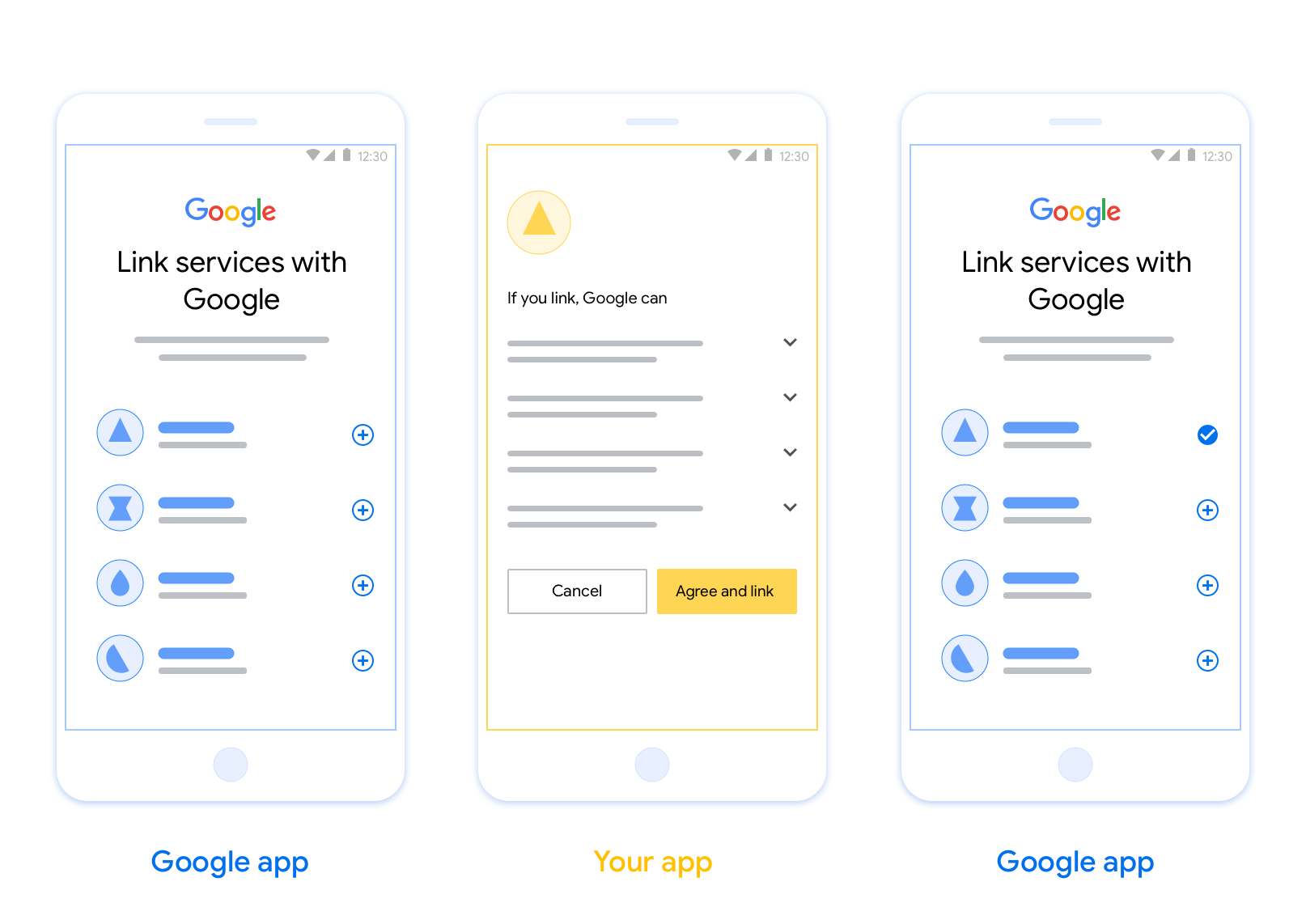
OAuth 型應用程式翻轉連結 (應用程式翻轉) 可讓使用者快速將驗證系統中的帳戶連結至 Google 帳戶。如果使用者在啟動帳戶連結程序時,手機上已安裝您的應用程式,系統會順暢地將他們切換至您的應用程式,以取得使用者授權。
這種做法可加快連結程序,因為使用者不必重新輸入使用者名稱和密碼進行驗證;相反地,應用程式快速連結功能會使用使用者在應用程式帳戶中的憑證。使用者將 Google 帳戶連結至應用程式後,即可使用您開發的任何整合功能。
您可以為 iOS 和 Android 應用程式設定應用程式快速連結。
需求條件
如要導入「應用程式切換」,請務必符合下列規定:
- 您必須擁有 Android 或 iOS 應用程式。
- 您必須擁有、管理及維護支援 OAuth 2.0 授權碼流程的 OAuth 2.0 伺服器。
以 OAuth 為基礎的應用程式切換流程
下方的序列圖詳細說明使用者、Google 應用程式、您的應用程式和您的授權伺服器之間的互動,以進行應用程式快速連結。
角色與職責
下表定義了應用程式切換流程中參與者的角色和職責。
| 執行者 / 元件 | GAL 角色 | 職責 |
|---|---|---|
| Google 應用程式 / 伺服器 | OAuth 用戶端 | 啟動連結程序、觸發行動應用程式的深層連結、將授權碼換成權杖,並安全地儲存權杖,以便存取服務的 API。 |
| 您的應用程式 | 授權代理程式 | 驗證使用者身分 (通常使用現有應用程式憑證)、取得同意聲明,並從伺服器擷取授權碼。 |
| 您的授權伺服器 | 授權伺服器 | 驗證授權碼和更新權杖,並將存取權杖核發給 Google 伺服器。 |
如要進一步瞭解 OAuth 連結授權碼流程,請參閱「實作 OAuth 伺服器」。
設計指南
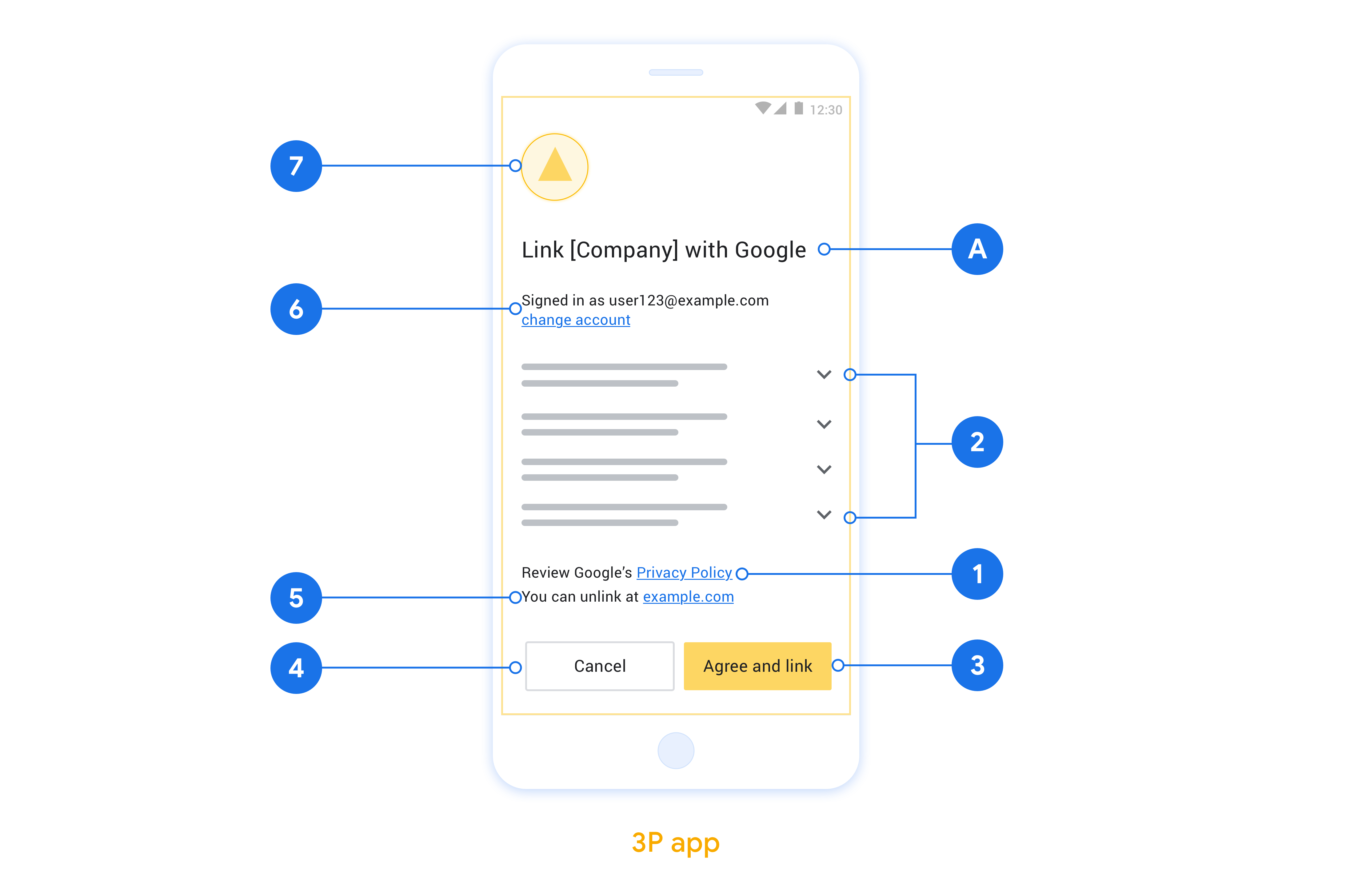
本節說明應用程式切換帳戶連結同意畫面的設計規定和建議。Google 呼叫應用程式後,應用程式會向使用者顯示同意畫面。
需求條件
- 請務必告知使用者,帳戶將連結至 Google,而非 Google Home 或 Google 助理等特定 Google 產品。
建議
建議您採取下列做法:
顯示 Google 隱私權政策。 在同意畫面中加入 Google 隱私權政策的連結。
要分享的資料。請使用簡潔明瞭的用語,告知使用者 Google 需要哪些資料,以及原因。
明確的行動號召。在同意聲明畫面中提供明確的行動號召,例如「同意並連結」。這是因為使用者必須瞭解連結帳戶時,需要與 Google 分享哪些資料。
可拒絕或取消。如果使用者選擇不連結,請提供返回、拒絕或取消的方法。
可取消連結。提供使用者取消連結的機制,例如平台帳戶設定的網址。或者,您也可以加入 Google 帳戶的連結,讓使用者管理已連結的帳戶。
可變更使用者帳戶。建議使用者切換帳戶的方法。如果使用者通常有多個帳戶,這項功能就特別實用。
- 如果使用者必須關閉同意畫面才能切換帳戶,請將可復原的錯誤傳送給 Google,讓使用者透過 OAuth 連結和隱含流程登入所需帳戶。
加入您的標誌。在同意畫面上顯示公司標誌。 請按照樣式指南放置標誌。如要顯示 Google 標誌,請參閱「標誌和商標」一文。
設定以 OAuth 為基礎的應用程式切換功能
以下章節說明 OAuth 型應用程式切換的必要條件,以及如何在 Actions 控制台中設定應用程式切換專案。
建立動作並設定 OAuth 2.0 伺服器
設定應用程式切換功能前,請先完成下列事項:
- 建立動作。如要建立動作,請按照「建立專案」一節的指示操作。
- 設定 OAuth 2.0 伺服器。如要進一步瞭解如何設定 OAuth 伺服器,請參閱「實作 OAuth 帳戶連結」。
在 Actions 控制台中設定應用程式切換
下一節說明如何在 Actions 控制台中設定應用程式切換功能。
- 按一下頂端導覽列中的「開發」。然後按一下左側導覽中的「帳戶連結」。
- 將「帳戶連結」旁邊的切換鈕設為開啟。
- 在「帳戶建立」下方,選取「否,我只想允許在我的網站上建立帳戶」。
- 點選 [下一步]。
- 在「連結類型」下方,從下拉式選單中選取「OAuth」和「授權碼」。
- 按一下「繼續」。
- 填寫「OAuth 用戶端資訊」下方的所有欄位。 (如果系統不支援應用程式切換,會改用一般 OAuth)。
- 點選 [下一步]。
- 在「使用應用程式連結帳戶 (選用)」下方,勾選「為 iOS 啟用」。
- 填寫「通用連結」欄位。如要進一步瞭解通用連結,請參閱「允許應用程式和網站連結至您的內容 」。
- 如要視需要設定用戶端,請新增範圍,然後按一下「設定用戶端 (選用)」下方的「新增範圍」。 如果沒有,請按一下「下一步」。
- 在「測試說明」下方,輸入
test(或其他任何字串) 做為預留位置。(只有在您實際提交要發布的動作時,才需要填寫這個欄位。) - 按一下 [儲存]。
現在可以繼續前往下一節,在 iOS 或 Android 應用程式中導入 App Flip。
在原生應用程式中導入 App Flip
如要導入應用程式切換功能,您必須修改應用程式中的使用者授權碼,接受來自 Google 的深層連結。
在裝置上測試應用程式切換功能
您已在管理中心和應用程式中建立動作並設定應用程式切換功能,現在可以在行動裝置上測試這項功能。您可以使用 Google 助理應用程式測試應用程式切換功能。
如要透過 Google 助理應用程式測試應用程式切換功能,請按照下列步驟操作:
- 前往 Actions 控制台,然後選取專案。
- 按一下頂端導覽列中的「測試」。
- 從 Google 助理應用程式觸發帳戶連結流程:
- 開啟 Google 助理應用程式。
- 按一下 [設定]。
- 在「Google 助理」分頁中,按一下「居家控制系統」。
- 按一下「新增」(+)。
- 從供應商清單中選取所需動作。清單中會以「[測試]」為前置字元。從清單中選取 [測試] 動作時,應用程式應會開啟。
- 確認應用程式已啟動,並開始測試授權流程。