
IMA SDK ช่วยให้ผสานรวมโฆษณามัลติมีเดียเข้ากับเว็บไซต์และแอปได้อย่างง่ายดาย IMA SDK สามารถ ขอโฆษณาจากเซิร์ฟเวอร์โฆษณา ที่รองรับ VAST และจัดการการเล่นโฆษณาในแอปของคุณ เมื่อใช้ SDK ฝั่งไคลเอ็นต์ IMA คุณจะควบคุมการเล่นวิดีโอเนื้อหาได้ ในขณะที่ SDK จะจัดการการเล่นโฆษณา โฆษณาจะเล่นในวิดีโอเพลเยอร์แยกต่างหากซึ่งวางอยู่ด้านบนของวิดีโอเพลเยอร์เนื้อหาของแอป
คู่มือนี้แสดงวิธีผสานรวม IMA SDK เข้ากับแอปวิดีโอเพลเยอร์ หากต้องการดูหรือทำตามตัวอย่างการผสานรวมที่เสร็จสมบูรณ์แล้ว ให้ดาวน์โหลด BasicExample จาก GitHub
ภาพรวมฝั่งไคลเอ็นต์ของ IMA
การติดตั้งใช้งานฝั่งไคลเอ็นต์ของ IMA เกี่ยวข้องกับคอมโพเนนต์ SDK หลัก 4 อย่าง คู่มือนี้ แสดงให้เห็นถึงคอมโพเนนต์ต่อไปนี้
IMAAdDisplayContainer: ออบเจ็กต์คอนเทนเนอร์ที่ระบุตําแหน่งที่ IMA แสดงองค์ประกอบ UI ของโฆษณาและวัดการมองเห็นโฆษณา รวมถึงมุมมองแอ็กทีฟและ Open MeasurementIMAAdsLoader: ออบเจ็กต์ที่ขอโฆษณาและจัดการเหตุการณ์จากการตอบกลับคำขอโฆษณา คุณควรสร้างอินสแตนซ์ของ AdsLoader เพียงรายการเดียว ซึ่งสามารถนำกลับมาใช้ใหม่ได้ตลอดอายุการใช้งานของแอปพลิเคชันIMAAdsRequest: ออบเจ็กต์ที่กำหนดคำขอโฆษณา คำขอโฆษณาระบุ URL สำหรับแท็กโฆษณา VAST รวมถึง พารามิเตอร์เพิ่มเติม เช่น ขนาดโฆษณาIMAAdsManager: ออบเจ็กต์ที่มีการตอบกลับคำขอโฆษณา ควบคุมการเล่นโฆษณา และรอรับฟังเหตุการณ์โฆษณา ที่ SDK เรียกใช้
ข้อกำหนดเบื้องต้น
ก่อนเริ่มต้น คุณต้องมีสิ่งต่อไปนี้
- Xcode 13 ขึ้นไป
- วิธีติดตั้ง IMA SDK
- แนะนำ: Swift Package Manager
- สำเนาที่ดาวน์โหลดของ IMA SDK สำหรับ tvOS
1. สร้างโปรเจ็กต์ Xcode ใหม่
ใน Xcode ให้สร้างโปรเจ็กต์ tvOS ใหม่โดยใช้ Objective-C หรือ Swift ใช้ BasicExample เป็นชื่อโปรเจ็กต์
2. เพิ่ม IMA SDK ลงในโปรเจ็กต์ Xcode
หากต้องการติดตั้ง IMA SDK ให้เลือกวิธีที่ต้องการ
แนะนำ: ติดตั้ง IMA SDK โดยใช้ Swift Package Manager
SDK โฆษณาสื่ออินเทอร์แอกทีฟรองรับ Swift Package Manager ตั้งแต่เวอร์ชัน 4.8.2 เป็นต้นไป ทำตาม ขั้นตอนเหล่านี้เพื่อนำเข้าแพ็กเกจ Swift
ใน Xcode ให้ติดตั้งแพ็กเกจ Swift ของ IMA SDK โดยไปที่ ไฟล์ > เพิ่มแพ็กเกจ...
ในข้อความแจ้งที่ปรากฏขึ้น ให้ค้นหาที่เก็บ IMA SDK Swift Package GitHub
https://github.com/googleads/swift-package-manager-google-interactive-media-ads-tvosเลือกเวอร์ชันของแพ็กเกจ IMA SDK Swift ที่ต้องการใช้ สำหรับโปรเจ็กต์ใหม่ เราขอแนะนำให้ใช้อัปเดตเป็นเวอร์ชันหลักถัดไป
เมื่อดำเนินการเสร็จแล้ว Xcode จะแก้ไขการขึ้นต่อกันของแพ็กเกจและ ดาวน์โหลดไว้ในเบื้องหลัง ดูรายละเอียดเพิ่มเติมเกี่ยวกับวิธีเพิ่มการอ้างอิงแพ็กเกจได้ที่บทความของ Apple
การดาวน์โหลดและติดตั้ง IMA SDK ด้วยตนเอง
หากไม่ต้องการใช้ Swift Package Manager ให้ดาวน์โหลดและเพิ่ม IMA SDK ลงในโปรเจ็กต์ด้วยตนเอง
แสดง/ซ่อนวิธีการ
- จาก หน้าดาวน์โหลด IMA สำหรับ tvOS ให้ดาวน์โหลดและแตกไฟล์ IMA SDK สำหรับ tvOS เวอร์ชันล่าสุด
- เปิด BasicExample.xcodeproj
- คลิกชื่อโปรเจ็กต์ในแผงด้านซ้าย
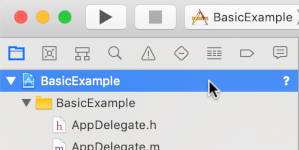
- คลิกBuild Phases ในแผงตรงกลาง

- ขยายส่วนลิงก์ไบนารีกับไลบรารี
- คลิกไอคอนบวก [+] ที่ด้านล่างของรายการไลบรารี
- คลิกเพิ่มอื่นๆ
- ในไดเรกทอรีที่คุณแตกไฟล์ SDK ที่ดาวน์โหลด ให้เลือก GoogleInteractiveMediaAds.framework แล้วคลิก Open
- ที่ด้านล่างของรายการไลบรารี ให้คลิกไอคอนบวก [+] อีกครั้ง
- ในคอลัมน์สถานะ ให้ตรวจสอบว่า
GoogleInteractiveMediaAds.frameworkแสดงRequired - ใส่ Flag ของ Linker
-ObjCในการตั้งค่าบิลด์ ดูข้อมูลเพิ่มเติมได้ที่ Apple QA1490
3. นำเข้า IMA SDK
เพิ่มเฟรมเวิร์ก IMA โดยใช้คำสั่งนำเข้า
Objective-C
#import "ViewController.h"
#import <AVKit/AVKit.h>
@import GoogleInteractiveMediaAds;
Swift
import AVFoundation
import GoogleInteractiveMediaAds
import UIKit
4. สร้างวิดีโอเพลเยอร์และผสานรวม IMA SDK
ตัวอย่างต่อไปนี้เริ่มต้น IMA SDK
Objective-C
NSString *const kContentURLString =
@"https://storage.googleapis.com/interactive-media-ads/media/stock.mp4";
NSString *const kAdTagURLString =
@"https://pubads.g.doubleclick.net/gampad/ads?"
@"iu=/21775744923/external/vmap_ad_samples&sz=640x480&"
@"cust_params=sample_ar%3Dpremidpostlongpod&ciu_szs=300x250&gdfp_req=1&ad_rule=1&"
@"output=vmap&unviewed_position_start=1&env=vp&cmsid=496&vid=short_onecue&correlator=";
@interface ViewController () <IMAAdsLoaderDelegate, IMAAdsManagerDelegate>
@property(nonatomic) IMAAdsLoader *adsLoader;
@property(nonatomic) IMAAdDisplayContainer *adDisplayContainer;
@property(nonatomic) IMAAdsManager *adsManager;
@property(nonatomic) IMAAVPlayerContentPlayhead *contentPlayhead;
@property(nonatomic) AVPlayerViewController *contentPlayerViewController;
@property(nonatomic, getter=isAdBreakActive) BOOL adBreakActive;
@end
@implementation ViewController
- (void)viewDidLoad {
[super viewDidLoad];
self.view.backgroundColor = [UIColor blackColor];
[self setupAdsLoader];
[self setupContentPlayer];
}
- (void)viewDidAppear:(BOOL)animated {
[super viewDidAppear:animated];
[self requestAds];
}
// Add the content video player as a child view controller.
- (void)showContentPlayer {
[self addChildViewController:self.contentPlayerViewController];
self.contentPlayerViewController.view.frame = self.view.bounds;
[self.view insertSubview:self.contentPlayerViewController.view atIndex:0];
[self.contentPlayerViewController didMoveToParentViewController:self];
}
// Remove and detach the content video player.
- (void)hideContentPlayer {
// The whole controller needs to be detached so that it doesn't capture resume events from the
// remote and play content underneath the ad.
[self.contentPlayerViewController willMoveToParentViewController:nil];
[self.contentPlayerViewController.view removeFromSuperview];
[self.contentPlayerViewController removeFromParentViewController];
}
Swift
class ViewController: UIViewController, IMAAdsLoaderDelegate, IMAAdsManagerDelegate {
static let contentURLString =
"https://devstreaming-cdn.apple.com/videos/streaming/examples/"
+ "img_bipbop_adv_example_fmp4/master.m3u8"
static let adTagURLString =
"https://pubads.g.doubleclick.net/gampad/ads?iu=/21775744923/external/single_ad_samples&"
+ "sz=640x480&cust_params=sample_ct%3Dlinear&ciu_szs=300x250%2C728x90&gdfp_req=1&output=vast&"
+ "unviewed_position_start=1&env=vp&correlator="
var adsLoader: IMAAdsLoader!
var adDisplayContainer: IMAAdDisplayContainer!
var adsManager: IMAAdsManager!
var contentPlayhead: IMAAVPlayerContentPlayhead?
var playerViewController: AVPlayerViewController!
var adBreakActive = false
deinit {
NotificationCenter.default.removeObserver(self)
}
override func viewDidLoad() {
super.viewDidLoad()
self.view.backgroundColor = UIColor.black
setUpContentPlayer()
setUpAdsLoader()
}
override func viewDidAppear(_ animated: Bool) {
super.viewDidAppear(animated)
requestAds()
}
ในตัวอย่างนี้ viewDidLoad() จะเริ่มต้น IMAAdsLoader และ
viewDidAppear() จะขอโฆษณาเมื่อมุมมองปรากฏ เมธอด Helper
showContentPlayer() และ hideContentPlayer() สลับระดับการเข้าถึงเนื้อหาระหว่าง
การเล่นโฆษณา
ตัวอย่างนี้ใช้ตัวแปรค่าคงที่ adTagURLString เพื่อกำหนดแท็กโฆษณา VAST สำหรับคำขอโฆษณา และใช้คอมโพเนนต์ต่อไปนี้เพื่อจัดการ IMA SDK
adsLoader: จัดการคำขอและการตอบกลับโฆษณา เราขอแนะนำให้ใช้ อินสแตนซ์เดียวสำหรับวงจรของแอปadDisplayContainer: ระบุมุมมองสำหรับการแสดงโฆษณาadsManager: จัดการการเล่นโฆษณาและรอฟังเหตุการณ์โฆษณาcontentPlayhead: ติดตามความคืบหน้าของเนื้อหาเพื่อเรียกใช้ช่วงพักโฆษณาตอนกลางadBreakActive: ระบุว่าช่วงพักโฆษณากำลังเล่นอยู่เพื่อป้องกัน การกรอข้ามโฆษณา
5. ใช้เครื่องมือติดตามหัวอ่านเนื้อหาและเครื่องมือสังเกตการณ์ตอนท้ายของสตรีม
หากต้องการเล่นโฆษณาตอนกลาง IMA SDK ต้องติดตามตำแหน่งปัจจุบัน
ของเนื้อหาวิดีโอ หากต้องการส่งตำแหน่งปัจจุบันไปยัง IMA ให้สร้างคลาสที่
ใช้ IMAContentPlayhead หากคุณใช้ AVPlayer ดังที่ตัวอย่างนี้
แสดง IMA SDK จะมีคลาส IMAAVPlayerContentPlayhead เพื่อส่งข้อมูลตำแหน่งปัจจุบัน
ให้คุณ หากไม่ได้ใช้ AVPlayer ให้ใช้
IMAContentPlayhead ในคลาสของคุณเอง
Objective-C
- (void)setupContentPlayer {
// Create a content video player. Create a playhead to track content progress so the SDK knows
// when to play ads in a VMAP playlist.
NSURL *contentURL = [NSURL URLWithString:kContentURLString];
AVPlayer *player = [AVPlayer playerWithURL:contentURL];
self.contentPlayerViewController = [[AVPlayerViewController alloc] init];
self.contentPlayerViewController.player = player;
self.contentPlayerViewController.view.frame = self.view.bounds;
self.contentPlayhead =
[[IMAAVPlayerContentPlayhead alloc] initWithAVPlayer:self.contentPlayerViewController.player];
// Track end of content.
AVPlayerItem *contentPlayerItem = self.contentPlayerViewController.player.currentItem;
[[NSNotificationCenter defaultCenter] addObserver:self
selector:@selector(contentDidFinishPlaying:)
name:AVPlayerItemDidPlayToEndTimeNotification
object:contentPlayerItem];
// Attach content video player to view hierarchy.
[self showContentPlayer];
}
Swift
func setUpContentPlayer() {
// Load AVPlayer with path to our content.
let contentURL = URL(string: ViewController.contentURLString)!
let player = AVPlayer(url: contentURL)
playerViewController = AVPlayerViewController()
playerViewController.player = player
// Set up our content playhead and contentComplete callback.
contentPlayhead = IMAAVPlayerContentPlayhead(avPlayer: player)
NotificationCenter.default.addObserver(
self,
selector: #selector(ViewController.contentDidFinishPlaying(_:)),
name: NSNotification.Name.AVPlayerItemDidPlayToEndTime,
object: player.currentItem)
showContentPlayer()
}
ตั้งค่าเครื่องมือฟังเพื่อโทรหา contentComplete ใน IMAAdsLoader เมื่อ
เนื้อหาของคุณจบลง โดยใช้ AVPlayerItemDidPlayToEndTimeNotification การเรียกใช้
contentComplete จะช่วยให้ IMA SDK ทราบเมื่อเนื้อหาเล่นจบเพื่อ
แสดงโฆษณาตอนท้าย
Objective-C
- (void)contentDidFinishPlaying:(NSNotification *)notification {
// Notify the SDK that the postrolls should be played.
[self.adsLoader contentComplete];
}
- (void)dealloc {
[[NSNotificationCenter defaultCenter] removeObserver:self];
}
Swift
@objc func contentDidFinishPlaying(_ notification: Notification) {
adsLoader.contentComplete()
}
6. เริ่มต้นเครื่องมือโหลดโฆษณาและส่งคำขอโฆษณา
หากต้องการขอชุดโฆษณา ให้สร้างอินสแตนซ์ IMAAdsLoader
โปรแกรมโหลดนี้จะประมวลผลออบเจ็กต์ IMAAdsRequest ที่เชื่อมโยงกับ
URL แท็กโฆษณาที่ระบุ
แนวทางปฏิบัติแนะนำคือให้คงอินสแตนซ์ของ IMAAdsLoader ไว้เพียงอินสแตนซ์เดียวตลอดวงจร
ของแอป หากต้องการส่งคำขอโฆษณาเพิ่มเติม ให้สร้างออบเจ็กต์ IMAAdsRequest ใหม่ แต่ใช้ IMAAdsLoader เดิมซ้ำ ดูข้อมูลเพิ่มเติมได้ที่คำถามที่พบบ่อยเกี่ยวกับ IMA SDK
Objective-C
- (void)setupAdsLoader {
self.adsLoader = [[IMAAdsLoader alloc] init];
self.adsLoader.delegate = self;
}
- (void)requestAds {
// Pass the main view as the container for ad display.
self.adDisplayContainer = [[IMAAdDisplayContainer alloc] initWithAdContainer:self.view
viewController:self];
IMAAdsRequest *request = [[IMAAdsRequest alloc] initWithAdTagUrl:kAdTagURLString
adDisplayContainer:self.adDisplayContainer
contentPlayhead:self.contentPlayhead
userContext:nil];
[self.adsLoader requestAdsWithRequest:request];
}
Swift
func setUpAdsLoader() {
adsLoader = IMAAdsLoader(settings: nil)
adsLoader.delegate = self
}
func requestAds() {
// Create ad display container for ad rendering.
adDisplayContainer = IMAAdDisplayContainer(adContainer: self.view, viewController: self)
// Create an ad request with our ad tag, display container, and optional user context.
let request = IMAAdsRequest(
adTagUrl: ViewController.adTagURLString,
adDisplayContainer: adDisplayContainer,
contentPlayhead: contentPlayhead,
userContext: nil)
adsLoader.requestAds(with: request)
}
7. ตั้งค่าผู้มอบสิทธิ์ตัวโหลดโฆษณา
ในเหตุการณ์การโหลดที่สําเร็จ IMAAdsLoader จะเรียกใช้เมธอด adsLoadedWithData
ของตัวแทนที่กําหนด โดยส่งอินสแตนซ์ของ IMAAdsManager ไปให้
หลังจากมีอินสแตนซ์ IMAAdsManager แล้ว ให้เริ่มต้นตัวจัดการโฆษณา
ซึ่งจะโหลดโฆษณาแต่ละรายการตามการตอบกลับของ URL แท็กโฆษณา
สําหรับเหตุการณ์การโหลดที่ไม่สําเร็จ ให้ตั้งค่าIMAAdsLoaderตัวแทนเพื่อจัดการ
ข้อผิดพลาดที่เกิดขึ้นระหว่างกระบวนการโหลด หากโฆษณาไม่โหลด ให้ตรวจสอบ
ว่าการเล่นสื่อดำเนินต่อไปโดยไม่มีโฆษณาเพื่อให้ผู้ใช้ดูเนื้อหาสื่อได้
Objective-C
#pragma mark - IMAAdsLoaderDelegate
- (void)adsLoader:(IMAAdsLoader *)loader adsLoadedWithData:(IMAAdsLoadedData *)adsLoadedData {
// Initialize and listen to the ads manager loaded for this request.
self.adsManager = adsLoadedData.adsManager;
self.adsManager.delegate = self;
[self.adsManager initializeWithAdsRenderingSettings:nil];
}
- (void)adsLoader:(IMAAdsLoader *)loader failedWithErrorData:(IMAAdLoadingErrorData *)adErrorData {
// Fall back to playing content.
NSLog(@"Error loading ads: %@", adErrorData.adError.message);
[self.contentPlayerViewController.player play];
}
Swift
func adsLoader(_ loader: IMAAdsLoader, adsLoadedWith adsLoadedData: IMAAdsLoadedData) {
// Grab the instance of the IMAAdsManager and set ourselves as the delegate.
adsManager = adsLoadedData.adsManager
adsManager.delegate = self
adsManager.initialize(with: nil)
}
func adsLoader(_ loader: IMAAdsLoader, failedWith adErrorData: IMAAdLoadingErrorData) {
print("Error loading ads: \(adErrorData.adError.message ?? "No error message available.")")
showContentPlayer()
playerViewController.player?.play()
}
8. ตั้งค่าผู้รับมอบสิทธิ์ของ Ads Manager
สุดท้ายนี้ Ad Manager ต้องมีตัวแทน
ของตัวเองเพื่อจัดการเหตุการณ์และการเปลี่ยนแปลงสถานะ IMAAdManagerDelegate มีเมธอดในการจัดการเหตุการณ์โฆษณาและ
ข้อผิดพลาด รวมถึงเมธอดในการทริกเกอร์การเล่นและการหยุดชั่วคราวในเนื้อหาวิดีโอ
เริ่มเล่น
didReceiveAdEvent วิธีการจัดการเหตุการณ์ IMAAdEvent ทั้งหมด
สำหรับตัวอย่างพื้นฐานนี้ ให้รอเหตุการณ์ LOADED เพื่อบอกให้ Ad
Manager เริ่มเล่นเนื้อหาและโฆษณา IMA SDK จะทริกเกอร์เหตุการณ์
ICON_FALLBACK_IMAGE_CLOSED เมื่อผู้ใช้ปิดกล่องโต้ตอบสำรองของไอคอน
หลังจากแตะไอคอน หลังจากดำเนินการนี้แล้ว การเล่นโฆษณาจะกลับมาทำงานต่อ
Objective-C
#pragma mark - IMAAdsManagerDelegate
- (void)adsManager:(IMAAdsManager *)adsManager didReceiveAdEvent:(IMAAdEvent *)event {
switch (event.type) {
case kIMAAdEvent_LOADED: {
// Play each ad once it has loaded.
[adsManager start];
break;
}
case kIMAAdEvent_ICON_FALLBACK_IMAGE_CLOSED: {
// Resume ad after user has closed dialog.
[adsManager resume];
break;
}
default:
break;
}
}
Swift
func adsManager(_ adsManager: IMAAdsManager, didReceive event: IMAAdEvent) {
switch event.type {
case IMAAdEventType.LOADED:
// Play each ad once it has been loaded.
adsManager.start()
case IMAAdEventType.ICON_FALLBACK_IMAGE_CLOSED:
// Resume playback after the user has closed the dialog.
adsManager.resume()
default:
break
}
}
การจัดการข้อผิดพลาด
เพิ่มตัวแฮนเดิลสำหรับข้อผิดพลาดของโฆษณาด้วย หากเกิดข้อผิดพลาด เช่น ในขั้นตอนก่อนหน้า ให้เล่นเนื้อหาต่อ
Objective-C
- (void)adsManager:(IMAAdsManager *)adsManager didReceiveAdError:(IMAAdError *)error {
// Fall back to playing content.
NSLog(@"AdsManager error: %@", error.message);
[self showContentPlayer];
[self.contentPlayerViewController.player play];
}
Swift
func adsManager(_ adsManager: IMAAdsManager, didReceive error: IMAAdError) {
// Fall back to playing content
print("AdsManager error: \(error.message ?? "No error message available.")")
showContentPlayer()
playerViewController.player?.play()
}
ทริกเกอร์เหตุการณ์เล่นและหยุดชั่วคราว
เมธอดตัวแทน 2 รายการสุดท้ายที่คุณใช้จะทริกเกอร์เหตุการณ์การเล่นและหยุดชั่วคราวในเนื้อหาวิดีโอพื้นฐานเมื่อ IMA SDK ร้องขอ การเรียกใช้การหยุดชั่วคราวและการเล่นเมื่อ IMA SDK ร้องขอจะช่วยป้องกันไม่ให้ผู้ใช้พลาด เนื้อหาวิดีโอบางส่วนเมื่อโฆษณาแสดง
Objective-C
- (void)adsManagerDidRequestContentPause:(IMAAdsManager *)adsManager {
// Pause the content for the SDK to play ads.
[self.contentPlayerViewController.player pause];
[self hideContentPlayer];
// Trigger an update to send focus to the ad display container.
self.adBreakActive = YES;
[self setNeedsFocusUpdate];
}
- (void)adsManagerDidRequestContentResume:(IMAAdsManager *)adsManager {
// Resume the content since the SDK is done playing ads (at least for now).
[self showContentPlayer];
[self.contentPlayerViewController.player play];
// Trigger an update to send focus to the content player.
self.adBreakActive = NO;
[self setNeedsFocusUpdate];
}
Swift
func adsManagerDidRequestContentPause(_ adsManager: IMAAdsManager) {
// Pause the content for the SDK to play ads.
playerViewController.player?.pause()
hideContentPlayer()
// Trigger an update to send focus to the ad display container.
adBreakActive = true
setNeedsFocusUpdate()
}
func adsManagerDidRequestContentResume(_ adsManager: IMAAdsManager) {
// Resume the content since the SDK is done playing ads (at least for now).
showContentPlayer()
playerViewController.player?.play()
// Trigger an update to send focus to the content player.
adBreakActive = false
setNeedsFocusUpdate()
}
เท่านี้ก็เรียบร้อย ตอนนี้คุณกำลังขอและแสดงโฆษณาด้วย IMA SDK ดูข้อมูลเพิ่มเติมเกี่ยวกับฟีเจอร์ SDK อื่นๆ ได้ในคำแนะนำอื่นๆ หรือตัวอย่างใน GitHub
ขั้นตอนถัดไป
หากต้องการเพิ่มรายได้จากโฆษณาในแพลตฟอร์ม tvOS ให้ได้สูงสุด โปรดขอสิทธิ์ความโปร่งใสและการติดตามของแอปเพื่อใช้ IDFA