使用 IMA SDK,即可輕鬆將多媒體廣告整合至網站和應用程式。IMA SDK 可向任何 符合 VAST 規定的廣告伺服器請求廣告,並在應用程式中管理廣告播放。使用 IMA 用戶端 SDK 時,您可以控管內容影片的播放,SDK 則負責處理廣告播放。廣告會在應用程式內容影片播放器上方的獨立影片播放器中播放。
本指南說明如何將 IMA SDK 整合至影片播放器應用程式。如要查看或跟著操作完成的整合範例,請從 GitHub 下載 BasicExample。
IMA 用戶端總覽
導入 IMA 用戶端時,需要使用四個主要 SDK 元件。本指南會說明下列元件:
IMAAdDisplayContainer: 容器物件,用於指定 IMA 要在何處算繪廣告 UI 元素及評估可視度,包括 Active View 和 Open Measurement。IMAAdsLoader: 這個物件會要求廣告,並處理廣告請求回應中的事件。您應該只例項化一個廣告載入器,這個載入器可在應用程式的整個生命週期中重複使用。IMAAdsRequest: 定義廣告請求的物件。廣告請求會指定 VAST 廣告代碼的網址,以及廣告尺寸等其他參數。IMAAdsManager: 這個物件包含廣告請求的回應、控管廣告播放,並監聽 SDK 觸發的廣告事件。
必要條件
開始之前,請先確認您具備以下項目:
- Xcode 13 以上版本
- 安裝 IMA SDK 的方法:
1. 建立新的 Xcode 專案
在 Xcode 中,使用 Objective-C 或 Swift 建立新的 tvOS 專案。使用「BasicExample」BasicExample做為專案名稱。
2. 將 IMA SDK 新增至 Xcode 專案
如要安裝 IMA SDK,請選擇偏好的方法。
建議:使用 Swift Package Manager 安裝 IMA SDK
互動式媒體廣告 SDK 從 4.8.2 版開始支援 Swift Package Manager。請按照下列步驟匯入 Swift 套件。
在 Xcode 中,依序前往「File」(檔案) >「Add Packages…」(新增套件…),然後安裝 IMA SDK Swift Package。
使用畫面顯示的提示詞框,搜尋「IMA SDK Swift Package GitHub repository」:
https://github.com/googleads/swift-package-manager-google-interactive-media-ads-tvos選取要使用的 IMA SDK Swift Package 版本。如果是新專案,建議選用「Up to Next Major Version」(升級至下一個主要版本)。
完成後,Xcode 會解析套件依附元件,並在背景下載。如要進一步瞭解如何新增套件依附元件,請參閱 Apple 的文章。
使用 CocoaPods 安裝 IMA SDK
如要安裝 IMA SDK,請使用 CocoaPods。如要進一步瞭解如何安裝或使用 CocoaPods,請參閱 CocoaPods 說明文件。安裝 CocoaPods 後,請執行下列操作:
在 BasicExample.xcodeproj 檔案所在的目錄中,建立名為 Podfile 的文字檔案,並新增下列設定:
source 'https://github.com/CocoaPods/Specs.git' platform :tvos, '15' target "BasicExample" do pod 'GoogleAds-IMA-tvOS-SDK', '~> 4.16.0' end從包含 Podfile 的目錄執行
pod install --repo-update開啟 BasicExample.xcworkspace 檔案,確認其中包含兩個專案:BasicExample 和 Pods (CocoaPods 安裝的依附元件),藉此驗證安裝是否成功。
手動下載及安裝 IMA SDK
如果不想使用 Swift Package Manager,請下載並手動將 IMA SDK 新增至專案。
顯示/隱藏操作說明
- 前往 tvOS IMA 下載頁面,下載並解壓縮最新版 tvOS IMA SDK。
- 開啟 BasicExample.xcodeproj。
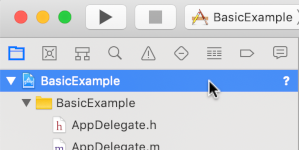
- 在左側窗格中,按一下專案名稱。
- 在中間窗格中,按一下「Build Phases」。

- 展開「Link Binary With Libraries」部分。
- 在程式庫清單底部,按一下加號圖示「[+]」。
- 按一下「新增其他」。
- 在您解壓縮下載 SDK 的目錄中,選取「GoogleInteractiveMediaAds.framework」,然後按一下「Open」。
- 在程式庫清單底部,再次點按加號圖示 [+]。
- 在「狀態」欄中,確認顯示
GoogleInteractiveMediaAds.framework和Required。 - 在建構設定中加入
-ObjC連接器標記。詳情請參閱 Apple QA1490。
3. 匯入 IMA SDK
使用匯入陳述式新增 IMA 架構。
Objective-C
#import "ViewController.h"
#import <AVKit/AVKit.h>
@import GoogleInteractiveMediaAds;
Swift
import AVFoundation
import GoogleInteractiveMediaAds
import UIKit
4. 建立影片播放器並整合 IMA SDK
以下範例會初始化 IMA SDK:
Objective-C
NSString *const kContentURLString =
@"https://storage.googleapis.com/interactive-media-ads/media/stock.mp4";
NSString *const kAdTagURLString =
@"https://pubads.g.doubleclick.net/gampad/ads?"
@"iu=/21775744923/external/vmap_ad_samples&sz=640x480&"
@"cust_params=sample_ar%3Dpremidpostlongpod&ciu_szs=300x250&gdfp_req=1&ad_rule=1&"
@"output=vmap&unviewed_position_start=1&env=vp&cmsid=496&vid=short_onecue&correlator=";
@interface ViewController () <IMAAdsLoaderDelegate, IMAAdsManagerDelegate>
@property(nonatomic) IMAAdsLoader *adsLoader;
@property(nonatomic) IMAAdDisplayContainer *adDisplayContainer;
@property(nonatomic) IMAAdsManager *adsManager;
@property(nonatomic) IMAAVPlayerContentPlayhead *contentPlayhead;
@property(nonatomic) AVPlayerViewController *contentPlayerViewController;
@property(nonatomic, getter=isAdBreakActive) BOOL adBreakActive;
@end
@implementation ViewController
- (void)viewDidLoad {
[super viewDidLoad];
self.view.backgroundColor = [UIColor blackColor];
[self setupAdsLoader];
[self setupContentPlayer];
}
- (void)viewDidAppear:(BOOL)animated {
[super viewDidAppear:animated];
[self requestAds];
}
// Add the content video player as a child view controller.
- (void)showContentPlayer {
[self addChildViewController:self.contentPlayerViewController];
self.contentPlayerViewController.view.frame = self.view.bounds;
[self.view insertSubview:self.contentPlayerViewController.view atIndex:0];
[self.contentPlayerViewController didMoveToParentViewController:self];
}
// Remove and detach the content video player.
- (void)hideContentPlayer {
// The whole controller needs to be detached so that it doesn't capture resume events from the
// remote and play content underneath the ad.
[self.contentPlayerViewController willMoveToParentViewController:nil];
[self.contentPlayerViewController.view removeFromSuperview];
[self.contentPlayerViewController removeFromParentViewController];
}
Swift
class ViewController: UIViewController, IMAAdsLoaderDelegate, IMAAdsManagerDelegate {
static let contentURLString =
"https://devstreaming-cdn.apple.com/videos/streaming/examples/"
+ "img_bipbop_adv_example_fmp4/master.m3u8"
static let adTagURLString =
"https://pubads.g.doubleclick.net/gampad/ads?iu=/21775744923/external/single_ad_samples&"
+ "sz=640x480&cust_params=sample_ct%3Dlinear&ciu_szs=300x250%2C728x90&gdfp_req=1&output=vast&"
+ "unviewed_position_start=1&env=vp&correlator="
var adsLoader: IMAAdsLoader!
var adDisplayContainer: IMAAdDisplayContainer!
var adsManager: IMAAdsManager!
var contentPlayhead: IMAAVPlayerContentPlayhead?
var playerViewController: AVPlayerViewController!
var adBreakActive = false
deinit {
NotificationCenter.default.removeObserver(self)
}
override func viewDidLoad() {
super.viewDidLoad()
self.view.backgroundColor = UIColor.black
setUpContentPlayer()
setUpAdsLoader()
}
override func viewDidAppear(_ animated: Bool) {
super.viewDidAppear(animated)
requestAds()
}
在這個範例中,viewDidLoad() 會初始化 IMAAdsLoader,且 viewDidAppear() 會在檢視畫面顯示後請求廣告。輔助方法 showContentPlayer() 和 hideContentPlayer() 會在廣告播放期間切換內容顯示設定。
這個範例會使用 adTagURLString 常數變數,為廣告請求定義 VAST 廣告代碼,並使用下列元件管理 IMA SDK:
adsLoader:處理廣告請求和回應。建議您為應用程式的生命週期使用單一例項。adDisplayContainer:指定用於算繪廣告的檢視區塊。adsManager:管理廣告播放並監聽廣告事件。contentPlayhead:追蹤內容進度,觸發片中廣告插播。adBreakActive:指出廣告插播是否正在播放,以防止略過廣告。
5. 實作內容播放頭追蹤器和串流結束觀察器
如要播放片中廣告,IMA SDK 必須追蹤影片內容的目前位置。如要將目前位置傳遞至 IMA,請建立實作 IMAContentPlayhead 的類別。如果您使用 AVPlayer,如本範例所示,IMA SDK 會提供 IMAAVPlayerContentPlayhead 類別,供您傳遞目前位置資訊。如果您未使用 AVPlayer,請在自己的類別中實作 IMAContentPlayhead。
Objective-C
- (void)setupContentPlayer {
// Create a content video player. Create a playhead to track content progress so the SDK knows
// when to play ads in a VMAP playlist.
NSURL *contentURL = [NSURL URLWithString:kContentURLString];
AVPlayer *player = [AVPlayer playerWithURL:contentURL];
self.contentPlayerViewController = [[AVPlayerViewController alloc] init];
self.contentPlayerViewController.player = player;
self.contentPlayerViewController.view.frame = self.view.bounds;
self.contentPlayhead =
[[IMAAVPlayerContentPlayhead alloc] initWithAVPlayer:self.contentPlayerViewController.player];
// Track end of content.
AVPlayerItem *contentPlayerItem = self.contentPlayerViewController.player.currentItem;
[[NSNotificationCenter defaultCenter] addObserver:self
selector:@selector(contentDidFinishPlaying:)
name:AVPlayerItemDidPlayToEndTimeNotification
object:contentPlayerItem];
// Attach content video player to view hierarchy.
[self showContentPlayer];
}
Swift
func setUpContentPlayer() {
// Load AVPlayer with path to our content.
let contentURL = URL(string: ViewController.contentURLString)!
let player = AVPlayer(url: contentURL)
playerViewController = AVPlayerViewController()
playerViewController.player = player
// Set up our content playhead and contentComplete callback.
contentPlayhead = IMAAVPlayerContentPlayhead(avPlayer: player)
NotificationCenter.default.addObserver(
self,
selector: #selector(ViewController.contentDidFinishPlaying(_:)),
name: NSNotification.Name.AVPlayerItemDidPlayToEndTime,
object: player.currentItem)
showContentPlayer()
}
使用 AVPlayerItemDidPlayToEndTimeNotification 設定監聽器,在內容結束時呼叫 IMAAdsLoader 上的 contentComplete。呼叫
contentComplete 可讓 IMA SDK 知道內容何時播放完畢,以便顯示片尾廣告。
Objective-C
- (void)contentDidFinishPlaying:(NSNotification *)notification {
// Notify the SDK that the postrolls should be played.
[self.adsLoader contentComplete];
}
- (void)dealloc {
[[NSNotificationCenter defaultCenter] removeObserver:self];
}
Swift
@objc func contentDidFinishPlaying(_ notification: Notification) {
adsLoader.contentComplete()
}
6. 初始化廣告載入器並發出廣告請求
如要要求一組廣告,請建立 IMAAdsLoader 執行個體。
這個載入器會處理與指定廣告代碼網址相關聯的 IMAAdsRequest 物件。
最佳做法是在整個應用程式生命週期中,只維護一個 IMAAdsLoader 例項。如要提出額外的廣告請求,請建立新的 IMAAdsRequest 物件,但重複使用相同的 IMAAdsLoader。詳情請參閱 IMA SDK 常見問題。
Objective-C
- (void)setupAdsLoader {
self.adsLoader = [[IMAAdsLoader alloc] init];
self.adsLoader.delegate = self;
}
- (void)requestAds {
// Pass the main view as the container for ad display.
self.adDisplayContainer = [[IMAAdDisplayContainer alloc] initWithAdContainer:self.view
viewController:self];
IMAAdsRequest *request = [[IMAAdsRequest alloc] initWithAdTagUrl:kAdTagURLString
adDisplayContainer:self.adDisplayContainer
contentPlayhead:self.contentPlayhead
userContext:nil];
[self.adsLoader requestAdsWithRequest:request];
}
Swift
func setUpAdsLoader() {
adsLoader = IMAAdsLoader(settings: nil)
adsLoader.delegate = self
}
func requestAds() {
// Create ad display container for ad rendering.
adDisplayContainer = IMAAdDisplayContainer(adContainer: self.view, viewController: self)
// Create an ad request with our ad tag, display container, and optional user context.
let request = IMAAdsRequest(
adTagUrl: ViewController.adTagURLString,
adDisplayContainer: adDisplayContainer,
contentPlayhead: contentPlayhead,
userContext: nil)
adsLoader.requestAds(with: request)
}
7. 設定廣告載入器委派
載入事件成功後,IMAAdsLoader 會呼叫指派的委派項目 adsLoadedWithData 方法,並傳遞 IMAAdsManager 的執行個體。取得 IMAAdsManager 執行個體後,請初始化廣告管理工具,根據廣告代碼網址的回應載入個別廣告。
如果載入事件失敗,請設定 IMAAdsLoader 委派,處理載入程序期間發生的錯誤。如果廣告無法載入,請確保媒體播放作業會繼續進行,不會顯示廣告,讓使用者觀看媒體內容。
Objective-C
#pragma mark - IMAAdsLoaderDelegate
- (void)adsLoader:(IMAAdsLoader *)loader adsLoadedWithData:(IMAAdsLoadedData *)adsLoadedData {
// Initialize and listen to the ads manager loaded for this request.
self.adsManager = adsLoadedData.adsManager;
self.adsManager.delegate = self;
[self.adsManager initializeWithAdsRenderingSettings:nil];
}
- (void)adsLoader:(IMAAdsLoader *)loader failedWithErrorData:(IMAAdLoadingErrorData *)adErrorData {
// Fall back to playing content.
NSLog(@"Error loading ads: %@", adErrorData.adError.message);
[self.contentPlayerViewController.player play];
}
Swift
func adsLoader(_ loader: IMAAdsLoader, adsLoadedWith adsLoadedData: IMAAdsLoadedData) {
// Grab the instance of the IMAAdsManager and set ourselves as the delegate.
adsManager = adsLoadedData.adsManager
adsManager.delegate = self
adsManager.initialize(with: nil)
}
func adsLoader(_ loader: IMAAdsLoader, failedWith adErrorData: IMAAdLoadingErrorData) {
print("Error loading ads: \(adErrorData.adError.message ?? "No error message available.")")
showContentPlayer()
playerViewController.player?.play()
}
8. 設定廣告管理員委派
最後,為管理事件和狀態變更,廣告管理員需要自己的委派項目。IMAAdManagerDelegate 提供處理廣告事件和錯誤的方法,以及觸發影片內容播放和暫停的方法。
開始播放
didReceiveAdEvent 方法會處理所有 IMAAdEvent 事件。
在這個基本範例中,請監聽 LOADED 事件,告知廣告管理工具開始播放內容和廣告。使用者輕觸圖示後關閉圖示備用對話方塊時,IMA SDK 會觸發 ICON_FALLBACK_IMAGE_CLOSED 事件。完成這項操作後,廣告就會繼續播放。
Objective-C
#pragma mark - IMAAdsManagerDelegate
- (void)adsManager:(IMAAdsManager *)adsManager didReceiveAdEvent:(IMAAdEvent *)event {
switch (event.type) {
case kIMAAdEvent_LOADED: {
// Play each ad once it has loaded.
[adsManager start];
break;
}
case kIMAAdEvent_ICON_FALLBACK_IMAGE_CLOSED: {
// Resume ad after user has closed dialog.
[adsManager resume];
break;
}
default:
break;
}
}
Swift
func adsManager(_ adsManager: IMAAdsManager, didReceive event: IMAAdEvent) {
switch event.type {
case IMAAdEventType.LOADED:
// Play each ad once it has been loaded.
adsManager.start()
case IMAAdEventType.ICON_FALLBACK_IMAGE_CLOSED:
// Resume playback after the user has closed the dialog.
adsManager.resume()
default:
break
}
}
處理錯誤
同時也新增廣告錯誤的處理常式。如果發生錯誤 (如上一個步驟所述),請繼續播放內容。
Objective-C
- (void)adsManager:(IMAAdsManager *)adsManager didReceiveAdError:(IMAAdError *)error {
// Fall back to playing content.
NSLog(@"AdsManager error: %@", error.message);
[self showContentPlayer];
[self.contentPlayerViewController.player play];
}
Swift
func adsManager(_ adsManager: IMAAdsManager, didReceive error: IMAAdError) {
// Fall back to playing content
print("AdsManager error: \(error.message ?? "No error message available.")")
showContentPlayer()
playerViewController.player?.play()
}
觸發播放和暫停事件
您導入的最後兩個委派方法,會在 IMA SDK 要求時,觸發基礎影片內容的播放和暫停事件。在 IMA SDK 請求時觸發暫停和播放,可避免使用者在廣告顯示時錯過部分影片內容。
Objective-C
- (void)adsManagerDidRequestContentPause:(IMAAdsManager *)adsManager {
// Pause the content for the SDK to play ads.
[self.contentPlayerViewController.player pause];
[self hideContentPlayer];
// Trigger an update to send focus to the ad display container.
self.adBreakActive = YES;
[self setNeedsFocusUpdate];
}
- (void)adsManagerDidRequestContentResume:(IMAAdsManager *)adsManager {
// Resume the content since the SDK is done playing ads (at least for now).
[self showContentPlayer];
[self.contentPlayerViewController.player play];
// Trigger an update to send focus to the content player.
self.adBreakActive = NO;
[self setNeedsFocusUpdate];
}
Swift
func adsManagerDidRequestContentPause(_ adsManager: IMAAdsManager) {
// Pause the content for the SDK to play ads.
playerViewController.player?.pause()
hideContentPlayer()
// Trigger an update to send focus to the ad display container.
adBreakActive = true
setNeedsFocusUpdate()
}
func adsManagerDidRequestContentResume(_ adsManager: IMAAdsManager) {
// Resume the content since the SDK is done playing ads (at least for now).
showContentPlayer()
playerViewController.player?.play()
// Trigger an update to send focus to the content player.
adBreakActive = false
setNeedsFocusUpdate()
}
大功告成!您現在可以使用 IMA SDK 請求及顯示廣告。如要瞭解其他 SDK 功能,請參閱其他指南或 GitHub 上的範例。
後續步驟
如要在 tvOS 平台上盡量提高廣告收益,請要求應用程式追蹤透明度和追蹤權限,以便使用廣告識別碼。