
عرض شكل "إعلان مدمج مع المحتوى" يحدّده النظام
عند تحميل إعلان مدمج مع المحتوى، سيتلقّى تطبيقك عنصر إعلان مدمج مع المحتوى باستخدام إحدى رسائل بروتوكول GADAdLoaderDelegate. ويكون تطبيقك مسؤولاً بعد ذلك عن عرض الإعلان (على الرغم من أنّه ليس من الضروري عرض الإعلان على الفور).
لتسهيل عرض أشكال الإعلانات التي يحدّدها النظام، توفّر حزمة SDK بعض الموارد المفيدة.
GADNativeAdView
بالنسبة إلى GADNativeAd، هناك فئة "عرض الإعلان" المقابلة:
GADNativeAdView.
فئة عرض الإعلان هذه هي UIView يجب أن يستخدمها الناشرون لعرض الإعلان.
على سبيل المثال، يمكن أن يعرض GADNativeAdView واحد مثيلاً واحدًا من GADNativeAd. يجب أن يكون كل عنصر من عناصر UIView المستخدَمة لعرض مواد عرض ذلك الإعلان عبارة عن طرق عرض فرعية لعنصر GADNativeAdView.
على سبيل المثال، إذا كنت تعرض إعلانًا في UITableView، قد تبدو هيكلية طرق العرض لإحدى الخلايا على النحو التالي:
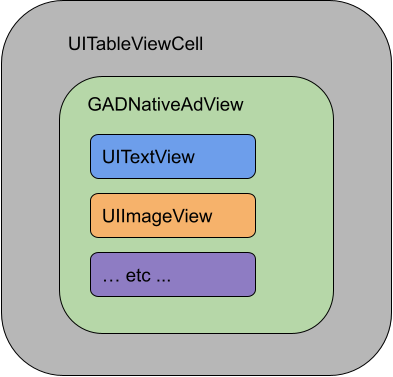
توفّر فئة GADNativeAdView أيضًا IBOutlets المستخدَمة لتسجيل العرض المستخدَم لكل مادة عرض فردية، وطريقة لتسجيل عنصر GADNativeAd نفسه. يتيح تسجيل طرق العرض بهذه الطريقة لحزمة تطوير البرامج (SDK) التعامل تلقائيًا مع مهام مثل:
- تسجيل النقرات
- تسجيل مرّات الظهور (عندما يكون أول بكسل مرئيًا على الشاشة)
- عرض تراكب "خيارات الإعلان"
تراكب "خيارات الإعلان"
بالنسبة إلى الإعلانات المدمجة مع المحتوى غير المباشرة (التي يتم عرضها من خلال الإعلانات الاحتياطية في AdMob أو من خلال Ad Exchange أو AdSense)، تضيف حزمة تطوير البرامج (SDK) تراكب "خيارات الإعلان". اترك مساحة في الزاوية المفضّلة لديك في عرض "الإعلان المدمج مع المحتوى" لشعار "خيارات الإعلان" الذي يتم إدراجه تلقائيًا. تأكَّد أيضًا من وضع تراكب AdChoices على محتوى يسمح برؤية الرمز بوضوح. لمزيد من المعلومات عن مظهر التراكب ووظيفته، يُرجى الاطّلاع على إرشادات تنفيذ الإعلانات الآلية المدمجة مع المحتوى.
التصنيف كإعلان
عند عرض "الإعلانات الآلية المدمجة مع المحتوى"، يجب عرض شارة "التصنيف كإعلان" للإشارة إلى أنّ العرض هو إعلان.مثال على الرمز البرمجي
يوضّح هذا القسم كيفية عرض "الإعلانات المدمجة مع المحتوى" باستخدام طرق عرض يتم تحميلها ديناميكيًا
من ملفات xib. يمكن أن يكون هذا الأسلوب مفيدًا جدًا عند استخدام GADAdLoaders
الذي تم ضبطه لطلب تنسيقات متعددة.
تخطيط UIViews
الخطوة الأولى هي تخطيط UIViews الذي سيعرض مواد عرض الإعلانات المدمجة مع المحتوى.
يمكنك إجراء ذلك في Interface Builder كما تفعل عند إنشاء أي ملف
xib آخر. إليك كيف قد يبدو تنسيق الإعلان المدمج مع المحتوى:
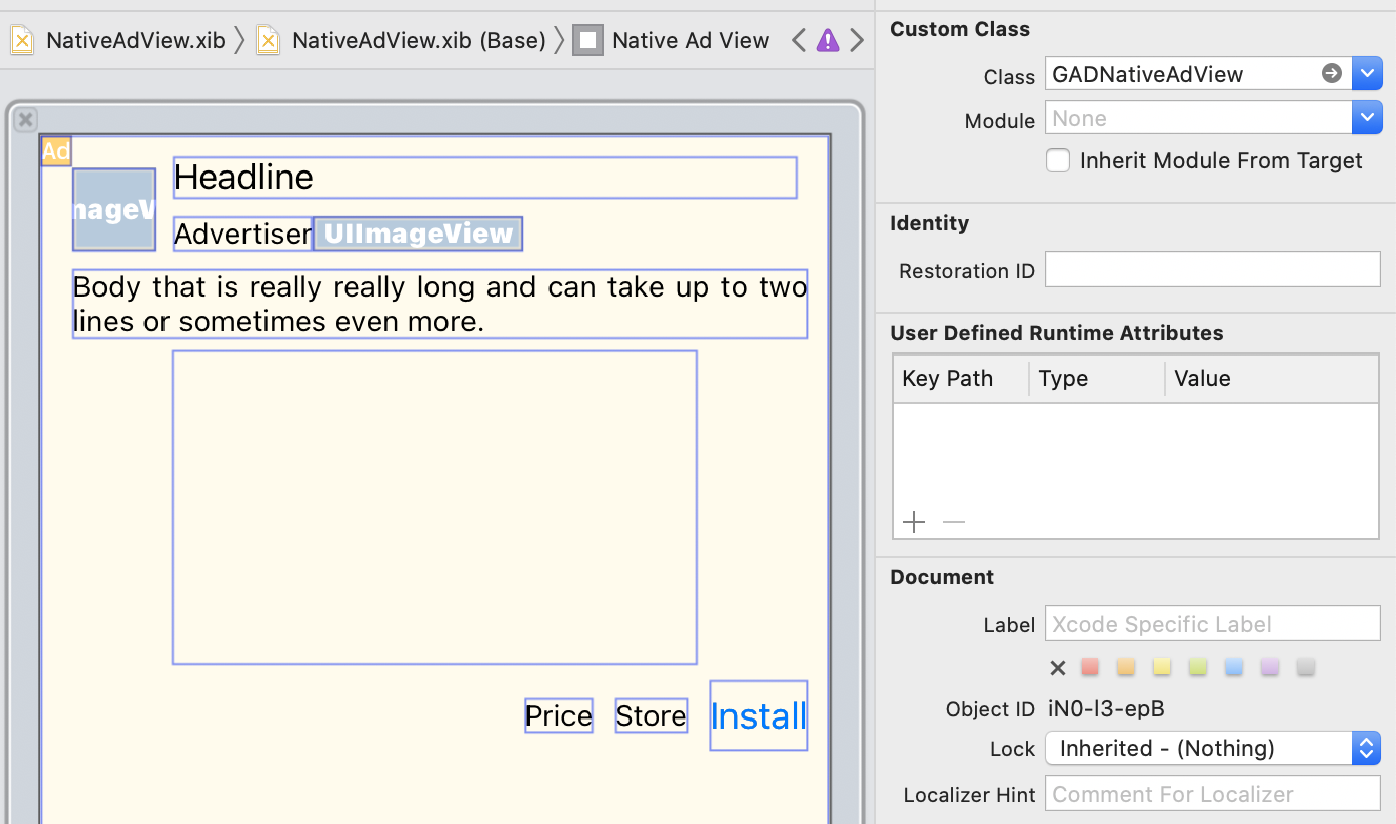
لاحظ قيمة الفئة المخصصة في أعلى يمين الصورة. تم ضبطه على
GADNativeAdView.
هذه هي فئة عرض الإعلانات التي تُستخدَم لعرض GADNativeAd.
يجب أيضًا ضبط الفئة المخصّصة لـ GADMediaView، والتي تُستخدَم
لعرض الفيديو أو الصورة للإعلان.
ربط المنافذ بطرق العرض
بعد إنشاء طرق العرض وتعيين فئة عرض الإعلان الصحيحة للتنسيق، اربط منافذ مواد عرض عرض الإعلان بـ UIViews التي أنشأتها.
في ما يلي كيفية ربط منافذ مواد العرض في عرض الإعلان بـ UIViews الذي تم إنشاؤه
لإعلان:

في لوحة المنافذ، تم ربط المنافذ في GADNativeAdView
بـ UIViews الموضحة في Interface Builder. يتيح ذلك لحزمة SDK معرفة أي UIView يعرض أي مادة عرض.
ومن المهم أيضًا تذكُّر أنّ هذه المنافذ تمثّل الآراء التي يمكن النقر عليها في الإعلان.
عرض الإعلان
بعد اكتمال التنسيق وربط المنافذ، أضِف الرمز التالي إلى تطبيقك الذي يعرض إعلانًا بعد تحميله:
Swift
func adLoader(_ adLoader: AdLoader, didReceive nativeAd: NativeAd) {
// ...
// Set ourselves as the native ad delegate to be notified of native ad events.
nativeAd.delegate = self
// Populate the native ad view with the native ad assets.
// The headline and mediaContent are guaranteed to be present in every native ad.
(nativeAdView.headlineView as? UILabel)?.text = nativeAd.headline
nativeAdView.mediaView?.mediaContent = nativeAd.mediaContent
// Some native ads will include a video asset, while others do not. Apps can use the
// GADVideoController's hasVideoContent property to determine if one is present, and adjust their
// UI accordingly.
let mediaContent = nativeAd.mediaContent
if mediaContent.hasVideoContent {
// By acting as the delegate to the GADVideoController, this ViewController receives messages
// about events in the video lifecycle.
mediaContent.videoController.delegate = self
videoStatusLabel.text = "Ad contains a video asset."
} else {
videoStatusLabel.text = "Ad does not contain a video."
}
// This app uses a fixed width for the GADMediaView and changes its height to match the aspect
// ratio of the media it displays.
if let mediaView = nativeAdView.mediaView, nativeAd.mediaContent.aspectRatio > 0 {
let aspectRatioConstraint = NSLayoutConstraint(
item: mediaView,
attribute: .width,
relatedBy: .equal,
toItem: mediaView,
attribute: .height,
multiplier: CGFloat(nativeAd.mediaContent.aspectRatio),
constant: 0)
mediaView.addConstraint(aspectRatioConstraint)
nativeAdView.layoutIfNeeded()
}
// These assets are not guaranteed to be present. Check that they are before
// showing or hiding them.
(nativeAdView.bodyView as? UILabel)?.text = nativeAd.body
nativeAdView.bodyView?.isHidden = nativeAd.body == nil
(nativeAdView.callToActionView as? UIButton)?.setTitle(nativeAd.callToAction, for: .normal)
nativeAdView.callToActionView?.isHidden = nativeAd.callToAction == nil
(nativeAdView.iconView as? UIImageView)?.image = nativeAd.icon?.image
nativeAdView.iconView?.isHidden = nativeAd.icon == nil
(nativeAdView.starRatingView as? UIImageView)?.image = imageOfStars(from: nativeAd.starRating)
nativeAdView.starRatingView?.isHidden = nativeAd.starRating == nil
(nativeAdView.storeView as? UILabel)?.text = nativeAd.store
nativeAdView.storeView?.isHidden = nativeAd.store == nil
(nativeAdView.priceView as? UILabel)?.text = nativeAd.price
nativeAdView.priceView?.isHidden = nativeAd.price == nil
(nativeAdView.advertiserView as? UILabel)?.text = nativeAd.advertiser
nativeAdView.advertiserView?.isHidden = nativeAd.advertiser == nil
// In order for the SDK to process touch events properly, user interaction should be disabled.
nativeAdView.callToActionView?.isUserInteractionEnabled = false
// Associate the native ad view with the native ad object. This is
// required to make the ad clickable.
// Note: this should always be done after populating the ad views.
nativeAdView.nativeAd = nativeAd
}
SwiftUI
إنشاء نموذج عرض
أنشِئ نموذج عرض يحمّل إعلانًا مدمجًا مع المحتوى وينشر تغييرات بيانات الإعلان المدمج مع المحتوى:
import GoogleMobileAds
class NativeAdViewModel: NSObject, ObservableObject, NativeAdLoaderDelegate {
@Published var nativeAd: NativeAd?
private var adLoader: AdLoader!
func refreshAd() {
adLoader = AdLoader(
adUnitID: "ca-app-pub-3940256099942544/3986624511",
// The UIViewController parameter is optional.
rootViewController: nil,
adTypes: [.native], options: nil)
adLoader.delegate = self
adLoader.load(Request())
}
func adLoader(_ adLoader: AdLoader, didReceive nativeAd: NativeAd) {
// Native ad data changes are published to its subscribers.
self.nativeAd = nativeAd
nativeAd.delegate = self
}
func adLoader(_ adLoader: AdLoader, didFailToReceiveAdWithError error: Error) {
print("\(adLoader) failed with error: \(error.localizedDescription)")
}
}
إنشاء UIViewRepresentable
أنشئ
UIViewRepresentable
لـ NativeView، واشترِك في تغييرات البيانات في الفئة ViewModel:
private struct NativeAdViewContainer: UIViewRepresentable {
typealias UIViewType = NativeAdView
// Observer to update the UIView when the native ad value changes.
@ObservedObject var nativeViewModel: NativeAdViewModel
func makeUIView(context: Context) -> NativeAdView {
return
Bundle.main.loadNibNamed(
"NativeAdView",
owner: nil,
options: nil)?.first as! NativeAdView
}
func updateUIView(_ nativeAdView: NativeAdView, context: Context) {
guard let nativeAd = nativeViewModel.nativeAd else { return }
// Each UI property is configurable using your native ad.
(nativeAdView.headlineView as? UILabel)?.text = nativeAd.headline
nativeAdView.mediaView?.mediaContent = nativeAd.mediaContent
(nativeAdView.bodyView as? UILabel)?.text = nativeAd.body
(nativeAdView.iconView as? UIImageView)?.image = nativeAd.icon?.image
(nativeAdView.starRatingView as? UIImageView)?.image = imageOfStars(from: nativeAd.starRating)
(nativeAdView.storeView as? UILabel)?.text = nativeAd.store
(nativeAdView.priceView as? UILabel)?.text = nativeAd.price
(nativeAdView.advertiserView as? UILabel)?.text = nativeAd.advertiser
(nativeAdView.callToActionView as? UIButton)?.setTitle(nativeAd.callToAction, for: .normal)
// For the SDK to process touch events properly, user interaction should be disabled.
nativeAdView.callToActionView?.isUserInteractionEnabled = false
// Associate the native ad view with the native ad object. This is required to make the ad
// clickable.
// Note: this should always be done after populating the ad views.
nativeAdView.nativeAd = nativeAd
}
إضافة طريقة العرض إلى هيكلية طرق العرض
يوضّح الرمز التالي كيفية إضافة UIViewRepresentable إلى هيكلية طرق العرض:
struct NativeContentView: View {
// Single source of truth for the native ad data.
@StateObject private var nativeViewModel = NativeAdViewModel()
var body: some View {
ScrollView {
VStack(spacing: 20) {
// Updates when the native ad data changes.
NativeAdViewContainer(nativeViewModel: nativeViewModel)
.frame(minHeight: 300) // minHeight determined from xib.
Objective-C
- (void)adLoader:(GADAdLoader *)adLoader didReceiveNativeAd:(GADNativeAd *)nativeAd {
// ...
GADNativeAdView *nativeAdView = self.nativeAdView;
// Set ourselves as the ad delegate to be notified of native ad events.
nativeAd.delegate = self;
// Populate the native ad view with the native ad assets.
// The headline and mediaContent are guaranteed to be present in every native ad.
((UILabel *)nativeAdView.headlineView).text = nativeAd.headline;
nativeAdView.mediaView.mediaContent = nativeAd.mediaContent;
// This app uses a fixed width for the GADMediaView and changes its height
// to match the aspect ratio of the media content it displays.
if (nativeAdView.mediaView != nil && nativeAd.mediaContent.aspectRatio > 0) {
NSLayoutConstraint *aspectRatioConstraint =
[NSLayoutConstraint constraintWithItem:nativeAdView.mediaView
attribute:NSLayoutAttributeWidth
relatedBy:NSLayoutRelationEqual
toItem:nativeAdView.mediaView
attribute:NSLayoutAttributeHeight
multiplier:(nativeAd.mediaContent.aspectRatio)
constant:0];
[nativeAdView.mediaView addConstraint:aspectRatioConstraint];
[nativeAdView layoutIfNeeded];
}
if (nativeAd.mediaContent.hasVideoContent) {
// By acting as the delegate to the GADVideoController, this ViewController
// receives messages about events in the video lifecycle.
nativeAd.mediaContent.videoController.delegate = self;
self.videoStatusLabel.text = @"Ad contains a video asset.";
} else {
self.videoStatusLabel.text = @"Ad does not contain a video.";
}
// These assets are not guaranteed to be present. Check that they are before
// showing or hiding them.
((UILabel *)nativeAdView.bodyView).text = nativeAd.body;
nativeAdView.bodyView.hidden = nativeAd.body ? NO : YES;
[((UIButton *)nativeAdView.callToActionView) setTitle:nativeAd.callToAction
forState:UIControlStateNormal];
nativeAdView.callToActionView.hidden = nativeAd.callToAction ? NO : YES;
((UIImageView *)nativeAdView.iconView).image = nativeAd.icon.image;
nativeAdView.iconView.hidden = nativeAd.icon ? NO : YES;
((UIImageView *)nativeAdView.starRatingView).image = [self imageForStars:nativeAd.starRating];
nativeAdView.starRatingView.hidden = nativeAd.starRating ? NO : YES;
((UILabel *)nativeAdView.storeView).text = nativeAd.store;
nativeAdView.storeView.hidden = nativeAd.store ? NO : YES;
((UILabel *)nativeAdView.priceView).text = nativeAd.price;
nativeAdView.priceView.hidden = nativeAd.price ? NO : YES;
((UILabel *)nativeAdView.advertiserView).text = nativeAd.advertiser;
nativeAdView.advertiserView.hidden = nativeAd.advertiser ? NO : YES;
// In order for the SDK to process touch events properly, user interaction
// should be disabled.
nativeAdView.callToActionView.userInteractionEnabled = NO;
// Associate the native ad view with the native ad object. This is
// required to make the ad clickable.
// Note: this should always be done after populating the ad views.
nativeAdView.nativeAd = nativeAd;
}
مثال كامل على GitHub
يمكنك الاطّلاع على المثال الكامل لدمج "الإعلانات المدمجة مع المحتوى" في Swift وSwiftUI وObjective-C من خلال اتّباع رابط GitHub المعنيّ.
مثال على "الإعلانات المدمجة مع المحتوى" المتقدّمة في Swift مثال على "الإعلانات المدمجة مع المحتوى" في SwiftUI مثال على "الإعلانات المدمجة مع المحتوى" المتقدّمة في Objective-CGADMediaView
يتم عرض مواد عرض الصور والفيديوهات للمستخدمين الذين يستخدمون
GADMediaView.
هذا هو UIView يمكن تحديده في ملف xib أو إنشاؤه ديناميكيًا.
ويجب وضعه ضمن هيكلية طرق العرض في GADNativeAdView، كما هو الحال مع أي طريقة عرض أخرى لمادة العرض.
كما هو الحال مع جميع طرق عرض مواد العرض، يجب تعبئة محتوى طريقة عرض الوسائط. يتم ضبط ذلك باستخدام السمة
mediaContent
على GADMediaView. تحتوي السمة
mediaContent
الخاصة بـ
GADNativeAd
على محتوى وسائط يمكن تمريره إلى
GADMediaView.
في ما يلي مقتطف من
مثال "الإعلانات المدمجة مع المحتوى (متقدمة)"
(Swift |
Objective-C)
يوضّح كيفية تعبئة GADMediaView بمواد عرض "الإعلانات المدمجة مع المحتوى" باستخدام
GADMediaContent من GADNativeAd:
Swift
nativeAdView.mediaView?.mediaContent = nativeAd.mediaContent
Objective-C
nativeAdView.mediaView.mediaContent = nativeAd.mediaContent;
تأكَّد من ضبط الفئة المخصّصة لطرق العرض على GADMediaView في ملف أداة إنشاء الواجهة لعرض "الإعلان المدمج مع المحتوى"، ومن ربطها بمنفذ mediaView.
تغيير وضع محتوى الصورة
تراعي الفئة GADMediaView السمة UIView
contentMode
عند عرض الصور. إذا أردت تغيير طريقة تغيير حجم الصورة في
GADMediaView، اضبط
UIViewContentMode
المقابلة على السمة contentMode في GADMediaView لتحقيق ذلك.
على سبيل المثال، لملء GADMediaView عند عرض صورة (لا يتضمّن الإعلان فيديو):
Swift
nativeAdView.mediaView?.contentMode = .scaleAspectFit
Objective-C
nativeAdView.mediaView.contentMode = UIViewContentModeScaleAspectFit;
GADMediaContent
تحتوي الفئة GADMediaContent على البيانات ذات الصلة بمحتوى الوسائط للإعلان المدمج مع المحتوى، والذي يتم عرضه باستخدام الفئة GADMediaView. عند ضبطها على السمة GADMediaView
mediaContent:
إذا كانت مادة عرض الفيديو متاحة، يتم تخزينها مؤقتًا ويبدأ تشغيلها داخل
GADMediaView. يمكنك معرفة ما إذا كانت مادة عرض فيديو متاحة من خلال الاطّلاع علىhasVideoContent.إذا لم يتضمّن الإعلان مادة عرض فيديو، يتم تنزيل مادة العرض
mainImageووضعها داخلGADMediaViewبدلاً من ذلك.
الخطوات التالية
مزيد من المعلومات حول خصوصية المستخدم