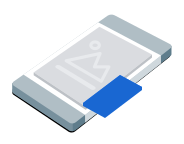
画中画 (PiP) 广告以悬浮窗口的形式展示,该窗口会始终悬浮在文章、信息流或游戏内容等屏幕内容之上。这种广告格式让用户在与您的应用互动时,广告依然清晰可见。如需展示不占满整个屏幕的展示广告,请选择此格式。详细了解画中画广告。
本指南介绍了如何使用 Google Mobile Ads SDK 在应用中请求和展示画中画广告。
准备工作
在继续操作之前,请先完成以下事项:
安装 Google Mobile Ads SDK
13.10.0版或更高版本。
启用测试广告,并使用以下测试广告单元 ID:
ca-app-pub-3940256099942544/8810945611
加载广告
如需加载 GADPictureInPictureAd 对象,请创建一个广告请求并调用 load 方法:
Swift
请将 adUnitID 替换为您的广告单元 ID。
Objective-C
请将 kAdUnitID 替换为您的广告单元 ID。
展示广告
如需在屏幕上展示画中画广告,请调用 show 方法。以下示例显示了如何在默认位置展示广告,并将展示范围设置为屏幕级:
Swift
private func showPictureInPictureAd() {
  // Use the loaded PictureInPictureAd instance.
  guard let pipAd else {
    print("No ad to show.")
    return
  }
  let options = PictureInPictureAdOptions()
  // Uses the Google Mobile Ads SDK's default screen position.
  options.position = .default
  // Binds the ad lifecycle to the host screen.
  options.presentationScope = .screen

  pipAd.show(with: options)
}
Objective-C
- (void)showPictureInPictureAd {
  // Use the loaded PictureInPictureAd instance.
  if (!self.pipAd) {
    NSLog(@"No ad to show.");
    return;
  }
  GADPictureInPictureAdOptions *options =
      [[GADPictureInPictureAdOptions alloc] init];
  // Uses the Google Mobile Ads SDK's default screen position.
  options.position = GADPictureInPictureAdPositionDefault;
  // Binds the ad lifecycle to the host screen.
  options.presentationScope = GADPictureInPictureAdPresentationScopeScreen;

  [self.pipAd showWithOptions:options];
}
设置位置
默认情况下,Google Mobile Ads SDK 在首次展示时会将画中画广告置于屏幕右下角;若此前已展示过,则会显示在最后一次记录的位置。如需自定义广告的展示位置,请在展示广告时指定位置。以下示例将广告位置设置为屏幕左上角,并使其悬浮在内容之上:
Swift
private func createTopLeftPositionOptions() -> PictureInPictureAdOptions {
  let options = PictureInPictureAdOptions()
  // Sets the ad position to the top-left corner of the screen.
  options.position = .topLeft
  return options
}
Objective-C
- (GADPictureInPictureAdOptions *)createTopLeftPositionOptions {
  GADPictureInPictureAdOptions *options =
      [[GADPictureInPictureAdOptions alloc] init];
  // Sets the ad position to the top-left corner of the screen.
  options.position = GADPictureInPictureAdPositionTopLeft;
  return options;
}
如需查看所有可用位置,请参阅 GADPictureInPictureAdPosition。
设置展示范围
默认情况下,Google Mobile Ads SDK 会将画中画广告绑定到当前宿主屏幕。当宿主屏幕的视图层次结构不再保留在内存中时,Google Mobile Ads SDK 会关闭广告。如需在宿主屏幕从内存中移除后仍能保持广告可见,请将展示范围设置为应用级:
Swift
private func createApplicationScopedOptions() -> PictureInPictureAdOptions {
  let options = PictureInPictureAdOptions()
  // Keeps the ad visible beyond the host screen's lifecycle.
  options.presentationScope = .application
  return options
}
Objective-C
- (GADPictureInPictureAdOptions *)createApplicationScopedOptions {
  GADPictureInPictureAdOptions *options =
      [[GADPictureInPictureAdOptions alloc] init];
  // Keeps the ad visible beyond the host screen's lifecycle.
  options.presentationScope = GADPictureInPictureAdPresentationScopeApplication;
  return options;
}
如需了解详情,请参阅让广告在各种屏幕上都可见。
监听广告事件
如需处理画中画广告生命周期事件,请在展示广告之前注册广告事件。这些事件会报告广告互动,例如点击和展示。这些事件还会报告画中画特有的事件,例如广告显示或隐藏时:
Swift
func pictureInPictureAdDidShow(_ pictureInPictureAd: PictureInPictureAd) {
  print("Picture-in-Picture ad shown.")
}

func pictureInPictureAdDidHide(_ pictureInPictureAd: PictureInPictureAd) {
  print("Picture-in-Picture ad hidden.")
}

func pictureInPictureAdDidFailToShow(
  _ pictureInPictureAd: PictureInPictureAd, error: Error
) {
  print("Picture-in-Picture ad failed to show: \(error.localizedDescription)")
}

func pictureInPictureAdDidRecordImpression(
  _ pictureInPictureAd: PictureInPictureAd
) {
  print("Picture-in-Picture ad recorded an impression.")
}

func pictureInPictureAdDidRecordClick(
  _ pictureInPictureAd: PictureInPictureAd
) {
  print("Picture-in-Picture ad recorded a click.")
}

func pictureInPictureAdWillPresentScreen(
  _ pictureInPictureAd: PictureInPictureAd
) {
  print("Picture-in-Picture ad will present screen.")
}

func pictureInPictureAdWillDismissScreen(
  _ pictureInPictureAd: PictureInPictureAd
) {
  print("Picture-in-Picture ad will dismiss screen.")
}

func pictureInPictureAdDidDismissScreen(
  _ pictureInPictureAd: PictureInPictureAd
) {
  print("Picture-in-Picture ad dismissed screen.")
}
Objective-C
- (void)pictureInPictureAdDidShow:(GADPictureInPictureAd *)pictureInPictureAd {
  NSLog(@"Picture-in-Picture ad shown.");
}

- (void)pictureInPictureAdDidHide:(GADPictureInPictureAd *)pictureInPictureAd {
  NSLog(@"Picture-in-Picture ad hidden.");
}

- (void)pictureInPictureAdDidFailToShow:(GADPictureInPictureAd *)pictureInPictureAd
                              withError:(NSError *)error {
  NSLog(@"Picture-in-Picture ad failed to show: %@", error);
}

- (void)pictureInPictureAdDidRecordImpression:(GADPictureInPictureAd *)pictureInPictureAd {
  NSLog(@"Picture-in-Picture ad recorded an impression.");
}

- (void)pictureInPictureAdDidRecordClick:(GADPictureInPictureAd *)pictureInPictureAd {
  NSLog(@"Picture-in-Picture ad recorded a click.");
}

- (void)pictureInPictureAdWillPresentScreen:(GADPictureInPictureAd *)pictureInPictureAd {
  NSLog(@"Picture-in-Picture ad will present screen.");
}

- (void)pictureInPictureAdWillDismissScreen:(GADPictureInPictureAd *)pictureInPictureAd {
  NSLog(@"Picture-in-Picture ad will dismiss screen.");
}

- (void)pictureInPictureAdDidDismissScreen:(GADPictureInPictureAd *)pictureInPictureAd {
  NSLog(@"Picture-in-Picture ad dismissed screen.");
}
隐藏广告
如需从屏幕中移除浮动广告,请调用 hide 方法。此方法会调用广告隐藏事件:
Swift
private func hidePictureInPictureAd() {
  // Use the loaded PictureInPictureAd instance.
  guard let pipAd else {
    print("No ad to hide.")
    return
  }
  pipAd.hide()
}
Objective-C
- (void)hidePictureInPictureAd {
  // Use the loaded PictureInPictureAd instance.
  if (!self.pipAd) {
    NSLog(@"No ad to hide.");
    return;
  }
  [self.pipAd hide];
}
清理广告资源
为避免内存泄漏,请在应用使用完广告后,及时释放对广告对象的引用。例如,当您的应用不再显示广告或不再与广告交互时。对于屏幕级广告,请在应用从内存中移除宿主屏幕时,同步释放对该广告对象的引用。对于应用级广告,请在用户在不同屏幕间跳转时保留广告引用,并在用户关闭广告时释放该引用:
Swift
private func cleanUpPictureInPictureAd() {
  pipAd?.hide()
  pipAd = nil
}
Objective-C
- (void)cleanUpPictureInPictureAd {
  [self.pipAd hide];
  self.pipAd = nil;
}
让广告在各种屏幕上都可见
将展示范围设置为应用后,即使应用从内存中移除宿主屏幕,画中画广告仍会保持可见。为了确保在用户离开宿主屏幕后,应用仍能与画中画广告交互或将其关闭,您的应用必须保留对该广告的访问权限。我们建议将广告保留在应用级单例或共享状态管理器中,而不是保留在单个屏幕的实例变量中。
如需查看有关如何让广告在各种屏幕上都可见的示例,请参阅以下示例应用: