

سرویس Merchant API به شما امکان میدهد از Merchant API در Apps Script برای آپلود محصولات و مدیریت حسابهای Merchant Center استفاده کنید.
برای اطلاعات دقیق در مورد Merchant API، به مستندات مرجع مراجعه کنید. مانند تمام سرویسهای پیشرفته در Apps Script، سرویس Merchant API از همان اشیاء، روشها و پارامترهای API عمومی استفاده میکند.
رابط برنامهنویسی کاربردی فروشنده (Merchant API) مجموعهای از زیر-APIها - گروههایی از خدمات و منابع مرتبط - است. در اینجا لیست زیر-APIها آمده است.
برای استفاده از سرویس Merchant API در Apps Script، مراحل زیر را دنبال کنید:
مطمئن شوید که پروژه Apps Script شما به یک پروژه استاندارد Google Cloud لینک شده است. برای اطلاعات بیشتر، به بخش «استفاده از یک پروژه استاندارد Cloud متفاوت» مراجعه کنید.
سرویس Apps Script Advanced را همانطور که در این سند توضیح داده شده است، فعال کنید:
- فعال کردن
appsscript.jsonبرای پروژههای جدید - فعال کردن اسکریپت برنامهها برای پروژههای موجود.
- فعال کردن
پروژه استاندارد گوگل کلود خود را با حساب مرکز فروشندگان خود، همانطور که در راهنمای شروع سریع رابط برنامهنویسی کاربردی فروشندگان توضیح داده شده است، ثبت کنید.
فعال کردن سرویس پیشرفته اسکریپت برنامهها
شما میتوانید سرویس Apps Script را با استفاده از یکی از دو روش زیر فعال کنید:
فعال کردن APIها در appsscript.json
مثال زیر یک فایل appsscript.json را نشان میدهد که زیر-APIهای محصولات، حسابها، گزارشها و منابع داده را فعال میکند.
در ویرایشگر اسکریپت برنامهها، پروژه را انتخاب کنید.
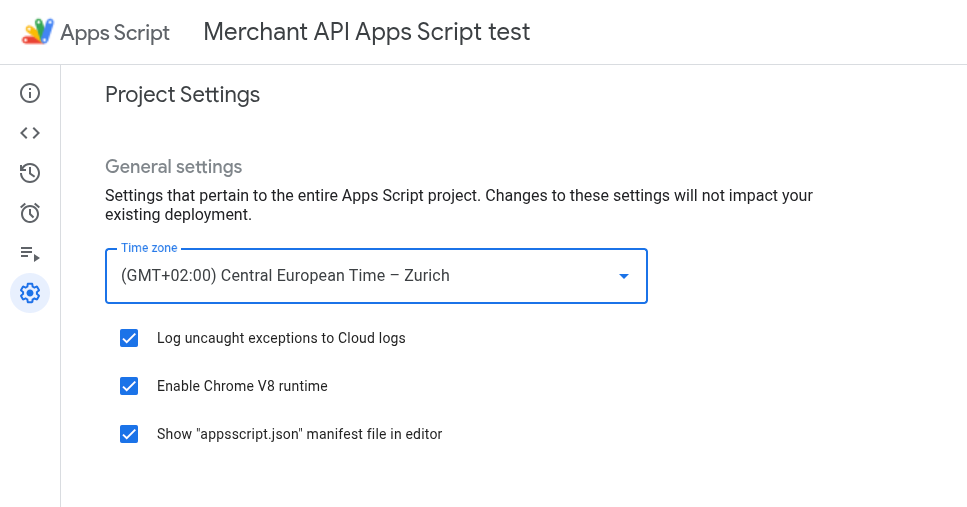
گزینه نمایش فایل مانیفست "appsscript.json" در ویرایشگر را فعال کنید.
در ویرایشگر، فایل
appsscript.jsonرا انتخاب کنید.محتویات فایل
appsscript.jsonخود را با موارد زیر جایگزین کنید:{ "dependencies": { "enabledAdvancedServices": [ { "userSymbol": "MerchantApiAccounts", "version": "accounts_v1", "serviceId": "merchantapi" }, { "userSymbol": "MerchantApiDataSources", "version": "datasources_v1", "serviceId": "merchantapi" }, { "userSymbol": "MerchantApiProducts", "version": "products_v1", "serviceId": "merchantapi" }, { "userSymbol": "MerchantApiReports", "version": "reports_v1", "serviceId": "merchantapi" } ] }, "exceptionLogging": "STACKDRIVER", "runtimeVersion": "V8" }روی ذخیره کلیک کنید.
اکنون میتوانید به زیر-API های زیر در کد خود به صورت زیر ارجاع دهید:
الف.
MerchantApiAccountsب.
MerchantApiDataSourcesج.
MerchantApiProductsد.
MerchantApiReports
فعال کردن اسکریپت برنامهها برای زیر-APIهای اضافی یا پروژههای موجود
برای فعال کردن sub-API ها در پروژههای موجود، مراحل زیر را انجام دهید:
پروژه Apps Script خود را باز کنید.
در سمت چپ، روی ویرایشگر < > کلیک کنید.
در سمت چپ، کنار سرویسها ، روی افزودن سرویس + کلیک کنید.
زیر-API مورد نظر برای فعال کردن را در انتخابگر نسخه انتخاب کنید.
شناسه را به نام زیر-API خود اضافه کنید. برای مثال، برای فعال کردن زیر-API موجودیها، نسخه
inventories_v1را انتخاب کنید و شناسه را بهMerchantApiInventoriesتغییر دهید.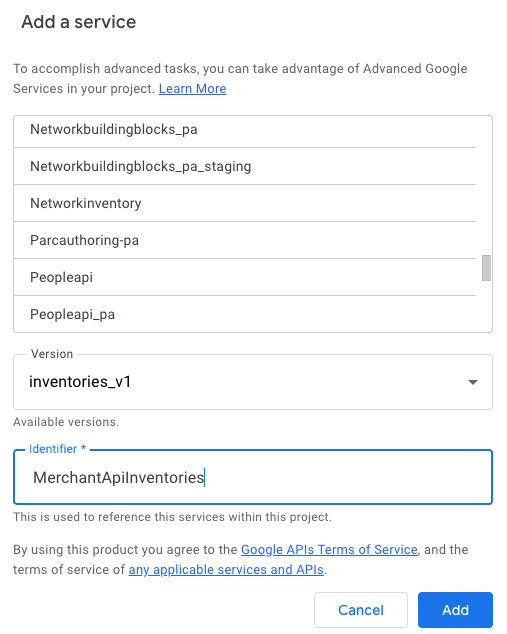
اکنون میتوانید در کد خود به زیر-API مربوط به موجودیها (Inventories) به عنوان
MerchantApiInventoriesاشاره کنید.
کد نمونه
این بخش نحوه استفاده از Merchant API برای ویژگیهای انتخاب شده را توضیح میدهد.
محصولات را فهرست کنید
این مثال نحوه فهرست کردن محصولات برای یک حساب مرکز فروش مشخص را نشان میدهد.
/**
* Lists all products for a given Merchant Center account.
*/
function productList() {
// IMPORTANT:
// Enable the Merchant API Products sub-API Advanced Service and call it
// "MerchantApiProducts"
// Replace this with your Merchant Center ID.
const accountId = '<MERCHANT_CENTER_ID>';
// Construct the parent name
const parent = 'accounts/' + accountId;
try {
console.log('Sending list Products request');
let pageToken;
// Set the page size to 1000. This is the maximum allowed page size.
let pageSize = 1000;
console.log('Retrieved products below:');
// Call the Products.list API method. Use the pageToken to iterate through
// all pages of results.
do {
response = MerchantApiProducts.Accounts.Products.list(parent, {pageToken, pageSize});
console.log(response);
pageToken = response.nextPageToken;
} while (pageToken); // Exits when there is no next page token.
} catch (e) {
console.log('ERROR!');
console.log(e);
}
}
فیلتر کردن محصولات تایید نشده
این مثال نحوه فیلتر کردن محصولات رد شده در حساب مرکز فروشندگان را نشان میدهد.
/**
* Demonstrates how to filter disapproved products using the Merchant API Reports service.
*/
function filterDisapprovedProducts() {
// IMPORTANT:
// Enable the Merchant API Reports sub-API Advanced Service and call it
// "MerchantApiReports"
// Enable the Merchant API Products sub-API Advanced Service and call it
// "MerchantApiProducts"
// Replace this with your Merchant Center ID.
const accountId = '<INSERT_MERCHANT_CENTER_ID>';
// Construct the parent name
const parent = 'accounts/' + accountId;
try {
console.log('Sending search Report request');
// Set pageSize to the maximum value (default: 1000)
let pageSize = 1000;
let pageToken;
// The query below is an example of a query for the productView that gets product informations
// for all disapproved products.
let query = 'SELECT offer_id,' +
'id,' +
'price,' +
'title' +
' FROM product_view' +
' WHERE aggregated_reporting_context_status = "NOT_ELIGIBLE_OR_DISAPPROVED"';
// Call the Reports.search API method. Use the pageToken to iterate through
// all pages of results.
do {
response =
MerchantApiReports.Accounts.Reports.search({query, pageSize, pageToken}, parent);
for (const reportRow of response.results) {
console.log("Printing data from Product View:");
console.log(reportRow);
// OPTIONALLY, you can get the full product details by calling the GetProduct method.
let productName = parent + "/products/" + reportRow.getProductView().getId();
product = MerchantApiProducts.Accounts.Products.get(productName);
console.log(product);
}
pageToken = response.nextPageToken;
} while (pageToken); // Exits when there is no next page token.
} catch (e) {
console.log('ERROR!');
console.log('Error message:' + e.message);
}
}
دریافت گزارش برای یک حساب کاربری مشخص
این مثال نحوه بازیابی گزارش برای یک حساب مرکز فروش مشخص را نشان میدهد.
/**
* Searches a report for a given Merchant Center account.
*/
function searchReport() {
// IMPORTANT:
// Enable the Merchant API Reports sub-API Advanced Service and call it
// "MerchantApiReports"
// Replace this with your Merchant Center ID.
const accountId = '<MERCHANT_CENTER_ID>';
// Construct the parent name
const parent = 'accounts/' + accountId;
try {
console.log('Sending search Report request');
// Set pageSize to the maximum value (default: 1000)
let pageSize = 1000;
let pageToken;
// Uncomment the desired query from below. Documentation can be found at
// https://developers.google.com/merchant/api/reference/rest/reports_v1beta/accounts.reports#ReportRow
// The query below is an example of a query for the product_view.
let query = 'SELECT offer_id,' +
'id,' +
'price,' +
'gtin,' +
'item_issues,' +
'channel,' +
'language_code,' +
'feed_label,' +
'title,' +
'brand,' +
'category_l1,' +
'product_type_l1,' +
'availability,' +
'shipping_label,' +
'thumbnail_link,' +
'click_potential' +
' FROM product_view';
/*
// The query below is an example of a query for the
price_competitiveness_product_view. let query = "SELECT offer_id,"
+ "id,"
+ "benchmark_price,"
+ "report_country_code,"
+ "price,"
+ "title,"
+ "brand,"
+ "category_l1,"
+ "product_type_l1"
+ " FROM price_competitiveness_product_view"
+ " WHERE date BETWEEN '2023-03-03' AND '2025-03-10'"; */
/*
// The query below is an example of a query for the
price_insights_product_view. let query = "SELECT offer_id,"
+ "id,"
+ "suggested_price,"
+ "price,"
+ "effectiveness,"
+ "title,"
+ "brand,"
+ "category_l1,"
+ "product_type_l1,"
+ "predicted_impressions_change_fraction,"
+ "predicted_clicks_change_fraction,"
+ "predicted_conversions_change_fraction"
+ " FROM price_insights_product_view"; */
/*
// The query below is an example of a query for the
product_performance_view. let query = "SELECT offer_id,"
+ "conversion_value,"
+ "marketing_method,"
+ "customer_country_code,"
+ "title,"
+ "brand,"
+ "category_l1,"
+ "product_type_l1,"
+ "custom_label0,"
+ "clicks,"
+ "impressions,"
+ "click_through_rate,"
+ "conversions,"
+ "conversion_rate"
+ " FROM product_performance_view"
+ " WHERE date BETWEEN '2023-03-03' AND '2025-03-10'"; */
// Call the Reports.search API method. Use the pageToken to iterate through
// all pages of results.
do {
response =
MerchantApiReports.Accounts.Reports.search({query, pageSize, pageToken}, parent);
for (const reportRow of response.results) {
console.log(reportRow);
}
pageToken = response.nextPageToken;
} while (pageToken); // Exits when there is no next page token.
} catch (e) {
console.log('ERROR!');
console.log(e);
console.log('Error message:' + e.message);
if (e.stack) {
console.log('Stack trace:' + e.stack);
}
}
}
فهرست کردن تمام منابع داده
این مثال نحوه فهرست کردن تمام منابع داده در یک حساب مرکز فروش مشخص را نشان میدهد.
/**
* Lists all data sources for a given Merchant Center account.
*/
function listDataSources() {
// IMPORTANT:
// Enable the Merchant API DataSources sub-API Advanced Service and call it
// "MerchantApiDataSources"
// Replace this with your Merchant Center ID.
const accountId = '<MERCHANT_CENTER_ID>';
// Construct the parent name
const parent = 'accounts/' + accountId;
let dataSources = [];
let primaryDataSources = [];
try {
console.log('Sending list DataSources request');
let pageToken;
let pageSize = 10;
// Call the DataSources.list API method. Use the pageToken to iterate through
// all pages of results.
do {
response =
MerchantApiDataSources.Accounts.DataSources.list(parent, {pageSize, pageToken});
for (const datasource of response.dataSources) {
dataSources.push(datasource);
if (datasource.primaryProductDataSource) {
primaryDataSources.push(datasource);
}
}
pageToken = response.nextPageToken;
} while (pageToken); // Exits when there is no next page token.
console.log('Retrieved ' + dataSources.length + ' data sources.');
console.log(
'There were ' + primaryDataSources.length +
' primary product data sources.');
} catch (e) {
console.log('ERROR!');
console.log(e);
}
}